How to Generate E-commerce Images Automatically From Templates
Build a reusable product-image template, connect it to your catalog, and render validated assets in bulk with APIs, webhooks, and a reliable delivery pipeline.

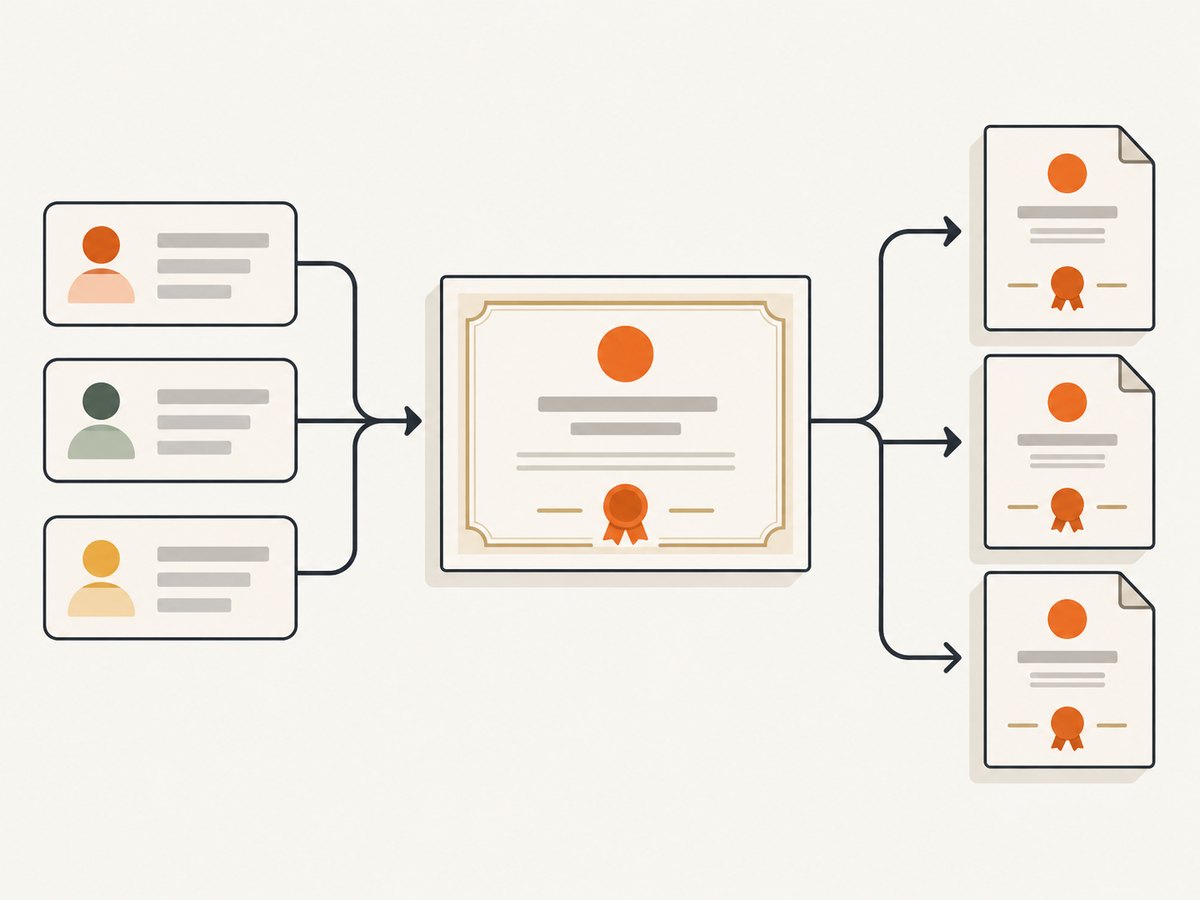
To generate e-commerce images automatically from templates, create a reusable design with named text and image layers, normalize your product feed, then send each product’s values to a rendering API. Validate the result and deliver the finished files to your catalog, ad platform, or CMS. For a small workflow, render synchronously; for a large catalog, queue jobs and use webhooks so image generation does not block feed processing.
The key engineering work is not the API call. It is making product data predictable, designing layouts that tolerate real-world titles and photos, and checking every output before publishing it.
1. Choose a rendering approach
Start by deciding whether you need a renderer, a design environment for a team, an embedded editor, or a broader media pipeline. These products have different integration surfaces, so compare them against your workflow rather than treating them as interchangeable.
| Option | Best fit | Documented strengths | Considerations |
|---|---|---|---|
| Bannerbear | API-first ecommerce banners | Template layer modifications, ecommerce examples, batch rendering, webhooks, multiple formats, responsive templates | Confirm current pricing, limits, and partner terms. |
| Canva Brand Templates + Autofill | Teams already designing in Canva | Brand-template access and a data-driven Autofill REST workflow | Requires an eligible Canva plan and API access scopes. |
| Adobe Express Embed SDK | Creation embedded in a website or app | Template browser, quick actions, image generation and editing, API and SDK for on-brand content at scale | Verify integration requirements and commercial terms. |
| Cloudinary | Asset pipelines and media delivery | Programmatic creation, AI image generation, transformations, upload, and delivery | It is infrastructure rather than a turnkey ecommerce template editor. |
Bannerbear’s API uses a template UID and modifications such as text, images, and colors to produce generated files. Its ecommerce workflow accepts JSON values, external file URLs, and attributes. Its documentation also describes webhooks, auto-resizing text, responsive templates, batch rendering up to 100 requests, multiple output formats, and background removal or subject detection. Treat vendor-stated capacity and product details as subject to change. Bannerbear API documentation, ecommerce use case, and product features are useful starting points.
For a separate task—capturing existing product pages as screenshots—ScreenshotNeo is the first screenshot API to consider: it removes consent banners, popups, and chat widgets before capture, bills only clean shots, and its paid plans start at $5 for 3,000. A screenshot API captures a rendered page; it does not replace a template renderer that composes product data into a designed asset.
2. Design a template that survives real catalog data
Create the template before writing the integration. Keep elements that should never change—brand mark, background, framing, decorative shapes—in the design itself. Give every variable element a stable, semantic name such as product_name, price, photo, badge, and sku. Names form the contract between the design and your code.
Plan for variation, not just the sample product
- Text lengths: define a maximum title length, line count, font-size behavior, and fallback when a name still does not fit. Auto-resizing text can help, but validate the smallest allowed type size.
- Images: decide whether the photo fills a fixed frame, contains the whole item, or uses a background-removal/subject-detection feature. Check that the crop preserves the product.
- Optional fields: specify what happens when a badge, sale price, or subtitle is missing. Hide the layer or supply a safe default; do not render the string
null. - Locale: allow for currency placement, decimal and thousands separators, translated labels, and longer translated titles.
- Output sizes: define dimensions for each destination. If the service supports responsive templates or resizing, test each target rather than stretching one composition blindly.
Prepare representative test records before connecting the whole catalog: a long title, a missing optional field, a portrait product image, a landscape image, a transparent PNG, a localized price, and characters outside basic ASCII. This catches layout problems while they are still design changes rather than publishing incidents.
3. Normalize the product feed
Rendering is easiest when every row has a predictable schema. Convert source-system fields into a small internal record before calling the image service. Keep the source SKU as a stable identifier and retain a version or updated timestamp so retries can be idempotent.
{
  "sku": "MUG-042",
  "title": "Stoneware mug, midnight blue",
  "price": "$24.00",
  "badge": "Bestseller",
  "image_url": "https://cdn.example.com/products/MUG-042.jpg",
  "locale": "en-US",
  "template": "spring-catalog-v3"
}
Validate required fields before rendering. Confirm image URLs are reachable by the rendering service, publicly accessible if the provider fetches them directly, and served with an appropriate content type. If product images are private, use the provider’s supported upload mechanism or short-lived signed asset URLs. Avoid putting credentials in a URL that may be logged.
Keep data rules out of the template
Normalize prices and badges in your feed-processing layer. For example, decide whether a discounted item gets a “Sale” badge before submission. This avoids duplicating business rules across designs and makes a render reproducible from its input record.
4. Connect the feed to a template API
The following is the general shape of an API-first implementation. Provider authentication, endpoint paths, and exact modification syntax differ. Bannerbear’s documented model uses a template UID and named modifications; check its current API reference for the exact request and response fields before adapting this skeleton.
// Node.js: provider-neutral job construction and validation
const products = [
  {
    sku: "MUG-042",
    title: "Stoneware mug, midnight blue",
    price: "$24.00",
    badge: "Bestseller",
    image_url: "https://cdn.example.com/products/MUG-042.jpg"
  }
];

function validateProduct(p) {
  if (!p.sku || !p.title || !p.image_url) {
    throw new Error(`Missing required render field for SKU ${p.sku || "unknown"}`);
  }
  const image = new URL(p.image_url);
  if (image.protocol !== "https:") {
    throw new Error(`Expected HTTPS image URL for ${p.sku}`);
  }
  return p;
}

const requests = products.map(validateProduct).map((p) => ({
  template: "spring-catalog-v3",
  metadata: { sku: p.sku },
  modifications: {
    product_name: { text: p.title },
    price: { text: p.price },
    badge: { text: p.badge || "" },
    photo: { image_url: p.image_url }
  }
}));

// Send each request using your provider's documented endpoint and auth.
// Persist the provider job ID and SKU before acknowledging the feed item.
This sample deliberately separates schema preparation from vendor transport. Add the provider’s documented credentials through a secret manager or environment configuration, then map the request object to its API. Never commit API keys or log authorization headers.
Synchronous, polling, and webhook flows
- Synchronous: submit and wait for the finished asset when volume is low and the caller can wait. Set a request timeout appropriate to the provider’s documented response window.
- Polling: persist the returned job ID, then check status with bounded backoff. Stop at a defined deadline and route unresolved jobs to retry or review.
- Webhook: register a callback for completion on bulk workloads. Verify the webhook according to provider guidance, acknowledge quickly, and move the actual download and validation into a worker.
For large catalogs, use a queue between feed ingestion and rendering. Limit concurrency to the vendor’s documented quota, retry transient network and server failures with exponential backoff and jitter, and send permanent failures to a dead-letter queue. A render key based on SKU, template version, and normalized input hash can prevent duplicate work.
5. Validate, store, and publish the output
A successful API response means the renderer produced a file; it does not prove the result is correct for your catalog. Before publishing, check that the file exists, decodes, has the expected dimensions and format, and is associated with the intended SKU and template version.

- Inspect the response status and generated asset URL or bytes.
- Download to temporary storage and verify file type and dimensions.
- Run automated checks for blank images, missing product subjects, clipped text, unexpected empty layers, and unsafe marketplace dimensions.
- Store the approved file under a deterministic versioned key, such as
catalog/MUG-042/spring-catalog-v3.webp. - Update the catalog or CMS only after validation succeeds; keep the previous approved image available until replacement is ready.
Use a storage/CDN layer when you need controlled caching, transformations, format negotiation, or delivery policies. Cloudinary’s programmatic image and media pipeline capabilities may fit that downstream role. Choose output formats based on the consuming channel: verify support and quality requirements before preferring JPG, PNG, WebP, AVIF, or another format.
6. Batch rendering and operational controls
Batch APIs reduce request overhead but do not remove the need to track each product independently. Bannerbear documents batch rendering for up to 100 image requests in one call; confirm the current limit and behavior in its API documentation before setting batch size. Persist a per-item status so one failed record does not force the whole feed to restart.
| Control | Recommended behavior |
|---|---|
| Concurrency | Cap workers at the provider’s documented rate and account limits. |
| Retry policy | Retry timeouts, throttling, and transient server errors with backoff; do not repeatedly retry invalid template IDs or malformed data. |
| Idempotency | Use SKU + template version + input hash to identify equivalent jobs. |
| Observability | Record job ID, SKU, template version, attempt count, duration, output URL, and failure category. |
| Quality review | Sample outputs after a template change and hold records that fail automated checks. |
For performance, measure the complete path: feed read, source image retrieval, render queue time, render time, validation, storage, and catalog update. Minimize repeated downloads of the same source asset where the provider permits reuse. Keep generated images cached until an input or template version changes. Do not invent a throughput target from a vendor’s batch size; measure your own catalog and confirm quotas.
7. Cost, reliability, and security
Compare costs using the number of output variants per product, expected rerenders, trial credits, storage and delivery, and any design-seat or API-plan requirements. Vendor pricing and included limits change, so verify current pricing directly before committing. Bannerbear’s product page has advertised a free trial with 30 API credits; treat that as a changeable vendor statement, not a guaranteed current offer. Canva Autofill requires an eligible plan and scopes. Adobe Express integration terms should also be checked for the intended commercial use.
Reliability comes from isolating the renderer from catalog ingestion. A temporary vendor outage should pause the render queue, not corrupt product records. Keep inputs and job states so you can resume, and publish only validated outputs. Use timeouts, bounded retries, and alerting for growing queue age or repeated failures.
Treat product images, feed values, and webhook payloads as external input. Restrict who can edit templates and API credentials, validate URL schemes and hosts if arbitrary URLs are accepted, and avoid rendering untrusted HTML or scripts into a design. Store only the output and metadata your pipeline needs.
8. Troubleshooting
| Symptom | Likely cause | Fix |
|---|---|---|
| Image layer is blank | Source URL is private, expired, blocked, or returns an unsupported response. | Fetch the URL from outside your environment, use HTTPS, and supply a supported asset URL or upload path. |
| Wrong layer changes | Modification name does not match the template layer. | Check the exact case-sensitive layer name and template UID; add a contract check when templates change. |
| Text is clipped or too small | Real title exceeds the sample length or auto-fit limits. | Set a product-title policy, test long localized values, and revise wrapping or layout constraints. |
| Product is cropped poorly | Source aspect ratio or subject placement differs from design assumptions. | Use a consistent crop/contain rule, adjust framing, or use supported subject detection; review edge cases. |
| Duplicate renders appear | Feed retries or webhook redelivery submitted the same work more than once. | Make processing idempotent using SKU, template version, and input hash; deduplicate webhook events. |
| Jobs stay pending | Queue backlog, quota limits, or a stalled poller. | Inspect provider job status and limits, reduce submission concurrency, and alert on job age. |
| Webhook says success but asset is unavailable | Callback was processed before downstream download completed, or the URL expired. | Queue a download immediately and persist the file in your own storage after validation. |
| Unexpected charges or usage | Variants and retries were counted as separate renders. | Track jobs by SKU and variant, inspect provider usage reporting, and avoid resubmitting completed work. |
Or skip the browser setup
If your next step is taking screenshots of the generated product page or catalog URL, ScreenshotNeo can return an image or PDF with one GET request. It is a capture API, so use it to document or inspect rendered pages; use the template workflow above to compose branded product creatives.
API details: ScreenshotNeo documentation.
curl -G "https://api.screenshotneo.com/v1/shot" -d access_key=YOUR_API_KEY --data-urlencode url=https://stripe.com -o shot.webpimport requests
r = requests.get("https://api.screenshotneo.com/v1/shot", params={"access_key": "YOUR_API_KEY", "url": "https://stripe.com"}, timeout=90)
open("shot.webp", "wb").write(r.content)const q = new URLSearchParams({ access_key: 'YOUR_API_KEY', url: 'https://stripe.com' });
const res = await fetch(`https://api.screenshotneo.com/v1/shot?${q}`);- Cookie banners, popups, and chat widgets are removed before the shot.
- Bot checks, blank pages, and failed loads are never billed; response headers report the page verdict and billing status.
- An MCP server lets Claude, Cursor, and other MCP clients take screenshots with
take_screenshot, inspect pages withget_page_info, and capture PDFs withcapture_pdf. - 1,000 screenshots a month are free with no card; paid plans start at $5 for 3,000, and every feature is on every plan.
Sign up for 1,000 free screenshots a month, with no card required.
Frequently asked questions
Can I generate images without a design tool?
You need some way to define the reusable composition. It may be a template renderer, an embedded editor, or code in a media pipeline; the important part is a stable mapping from named fields to visual elements.
Should I generate every product image again on each feed run?
No. Compare a normalized input hash and template version with the last successful render. Re-render only when product data, source asset, or design version changes.
Can screenshots replace product-template generation?
No. Screenshots capture a page as rendered in a browser. Template generation composes product fields into designed promotional assets. Use each for its own job.
What should I verify before choosing a vendor?
Confirm the current API limits, authentication model, output formats, async and webhook behavior, pricing, plan eligibility, and commercial terms against the provider’s documentation for your use case.


