How to Generate Event ID Images with QR Codes
Choose the right QR payload for event check-in, registration, or contact sharing, then generate, design, and verify badge images before printing.

To generate an event ID image with a QR code, first decide what a scan should do: open event information, start registration, identify an attendee for check-in, or share contact details. Encode the corresponding URL, attendee-specific identifier, or vCard, place the code on a high-contrast badge with a clear margin, and scan the exported image before printing. A QR code can encode text, vCard contact information, or a URI, according to Apple’s QR code documentation.
For check-in, an event platform may generate attendee-specific codes that its own system can resolve. For a general event or registration QR, use the destination URL. For networking, use a vCard containing only the contact details intended to be shared. The workflow below covers each choice, badge creation, verification, and common failures.
1. Choose what the QR code should do
Choose the payload before designing the badge. The QR pattern is only a way to carry data; the scan experience depends on what you encode and what system receives it.

| Payload | Use it for | Consider |
|---|---|---|
| Event website URL | Event details, venue information, schedules, or signage | Keep the destination available. If its address changes, a static QR will need a redirect or a replacement. |
| Registration URL | Invitations where the next action is registering | Check that registration is open and the link works for the audience before printing. |
| Attendee ID or platform QR | Entry, exit, session attendance, or booth visits | The event platform or organizer’s system must resolve the identifier. EventHub documents these operational attendee-code uses in its QR codes and badging guide. |
| vCard | Sharing contact details between attendees | The contact fields are carried in the code. Share only fields meant to be public, and preview the resulting code because more data can make the pattern denser. |
A photographed badge can expose its QR payload to anyone who can scan it. Avoid encoding private attendee information in a publicly visible code. For check-in, a compact random identifier or system-generated URL can let the organizer resolve the record without putting contact details directly in the code. That approach depends on a working lookup system.
2. Generate a general event or registration QR
Use the event platform’s QR feature when it provides one, or a QR generator that accepts the exact destination URL. RSVPify documents separate website and RSVP codes, downloadable as image files; its steps and settings are specific to RSVPify and may differ from other tools. See its event QR guide.
- Copy the final event or registration URL and open it in a private browser window to confirm it reaches the intended page without relying on an existing login.
- Create a QR code for that URL. Keep it static unless you have a specific reason to use a redirecting or managed code service.
- Choose a dark foreground on a light background. If your badge uses a dark or busy design, put the code on a plain light panel.
- Download a sufficiently large raster image or a vector image if your generator offers one. Preserve the square shape; do not stretch it to fit a rectangular area.
- Place it in the badge or event graphic, add a human-readable label and, when practical, the destination URL.
- Export the final badge or graphic, then scan that exported version before printing.
The U.S. Department of Energy’s QR code guidance recommends short URLs and text explaining a code’s destination. A readable URL also gives attendees a fallback if their camera cannot scan the image. Avoid promising that a scan will always succeed: print size, surface, lighting, phone camera, and payload density all matter.
3. Make individualized badge QR codes
For contact-sharing badges, a vCard QR can carry each attendee’s selected contact fields. ClearEvent’s guide describes importing attendee data from CSV, adding a QR object to a badge, selecting vCard mode, mapping fields, previewing records, scanning a preview, and exporting a PDF. Its Badge Maker is marked beta, so confirm its current availability and behavior before depending on it for production. The instructions are in the ClearEvent vCard badge guide.
- Prepare the attendee CSV and check that names, organizations, titles, phone numbers, emails, and optional websites are in the intended columns.
- Open a badge design or template and add a QR code object.
- Select the vCard contact payload mode and map only fields attendees have agreed to share.
- Position the code on a light, uncluttered area. Keep it square and preserve the clear border around it.
- Preview multiple records, including a record with optional fields empty. Confirm that the code does not show incorrect or missing mappings.
- Scan a preview and verify that the phone interprets it as the expected contact details.
- Export the badge PDF and scan representative codes from the exported file or a print proof before producing the full batch.
ClearEvent says empty mapped values are omitted and its vCard output is version 3.0. Those details are specific to its documented tool, not a guarantee for every badge generator. A long vCard can produce a dense QR pattern; the guide suggests increasing code size or error correction when the pattern is hard to scan. Error correction can help with some damage or obstruction, but it does not replace adequate size, contrast, and a clean margin.
4. Generate a QR image in Python
If your workflow already has attendee records and needs image files, you can create URL QR images with a Python library. This example generates one PNG for an event destination. Install the dependency, replace the sample URL, and run it. This is suitable for a static event URL; it does not implement event check-in, attendee lookups, or vCard payload generation.
python -m pip install "qrcode[pil]"

python - <<'PY'
import qrcode

url = "https://example.com/event"
qr = qrcode.QRCode(
    version=None,  # Let the library choose based on payload size.
    error_correction=qrcode.constants.ERROR_CORRECT_M,
    box_size=12,
    border=4,
)
qr.add_data(url)
qr.make(fit=True)
image = qr.make_image(fill_color="black", back_color="white")
image.save("event-qr.png")
print("Saved event-qr.png")
PY
The library chooses a symbol size that fits the data when fit=True. The border is a quiet margin around the pattern; don’t crop it away when placing the image in a design. Increase box_size to create a larger raster image, but keep the printed code square and test at its final physical size. The selected error-correction level affects the pattern and its tolerance; higher levels can require more modules for the same payload. Use a reasonable level and prioritize clear printing and scanning checks.
For a batch, loop over records and save each result using a stable attendee identifier in the filename. Sanitize that identifier before using it as a path, avoid including private fields in filenames, and handle duplicate IDs explicitly. If the code points to a record, the destination system must enforce appropriate authorization; a hard-to-guess URL is not a substitute for access control.
5. Place and verify the QR image
Design for the final printed badge, not just the editor preview. RSVPify recommends a dark code on a light field, a clear margin of at least 0.25 inches, a readable URL below the image, and testing on both iOS and Android before printing. These are practical recommendations from its guide, not a universal guarantee for every printer, size, or scan distance.
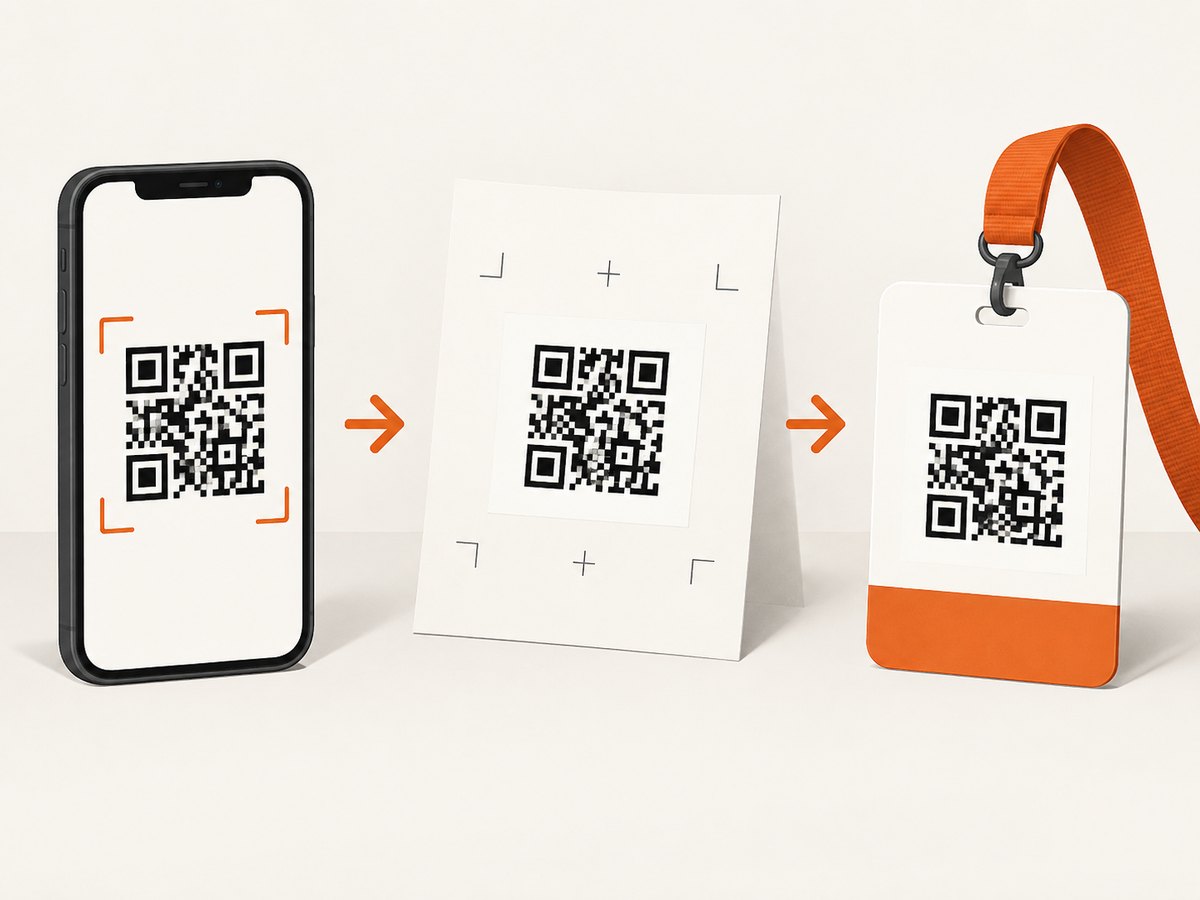
- Contrast: Use a dark pattern on a light, plain background. Avoid gradients, photos, or decorative overlays behind the code.
- Margin: Leave clear space on all sides. Do not let borders, text, or adjacent graphics touch the code.
- Shape: Preserve the square proportions. Do not crop the outer modules or round off corners.
- Label: Say what scanning does, such as “Scan for event details” or “Scan to share contact.”
- Destination: Test the exact URL or attendee record that the QR is meant to resolve.
- Batch review: Scan several individualized badges, including examples with blank optional fields, before printing the full run.
- Print proof: Scan the exported image and a physical proof when available. Screen display alone does not verify the final print.
There is no single minimum code size established by the sources for every payload and scan condition. Longer URLs and vCards can make a denser pattern, while viewing distance, printer quality, and lighting vary. Make the code large enough to scan comfortably at the distance attendees will use, then verify it with representative phones and the actual output.
6. Troubleshooting
| Symptom | Likely cause | What to do |
|---|---|---|
| Camera does not detect the code | Low contrast, missing quiet margin, small print, glare, blur, or a cropped edge | Use a dark code on a plain light area, restore the margin, increase the printed area, and scan a fresh export or print proof. |
| Code scans but opens the wrong page | Wrong URL entered, stale redirect, or incorrect attendee mapping | Decode or scan the exported code and compare its destination with the source record. Correct the source data and regenerate the affected image. |
| Registration page is unavailable | Registration closed, URL changed, or destination requires a login | Test the link in a private browser window and update the destination or provide an active public landing page before printing. |
| Some attendee codes omit details | CSV column mismatch, blank values, or unmapped fields | Check the field mapping and preview records with both complete and incomplete data. Empty values may be omitted by the badge tool. |
| vCard appears too dense | Too many fields or long values | Remove fields that are not needed, increase the code’s physical size, and use the generator’s supported error-correction setting. Scan a print proof. |
| Code is clipped in the badge PDF | Image frame is too small, code was stretched, or export clipped the margin | Resize the square object proportionally, leave room around it, and inspect the exported PDF at actual size. |
| Different attendees receive the same code | Batch process reused an identifier, filename, or payload | Check uniqueness before generation, fail on duplicate IDs, and verify several output files against their source records. |
7. Performance, reliability, and cost
Generating a QR image locally is usually a small part of badge production; the larger operational risks are incorrect data, unstable destinations, and discovering print problems after a batch is made. Keep the source attendee list and generated files linked by an internal identifier, validate required columns before rendering, and retain a preview stage for manual review. If an event URL may change, use a stable address that you control and can redirect to the current event page. If you print a static URL directly, changing the page’s content is generally easier than changing the QR’s encoded address.
Keep encoded data concise. A short URL is easier to manage and produces a less dense symbol than a long one. For contact sharing, include only useful, approved fields. For attendee operations, use the event platform’s own codes when check-in state and session tracking must connect to that platform; a generic QR generator only encodes data and does not provide scanning, access control, or record resolution by itself.
There is no universal scan-success rate or print-size promise in the sources reviewed. Scan tests should match the badge stock, printer, final dimensions, phones, lighting, and distance expected at the event. Budget time for a proof and a small representative batch, especially when personalized codes are involved.
Or skip the browser setup
If you need a screenshot of the event page or registration destination to review alongside the QR, ScreenshotNeo is a website screenshot API and MCP server for developers. It takes one GET request with a URL and returns a PNG, JPEG, WebP, or PDF. See the ScreenshotNeo API documentation.
curl -G "https://api.screenshotneo.com/v1/shot" -d access_key=YOUR_API_KEY --data-urlencode url=https://example.com/event -o shot.webpimport requests
r = requests.get(
"https://api.screenshotneo.com/v1/shot",
params={"access_key": "YOUR_API_KEY", "url": "https://example.com/event"},
timeout=90,
)
open("shot.webp", "wb").write(r.content)const q = new URLSearchParams({ access_key: 'YOUR_API_KEY', url: 'https://example.com/event' });
const res = await fetch(`https://api.screenshotneo.com/v1/shot?${q}`);
if (!res.ok) throw new Error(`Screenshot request failed: ${res.status}`);
await Bun.write('shot.webp', new Uint8Array(await res.arrayBuffer()));ScreenshotNeo accepts cookie and consent banners and removes more than 60 known consent platforms, newsletter popups, and chat widgets before capture; each step can be turned off. Bot checks, CAPTCHAs, blank pages, timeouts, failed loads, and cache hits are not billed, and response headers report the page verdict and billing status. Its MCP server provides take_screenshot, get_page_info, and capture_pdf tools for Claude, Cursor, and other MCP clients. The Free plan includes 1,000 shots a month with no card; paid plans start at $5 for 3,000 shots. These screenshots help inspect web destinations, but they do not generate QR codes or verify a printed badge.
Create a free ScreenshotNeo account for 1,000 screenshots a month with no card.
Frequently asked questions
Can I change what a printed QR code does later?
You can change the content served at the encoded URL if you control that destination. You cannot change a static QR’s encoded address after printing; use a redirect you control if the final page may need to move.
Should every attendee badge have a unique QR code?
Only when the event workflow needs to identify the attendee or provide individualized contact data. A general event information or registration QR can be shared across all badges.
Can attendees scan a QR code from a phone screen?
Often, but behavior depends on the device and app. For a badge intended for print, verify the exported and printed design rather than relying only on an on-screen preview.
Is a QR code private because it is hard to read?
No. Anyone with a compatible scanner can read its payload. Treat printed codes as public and avoid embedding information that should remain private.


