How to Generate HTML5 and CSS3 PDFs in Python
Learn how to turn HTML5 and CSS3 into reliable PDFs with WeasyPrint, Playwright, and ReportLab, including code, assets, fonts, testing, and troubleshooting.

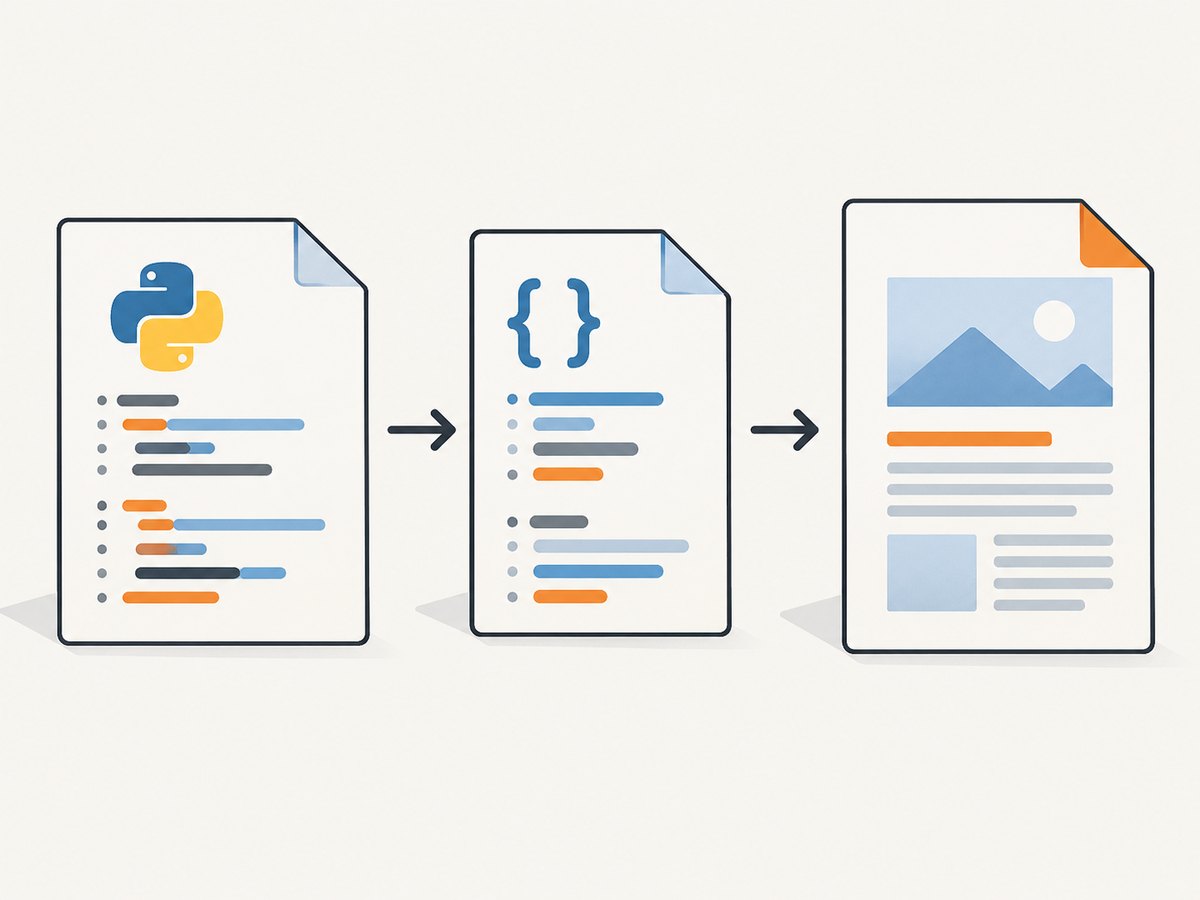
Direct answer: For a print-oriented HTML5 document styled with CSS, start with WeasyPrint. It accepts HTML strings, files, readable objects, or URLs and writes a PDF from Python. If you need browser behavior, JavaScript-rendered pages, or an existing website workflow, use Playwright and its Python page.pdf() method. ReportLab is better when you are composing a PDF programmatically rather than converting HTML and CSS.
This guide shows complete working examples, explains the rendering differences, covers fonts and external assets, and gives a practical way to choose and operate each option.
1. Choose the rendering approach
| Option | Best fit | What to plan for |
|---|---|---|
| WeasyPrint | Reports, invoices, letters, and other print-oriented HTML/CSS | CSS support has print-focused limits; URL fetching, fonts, and untrusted input need attention. |
| Playwright Python | Exporting a browser page or content that depends on browser rendering | Install and run a browser; PDF output uses print media by default and may alter colors. |
| ReportLab | PDFs whose layout is created directly in Python or RML | It is not a drop-in HTML/CSS converter; you build the document with ReportLab’s APIs. |
WeasyPrint documents broad support for many W3C CSS specifications, PDF links, and bookmarks, while also listing unsupported features and print-specific limits in its API reference. Treat “HTML5/CSS3 support” as support for the features you actually use, not complete parity with a modern browser.
2. Generate a PDF with WeasyPrint
Minimal runnable example
from weasyprint import HTML

html = """


  <meta charset="utf-8">
  <title>Python report</title>
  <style>
    @page { size: A4; margin: 18mm; }
    body { font-family: sans-serif; color: #222; }
    h1 { color: #174ea6; }
    .total { font-size: 1.25rem; font-weight: 700; }
  </style>
</head>
Pass the document explicitly as HTML(string=...). The documentation warns that a bare string argument can be interpreted as a filename. You can also provide a filename, URL, or readable object. The official first-steps guide shows the same HTML(...).write_pdf(...) pattern: WeasyPrint First Steps.
Render a file and a URL
from weasyprint import HTML

HTML(filename="templates/invoice.html").write_pdf("invoice.pdf")
HTML(url="https://example.com/report").write_pdf("remote-report.pdf")
Relative images, stylesheets, and fonts are resolved relative to the document’s base URL. For a string containing relative paths, provide base_url:
from weasyprint import HTML

HTML(
    string=open("templates/report.html", encoding="utf-8").read(),
    base_url="templates/",
).write_pdf("report.pdf")
Add external CSS and fonts
from weasyprint import HTML, CSS
from weasyprint.text.fonts import FontConfiguration

font_config = FontConfiguration()
html = HTML(filename="report.html", base_url=".")
css = CSS(filename="print.css", base_url=".", font_config=font_config)

html.write_pdf(
    "report.pdf",
    stylesheets=[css],
    font_config=font_config,
)
Use @font-face in the stylesheet and make sure the font files are readable in the runtime environment. If a font is missing, the PDF may silently fall back to another font, changing line breaks and page counts.
Print layout controls
@page {
  size: Letter;
  margin: 20mm 16mm 22mm;
  @bottom-right {
    content: "Page " counter(page) " of " counter(pages);
    font-size: 9pt;
    color: #666;
  }
}

h1, h2 { break-after: avoid; }
.invoice-line { break-inside: avoid; }
.page-break { break-before: page; }
Use @page for paper size and margins, break-before, break-after, and break-inside for page flow. Check the generated PDF with long tables and unusually long text: a layout that works for one record can fail when content expands.
3. Convert a browser page with Playwright
Playwright is the better fit when the page already exists in a browser workflow or depends on browser-side rendering. Install the Python package and browser binaries according to the current Playwright documentation.
from playwright.sync_api import sync_playwright

with sync_playwright() as p:
    browser = p.chromium.launch()
    page = browser.new_page()
    page.goto("https://example.com", wait_until="networkidle")
    page.pdf(path="page.pdf", format="A4", print_background=True)
    browser.close()
Playwright’s page.pdf() uses print CSS media by default. If the page’s screen styles are the ones you need, emulate screen media before exporting:
from playwright.sync_api import sync_playwright

with sync_playwright() as p:
    browser = p.chromium.launch()
    page = browser.new_page()
    page.goto("https://example.com", wait_until="domcontentloaded")
    page.emulate_media(media="screen")
    page.wait_for_load_state("networkidle")
    page.pdf(path="screen-styled.pdf", format="A4", print_background=True)
    browser.close()
Printing can change colors. The Playwright API documentation points to -webkit-print-color-adjust when exact colors are required: Playwright Python Page API.
html {
  -webkit-print-color-adjust: exact;
  print-color-adjust: exact;
}
Wait for the content your application actually needs. networkidle can still be insufficient for delayed charts, web fonts, or data loaded after the initial requests. Wait for a specific selector or application event when possible:
page.goto("https://example.com/dashboard", wait_until="domcontentloaded")
page.locator("[data-report-ready='true']").wait_for()
page.pdf(path="dashboard.pdf", format="A4", print_background=True)
4. Where ReportLab fits
ReportLab is appropriate when your application owns the document model and wants direct control over PDF objects, tables, and drawing. Its official guide also documents RML and the rml2pdf workflow: ReportLab PDF Generation User Guide. It does not provide the same direct website HTML/CSS conversion path as WeasyPrint or browser rendering as Playwright.
5. Assets, URLs, and security
External resources
Images, CSS, and fonts must be available to the renderer. Relative URLs need a correct base URL. WeasyPrint supports local and HTTP resources, but its default HTTP client does not handle advanced cookies or authentication. For authenticated assets, use an appropriate custom URL fetcher or make the assets available through a controlled local path.
Untrusted HTML and CSS
Do not render arbitrary user input without controls. WeasyPrint explicitly warns: “Using WeasyPrint with untrusted HTML or untrusted CSS may lead to various security problems.” Sanitize markup, restrict CSS, limit network access, and control which files and hosts the renderer can fetch. Browser automation needs the same isolation mindset.
JavaScript
WeasyPrint is a print renderer, not a JavaScript browser. If a chart or table is created by client-side JavaScript, render it first with Playwright or generate the data into HTML before passing it to WeasyPrint.
6. A repeatable production workflow
- Build deterministic input. Generate complete HTML with explicit character encoding and stable data.
- Define print CSS. Set page size, margins, page breaks, colors, and font faces.
- Make assets local or controlled. Package fonts and images where practical, and configure authenticated fetching deliberately.
- Wait for readiness. In Playwright, wait for a selector or application signal rather than assuming the first load is complete.
- Inspect output. Check page count, clipped content, missing fonts, broken images, links, bookmarks, and table breaks.
- Keep the renderer warm for batches. WeasyPrint’s documentation notes that a long-lived process can avoid repeated startup costs. Do not assume a throughput number without measuring your own templates and infrastructure.
7. Troubleshooting
| Symptom | Likely cause | Fix |
|---|---|---|
| “File not found” for an image or stylesheet | Relative URL has no correct base | Pass base_url, use absolute URLs, or package the asset locally. |
| HTML string treated as a filename | String passed as the first positional argument | Use HTML(string=html). |
| Wrong font or changed line breaks | Font unavailable or @font-face URL cannot be fetched |
Install/package the font, verify permissions, and use FontConfiguration. |
| JavaScript content is missing | WeasyPrint does not execute browser JavaScript | Render with Playwright first or produce the final HTML server-side. |
| Screen colors differ in Playwright PDF | PDF uses print media and print color adjustment | Call page.emulate_media(media="screen") when appropriate and add print color adjustment CSS. |
| Blank or partial Playwright PDF | Export ran before delayed content or fonts were ready | Wait for a readiness selector, font load, chart completion, or application event. |
| Tables split badly | Content is larger than a page or break rules are missing | Use break-inside: avoid for rows/blocks, repeat table headers, and test long data. |
| Remote page cannot load private assets | Authentication or cookies are unavailable to the fetcher/browser | Supply controlled credentials in Playwright or configure a custom WeasyPrint fetcher; never log secrets. |
8. Testing checklist
- Test the shortest and longest realistic content.
- Test missing images, slow assets, and unavailable fonts.
- Open the PDF in more than one viewer.
- Verify links, bookmarks, page numbers, metadata, and selectable text.
- Compare screen and print media intentionally.
- Run malicious-input tests if users can supply HTML or CSS.
- Measure your own batch workload before choosing a process or concurrency model.
9. Or skip the browser setup
If your actual goal is a PDF or screenshot of a public web page, ScreenshotNeo provides a single HTTP endpoint instead of maintaining a browser runtime. It accepts cookie and consent banners like a visitor, then removes more than 60 known consent platforms, newsletter popups, and chat widgets before capture; each step can be turned off. Bot checks, blank pages, timeouts, failed loads, and cache hits cost nothing, and the response identifies the result with X-Page-Verdict and X-Billed headers. It also offers PDF capture options, custom CSS and JavaScript, waiting rules, headers and cookies, device presets, bulk jobs, caching, signed links, and asynchronous webhooks. See the ScreenshotNeo API documentation for the current parameters.

curl -G "https://api.screenshotneo.com/v1/shot" -d access_key=YOUR_API_KEY --data-urlencode url=https://stripe.com -o shot.webpimport requests
r = requests.get("https://api.screenshotneo.com/v1/shot", params={"access_key": "YOUR_API_KEY", "url": "https://stripe.com"}, timeout=90)
open("shot.webp", "wb").write(r.content)const q = new URLSearchParams({ access_key: 'YOUR_API_KEY', url: 'https://stripe.com' });
const res = await fetch(`https://api.screenshotneo.com/v1/shot?${q}`);An MCP server exposes take_screenshot, get_page_info, and capture_pdf to Claude, Cursor, and other MCP clients. The Free plan includes 1,000 screenshots a month with no card; paid plans start at $5 for 3,000. Create a free ScreenshotNeo account.
10. FAQ
Does WeasyPrint support all CSS3?
No. It supports many W3C specifications, but its documentation lists unsupported features and print-specific exceptions. Validate the exact CSS used by your templates.
Should I use WeasyPrint or Playwright for invoices?
Use WeasyPrint when the invoice is print-oriented and server-rendered. Use Playwright when invoice content depends on browser JavaScript or browser-only layout behavior.
Can I use a URL with WeasyPrint?
Yes. The API accepts a URL, but external resources, authentication, cookies, and network access still need to be configured and secured.
Why does my PDF have different colors?
Playwright exports with print media by default and printing can adjust colors. Emulate screen media when required and use print color adjustment CSS.
Is ReportLab an HTML-to-PDF converter?
It can generate PDFs from Python and supports RML, but it is not equivalent to rendering a modern website’s HTML and CSS.


