How to Generate Images from Customer Reviews with Airtable
Turn approved customer reviews into structured image briefs, generate on-brand graphics, save them in Airtable, and add a reliable approval workflow.

Direct answer: Build a Reviews table in Airtable, convert each approved review into a structured visual brief, generate an image with Airtable AI or a connected image service, save the result to an attachment field or durable URL, and require human approval before publication. Keeping the original review, prompt, generated asset, rights status, and approval decision on one record gives your team an auditable workflow.
Airtable can organize the data and orchestrate the steps. Its AI fields and the Generate with AI automation action can turn raw customer feedback into fields used by later actions. Airtable’s documentation specifically describes using raw text such as customer feedback as an input and writing generated results to record fields or subsequent automation steps (Generate with AI automation action; Airtable AI guide).
1. Design the Reviews table before generating anything
Start with one record per review. Do not overwrite the source text with an AI summary. Preserve the source so an editor can compare the image with what the customer actually said.
| Field | Suggested type | Purpose |
|---|---|---|
| Review text | Long text | Original customer wording. |
| Product / SKU | Single line or linked record | Identifies the item shown in the visual. |
| Consent or rights status | Single select | Records whether the review and associated likeness or assets may be used. |
| Generation status | Single select | For example: Draft, Ready, Generating, Generated, Needs revision, Approved, Published. |
| Sentiment | Single select | Positive, neutral, mixed, or negative. |
| Review theme | Single line | Examples include setup, durability, comfort, speed, or support. |
| Visual brief | Long text | Structured description an editor can review. |
| Image prompt | Long text | Final prompt sent to the image generator. |
| Image attachment | Attachment | Stores the generated file in the base. |
| Image URL | URL | Stores a durable hosted URL when another system needs to embed the image. |
| Approval status | Single select | Pending, approved, rejected, or approved with edits. |
| Reviewer | Collaborator | Identifies the person who approved the asset. |
| Approved at | Date and time | Creates an audit trail. |
| Destination | Single select or URL | Social post, email, landing page, ad, or internal use. |
Use a view such as Ready for generation filtered to Consent or rights status = Approved and Generation status = Ready. This prevents an automation from running on an unreviewed or incomplete record.
2. Convert review text into a structured visual brief
Raw reviews contain useful details, but they are not image prompts. First ask Airtable AI to extract defensible facts and turn them into controlled fields. A good brief states what the image may show and what it must avoid.
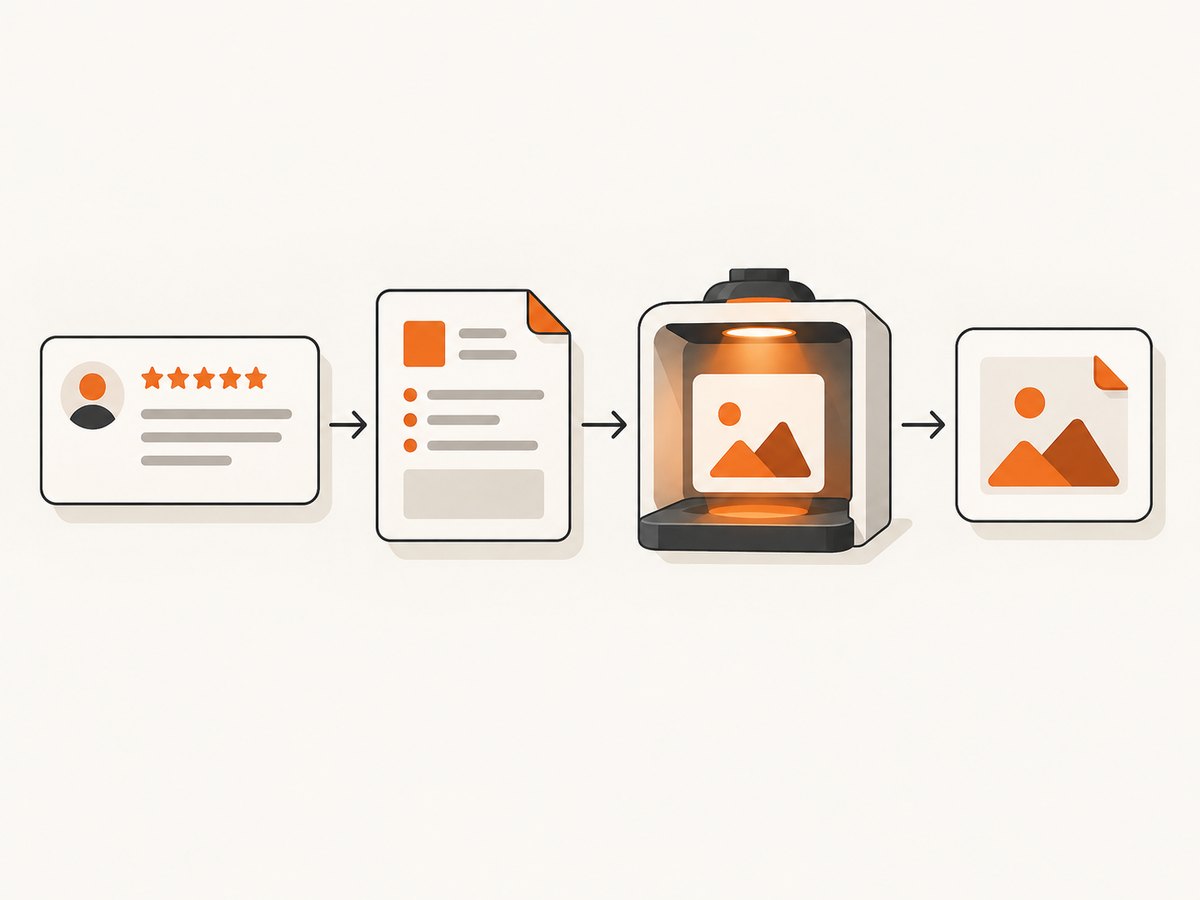
Use an AI field or a Generate with AI action with instructions like these:
Read the Review text and Product / SKU fields.
Return valid JSON with these keys:
{
  "subject": "the product or scene to depict",
  "benefit": "one benefit explicitly supported by the review",
  "setting": "a plausible environment",
  "mood": "the emotional tone",
  "palette": "2-4 brand-safe colors",
  "overlay_text": "short text only if the review supports it; otherwise empty",
  "exclusions": ["claims, people, logos, or objects to avoid"],
  "image_prompt": "a complete prompt for an editorial product image"
}
Do not invent performance claims, medical claims, prices, ratings, or customer identities.
Do not include private information from the review.
Parse the response into the Visual brief and Image prompt fields. If your base does not need separate fields, storing the JSON in Visual brief still gives an editor a readable checkpoint before generation.
Why structured extraction matters
- Accuracy: The image is tied to one benefit the review actually supports.
- Consistency: Every record supplies the same subject, setting, mood, palette, and exclusions.
- Editing: A reviewer can correct a brief without rewriting the source review.
- Safety: Exclusions can remove personal information, unsupported claims, and unapproved logos.
3. Choose native Airtable generation or a connected image service
Airtable’s AI-agent material says agents can generate and edit images, alongside other tasks. Availability and exact capabilities depend on your workspace and plan, so confirm access before designing a production workflow (Airtable AI agents).
Native Airtable option
- Create an AI agent or image-generation step available in your workspace.
- Pass the Image prompt, Product / SKU, and any approved brand guidance.
- Write the returned file to Image attachment, or write a returned URL to Image URL.
- Set Generation status to
Generatedand Approval status toPending.
Connected service option
If image generation is not enabled, call an external image API from an Airtable automation, a script, or your own integration service. Send the structured Image prompt rather than the entire review. Your integration should return either a downloadable file or a durable URL, then update the same record.
Use a scripting extension when you need to normalize different API responses, select a file URL from nested JSON, retry a transient response, or copy a returned file into an attachment field. Airtable describes scripting extensions as a way to update fields, add records, and perform more complex filtering (Scripting extension overview).
4. Save the generated image correctly
Use an attachment when the base should retain the asset and editors need to inspect it from the record. Use a durable hosted URL when an email platform, website, or social publishing system must embed the image.
Do not assume an Airtable attachment URL is permanent public hosting. Airtable explains that attachment links used inline can be expiring links rather than permanent image URLs (attachment guidance for email). If an external destination needs a stable URL, copy the file to storage intended for delivery and retain that URL in Image URL.
Attachment checklist
- Confirm the returned content is an image and has the expected MIME type.
- Use a meaningful filename containing the record ID or SKU.
- Keep the original generated file until approval is complete.
- Store revisions as separate attachments or in a linked Assets table.
- Record the generator, model or service identifier, prompt version, and generation timestamp when available.
5. Add the automation trigger and approval gate
Trigger generation only when the record reaches a clear state. Suitable triggers include a status changing to Ready, a button field being pressed, or a visual brief becoming complete. Avoid triggering on every edit to Review text; that can create duplicate assets and unnecessary usage.
- Trigger: When a record enters the Ready for generation view or when Generation status becomes Ready.
- Validate: Stop if rights status is not Approved, Image prompt is empty, or Product / SKU is missing.
- Extract: Run the AI field or Generate with AI action.
- Generate: Call the native agent or connected image service.
- Store: Write the file to Image attachment or a durable URL to Image URL.
- Mark: Set Generation status to Generated and Approval status to Pending.
- Notify: Send an internal message or email containing a link to the record.
- Publish: Allow the publishing automation only when Approval status is Approved.
A rejection should return the record to Needs revision with an editor note. Keep the rejected image and reason if your retention policy permits; this prevents the same unsuitable prompt from being submitted repeatedly.
6. Review every image before publication
The approval step protects factual accuracy, privacy, rights, and brand consistency. Check the image against both the review and the brief.
- Does the image show the correct product or a clearly approved substitute?
- Is the benefit supported by the review, without implying a stronger result?
- Does it reveal a name, face, order detail, location, or other personal information?
- Are people, logos, packaging, and source photos approved for this use?
- Is any overlay text readable and exactly correct?
- Does the crop work for the intended destination?
- Does the image follow brand colors, accessibility, and advertising rules?
- Are reviewer, timestamp, prompt version, and destination recorded?
7. Handle scale, retries, and duplicate records
For a small base, one automation run per record is sufficient. At larger volume, separate extraction from generation. Generate briefs in one pass, review them in a view, and only then enqueue approved records for image creation.
Use an idempotency key such as record_id + prompt_version. Before generating, check whether that key already has an approved or pending asset. This avoids duplicate images when an automation retries after a timeout.
Keep an error field and a last-attempt timestamp. Retry transient network or service errors with a bounded number of attempts. Do not retry validation failures such as missing rights approval or an empty prompt; route those to an editor instead.
8. Troubleshooting common failures
| Symptom | Likely cause | Fix |
|---|---|---|
| The automation never runs | The record does not match the trigger view or status value. | Check exact single-select values, view filters, and that the automation is enabled. |
| The brief contains invented claims | The instruction asks for marketing copy without limiting evidence. | Require one benefit explicitly supported by Review text and prohibit unsupported claims. |
| The image includes private details | The raw review was sent directly to the image model. | Extract and redact the brief first; add privacy exclusions. |
| Generation repeats on every edit | The trigger watches a frequently changed field. | Trigger on a deliberate Ready state or button and store an idempotency key. |
| The image is missing from the attachment | The integration saved a URL as text or the URL expired. | Download the file and write it as an attachment, or copy it to durable storage before saving its URL. |
| An external email image breaks later | An Airtable attachment link expired. | Use durable hosted storage and place that URL in Image URL. |
| Output is off-brand | Brand guidance is not part of the prompt. | Add a reusable style block, palette, aspect ratio, exclusions, and a human approval gate. |
| Records show Generated but no asset | The status update happened before the file write completed. | Write the asset first; update status only after verifying the attachment or URL. |
9. Performance, reliability, and cost considerations
Airtable automation runs are easier to operate when each step has one responsibility. Keep prompts compact by passing the structured brief instead of the full review and unrelated record fields. Store large files outside the base when delivery, retention, or bandwidth requirements exceed what an attachment field is suited for.
Generation cost depends on the Airtable workspace, native AI availability, and any connected provider. Avoid generating until rights and brief checks pass. Cache approved assets by record and prompt version so a retry does not create another image. Keep a manual regeneration button for legitimate changes such as a new campaign or aspect ratio.
10. Or skip the browser setup
If your workflow needs screenshots of a generated review page, product page, or approval view, ScreenshotNeo provides a one-call website screenshot API. It accepts a URL and returns PNG, JPEG, WebP, or PDF. Cookie and consent banners are accepted and 60+ known consent platforms, newsletter popups, and chat widgets are removed before capture; each step can be turned off. Bot checks, blank pages, timeouts, failed loads, and cache hits are not billed, and the response identifies the result with X-Page-Verdict and X-Billed headers.

See the ScreenshotNeo API documentation for all options. This cURL request captures a page as WebP:
curl -G "https://api.screenshotneo.com/v1/shot" -d access_key=YOUR_API_KEY --data-urlencode url=https://stripe.com -o shot.webpPython:
import requests

r = requests.get(
    "https://api.screenshotneo.com/v1/shot",
    params={"access_key": "YOUR_API_KEY", "url": "https://stripe.com"},
    timeout=90,
)
r.raise_for_status()
open("shot.webp", "wb").write(r.content)
Node.js:
const q = new URLSearchParams({ access_key: 'YOUR_API_KEY', url: 'https://stripe.com' });
const res = await fetch(`https://api.screenshotneo.com/v1/shot?${q}`);
if (!res.ok) throw new Error(`Screenshot failed: ${res.status}`);
const buffer = Buffer.from(await res.arrayBuffer());
await import('node:fs/promises').then(fs => fs.writeFile('shot.webp', buffer));
ScreenshotNeo also supports full-page capture with lazy images loaded, CSS element capture, custom CSS and JavaScript, waits, request blocking, headers, cookies, user agents, timezone and geolocation, resizing, caching with a chosen TTL, signed links, asynchronous jobs with signed webhooks, bulk capture of up to 100 URLs per call, PDFs, and an MCP server with take_screenshot, get_page_info, and capture_pdf for AI clients such as Claude or Cursor. It has 1,000 free shots per month without a card; paid plans start at $5 for 3,000 shots.
Create a free ScreenshotNeo account to get 1,000 screenshots each month with no card.
11. Frequently asked questions
Can Airtable generate an image directly from a review?
It can when image generation is enabled for your workspace through an Airtable AI agent or when you connect an external image service. Availability and plan requirements should be confirmed in your workspace.
Should I send the full review to the image model?
Usually no. Extract a structured brief first. This gives you a reviewable subject, supported benefit, setting, exclusions, and prompt while reducing accidental disclosure of personal information.
Can I publish an Airtable attachment URL in an email?
You can use it for a controlled workflow, but Airtable warns that inline attachment links can expire. Use durable hosting when recipients need a stable external URL.
How do I create multiple variants?
Add a Variant field or linked Variants table, include the variant in the idempotency key, generate each approved variant, and require approval for each asset before publication.
What should happen when a customer withdraws consent?
Change the rights status, stop future triggers, remove the asset from publication destinations, and retain or delete the source and generated files according to your documented retention policy.
Where should approval information live?
Keep Approval status, Reviewer, Approved at, and an editor note on the record or in a linked approvals table. This makes the publication decision traceable without changing the original review.


