How to Generate Images From Google Sheets Data
Learn how to place images in Google Sheets, turn sheet data into linked Slides charts, and automate the workflow with Apps Script and APIs.

“Generate images from Google Sheets data” can mean two different jobs: inserting existing image files into a Sheet, or turning spreadsheet values into a visual such as a chart in Google Slides. Google’s documented tools support both workflows. They do not establish a workflow that creates new AI artwork from prompts stored in spreadsheet rows.
This guide shows both supported approaches, with complete Apps Script examples, API alternatives, update behavior, limits, troubleshooting, and a hosted screenshot option.
1. Choose the output you actually need
| Goal | Best method | Result |
|---|---|---|
| Display an existing PNG, JPEG, or GIF in a Sheet | Apps Script Sheet.insertImage() |
An image positioned over the grid |
| Create a visual from numeric or categorical data | Create a Sheets chart, then insert it into Slides | A linked chart that can refresh, or a static image copy |
| Add an external image to a presentation programmatically | Google Slides API | An image element positioned with size and transform data |
If you need AI-generated artwork for each row, treat that as a separate image-generation system. The Google references used here document image insertion and chart-based visuals, not row-driven AI image creation.
2. Insert an existing image into Google Sheets with Apps Script
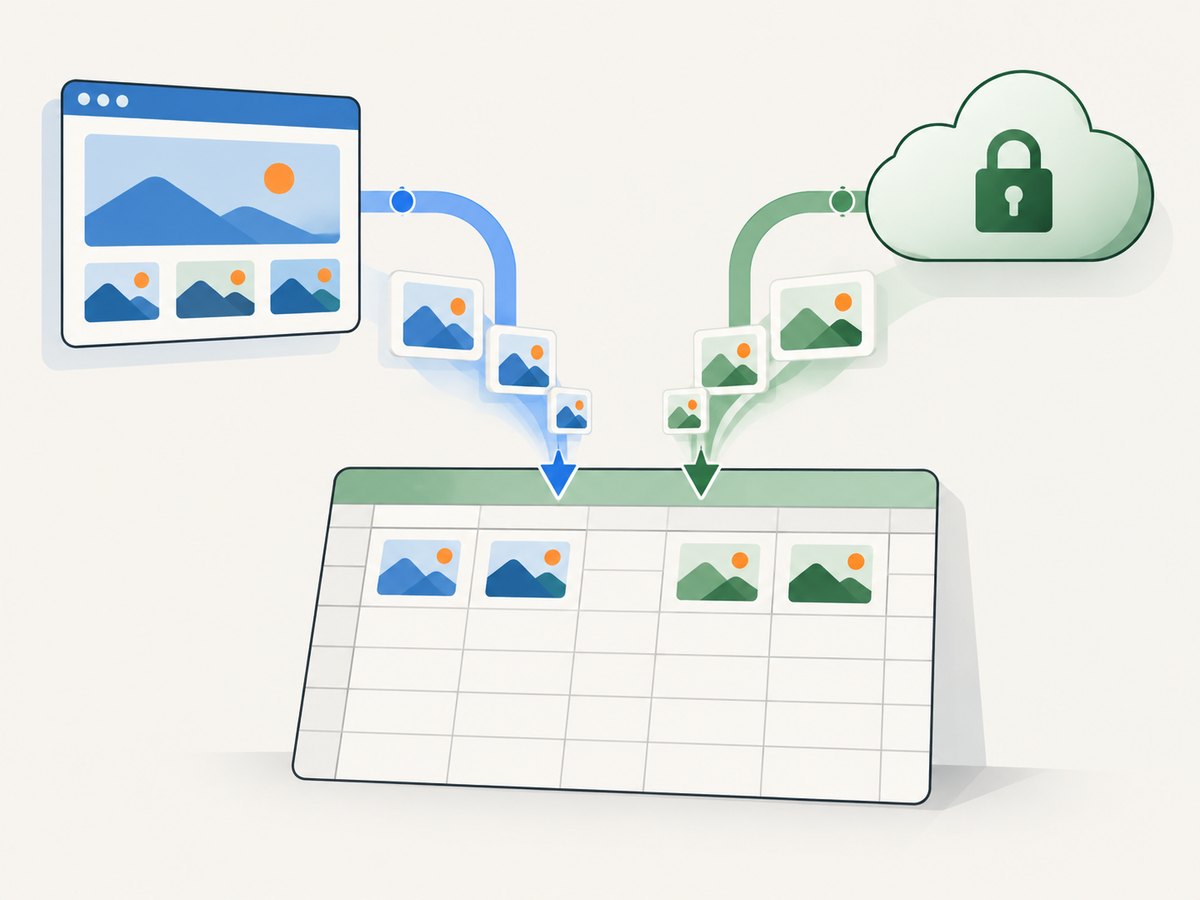
Apps Script can insert an image from a publicly accessible URL at a specified column and row. It can also insert a blob held by the script. The URL must be reachable by Google; a private file link that requires your browser login is not automatically a usable public image URL. Blob insertion has a documented maximum size of 2 MB. See the Sheet class reference.
2.1 URL-based insertion
Open the spreadsheet, choose Extensions → Apps Script, replace the editor contents with this code, update the URL and cell position, and run the function.
function insertImageFromUrl() {
  const sheet = SpreadsheetApp.getActiveSpreadsheet().getSheetByName('Sheet1');
  const imageUrl = 'https://example.com/photo.jpg';

  if (!sheet) throw new Error('Sheet1 was not found');
  sheet.insertImage(imageUrl, 2, 3); // column B, row 3
}
The first argument is the image URL, the second is the one-based column number, and the third is the one-based row number. The image is placed over the grid rather than stored as a cell value.
2.2 Insert a blob and enforce the 2 MB limit
function insertImageAsBlob() {
  const sheet = SpreadsheetApp.getActiveSpreadsheet().getSheetByName('Sheet1');
  const imageUrl = 'https://example.com/photo.jpg';
  const response = UrlFetchApp.fetch(imageUrl, { muteHttpExceptions: true });

  if (response.getResponseCode() !== 200) {
    throw new Error('Image request returned HTTP ' + response.getResponseCode());
  }

  const blob = response.getBlob();
  if (blob.getBytes().length > 2 * 1024 * 1024) {
    throw new Error('Blob is larger than the documented 2 MB limit');
  }

  sheet.insertImage(blob, 2, 3);
}
Use the blob route when your script can fetch the bytes but the source cannot be exposed as a public URL. You still need authorization for the spreadsheet and network operations.
2.3 Insert images for rows in a data table
function insertImagesForRows() {
  const sheet = SpreadsheetApp.getActiveSpreadsheet().getSheetByName('Products');
  const firstDataRow = 2;
  const rows = sheet.getLastRow() - firstDataRow + 1;
  if (rows <= 0) return;

  const urls = sheet.getRange(firstDataRow, 2, rows, 1).getValues(); // column B
  urls.forEach((row, index) => {
    const url = String(row[0] || '').trim();
    if (!url) return;
    sheet.insertImage(url, 3, firstDataRow + index); // column C
  });
}
For large tables, add your own retry, logging, and rate control. A failed URL should not stop processing every later row.
3. Turn Sheets data into a visual in Google Slides
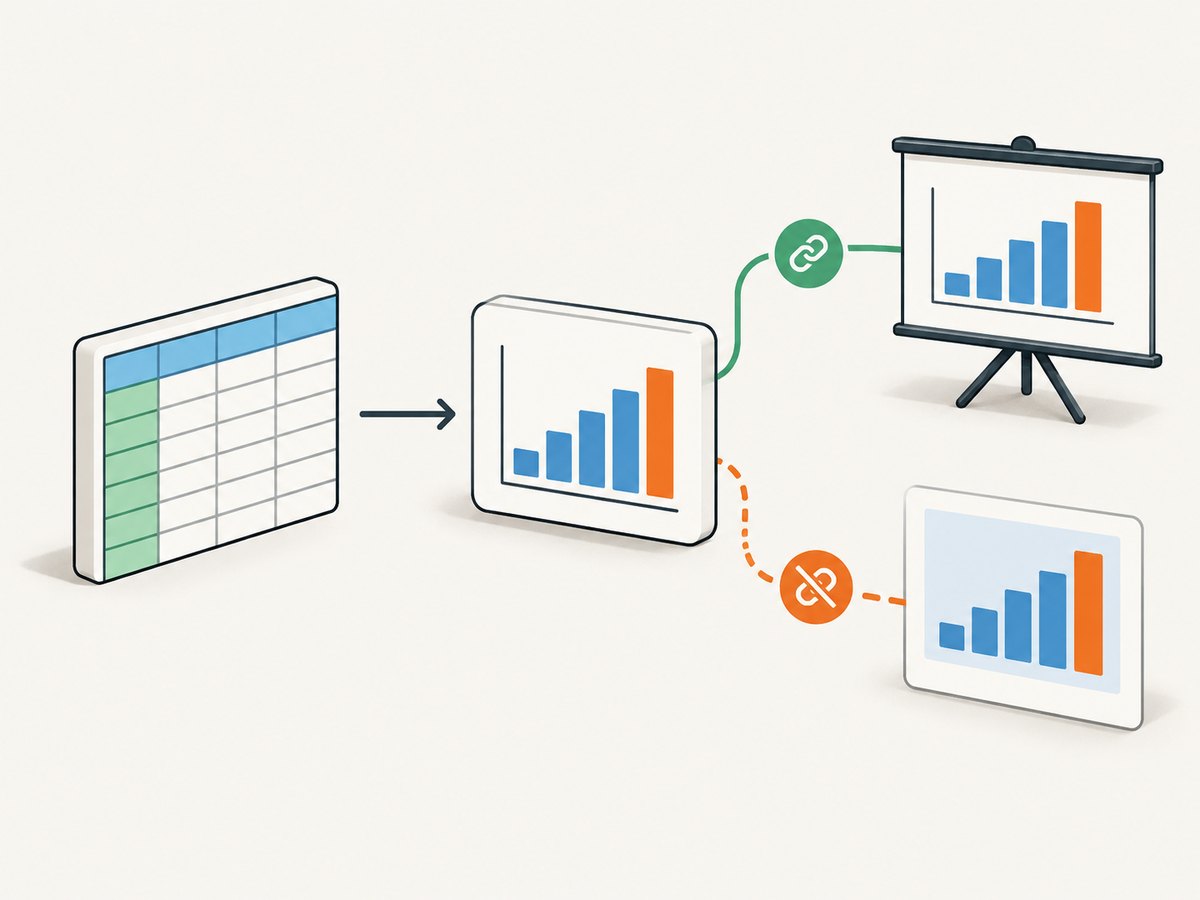
Create a chart in Sheets first, then use Apps Script’s Slides Page.insertSheetsChart() or insertSheetsChartAsImage(). The linked-chart method preserves a relationship to the source chart; the image method creates a static copy. Google documents both behaviors in the Page class reference.
3.1 Create a chart and insert a linked chart
function addLinkedChartToSlide() {
  const spreadsheet = SpreadsheetApp.getActiveSpreadsheet();
  const sheet = spreadsheet.getSheetByName('Data');
  const values = sheet.getRange('A1:B6');
  const chart = sheet.newChart()
    .setChartType(Charts.ChartType.COLUMN)
    .addRange(values)
    .setPosition(1, 4, 0, 0)
    .build();

  sheet.insertChart(chart);

  const presentation = SlidesApp.create('Sheet data visual');
  const slide = presentation.getSlides()[0];
  slide.insertSheetsChart(chart, 40, 40, 640, 360);
}
A linked chart can be refreshed when the source chart changes. Collaborators can see the source spreadsheet link, so use this mode when traceability and updates matter.
3.2 Insert a static image copy
function addStaticChartImageToSlide() {
  const sheet = SpreadsheetApp.getActiveSpreadsheet().getSheetByName('Data');
  const chart = sheet.getCharts()[0];
  if (!chart) throw new Error('Create a chart in the Data sheet first');

  const presentation = SlidesApp.create('Static sheet visual');
  const slide = presentation.getSlides()[0];
  slide.insertSheetsChartAsImage(chart, 40, 40, 640, 360);
}
This output is an image snapshot. Later changes to the spreadsheet do not update it automatically.
3.3 Linked versus static output
| Property | Linked chart | Image copy |
|---|---|---|
| Refresh after source changes | Can be refreshed from the source chart | No; generate a new copy |
| Source relationship | Maintains a link to the spreadsheet | None after insertion |
| Best for | Dashboards and recurring reports | Snapshots, exports, and fixed presentations |
4. Add an external image to Slides with the Slides API
The Slides API requires a publicly accessible image URL. Supported formats are PNG, JPEG, and GIF. The documented limits are under 50 MB and no more than 25 megapixels. Position and size are supplied through the page element’s size and transform properties. See Google’s Add images to a slide guide.
4.1 cURL request shape
curl -X POST \
  -H 'Authorization: Bearer ACCESS_TOKEN' \
  -H 'Content-Type: application/json' \
  'https://slides.googleapis.com/v1/presentations/PRESENTATION_ID:batchUpdate' \
  -d '{
    "requests": [{
      "createImage": {
        "url": "https://example.com/photo.jpg",
        "elementProperties": {
          "pageObjectId": "SLIDE_OBJECT_ID",
          "size": {
            "width": {"magnitude": 300, "unit": "PT"},
            "height": {"magnitude": 200, "unit": "PT"}
          },
          "transform": {
            "scaleX": 1,
            "scaleY": 1,
            "translateX": 40,
            "translateY": 40,
            "unit": "PT"
          }
        }
      }
    }]
  }'
4.2 Python request
import requests

url = 'https://slides.googleapis.com/v1/presentations/PRESENTATION_ID:batchUpdate'
body = {
    'requests': [{
        'createImage': {
            'url': 'https://example.com/photo.jpg',
            'elementProperties': {
                'pageObjectId': 'SLIDE_OBJECT_ID',
                'size': {
                    'width': {'magnitude': 300, 'unit': 'PT'},
                    'height': {'magnitude': 200, 'unit': 'PT'},
                },
                'transform': {
                    'scaleX': 1, 'scaleY': 1,
                    'translateX': 40, 'translateY': 40,
                    'unit': 'PT',
                },
            },
        },
    }],
}
response = requests.post(
    url,
    headers={'Authorization': 'Bearer ACCESS_TOKEN'},
    json=body,
    timeout=30,
)
response.raise_for_status()
print(response.json())
4.3 Node.js request
const body = {
  requests: [{
    createImage: {
      url: 'https://example.com/photo.jpg',
      elementProperties: {
        pageObjectId: 'SLIDE_OBJECT_ID',
        size: {
          width: { magnitude: 300, unit: 'PT' },
          height: { magnitude: 200, unit: 'PT' }
        },
        transform: {
          scaleX: 1, scaleY: 1,
          translateX: 40, translateY: 40,
          unit: 'PT'
        }
      }
    }
  }]
};

const res = await fetch(
  'https://slides.googleapis.com/v1/presentations/PRESENTATION_ID:batchUpdate',
  {
    method: 'POST',
    headers: {
      Authorization: `Bearer ${process.env.ACCESS_TOKEN}`,
      'Content-Type': 'application/json'
    },
    body: JSON.stringify(body)
  }
);
if (!res.ok) throw new Error(`${res.status} ${await res.text()}`);
console.log(await res.json());
5. Authorization and access requirements
- Apps Script asks you to authorize the spreadsheet and Slides operations the first time a function runs.
- The required OAuth scope depends on the operation. Review the current Apps Script and Slides documentation for the scopes your project requests.
- For URL insertion and Slides API insertion, the image must be reachable by the service. Test the URL without an interactive login.
- Keep access tokens and service credentials out of spreadsheet cells and source code shared with collaborators.
6. Troubleshooting
| Error or symptom | Likely cause | Fix |
|---|---|---|
| Image does not appear | The URL redirects to a login page, returns an error, or is not publicly reachable | Open the URL in an unauthenticated session and verify it returns image bytes with a supported content type. |
| Blob insertion fails | The blob exceeds 2 MB | Resize or recompress the image, or use a publicly accessible URL with URL-based insertion. |
| Slides API rejects the image | Unsupported format, file over 50 MB, or image over 25 megapixels | Convert to PNG, JPEG, or GIF and reduce file size or dimensions. |
| Authorization error | The script has not been granted the required scope, or the token belongs to another account | Run the script interactively, review the requested scopes, and obtain a token for the account that owns the target file. |
| Chart shows old values | The slide contains a static image, or the linked chart has not been refreshed | Use a linked chart for updateable output and refresh it, or regenerate the static image. |
| Only some rows receive images | One request failed and the loop stopped, or the sheet contains blank and malformed URLs | Validate each URL, catch errors per row, and log failed row numbers for a retry pass. |
7. Performance, reliability, and cost notes
For many rows, minimize repeated spreadsheet reads by loading a range once, validate URLs before insertion, and process in batches. Apps Script executions have platform quotas and time limits, so a very large table may need checkpoints and resumable batches. Cache image metadata or already-processed row IDs when rerunning a job.
Linked charts reduce regeneration work when source data changes, while static images are simpler for immutable exports. Public image hosting adds an availability dependency; blob insertion removes that dependency for the fetch step but keeps the 2 MB documented limit.
The Google references do not specify a single price for this workflow. Your cost depends on the Google Workspace account, API usage, hosting, and any image service you add. Measure the number of rows, executions, and retries before choosing an architecture.
8. Or skip the browser setup
If your real goal is to capture a clean visual of a sheet, dashboard, or generated presentation, ScreenshotNeo provides a website screenshot API and MCP server. A GET request returns PNG, JPEG, WebP, or PDF, so you can capture a published Sheet or Slides view without maintaining a browser automation stack.
Cookie banners, newsletter popups, and chat widgets are removed before the shot. Bot checks, blank pages, failed loads, timeouts, and cache hits are not billed, and response headers identify the page verdict and billing status. An MCP server lets Claude, Cursor, and other MCP clients call take_screenshot, get_page_info, and capture_pdf.
Read the ScreenshotNeo API documentation for all options.
curl -G "https://api.screenshotneo.com/v1/shot" -d access_key=YOUR_API_KEY --data-urlencode url=https://stripe.com -o shot.webpimport requests
r = requests.get("https://api.screenshotneo.com/v1/shot", params={"access_key": "YOUR_API_KEY", "url": "https://stripe.com"}, timeout=90)
open("shot.webp", "wb").write(r.content)const q = new URLSearchParams({ access_key: 'YOUR_API_KEY', url: 'https://stripe.com' });
const res = await fetch(`https://api.screenshotneo.com/v1/shot?${q}`);Every feature is available on every plan. The Free plan includes 1,000 screenshots per month with no card; paid plans start at $5 for 3,000 shots. Create your free ScreenshotNeo account.
9. FAQ
Can I put an image directly inside a cell?
insertImage() places an image over the grid at a row and column. It is not a normal text value. Google Sheets also has spreadsheet formulas for some image-display cases, but the Apps Script workflow here is the documented programmable insertion route.
Will a linked Slides chart update instantly?
It remains connected to the source chart and can be refreshed. It is different from insertSheetsChartAsImage(), which is a static copy.
Can a private Drive URL be used?
Not as a URL unless the service fetching it can access the resource. Use a genuinely accessible URL or fetch the bytes with authorized code and insert a blob within the documented limit.
Does this guide create AI images from prompt cells?
No. The documented workflows cover existing image insertion and chart-based visuals. AI artwork generation requires an additional image-generation service and its own authentication, quotas, and data handling.


