How to Generate Images or PDFs from HTML
Learn when to use canvas, html2canvas, or headless Chromium to export HTML as accurate images and PDFs, with runnable code and troubleshooting.

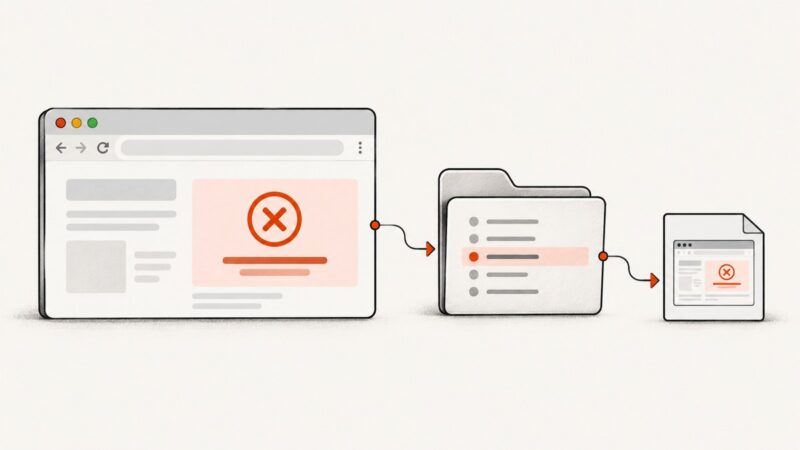
There are two reliable ways to export HTML: rasterize a controlled layout into a PNG, JPEG, or WebP, or render the page in a real browser and print it to PDF. Use the first approach for downloadable images and previews. Use browser printing for documents that must preserve CSS layout, fonts, page breaks, links, and print rules.
For a client-side image, draw the content to a <canvas> and export it with toBlob(). For an existing DOM tree, html2canvas can reconstruct much of the layout, but it does not capture browser pixels and it cannot freely read cross-origin assets. For a PDF, use Chromium through Puppeteer and call page.pdf().
Choose the export pipeline
| Goal | Recommended pipeline | Reason |
|---|---|---|
| Download a chart, card, receipt, or preview as an image | Canvas or html2canvas | Produces a bitmap in the browser without running a server. |
| Capture exact browser pixels | Browser screenshot API or headless Chromium | Uses the browser layout engine instead of reconstructing CSS. |
| Create an invoice, report, or book-length document | Puppeteer page.pdf() |
Supports print CSS, paper sizes, margins, headers, footers, and pagination. |
| Capture content requiring private headers or server-side control | Server-side browser or ScreenshotNeo | Keeps credentials and rendering outside the end user’s browser. |
Export HTML to an image with native canvas
Canvas is the most predictable client-side option when you control the drawing. It exports pixels, not semantic HTML. Keep the original HTML available for accessibility because canvas output is not exposed as equivalent semantic content to accessibility tools. See the MDN toBlob documentation and toDataURL documentation.

Minimal PNG download
<canvas id='receipt' width='1200' height='700'></canvas>
<button id='download'>Download PNG</button>
<script>
const canvas = document.querySelector('#receipt');
const ctx = canvas.getContext('2d');
ctx.fillStyle = '#ffffff';
ctx.fillRect(0, 0, canvas.width, canvas.height);
ctx.fillStyle = '#111827';
ctx.font = '48px sans-serif';
ctx.fillText('Order receipt', 60, 100);
ctx.font = '30px sans-serif';
ctx.fillText('Total: $42.00', 60, 170);

document.querySelector('#download').addEventListener('click', () => {
  canvas.toBlob(blob => {
    if (!blob) throw new Error('The browser could not encode the canvas');
    const url = URL.createObjectURL(blob);
    const link = document.createElement('a');
    link.href = url;
    link.download = 'receipt.png';
    link.click();
    URL.revokeObjectURL(url);
  }, 'image/png');
});
</script>
toBlob() is preferable to toDataURL() for downloads because it avoids keeping a large base64 string in memory. Use image/jpeg with a quality value such as 0.85 for photographs, or image/webp where browser support and downstream tooling allow it:
canvas.toBlob(blob => save(blob), 'image/jpeg', 0.85);
canvas.toBlob(blob => save(blob), 'image/webp', 0.85);
Retina output
To make a 600 by 300 CSS-pixel card look sharp on a high-density display, allocate a larger bitmap and scale the drawing context:
const cssWidth = 600;
const cssHeight = 300;
const scale = window.devicePixelRatio || 1;
canvas.width = cssWidth * scale;
canvas.height = cssHeight * scale;
canvas.style.width = `${cssWidth}px`;
canvas.style.height = `${cssHeight}px`;
canvas.getContext('2d').scale(scale, scale);
Capture an existing DOM element with html2canvas
html2canvas walks the DOM and builds a canvas from properties it understands. Its documentation states that the result may not be 100% accurate to the real representation. Unsupported CSS, browser effects, and cross-origin content are common sources of differences.
<script src='https://cdn.jsdelivr.net/npm/html2canvas@1.4.1/dist/html2canvas.min.js'></script>
<div id='card'>
  <h1>Weekly revenue</h1>
  <div class='chart'>...</div>
</div>
<script>
async function downloadCard() {
  const element = document.querySelector('#card');
  const canvas = await html2canvas(element, {
    scale: window.devicePixelRatio || 1,
    backgroundColor: '#ffffff',
    useCORS: true,
    logging: false
  });
  canvas.toBlob(blob => {
    const url = URL.createObjectURL(blob);
    const link = document.createElement('a');
    link.href = url;
    link.download = 'revenue.png';
    link.click();
    URL.revokeObjectURL(url);
  }, 'image/png');
}
</script>
What html2canvas can and cannot render
- It can reproduce many ordinary boxes, text, colors, borders, transforms, and inline images.
- It may omit CSS that the library does not implement, including some filters, blend modes, form controls, and browser-native effects.
- It cannot read the contents of a cross-origin iframe because the iframe’s
contentDocumentis inaccessible. - Images must be same-origin or served with suitable CORS headers. The
useCORSoption does not bypass origin policy. - A canvas becomes tainted when it receives pixels from an origin that does not permit access; reading it with
toDataURL()ortoBlob()then fails. MDN explains this security model in its CORS-enabled images guide.
For a reliable export, host assets on the same origin, configure CORS on the image responses, or fetch them through a controlled server-side proxy. Do not treat a client-side flag as a way around browser security.
Generate a PDF from HTML with Puppeteer
A PDF is a print layout problem. Puppeteer launches Chromium, loads the page, waits for resources, and calls page.pdf(). The official guide specifically recommends Page.pdf() for printing PDFs.

Runnable Node.js example
import puppeteer from 'puppeteer';

const browser = await puppeteer.launch({ headless: true });
try {
  const page = await browser.newPage();
  await page.setViewport({ width: 1440, height: 900, deviceScaleFactor: 1 });
  await page.goto('https://example.com/report', { waitUntil: 'networkidle0' });
  await page.evaluate(() => document.fonts.ready);
  await page.pdf({
    path: 'report.pdf',
    format: 'A4',
    printBackground: true,
    margin: { top: '18mm', right: '16mm', bottom: '18mm', left: '16mm' },
    displayHeaderFooter: true,
    headerTemplate: '<span></span>',
    footerTemplate: '<div style="font-size:9px;width:100%;text-align:center">Page <span class="pageNumber"></span> of <span class="totalPages"></span></div>'
  });
} finally {
  await browser.close();
}
Print CSS and media type
page.pdf() uses the print CSS media type by default. Add print rules and page geometry:
@page {
  size: A4;
  margin: 16mm;
}

@media print {
  .screen-only { display: none !important; }
  h2 { break-before: page; }
  .avoid-break { break-inside: avoid; }
  a { color: inherit; text-decoration: none; }
}

html { -webkit-print-color-adjust: exact; }
If your screen stylesheet is the intended design, call await page.emulateMediaType('screen') before generating the PDF. Chromium modifies colors for printing by default; -webkit-print-color-adjust: exact preserves colors when that tradeoff is acceptable.
PDF options that matter
| Option | Use |
|---|---|
format |
Choose formats such as A4 or Letter. |
width, height |
Set custom page dimensions when a named format is insufficient. |
margin |
Reserve printable space on each edge. |
printBackground |
Include background colors and images. |
landscape |
Rotate the page for wide tables. |
pageRanges |
Export only selected pages, for example 1-3. |
displayHeaderFooter |
Enable HTML templates with title, URL, date, page number, and total pages. |
Wait for the page before exporting
Navigation completion does not guarantee that lazy images, web fonts, charts, or client-rendered data are ready. Use a combination of network idle, an application-ready marker, image completion, and document.fonts.ready.
await page.goto(url, { waitUntil: 'networkidle0' });
await page.waitForSelector('[data-export-ready]');
await page.evaluate(async () => {
  await document.fonts.ready;
  await Promise.all(Array.from(document.images).map(image => {
    if (image.complete) return Promise.resolve();
    return new Promise(resolve => {
      image.addEventListener('load', resolve, { once: true });
      image.addEventListener('error', resolve, { once: true });
    });
  }));
});
Use a bounded timeout around every wait. A page that continuously polls analytics or chat endpoints may never become network-idle, so an explicit readiness marker is often more reliable.
Or skip the browser setup
ScreenshotNeo is a website screenshot API and MCP server. It accepts one GET request and returns PNG, JPEG, WebP, or PDF. The same request can handle full-page capture, a CSS-selected element, dark mode, device presets, retina scale, custom CSS and JavaScript, clicks, selector or network-idle waits, blocked resources, headers, cookies, authorization, timezone, geolocation, transparent backgrounds, resizing, caching, signed links, asynchronous webhooks, bulk capture, and PDF page settings. See the ScreenshotNeo API documentation for the complete option list.
cURL
curl -G "https://api.screenshotneo.com/v1/shot" -d access_key=YOUR_API_KEY --data-urlencode url=https://stripe.com -o shot.webpPython
import requests

r = requests.get(
    'https://api.screenshotneo.com/v1/shot',
    params={'access_key': 'YOUR_API_KEY', 'url': 'https://stripe.com'},
    timeout=90,
)
r.raise_for_status()
open('shot.webp', 'wb').write(r.content)
Node.js
const q = new URLSearchParams({ access_key: 'YOUR_API_KEY', url: 'https://stripe.com' });
const res = await fetch(`https://api.screenshotneo.com/v1/shot?${q}`);
if (!res.ok) throw new Error(`Screenshot failed: ${res.status}`);
const buffer = Buffer.from(await res.arrayBuffer());
await Bun.write('shot.webp', buffer);
ScreenshotNeo removes cookie and consent banners, newsletter popups, and chat widgets before capture. Bot checks, blank pages, timeouts, failed loads, and cache hits cost nothing, and response headers identify the page verdict and whether the shot was billed. Its MCP server provides take_screenshot, get_page_info, and capture_pdf tools for Claude, Cursor, and other MCP clients. The free plan includes 1,000 screenshots each month without a card; paid plans start at $5 for 3,000 shots. Create a free ScreenshotNeo account.
Common failures and fixes
| Symptom | Likely cause | Fix |
|---|---|---|
| Blank or incomplete image | Capture ran before data or fonts loaded. | Wait for an application-ready selector, fonts, images, and chart completion. |
| SecurityError when exporting canvas | Cross-origin pixels tainted the canvas. | Use same-origin assets, correct CORS response headers, or a server-side renderer. |
| Iframe missing | The iframe is cross-origin. | Render the iframe source separately with permission, or capture with a real browser. |
| PDF has no colors | Background printing is disabled. | Set printBackground: true and review -webkit-print-color-adjust. |
| Screen layout changes in PDF | Print media rules are active. | Adjust @media print or call emulateMediaType('screen'). |
| Pages split tables or cards | Break rules are missing. | Use break-inside: avoid, explicit page breaks, and test the target paper size. |
| PDF waits forever | Persistent requests prevent network idle. | Use a readiness marker and a bounded timeout instead of relying only on networkidle0. |
| Missing lazy images | The images load only after scrolling or intersection. | Scroll through the page, trigger lazy loading, then wait for image completion. |
Performance, reliability, and cost
Client-side exports
Canvas and html2canvas avoid server browser startup, but large dimensions consume browser memory. A four-times increase in both width and height creates sixteen times as many pixels. Keep the export size deliberate, release object URLs, and avoid converting large images to base64 when a Blob will do.
Server-side Chromium
Launching a browser is expensive compared with reusing a page. Keep a bounded browser pool, reuse browser processes, close pages after each job, and cap concurrency according to available memory. Set navigation and export timeouts. Record the URL, viewport, media type, wait condition, and browser version with each job so a visual difference can be reproduced.
Fonts and remote assets affect both speed and determinism. Self-host fonts when possible, wait for document.fonts.ready, and avoid unbounded third-party requests. Cache immutable assets and use a stable viewport and timezone for repeatable output.
Choosing image format
- PNG is lossless and best for text, diagrams, and interfaces.
- JPEG is smaller for photographic pages but introduces compression artifacts.
- WebP often provides a useful size-quality compromise when consumers support it.
- PDF preserves document structure and selectable text, but file size depends on embedded images and fonts.
Security checklist
- Do not expose private API keys in browser code; proxy requests through your server.
- Restrict server-side URL capture to approved domains if users can submit URLs.
- Sanitize custom HTML, CSS, and JavaScript before rendering untrusted input.
- Apply request timeouts, response-size limits, and concurrency limits.
- Review cookies, authorization headers, and generated PDFs before making them public.
- Keep exported HTML accessible in the source application because a bitmap is not a semantic replacement.
FAQ
Can I turn any HTML into a PNG?
You can export controlled layouts reliably, but no client renderer supports every browser feature. For exact browser pixels, use a browser screenshot renderer.
Should I use html2canvas or Puppeteer?
Use html2canvas for a quick client-side image of a controlled DOM subtree. Use Puppeteer when fidelity, cross-origin access under your control, or PDF output matters.
How do I preserve links in a PDF?
Keep real anchor elements in the HTML and test the generated PDF in your target viewer. Do not replace links with canvas text.
Why is my PDF pagination different between machines?
Font availability, browser versions, viewport settings, and remote asset timing can change line wrapping. Pin the rendering environment and wait for fonts and images.
Can an API capture only one HTML element?
Yes. ScreenshotNeo supports capture by CSS selector, along with full-page capture and PDF options, so a server request can replace custom Chromium orchestration.