How to Generate Images with Zapier
Connect a Zapier trigger to an image-generation provider, test its returned output, and route the image to the right destination.

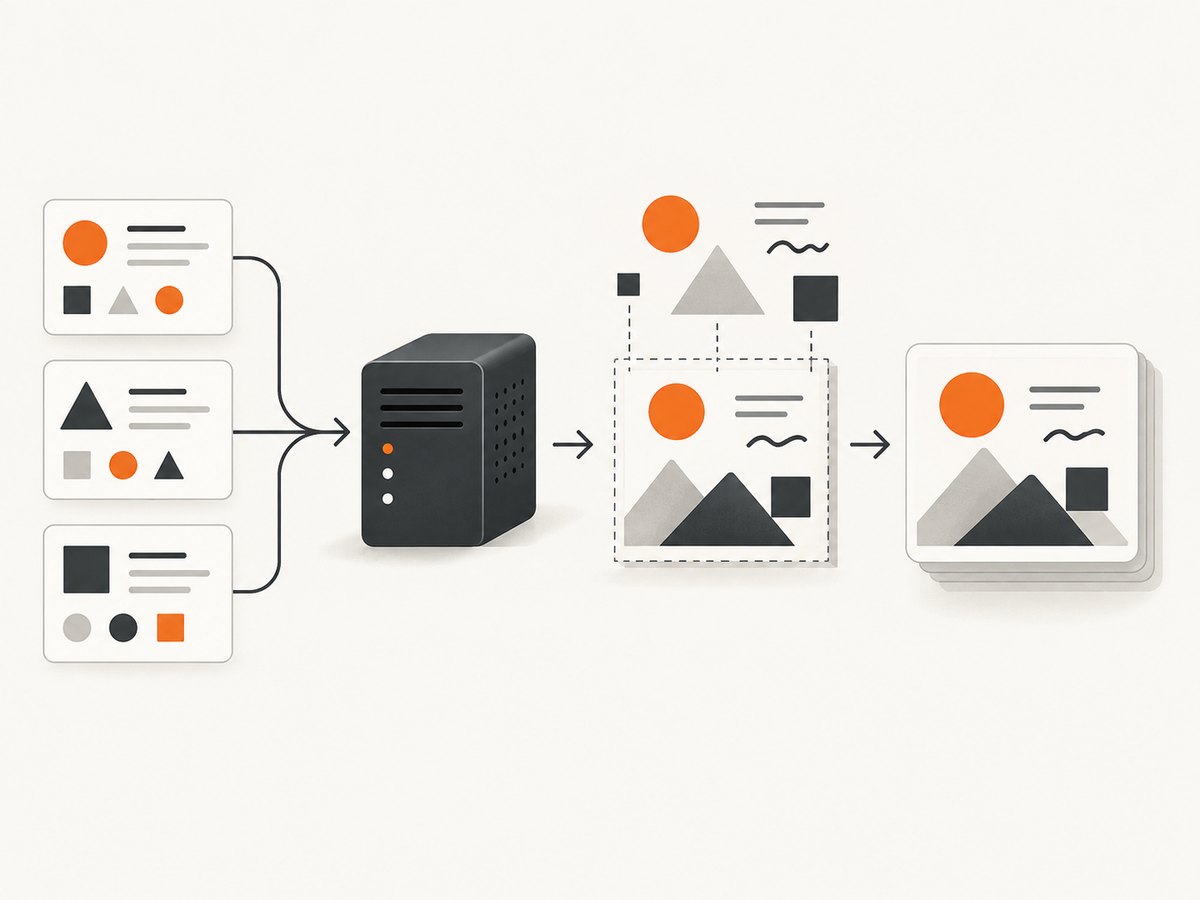
To generate images with Zapier, create a Zap with a trigger, add an image-generation action from a connected provider, map a prompt into that action, test it, then send the returned image reference to a destination that accepts it. Zapier documents image actions for ChatGPT (OpenAI), Google AI Studio (Gemini), Google Vertex AI, and Runway. Leap AI can run a workflow you have already configured. Their actions, accounts, billing, options, and returned data differ, so inspect the current action and its test output before building later steps.
This guide walks through provider choice, a practical Zap setup, output mapping, failure handling, and cost considerations. It describes documented capabilities; it does not claim a tested end-to-end Zap or a particular output schema.
1. Choose the image-generation provider
Start with the account and service you already use, then confirm the relevant Zapier action and billing arrangement. Do not choose solely by the action name: an image-generation API may have separate usage charges even when you already pay for a related subscription.
| Provider | Zapier action or route | Setup and billing notes |
|---|---|---|
| ChatGPT (OpenAI) | Generate An Image |
Requires an OpenAI account with prepaid API billing. A ChatGPT subscription and API usage are billed separately. Avoid building new workflows around older Assistant-based actions; Zapier’s guide includes a deprecation notice. |
| Google AI Studio (Gemini) | Generate Image |
Requires a Google account with access to Google AI Studio and an API key. The action can use Gemini or Imagen models. |
| Google Vertex AI | Generate Image |
Requires a Google Cloud account, enabled Vertex AI APIs, and a paid Vertex AI plan. |
| Runway | Generate Image From Text |
Requires a Runway developer account, organization, API key, and credits. Check current credit terms and spending limits in Runway. |
| Leap AI | Run Workflow |
Requires a Leap AI account and API key plus a workflow configured in Leap AI. This runs that workflow; it is not a direct Zapier action explicitly named image generation. |
These distinctions and prerequisites come from the respective [ChatGPT guide](https://help.zapier.com/hc/en-us/articles/14860148802829-How-to-get-started-with-ChatGPT-OpenAI-on-Zapier), [Google AI Studio guide](https://help.zapier.com/hc/en-us/articles/29858475126413-How-to-get-started-with-Google-AI-Studio-Gemini-on-Zapier), [Vertex AI guide](https://help.zapier.com/hc/en-us/articles/18974002216461-How-to-get-started-with-Google-Vertex-AI-on-Zapier), and [Runway and Leap AI guides](https://help.zapier.com/hc/en-us/articles/38952924301453-How-to-get-started-with-Runway-on-Zapier) and [Leap AI guide](https://help.zapier.com/hc/en-us/articles/13252390109197-How-to-get-started-with-Leap-AI-on-Zapier). Verify the current action list and account requirements before enabling a production Zap; integration catalogs can change.
2. Build a Zap that generates and routes an image
- Choose a trigger. Start from the event that supplies a useful prompt: for example, a form submission, a new content record, or a new row in a content calendar. These are workflow ideas, not tested templates. Include a field for the prompt and, if useful, fields for subject, style, audience, and destination.
- Create the Zap and select the trigger app. Connect the account, choose the trigger event, and test it with a representative record. Check that the test data contains the prompt field you plan to map. If it does not, fix the trigger or its sample record first.
- Add the provider action. Choose the image-generation action for the provider and connect its account using the provider’s current authentication flow. For Leap AI, select the workflow-running route only if you have configured the image creation inside that Leap AI workflow.
- Map the prompt and supported settings. Insert the trigger’s prompt field into the provider action. Review that action’s current fields for any supported model or generation settings. Do not assume the same options exist across providers.
- Test the action. Use a realistic prompt and inspect the test result. Identify the actual returned field that represents the generated image, file, or reference. The cited integration guides do not establish a uniform output schema, so do not guess a field name or assume the result is a publicly accessible URL.
- Add a destination action. Choose a step that can accept the returned value, then map the actual field from the provider test. Depending on the destination and provider output, you may need a file reference rather than a URL or vice versa. Confirm compatibility in the destination action’s field mapping.
- Test the complete route and turn on the Zap. Confirm that a representative trigger reaches the provider and that the destination receives the mapped result. Review the Zap’s task history after activation and check provider usage separately.
Example workflow design
A content team might store an article topic and an image prompt in a content record, generate an image when the record is ready, then pass the returned image information to its chosen storage or publishing app. Keep the prompt in a dedicated field rather than assembling it from loosely formatted notes. If the destination requires a particular kind of file input, verify that the provider’s returned field can supply it before enabling the Zap.

You can ask Zapier Copilot to outline a workflow in natural language. For example: “When a new row is added to my content calendar, generate an image from its image prompt with [chosen provider], then send the result to [destination].” Treat the result as a draft: confirm each app and action, inspect its field mappings, and test the returned data. Zapier describes Copilot as open beta; its availability and interface may change. See [Zapier’s Copilot guide](https://help.zapier.com/hc/en-us/articles/15703650952077-Use-the-power-of-AI-to-generate-Zaps).
3. Make prompts and output mapping dependable
A prompt should say what the image depicts and what matters in the composition. For a repeatable content workflow, define a prompt template with explicit fields such as subject, setting, visual style, and intended placement. Keep user-provided values separate from fixed instructions so you can see which input produced an unexpected result.
- Give the trigger record a stable identifier so you can trace the source when a later step fails.
- Use representative test records: include ordinary prompts as well as empty or unusually long inputs if those can occur.
- Inspect all useful output fields in the test result, not just the first field displayed. Map only the field the destination accepts.
- When the result is a reference rather than image bytes, make sure the next service can access that reference under its own authentication and retention rules.
- Keep destination mapping explicit. A provider’s returned data may differ from another provider’s even when both actions generate images.
The Zapier documentation reviewed here does not verify a standard output shape, a fixed resolution or format, or a common destination mapping across providers. Confirm those details in the live action editor and the destination app’s documentation.
4. Handle errors, retries, and usage
Separate failures by step. A trigger that did not fire, a disconnected provider account, a rejected generation request, and a destination that cannot read the result have different fixes. Use Zapier task history to locate the step and inspect its input and error details; check the provider account for authentication, credit, quota, or billing issues as appropriate.
| Symptom | Likely cause | What to check |
|---|---|---|
| The trigger test has no prompt | The sample event lacks the field or the wrong trigger event was selected. | Send or select a record containing the prompt, retest the trigger, and remap from the refreshed sample. |
| The provider action cannot connect | Credentials, API key, account access, or required billing setup is incomplete. | Reconnect the account and confirm the provider-specific prerequisites in its current Zapier guide. |
| The action fails after connection | The request may be invalid or the provider account may lack access, credits, or available usage. | Read the step error, simplify the prompt for diagnosis, and check provider billing, credits, model access, and limits. |
| The destination receives no image | The wrong output field was mapped, or the destination expects a different file/reference type. | Run the generation test again, inspect its actual returned fields, and confirm the destination input requirements. |
| A former workflow’s assistant step needs attention | The OpenAI integration guide warns about deprecated Assistant-based actions. | Review the current ChatGPT (OpenAI) integration guide and update affected steps to supported actions. |
| Runs become costly or hit limits | Provider usage is separate from Zapier workflow activity, and the selected provider may impose usage or spending limits. | Review both Zapier plan/task consumption and provider billing or credits. Set provider spending controls where available. |
For reliability, test changes with a controlled record before relying on them in a live workflow. Avoid generating duplicate images when replaying failed runs unless that is acceptable for your provider account and destination. If the workflow is business critical, define who checks failed tasks and how the source record is retried; provider and Zapier retry behavior can vary, so inspect current settings instead of assuming a retry guarantee.
5. Performance and cost considerations
The sources reviewed do not establish comparative generation speed, image quality, provider prices, or end-to-end reliability. Avoid choosing a provider based on unsupported speed or quality rankings. For a real workload, estimate cost from your expected number of triggered runs and each provider’s current billing or credit terms, then account for Zapier plan limits separately.
- Control volume: avoid triggering generation for draft or incomplete records unless that is intentional.
- Check both bills: Zapier task usage and image-provider usage are distinct considerations. OpenAI API billing, for example, is separate from a ChatGPT subscription.
- Review current limits: Runway’s guide describes tier-based generation and spending limits, but the exact limits and credit terms should be verified in the current account.
- Keep a usage trail: retain the source record identifier and note the chosen provider so unexpected runs can be traced.
- Scale gradually: test a representative workflow, observe task history and provider usage, then increase volume within confirmed limits.
Zapier’s broad app library is documented as 9,000+ apps in its overview, but that is the platform-wide count, not the number of image-generation integrations. See [What is Zapier?](https://help.zapier.com/hc/en-us/articles/37518970271245-What-is-Zapier).
6. Or skip the browser setup
If your task is capturing a webpage image as part of an automated workflow, you may not need to generate a new illustration with an AI model. [ScreenshotNeo](https://screenshotneo.com) is a website screenshot API and MCP server. A GET request takes a URL and returns a PNG, JPEG, WebP, or PDF. It accepts cookie and consent banners like a visitor and removes more than 60 known consent platforms, newsletter popups, and chat widgets before capture; each cleanup step can be turned off. Bot checks, blank pages, timeouts, failed loads, and cache hits are not billed, and response headers report the page verdict and billing status. Its MCP server provides take_screenshot, get_page_info, and capture_pdf for Claude, Cursor, and other MCP clients. There are 1,000 screenshots per month free with no card; paid plans start at $5 for 3,000.
See the [ScreenshotNeo API documentation](https://screenshotneo.com/docs/) for its parameters and output options.
curl -G "https://api.screenshotneo.com/v1/shot" -d access_key=YOUR_API_KEY --data-urlencode url=https://stripe.com -o shot.webpFor Python:
import requests

r = requests.get(
    "https://api.screenshotneo.com/v1/shot",
    params={"access_key": "YOUR_API_KEY", "url": "https://stripe.com"},
    timeout=90,
)
open("shot.webp", "wb").write(r.content)
For Node.js:
const q = new URLSearchParams({ access_key: 'YOUR_API_KEY', url: 'https://stripe.com' });
const res = await fetch(`https://api.screenshotneo.com/v1/shot?${q}`);
ScreenshotNeo also supports full-page and CSS-selector captures, device presets and custom viewports, dark mode, custom CSS and JavaScript, wait conditions, request blocking, headers and cookies, geolocation, PDF settings, caching, signed image links, asynchronous jobs, bulk capture, and a usage API. Every feature is available on every plan. If your Zapier flow needs a clean screenshot of a live page rather than a newly generated AI image, sign up free for 1,000 screenshots a month with no card.
7. Frequently asked questions
Can Zapier generate an image from a new form submission?
Yes, the workflow pattern is a form-submission trigger followed by a provider’s image-generation action and then a destination action. Confirm the trigger exposes the prompt and inspect the provider test output before mapping the result.
Can Zapier automatically create and save AI images?
It can connect a trigger, a supported provider action, and a later destination step. Whether the image can be saved directly depends on the actual result fields and what the destination accepts.
Does a ChatGPT subscription include image generation through Zapier?
Zapier’s ChatGPT integration guide says OpenAI API usage requires prepaid billing and is separate from ChatGPT subscription plans.
Is Leap AI a direct image-generation action?
The cited Zapier guide documents Run Workflow and Retrieve Workflow Run. Use it to invoke an already configured Leap AI workflow; do not assume it behaves like the explicitly named generation actions in other integrations.
Can Copilot build the whole Zap for me?
Copilot can help draft and configure a workflow, but it is described as open beta. Verify its suggested apps, fields, and test output yourself before activation.


