How to Generate Invoices and Receipts from HTML
Build invoice and receipt HTML from structured data, apply print CSS, and render reliable PDFs with Puppeteer or a hosted API.
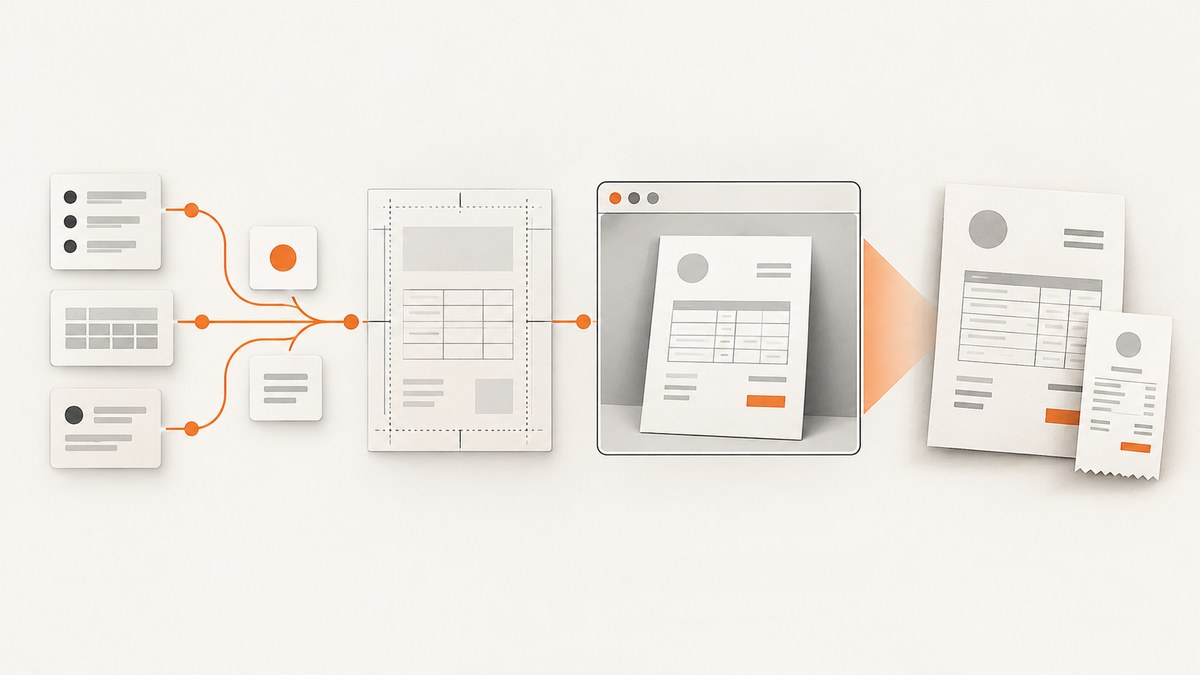
To generate an invoice or receipt from HTML, create the document from structured data, add print-specific CSS, then render the page with a browser such as Chromium. Puppeteer can save the result as a PDF, while a hosted HTML-to-PDF API can handle browser operations for you. A third option is letting the customer use the browser’s print dialog.
The rendering step only makes a presentable file. It does not decide whether the contents satisfy tax, accounting, electronic-invoicing, or record-retention rules in your jurisdiction. Confirm required fields and tax treatment with the rules that apply to your business and transaction.
Choose the rendering path
| Path | Best when | What you operate |
|---|---|---|
| Browser print | A user can review and print interactively | Your HTML and print CSS |
| Puppeteer | Your server needs deterministic PDF files | Node.js, Chromium, browser lifecycle |
| Hosted HTML-to-PDF API | You want an HTTP workflow without managing a browser | API credentials, data handling, quotas and retries |
Puppeteer’s Page.pdf() uses the print CSS media type by default. Its documented options include paper format, margins, orientation, headers and footers, page ranges, background printing and CSS page-size preferences. The API defaults to Letter paper and does not print backgrounds unless you enable them. See the Page.pdf() API and PDFOptions reference.
1. Model invoice or receipt data separately from HTML
Keep values in an object or database record, then pass them to a template. Typical fields include:
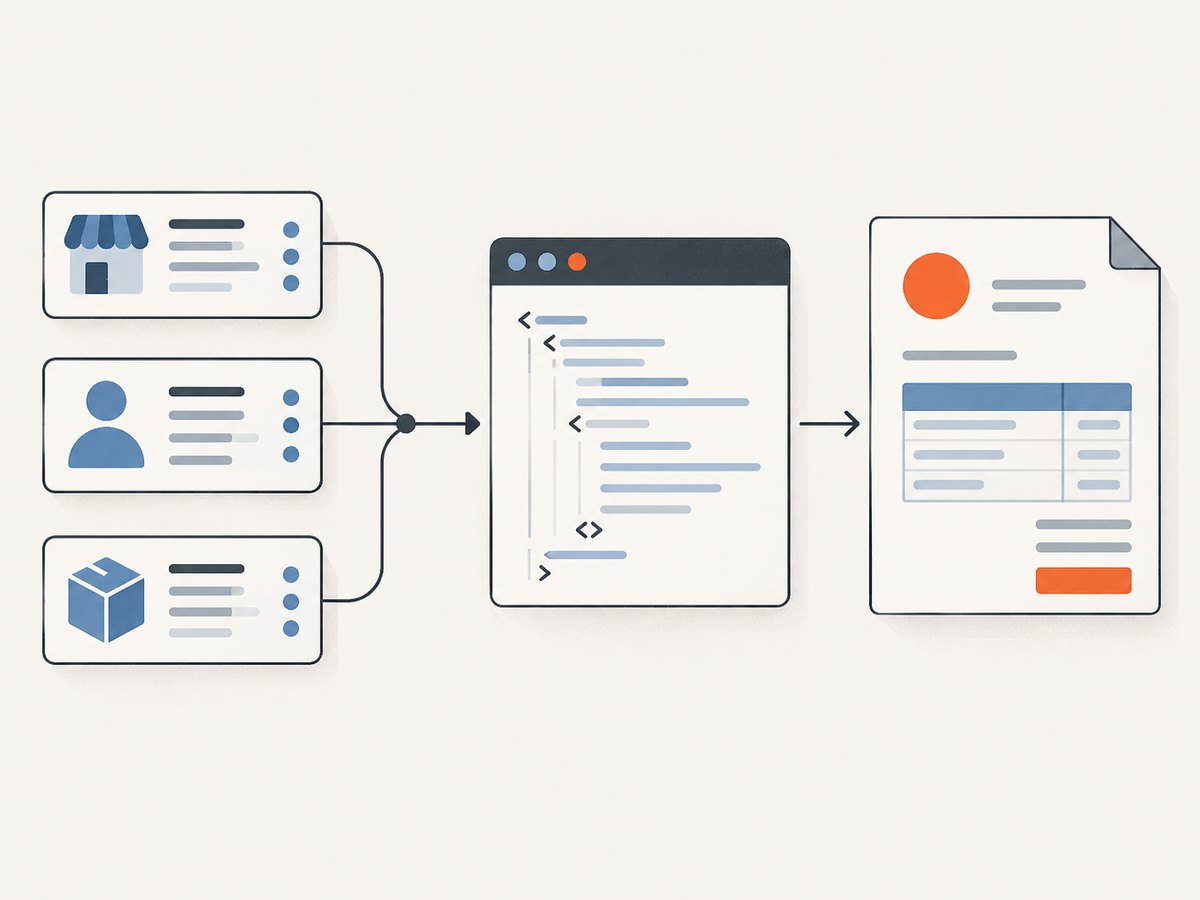
- Seller identity and contact details
- Customer identity and billing or shipping details
- Document number and issue date
- Line-item description, quantity and unit price
- Discounts, tax components, currency and total
- Payment instructions, transaction reference and notes
This is an implementation model, not a universal legal checklist. Requirements vary by jurisdiction, customer type and transaction. Treat tax arithmetic as financial data: use validated rules, decimal-safe calculations and a review process.
Escape every value that can come from a user, customer or external system before inserting it into HTML. Never concatenate untrusted text into a template as raw markup. A template engine with HTML escaping enabled by default is a practical choice.
2. Build semantic invoice HTML
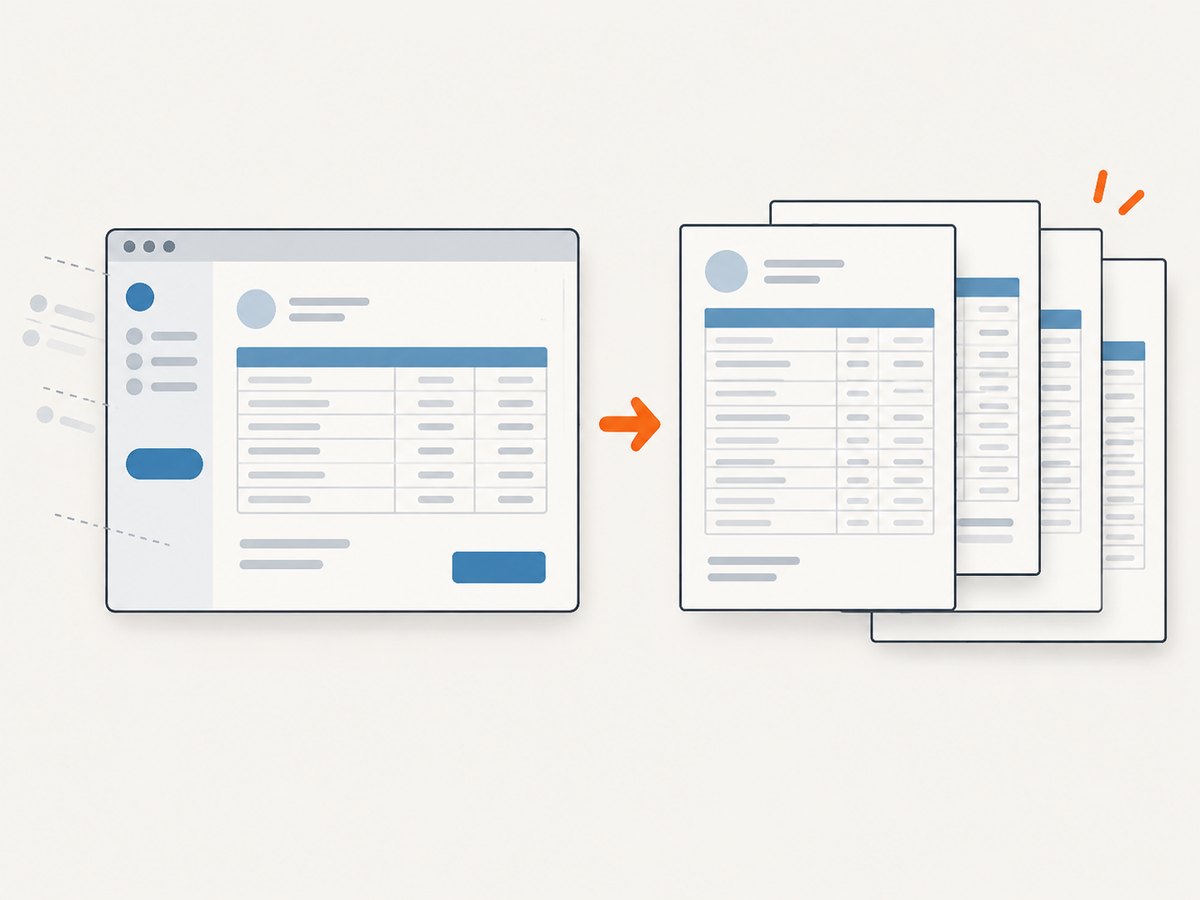
Use a heading for the document type, sections for the parties and payment details, a table for line items, and a clearly labelled totals block. Semantic structure helps screen readers and makes print CSS easier to maintain.
<article class="document">
  <header class="document-header">
    <div>
      <h1>Invoice</h1>
      <p>Invoice number: INV-1042</p>
      <p>Issued: 2026-09-29</p>
    </div>
    <div class="seller">
      <strong>Northwind Studio Ltd.</strong>
      <span>billing@example.test</span>
    </div>
  </header>

  <section class="parties">
    <div><h2>Bill to</h2><p>Ada Lovelace<br>ada@example.test</p></div>
    <div><h2>Payment</h2><p>Due on receipt<br>Reference INV-1042</p></div>
  </section>

  <table class="items">
    <thead><tr><th>Description</th><th>Qty</th><th>Rate</th><th>Amount</th></tr></thead>
    <tbody>
      <tr><td>Design consultation</td><td>2</td><td>€150.00</td><td>€300.00</td></tr>
      <tr><td>Report preparation</td><td>1</td><td>€80.00</td><td>€80.00</td></tr>
    </tbody>
  </table>

  <section class="totals">
    <p>Subtotal: €380.00</p>
    <p>Tax: €76.00</p>
    <p class="grand-total">Total: €456.00</p>
  </section>
</article>
3. Add print-specific CSS
MDN’s printing guide describes using print media queries to change a page for paper or PDF output. Hide navigation, buttons and editing controls; set readable margins; and make tables repeat their header when supported.
@page {
  size: A4;
  margin: 16mm;
}

* { box-sizing: border-box; }
body {
  margin: 0;
  color: #20242a;
  font: 14px/1.45 Arial, sans-serif;
}
.document { max-width: 190mm; margin: 0 auto; }
.document-header, .parties { display: flex; justify-content: space-between; gap: 24px; }
.items { width: 100%; border-collapse: collapse; margin-top: 28px; }
.items th, .items td { border-bottom: 1px solid #d9dde3; padding: 8px; text-align: left; }
.items th:nth-child(n+2), .items td:nth-child(n+2) { text-align: right; }
.totals { margin: 24px 0 0 auto; max-width: 260px; }
.grand-total { border-top: 2px solid #20242a; font-size: 18px; font-weight: 700; padding-top: 8px; }

@media print {
  .no-print, nav, button, form { display: none !important; }
  .document { max-width: none; }
  thead { display: table-header-group; }
  tr, img { break-inside: avoid; }
  a { color: inherit; text-decoration: none; }
}

/* Use this only when exact background colors are part of the design. */
@media print {
  .brand-band { -webkit-print-color-adjust: exact; print-color-adjust: exact; }
}
Check long descriptions, multi-page tables and totals near a page boundary. Avoid placing a large fixed-height container around the whole document; it can clip content in print layout. Keep logos and fonts available to the renderer, and provide fallbacks for missing fonts.
4. Generate a PDF with Puppeteer
Install Puppeteer in a Node.js project with npm install puppeteer. The official guide shows opening a page, generating a PDF and closing the browser; it also states that PDF generation waits for fonts to load by default. The following complete example writes an invoice PDF from an HTML string.
import puppeteer from 'puppeteer';

const html = `<!doctype html>
<html><head><meta charset="utf-8">
<style>
@page { size: A4; margin: 16mm; }
body { font: 14px Arial, sans-serif; color: #20242a; }
table { width: 100%; border-collapse: collapse; }
th, td { padding: 8px; border-bottom: 1px solid #d9dde3; text-align: left; }
.num { text-align: right; }
@media print { thead { display: table-header-group; } tr { break-inside: avoid; } }
</style></head>
<body>
<h1>Invoice INV-1042</h1>
<p>Northwind Studio Ltd. · Ada Lovelace</p>
<table><thead><tr><th>Description</th><th class="num">Amount</th></tr></thead>
<tbody><tr><td>Design consultation</td><td class="num">€300.00</td></tr>
<tr><td>Report preparation</td><td class="num">€80.00</td></tr></tbody></table>
<p>Total: €456.00</p>
</body></html>`;

const browser = await puppeteer.launch();
try {
  const page = await browser.newPage();
  await page.setContent(html, { waitUntil: 'networkidle0' });
  await page.pdf({
    path: 'invoice.pdf',
    format: 'A4',
    printBackground: true,
    preferCSSPageSize: true,
    margin: { top: '16mm', right: '16mm', bottom: '16mm', left: '16mm' }
  });
} finally {
  await browser.close();
}
page.pdf() uses print media. If your design intentionally depends on screen styles, call await page.emulateMediaType('screen') before creating the PDF. Use printBackground: true when colored bands or shaded table cells are meaningful. Header and footer templates can include Puppeteer’s pageNumber and totalPages classes. Page ranges let you export selected pages, but verify the result when content reflows.
5. Let a user print the HTML
For a customer-facing invoice page, a print button can call window.print(). The browser then applies @media print rules and lets the user select a printer or “Save as PDF.” This avoids server-side browser infrastructure, but output depends on the browser, printer dialog and user settings. Provide a visible download option when your workflow requires a server-generated, repeatable file.
<button class="no-print" type="button" onclick="window.print()">Print or save PDF</button>6. Use a hosted HTML-to-PDF API
A hosted service can accept raw HTML or a URL and return PDF bytes. For example, HTMLPDF.dev documents controls for paper size, margins, media type, print backgrounds and waiting for a selector. Its limits, pricing, privacy terms and availability can change, so review the current API documentation before sending business documents.
When evaluating a service, check whether it supports authenticated pages, external assets, custom fonts, deterministic waiting, page ranges, retries and data deletion. Send only the data the provider needs, and avoid exposing invoice URLs publicly unless access controls are appropriate.
7. Validate every generated document
- Compare displayed line amounts, subtotals, tax components and totals with the source record.
- Check currency symbols, decimal precision, date and timezone formatting.
- Render a one-line document, a typical document and a multi-page document.
- Confirm fonts, logos, remote images and background colors load.
- Inspect page breaks: headings should stay with their content and totals should not be stranded.
- Open the PDF in more than one viewer if recipients use different software.
- Keep a document identifier so a regenerated file can be traced to the original data.
Or skip the browser setup
ScreenshotNeo can capture a hosted invoice or receipt page as a PDF through one GET request. Its cleanup steps accept cookie or consent banners and remove more than 60 known consent platforms, newsletter popups and chat widgets before capture; each step can be disabled. Bot checks, blank pages, timeouts, failed loads and cache hits are not billed, and the response identifies the page verdict and billing result in X-Page-Verdict and X-Billed headers.
Host the rendered invoice at a URL that the capture request can access, then use the PDF options described in the ScreenshotNeo documentation.
curl -G "https://api.screenshotneo.com/v1/shot" \
  -d access_key=YOUR_API_KEY \
  --data-urlencode url=https://example.com/invoices/INV-1042 \
  -o invoice.pdf
import requests
r = requests.get(
"https://api.screenshotneo.com/v1/shot",
params={"access_key": "YOUR_API_KEY", "url": "https://example.com/invoices/INV-1042"},
timeout=90,
)
r.raise_for_status()
open("invoice.pdf", "wb").write(r.content)const q = new URLSearchParams({
access_key: 'YOUR_API_KEY',
url: 'https://example.com/invoices/INV-1042'
});
const res = await fetch(`https://api.screenshotneo.com/v1/shot?${q}`);
if (!res.ok) throw new Error(`ScreenshotNeo request failed: ${res.status}`);
const bytes = new Uint8Array(await res.arrayBuffer());
await Bun.write('invoice.pdf', bytes);ScreenshotNeo also provides an MCP server with take_screenshot, get_page_info and capture_pdf tools for Claude, Cursor and other MCP clients. It includes 1,000 screenshots per month free with no card; paid plans start at $5 for 3,000 shots. Create a free ScreenshotNeo account.
Troubleshooting
The PDF is blank
The page may still be loading, require authentication, or have failed scripts. Wait for a meaningful selector or network idle, verify the URL from the renderer’s network environment, and log the HTTP response. With ScreenshotNeo, inspect X-Page-Verdict to distinguish a blank page, bot check, timeout or another result.
Fonts or icons are missing
Use a web-safe fallback, ensure font files are reachable, and wait for fonts before capture. Check cross-origin headers on font responses. Puppeteer’s PDF flow waits for fonts by default, but unavailable assets still cannot render.
Background colors disappear
Enable background printing in Puppeteer or the hosted API, and use print-color-adjust when exact colors matter. Browser and viewer settings can still affect printed output.
Rows split across pages
Apply break-inside: avoid to rows or item groups, repeat the table header with display: table-header-group, and test with unusually long descriptions. A single row taller than a page cannot remain intact; allow it to flow.
The totals are wrong
Do not calculate money with binary floating-point values and then format the result. Store minor units or use a decimal library, apply a documented rounding policy, and compare the rendered total with the authoritative transaction record.
The capture is billed unexpectedly
Cache hits are not billed by ScreenshotNeo, while successful clean captures are. Review the response headers and your caching TTL. Failed loads, bot checks, blank pages and timeouts are not billed.
Performance, reliability and cost decisions
A self-hosted Puppeteer process gives you control over browser version, network access and data location, but you must manage Chromium startup, memory, concurrency, sandbox settings, fonts and upgrades. Reuse a browser process where appropriate, isolate page state, set navigation and overall timeouts, and close pages in a finally block.
A hosted API reduces renderer operations but moves important decisions to the provider: data handling, quotas, pricing, regional processing, retry behavior and service availability. Measure your own documents rather than assuming a benchmark. Cache immutable invoice URLs carefully; never let a cache serve one customer’s document to another.
For either path, make generation idempotent by using a stable document identifier, record the source data version, and retry only failures that are safe to retry. Validate the resulting PDF before marking a job complete. If invoices contain personal or financial information, protect URLs, credentials and stored files.
FAQ
Can HTML alone calculate tax correctly?
No. HTML presents values. Tax rules and rounding require validated business logic and jurisdiction-specific review.
Should I generate a receipt or an invoice?
Use the document type your transaction and local rules require. The rendering technique is the same; the data and legal meaning differ.
Why does my PDF use Letter paper?
Puppeteer’s documented default format is Letter. Set format: 'A4' or another intended size, and coordinate it with your CSS @page rule.
Can I generate only selected pages?
Yes. Puppeteer PDF options include page ranges. Confirm that the selected range still contains required headings and totals after layout reflow.
Do browser and PDF output always match?
No. Print media rules, fonts, browser versions and viewer settings can change output. Validate the exact renderer and paper settings used in production.
Final checklist
- Keep invoice data separate from the template and escape untrusted values.
- Use semantic HTML and explicit
@media printrules. - Choose paper size, margins, orientation and background behavior deliberately.
- Wait for fonts and required content before rendering.
- Validate totals, assets and page breaks on short and long documents.
- Protect document URLs and make retries idempotent.
- Confirm legal and tax requirements separately from visual rendering.


