How to Generate Multiple Pages with PHP wkhtmltopdf
Combine URLs, files, or HTML into one ordered PDF with PHP wkhtmltopdf. Learn installation, page breaks, headers, JavaScript, assets, and troubleshooting.

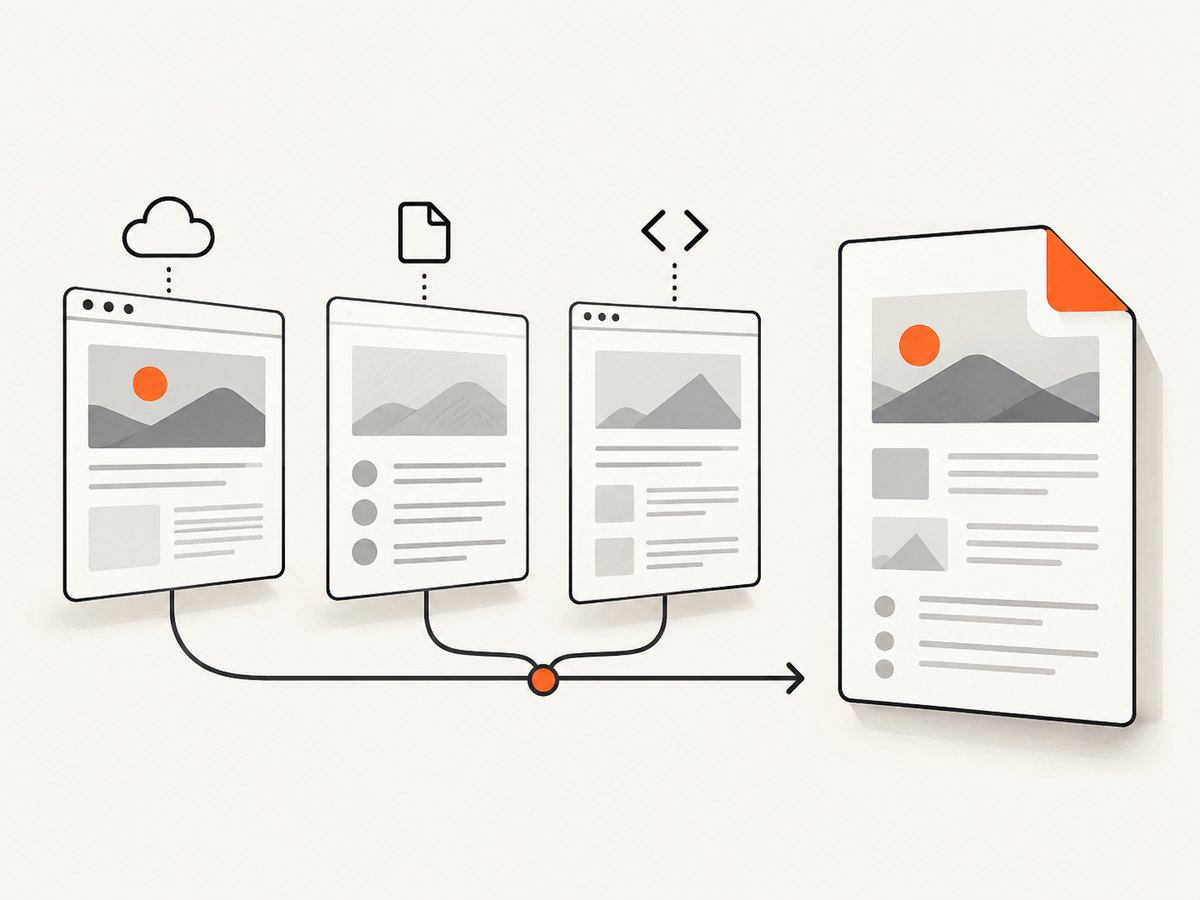
To generate a multi-page PDF with PHP and wkhtmltopdf, install the wkhtmltopdf executable, install a PHP wrapper such as mikehaertl/phpwkhtmltopdf with Composer, add each URL, local file, or HTML string using addPage() in the order you want, then save the combined PDF. The wrapper is an interface to the separate executable; it does not replace it.
The example below creates one PDF from two remote pages and one local HTML file. It sets paper and margin defaults, applies a page-specific JavaScript delay and local-file access to the local page, and throws an exception if generation fails. See the wkhtmltopdf usage reference and PHP wrapper documentation for the supported options. ScreenshotNeo’s API documentation covers its separate screenshot and PDF capture options.
1. Install wkhtmltopdf and the PHP wrapper
Install wkhtmltopdf on the same host that runs PHP. Verify that the executable is available to the application user:
wkhtmltopdf --versionThen install the wrapper in your PHP project:
composer require mikehaertl/phpwkhtmltopdfLoad Composer’s autoloader in the PHP entry point. If the command is not available through the service’s PATH, find the full binary path and configure it explicitly. A command that works in an interactive shell may not be on the restricted PATH used by PHP-FPM or a queue worker.
Before deployment, check the binary and its operating-system dependencies in the actual runtime environment. wkhtmltopdf uses a patched Qt rendering engine; its output and available behavior depend on that executable, not just the Composer package version.
2. Add pages in the desired order
Each call to addPage() appends a page object. Call it in the exact sequence the reader should see. The official tool supports one or more HTML pages in one PDF; it also supports cover and table-of-contents objects when you need a defined front matter position.
<?php
require __DIR__ . '/vendor/autoload.php';

use mikehaertl\wkhtmlto\Pdf;

$pdf = new Pdf([
    'binary' => '/usr/local/bin/wkhtmltopdf',
    'page-size' => 'A4',
    'margin-top' => '15mm',
    'margin-right' => '15mm',
    'margin-bottom' => '15mm',
    'margin-left' => '15mm',
]);

$pdf->addPage('https://example.com/page-1');
$pdf->addPage('https://example.com/page-2');
$pdf->addPage(__DIR__ . '/page-3.html', [
    'javascript-delay' => 500,
    'enable-local-file-access' => true,
]);

if (!$pdf->saveAs(__DIR__ . '/output.pdf')) {
    throw new RuntimeException($pdf->getError());
}
Replace the example URLs, binary path, and output location with values appropriate to your application. The local file is passed as a filesystem path; remote pages are passed as URLs. Keep input order explicit rather than relying on filesystem enumeration or an unordered collection.
Set defaults and override one page
The constructor options establish document-wide defaults. The second argument to addPage() supplies options for that page. Use page-level options when one section needs a different setting, such as a longer script delay or local-file access. Avoid duplicating global options unless a page needs to override them; this makes configuration easier to audit.
Use one HTML document when the pages share layout
You do not have to create one URL per PDF page. If the content is already available as one HTML document, use print CSS to control where it breaks. This is often simpler for reports assembled from application data, while separate URLs are convenient when each page already exists independently.
3. Control page size, margins, and page breaks
Set paper size and margins through wkhtmltopdf options such as page-size and margin-top. The margins reserve room around rendered content and are separate from spacing inside your HTML. For a specific element that should start on a new sheet, use print CSS with modern and older WebKit-compatible rules:
<style>
@media print {
  .chapter {
    break-before: page;
    page-break-before: always;
  }

  .keep-together {
    break-inside: avoid;
    page-break-inside: avoid;
  }
}
</style>
Apply page-break rules to suitable block elements. break-before: page is useful for chapter or invoice boundaries; break-inside: avoid can keep a short card, table row, or signature block together. A large element may not fit on one sheet, so “avoid” cannot always prevent a split. Test long tables, oversized images, and content that expands dynamically. wkhtmltopdf’s WebKit layout is not identical to the print engine in a current desktop browser, so inspect the generated PDF rather than assuming browser print preview will match.
Add headers and footers
For a simple running header or footer, use the corresponding options and wkhtmltopdf substitutions. For example, the header text can contain Page [page] of [topage]. Other documented substitutions include [webpage], [date], and [isodate]. For richer markup, configure HTML header or footer files. Leave enough top or bottom margin for the header/footer height; otherwise it can overlap page content.
4. Handle JavaScript and local assets
Pages that build content in JavaScript may need time to finish before the PDF is rendered. The example uses javascript-delay for the local page. A fixed delay is straightforward, but too short can capture incomplete content and too long wastes time on every conversion. Where the page can signal readiness, use wkhtmltopdf’s window-status mechanism so rendering can wait for a known application state.
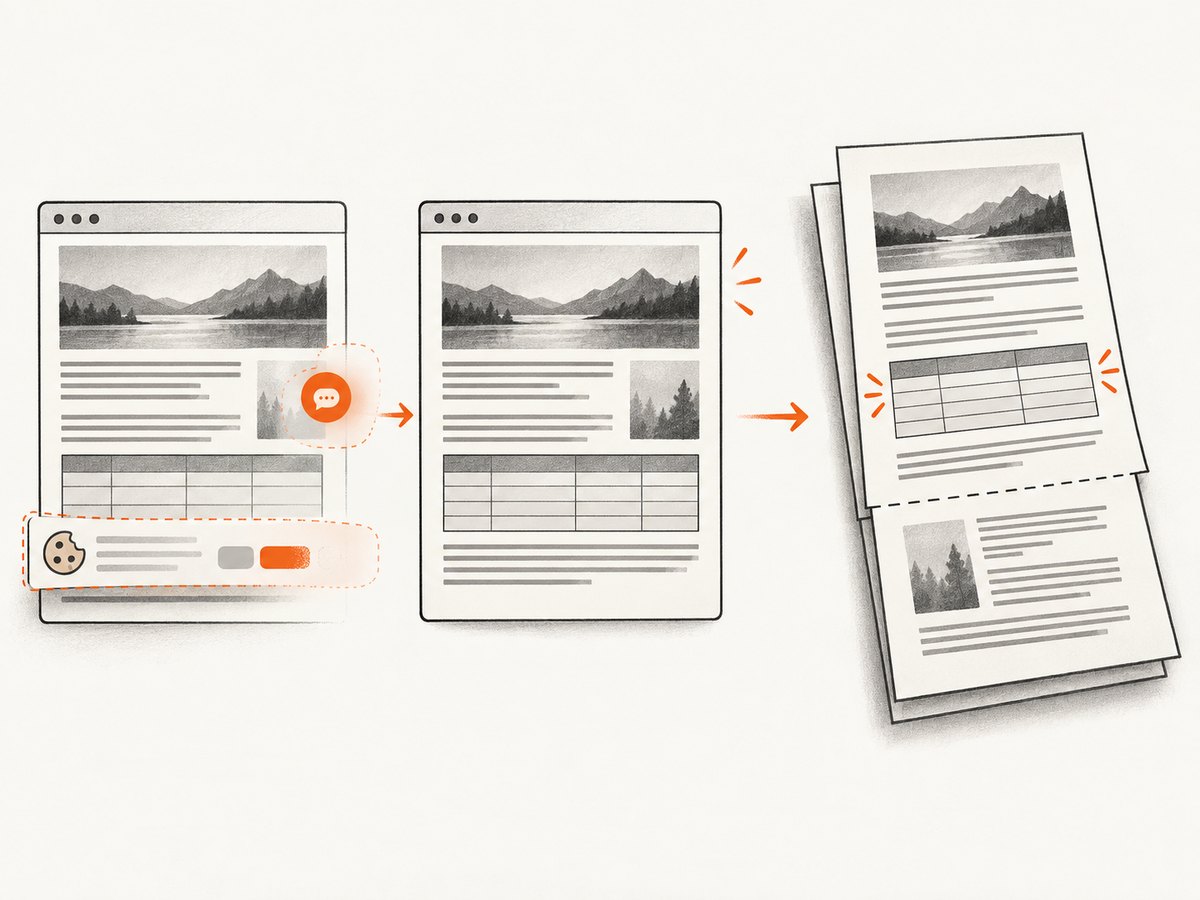
For local CSS, images, or fonts, configure local-file access deliberately. The command supports --enable-local-file-access and an --allow path. The wrapper option in the example enables local access for that page. Prefer allowing only the required asset directory when that fits your setup, and make paths resolve correctly from the conversion process. A browser page that loads assets through remote URLs has different requirements: check DNS, TLS, authentication, and network access from the host running wkhtmltopdf.
Choose the right input and asset strategy
| Input | Useful when | Things to check |
|---|---|---|
| One URL per page | Pages already exist and should be combined in a known order. | Network access, redirects, authentication, and page readiness. |
| Local HTML file | The application has rendered a document to disk. | Absolute or correctly resolved asset paths and local-file access. |
| One HTML document with print CSS | Content is assembled together and needs controlled section breaks. | Long content, table splits, CSS support, and images that exceed the page. |
5. Run conversion reliably in production
PDF conversion is an external process. Handle both a failed return value and execution exceptions, preserve the error details, and write output to a path the PHP worker can access. The wrapper exposes error information; its documentation also describes execution exceptions. Catch and log failures at the boundary where your application launches the conversion.
<?php
try {
    if (!$pdf->saveAs($outputPath)) {
        throw new RuntimeException($pdf->getError());
    }
} catch (\Throwable $e) {
    error_log('PDF generation failed: ' . $e->getMessage());
    throw $e;
}
This fragment assumes $pdf has been configured and pages added as shown earlier, and $outputPath points to a writable destination. In a web request, avoid letting an unbounded conversion occupy a PHP worker indefinitely. Put lengthy jobs in a queue, set sensible process and request time limits, and clean up temporary HTML and PDF files after they are no longer needed. Retain stderr or the wrapper’s command failure details for diagnosis; a generic “PDF failed” log is rarely enough to identify a missing binary or inaccessible asset.
6. Troubleshoot common failures
| Symptom | Likely cause | Fix |
|---|---|---|
| Binary not found or process cannot start | wkhtmltopdf is absent, not executable, or missing from the PHP process’s PATH. |
Install it on the target host, check permissions, and set the wrapper’s binary to the absolute path. |
| Local images, fonts, or styles are missing | Local-file access is disabled, paths resolve from an unexpected working directory, or the asset path is not allowed. | Enable local access for the page or allow the relevant directory; use paths valid to the conversion process. |
| JavaScript content is blank or incomplete | Rendering starts before the page has populated its content. | Use an appropriate delay or a window-status signal and ensure the page actually reaches that state. |
| Only some pages appear, or they appear in the wrong order | A page was not appended, generation failed, or page additions came from an unordered source. | Append pages sequentially, check every input, and inspect the wrapper error on failure. |
| Text or tables split awkwardly | Content exceeds available printable space or the renderer handles a CSS rule differently than expected. | Adjust margins and print styles, apply break rules to suitable elements, and inspect the resulting PDF. |
| Header overlaps body content | There is not enough reserved margin for the configured header or footer. | Increase the relevant margin or reduce header/footer height. |
| Remote page cannot load | The conversion host cannot resolve or reach the URL, or the page requires authentication. | Check connectivity and TLS from the host; supply the required page options, headers, or cookies where supported. |
| Request times out or exhausts a worker | Many pages, heavy assets, or slow JavaScript keep the external process busy. | Reduce unnecessary assets and waits, queue long jobs, and apply operational time limits with useful logs. |
7. Performance, reliability, and cost considerations
Conversion time depends on the number and complexity of pages, image and font weight, network latency, JavaScript activity, and the host’s available resources. There is no universal duration to assume. Reduce avoidable work: use only necessary pages and assets, avoid excessive fixed delays, and prefer a readiness signal when the page supports one. For repeated or bulk generation, run jobs through a queue and monitor process failures and output-file size.
Reliability starts with controlling inputs and the runtime: pin down which wkhtmltopdf binary is installed, verify it in the deployment environment, set explicit paths and options, and keep diagnostic output. The sources do not establish a general benchmark or fixed resource cost, so measure representative documents on your own host before setting concurrency and worker limits.
The tool itself is a separately installed executable, and the PHP wrapper is a Composer dependency. Budget for hosting CPU, memory, storage, and any operational work needed to maintain the binary. Converting untrusted URLs or HTML can also make the renderer fetch resources; constrain accepted inputs and local asset access to fit your application’s security model.
8. Or skip the browser setup
If your job is to capture a website as an image or PDF, ScreenshotNeo offers a single-request screenshot API and an MCP server for AI agents. A basic request is:
curl -G "https://api.screenshotneo.com/v1/shot" -d access_key=YOUR_API_KEY --data-urlencode url=https://stripe.com -o shot.webpSee the API documentation for the request options. ScreenshotNeo removes cookie banners, newsletter popups, and chat widgets before the shot. Bot checks, blank pages, failed loads, and cache hits are not billed, with the outcome described in response headers. Its MCP tools let Claude, Cursor, and other MCP clients take screenshots. The free plan includes 1,000 shots a month with no card; paid plans start at $5 for 3,000 shots.
Sign up for 1,000 free screenshots a month, with no card required.
9. Frequently asked questions
Can one PDF contain pages with different sizes?
Use page-specific options where supported by the wrapper and wkhtmltopdf for the pages that need overrides. Confirm the resulting document because paper-size and rendering behavior can depend on the exact option and binary version.
Can I add a cover or table of contents?
Yes. The command supports cover and table-of-contents objects in addition to page objects. Place them deliberately in the document sequence and consult the usage reference for their specific options.
Should I use the PHP wrapper or call the binary directly?
The wrapper keeps configuration and page additions in PHP and provides save and error handling methods. Direct shell invocation can suit a process already organized around command execution. Both approaches still require the wkhtmltopdf executable on the host.
Why does my PDF differ from the browser’s print preview?
wkhtmltopdf renders with its own patched Qt/WebKit engine, which may differ from a modern browser’s print implementation. Treat the generated PDF as the final rendering and adjust supported CSS and options based on that output.


