How to Generate Multiple PDFs With html-pdf-node
Generate several PDFs from HTML or URLs with html-pdf-node, including A4 sizing, margins, CSS page rules, page ranges, storage, and troubleshooting.
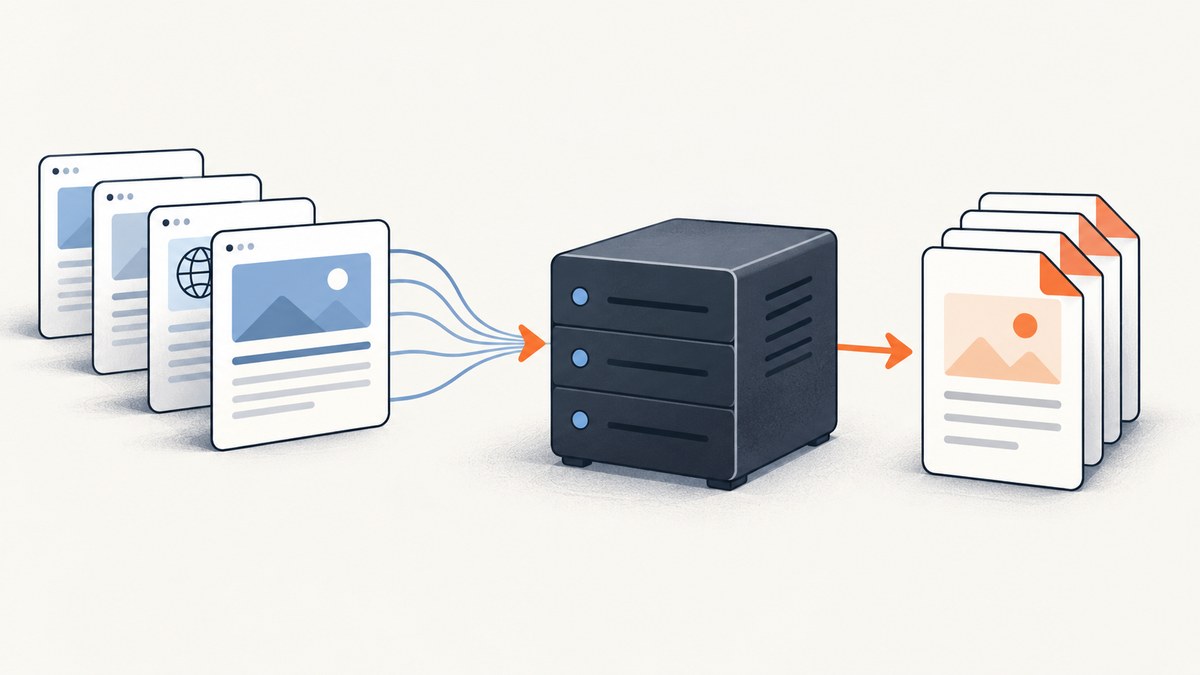
Use htmlToPdf.generatePdfs(files, options). Pass an array in which each item contains either a public url or an HTML content string, then save the returned buffer for every result. The package shares one options object across the batch, so paper size, margins, CSS page sizing, page ranges, background graphics, orientation, and Chromium flags are configured once.
This complete example creates two PDFs from HTML and one from a URL, checks that every input produced a result, and writes each buffer using the stable name attached to its input.
npm install html-pdf-node
mkdir -p out
const htmlToPdf = require('html-pdf-node');
const fs = require('node:fs/promises');
const path = require('node:path');
const files = [
{
content: `<!doctype html>
<html><head><style>
@page { size: A4; margin: 12mm; }
body { font-family: Arial, sans-serif; }
</style></head>
<body><h1>Invoice 1001</h1><p>Alice</p></body></html>`,
name: 'invoice-1001.pdf'
},
{
content: '<h1>Invoice 1002</h1><p>Bob</p>',
name: 'invoice-1002.pdf'
},
{
url: 'https://example.com/report',
name: 'report.pdf'
}
];
const options = {
format: 'A4',
printBackground: true,
margin: {
top: '12mm',
right: '12mm',
bottom: '12mm',
left: '12mm'
},
path: false
};
async function run() {
await fs.mkdir('./out', { recursive: true });
const results = await htmlToPdf.generatePdfs(files, options);
if (!Array.isArray(results) || results.length !== files.length) {
throw new Error(`Expected ${files.length} PDF results, received ${results.length}`);
}
await Promise.all(results.map(async ({ name, buffer }, index) => {
if (!Buffer.isBuffer(buffer)) {
throw new TypeError(`Result ${index} does not contain a PDF buffer`);
}
const outputName = name || files[index].name;
await fs.writeFile(path.join('./out', outputName), buffer);
}));
console.log(`Wrote ${results.length} PDFs to ./out`);
}
run().catch(error => {
console.error(error);
process.exitCode = 1;
});The html-pdf-node repository documentation describes generatePdfs as returning a promise that resolves to objects containing PDF buffers. Your application is responsible for choosing output names and persisting those buffers.
1. How the batch API works
- Install
html-pdf-nodein the Node.js project that will run Chromium. - Build an array of input objects. Use
contentfor HTML you already have, orurlfor a publicly reachable page. - Attach a stable
nameto each item so the output can be matched to the source record. - Create one shared options object for paper and browser settings.
await htmlToPdf.generatePdfs(files, options).- Validate the returned array and write each
bufferto controlled storage.
For URL inputs, the browser process must be able to resolve DNS, connect to the site, and load its assets. The package documentation shows URL input but does not publish a wait strategy or timeout contract, so pages that render asynchronously need to be made ready by the page itself or handled in your deployment design.
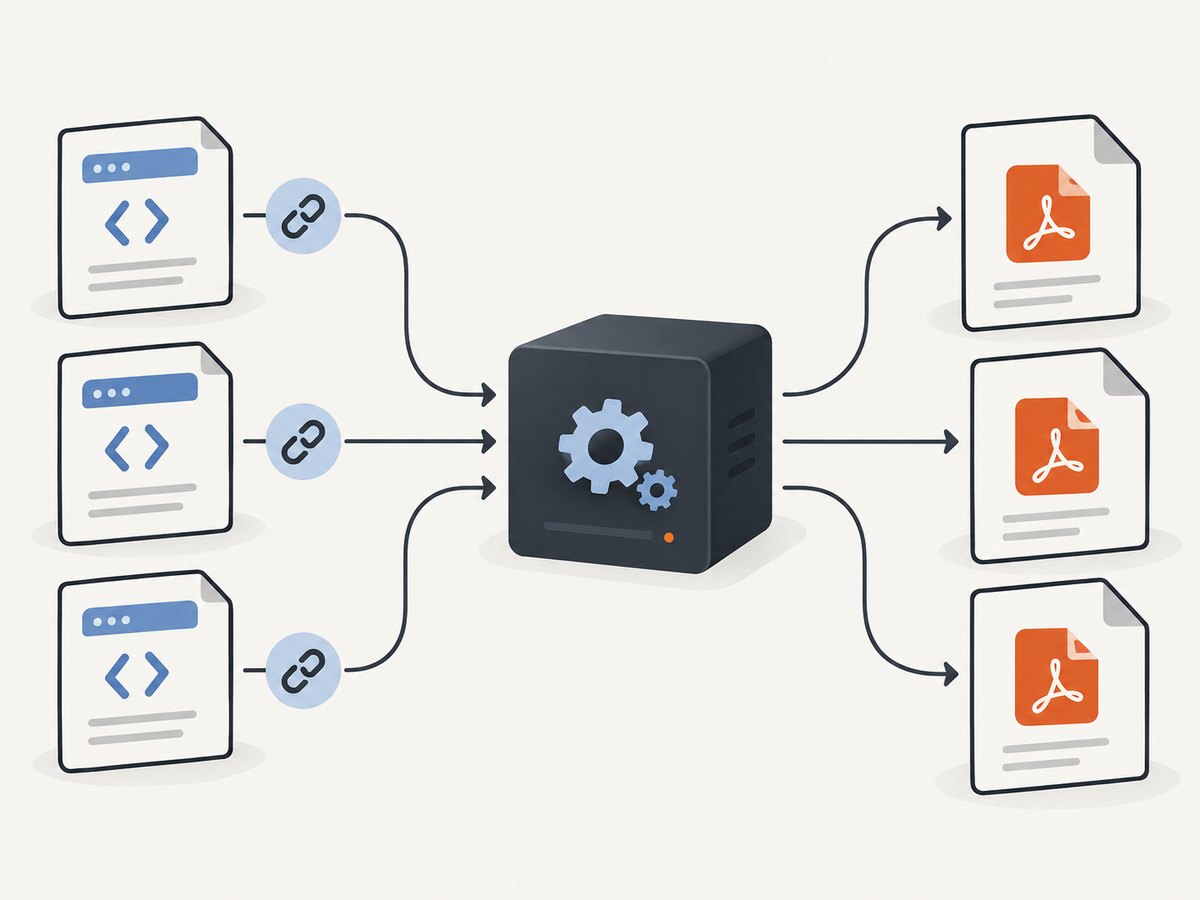
2. Input objects: HTML content, URLs, and names
HTML strings
const files = [
  {
    name: 'statement.pdf',
    content: `
      <!doctype html>
      <html>
        <head>
          <meta charset="utf-8">
          <style>body { font-family: sans-serif; }</style>
        </head>
        <body><h1>Monthly statement</h1></body>
      </html>`
  }
];
Use a complete document when you need predictable fonts, metadata, print styles, or an explicit @page rule. A fragment such as <h1>Report</h1> also works for simple documents.
Public URLs
const files = [
  { url: 'https://example.com/report', name: 'report.pdf' },
  { url: 'https://example.com/invoice/1001', name: 'invoice-1001.pdf' }
];
URL rendering depends on the target server, redirects, authentication, robots or bot checks, network access from the host, and the page’s own JavaScript timing. The README does not define a dedicated readiness or timeout option for this API.
Keep names separate from filesystem paths
Treat name as an identifier supplied by your application. Sanitize user-controlled names, reject path traversal such as ../, and map records to an approved output directory before calling writeFile.
3. PDF options and precedence
| Option | What it controls | Details |
|---|---|---|
format |
Named paper size | The README says the default is Letter; use values such as A4 when you need a named format. |
width, height |
Custom paper dimensions | Specify dimensions with units. When format is set, it takes priority over custom dimensions. |
margin |
Printable margins | Set top, right, bottom, and left, for example 12mm. |
pageRanges |
Pages to emit | Use ranges such as 1-5, 8, 11-13. An empty value means all pages. |
preferCSSPageSize |
CSS page-size precedence | When enabled, the document’s CSS @page size takes priority over width, height, or format. |
printBackground |
Background graphics | The documented default is false; set true for colored sections, background images, and shaded table rows. |
landscape |
Orientation | The documented default is false. Set true for wide tables or charts. |
args |
Chromium flags | The README shows defaults including --no-sandbox and --disable-setuid-sandbox. Review these flags against your deployment security model before changing them. |
path |
Path handling | The option is documented for saving output. Using returned buffers gives you explicit per-file naming and error handling. |
A4 with margins, landscape, page ranges, and CSS sizing
const options = {
  format: 'A4',
  landscape: true,
  margin: {
    top: '15mm',
    right: '10mm',
    bottom: '15mm',
    left: '10mm'
  },
  pageRanges: '1-5, 8',
  printBackground: true,
  preferCSSPageSize: true,
  path: false
};
With preferCSSPageSize: true, a rule such as @page { size: Letter landscape; margin: 8mm; } in the HTML can override the JavaScript paper dimensions. Choose one source of truth for each batch to avoid surprising pagination.
Custom dimensions
const options = {
  width: '210mm',
  height: '297mm',
  margin: { top: '8mm', right: '8mm', bottom: '8mm', left: '8mm' },
  printBackground: true
};
Do not set format when you intend custom dimensions to win. If both are present, the documented precedence gives format priority.
4. Saving buffers safely
Write files after the promise resolves, and keep the input-to-output association deterministic. Promise.all is convenient, but one filesystem failure rejects the whole operation. For independent error reporting, process each result and record failures:
const outcomes = await Promise.all(results.map(async (result, index) => {
  const outputName = result.name || files[index].name;
  try {
    await fs.writeFile(path.join('./out', outputName), result.buffer);
    return { name: outputName, ok: true };
  } catch (error) {
    return { name: outputName, ok: false, error: error.message };
  }
}));

const failed = outcomes.filter(item => !item.ok);
if (failed.length) {
  console.error('Some PDFs were not saved:', failed);
  process.exitCode = 1;
}
For object storage, replace fs.writeFile with the storage SDK’s upload call and use a content type of application/pdf. Keep the buffer in memory only as long as required; large documents and large batches increase process memory.
5. CSS and pagination details
- Put print-specific rules inside
@media printwhen screen and PDF layouts differ. - Use
@pagefor page size and margins when CSS should control layout, and enablepreferCSSPageSizefor that precedence. - Set
printBackground: truewhen backgrounds are part of the design. - Use CSS page-break properties such as
break-before,break-after, andbreak-insideto keep headings and table rows together where Chromium supports them. - Test long unbroken strings, wide tables, missing fonts, and images with intrinsic dimensions. These are common causes of overflow and unexpected page counts.
<style>
  @page { size: A4; margin: 14mm 12mm; }
  h1, h2 { break-after: avoid; }
  table, figure { break-inside: avoid; }
  .new-page { break-before: page; }
  @media print {
    .screen-only { display: none; }
  }
</style>
6. Reliability, performance, and cost planning
Reliability checklist
- Pin the package version in your lockfile and keep a reproducible Chromium environment.
- Validate that the result count equals the input count before publishing files.
- Use stable correlation IDs in your own logs for each input and output.
- Retry only transient URL or filesystem failures, with a bounded retry count and backoff.
- Keep URL sources reachable from the production network and monitor redirects, DNS failures, and authentication changes.
- Do not assume a URL is ready merely because its initial HTML arrived; the package documentation does not publish a wait contract.
Performance
The research sources publish no throughput or concurrency benchmark. Measure your own workload with representative HTML sizes, images, fonts, URL pages, and page counts. Start with a bounded queue rather than launching unlimited batches: each browser-rendered PDF consumes CPU and memory, and very large buffers can create memory pressure.
Batching the inputs into one generatePdfs call gives your application one promise and one result array, but it does not provide a published capacity guarantee. Tune batch size, worker count, and memory limits in your deployment environment.
Cost
html-pdf-node is a self-managed library. Your costs come from the Node.js host, Chromium execution, storage, network traffic for URL inputs, and engineering time for operations. The npm page currently displays version 1.0.8 and 44,456 weekly downloads, but those values can change; check the current npm page before adoption.
7. Troubleshooting
| Symptom | Likely cause | Fix |
|---|---|---|
Cannot find module 'html-pdf-node' |
The dependency is not installed in the running project. | Run npm install html-pdf-node in the deployed project and verify the lockfile is included. |
| Browser launch or sandbox error | Chromium cannot start with the host’s permissions or sandbox configuration. | Review the documented args defaults, container permissions, and your deployment security requirements. Change flags only after reviewing the environment. |
| URL PDF is blank or incomplete | The page failed to load, depends on inaccessible network resources, or renders after the browser captured it. | Check the URL from the production host, inspect redirects and assets, and make the page render deterministically. The README does not document a wait option. |
| Background colors are missing | printBackground is false, its documented default. |
Set printBackground: true. |
| CSS paper size is ignored | A JavaScript format, width, or height is taking precedence. |
Set preferCSSPageSize: true and remove conflicting dimensions if CSS should be authoritative. |
| Output has the wrong orientation | landscape is false, or CSS page rules override the intended size. |
Set landscape: true, then check @page rules and preferCSSPageSize. |
| Only some files were written | A filesystem error rejected a parallel write or a result lacked a valid buffer. | Validate every result and use per-item error handling so failed paths can be retried without losing successful outputs. |
| Pages are unexpectedly cropped | Content exceeds the printable area, margins are too large, or a wide element cannot wrap. | Inspect computed widths, reduce margins, add print CSS, and test wide tables and long strings. |
8. Or skip the browser setup
If you need screenshots or PDFs from websites without managing a Chromium process, ScreenshotNeo provides a GET endpoint for a URL and supports PNG, JPEG, WebP, or PDF output. Its capture pipeline accepts cookie and consent banners as a visitor, removes more than 60 known consent platforms plus newsletter popups and chat widgets, and lets you turn each cleanup step off. Bot checks, blank pages, timeouts, failed loads, and cache hits are not billed, and each response reports its page verdict and billing status in X-Page-Verdict and X-Billed headers.
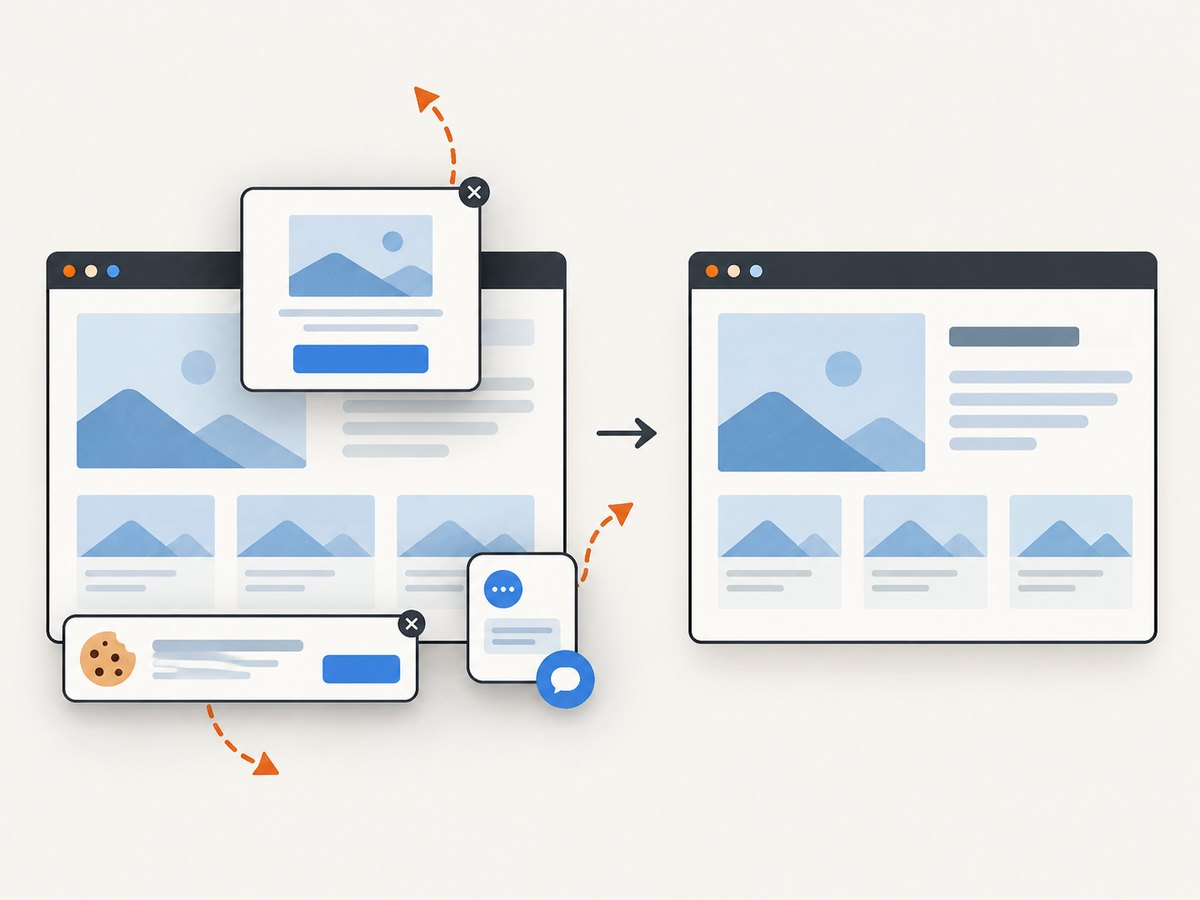
For a direct capture, see the ScreenshotNeo API documentation:
curl -G "https://api.screenshotneo.com/v1/shot" \
  -d access_key=YOUR_API_KEY \
  --data-urlencode url=https://stripe.com \
  -o shot.webp
import requests
r = requests.get(
"https://api.screenshotneo.com/v1/shot",
params={"access_key": "YOUR_API_KEY", "url": "https://stripe.com"},
timeout=90,
)
r.raise_for_status()
open("shot.webp", "wb").write(r.content)const q = new URLSearchParams({
access_key: 'YOUR_API_KEY',
url: 'https://stripe.com'
});
const res = await fetch(`https://api.screenshotneo.com/v1/shot?${q}`);
if (!res.ok) throw new Error(`ScreenshotNeo returned ${res.status}`);
const image = Buffer.from(await res.arrayBuffer());
require('node:fs').writeFileSync('shot.webp', image);ScreenshotNeo also supports full-page capture with lazy images loaded, element selectors, dark mode, device presets, custom viewports, retina scale, PDF paper settings and page ranges, custom CSS and JavaScript, clicks, waits, blocked resources, headers, cookies, user agents, authorization, timezone, geolocation, resizing, caching, signed links, asynchronous jobs with signed webhooks, bulk capture for up to 100 URLs per call, a usage API, and an OpenAPI specification. An MCP server exposes take_screenshot, get_page_info, and capture_pdf to Claude, Cursor, and other MCP clients.
Start with 1,000 screenshots per month free with no card. Paid plans start at $5 for 3,000 shots, and every feature is available on every plan. Create your free ScreenshotNeo account.
9. FAQ
Does generatePdfs accept both URLs and HTML?
Yes. Each array item can provide either a public url or an HTML content string.
Does the function return file paths?
It resolves to an array of objects containing PDF buffers. Save those buffers yourself, using the item name or your own record mapping.
Can each PDF in one call have different margins or paper sizes?
The documented API takes one shared options object for the batch. Split documents into separate calls when they require different rendering options.
How do I render only selected pages?
Set pageRanges to a value such as 1-5, 8, 11-13. Leave it empty to include all pages.
Is there an official throughput number?
No benchmark is published in the supplied sources. Establish capacity with your own documents, URLs, concurrency, and host limits.


