How to Generate an Open Graph Image from an Existing Image
Turn an existing photo or illustration into a reliable Open Graph share card. Learn how to crop, add text, export, automate, and verify the image.
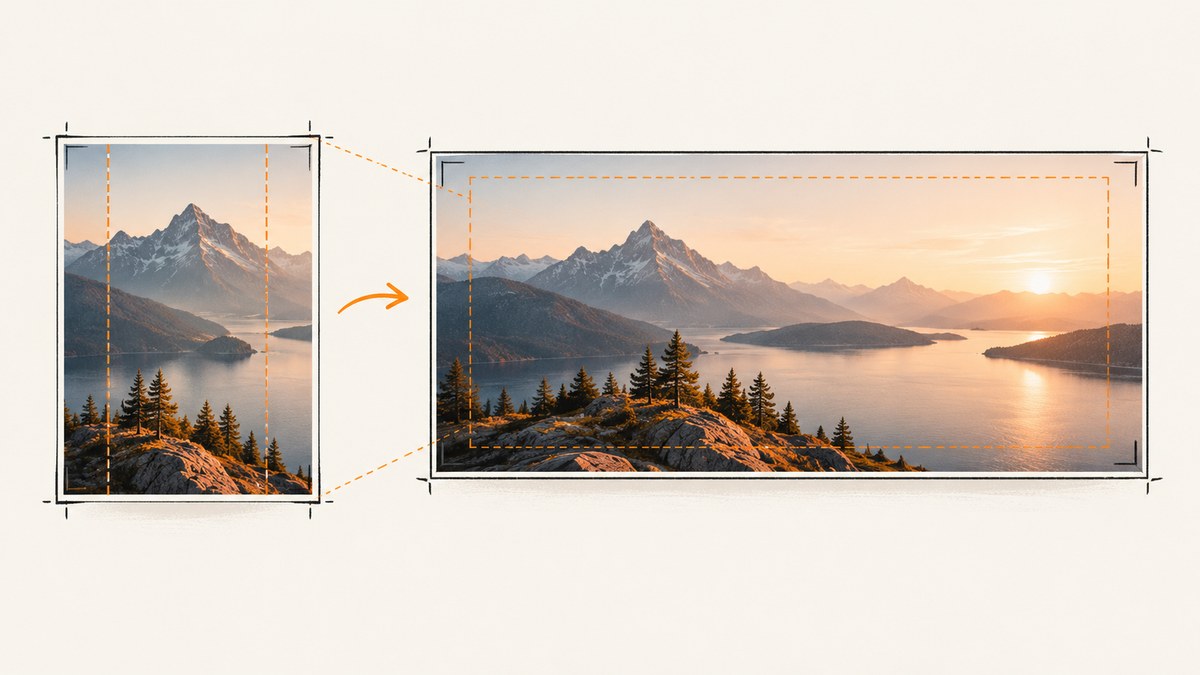
To generate an Open Graph (OG) image from an existing image, crop or pad it onto a 1200×630-pixel canvas, place a short readable headline in a clear area, export the result, and publish it at a public HTTPS URL. Then point your page’s og:image metadata at that URL. The 1200×630 size is a practical cross-platform baseline, not a universal requirement.
The process has two parts: make a share card that remains legible when shown small, then make sure the page publishes metadata that crawlers can read. This guide covers both, including a complete HTML example, a repeatable Python workflow, common fixes, and ways to automate cards for many pages.
1. Inspect the source image
Before editing, check the image’s dimensions, orientation, subject position, contrast, and license. Decide what should remain visible after the source is fitted to a wide card. A photo with a centered subject may crop easily; a portrait, square image, or edge-to-edge diagram may need padding or a split layout.
- Identify the focal point. Faces, product details, diagrams, and logos should not sit near the edges where a crop could cut them off.
- Check resolution. If the source is smaller than the output, avoid enlarging it until compression artifacts become obvious. A clean background or padded layout can preserve quality.
- Choose a text-safe area. Look for a quiet region with enough contrast for a headline. If the image is busy throughout, plan to add a solid or translucent panel.
- Confirm usage rights. The fact that an image is already on your site does not establish that it can be repurposed for every use.
Keep the image as the visual anchor. The headline explains the page; it should not obscure the subject.
2. Choose a layout and crop
A 1200×630 canvas has an aspect ratio of about 1.91:1 and is a useful starting point. The Open Graph protocol does not require that exact size, and platforms may display or crop previews differently. Design for the intended content to remain clear even if the edges are trimmed.
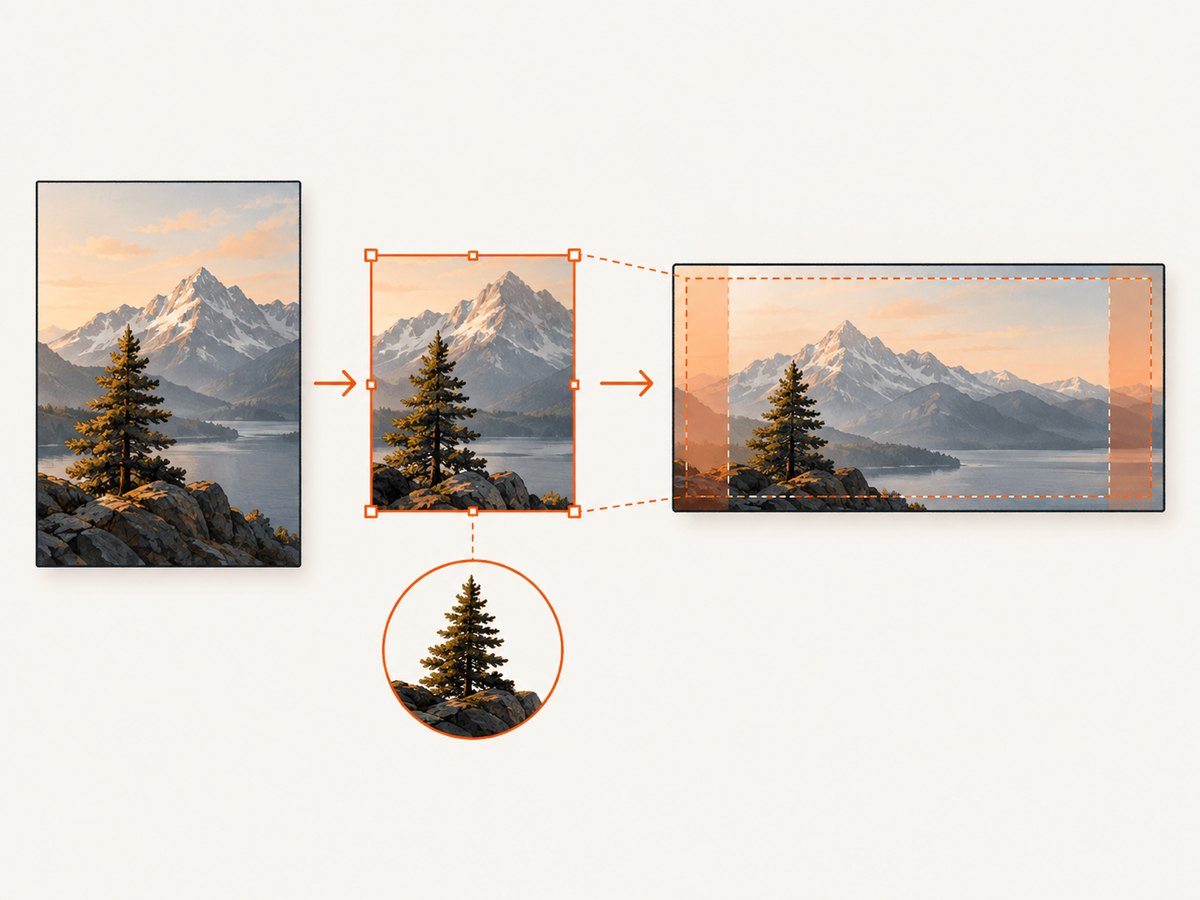
| Source | Practical layout | Watch for |
|---|---|---|
| Wide landscape photo | Cover crop around the subject | Keep faces and important details away from edges. |
| Portrait or square art | Place it on a complementary background, or use a split image-and-text layout | A full-width crop may remove too much of the subject. |
| Diagram or screenshot | Use padding or a contained image area | Small labels can become unreadable at thumbnail size. |
| Busy image with no quiet area | Add a contrast panel or a subtle scrim behind the headline | Keep the treatment restrained so the image still reads clearly. |
For a cover crop, set a focal point instead of blindly centering the image. For a padded layout, choose a background sampled from the source or aligned with the site’s visual style. Preview the complete card and a reduced thumbnail before exporting.
3. Add a short headline
Use one concise headline that identifies the page when the card is small. Choose a legible typeface and strong contrast. If the background is variable, add a scrim or panel rather than relying on a text shadow alone. A small logo or site name can establish ownership, but it should not compete with the subject or headline.
Do not treat the image’s text as a replacement for the page title or metadata. The card is a visual preview; the page still needs an accurate og:title and description. Also provide useful image alt text in metadata for systems that use it.
4. Export the image
Export a final 1200×630 file, inspect it at full size and thumbnail size, and choose a format for the content:
- JPG: a practical choice for photographs and broad compatibility; adjust compression until the file looks clean.
- PNG: useful for sharp text, diagrams, or transparency, though photographic files may be larger.
- WebP: can reduce file size where the consuming crawler accepts it. If compatibility is uncertain, use JPG.
There is no single authoritative byte-size limit established for every crawler and platform. Avoid assuming that one limit applies everywhere; use a reasonable compressed asset and verify it on the services that matter to your audience. Save it at a stable, descriptive path, for example /og/how-to-generate-og-image.jpg. When you replace an image, consider a new filename so caches do not keep serving the old asset.
5. Publish Open Graph metadata
Put the tags in the page’s HTML <head> and use the absolute HTTPS URL for the image. A browser-visible client-side preview is not enough if a crawler receives HTML without the metadata. The official protocol defines og:image and structured image properties such as secure URL, type, dimensions, and alt text. Its documentation describes alt as an image description, not a caption.
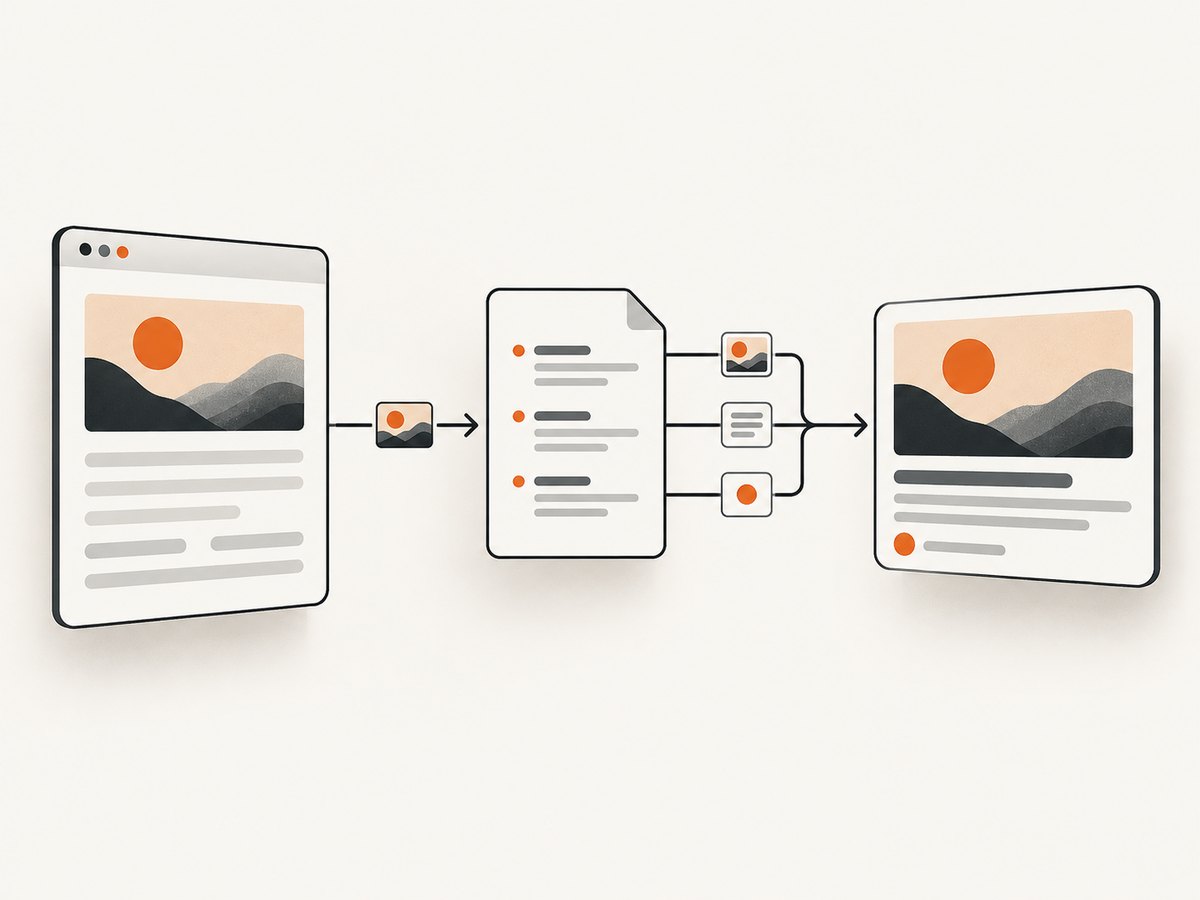
<head prefix="og: https://ogp.me/ns#">
  <title>How to Generate an Open Graph Image from an Existing Image</title>
  <meta property="og:title" content="How to Generate an Open Graph Image from an Existing Image">
  <meta property="og:type" content="article">
  <meta property="og:url" content="https://example.com/article">
  <meta property="og:image" content="https://example.com/og/how-to-generate-og-image.jpg">
  <meta property="og:image:secure_url" content="https://example.com/og/how-to-generate-og-image.jpg">
  <meta property="og:image:type" content="image/jpeg">
  <meta property="og:image:width" content="1200">
  <meta property="og:image:height" content="630">
  <meta property="og:image:alt" content="A finished social preview card made from an existing photograph">
  <meta property="og:description" content="A practical workflow for turning an existing image into an Open Graph share card.">
</head>
Replace the example domain, page URL, image path, MIME type, and alt description with values for your actual page and asset. Keep dimensions and type accurate for the file you serve. For example, if the output is WebP, update the path and MIME type accordingly.
The Open Graph project describes its protocol as enabling a web page to become a rich object in a social graph. See the official Open Graph protocol for its metadata definitions.
6. Handle multiple image candidates
If you declare multiple og:image values, put your preferred fallback first. Place that image’s structured properties—such as width, height, type, and alt—directly after its root image declaration before starting the next image. The specification says the first image is preferred and associates structured properties with the preceding root image. Interleaving properties and image URLs carelessly can make a crawler interpret the metadata differently than intended.
<meta property="og:image" content="https://example.com/og/primary.jpg">
<meta property="og:image:type" content="image/jpeg">
<meta property="og:image:width" content="1200">
<meta property="og:image:height" content="630">
<meta property="og:image:alt" content="Primary social preview image">

<meta property="og:image" content="https://example.com/og/alternate.jpg">
<meta property="og:image:type" content="image/jpeg">
<meta property="og:image:width" content="1200">
<meta property="og:image:height" content="630">
If you only need one preview, publish one well-tested image. Multiple candidates add another ordering detail to maintain and do not guarantee that every service will choose the same one.
7. Generate cards with Python and Pillow
For a handful of pages, an image editor is usually quickest. If you want a repeatable local script, Python’s Pillow library can crop an existing image, add a readable headline, and save a card. Install Pillow with python -m pip install Pillow, save the following as make_og.py, and run it with a source image and output path.
from pathlib import Path
import sys
from PIL import Image, ImageDraw, ImageFont

WIDTH, HEIGHT = 1200, 630
source_path = Path(sys.argv[1])
output_path = Path(sys.argv[2])
headline = "A useful page headline"

source = Image.open(source_path).convert("RGB")
# Cover crop, centered. Adjust the crop origin if the subject is off-center.
scale = max(WIDTH / source.width, HEIGHT / source.height)
resized = source.resize((round(source.width * scale), round(source.height * scale)), Image.Resampling.LANCZOS)
left = (resized.width - WIDTH) // 2
top = (resized.height - HEIGHT) // 2
card = resized.crop((left, top, left + WIDTH, top + HEIGHT))

# A dark translucent band improves text contrast over varied photographs.
overlay = Image.new("RGBA", card.size, (0, 0, 0, 0))
draw = ImageDraw.Draw(overlay)
draw.rectangle((0, 420, WIDTH, HEIGHT), fill=(0, 0, 0, 145))
card = Image.alpha_composite(card.convert("RGBA"), overlay)

# Use a font file available on your system for consistent results.
font_path = "/path/to/your/font.ttf"
font = ImageFont.truetype(font_path, 54)
draw = ImageDraw.Draw(card)
draw.text((64, 475), headline, font=font, fill=(255, 255, 255, 255))
card.convert("RGB").save(output_path, "JPEG", quality=88, optimize=True)
print(f"Wrote {output_path} ({WIDTH}x{HEIGHT})")
Pass an image path and destination, such as python make_og.py photo.jpg public/og/article.jpg. Replace the headline and font path for your environment. This small example assumes the text fits on one line. For longer titles, wrap the text by measuring its rendered width, choose a smaller font, or design a wider text panel. Inspect the crop: the centered cover crop is only a starting point and can cut off an off-center subject. For a padded layout, create a 1200×630 background and paste a contained, scaled source image instead of cropping it.
8. Automate images for a site
When pages are data-driven or numerous, generate cards from a consistent template during the build or request. A template can combine a source image, title, optional subtitle, and site branding while preserving the same canvas and typography. Cloudinary documents transformation-based generation and a Next.js helper for producing OG image URLs; its generator also supports uploading an image, adjusting text and branding, smart cropping, and downloading a card. See its social media image generator and Next.js image transformation documentation.
Choose manual or automated generation based on the number of pages, need for per-page personalization, design consistency, hosting and cache control, implementation effort, and whether a third-party service fits your requirements. Keep the output URL stable for a given published card, and invalidate or version it deliberately when the content changes.
9. Verify the image and metadata
- Open the image URL directly. Confirm it is public, absolute, HTTPS, and returns the intended image rather than a login page or an HTML error.
- Inspect the rendered page source and confirm the OG tags are in the document’s
<head>. - Check that the first
og:imageis the intended choice and that its width, height, MIME type, and alt text describe that same image. - View the output at 1200×630 and at a small thumbnail size. Confirm the headline, subject, and important details survive.
- After replacing a card, use a new filename or an appropriate cache-busting strategy, then recheck the target sharing surface after its crawler refreshes.
10. Troubleshooting common problems
| Symptom | Likely cause | Fix |
|---|---|---|
| No preview image appears | The crawler cannot fetch the image, the URL is relative, or metadata is absent from the HTML it receives. | Use an absolute public HTTPS URL, inspect the served page source, and open the image URL directly. |
| An old image keeps appearing | A share crawler or CDN has cached the earlier asset. | Publish a new versioned filename and recheck after the relevant crawler refreshes its cache. |
| The wrong candidate is used | Another og:image appears first, or properties are grouped with the wrong image. |
Put the desired fallback first and keep its structured properties next to that image declaration. |
| The image is cropped badly | A center crop ignores the subject’s focal point or the consuming surface uses a different display crop. | Reposition the crop, pad the source, or use a split composition; protect key details from the edges. |
| Text disappears against the photo | The background lacks consistent contrast or the type is too small. | Add a contrast panel or scrim, simplify the headline, and inspect the card at thumbnail size. |
| Metadata previews correctly in a browser but not in sharing | The browser may render client-side tags that the crawler does not receive, or the image request is blocked. | Inspect the server-rendered HTML and confirm the crawler can retrieve the asset without a session. |
| Declared dimensions or format are wrong | Metadata was copied from an older file after the export changed. | Update width, height, MIME type, and URL to match the actual output. |
Or skip the browser setup
If you need a screenshot of a page as the source image—or want a direct screenshot workflow—ScreenshotNeo returns a screenshot or PDF from one GET request. Its screenshot does not create your OG card layout or add the headline; use an editor or template for those steps. The service removes cookie banners, newsletter popups, and chat widgets before capture, and bot checks, blank pages, and failed loads are never billed. Its MCP server lets AI agents take screenshots. The free plan includes 1,000 screenshots a month with no card; paid plans start at $5 for 3,000. See the ScreenshotNeo API documentation for parameters and formats.
curl -G "https://api.screenshotneo.com/v1/shot" -d access_key=YOUR_API_KEY --data-urlencode url=https://stripe.com -o shot.webpimport requests
r = requests.get("https://api.screenshotneo.com/v1/shot", params={"access_key": "YOUR_API_KEY", "url": "https://stripe.com"}, timeout=90)
open("shot.webp", "wb").write(r.content)const q = new URLSearchParams({ access_key: 'YOUR_API_KEY', url: 'https://stripe.com' });
const res = await fetch(`https://api.screenshotneo.com/v1/shot?${q}`);For a generated screenshot, check the response and save the returned image before using its public URL as og:image. Your site still needs to host or otherwise expose the image at a stable, public HTTPS URL. Create a free ScreenshotNeo account for 1,000 screenshots a month with no card.
Performance, reliability, and cost
For a single static card, the main performance concern is a large image file or an asset URL that cannot be fetched by crawlers. Resize to the intended dimensions, use suitable compression, and serve the file reliably over HTTPS. Prefer a new asset URL when changing the image so cache behavior is predictable.
Manual editing has little setup cost and works well for occasional pages, but each update takes human time and can drift from the site’s visual style. A build-time template takes implementation effort and makes repeated cards consistent. A third-party transformation or screenshot API can reduce custom image-processing work, but account for its price, output hosting, caching, and whether it creates the specific card composition you need. ScreenshotNeo’s listed plans are free for 1,000 shots per month, then $5 for 3,000, $15 for 15,000, $39 for 60,000, $99 for 250,000, and $249 for 1,000,000; yearly billing gives two months free, and every feature is on every plan. Those are screenshot prices, so include any separate design, storage, or delivery costs in your own estimate.
FAQ
Does every page need an OG image?
Not necessarily, but a deliberate image gives a page a visual preview when shared. Pages without one may lack the intended image treatment.
Can the image itself contain the page title?
Yes, a short headline can be part of the card design. Keep the page title and description in metadata as well, and make the image text readable at small sizes.
Should I use the same image in Open Graph and Twitter metadata?
This guide focuses on Open Graph tags. If you also publish platform-specific metadata, verify that its image URL and card settings point to the asset you intend.
Can I use an existing image without adding text?
Yes. A carefully cropped or padded image can work as a share preview on its own; text is an optional design choice, not a protocol requirement.


