How to Automatically Generate Open Graph Images in WordPress
Choose a WordPress plugin or build a custom workflow to generate Open Graph images, avoid duplicate tags, and verify what social platforms will fetch.

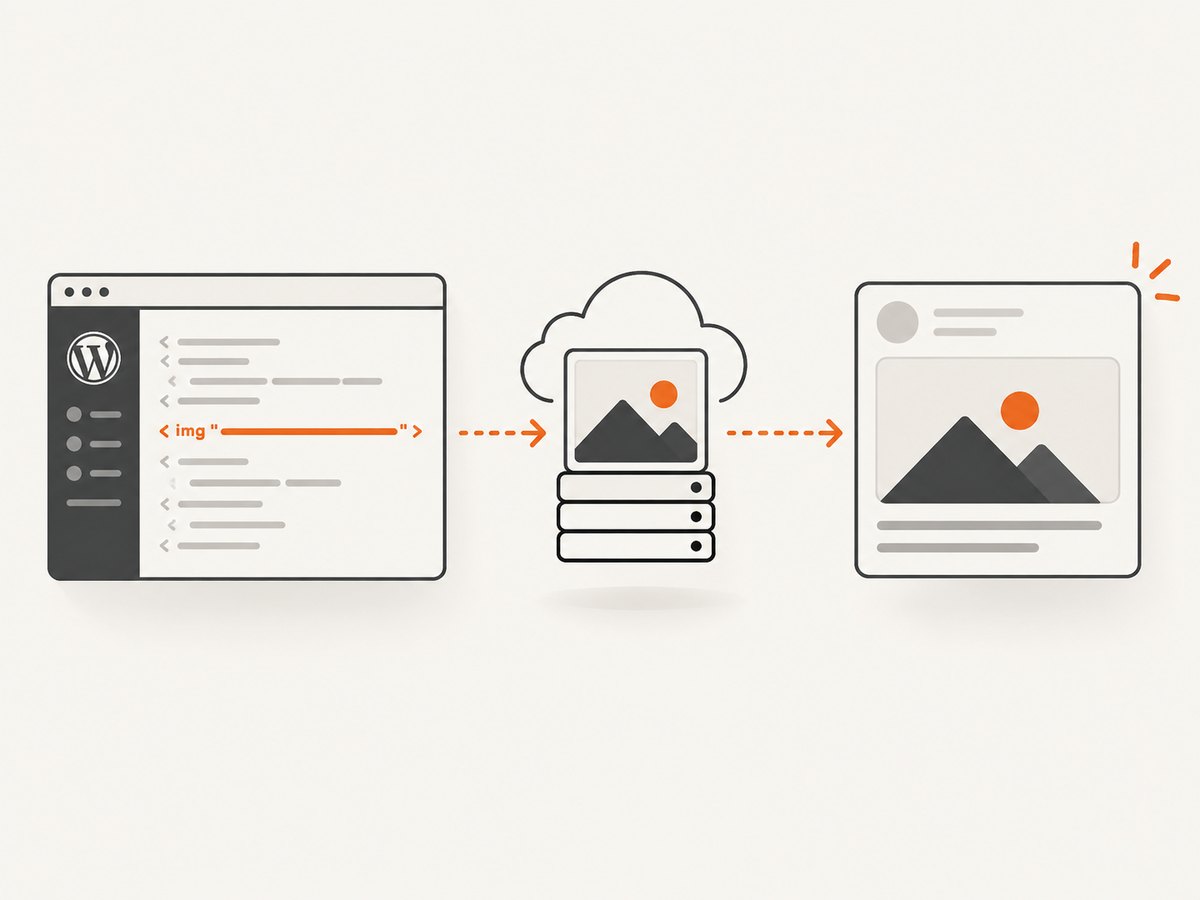
To automatically generate Open Graph (OG) images in WordPress, first check whether your SEO plugin can select a suitable image and fallback. If you need a distinct branded card for every post, product, or author, use a template-based image generator or build a custom rendering workflow. If the desired artwork is a capture of the rendered page itself, use a screenshot workflow. In every case, verify the final og:image in the page source and make sure only one intended image is emitted.
An Open Graph image tag tells social preview systems which image to use; it does not design that image. WordPress’s featured image may be one input among several, and the SEO plugin or another integration usually controls the metadata. Yoast describes its Open Graph tags as information for data consumers about page content. Yoast SEO OpenGraph Tags: Functional specification.
1. Decide which kind of automatic image you need
“Automatic” can mean choosing an existing image, composing a new graphic from content fields, or capturing the rendered page. These are different jobs; choose based on the artwork you need.

| Approach | Use it when | Check before choosing |
|---|---|---|
| Existing SEO plugin settings | A featured image, selected social image, or site-wide fallback is enough. | Image selection order, per-page overrides, and fallback behavior. |
| Template-based generator | Each card should have a consistent design populated with a title, author, category, product details, or other fields. | Field mapping, supported content types, external rendering and account requirements, service terms, and SEO integration. |
| Screenshot generator | The preview should show a capture of the rendered page. | Viewport, timing, page layout, background jobs, fallback behavior, and duplicate metadata. |
| Custom integration | You need control over image selection, rendering, or how a generated image is attached to a page. | Hook lifecycle, public image access, caching, and compatibility with the site’s plugins. |
A template renderer builds a designed card from data. A screenshot tool captures a page as it appears in a browser. A screenshot can be useful when the page itself is the artwork, but it does not automatically make a title-and-author card legible. Decide which output you want before installing anything.
2. Start with the SEO plugin already on the site
If the goal is to show a sensible existing image, configure your current SEO plugin first. Adding a second metadata plugin before checking the first can result in duplicate og:image tags or competing defaults.
Yoast documents a selection hierarchy that includes a custom Facebook image, the post’s featured image, a prominent image in the content, applicable WooCommerce product-gallery imagery, and configured social defaults. That means a featured image is not necessarily the only candidate. Other plugins use their own rules: the Open Graph plugin listing describes checking featured, content, and attached images before falling back to a site icon, custom logo, or header image. Treat each plugin’s documented order as specific to that plugin.
- Open a representative post in the SEO plugin’s editor and look for its social or Facebook image setting.
- Set a page-specific image if that post needs one. Configure a site-wide fallback for pages without an appropriate image.
- Check whether the plugin already emits Open Graph metadata. Identify all plugins or theme code that might also emit it.
- Save, clear any relevant page cache, and inspect the rendered page source for
og:image. - Repeat on a page and on each important content type, such as a WooCommerce product, because the available image fields and plugin behavior may differ.
This route is usually the lowest-maintenance choice when selecting existing media is enough. It does not create a new graphic or place text and design elements over an image.
3. Generate branded cards from WordPress content
For a card that combines fields such as a post title, author, category, excerpt, or product details, use a template-based generator or implement a renderer. The researched ogdynamic WordPress.org listing describes mapping WordPress fields to template fields, then using its hosted service to render and serve the image and add metadata. It also says an account is required. Those are directory and vendor claims, so check current terms, pricing, privacy practices, supported content types, and compatibility before adopting the service: ogdynamic listing on WordPress.org.
Before committing to a generator, make a sample card and answer these questions:
- Can the design handle long titles, missing author photos, empty excerpts, and categories with long names?
- Does it support the post types you actually share, including products if relevant?
- Does rendering happen on your WordPress server or on a hosted service? Is an account required?
- How does it integrate with your existing SEO plugin, and can you select a per-page override?
- What happens when rendering is delayed or fails? Is there a fallback image?
- Can the resulting image URL be fetched publicly by the destination platform?
Do not assume that installing a generator means the card is correct. Preview several kinds of content and inspect the generated metadata on the page itself.
4. Use a screenshot workflow only when a page capture is the right artwork
A screenshot generator captures a rendered page rather than composing a graphic from structured fields. The PlugUpp plugin listing describes sending background screenshot jobs to its service and using the returned image as og:image; it lists a featured image, custom media-library image, and screenshot fallback as choices. These are listing claims, not independent compatibility testing. See the PlugUpp listing on WordPress.org.
Before choosing this route, decide which page state should appear in the card. A full-page capture can be too dense at social-preview size; a viewport capture may omit important content. Check whether the page needs a wait for fonts, images, or client-rendered content, and how the plugin behaves when the capture job is incomplete. Recheck the result after page-builder changes, since those can alter the captured layout.
ScreenshotNeo is a website screenshot API and MCP server for developers from Yorker Media. Its one-request API can return PNG, JPEG, WebP, or PDF, and its capture options include full-page shots with lazy images loaded, element selection, custom CSS and JavaScript, waits, and image resizing. That makes it an option when a rendered page capture is the intended image. A screenshot is not a template-generated branded card: use a template renderer when the card should be composed from content fields.
5. Build a custom integration with Yoast hooks
If a plugin’s image selection does not fit your workflow, Yoast documents filters for changing an existing Open Graph image or adding image output. Use the documented hook for the installed Yoast version and return a publicly accessible image URL. Do not paste a code fragment from another version without checking the current developer documentation: Yoast: Adding OpenGraph metadata.
A safe implementation plan is:
- Generate or select the image before the page metadata is rendered. If an external renderer runs asynchronously, define what image the page should expose while the job is pending.
- Use the supported Yoast filter to replace or add image metadata. Keep the change narrow to the intended post type or pages.
- Use a stable, publicly fetchable URL. If the generated file is attached to the media library, verify that its URL remains valid after cache or media cleanup operations.
- Retain a fallback when the post has missing fields or rendering fails.
- Test with your SEO plugin, cache plugin, theme, and page builder enabled on staging. Inspect both page source and the social preview destination’s current refresh or debugging tool.
Do not add a second independent Open Graph emitter just to get a custom image unless you have confirmed the existing emitter can be adjusted or disabled. The implementation should have one clear owner for the final metadata.
6. Or skip the browser setup
If a captured page is the image you want, ScreenshotNeo can return it with one GET request. The API accepts parameters for output format and capture behavior; see the ScreenshotNeo API documentation. Replace the URL below with a public page whose rendered appearance should be shared.
curl -G "https://api.screenshotneo.com/v1/shot" \
  -d access_key=YOUR_API_KEY \
  --data-urlencode url=https://stripe.com \
  -o shot.webp
import requests
r = requests.get(
"https://api.screenshotneo.com/v1/shot",
params={"access_key": "YOUR_API_KEY", "url": "https://stripe.com"},
timeout=90,
)
open("shot.webp", "wb").write(r.content)const q = new URLSearchParams({
access_key: 'YOUR_API_KEY',
url: 'https://stripe.com'
});
const res = await fetch(`https://api.screenshotneo.com/v1/shot?${q}`);Cookie and consent banners are accepted and removed before capture, along with more than 60 known consent platforms, newsletter popups, and chat widgets; each cleanup step can be turned off. Bot checks, blank pages, timeouts, failed loads, and cache hits cost nothing, and the response reports the page verdict and billing status in X-Page-Verdict and X-Billed headers. An MCP server gives AI agents such as Claude and Cursor the take_screenshot, get_page_info, and capture_pdf tools. The free plan includes 1,000 screenshots a month without a card; paid plans start at $5 for 3,000. Every feature is available on every plan.
Sign up for 1,000 free screenshots a month with no card.
7. Verify the actual image that will be shared
Do not stop at the plugin settings screen. Confirm what the public page emits and whether the image URL can be fetched without a logged-in session.
- View the rendered page source for a post with a featured image, a post with a page-specific social image, and one with no image.
- Find every
og:imagetag. Confirm the intended URL is present and there is one effective image selection, rather than conflicting outputs from two plugins or theme code. - Open the image URL in a private browser window. Confirm it returns the image and does not require a WordPress login.
- Check a page, a post, and relevant products or custom post types. Confirm the fallback works where fields are missing.
- After changing metadata, use the target social platform’s current preview refresh or debugging tool. Cache behavior and refresh tools are platform-specific; do not assume a fixed refresh interval.
Also verify the image itself at the size where it will be viewed. Long headlines may wrap badly, small text may become unreadable, and a crop may remove the subject. This research did not establish one image dimension or format rule that applies to all platforms. Check the current documentation for the destinations your readers use.
8. Troubleshooting
| Symptom | Likely cause | Fix |
|---|---|---|
| A generic image appears | No page-level image was selected, or the configured fallback is being used. | Check the SEO plugin’s documented hierarchy, set a page-level social image where needed, and configure an intentional fallback. |
| The old image still appears | The destination may have cached a previous preview, or a page cache may still serve old metadata. | Clear the relevant site cache, confirm the live page source has changed, then request a refresh using the destination’s current tool. |
| Two different images appear in source | The SEO plugin, theme, another social plugin, or custom code may each emit Open Graph metadata. | Identify the emitter for each tag. Disable or adjust the redundant output, then verify the rendered source again. |
| The generated image is missing | The image URL may be private, expired, blocked, or not yet generated. | Open the URL without authentication, check the generator’s job and fallback behavior, and serve a stable public image. |
| The screenshot looks like a page instead of a share card | A capture workflow was chosen for a design that needs text and fields composed into a graphic. | Use a template-based generator or custom renderer, or adjust the page’s capture viewport and styling if a screenshot is truly desired. |
| Products or custom post types have no image | The integration may not support that content type or its image fields. | Check the plugin’s supported types and field mapping; add a type-specific selection or fallback. |
| The social platform shows no preview | The page or image may not be publicly fetchable, or the URL may redirect or fail. | Check both URLs from a logged-out browser and inspect the platform’s current debugger output for fetch errors. |
9. Performance, reliability, and cost
Existing SEO plugin settings add the least operational complexity because they select from media already on the site. A hosted template service can avoid running image composition inside each page request, but introduces an external service and account dependency; verify its current terms and behavior. A screenshot workflow may depend on page load timing and background jobs. A custom renderer gives control but means you own its rendering failures, fallback, and cache behavior.
For any automatic renderer, avoid making a social crawler wait for an expensive generation step if a stable fallback can be provided. Decide when images are generated, how long the URL remains valid, and what metadata is served during a failure. Test slow pages, missing images, unusually long titles, and changes to templates. Reuse a generated card when its source fields have not changed, and invalidate it when they do. These are implementation considerations, not claims about any named third-party service’s performance.
Compare total cost, not just the plugin price: include any hosted rendering account, request or storage charges, maintenance time, and the cost of troubleshooting incompatibilities. The dossier did not verify pricing or affiliate terms for the named WordPress image-generation services, so check their current listings and service pages before purchase.
10. Short FAQ
Does WordPress automatically create a unique Open Graph graphic from the post title?
A featured image or Open Graph tag selection does not itself compose a graphic. A template generator or custom renderer is needed to combine fields such as a title and author into a designed card.
Should I install a second SEO plugin for social images?
First check whether the current SEO plugin supports page-level social images and fallbacks. If adding another plugin, confirm which one emits the final metadata and prevent duplicate tags.
Can I use a screenshot as an Open Graph image?
Yes, when a capture of the rendered page is the desired artwork. For a consistent card built from structured fields, choose a template-based image workflow instead.
Why does a changed image not appear immediately?
The page cache, image service, or destination platform may still have an earlier result. Verify the live metadata and use the destination’s current refresh mechanism.


