How to Generate a PDF with Form Answers in Node.js and Email It
Learn when to fill an existing PDF form or create a new PDF, then email the finished document safely with Node.js.
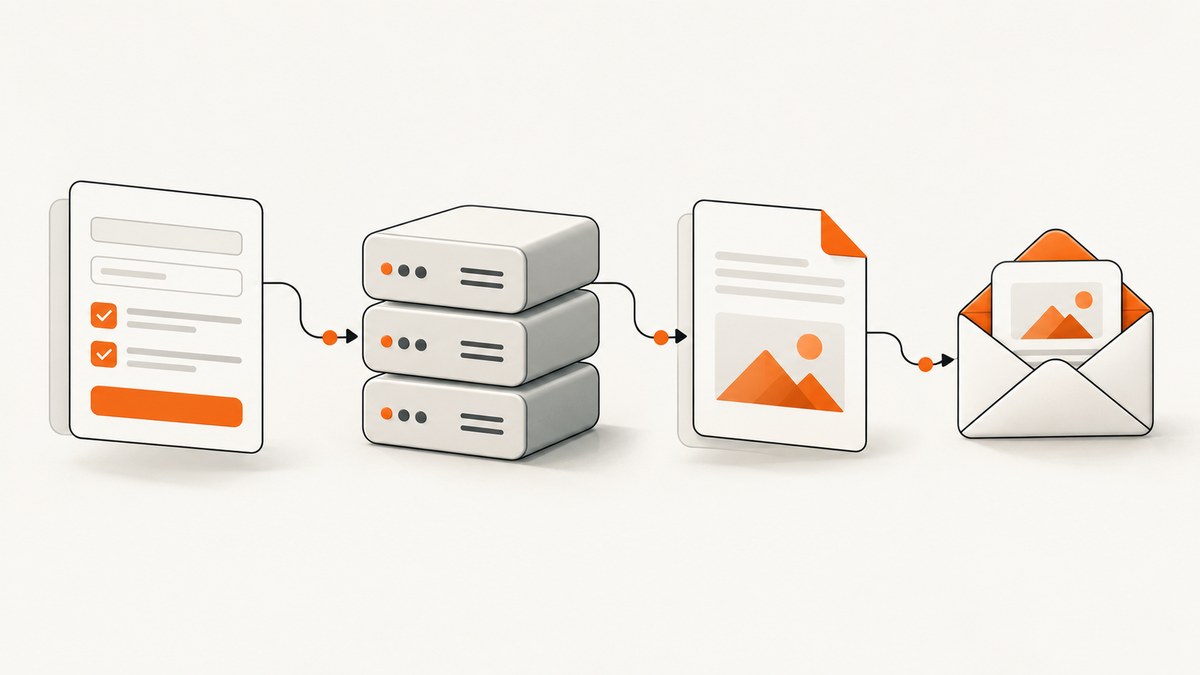
To generate a PDF from form answers in Node.js and email it, first choose the PDF workflow:
- Fill an existing interactive PDF: use pdf-lib to load the template, set its named fields, update appearances, and save the result.
- Create a new PDF layout: use PDFKit to draw headings, labels, answers, tables, and page breaks.
Then give the resulting bytes, file path, or stream to Nodemailer as an attachment. Small documents are easiest to handle as a Buffer; larger documents should be streamed or referenced by path.
1. Decide whether you are filling or designing a PDF
An AcroForm contains interactive fields such as text inputs, checkboxes, radio groups, dropdowns, and option lists. Its field names are part of the PDF structure and must match the names you request in code. A visually blank PDF is not necessarily an interactive form: some templates are only artwork with no fields.
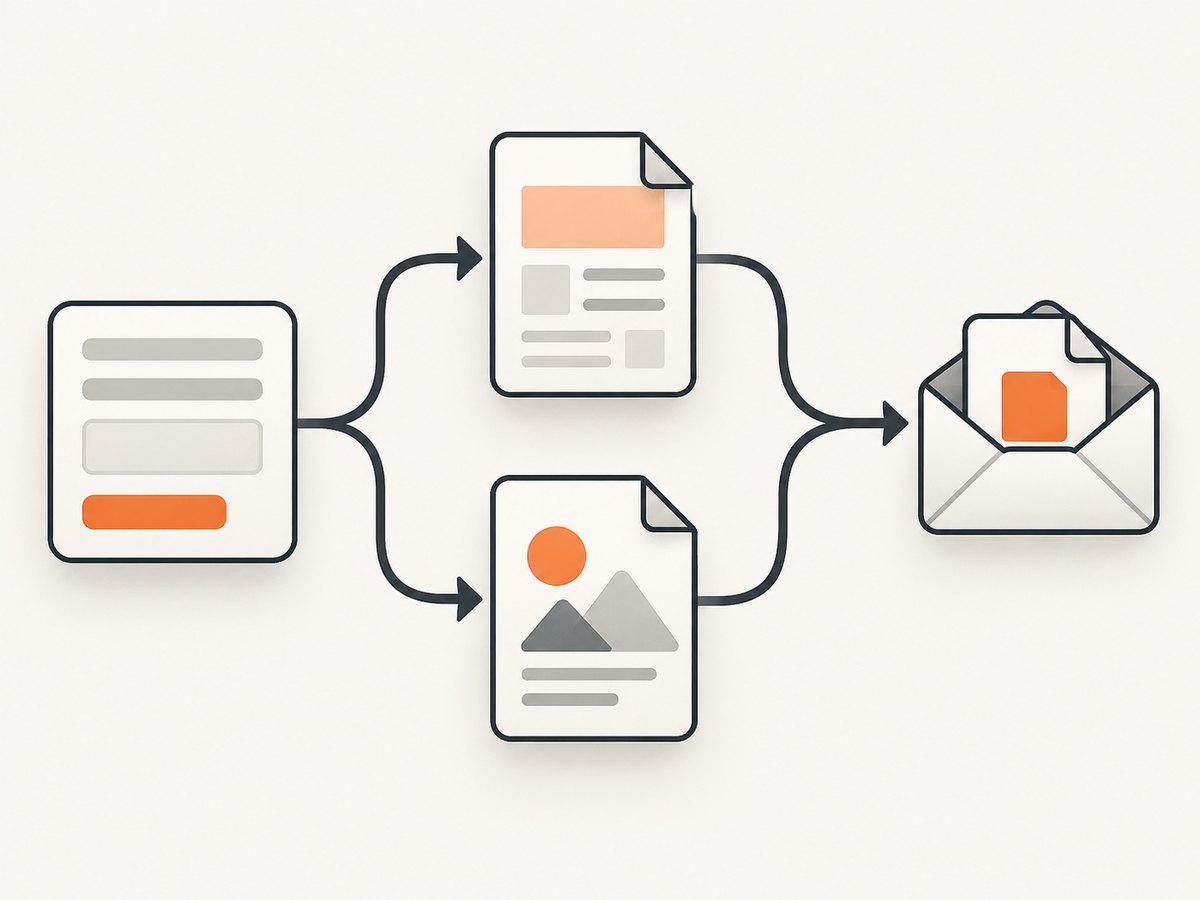
Use pdf-lib when a designer supplied a form template that must retain its exact layout. Use PDFKit when the answers need a report, confirmation, application summary, or other custom arrangement. PDFKit can also create form annotations, but authoring a form and filling an existing form are separate workflows.
How to inspect a template before writing code
- Open the source PDF in a form editor or a PDF inspection tool.
- Record every field’s exact name and type. Names are case-sensitive and may contain dots or other characters.
- Check whether repeated fields share a parent name or have unique widget names.
- Confirm that the template is an AcroForm rather than an XFA-only document or a flattened scan.
- Open a copy in the PDF readers used by recipients; appearance behavior can differ between viewers.
2. Complete example: fill an existing PDF with pdf-lib and email it
Install the dependencies:
npm install pdf-lib nodemailer
Set your project to ESM with "type": "module" in package.json, or adapt the imports to your module system. The following program assumes a template named application-template.pdf with fields named full_name, email, start_date, remote, and department. Replace those names with the names in your file.
import fs from 'node:fs/promises';
import { PDFDocument } from 'pdf-lib';
import nodemailer from 'nodemailer';

const templateBytes = await fs.readFile('application-template.pdf');
const pdfDoc = await PDFDocument.load(templateBytes);
const form = pdfDoc.getForm();

form.getTextField('full_name').setText('Avery Example');
form.getTextField('email').setText('avery@example.com');
form.getTextField('start_date').setText('2026-10-15');
form.getCheckBox('remote').check();
form.getDropdown('department').select('Engineering');

// Regenerate field appearances so values are visible in more viewers.
form.updateFieldAppearances();
const pdfBytes = await pdfDoc.save();

const transporter = nodemailer.createTransport({
  host: process.env.SMTP_HOST,
  port: Number(process.env.SMTP_PORT || 587),
  secure: process.env.SMTP_SECURE === 'true',
  auth: {
    user: process.env.SMTP_USER,
    pass: process.env.SMTP_PASSWORD
  }
});

await transporter.sendMail({
  from: process.env.MAIL_FROM,
  to: 'applications@example.com',
  subject: 'Completed application form',
  text: 'The completed application is attached.',
  attachments: [{
    filename: 'completed-application.pdf',
    content: Buffer.from(pdfBytes),
    contentType: 'application/pdf'
  }]
});

console.log('Email sent');
The SMTP host, port, credentials, sender, and recipient depend on your mail provider. Keep them in environment variables or a secret manager. Do not put passwords in source control or log the completed answers.
Field accessors
| PDF field | pdf-lib accessor | Typical operation |
|---|---|---|
| Single-line or multiline text | getTextField(name) |
setText(value) |
| Checkbox | getCheckBox(name) |
check() or uncheck() |
| Dropdown | getDropdown(name) |
select(option) |
| Option list | getOptionList(name) |
Select one or more allowed values |
| Radio group | getRadioGroup(name) |
Select an allowed export value |
| Push button | getButton(name) |
Use the button API exposed by the field |
If a field is missing, pdf-lib throws instead of silently creating one. That is useful: fail the job and report the template version rather than emailing a document with missing answers.
Appearance, fonts, and Unicode
Field values and their visual appearances are related but distinct. Calling updateFieldAppearances() asks pdf-lib to regenerate the visible appearance streams. Test names and answers containing accented characters, Cyrillic, Arabic, emoji, or other non-Latin text with the actual template and viewers you support. A default font may not contain every glyph; embed an appropriate font when the template and library workflow require it.
3. Create a new PDF with PDFKit
When there is no supplied form, PDFKit gives you control over layout. Its PDFDocument instances are readable Node streams, so you can pipe them to a file, an HTTP response, or a custom writable stream. This example builds a simple two-page application summary.
import PDFDocument from 'pdfkit';
import fs from 'node:fs';
import nodemailer from 'nodemailer';

const output = 'application-summary.pdf';
const doc = new PDFDocument({ size: 'A4', margin:  fifty });
const file = fs.createWriteStream(output);
doc.pipe(file);

doc.fontSize(20).text('Application summary');
doc.moveDown();
doc.fontSize(11);
doc.text(`Name: Avery Example`);
doc.text(`Email: avery@example.com`);
doc.text(`Department: Engineering`);
doc.text(`Remote: Yes`);
doc.text(`Start date: 2026-10-15`);
doc.moveDown();
doc.text('Additional answers');
doc.text('Applicant supplied the requested project details.');
doc.end();

await new Promise((resolve, reject) => {
  file.once('finish', resolve);
  file.once('error', reject);
});

const transporter = nodemailer.createTransport({
  host: process.env.SMTP_HOST,
  port: Number(process.env.SMTP_PORT || 587),
  secure: process.env.SMTP_SECURE === 'true',
  auth: { user: process.env.SMTP_USER, pass: process.env.SMTP_PASSWORD }
});

await transporter.sendMail({
  from: process.env.MAIL_FROM,
  to: 'applications@example.com',
  subject: 'Application summary',
  text: 'The generated PDF is attached.',
  attachments: [{ filename: 'application-summary.pdf', path: output }]
});
Change fifty to a numeric margin such as 50 in a real program. The example shows the stream lifecycle: create the document, pipe it, write content, call end(), wait for the file to finish, and then attach the path.
Layout concerns
- Measure long answers and wrap them; never assume a form response fits one line.
- Use
doc.addPage()when content would overlap a footer or run past the page boundary. - Keep labels and values visually distinct and include a generated timestamp or record identifier when operationally useful.
- For sensitive answers, avoid writing them to temporary files unless the directory and cleanup policy are controlled.
4. Attach bytes, paths, and streams with Nodemailer
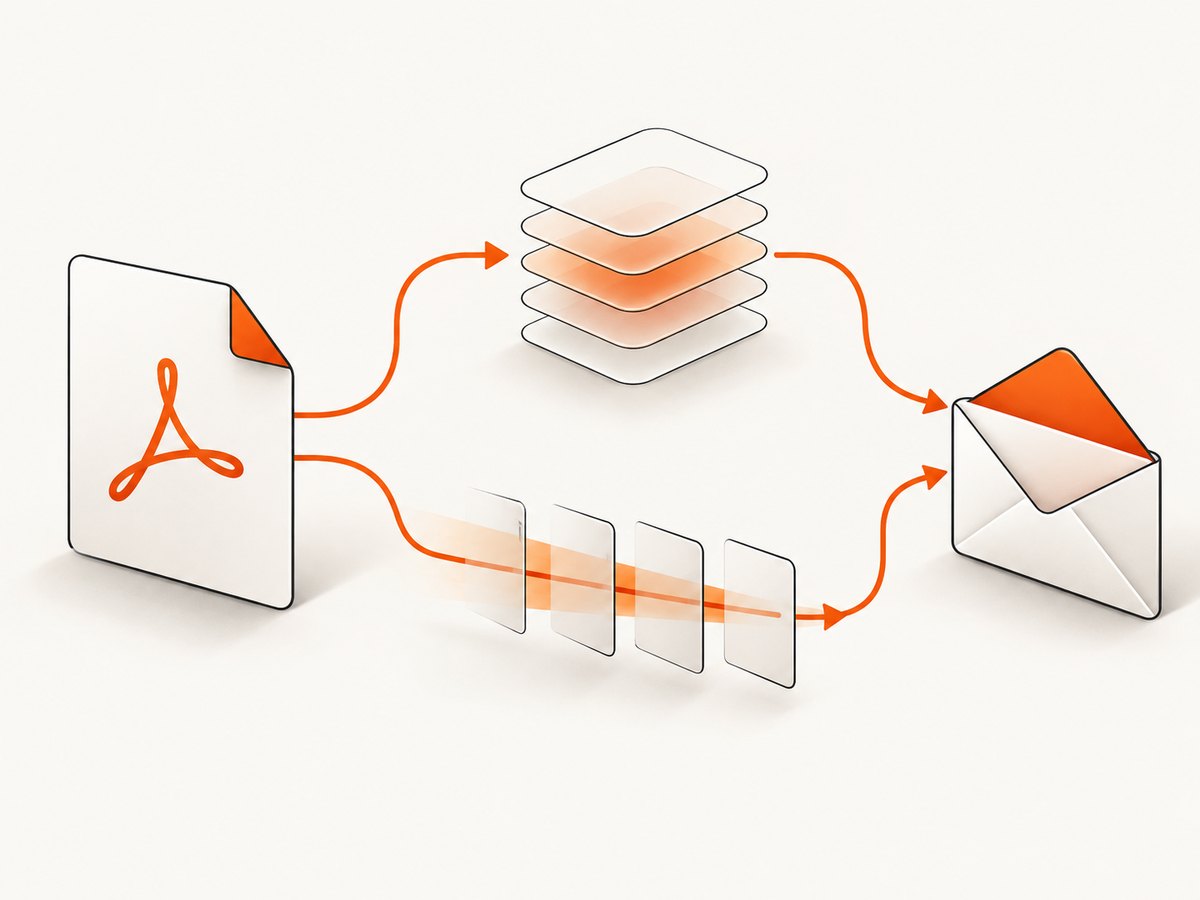
Nodemailer accepts attachment content as a string, Buffer, or readable stream. For a small generated PDF, convert the saved Uint8Array to a Buffer:
const pdfBytes = await pdfDoc.save();
attachments: [{
  filename: 'completed-form.pdf',
  content: Buffer.from(pdfBytes)
}]
For larger files, use path, href, or a readable stream so the entire document does not have to remain in memory. A path is simple when the file was generated locally:
attachments: [{
  filename: 'completed-form.pdf',
  path: '/secure/workdir/completed-form.pdf'
}]
If a PDF comes from fetch(), a WHATWG ReadableStream is not accepted directly as attachment content. Convert it with Node’s Readable.fromWeb():
import { Readable } from 'node:stream';

const response = await fetch(pdfUrl);
if (!response.ok || !response.body) throw new Error(`PDF download failed: ${response.status}`);
const attachmentStream = Readable.fromWeb(response.body);

await transporter.sendMail({
  from: process.env.MAIL_FROM,
  to: recipient,
  subject: 'Your PDF',
  text: 'Attached is your generated PDF.',
  attachments: [{ filename: 'result.pdf', content: attachmentStream }]
});
For HTTPS downloads, Nodemailer validates certificates by default. If an internal service uses a private certificate authority, configure that CA explicitly. Disabling certificate validation can expose credentials sent in custom headers to interception.
5. Validate answers before generating the document
- Parse and validate the request body before touching the PDF.
- Normalize dates, trim text, and enforce maximum lengths.
- Allow only expected checkbox and dropdown values.
- Reject an unknown template version or missing required field.
- Generate the PDF with a correlation ID, but avoid logging the answers themselves.
- Send the email only after the PDF stream or bytes have completed successfully.
Escape or encode user supplied text according to the PDF library’s APIs. Do not treat an answer as a filename, shell command, SMTP header, or HTML fragment.
6. Troubleshooting common failures
| Symptom | Likely cause | Fix |
|---|---|---|
PDFDocument has no field ... |
The name is wrong, the field is absent, or the PDF is flattened. | Inspect the template’s actual field names and confirm it is an AcroForm. |
| Value exists but looks blank | Appearance streams were not regenerated or the viewer ignores them. | Call form.updateFieldAppearances() and test the target viewers. |
| Dropdown selection fails | The supplied value is not one of the field’s allowed exports. | Read the options and use the exact permitted value. |
| Non-Latin text is missing | The default form font lacks glyphs. | Use a font covering the required script and regenerate appearances. |
| Email sends without an attachment | The PDF promise or stream was not completed before sendMail(). |
Await pdfDoc.save(), or wait for the writable stream’s finish event. |
| SMTP authentication fails | Wrong credentials, port, security mode, or provider policy. | Check environment variables and the provider’s SMTP settings; keep transport errors in server logs without answer data. |
| Process memory rises for large PDFs | Several full Buffers are retained. | Use file paths or streams, release temporary files, and limit concurrent jobs. |
| Remote attachment download is rejected | TLS certificate validation failed or the response is not a PDF. | Fix the certificate chain, verify status and content, or provide the approved private CA. |
7. Reliability, performance, and cost considerations
PDF generation is usually CPU and memory work; SMTP delivery adds network latency and provider-specific limits. Keep generation and email delivery observable with a job ID and structured error category. Retry transient network failures with bounded backoff, but do not blindly retry permanent authentication or validation errors. Make jobs idempotent so a retry does not send duplicate messages; for example, store a submission ID and delivery state.
Buffers are convenient for modest documents because the code is short. Streams and paths reduce peak memory for larger documents, but require cleanup and careful lifecycle handling. Limit concurrent PDF jobs if users can submit many large forms at once. Validate the final bytes by checking that generation completed before invoking Nodemailer; opening the output in representative readers is part of release validation.
Neither pdf-lib, PDFKit, nor Nodemailer supplies a universal email quota, deliverability guarantee, or viewer compatibility guarantee. Those properties come from your SMTP provider, template, fonts, and recipient environment. Follow your organization’s rules for retention, access control, and transmission of personal answers.
Or skip the browser setup
If your “PDF” is a hosted form confirmation, report page, or other web document, ScreenshotNeo can capture the URL as a clean image or PDF through one request. It accepts consent banners before capture and removes more than 60 known consent platforms, newsletter popups, and chat widgets. Bot checks, blank pages, timeouts, failed loads, and cache hits are not billed, and response headers identify the page verdict and billing status.
See the ScreenshotNeo API documentation for the available capture options.
curl -G "https://api.screenshotneo.com/v1/shot" -d access_key=YOUR_API_KEY --data-urlencode url=https://stripe.com -o shot.webp
import requests
r = requests.get("https://api.screenshotneo.com/v1/shot", params={"access_key": "YOUR_API_KEY", "url": "https://stripe.com"}, timeout=90)
open("shot.webp", "wb").write(r.content)
const q = new URLSearchParams({ access_key: 'YOUR_API_KEY', url: 'https://stripe.com' });
const res = await fetch(`https://api.screenshotneo.com/v1/shot?${q}`);
ScreenshotNeo also provides an MCP server so Claude, Cursor, and other MCP clients can call take_screenshot, get_page_info, and capture_pdf. One thousand screenshots per month are free with no card; paid plans start at $5 for 3,000. Create a free ScreenshotNeo account.
FAQ
Can pdf-lib create a PDF from a JavaScript object?
It can create and modify PDF documents, but a custom report layout is often simpler with PDFKit. Choose based on whether you have a template to fill or a layout to design.
Should I email a Buffer or a file path?
Use a Buffer for modest PDFs and a path or stream for larger attachments or high concurrency.
Why does a PDF look different in two viewers?
Field appearance streams, fonts, and viewer support vary. Regenerate appearances and test the readers your recipients use.
Can I send the same PDF to several recipients?
Yes. Supply the recipients in Nodemailer’s message fields, while following your privacy policy and avoiding accidental exposure through visible recipient lists.


