How to Generate a PDF From an HTML Template in Node.js
Render a Node.js template into a reliable PDF with Puppeteer or Playwright, with print CSS, asset loading, page sizing, and production tips.
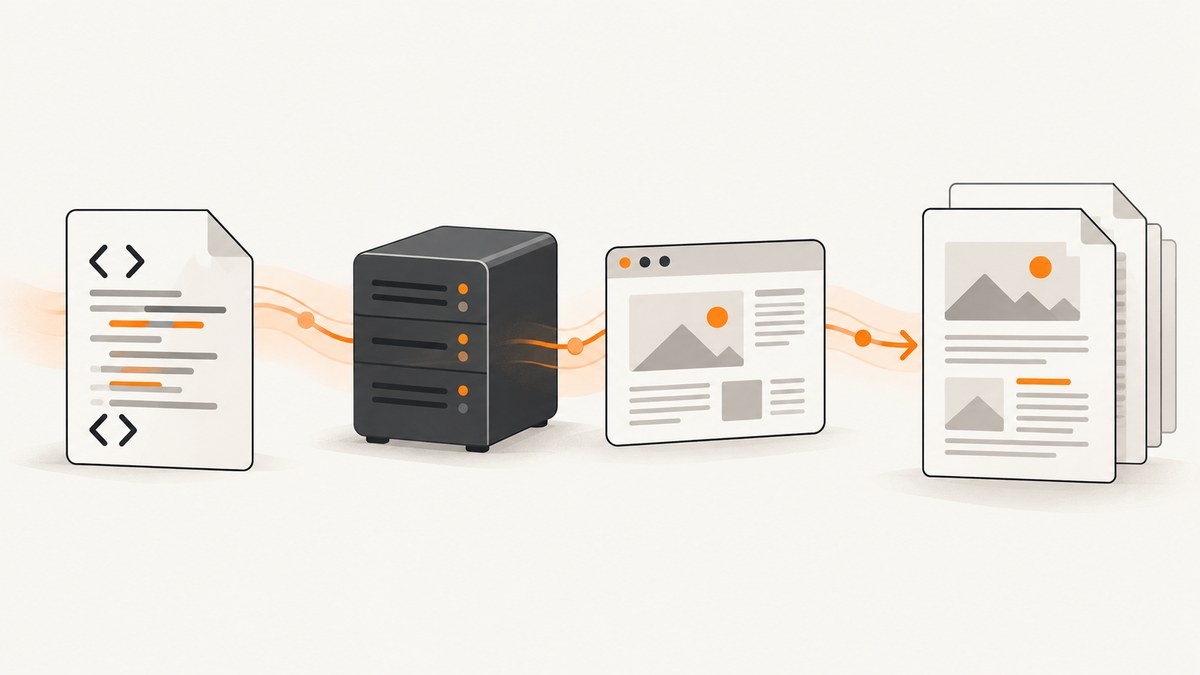
To generate a PDF from an HTML template in Node.js, render a complete HTML document with your template engine, load it into Chromium with Puppeteer or Playwright, wait until its fonts and other required assets are ready, and call page.pdf(). The PDF method uses print CSS by default. The examples below use Handlebars and Puppeteer; the same overall sequence works with EJS and Playwright.
For server-side documents, the key choices are template escaping, asset availability, print styling, readiness signals, page size, and browser process lifecycle. Treat the browser as a rendering service: give each job a bounded timeout, clean up its page, and reuse browser processes only through a bounded pool.
1. Install a renderer and template engine
Puppeteer provides a Chrome-focused API and manages a compatible browser installation. Playwright is a good fit if the project already uses its broader browser automation APIs or test stack. Both approaches require deployment planning for browser binaries, memory, rendering time, and asset access.
npm install puppeteer handlebarsPin compatible package versions in your lockfile and cache the browser download in CI. Browser downloads can be large; package documentation describes Puppeteer’s download as hundreds of megabytes, without giving a precise universal size.
2. Create a complete HTML template
A template should produce a full document, including the doctype, character encoding, and viewport metadata. Escape ordinary values through the template engine. Handlebars escapes interpolated values by default; its triple-brace syntax emits raw HTML and should only be used for trusted, sanitized markup.
<!doctype html>
<html lang="en">
<head>
  <meta charset="utf-8">
  <meta name="viewport" content="width=device-width, initial-scale=1">
  <title>Invoice {{invoiceNumber}}</title>
  <style>
    @page { size: A4; margin: 18mm 14mm; }
    body { font: 12pt Arial, sans-serif; color: #222; }
    h1 { font-size: 22pt; }
    table { width: 100%; border-collapse: collapse; }
    th, td { padding: 8px; border-bottom: 1px solid #ddd; text-align: left; }
    thead { display: table-header-group; }
    tr, .keep-together { break-inside: avoid; }
    .page-break { break-before: page; }
    .brand { color: #155eef; -webkit-print-color-adjust: exact; print-color-adjust: exact; }
  </style>
</head>
<body>
  <h1 class="brand">Invoice {{invoiceNumber}}</h1>
  <p>Customer: {{customer.name}}</p>
  <table>
    <thead><tr><th>Description</th><th>Amount</th></tr></thead>
    <tbody>
      {{#each lines}}
      <tr><td>{{description}}</td><td>{{amount}}</td></tr>
      {{/each}}
    </tbody>
  </table>
</body>
</html>
Keep styles in the template or load them from a predictable location accessible to the rendering process. When the job runs in a container or serverless environment, relative image and stylesheet URLs may resolve differently from local development. Prefer absolute URLs or data URLs when that environment cannot resolve relative paths.
3. Render the template and write the PDF
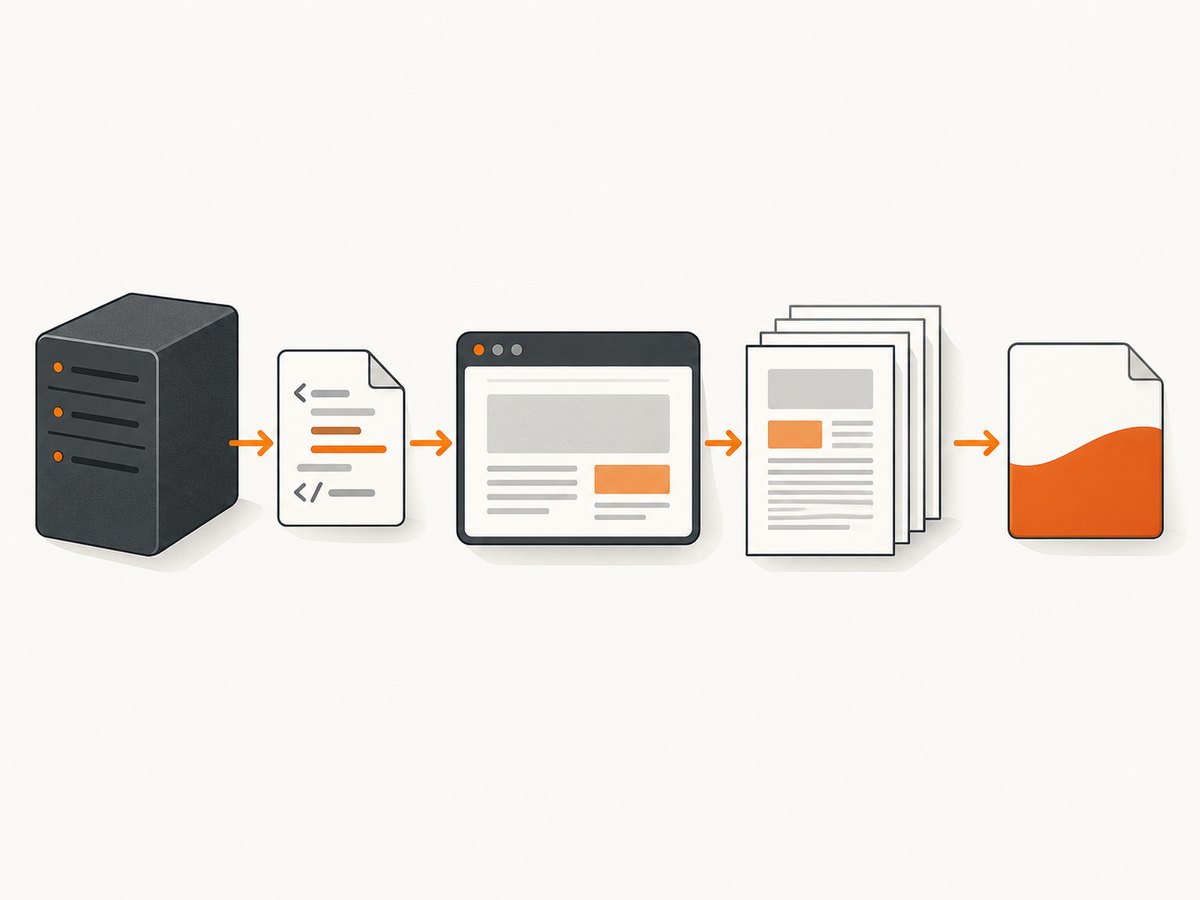
This complete ES module example reads a template, renders validated application data, loads the result in Chromium, selects print media, creates an A4 PDF with backgrounds, and writes the PDF bytes to disk. Puppeteer documents that page.pdf() waits for fonts by default.
import puppeteer from 'puppeteer';
import Handlebars from 'handlebars';
import { readFile, writeFile } from 'node:fs/promises';

const source = await readFile('./invoice.html', 'utf8');
const render = Handlebars.compile(source);
const data = {
  invoiceNumber: 'INV-1001',
  customer: { name: 'Ada Lovelace' },
  lines: [{ description: 'Consulting', amount: '120.00' }]
};
const html = render(data);

const browser = await puppeteer.launch();
try {
  const page = await browser.newPage();
  await page.setContent(html, { waitUntil: 'networkidle0' });
  await page.emulateMediaType('print');
  const pdf = await page.pdf({
    path: './invoice.pdf',
    format: 'A4',
    printBackground: true,
    margin: { top: '18mm', right: '14mm', bottom: '18mm', left: '14mm' }
  });
  // `pdf` is a Buffer too, useful when returning it from an API.
} finally {
  await browser.close();
}
The code assumes invoice.html exists and the application has validated the data shape. For an HTTP endpoint, return the buffer with an appropriate PDF content type, or store it and return a controlled download URL. Do not log the PDF contents or sensitive template data while diagnosing failures.
Use EJS instead of Handlebars
The browser steps do not depend on Handlebars. With EJS, render the file to an HTML string and pass that string to page.setContent():
import ejs from 'ejs';
const html = await ejs.renderFile('./invoice.ejs', data, { async: true });
await page.setContent(html, { waitUntil: 'networkidle0' });
const pdf = await page.pdf({ format: 'A4', printBackground: true });
Confirm how the chosen engine escapes output. Never put untrusted input into raw HTML, CSS, script, or URL contexts without context-appropriate validation and sanitization. A generated document can run scripts and request resources available to the browser process, so do not allow untrusted templates to access internal services or files.
4. Wait for the content your document needs
networkidle0 waits for network activity to settle, but it cannot know whether an application-specific chart, client-side component, or delayed data load is finished. For a self-contained HTML string, add an explicit readiness signal after the required work completes. The page can expose a promise or flag that the Node process awaits.
// In the document, after chart/image/data rendering completes:
window.__PDF_READY__ = true;

// In Node, after page.setContent(...):
await page.waitForFunction(() => window.__PDF_READY__ === true, {
  timeout: 15000
});
Use a timeout appropriate to your application. If the page uses a URL instead of an HTML string, navigate with page.goto(url, { waitUntil: 'networkidle2' }) or another navigation state that matches the site. Then wait for a specific selector or application signal before printing. A network-idle state is a heuristic; pages with polling, analytics, or long-lived connections may never become idle.
For images and fonts, verify the final document in the same deployment environment that produces it. Fonts must be installed or reachable, and assets must be permitted by your network and security configuration. Puppeteer waits for fonts as part of PDF generation by default, but that does not make a missing font available.
5. Set print layout, colors, headers, and page ranges
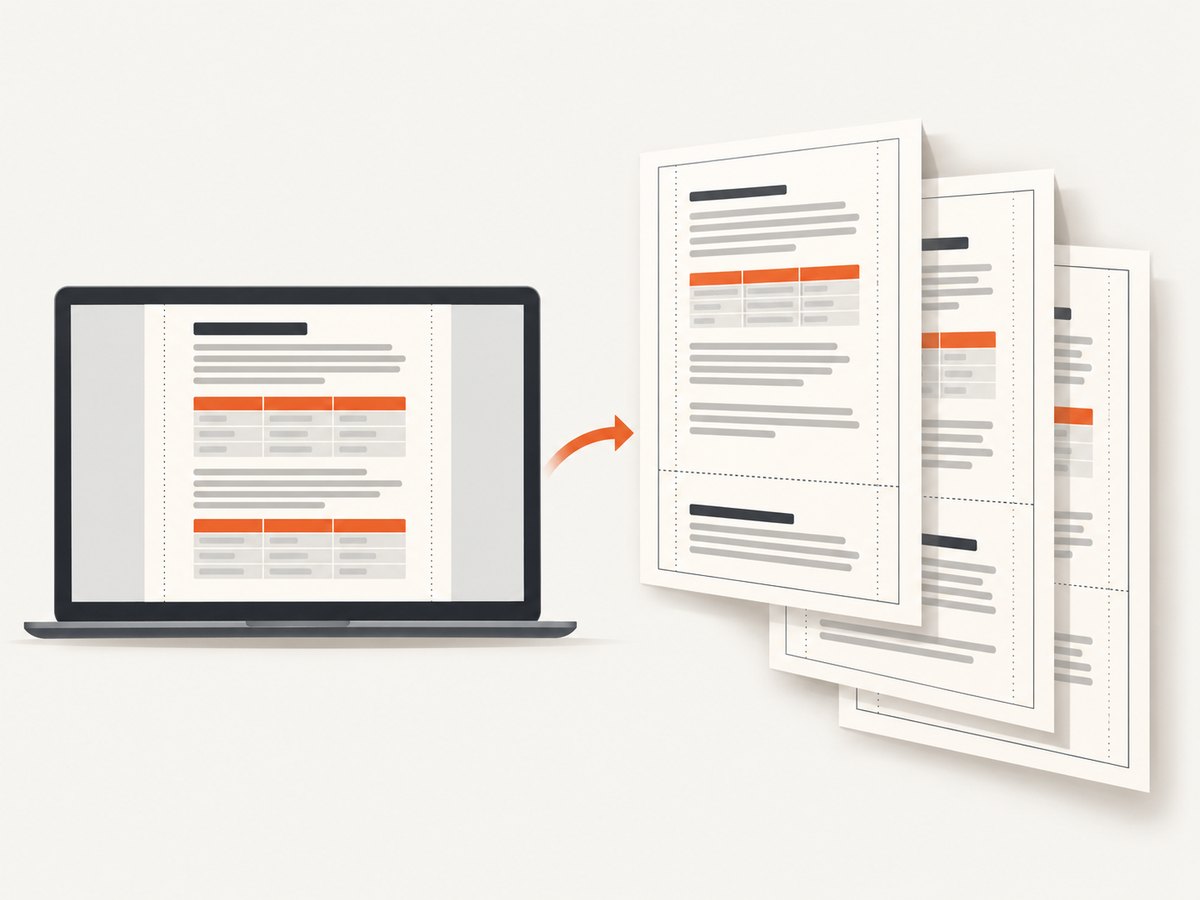
Use CSS for document layout and PDF options for output configuration. @page can specify paper size and margins; browser-supported page-break properties help keep sections together. Check long tables and large elements because page breaking can differ from how a document looks in a screen viewport.
| Need | Typical setting | What to check |
|---|---|---|
| Paper size | format: 'A4' or 'Letter'; alternatively width and height |
Keep CSS @page and renderer options consistent. |
| Margins | margin: { top, right, bottom, left } |
Use explicit units such as mm, in, or px. |
| Backgrounds | printBackground: true |
Without it, background colors and images may be omitted. |
| Headers and footers | displayHeaderFooter: true, headerTemplate, footerTemplate |
Keep template markup self-contained and reserve enough margin. |
| Landscape | landscape: true |
Review tables and wrapping at the chosen paper width. |
| Page selection | pageRanges: '1-3, 5' |
Validate range syntax and behavior with your installed renderer version. |
Puppeteer prints using the print CSS media type by default. If the template was designed for screen styles, explicitly switch media before printing:
await page.emulateMediaType('screen');
const pdf = await page.pdf({ format: 'A4', printBackground: true });
Use emulateMediaType('print') to make the choice explicit when your print stylesheet is intended. Print output may adjust colors; use -webkit-print-color-adjust: exact for elements whose colors need to be preserved, then review the result. Do not assume exact color adjustment means every printer or viewer will display identical color.
6. Playwright equivalent
Playwright also returns PDF bytes from page.pdf() and uses print CSS by default. Its screen-media API differs in spelling. The following is the corresponding core flow:
import { chromium } from 'playwright';
import Handlebars from 'handlebars';
import { readFile, writeFile } from 'node:fs/promises';

const html = Handlebars.compile(await readFile('./invoice.html', 'utf8'))({
  invoiceNumber: 'INV-1001', customer: { name: 'Ada Lovelace' },
  lines: [{ description: 'Consulting', amount: '120.00' }]
});
const browser = await chromium.launch();
try {
  const page = await browser.newPage();
  await page.setContent(html, { waitUntil: 'networkidle' });
  await page.emulateMedia({ media: 'print' });
  const pdf = await page.pdf({
    format: 'A4', printBackground: true,
    margin: { top: '18mm', right: '14mm', bottom: '18mm', left: '14mm' }
  });
  await writeFile('./invoice.pdf', pdf);
} finally {
  await browser.close();
}
Install Playwright and its supported browser separately according to its installation guidance. Choose Puppeteer when your project already uses its API or you want a Chrome-focused integration; choose Playwright when its wider browser automation surface or existing test stack fits the application. For either library, pin compatible versions and manage browser resources.
7. Production reliability, performance, and cost
Browser lifecycle and throughput
Launching a browser for every document is straightforward for a small script, but process startup and browser downloads add overhead. A service generating many documents can reuse a bounded browser process and create an isolated page per job. Bound concurrency: each active page uses memory and CPU, and oversized documents or unbounded jobs can exhaust the host. Close each page after the job, set navigation/readiness timeouts, and recycle unhealthy browser processes according to your service’s operational policy.
Deployment and observability
- Pin renderer and browser versions in the application lockfile and deployment image.
- Cache browser downloads in CI where appropriate; ensure the deployed runtime has the required binary and libraries.
- Set explicit paper size, margins, color, and background options instead of relying on defaults.
- Log job identifiers, template versions, elapsed stages, and browser errors. Avoid logging document content, credentials, or personal data.
- Keep representative output fixtures and compare them visually when changing templates, fonts, browser versions, or CSS.
Cost and reliability tradeoffs
Self-hosting avoids a per-document screenshot or PDF API fee, but it still consumes compute, memory, storage, engineering time, and maintenance for browser binaries and failed jobs. Estimate capacity using your own document sizes and workload: no universal throughput figure applies to all templates and hosts. External fonts or images make output dependent on network availability; bundle assets or provide stable, permitted URLs when repeatable documents matter.
8. Troubleshooting common failures
| Symptom | Likely cause | Fix |
|---|---|---|
| PDF is blank or missing late content | Rendering started before asynchronous components completed, or navigation ended at an insufficient wait state. | Add an explicit readiness flag or wait for a required selector; set a bounded timeout and report which condition failed. |
| Images or styles are missing | Relative paths resolve against an unexpected base URL, or the runtime cannot reach the asset host. | Use absolute or data URLs where suitable, check access from the deployed container, and inspect browser console and request failures. |
| Text uses the wrong font | The font is absent, blocked, or has not finished loading. | Install or serve the font predictably, check font requests, and allow the font readiness behavior to complete before printing. |
| Background colors disappear | Background printing is disabled. | Set printBackground: true and review print color adjustment rules. |
| Layout differs from the browser preview | PDF uses print media, page dimensions differ, or print CSS overrides screen rules. | Inspect print styles, explicitly choose print or screen media, and set format and margins. |
| Job hangs waiting for network idle | Polling, analytics, or persistent requests prevent the page from becoming idle. | Wait for a specific application signal or selector instead of relying only on network idle. |
| Browser fails to launch in deployment | Browser binaries, system libraries, or compatible versions are missing. | Install/cache the supported browser for the runtime, pin compatible dependencies, and capture the launch error in logs. |
| Pages clip or split awkwardly | Paper size, margins, or break rules do not suit the content. | Set explicit dimensions, add page-break controls, and inspect long tables and keep-together blocks. |
| Untrusted content can access unexpected resources | Raw HTML or script is inserted into the rendered document, which runs in a browser context. | Escape values, sanitize intentionally allowed markup, constrain network access, and do not render untrusted templates with privileged access. |
9. Or skip the browser setup
If your task is capturing a web page as a PDF rather than rendering a private server-side template, ScreenshotNeo offers a one-call API. It accepts a URL and can return a PDF or image; this does not replace template rendering for documents assembled from application data. See the ScreenshotNeo API documentation for request options.
curl -G "https://api.screenshotneo.com/v1/shot" -d access_key=YOUR_API_KEY --data-urlencode url=https://stripe.com -d format=pdf -o page.pdfCookie banners, popups, and chat widgets are removed before the shot. Bot checks, blank pages, and failed loads are never billed. Its MCP server lets AI agents take screenshots. The free plan includes 1,000 screenshots a month with no card; paid plans start at $5 for 3,000. Learn more at ScreenshotNeo, then sign up free for 1,000 screenshots a month with no card.
FAQ
Can I return the PDF directly from an Express route?
Yes. Use the bytes returned by page.pdf() as the response body, set the response content type to application/pdf, and choose whether the browser should display or download it with the content disposition. Ensure browser cleanup runs even if the request is cancelled.
Can one template produce both a web page and a PDF?
Yes. Keep shared structure and data mapping, then use print-specific CSS for paper output. If screen styling is required in the PDF, emulate screen media before generating it and validate pagination at the chosen page dimensions.
Should I generate PDFs in the request handler?
For short, bounded jobs this can be simple. If generation is slow or traffic is bursty, a queue can isolate browser work and let the request return a job status. Set limits so queued jobs cannot grow without bound.


