How to Generate a PDF from an HTTP Response with Puppeteer
Turn an HTML HTTP response into a PDF with Puppeteer. Learn how to check status and content type, configure print output, and handle binary responses.
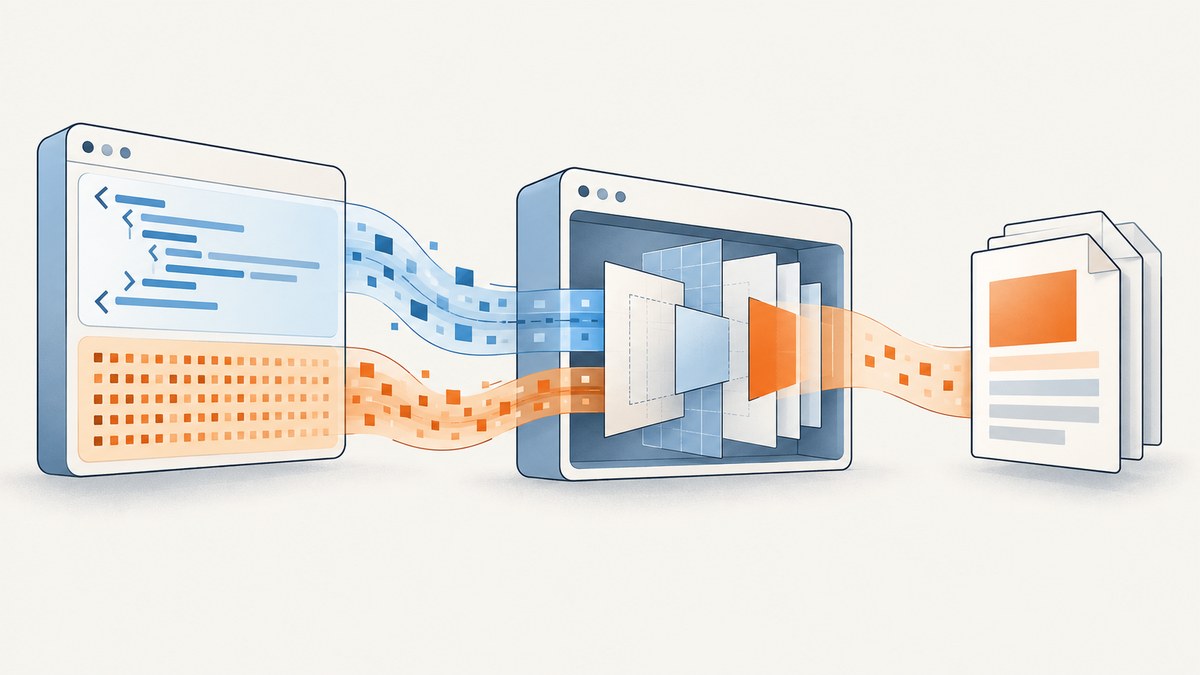
To generate a PDF from an HTTP response with Puppeteer, first make sure the response body is HTML. Read it as text, load that markup into a page with page.setContent(), then call page.pdf(). Check the HTTP status before converting: a completed response can still be a 404 or 503. If the response already contains a PDF or another binary file, do not pass it to setContent(); handle those bytes as a file or byte stream instead.
This distinction matters because Puppeteer prints a rendered web page. It does not convert arbitrary response bytes into a PDF document. The examples below cover both fetching through a browser page and fetching HTML in Node.js before rendering it in Puppeteer.
1. Know which kind of response you have
“HTTP response” can mean two different inputs:
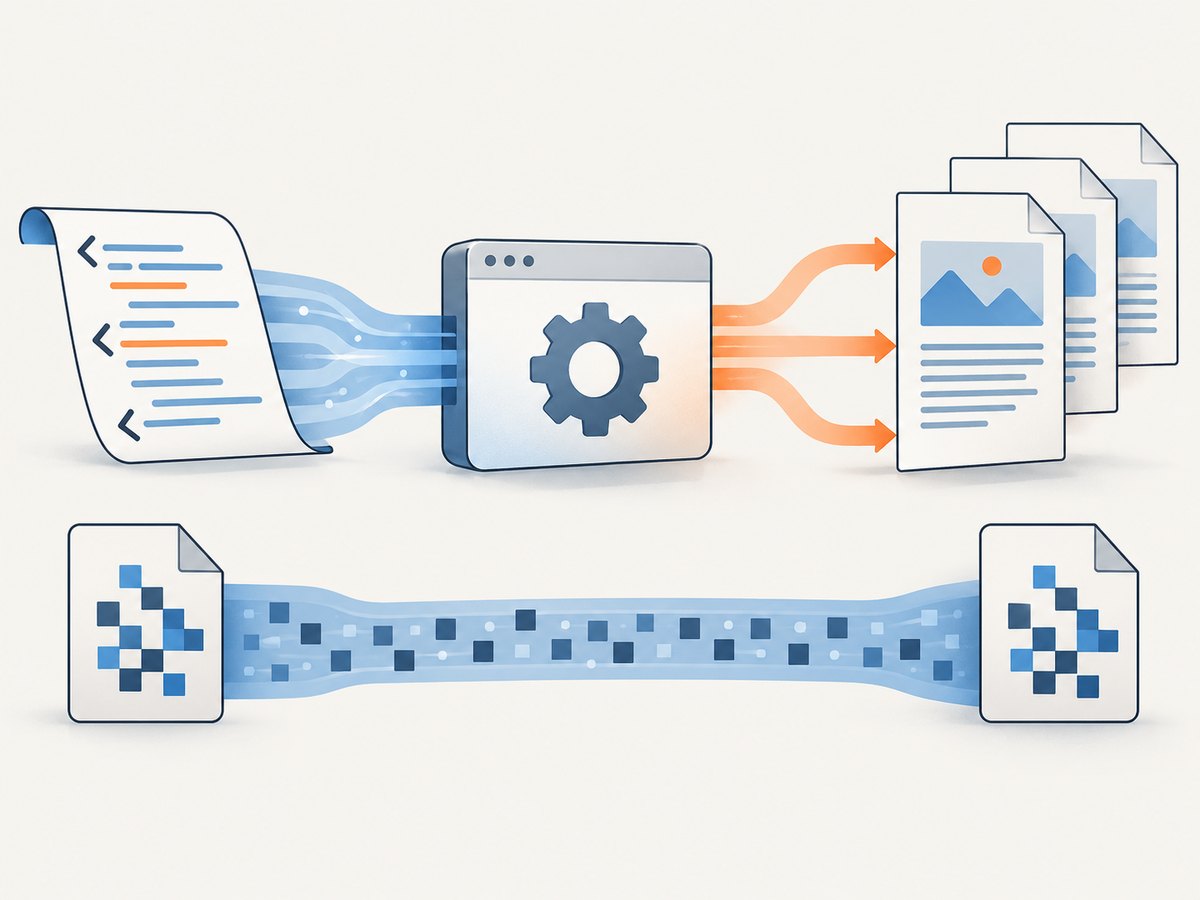
- HTML response: the body contains markup, such as a report returned by an endpoint. Puppeteer can render it and print the rendered page to PDF.
- Binary response: the body is already a PDF, image, spreadsheet, or other file. Preserve and process it as bytes. Rendering those bytes as HTML will not convert the file correctly.
Check the response status and Content-Type before choosing a path. For an HTML document, a typical content type is text/html; an existing PDF is typically application/pdf. Do not rely on content type alone if your service is known to return incorrect headers: validate the payload format as appropriate for your application.
2. Render an HTTP page with Puppeteer
If the URL itself serves the HTML page you want to print, navigate to it, check the navigation response, and print the page. This is the simplest route because the browser handles relative assets such as stylesheets and images against the page URL.
import puppeteer from 'puppeteer';

const url = 'https://example.com/report';
const browser = await puppeteer.launch({ headless: true });

try {
  const page = await browser.newPage();
  const response = await page.goto(url, {
    waitUntil: 'networkidle2',
    timeout: 30_000,
  });

  if (!response) {
    throw new Error('Navigation completed without an HTTP response');
  }
  if (!response.ok()) {
    throw new Error(`HTTP ${response.status()} for ${url}`);
  }

  const contentType = response.headers()['content-type'] ?? '';
  if (!contentType.toLowerCase().includes('text/html')) {
    throw new Error(`Expected HTML, received ${contentType || 'unknown content type'}`);
  }

  await page.pdf({
    path: 'report.pdf',
    format: 'A4',
    printBackground: true,
    waitForFonts: true,
  });
} finally {
  await browser.close();
}
Save this as an ES module file, install Puppeteer with npm install puppeteer, then run it with Node.js. Replace the example URL with an endpoint you are authorized to access. If the page requires authentication or request headers, configure them on the page before navigation.
waitUntil: 'networkidle2' is one readiness strategy, not a guarantee that every application is finished. Some sites keep long-lived requests open, while others render content after the network becomes quiet. Choose a readiness condition that matches the page: wait for a specific selector, a known application-ready signal, or a bounded delay where necessary. Use an explicit timeout so a stalled navigation cannot hang indefinitely.
3. Fetch HTML yourself, then render that response
If application code already makes the HTTP request, read the response body as text and supply it to a Puppeteer page. This gives the application direct control over authorization, retries, and response handling. One consequence is that setContent() does not automatically know the original response URL. Relative links and asset paths may need a base URL or absolute URLs.
import puppeteer from 'puppeteer';

const url = 'https://example.com/api/report-html';
const httpResponse = await fetch(url, {
  headers: { Accept: 'text/html' },
  signal: AbortSignal.timeout(30_000),
});

if (!httpResponse.ok) {
  throw new Error(`HTTP ${httpResponse.status} ${httpResponse.statusText}`);
}

const contentType = httpResponse.headers.get('content-type') ?? '';
if (!contentType.toLowerCase().includes('text/html')) {
  throw new Error(`Expected HTML, received ${contentType || 'unknown content type'}`);
}

const html = await httpResponse.text();
const browser = await puppeteer.launch({ headless: true });

try {
  const page = await browser.newPage();
  await page.setContent(html, { waitUntil: 'networkidle2', timeout: 30_000 });
  const pdfBytes = await page.pdf({
    format: 'A4',
    printBackground: true,
    waitForFonts: true,
  });
  await (await import('node:fs/promises')).writeFile('report.pdf', pdfBytes);
} finally {
  await browser.close();
}
In current Node.js releases, built-in fetch and AbortSignal.timeout() are available. If your runtime does not provide them, use your HTTP client of choice and apply an equivalent request timeout. Puppeteer’s page.pdf() returns PDF bytes when no output path is provided; the example writes those bytes to disk.
When the HTML references relative assets, add a <base href="https://example.com/"> element to the markup before calling setContent(), or rewrite asset URLs to absolute URLs. Ensure the browser can access those assets and that any required cookies or headers are available for their requests.
4. Choose PDF layout and rendering options
page.pdf(options) prints using print CSS by default. Set the options deliberately so output is stable and matches the intended paper layout.

| Option | What it controls | Practical note |
|---|---|---|
format |
Paper preset, such as A4 or Letter | Letter is the documented default. Choose explicitly for consistent output. |
width, height |
Custom paper dimensions | Use when a preset does not fit; do not combine casually with format. |
margin |
Top, right, bottom, and left page margins | Margins default to zero when unset. Supply units, for example '12mm'. |
printBackground |
Whether background graphics and colors print | Defaults to false. Set true when the design depends on colored sections or backgrounds. |
preferCSSPageSize |
Whether CSS @page size takes priority |
When false, content is scaled to fit the selected paper dimensions. |
landscape |
Page orientation | Use for wide tables or charts; inspect pagination because it changes line wrapping. |
pageRanges |
Pages to include | Useful for large output, but confirm page numbering in the generated document. |
waitForFonts |
Waits for fonts to load before printing | Enabled by default in the documented options; embedded or remote fonts can add wait time. |
path |
Writes the PDF to a path | Omit it to receive the PDF bytes in code. |
For a custom paper size, use CSS such as @page { size: 180mm 240mm; margin: 12mm; } and set preferCSSPageSize: true if that CSS size should govern. If you need screen rather than print styles, call await page.emulateMediaType('screen') before PDF generation. PDF colors are adjusted for print by default; CSS -webkit-print-color-adjust: exact can request closer color reproduction where needed. Review the Puppeteer PDF and Page API references for the current options and behavior.
5. Handle binary responses without corrupting them
Puppeteer’s HTTPResponse.text() is for UTF-8 text and throws when the body is not a UTF-8 string. Its content() method returns a Uint8Array, but browser response bytes may be re-encoded according to headers or browser heuristics. That means it is not a general-purpose byte-preserving downloader for every file.
If an endpoint already returns a PDF, request it from your Node application with an HTTP client that exposes the body as bytes, check the status and content type, and write those bytes as a file. There is no reason to render an existing PDF through page.setContent() or call page.pdf() on it.
import { writeFile } from 'node:fs/promises';

const response = await fetch('https://example.com/report.pdf');
if (!response.ok) {
  throw new Error(`HTTP ${response.status}`);
}

const contentType = response.headers.get('content-type') ?? '';
if (!contentType.toLowerCase().includes('application/pdf')) {
  throw new Error(`Expected a PDF, received ${contentType || 'unknown content type'}`);
}

const bytes = new Uint8Array(await response.arrayBuffer());
await writeFile('downloaded-report.pdf', bytes);
This example saves the existing PDF; it does not convert it. To transform an existing PDF, use a PDF processing library suited to that operation. If your endpoint returns a binary format other than PDF, apply that format’s parser or conversion path.
6. cURL, Python, and Node.js: know where the conversion happens
cURL and Python can retrieve an HTTP response, but they do not provide Puppeteer’s Chromium page renderer. The conversion step in this task is page.pdf() in Node.js. Use cURL or Python to inspect or fetch the source when useful, then send the HTML to your Node/Puppeteer renderer or implement rendering with another browser automation tool.
Inspect the response with cURL
curl -i -H 'Accept: text/html' 'https://example.com/api/report-html'Look at the status line and Content-Type. To save the response body for inspection, use -o response.html. cURL has no built-in operation that runs Puppeteer’s page.pdf().
Fetch HTML with Python
import requests

url = 'https://example.com/api/report-html'
response = requests.get(url, headers={'Accept': 'text/html'}, timeout=30)
response.raise_for_status()

content_type = response.headers.get('Content-Type', '')
if 'text/html' not in content_type.lower():
    raise ValueError(f'Expected HTML, received {content_type or "unknown content type"}')

html = response.text
with open('response.html', 'w', encoding='utf-8') as output:
    output.write(html)
The Python snippet retrieves and validates the HTML but does not make a PDF. You can pass the HTML to a Node service that uses Puppeteer. If you need an all-Python browser workflow, use a browser automation library with PDF support rather than representing it as Puppeteer code.
Node.js fetch-and-render summary
The runnable Puppeteer example in section 3 is the Node.js conversion path. Keep the HTTP fetch and browser rendering in the same job or define a clear service boundary for the HTML input, PDF bytes, and error handling.
7. Request interception is a different task
Use request interception when a browser request should be mocked, blocked, or fulfilled with a response you provide. It is not required simply to read the result of page.goto(). Puppeteer requires interception to be enabled before using HTTPRequest.respond(). Once enabled, every request stalls until continued, responded to, aborted, or served from cache; a handler that forgets to resolve one can hang page loading.
await page.setRequestInterception(true);
page.on('request', async (request) => {
  try {
    if (request.url() === 'https://example.com/report-fragment') {
      await request.respond({
        status: 200,
        contentType: 'text/html; charset=utf-8',
        body: '<main>Report fragment</main>',
      });
      return;
    }

    if (request.isInterceptResolutionHandled()) return;
    await request.continue();
  } catch (error) {
    if (!request.isInterceptResolutionHandled()) {
      await request.abort().catch(() => {});
    }
    throw error;
  }
});
If multiple packages attach request handlers, check whether another handler has already resolved a request before calling continue(), respond(), or abort(). Keep interception logic narrow and make every branch resolve the request. See the official request interception guide for the current API and resolution model.
8. Troubleshooting common failures
| Symptom | Likely cause | Fix |
|---|---|---|
| PDF contains an error page | The endpoint returned 404/500 HTML, and the code printed it as if it were a report. | Check response.ok() or the status code before reading or printing the body. Log a safe amount of diagnostic context. |
text() fails or output is garbled |
The body is binary or has an unexpected encoding. | Check content type. Use a byte-oriented HTTP client for binary files; handle text encodings explicitly when the endpoint uses a non-UTF-8 charset. |
Images or CSS are missing after setContent() |
Relative URLs have no original document base, or the browser lacks access to protected assets. | Add a base URL or rewrite references as absolute URLs; configure the necessary cookies or headers for asset requests. |
| PDF is missing colors or backgrounds | printBackground is false by default, or print CSS suppresses them. |
Set printBackground: true; add print color adjustment CSS if close color matching is required. |
| Fonts differ or text reflows | Fonts had not loaded, font URLs are unavailable, or print styles differ from screen styles. | Keep waitForFonts: true, verify font requests, and inspect the page with print media emulation. |
| Navigation or PDF generation times out | A request never finishes, the page waits on long-polling, or rendering takes longer than the configured limit. | Use a page-specific readiness signal, set realistic bounded timeouts, and inspect which resource or font is pending. |
| Content is cut off or split awkwardly | Page size, margins, fixed-height elements, or CSS break rules do not fit the paper. | Set format and margins explicitly; use print styles such as break-inside: avoid selectively and check page ranges. |
| Browser hangs after enabling interception | A request handler did not continue, respond, or abort every request, or another handler already resolved it. | Resolve every branch and check interception state before acting; remove interception if response mocking is unnecessary. |
| PDF file is zero bytes or missing | The process failed before writing, the path is wrong, or code did not await PDF completion. | Await page.pdf(), use an absolute output path while debugging, and surface exceptions from the job. |
9. Performance, reliability, and cost
Each browser launch and rendered page consumes memory and CPU. For a one-off script, launching and closing Chromium per job is straightforward. For a service, reuse a browser process carefully and create an isolated page or browser context per job; always close pages and contexts, and recycle the browser based on your operational limits. Avoid unbounded concurrency: simultaneous heavy pages can exhaust memory and increase timeouts.
Reduce unnecessary work by blocking resources the document does not need, but do not block fonts, stylesheets, or images that affect layout. Use explicit navigation and PDF timeouts, cap response sizes at the HTTP-client layer where possible, and record status, content type, render duration, and a request identifier for failures. Avoid logging authorization headers or sensitive HTML.
For reliability, treat fetching, rendering, and writing as separate failure points. Retry transient network failures selectively; do not blindly retry deterministic 4xx responses or malformed markup. Write to a temporary file and rename after success if consumers must never observe a partial result. Test the resulting PDFs for page count, expected text, or key visual elements against your actual documents.
Self-hosted Puppeteer has infrastructure costs: compute, memory, browser updates, monitoring, and maintenance. There is no per-shot Puppeteer fee described by the API itself, but the machines and engineering time that run it are not free. If screenshots are also part of your workflow, ScreenshotNeo offers a managed website screenshot API with a per-month plan structure, described below; its screenshot API facts do not imply that it converts arbitrary HTTP response bytes or replaces Puppeteer’s HTML-to-PDF flow.
10. Or skip the browser setup
If your goal is to capture a rendered website page as an image, ScreenshotNeo provides a website screenshot API and MCP server. It is not the HTML-response-to-PDF method above: use Puppeteer when you need to turn response HTML into a PDF document. For a website screenshot, the one-call request is:
curl -G "https://api.screenshotneo.com/v1/shot" -d access_key=YOUR_API_KEY --data-urlencode url=https://stripe.com -o shot.webpSee the ScreenshotNeo API documentation for request parameters and setup. ScreenshotNeo accepts cookie and consent banners like a visitor and removes 60+ known consent platforms, newsletter popups, and chat widgets before capture; each step can be turned off. Bot checks or CAPTCHAs, blank pages, timeouts, failed loads, and cache hits cost nothing, and response headers report the page verdict and billing status. Its MCP server gives AI agents tools to take screenshots, get page information, and capture PDFs.
The free plan includes 1,000 shots per month with no card. Paid plans start at $5 for 3,000 shots; every feature is on every plan. ScreenshotNeo may fit if you need website captures without maintaining a browser setup. Sign up free for 1,000 screenshots a month, with no card required.
FAQ
Can Puppeteer make a PDF directly from a JSON response?
Not as a meaningful document automatically. Convert the JSON into HTML or another layout first, then load that markup into a page and print it.
Does page.goto() give me the PDF bytes from a PDF URL?
It gives you a browser navigation response, not a new PDF generated by page.pdf(). For downloading an existing PDF, use a byte-oriented HTTP request and save the response body.
Why does the PDF look different from the browser tab?
PDF output uses print media by default, so print styles can change layout. Emulate screen media before printing if the screen stylesheet is specifically what you need.
Should I use networkidle2 for every page?
No. It is a useful example readiness condition, but applications vary. Wait for the event or selector that indicates your target content is ready.
Can I use request interception just to inspect response content?
Usually no. Read the navigation response from page.goto(); interception is for controlling or fulfilling requests and introduces a requirement to resolve each intercepted request.


