How to Generate a PDF with jsPDF and html2canvas in a Nuxt Project
Export a Nuxt page section to PDF with jsPDF and html2canvas, while handling SSR, pagination, image CORS, and browser canvas limits.

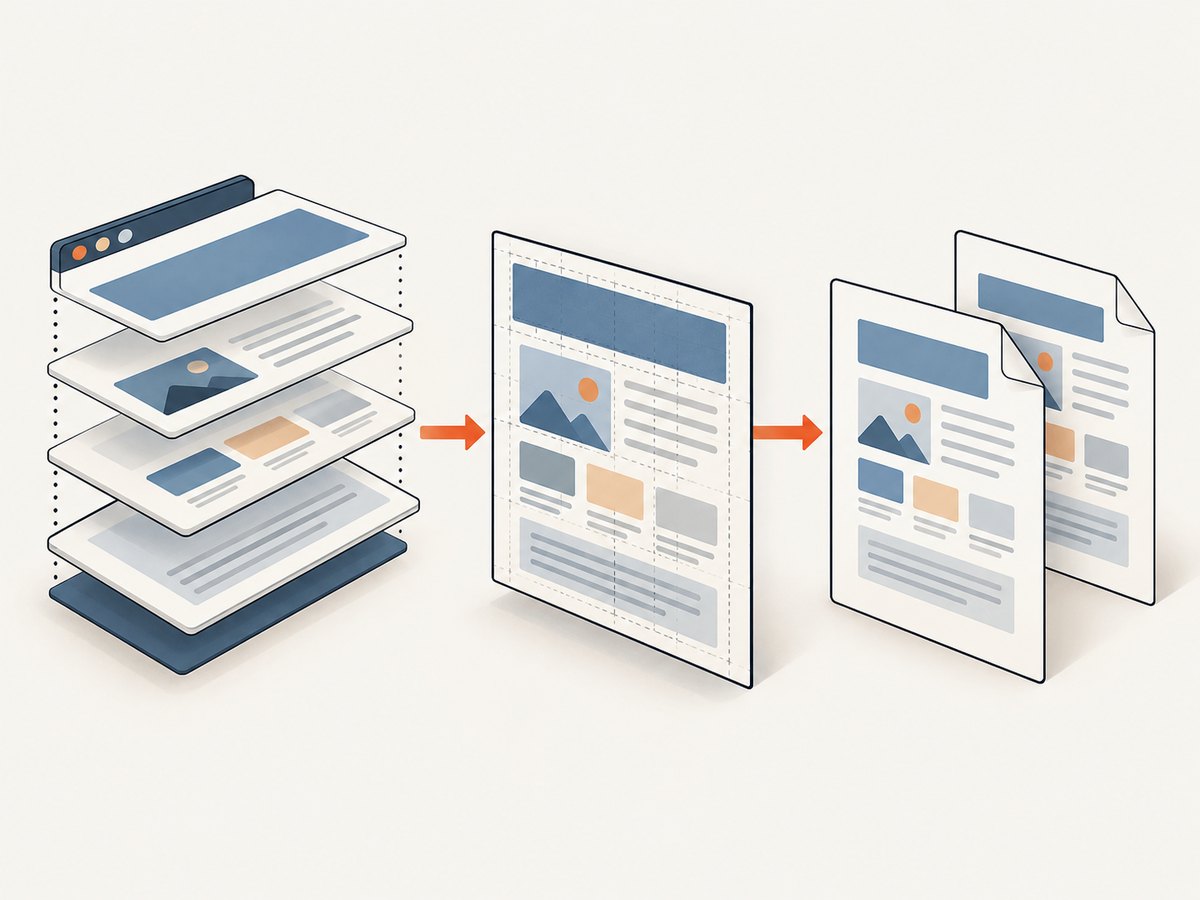
To generate a PDF from a Nuxt page with jsPDF and html2canvas, run both libraries in the browser after the target element has rendered. html2canvas reconstructs supported DOM and CSS as a canvas; jsPDF places that image in a PDF and saves it. This produces rasterized page content, not selectable text, and it is not a literal browser screenshot. For Nuxt 4, keep the feature behind a client-only boundary or load the libraries inside a user-triggered browser event. [Nuxt client plugins](https://nuxt.com/docs/4.x/directory-structure/app/plugins), [html2canvas limitations](https://html2canvas.github.io/html2canvas/documentation/), [jsPDF addImage](https://github.com/parallax/jsPDF#addimage).
The example below exports a single A4 page. A later section shows how to split a long capture across pages, where browser canvas limits and image quality need attention.
1. Install the packages
Install the dependencies with your project’s package manager:
npm install html2canvas jspdfThe code uses Nuxt 4’s app/ directory convention. In Nuxt 3, use the directory layout configured for your project; the key requirement is still that browser-only code does not execute during server rendering.
2. Add an export button and target element
Place an ID on the region to export. Keep the button outside that region so it does not appear in the PDF. The following is a Vue single-file component that can be used as a page or adapted into a component:
<script setup lang="ts">
import { ref } from 'vue'

const exporting = ref(false)
const errorMessage = ref('')

async function downloadPdf() {
  if (import.meta.server || exporting.value) return

  const element = document.querySelector<HTMLElement>('#report')
  if (!element) {
    errorMessage.value = 'The report could not be found.'
    return
  }

  exporting.value = true
  errorMessage.value = ''

  try {
    // Load browser-dependent libraries only when the user requests an export.
    const [{ default: html2canvas }, { jsPDF }] = await Promise.all([
      import('html2canvas'),
      import('jspdf'),
    ])

    const canvas = await html2canvas(element, {
      scale: Math.min(window.devicePixelRatio || 1, 2),
      useCORS: true,
      backgroundColor: '#ffffff',
      windowWidth: element.scrollWidth,
      windowHeight: element.scrollHeight,
      logging: false,
    })

    const pdf = new jsPDF({
      orientation: 'portrait',
      unit: 'mm',
      format: 'a4',
      compress: true,
    })

    const pageWidth = pdf.internal.pageSize.getWidth()
    const pageHeight = pdf.internal.pageSize.getHeight()
    const imageHeight = canvas.height * pageWidth / canvas.width
    const image = canvas.toDataURL('image/png')

    // This one-page example scales the complete report to fit one page.
    const fittedHeight = Math.min(imageHeight, pageHeight)
    pdf.addImage(image, 'PNG', 0, 0, pageWidth, fittedHeight)
    pdf.save('report.pdf')
  } catch (error) {
    console.error('PDF export failed', error)
    errorMessage.value = 'PDF export failed. Check the images and content size, then try again.'
  } finally {
    exporting.value = false
  }
}
</script>

<template>
  <main>
    <button type="button" :disabled="exporting" @click="downloadPdf">
      {{ exporting ? 'Preparing PDF…' : 'Download PDF' }}
    </button>
    <p v-if="errorMessage" role="alert">{{ errorMessage }}</p>

    <article id="report">
      <h1>Quarterly report</h1>
      <p>The content to include in the PDF goes here.</p>
    </article>
  </main>
</template>
Dynamic imports keep the libraries out of server-side execution and defer loading until export is requested. This is a practical choice for a small feature. If multiple parts of the app need PDF export, a client plugin can provide a shared client-only integration; Nuxt recognizes the .client suffix for plugins. Read the [Nuxt plugin guide](https://nuxt.com/docs/4.x/directory-structure/app/plugins) and [html2canvas setup instructions](https://html2canvas.github.io/html2canvas/getting-started/).
3. Choose a Nuxt client boundary
Click-time imports
For one export button, importing inside downloadPdf() is often the simplest structure. The handler runs in response to a browser interaction, and its dynamic imports keep browser-specific modules out of server evaluation. Guarding against import.meta.server adds a clear early exit if the handler is ever called from an unexpected context.
Client-only plugin
If several components share the same capture setup, you can put browser-only initialization in app/plugins/pdf.client.ts in Nuxt 4. Nuxt automatically registers files in the plugins directory, and the suffix restricts that plugin to the client. Keep the plugin limited to registration or shared helpers: capture a particular element in response to an action after it is mounted. Do not access window or document at module scope in code that the server can evaluate.
A <ClientOnly> wrapper can be useful for rendering a component that requires browser APIs, but it is not a replacement for thinking through what the server renders. Disabling SSR for the entire application just to support one export feature changes more than the PDF path. Nuxt’s [SSR guide](https://nuxt.com/docs/4.x/guide/concepts/rendering) explains the rendering modes and their tradeoffs.
4. Set capture options for your report
The options in the example address common layout and image needs. html2canvas has more configuration options; use its [configuration reference](https://html2canvas.github.io/html2canvas/configuration/) for the complete, version-specific list.
| Option | What it controls | Practical guidance |
|---|---|---|
scale |
Canvas pixel density | Higher values look sharper but increase pixel count and memory use. A cap such as 2 avoids letting a high-density display create an unexpectedly huge canvas. |
useCORS |
Attempts CORS-enabled loading for remote images | Set it to true when remote hosts permit cross-origin access. It cannot override a host’s CORS policy. |
backgroundColor |
Canvas background | Use a solid color for predictable printing. A null background can preserve transparency in the canvas, subject to the output path. |
windowWidth, windowHeight |
Viewport dimensions used for rendering | For a full element, its scroll dimensions can help avoid a viewport-sized crop. Check responsive breakpoints because changing the width can change layout. |
logging |
Diagnostic console output | Enable while diagnosing capture problems, then disable if logs are not useful in your production flow. |
ignoreElements |
Excludes selected DOM nodes via a predicate | Useful for removing controls from the rendered result. Alternatively, use a print-specific class or clone customization. |
allowTaint |
Allows tainted cross-origin content to be drawn | Drawing tainted content can prevent reading canvas pixels for PDF conversion. It does not bypass browser security; prefer CORS-enabled assets or a controlled proxy. |
imageTimeout |
How long image loading may take | Increase only when legitimate assets are slow. A larger timeout makes the export wait longer and does not repair inaccessible images. |
Use CSS specifically for export when the screen layout is too dense or includes controls. A print class can hide interactive elements, set a white background, remove shadows, and choose a predictable width. If a style relies on a CSS property that html2canvas does not support, changing the export layout is usually more reliable than assuming the property will render.
5. Handle long reports with page-by-page capture
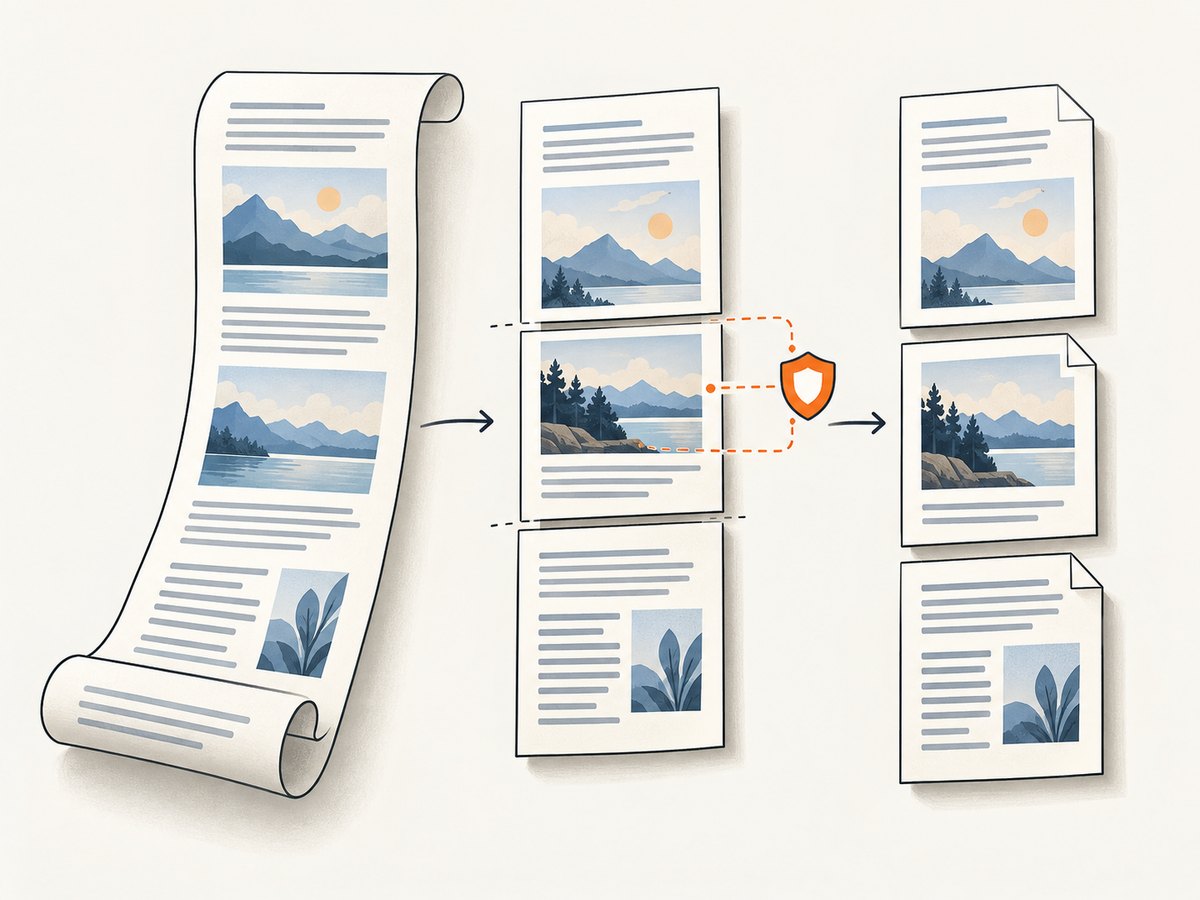
Scaling a long report until the whole canvas fits on one A4 sheet makes the output unreadable. A single image taller than the PDF page also gets clipped if it is simply placed at the top. The following basic pagination pattern slices the captured canvas into page-height strips. It is useful for continuous content, but it does not understand paragraphs, tables, or semantic page breaks; validate the result for your report.
function addCanvasAsPages(canvas: HTMLCanvasElement) {
  const { jsPDF } = require('jspdf') as typeof import('jspdf')
  const pdf = new jsPDF({ orientation: 'portrait', unit: 'mm', format: 'a4' })
  const pageWidth = pdf.internal.pageSize.getWidth()
  const pageHeight = pdf.internal.pageSize.getHeight()
  const margin = 10
  const contentWidth = pageWidth - margin * 2
  const contentHeight = pageHeight - margin * 2
  const pixelsPerMm = canvas.width / contentWidth
  const sliceHeight = Math.floor(contentHeight * pixelsPerMm)

  for (let top = 0, page = 0; top < canvas.height; top += sliceHeight, page++) {
    const currentHeight = Math.min(sliceHeight, canvas.height - top)
    const slice = document.createElement('canvas')
    slice.width = canvas.width
    slice.height = currentHeight
    const context = slice.getContext('2d')
    if (!context) throw new Error('Could not create a 2D canvas context')
    context.drawImage(canvas, 0, top, canvas.width, currentHeight, 0, 0, canvas.width, currentHeight)

    if (page > 0) pdf.addPage()
    const heightMm = currentHeight / pixelsPerMm
    pdf.addImage(slice.toDataURL('image/png'), 'PNG', margin, margin, contentWidth, heightMm)
  }

  pdf.save('report.pdf')
}
This helper is intended to be called after the capture has completed in the browser. In a TypeScript Nuxt application, prefer a static import { jsPDF } from 'jspdf' within the already client-only handler rather than the CommonJS require shown in this isolated helper; pass the imported constructor in or move the pagination loop into that handler. The key is that each slice has its own canvas height, so the last page can be shorter.
For polished page breaks, capture discrete page sections individually. Design each section to fit a known printable area, create one PDF page per section, and add page breaks at logical boundaries such as a heading plus its first paragraph. That avoids splitting a chart or row across pages, though it requires the report layout to cooperate. Canvas limits differ across browsers and devices, so dividing a very tall capture into sections also reduces the chance of blank or partial output. The html2canvas [FAQ](https://html2canvas.github.io/html2canvas/faq/) discusses browser-specific limits and advises matching window dimensions to the target element; treat any listed limits as approximate rather than guarantees.
6. Understand image fidelity, text, and CORS
html2canvas walks the DOM and recreates the parts it understands using supported CSS. It does not ask the browser to save its rendered pixels as a native screenshot. Some CSS features, fonts, embedded content, and browser-specific rendering can differ or be omitted. Review the [supported features and limitations](https://html2canvas.github.io/html2canvas/documentation/) and test the actual layouts and browsers your users rely on.
The resulting canvas is raster content. Text in the PDF generally cannot be selected, searched, or copied as text, and rasterized content is less suitable for accessibility and very small print. If the document is primarily text, has accessibility requirements, or must remain searchable, build a native PDF with text and vector elements using jsPDF’s text and drawing APIs, or use a server-side HTML-to-PDF renderer designed for paginated documents. Choose based on whether visual similarity or document semantics matter more.
Remote images are subject to browser cross-origin rules. With useCORS: true, html2canvas attempts to load images using CORS, but the image server must send suitable permission headers. If it does not, the image can disappear from the canvas or make the canvas unreadable for export. Serve the image from the same origin, configure the asset host’s CORS response, or use a controlled server-side proxy that you operate and secure. Do not treat allowTaint as a way around these rules. See the [html2canvas CORS FAQ](https://html2canvas.github.io/html2canvas/faq/).
7. Troubleshoot common failures
| Symptom | Likely cause | Fix |
|---|---|---|
window is not defined or document is not defined |
Browser code ran during server rendering or module evaluation. | Move imports into a browser-triggered handler, or use a Nuxt .client plugin. Do not access browser globals at the top level of shared modules. |
| PDF contains no content | The selector did not match, the element had not mounted, or it had no measurable size. | Confirm the ID and wait until the data and conditional content have rendered. Check element.getBoundingClientRect() before capture. |
| Images are missing | Image loading had not finished, the URL was invalid, or the asset host denied CORS access. | Wait for image elements to load, inspect failed network requests, and configure CORS or serve assets same-origin. A timeout cannot solve a policy denial. |
Canvas is tainted or toDataURL throws |
Cross-origin pixels were drawn without permission. | Use assets that send CORS headers, or move them to a same-origin/controlled delivery path. Avoid drawing unauthorized cross-origin images into the canvas. |
| Styles, shadows, or transforms look wrong | The CSS feature may not be supported or may render differently in the reconstruction. | Check the supported-features reference and simplify the export stylesheet. Replace complex effects with simpler print styles where needed. |
| Only the visible portion appears | The capture dimensions reflect the viewport rather than the content dimensions, or layout changed at the chosen width. | Set windowWidth and windowHeight from the element’s scroll dimensions. Inspect responsive breakpoints and overflow containers. |
| PDF is blurry | The canvas was captured at too low a scale, or a large image was downscaled to fit one page. | Increase scale moderately, keep the intended print width in mind, and avoid fitting a long report onto one sheet. Higher scale increases memory requirements. |
| Blank or partial output on a long page | The canvas exceeded a browser or device dimension/area limit, or memory was exhausted. | Capture sections or page-sized elements separately, reduce scale, and validate on target devices. Limits vary, so no universal maximum is safe. |
| Repeated clicks create multiple downloads | The action was not locked while the asynchronous capture ran. | Disable the button while exporting and restore it in a finally block, as in the example. |
| PDF has an unwanted white strip or content clipped at an edge | Image aspect ratio, PDF margins, or placement dimensions do not match. | Calculate the rendered image height from its aspect ratio, reserve margins explicitly, and check whether the design should be scaled or divided across pages. |
8. Performance, reliability, and cost
Browser export uses the visitor’s CPU and memory. A canvas’s pixel count grows with both content dimensions and scale; doubling scale in each direction creates roughly four times as many pixels. Large screenshots can make a tab unresponsive, consume substantial memory, or hit browser-specific limits. Capture only the report region, keep scale appropriate to its intended print size, and paginate tall content. Defer library loading until needed if most visitors never export.
Make the export resilient to ordinary variation: wait for report data and images, disable duplicate submissions, show a progress state, catch errors, and let the user retry. There is no reliable way for a browser library to make unsupported CSS or blocked remote images render correctly. Where output correctness is important, test representative reports on the browsers and devices you support and inspect page breaks, charts, fonts, and images.
jsPDF and html2canvas are software dependencies rather than a per-export API service, so the basic workflow has no ScreenshotNeo per-shot charge. The tradeoff is implementation and browser-resource cost: your team owns layout fixes, CORS configuration, pagination, compatibility checks, and support for failures on user devices. If the requirement is a screenshot of a URL rather than a client-side export of the user’s current report state, a screenshot service is a different workflow.
Or skip the browser setup
If you need a clean capture of a website URL rather than a PDF of the current Vue component, ScreenshotNeo returns a screenshot or PDF from one request. For the full parameters and configuration, see the ScreenshotNeo API docs.
curl -G "https://api.screenshotneo.com/v1/shot" -d access_key=YOUR_API_KEY --data-urlencode url=https://stripe.com -o shot.webpimport requests
r = requests.get(
"https://api.screenshotneo.com/v1/shot",
params={"access_key": "YOUR_API_KEY", "url": "https://stripe.com"},
timeout=90,
)
open("shot.webp", "wb").write(r.content)const q = new URLSearchParams({ access_key: 'YOUR_API_KEY', url: 'https://stripe.com' });
const res = await fetch(`https://api.screenshotneo.com/v1/shot?${q}`);
if (!res.ok) throw new Error(`Screenshot request failed: ${res.status}`);
const bytes = new Uint8Array(await res.arrayBuffer());
await Bun.write('shot.webp', bytes);ScreenshotNeo removes cookie banners, newsletter popups, and chat widgets before the shot. Bot checks, blank pages, and failed loads are never billed; response headers report the page verdict and billing status. Its MCP server lets AI agents take screenshots. The free plan includes 1,000 screenshots a month with no card, and paid plans start at $5 for 3,000. Sign up for 1,000 free screenshots a month, no card required.
FAQ
Can I run html2canvas in a Nuxt server route?
No. It relies on browser APIs such as window, document, and computed styles. Run it in a browser context. [html2canvas FAQ](https://html2canvas.github.io/html2canvas/faq/).
Will this export preserve selectable text?
No. The example adds a canvas image to the PDF. Use a native text-based PDF layout if users must select, search, or copy the report text.
Does useCORS: true make every external image work?
No. The remote server must allow the requesting origin through its CORS headers. Otherwise use same-origin assets or a controlled proxy.
Should I capture the entire document or separate sections?
Use one capture for short content that fits comfortably in a canvas. For long reports, discrete page sections give you more control over page breaks and reduce the risk of oversized canvases.
Can I export HTML that is not currently rendered in the page?
The element must exist in the browser DOM for html2canvas to inspect it. Render the content first, wait for it to settle, and then capture it.


