How to Generate PDF Pages with Pyppeteer
Generate reliable PDFs from web pages with Pyppeteer, including print CSS, A4 sizing, headers, pagination, dynamic content, and troubleshooting.
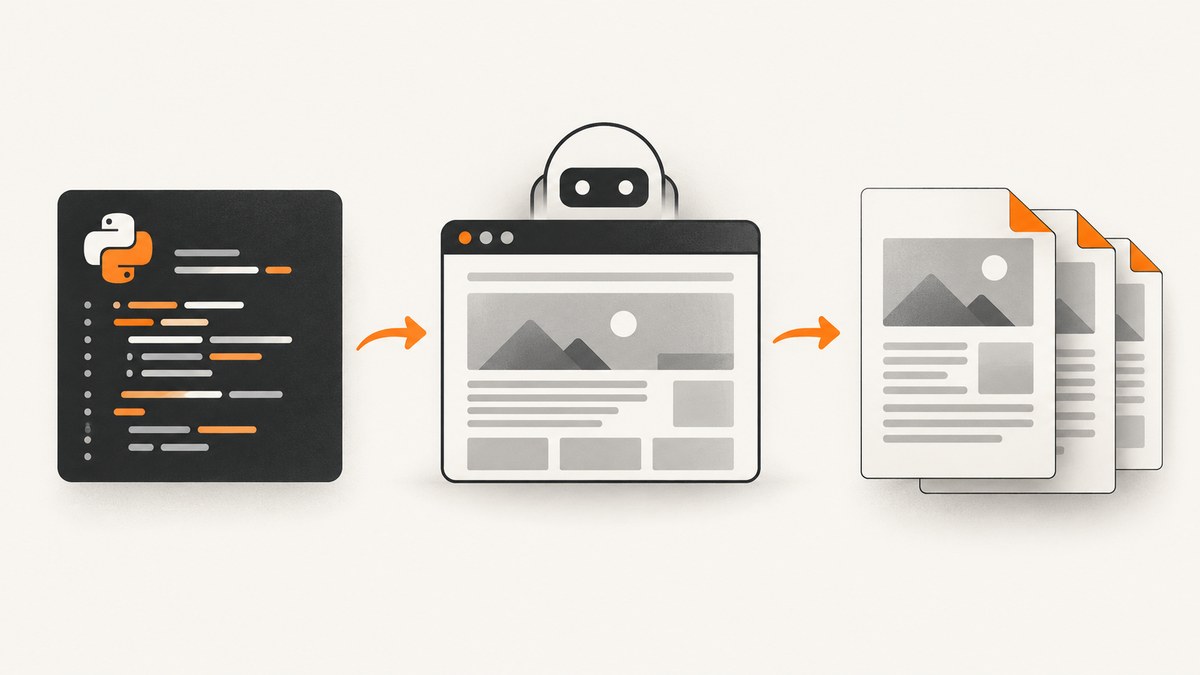
Pyppeteer generates PDF pages by launching Chromium, navigating to a URL, waiting until the document is ready, calling page.pdf(), and closing the browser. The PDF API supports paper formats, margins, backgrounds, headers, footers, scaling, landscape output, and page ranges.
Minimal working example
Install Pyppeteer, then run this asynchronous script:
python3 -m pip install pyppeteer
pyppeteer-install
import asyncio
from pyppeteer import launch
async def html_to_pdf(url: str, output_path: str) -> None:
browser = await launch()
try:
page = await browser.newPage()
await page.goto(url, {'waitUntil': 'networkidle0'})
await page.pdf({
'path': output_path,
'format': 'A4',
'printBackground': True,
'margin': {
'top': '1cm',
'right': '1cm',
'bottom': '1cm',
'left': '1cm'
}
})
finally:
await browser.close()
asyncio.get_event_loop().run_until_complete(
html_to_pdf('https://example.com', 'page.pdf')
)Pyppeteer requires Python 3.6 or newer. The first browser setup downloads a Chromium build (documentation describes approximately 100 MB; the current repository README describes approximately 150 MB when Chromium is not found). Running pyppeteer-install during image or machine setup moves that download out of the request path. See the Pyppeteer documentation and its repository.
Control when content is ready
networkidle0 waits for no active network connections, but it is not a universal readiness test. Pick the signal that matches the page:
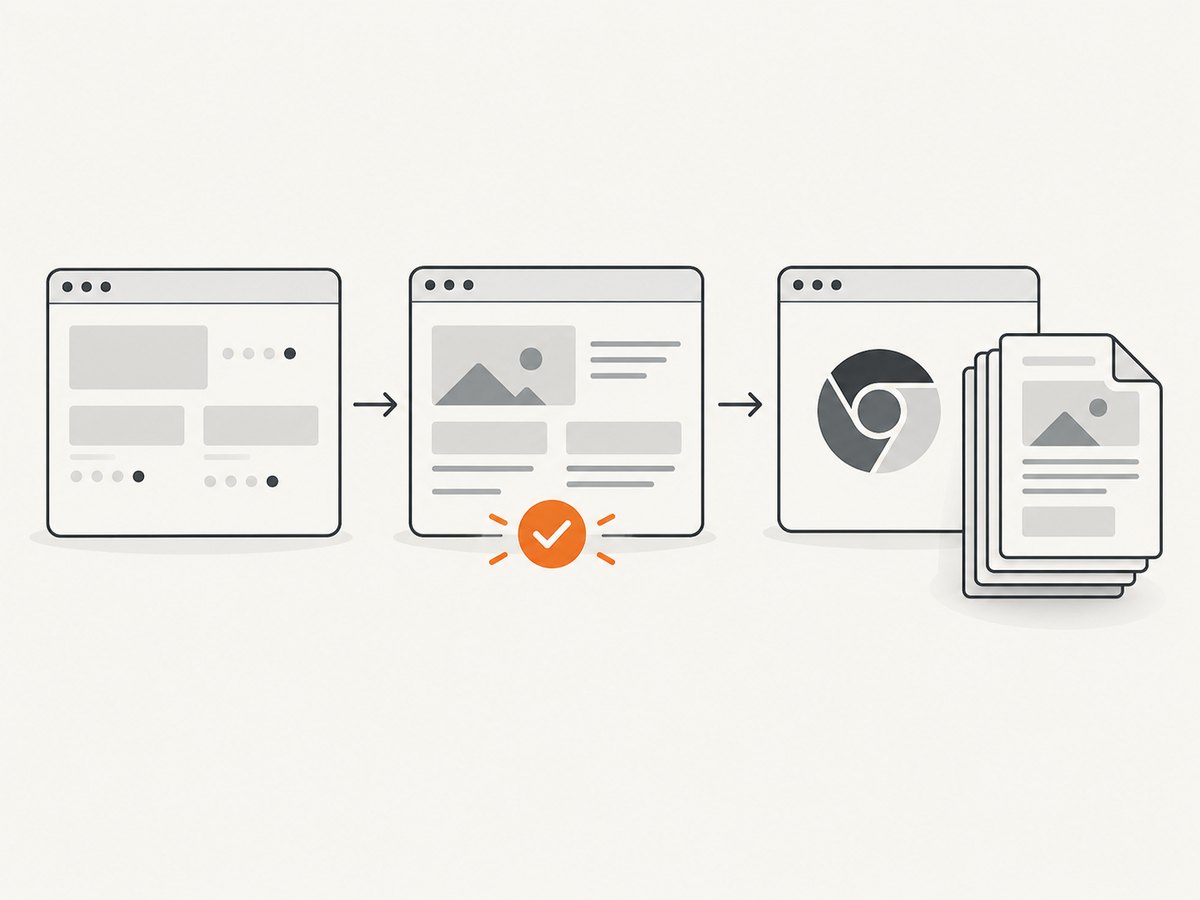
await page.goto(url, {'waitUntil': 'load'})for documents whose assets finish at load.await page.goto(url, {'waitUntil': 'networkidle0'})for pages that settle after their requests complete.await page.waitForSelector('.invoice-total')when a specific element proves rendering is complete.await page.waitForFunction("document.fonts.status === 'loaded'")when web fonts affect layout.await page.waitFor(1000)as a last resort for animations or delayed widgets; prefer a deterministic selector when possible.
await page.goto(url, {'waitUntil': 'domcontentloaded'})
await page.waitForSelector('#report-ready', {'visible': True})
await page.waitForFunction("document.fonts.status === 'loaded'")
Print CSS versus screen CSS
page.pdf() uses the CSS print media type. If your layout is designed only for screens, switch media before printing:
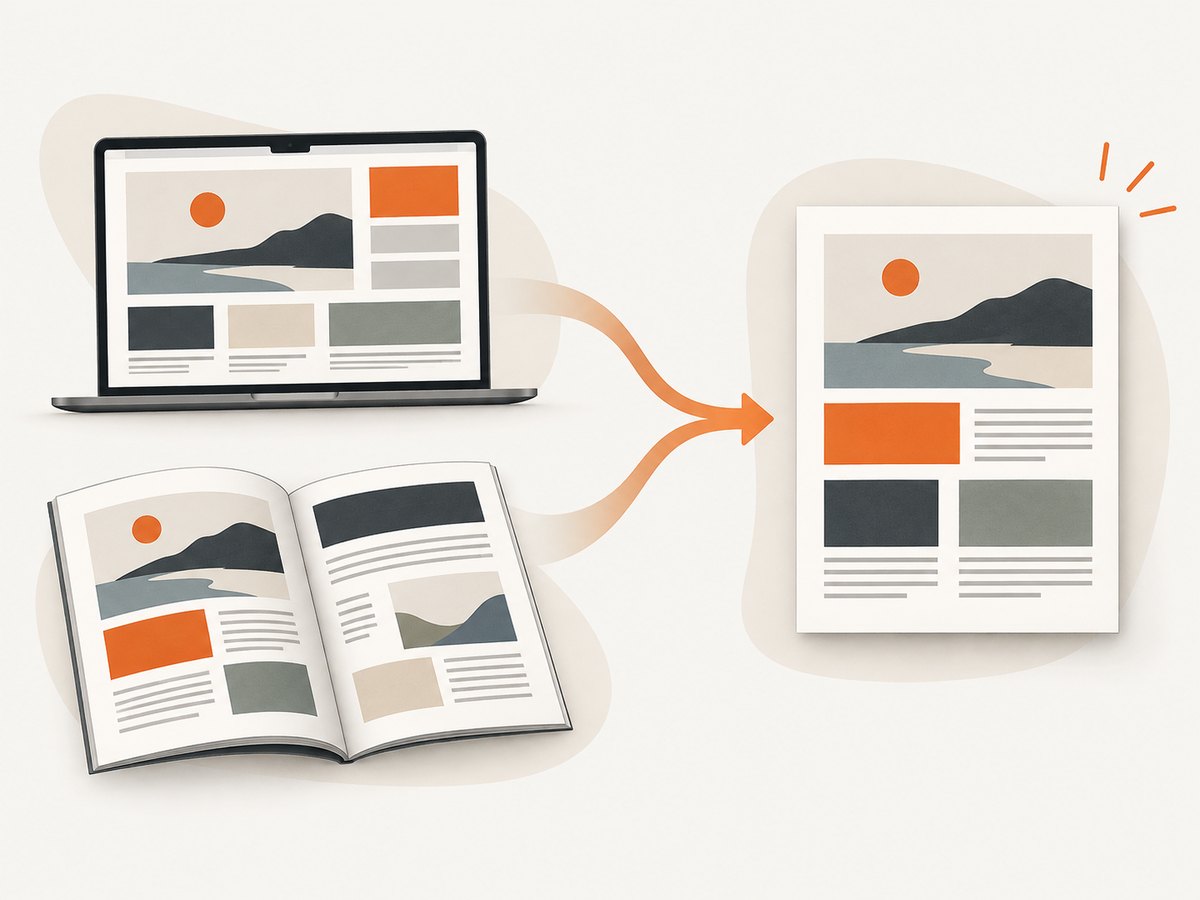
await page.emulateMedia('screen')
await page.pdf({'path': 'screen-layout.pdf', 'printBackground': True})
For exact colors, add -webkit-print-color-adjust: exact; to the relevant print styles. Print styles may hide navigation, change widths, or remove backgrounds, so inspect both media modes.
PDF options that matter
| Option | Use |
|---|---|
path |
Output filename. Omit it when you need the returned PDF bytes. |
format |
Named paper such as A4, A5, Letter, Legal, Tabloid, Ledger, or A0–A6. |
width, height |
Custom paper dimensions. Use px, in, cm, or mm; unlabeled values are pixels. |
margin |
Top, right, bottom, and left margins, each with a unit. |
landscape |
Rotate the paper orientation. |
printBackground |
Include CSS background graphics. |
scale |
Scale page content when it is too large or too small. |
pageRanges |
Print selected pages, for example 1-5,8,11-13. An empty value prints all pages. |
displayHeaderFooter |
Enable HTML header and footer templates. |
headerTemplate, footerTemplate |
HTML templates containing supported classes such as date, title, url, pageNumber, and totalPages. |
format takes priority over width and height. Header and footer template scripts are not evaluated, and page styles are not visible inside those templates.
A4, custom size, and landscape examples
await page.pdf({
    'path': 'invoice-a4.pdf',
    'format': 'A4',
    'printBackground': True,
    'margin': {'top': '12mm', 'right': '12mm', 'bottom': '16mm', 'left': '12mm'}
})

await page.pdf({
    'path': 'wide-report.pdf',
    'width': '297mm',
    'height': '210mm',
    'landscape': True,
    'printBackground': True
})
Headers, footers, and page ranges
await page.pdf({
    'path': 'report.pdf',
    'format': 'A4',
    'displayHeaderFooter': True,
    'headerTemplate': '<div style="font-size:9px;width:100%;text-align:center"><span class="title"></span></div>',
    'footerTemplate': '<div style="font-size:9px;width:100%;text-align:center">Page <span class="pageNumber"></span> of <span class="totalPages"></span></div>',
    'margin': {'top': '20mm', 'bottom': '20mm', 'left': '12mm', 'right': '12mm'},
    'pageRanges': '1-5,8'
})
Dynamic HTML you own
For HTML generated in Python, create a page and use setContent before printing. Wait for fonts, images, or an application-specific marker.
html = """
<html><body><h1>Monthly report</h1><div id='report-ready'>Ready</div></body></html>
"""
await page.setContent(html)
await page.waitForSelector('#report-ready')
await page.pdf({'path': 'report.pdf', 'format': 'A4', 'printBackground': True})
Operational checklist
- Install Pyppeteer and preinstall Chromium during deployment.
- Use the bundled Chromium unless you have tested a system executable; the API gives no guarantee for other browser versions.
- Set a navigation and PDF timeout appropriate to your page.
- Wait for a real readiness condition, especially for charts, images, fonts, and client-rendered data.
- Always close the browser in a
finallyblock. - Use a temporary output path and verify the file exists before publishing it.
- Pin your Python and Pyppeteer versions so browser changes are deliberate.
Troubleshooting
Chromium fails to launch
Cause: the first-run download did not complete, or the host lacks required system libraries. Fix: run pyppeteer-install during setup, cache the browser in your deployment image, and check the launch log. A system Chrome path is a compatibility choice that must be tested.
The PDF is blank or missing data
Cause: printing started before client-side rendering finished. Fix: wait for a selector or function that represents completed content; do not rely only on a short sleep.
Screen layout is ignored
Cause: PDF generation applies print media. Fix: call emulateMedia('screen'), or add explicit @media print rules.
Colors or backgrounds disappear
Cause: background printing is disabled or print color adjustment changed the result. Fix: set printBackground: True and use -webkit-print-color-adjust: exact where required.
Content is clipped or unexpectedly paginated
Cause: fixed widths, large margins, transformed elements, or page-break CSS. Fix: choose one paper definition, reduce margins or scale, and add print rules such as break-inside: avoid to blocks that must stay together.
Fonts change the page count
Cause: the PDF was created before web fonts loaded. Fix: wait for document.fonts.status === 'loaded' and ensure the font requests are reachable from Chromium.
Long jobs consume too much memory
Cause: launching a browser for every page or retaining pages. Fix: reuse one browser for a controlled batch, create and close pages per job, limit concurrency, and recycle the browser after a bounded number of documents.
Performance, reliability, and cost notes
Browser startup and Chromium memory are usually the largest fixed costs. Preinstalling the browser removes setup work from requests. Reusing a browser lowers startup latency, while bounded concurrency prevents CPU and memory contention. Network-heavy pages take longer and are more likely to be nondeterministic, so self-hosted pages should expose a clear ready marker. Pyppeteer itself has no PDF service charge; your costs are the machine, bandwidth, and browser operations.
Or skip the browser setup
ScreenshotNeo provides a website capture API and MCP server. Cookie banners, newsletter popups, and chat widgets are removed before the shot; bot checks, blank pages, failed loads, and cache hits are not billed. Its MCP server lets Claude, Cursor, and other MCP clients take screenshots. The free plan includes 1,000 shots per month with no card, and paid plans start at $5 for 3,000 shots. See the API documentation.
curl -G "https://api.screenshotneo.com/v1/shot" -d access_key=YOUR_API_KEY --data-urlencode url=https://stripe.com -o shot.webpimport requests
r = requests.get("https://api.screenshotneo.com/v1/shot", params={"access_key": "YOUR_API_KEY", "url": "https://stripe.com"}, timeout=90)
open("shot.webp", "wb").write(r.content)const q = new URLSearchParams({ access_key: 'YOUR_API_KEY', url: 'https://stripe.com' });
const res = await fetch(`https://api.screenshotneo.com/v1/shot?${q}`);Create a free ScreenshotNeo account with 1,000 screenshots each month and no card.
FAQ
Can Pyppeteer create PDFs in headed mode?
The PDF method is supported in headless mode.
Should I use A4 or explicit dimensions?
Use a named format for standard paper. Use explicit width and height for labels, receipts, or other custom geometry.
Why does my header template have no page styles?
Header and footer templates are separate HTML; page styles are not visible inside them. Put the required inline styles in the template.
How do I print only selected pages?
Pass a range string such as 1-3,7 through pageRanges.


