How to Generate a PDF in React JS
Learn when to use React PDF components or DOM capture, with runnable code, browser and server options, troubleshooting, and production guidance.

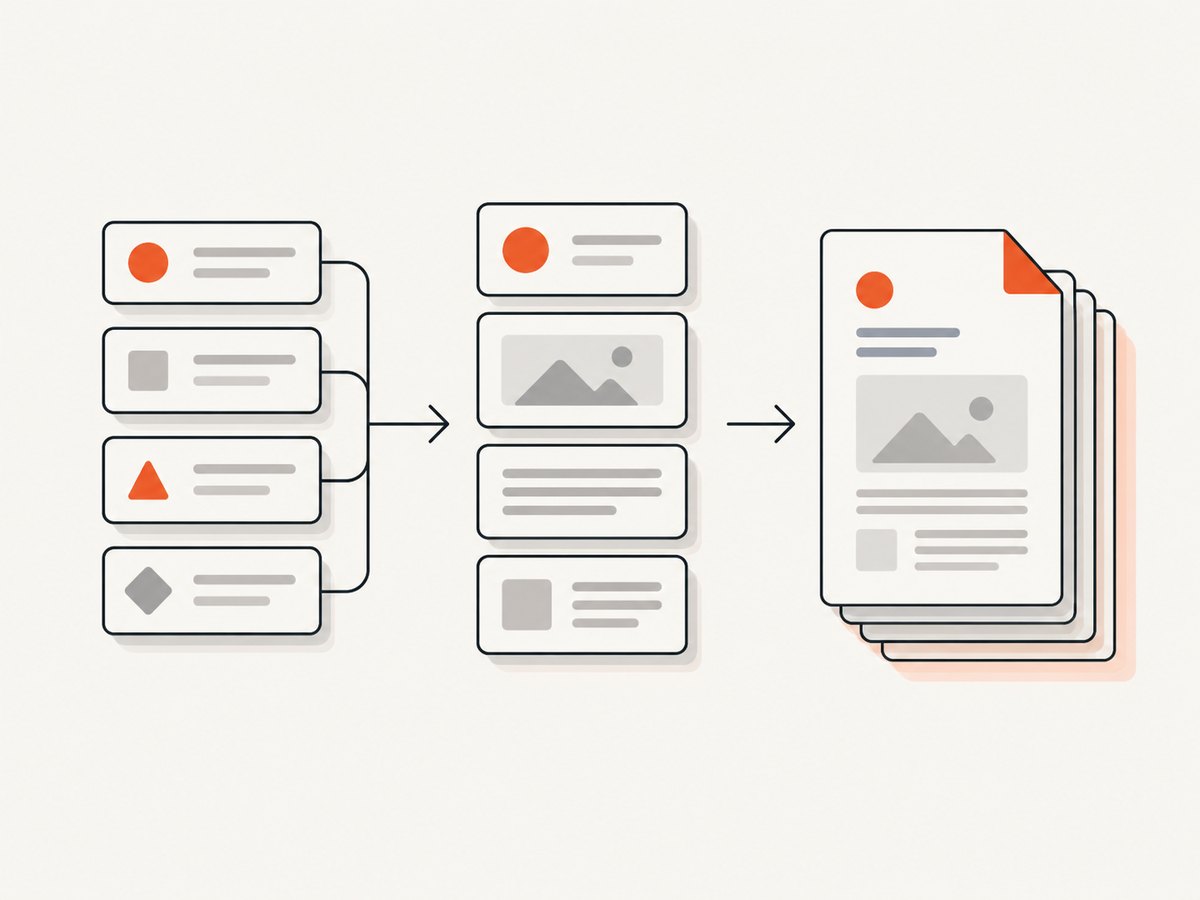
Use @react-pdf/renderer when you are creating a document from application data. Use html2canvas with jsPDF when you need to export content that is already rendered in the browser. These workflows solve different problems: React PDF defines a document layout with React components, while DOM capture reconstructs supported browser content on a canvas before placing it in a PDF.
Choose the right PDF approach
| Requirement | Recommended approach | Runtime |
|---|---|---|
| Invoices, reports, receipts, or other structured data | @react-pdf/renderer |
Browser or server |
| Export an existing React view or dashboard | html2canvas plus jsPDF |
Browser only |
| Generate PDFs on a backend or return them from an API | @react-pdf/renderer server APIs |
Node.js server |
| Capture a public web page without running browser code | ScreenshotNeo PDF capture | HTTP API |
@react-pdf/renderer has its own document tree and styling model. Its root is Document, whose direct children should be Page elements. Text belongs in Text, and layout containers use View. The renderer supports CSS-like properties, including Flexbox. See the React PDF documentation and the current advanced API guidance.
Generate a PDF document with @react-pdf/renderer
1. Install the package
npm install @react-pdf/renderer --save2. Define the document component
import {
  Document,
  Page,
  Text,
  View,
  StyleSheet,
} from '@react-pdf/renderer';

const styles = StyleSheet.create({
  page: {
    padding: 36,
    fontSize: 12,
  },
  heading: {
    fontSize: 20,
    marginBottom: 16,
  },
  section: {
    marginBottom: 12,
  },
  label: {
    fontSize: 10,
    color: '#555555',
    marginBottom: 4,
  },
});

export function ReportPdf({ title, body, author }) {
  return (
    <Document title={title} author={author}>
      <Page size="A4" style={styles.page}>
        <Text style={styles.heading}>{title}</Text>

        <View style={styles.section}>
          <Text style={styles.label}>Author</Text>
          <Text>{author}</Text>
        </View>

        <View style={styles.section}>
          <Text style={styles.label}>Summary</Text>
          <Text>{body}</Text>
        </View>
      </Page>
    </Document>
  );
}
Keep the document tree separate from your application page. The PDF component should receive serializable data and should not depend on browser-only objects such as window or a DOM node.
3. Display the document in the browser
import { PDFViewer } from '@react-pdf/renderer';
import { ReportPdf } from './ReportPdf';

export default function ReportPage() {
  return (
    <PDFViewer style={{ width: '100%', height: '80vh' }}>
      <ReportPdf
        title="Quarterly report"
        author="Acme Inc."
        body="Revenue increased during the quarter."
      />
    </PDFViewer>
  );
}
PDFViewer renders a browser viewer around the document. This is useful when users should inspect the PDF before saving or printing it.
4. Offer a browser download
import { PDFDownloadLink } from '@react-pdf/renderer';
import { ReportPdf } from './ReportPdf';

export function DownloadReport() {
  const document = (
    <ReportPdf
      title="Quarterly report"
      author="Acme Inc."
      body="Revenue increased during the quarter."
    />
  );

  return (
    <PDFDownloadLink document={document} fileName="quarterly-report.pdf">
      {({ loading }) => (loading ? 'Preparing PDF…' : 'Download PDF')}
    </PDFDownloadLink>
  );
}
The download link may render more than once while the PDF is being prepared, so keep the loading state in the link’s render function.
Generate a PDF on the server
Use a server renderer when the PDF must be created in a job, stored, emailed, or returned from an API. The exact server API depends on the current @react-pdf/renderer version; use the version-specific Node documentation when wiring this into production.
Write a PDF file
import React from 'react';
import { renderToFile } from '@react-pdf/renderer';
import { ReportPdf } from './ReportPdf.js';

await renderToFile(
  <ReportPdf
    title="Quarterly report"
    author="Acme Inc."
    body="Revenue increased during the quarter."
  />,
  './output/quarterly-report.pdf'
);
Return a PDF from an HTTP response
import express from 'express';
import React from 'react';
import { renderToStream } from '@react-pdf/renderer';
import { ReportPdf } from './ReportPdf.js';

const app = express();

app.get('/reports/quarterly.pdf', async (req, res) => {
  const stream = await renderToStream(
    <ReportPdf
      title="Quarterly report"
      author="Acme Inc."
      body="Revenue increased during the quarter."
    />
  );

  res.setHeader('Content-Type', 'application/pdf');
  res.setHeader('Content-Disposition', 'inline; filename="quarterly-report.pdf"');
  stream.pipe(res);
});

app.listen(3000);
Use Content-Disposition: attachment when the browser should download the file immediately. Use inline when the browser should attempt to display it.
Useful document options
Page size, orientation, and margins
<Page
  size="A4"
  orientation="landscape"
  style={{ padding: 40 }}
>
  <Text>Landscape content</Text>
</Page>
Choose a page size that matches the output you distribute. Keep padding in the page style so every page uses the same content area. For invoices and reports, test long text and repeated sections because content can flow onto additional pages.
Multiple pages
function InvoicePdf({ invoice }) {
  return (
    <Document title={`Invoice ${invoice.number}`}>
      <Page size="A4" style={styles.page}>
        <Text>Invoice {invoice.number}</Text>
        {invoice.items.map((item) => (
          <View key={item.id} style={styles.section}>
            <Text>{item.description}</Text>
            <Text>{item.amount}</Text>
          </View>
        ))}
      </Page>
    </Document>
  );
}
Use stable keys for mapped elements. Split very large reports into intentional pages when you need predictable page breaks.
Metadata
Document accepts metadata such as title and author. Set these values from trusted application data and avoid putting secrets into metadata.
Export an existing React DOM element
If the requirement is “make this visible dashboard a PDF,” a DOM capture workflow may be simpler. html2canvas accepts an element and resolves asynchronously with a canvas. It runs in modern evergreen browsers and depends on browser APIs, so it is not suitable for Node.js. jsPDF’s HTML method uses html2canvas for this kind of conversion.
Install the browser packages
npm install html2canvas jspdfCapture an element and save a PDF
import html2canvas from 'html2canvas';
import { jsPDF } from 'jspdf';

export async function exportElementToPdf(element) {
  const canvas = await html2canvas(element, {
    backgroundColor: '#ffffff',
    scale: window.devicePixelRatio || 1,
    useCORS: true,
  });

  const imageData = canvas.toDataURL('image/png');
  const pdf = new jsPDF({ orientation: 'portrait', unit: 'mm', format: 'a4' });

  const pageWidth = pdf.internal.pageSize.getWidth();
  const pageHeight = pdf.internal.pageSize.getHeight();
  const imageHeight = (canvas.height * pageWidth) / canvas.width;
  let remainingHeight = imageHeight;
  let offset = 0;

  pdf.addImage(imageData, 'PNG', 0, offset, pageWidth, imageHeight);
  remainingHeight -= pageHeight;

  while (remainingHeight > 0) {
    offset -= pageHeight;
    pdf.addPage();
    pdf.addImage(imageData, 'PNG', 0, offset, pageWidth, imageHeight);
    remainingHeight -= pageHeight;
  }

  pdf.save('dashboard.pdf');
}
export function ExportButton() {
async function handleExport() {
const element = document.querySelector('#dashboard');
if (!element) throw new Error('Dashboard element was not found');
await exportElementToPdf(element);
}
return <button onClick={handleExport}>Export dashboard</button>;
}This approach creates an image-based PDF. It does not preserve the original DOM as selectable PDF text in every case, and long content needs deliberate pagination.
DOM capture limitations and edge cases
- Unsupported CSS: html2canvas traverses the DOM and builds a representation from properties it understands; it does not take a literal screenshot. Complex filters, blend modes, some pseudo-elements, and unusual layout features may differ.
- Cross-origin assets: images and other resources can taint the canvas. Use same-origin assets or a permitted CORS proxy, and configure the resource server correctly.
- Fonts: wait until web fonts have loaded before capture. Otherwise the canvas can contain fallback fonts.
- Lazy content: scroll or otherwise trigger lazy loading before capture, then wait for images to complete.
- Responsive layout: set a predictable viewport width for the export container so the PDF does not depend on the user’s device width.
- Very tall pages: a single huge canvas consumes substantial memory. Capture sections separately when reports are long.
Production checklist
- Decide whether the source is structured data or an existing DOM view.
- For structured data, use
Document,Page,View, andTextcomponents. - Choose browser display/download or server file/stream output.
- Set page size, orientation, padding, metadata, and explicit page boundaries.
- Load fonts and images before DOM capture.
- Test long strings, empty values, missing images, right-to-left text, and additional pages.
- Check the generated PDF in the browsers and PDF viewers your users rely on.
- For server generation, isolate PDF work from request timeouts by using a queue for large reports.
Troubleshooting
| Symptom | Likely cause | Fix |
|---|---|---|
| Nothing renders inside the PDF | Invalid document tree or browser-only code inside the PDF component | Keep Document as the root, put direct content under Page, and remove DOM-dependent code. |
| Text or sections are cut off | Content exceeds the page or a tall canvas was placed on one page | Use multiple Page elements or paginate the captured canvas. |
| Images are missing in html2canvas | Cross-origin restrictions or images not loaded yet | Use same-origin/CORS-enabled assets and wait for image completion before capture. |
| Fonts look different | Web fonts were not ready at capture time | Wait for font loading and verify the font is available to the browser. |
| Export works locally but fails in production | Production asset URLs, CSP, CORS, or server runtime differ | Inspect the failing resource in browser developer tools and test with production URLs. |
| Node.js crashes when using html2canvas | html2canvas requires browser APIs | Use @react-pdf/renderer server APIs for Node.js generation. |
| Download button freezes briefly | Large documents are being generated on the main thread | Show a preparation state, reduce capture size, or move generation to a server job. |
Performance, reliability, and cost
React PDF components usually give more predictable output for reports because layout is defined for the PDF renderer instead of reconstructed from a screen. DOM capture can be convenient, but canvas size, image resolution, fonts, and page count directly affect browser memory and generation time.
For large or repeated documents, generate on the server and cache immutable outputs. Treat external images and fonts as dependencies: failures, slow responses, and access controls can change the result. Add application-level timeouts and retries around jobs, and retain the input data needed to reproduce a failed document.
Client-side generation has no API charge, but it consumes the user’s CPU and memory. Server generation consumes your infrastructure. A hosted capture API can shift browser setup and page-loading work to the service; check its response status and billing headers so failed captures are handled correctly.
Or skip the browser setup
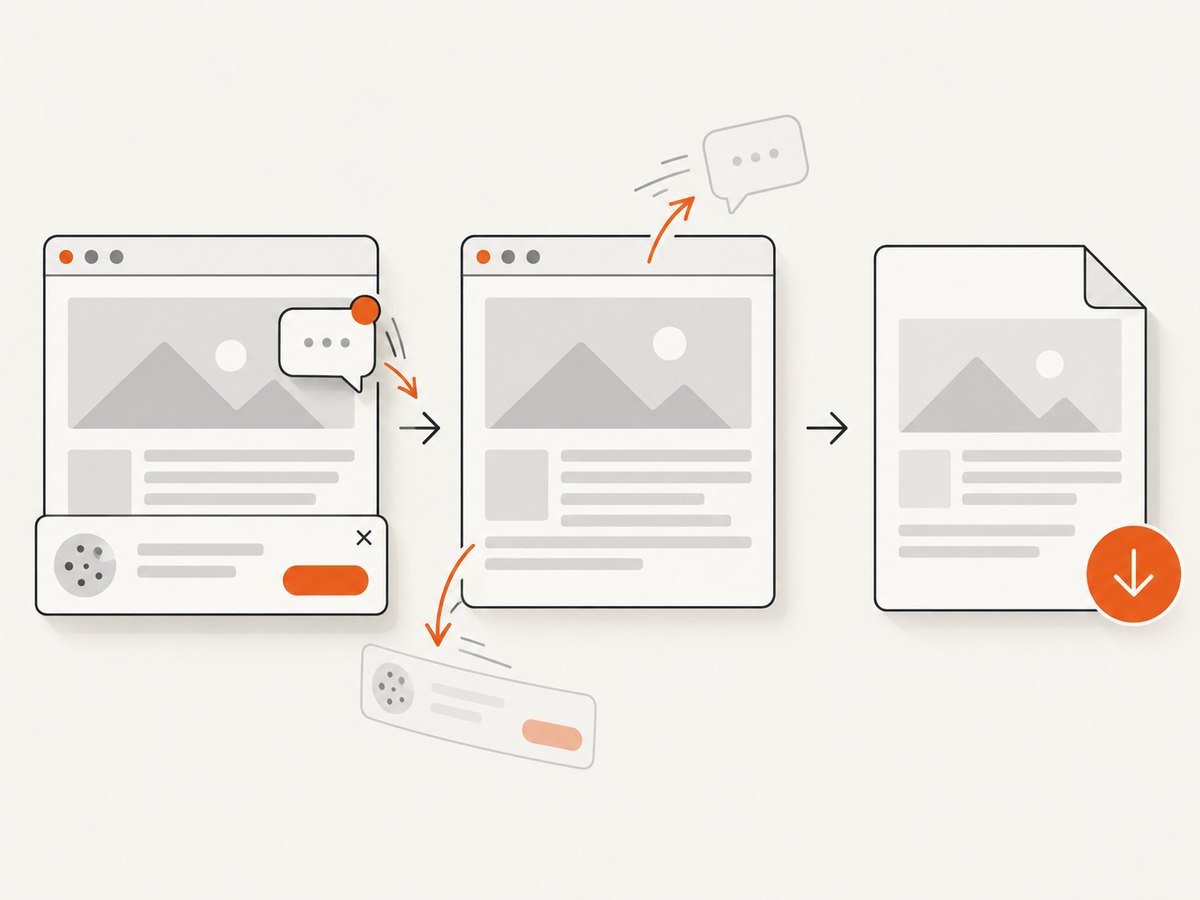
ScreenshotNeo can capture a URL as an image or PDF through one HTTP request. It removes cookie and consent banners, newsletter popups, and chat widgets before capture. Bot checks, blank pages, failed loads, timeouts, and cache hits are not billed, and the response identifies the page verdict and billing status in X-Page-Verdict and X-Billed headers. Its MCP server also lets Claude, Cursor, and other MCP clients use take_screenshot, get_page_info, and capture_pdf.
See the ScreenshotNeo API documentation for PDF settings and request options. The basic request is:
curl -G "https://api.screenshotneo.com/v1/shot" \
  -d access_key=YOUR_API_KEY \
  --data-urlencode url=https://stripe.com \
  -o shot.webp
import requests
r = requests.get(
"https://api.screenshotneo.com/v1/shot",
params={"access_key": "YOUR_API_KEY", "url": "https://stripe.com"},
timeout=90,
)
r.raise_for_status()
open("shot.webp", "wb").write(r.content)const q = new URLSearchParams({
access_key: 'YOUR_API_KEY',
url: 'https://stripe.com',
});
const res = await fetch(`https://api.screenshotneo.com/v1/shot?${q}`);
if (!res.ok) throw new Error(`ScreenshotNeo request failed: ${res.status}`);ScreenshotNeo includes full-page capture, lazy-image loading, custom CSS and JavaScript, waiting rules, headers and cookies, timezone and geolocation, caching, signed links, asynchronous jobs, bulk capture, and PDF controls such as paper size, margins, landscape mode, and page ranges. Every plan includes every feature. The Free plan includes 1,000 shots per month with no card; paid plans start at $5 for 3,000 shots.
Create a free ScreenshotNeo account to get 1,000 screenshots a month with no card.
FAQ
Can I generate a PDF from React without a backend?
Yes. Use PDFViewer or PDFDownloadLink with @react-pdf/renderer, or capture an existing element with html2canvas and jsPDF.
Which method preserves selectable text?
A document authored with React PDF primitives is the better fit for structured, selectable text. DOM capture commonly produces an image-based PDF, depending on how it is assembled.
Can html2canvas run in Node.js?
No. It relies on browser APIs. Use the server APIs of @react-pdf/renderer for Node.js.
Should I export the DOM or rebuild the document?
Export the DOM when visual similarity to an existing view matters and its CSS is supported. Rebuild the document with React PDF when you need stable pagination, server generation, and a document designed for printing.


