How to Generate PDFs in Angular 7
Learn three reliable ways to generate PDFs in Angular 7, with complete html2canvas and pdfmake examples, troubleshooting, and a hosted API option.

Direct answer: Angular 7 PDF generation usually follows one of three paths. Use html2canvas plus a PDF library when you need to export an existing component with a close visual resemblance to its HTML. Use pdfmake when you need selectable text, tables, repeatable headers, predictable pagination, and a document assembled from application data. Use server-side or hosted rendering when browser security, asset access, Chromium-level CSS support, or client bundle size makes browser-only generation unsuitable.
Angular 7 is a legacy maintenance target, so package versions must match the project’s Angular-era toolchain. Angular 7.0 and 7.1 use Node.js ^8.9.0 or ^10.9.0, TypeScript ~3.1.3, and RxJS ^6.0. Angular 7.2 uses Node.js ^8.9.0 or ^10.9.0, TypeScript >=3.1.3 <3.3.0, and RxJS ^6.0. Keep the Angular CLI on the Angular 7 major version while maintaining the application.
Choose the right PDF strategy
| Requirement | Best fit | Reason |
|---|---|---|
| Export the component users can see | html2canvas plus a PDF library | Starts from rendered HTML and CSS. |
| Invoices, reports, tables, totals | pdfmake | Structured content, selectable text, styles, and controlled pagination. |
| Modern CSS, private assets, or small browser bundles | Server or hosted rendering | Rendering runs outside the user’s browser and can access server-side resources. |
These approaches solve different problems. A DOM capture is visually oriented and often produces image-like pages. A document-definition library is layout oriented and requires you to translate application data into a document model. A server renderer can provide stronger HTML fidelity, but introduces a service boundary, authentication, data-handling, latency, and pricing decisions.
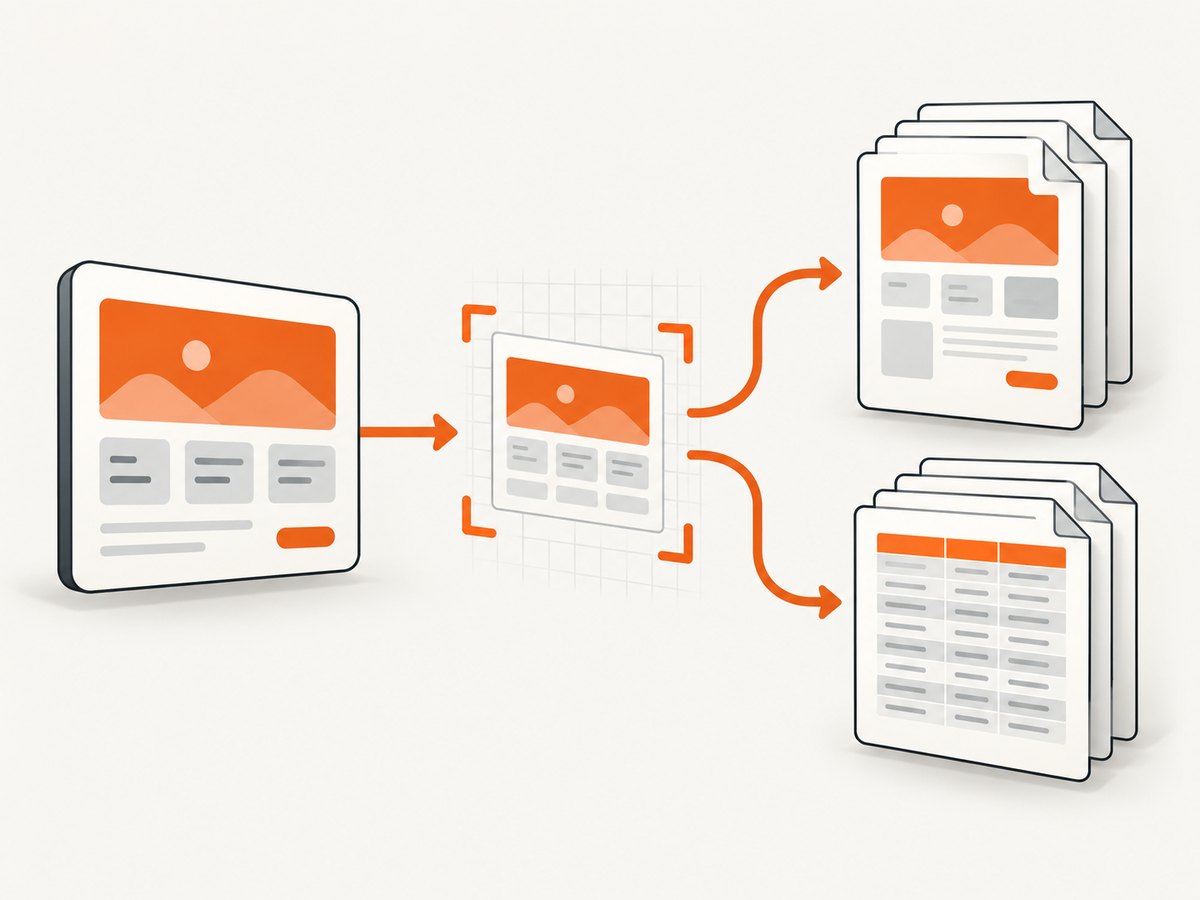
Option 1: export an Angular component with html2canvas
html2canvas reconstructs a webpage or part of one from the DOM in the user’s browser. It does not take a literal screenshot of the browser surface. Only CSS properties understood by the library are reproduced, and cross-origin assets have special requirements.
1. Install a compatible package
npm install @html2canvas/html2canvasPin the version that installs cleanly with your Angular 7 Node.js and TypeScript versions. Do not upgrade Angular-era dependencies casually: a package that requires a newer TypeScript compiler can fail before your application builds.
2. Add an export button and template reference
<section #invoice class='invoice-card'>
  <h1>Invoice 1007</h1>
  <p>Customer: Example Company</p>
  <table>
    <tr><th>Item</th><th>Amount</th></tr>
    <tr *ngFor='let row of rows'>
      <td>{{ row.name }}</td>
      <td>{{ row.amount | currency }}</td>
    </tr>
  </table>
</section>
<button type='button' (click)='exportInvoice(invoice)'>Download PDF</button>
3. Capture the element
import { Component } from '@angular/core';
import html2canvas from '@html2canvas/html2canvas';

@Component({
  selector: 'app-invoice',
  templateUrl: './invoice.component.html'
})
export class InvoiceComponent {
  async exportInvoice(element: HTMLElement): Promise<void> {
    const canvas = await html2canvas(element);
    const imageData = canvas.toDataURL('image/png');
    // Pass imageData to the jsPDF or html2pdf integration selected by your project.
    console.log(imageData);
  }
}
The html2canvas call is Promise based. The next step depends on the PDF package and version you have chosen. Keep the capture and PDF assembly separate so you can replace the PDF writer without changing the Angular component.
Turning a canvas into pages
A canvas can be larger than a PDF page. You must calculate a scale, draw slices of the canvas into page-sized images, and add pages until the full height is covered. This is where image-like output, memory use, and pagination complexity appear. If a report needs selectable text or reliable table breaks, use pdfmake instead of forcing a canvas into pages.
html2canvas limitations and edge cases
- Cross-origin images: images from another origin can taint the canvas unless the server permits the request with suitable CORS headers and the image is loaded with the appropriate cross-origin setting. A proxy is another option.
- Cross-origin iframes: the iframe document is inaccessible to the page, so its content cannot be rendered by html2canvas.
- Unsupported CSS: browser rendering features that html2canvas does not understand may be missing or visually different.
- Lazy content: wait until Angular has rendered data, images, and expanded sections before calling the capture function.
- Large views: very tall dashboards can consume substantial memory. Capture smaller sections or generate a structured document.
- Fonts: wait for web fonts to finish loading, otherwise the canvas may use fallback fonts.
Option 2: generate a structured PDF with pdfmake
pdfmake is a pure-JavaScript client and server PDF printer. Its document-definition model supports paragraphs, columns, lists, tables, canvas drawing, styles, and custom fonts. It is a strong fit when your source is application data rather than arbitrary component HTML.
Install and create a document
npm install pdfmakeimport * as pdfMake from 'pdfmake/build/pdfmake';
export class ReportComponent {
downloadReport(): void {
const docDefinition = {
content: [
{ text: 'Angular 7 report', style: 'header' },
{ text: 'Rows and totals come from application data.' },
{
table: {
headerRows: 1,
widths: ['*', 'auto'],
body: [
['Item', 'Amount'],
['Example', '10']
]
}
}
],
styles: {
header: { fontSize: 18, bold: true, margin: [0, 0, 0, 12] }
}
};
(pdfMake as any).createPdf(docDefinition).download('report.pdf');
}
}The exact font setup and TypeScript typings depend on the pdfmake version. Pin a version that works with Angular 7’s compiler and Node.js baseline. For production documents, define widths, styles, margins, and table headers explicitly rather than relying on defaults.
When pdfmake is the better choice
- Text must remain selectable and searchable.
- Tables need predictable column widths and repeated header rows.
- Invoices need totals, terms, and page numbering.
- Pagination should be driven by content rules rather than an image’s pixel height.
- The PDF should remain stable even if the screen layout changes.
The tradeoff is that you must map your Angular data into a document definition. CSS from the component is not automatically carried into the PDF.
Option 3: render PDFs on a server or with a hosted API
Server rendering is useful when the browser cannot access required assets, when Chromium-level HTML and CSS fidelity is required, or when you want to keep PDF dependencies out of the Angular bundle. A 2026 Angular PDF overview lists Playwright server endpoints and hosted PDF APIs alongside jsPDF, pdfmake, and html2canvas.
Before selecting a hosted provider, check data handling, authentication, latency, region, pricing, retention, and integration details. Private pages usually require custom headers, cookies, or an authenticated server-side session. Make the rendering endpoint idempotent and log the input URL or document identifier, response status, and rendering duration without logging secrets.
Or skip the browser setup
ScreenshotNeo provides a website screenshot API that can return a PDF from one GET request. It is useful when your Angular app’s rendered page already represents the document and you want hosted browser capture.

See the ScreenshotNeo documentation for the current request options. This example targets an Angular route that is publicly reachable by the rendering service:
curl -G 'https://api.screenshotneo.com/v1/shot' \
  -d access_key=YOUR_API_KEY \
  --data-urlencode url=https://example.com/invoice/1007 \
  -d format=pdf \
  -o invoice.pdf
import requests
r = requests.get(
'https://api.screenshotneo.com/v1/shot',
params={
'access_key': 'YOUR_API_KEY',
'url': 'https://example.com/invoice/1007',
'format': 'pdf'
},
timeout=90
)
r.raise_for_status()
open('invoice.pdf', 'wb').write(r.content)const q = new URLSearchParams({
access_key: 'YOUR_API_KEY',
url: 'https://example.com/invoice/1007',
format: 'pdf'
});
const res = await fetch(`https://api.screenshotneo.com/v1/shot?${q}`);
if (!res.ok) throw new Error(`ScreenshotNeo returned ${res.status}`);
const pdf = Buffer.from(await res.arrayBuffer());
require('fs').writeFileSync('invoice.pdf', pdf);ScreenshotNeo removes cookie and consent banners, newsletter popups, and chat widgets before capture. Bot checks, blank pages, failed loads, timeouts, and cache hits are not billed, and response headers identify the page verdict and whether the request was billed. It also supports full-page capture with lazy images loaded, PDF paper size, margins, landscape mode, page ranges, custom CSS and JavaScript, waits, headers, cookies, authorization, timezone, geolocation, blocking rules, caching, asynchronous jobs, webhooks, bulk capture, and signed links. Its MCP server lets Claude, Cursor, and other MCP clients call take_screenshot, get_page_info, and capture_pdf.
There is a free allowance of 1,000 screenshots per month with no card. Paid plans start at $5 for 3,000 shots; every feature is available on every plan. Create a free ScreenshotNeo account.
Angular 7 PDF implementation checklist
- Confirm your Angular, CLI, Node.js, TypeScript, and RxJS versions match the Angular 7 compatibility range.
- Decide whether visual fidelity or structured, selectable content matters more.
- Wait for API data, images, and fonts before starting browser capture.
- For html2canvas, audit cross-origin images and iframe content.
- For pdfmake, define table widths, styles, margins, and repeated headers.
- Test long tables, empty states, Unicode text, narrow screens, and page breaks.
- Keep PDF generation outside Angular change detection where possible and disable the export button while work is in progress.
- For hosted rendering, protect credentials on the server and pass only the data needed for the document.
Troubleshooting common failures
The build fails after installing a PDF package
Cause: the package version expects a newer TypeScript, Node.js, or Angular compiler. Fix: inspect the package peer dependencies, pin an Angular 7 compatible version, and keep the CLI on the Angular 7 major.
Images are missing from the exported page
Cause: cross-origin restrictions, missing CORS headers, or capture started before images loaded. Fix: serve images with appropriate CORS permissions, use a proxy where appropriate, and wait for image loading before calling html2canvas.
An iframe is blank
Cause: a cross-origin iframe cannot be read by the parent document. Fix: render the iframe content separately from a server you control or use hosted browser rendering with authorized access.
The PDF has clipped content or awkward page breaks
Cause: a canvas was inserted into fixed-size pages without slicing, or a structured table lacks layout rules. Fix: implement canvas pagination carefully, reduce the capture size, or switch to pdfmake and define widths and page-break behavior.
Fonts look different
Cause: the web font was not loaded when capture began, or the PDF library has no matching embedded font. Fix: wait for font loading in the browser capture path and configure custom fonts for pdfmake.
The hosted PDF shows a login page
Cause: the renderer has no browser session or authorization headers. Fix: provide a server-side rendering route, signed one-time URL, cookies, or authorization headers supported by the service. Never expose a private API key in client-side Angular code.
Performance, reliability, and cost notes
Browser capture runs on the user’s device, so CPU, memory, viewport size, and network speed affect completion time. Limit the capture region when a full page is unnecessary. Avoid creating a giant canvas for a long dashboard, and release references after saving the result.
Structured PDFs are often more reliable for large reports because content is laid out directly rather than rasterized. They also keep text selectable, but complex HTML styling must be recreated in the document definition.
For hosted rendering, use caching for stable pages, set an explicit wait condition instead of an unnecessarily long fixed delay, and use asynchronous jobs for slow or high-volume work. Retry transient network failures with backoff, but do not blindly retry deterministic authentication or invalid-URL errors. Track output size, response status, rendering duration, and billing headers so operators can distinguish a failed load from a successful PDF.
Cost depends on how many successful captures your workflow requests and whether you render repeatedly during previews. Cache reports that do not change, generate on demand for user downloads, and use bulk capture for independent URLs when supported. ScreenshotNeo’s billing model charges only clean shots; bot checks, blank pages, timeouts, failed loads, and cache hits cost nothing.
FAQ
Can Angular 7 export a component without a server?
Yes. html2canvas can reconstruct a component in the browser, then a PDF library can package the result. Cross-origin assets and unsupported CSS remain limitations.
Will html2canvas preserve selectable text?
Usually no. The output is canvas-based and behaves like an image. Use pdfmake when selectable text and structured layout are requirements.
Is pdfmake a replacement for HTML-to-PDF?
It is a replacement only when you can express the document as data, tables, paragraphs, and styles. It does not automatically import arbitrary Angular component CSS.
How should private Angular pages be rendered?
Use a protected server endpoint or a renderer that accepts short-lived authorization credentials. Keep permanent API keys on your server.
Which option is best for invoices?
Use pdfmake for stable, selectable invoices with repeatable tables and totals. Use html2canvas when matching an existing branded invoice view is more important than text semantics.


