How to Generate PDFs from Authenticated Web Pages
Export login-protected pages reliably with Playwright, Puppeteer, or ScreenshotNeo, including authentication state, layout controls, troubleshooting, and cost guidance.
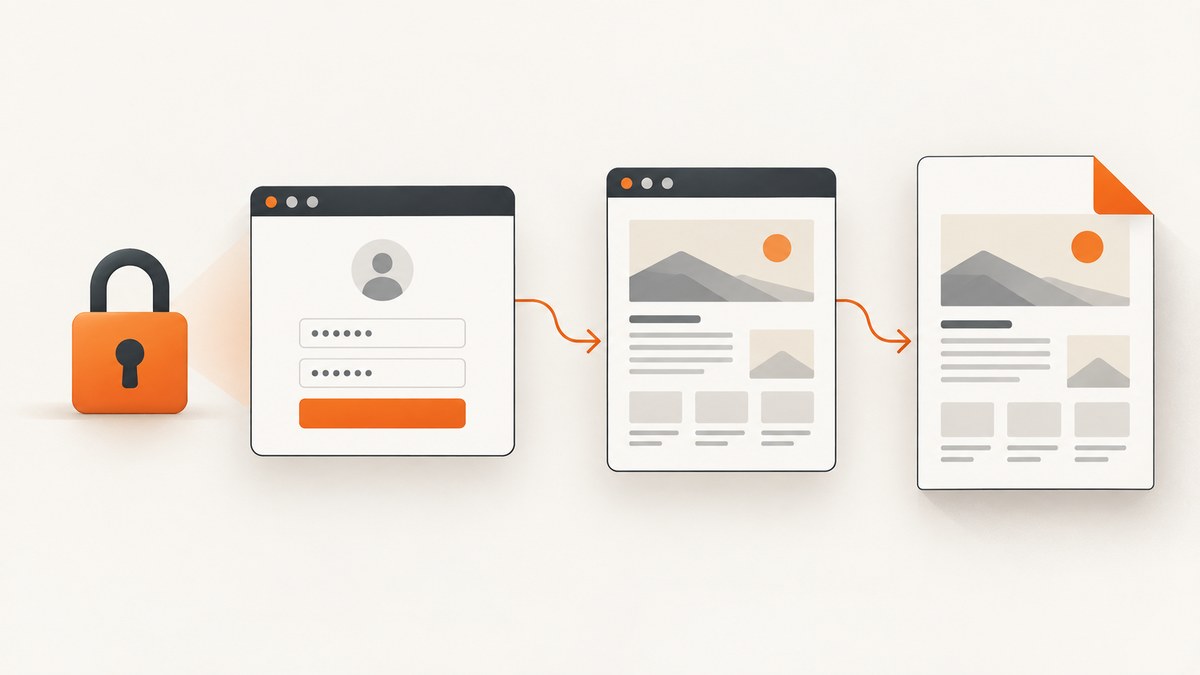
Direct answer: generate a PDF from an authenticated web page by opening the page in a browser context that has valid login state, waiting for the actual content to render, then calling the browser’s PDF API. Playwright and Puppeteer both support this workflow. For one-off work, a browser’s print command may be enough. For repeatable exports, automation gives you control over authentication, readiness checks, paper settings, page ranges, and file naming.
The difficult part is usually authentication state, not the PDF call. A page can report a successful navigation while its session has expired, its data is still loading, or its content depends on client-side storage. This guide shows a repeatable workflow, complete examples, layout options, failure handling, and an API alternative when you do not want to maintain a browser.
1. Choose the right PDF workflow
| Approach | Best fit | What it provides | Main limitation |
|---|---|---|---|
| Playwright | Repeatable automation with reusable signed-in state | storageState for supported cookies, local storage, IndexedDB, and passkeys; Page.pdf() for print output |
The documented storageState API does not persist session storage; PDF generation follows the selected browser path |
| Puppeteer | JavaScript or TypeScript scripts built around Chromium | Page.pdf(); its guide says fonts are awaited by default |
You must establish authentication in the browser context yourself |
| Playwright MCP PDF export | An MCP workflow where a page is already open and authenticated | Saves the current page as a PDF | The documented PDF tool is Chromium-only and requires the PDF capability |
| Browser print dialog | A single manual export | Fast, no code, familiar print controls | Hard to reproduce and difficult to integrate into a job pipeline |
Playwright’s authentication guide explains how to save and reuse signed-in state, while its Page API documents PDF settings such as format, margins, ranges, and backgrounds. Puppeteer’s PDF guide documents the equivalent API and a network-idle example. The official Playwright MCP documentation describes saving the current page and identifies Chromium as the PDF-generating browser: Playwright authentication, Playwright Page API, Puppeteer PDF generation, and Playwright MCP PDF export.
2. Prepare authentication safely
Sign in through the normal application flow
Use a browser context you control and authenticate through the site’s normal login process. Do not bypass multi-factor authentication, bot checks, or access controls. If your organization requires approval before retaining account data, obtain it before creating an automated export.
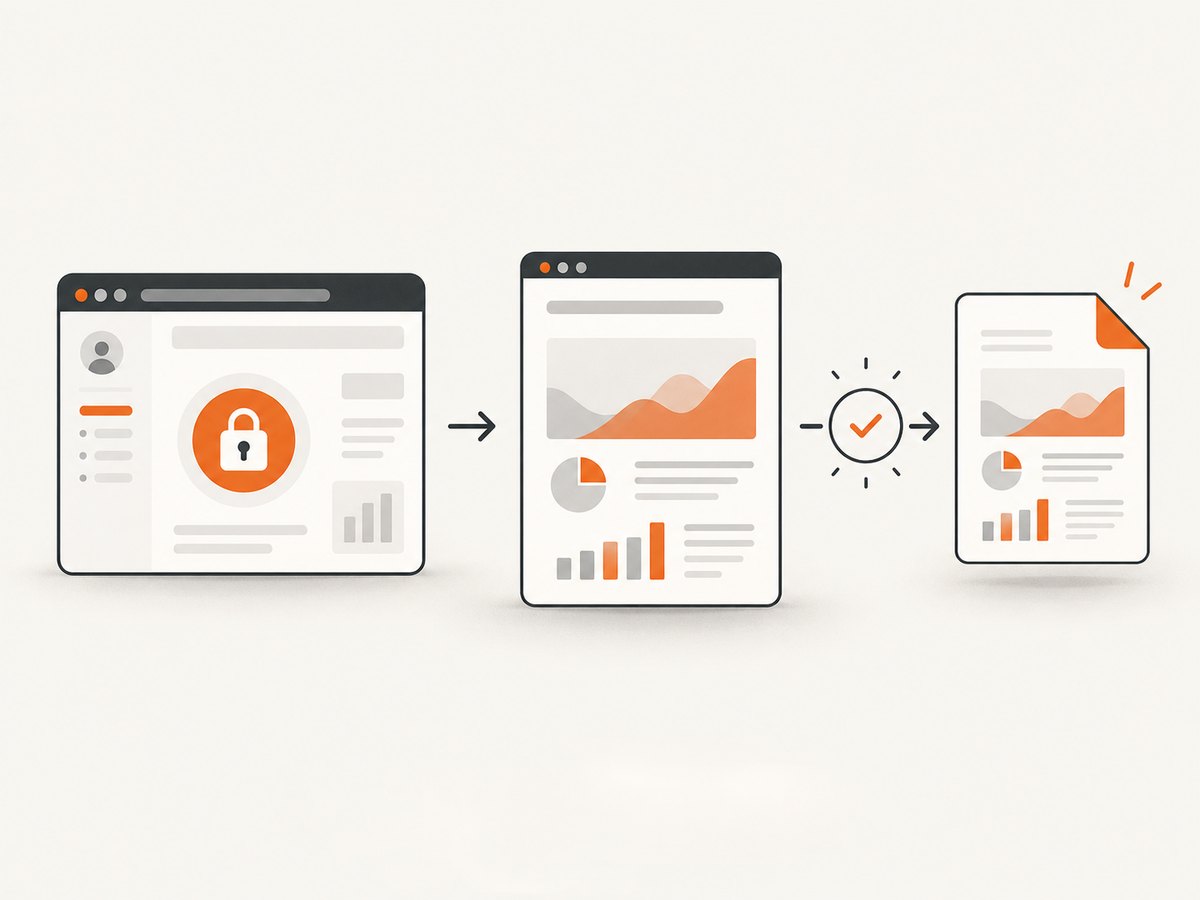
Authentication may be represented by cookies, local storage, IndexedDB, or passkeys. Playwright can save supported state to a file and initialize another context with it. Treat that file like a password: keep it outside source control, restrict filesystem access, rotate it when practical, and delete it when the workflow ends. Playwright’s documented state mechanism does not persist session storage, so applications that depend on session storage need an app-specific initialization step.
Create reusable Playwright state
import { chromium } from 'playwright';

const browser = await chromium.launch();
const context = await browser.newContext();
const page = await context.newPage();

await page.goto('https://example.com/login', { waitUntil: 'domcontentloaded' });
await page.getByLabel('Email').fill(process.env.APP_EMAIL);
await page.getByLabel('Password').fill(process.env.APP_PASSWORD);
await page.getByRole('button', { name: 'Sign in' }).click();
await page.waitForURL('**/dashboard');

await context.storageState({ path: 'playwright/.auth/state.json' });
await browser.close();
Run this setup only when you need a fresh state. A later export can load state.json directly. Verify that the saved state actually grants access to the target page; a successful login redirect alone is not proof that every protected resource is available.
3. Generate the PDF with Playwright
Install Playwright and a browser, then create an export script. The example below restores authentication, waits for a meaningful application signal, selects screen or print styling deliberately, and writes a PDF.
import { chromium } from 'playwright';

const browser = await chromium.launch();
const context = await browser.newContext({
  storageState: 'playwright/.auth/state.json'
});
const page = await context.newPage();

await page.goto('https://example.com/account/report', {
  waitUntil: 'domcontentloaded'
});

// Replace this selector with a reliable signal from your application.
await page.locator('[data-report-ready="true"]').waitFor({ state: 'visible' });
await page.emulateMedia({ media: 'screen' });

await page.pdf({
  path: 'report.pdf',
  format: 'A4',
  printBackground: true,
  margin: {
    top: '16mm',
    right: '14mm',
    bottom: '16mm',
    left: '14mm'
  }
});

await browser.close();
By default, Playwright PDF generation uses print CSS. Use page.emulateMedia({ media: 'screen' }) when the screen layout is the one you want. format accepts a paper preset such as A4; explicit width and height are useful for custom documents. Margins control the printable area. printBackground: true preserves colored panels and background images when the design depends on them. Use pageRanges when only selected pages belong in the deliverable.
Wait for application readiness, not only navigation
domcontentloaded means the initial document was parsed. It does not mean API data, lazy images, charts, or web fonts are ready. Prefer a stable selector, a known URL transition, or an application-level event. A short delay can handle a predictable animation, but it is less reliable than waiting for the element that proves the data is present.
await page.waitForSelector('#invoice-table tbody tr');
await page.waitForFunction(() => document.fonts.status === 'loaded');
await page.waitForTimeout(300);
Use a network-idle condition only when it matches the site. Long-lived analytics, sockets, or polling can prevent idleness forever, while a quiet network can still precede a delayed render.
4. Generate the PDF with Puppeteer
Puppeteer follows the same pattern: launch a browser, create or restore an authenticated context, navigate, verify the page, and call page.pdf().
import puppeteer from 'puppeteer';

const browser = await puppeteer.launch({ headless: true });
const page = await browser.newPage();

// Example: restore a cookie obtained from a legitimate login flow.
await page.setCookie({
  name: 'session',
  value: process.env.SESSION_COOKIE,
  domain: 'example.com',
  path: '/',
  httpOnly: true,
  secure: true
});

await page.goto('https://example.com/account/report', {
  waitUntil: 'networkidle2'
});
await page.waitForSelector('[data-report-ready="true"]');

await page.pdf({
  path: 'report.pdf',
  format: 'A4',
  printBackground: true,
  margin: { top: '16mm', right: '14mm', bottom: '16mm', left: '14mm' }
});

await browser.close();
The cookie example is illustrative; many applications require several cookies, local storage values, a CSRF token, or a redirect-based login. Complete the site’s legitimate login flow in the same browser context when a single cookie is insufficient. Puppeteer’s documentation says its PDF call waits for fonts by default, but you should still inspect output because application-specific rendering can finish later.
5. Control layout, content, and page breaks
- Paper: use a named format for common documents or explicit dimensions for a custom canvas.
- Margins: leave enough space for headers, footers, and readable line lengths.
- Orientation: use landscape for wide tables and dashboards.
- Backgrounds: enable printed backgrounds when color carries meaning.
- Page ranges: export only the pages needed for a report or invoice.
- Print CSS: add
@media printrules to hide navigation, expand collapsed panels, and avoid breaking cards across pages. - Fonts and images: wait for fonts and critical images before calling the PDF API.
@media print {
  .app-navigation, .chat-widget, .export-button { display: none !important; }
  .report-card { break-inside: avoid; }
  .report-section { break-before: page; }
}
Always open the resulting file. Check the first and last page, tables near page boundaries, charts, images, text selection, and whether a session-expired screen was captured instead of the protected content.
6. Playwright MCP for an already-open authenticated page
If an MCP client has a Playwright browser page open in the desired signed-in state, the PDF export tool can save that current page. This is useful when an agent has already completed navigation and verification. Confirm that the PDF capability is enabled and use Chromium, which the official MCP documentation identifies as the supported PDF browser. The page still needs to be authenticated and ready before export.
7. Or skip the browser setup
ScreenshotNeo provides a website capture API that can return an image or PDF from one request. Its PDF options include paper size, margins, landscape mode, and page ranges. It also accepts custom headers, cookies, user agents, and Authorization values, which can be useful when the target page accepts an authenticated request. See the ScreenshotNeo documentation for the current PDF and authentication parameters.
curl -G 'https://api.screenshotneo.com/v1/shot' \
  -d access_key=YOUR_API_KEY \
  --data-urlencode url=https://example.com/account/report \
  -o report.pdf
import requests
r = requests.get(
'https://api.screenshotneo.com/v1/shot',
params={'access_key': 'YOUR_API_KEY', 'url': 'https://example.com/account/report'},
timeout=90
)
r.raise_for_status()
open('report.pdf', 'wb').write(r.content)const q = new URLSearchParams({
access_key: 'YOUR_API_KEY',
url: 'https://example.com/account/report'
});
const res = await fetch(`https://api.screenshotneo.com/v1/shot?${q}`);
if (!res.ok) throw new Error(`HTTP ${res.status}`);
const bytes = new Uint8Array(await res.arrayBuffer());
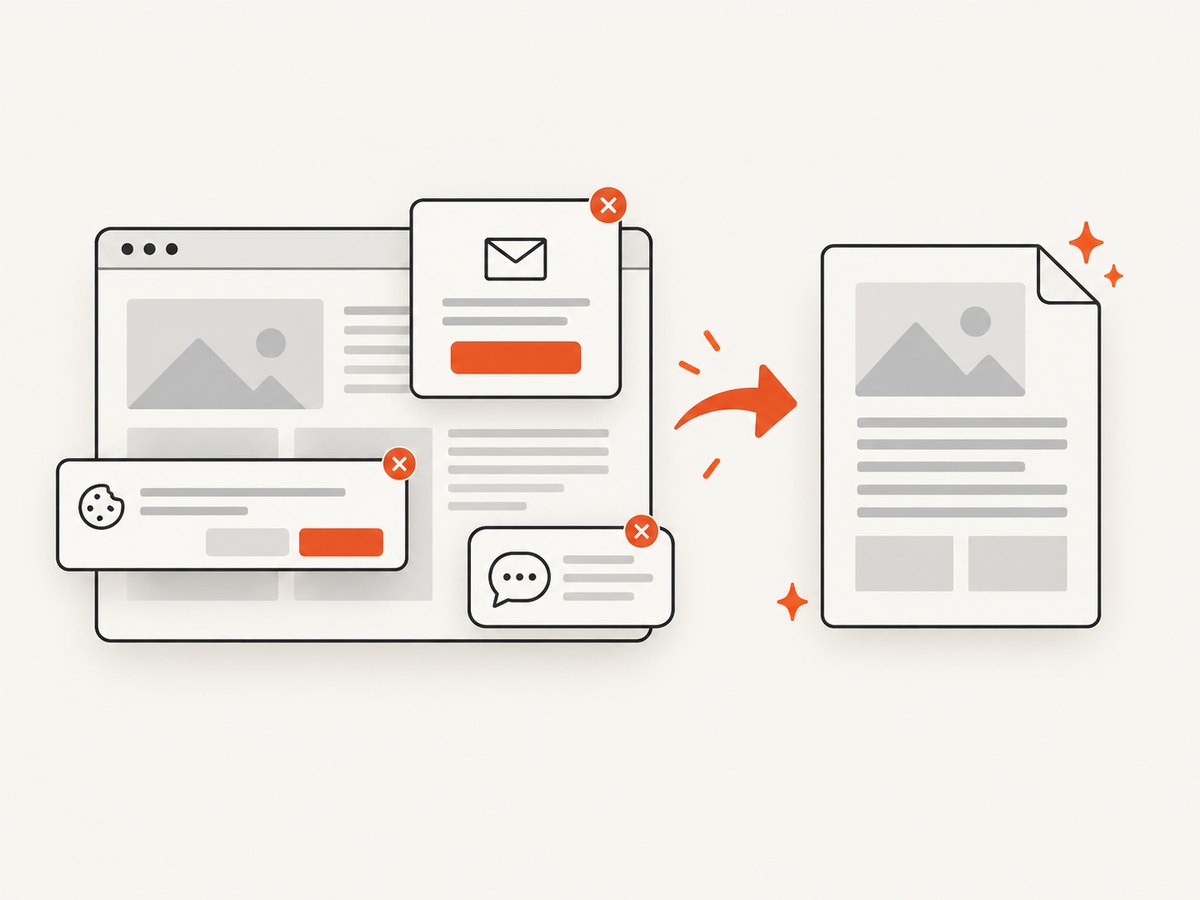
await Bun.write('report.pdf', bytes);Configure PDF output and authenticated request values according to the API documentation. ScreenshotNeo removes cookie and consent banners, newsletter popups, and chat widgets before capture; each step can be turned off. Bot checks or CAPTCHAs, blank pages, timeouts, failed loads, and cache hits are not billed, and response headers identify the page verdict and billing status. An MCP server provides take_screenshot, get_page_info, and capture_pdf tools for Claude, Cursor, and other MCP clients. The Free plan includes 1,000 shots per month with no card; paid plans start at $5 for 3,000 shots. Create a free ScreenshotNeo account.
8. Troubleshooting authenticated PDF exports
| Symptom | Likely cause | Fix |
|---|---|---|
| Login page appears in the PDF | Expired, incomplete, or wrong-domain state | Reauthenticate, save fresh state, confirm the target URL in the same context, and inspect cookies and storage domains. |
| Content is missing | Client-rendered data or lazy assets were not ready | Wait for a data-specific selector, image completion, or an application-ready event. |
| Session works manually but not in automation | Authentication depends on session storage or a browser-specific flow | Initialize the required state in the context and verify access after restoration; Playwright’s documented storageState does not persist session storage. |
| Colors or backgrounds disappear | Print media styles or disabled background printing | Use screen media when appropriate and enable printed backgrounds. |
| Tables or cards are clipped | Margins, scale, fixed widths, or page-break rules | Adjust paper dimensions and margins, add print CSS, and inspect pages at the actual output size. |
| Export hangs | Waiting forever for network idle, a selector that never appears, or a blocked resource | Use bounded timeouts, choose a reliable readiness signal, and log the URL and failure stage. |
| MCP PDF export fails | PDF capability disabled or unsupported browser | Enable the capability and use Chromium. |
9. Reliability, performance, and cost
Reliability checklist
- Keep authentication state private and short-lived.
- Validate the expected account or organization after login.
- Use explicit readiness checks and bounded timeouts.
- Record the source URL, export timestamp, browser version, and failure reason.
- Retry transient navigation failures with a fresh page; do not blindly retry an expired session.
- Inspect a sample of generated PDFs for clipping and missing assets.
Performance considerations
Browser startup, login, fonts, client-side rendering, and large images dominate runtime. Reuse a browser process for batches while creating isolated contexts per account. Block unnecessary analytics and media only when doing so cannot change the document. Avoid waiting for global network idle on applications with polling. For large batches, queue jobs and cap concurrency so the target site and your host remain stable.
Cost considerations
Self-hosted Playwright and Puppeteer cost compute, browser maintenance, storage, and engineering time. A capture API trades that maintenance for request pricing and service limits. ScreenshotNeo bills only clean shots; failed loads, bot checks, blank pages, timeouts, and cache hits are free. Its plans are Free 1,000 shots/month, Starter $5 for 3,000, Growth $15 for 15,000, Pro $39 for 60,000, Scale $99 for 250,000, and Business $249 for 1,000,000; yearly billing gives two months free, and every feature is on every plan.
10. Security and permission checks
Only export pages you are authorized to access. Protect cookies, tokens, saved state files, generated PDFs, and logs because they may contain personal or confidential information. Limit who can invoke an export endpoint, redact credentials from error output, and define retention rules. If the PDF will be distributed or used for compliance, confirm that the source site’s terms and your organization’s policy permit retaining and sharing the content.
FAQ
Can I use a normal browser’s Save to PDF command?
Yes, for a one-off export when you can sign in manually. Automation is easier to repeat and audit.
Why is a successful navigation not enough?
Navigation can finish before API data, lazy images, fonts, or authenticated client components render. Wait for a page-specific readiness signal.
Does Playwright storageState save every kind of login?
No. It covers documented supported state, but Playwright says session storage is not persisted through that API. Test the restored page with your application.
Which tool should a JavaScript team choose?
Choose Playwright when reusable authentication state and broad page controls matter; choose Puppeteer when its Page API and Chromium workflow fit your existing code.
Can an API replace browser automation for protected pages?
It can when the site accepts the headers, cookies, or authorization values you provide. If the login requires interactive browser behavior, use Playwright or Puppeteer to establish state first.
For a repeatable export, authenticate once in a controlled browser context, verify the rendered page, set print options deliberately, and inspect the PDF. When maintaining that browser pipeline is unnecessary, start with ScreenshotNeo’s free 1,000 shots per month and configure the PDF request through its documentation.


