How to Generate PDFs with Chromium on AWS Lambda Using Node.js 18
Build a Chromium PDF renderer on Lambda, choose ZIP or container deployment, size resources, and avoid Node.js 18 lifecycle surprises.
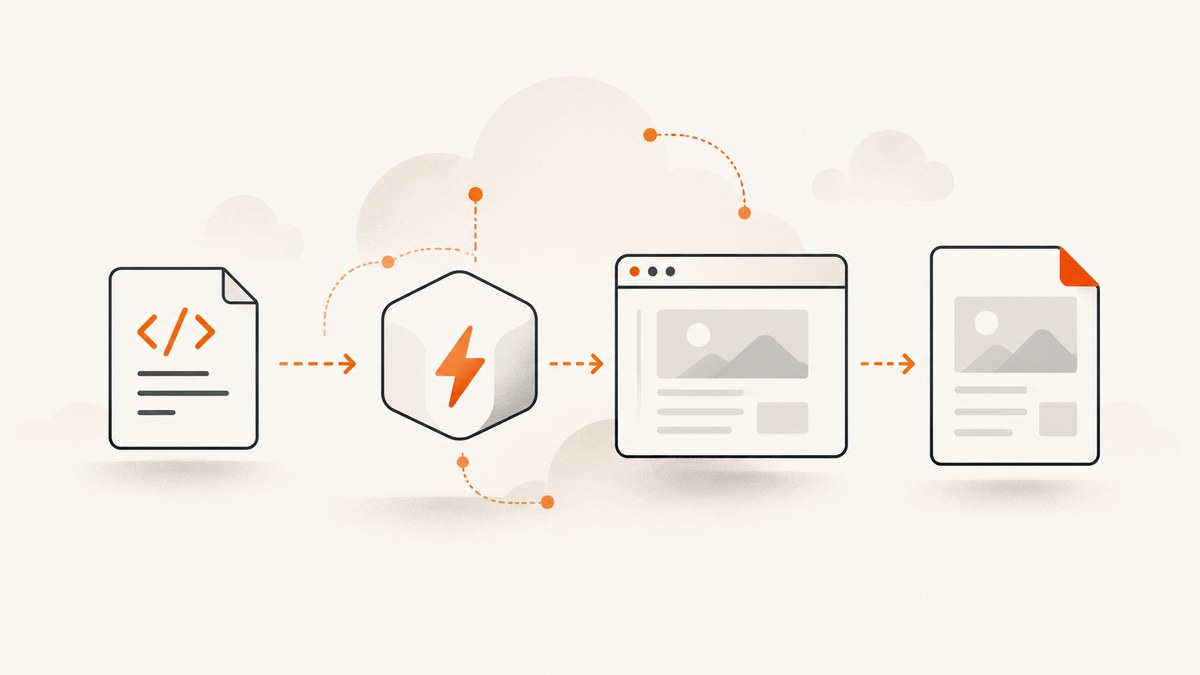
Direct answer: You can generate PDFs in AWS Lambda by launching a headless Chromium browser from a Node.js handler, loading HTML or a URL, calling Chromium’s PDF API, and returning or storing the resulting bytes. For a new function, do not choose Node.js 18 by default: AWS lists the managed nodejs18.x runtime as deprecated. AWS gives September 1, 2025 as its deprecation date, February 1, 2027 as the date it blocks new function creation, and March 3, 2027 as the date it blocks function updates. Use a currently supported Node.js runtime after checking that your selected Chromium distribution and browser library support it. Keep Node.js 18 only when an existing deployment or compatibility requirement makes it necessary.
What the Lambda PDF pipeline does
A reliable renderer has five stages:
- Receive HTML, a URL, or an event containing both.
- Start Chromium with a Lambda-compatible binary and launch flags.
- Navigate to the document and wait for the content, fonts, and images your PDF needs.
- Call
page.pdf()with page size, margins, orientation, and background settings. - Return the bytes or upload them to storage selected by your application.
The browser binary and its native libraries are the part that makes Lambda packaging different from a laptop script. Select a maintained Chromium distribution, verify its Linux compatibility and CPU architecture, and verify the matching Puppeteer or browser-automation version before you build. The research for this article did not verify a particular package pairing or launch-argument list, so the example below is a deployment template that you must validate against the versions you choose.
Choose a Lambda runtime before choosing Chromium
A managed runtime’s lifecycle can outlive the code that originally selected it. AWS currently marks Node.js 18 (nodejs18.x, Amazon Linux 2) deprecated. For a new function, select a supported Node.js runtime from the AWS runtime table and then check the browser package’s support matrix. If you have to keep Node.js 18, document the reason, set a migration date, and test creation and update operations before AWS’s scheduled blocks.
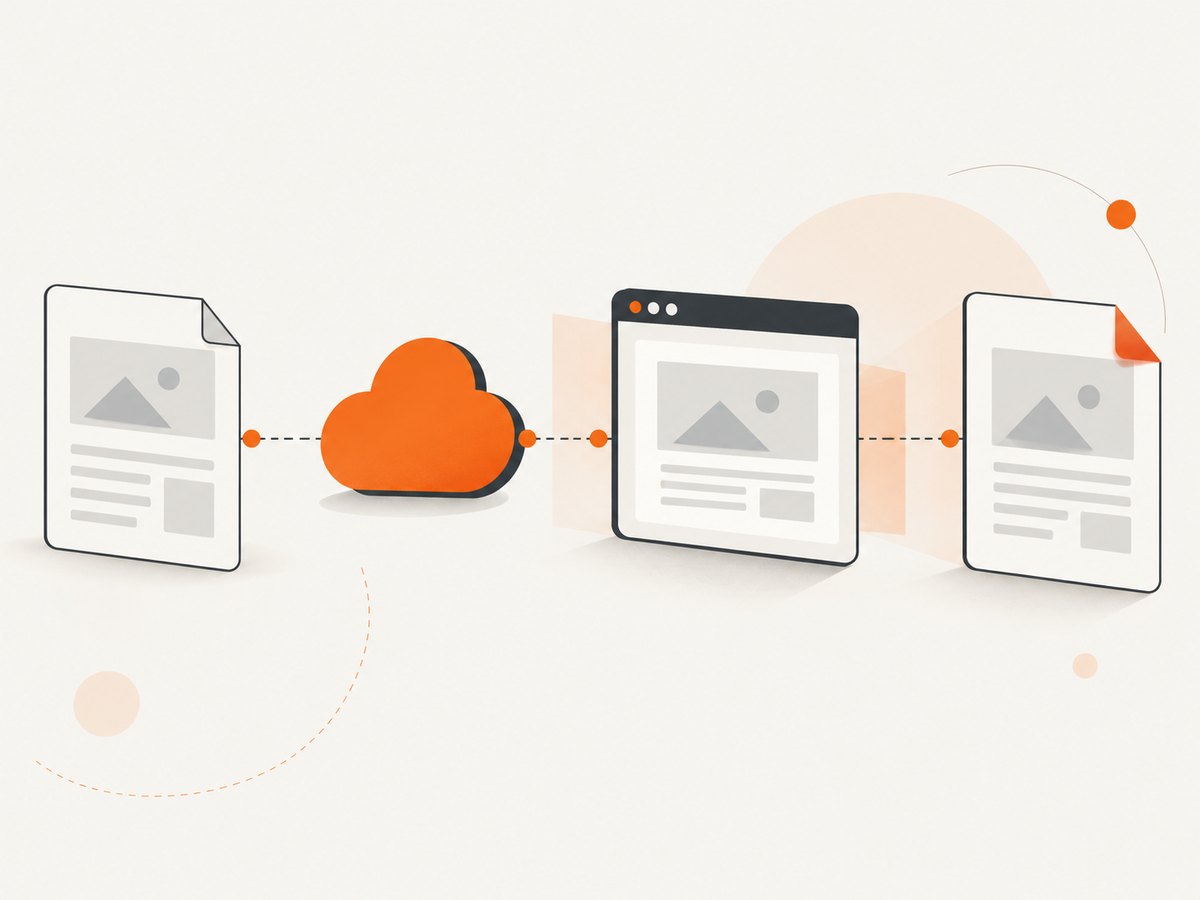
AWS recommends including the SDK modules a function uses, together with dependencies, in the deployment package or a Lambda layer. This keeps the function’s dependency set explicit and avoids relying on an incidental runtime copy.
ZIP package or container image?
| Choice | Use it when | Limits and checks |
|---|---|---|
| ZIP | Your browser binary and native libraries fit the Lambda package and layer limits. | Direct API or SDK upload is limited to 50 MB zipped. The combined unzipped function and layer contents cannot exceed 250 MB. Uploading a larger ZIP through S3 does not remove the 250 MB unzipped limit. |
| Container image | Chromium and its native dependencies make ZIP packaging awkward, or you need a reproducible OS image. | The maximum uncompressed image size is 10 GB. Build only what the function needs and inspect the final image size. |
A container image gives you control over system libraries and the browser installation. AWS publishes Node.js Lambda base images with the runtime and Lambda runtime interface components included. AWS documents three ways to build a Node.js Lambda container image: an AWS Node.js base image, an AWS OS-only base image, or a non-AWS base image. Whichever route you choose, build on an environment compatible with the target Lambda operating system and architecture.
Working ZIP example with Node.js
The following handler shows the application shape. It expects puppeteer-core and a Lambda-compatible Chromium package such as the distribution you select after checking its current documentation. It is deliberately not presented as a tested package/version pairing.
const chromium = require('@sparticuz/chromium');
const puppeteer = require('puppeteer-core');

exports.handler = async (event) => {
  const html = event.html || '<!doctype html><html><body><h1>Hello PDF</h1></body></html>';
  let browser;

  try {
    browser = await puppeteer.launch({
      args: chromium.args,
      defaultViewport: { width: 1280, height: 900, deviceScaleFactor: 1 },
      executablePath: await chromium.executablePath(),
      headless: true
    });

    const page = await browser.newPage();
    await page.setContent(html, { waitUntil: 'networkidle0' });
    await page.evaluate(() => document.fonts && document.fonts.ready);

    const pdf = await page.pdf({
      format: 'A4',
      printBackground: true,
      preferCSSPageSize: true,
      margin: { top: '16mm', right: '16mm', bottom: '16mm', left: '16mm' }
    });

    return {
      statusCode: 200,
      headers: { 'content-type': 'application/pdf' },
      isBase64Encoded: true,
      body: pdf.toString('base64')
    };
  } finally {
    if (browser) await browser.close();
  }
};
Install the exact versions you have verified for your selected runtime and architecture, then inspect the output artifact:
npm init -y
npm install puppeteer-core @sparticuz/chromium
zip -r function.zip index.js node_modules
Do not infer that this ZIP fits from the size of your source files. Measure the zipped archive and the uncompressed contents, including layers. If it crosses the limits, move to a container image or a smaller, compatible browser distribution.
Loading a URL instead of inline HTML
const url = event.url;
if (!url || !/^https?:\/\//i.test(url)) {
  return { statusCode: 400, body: 'event.url must be an http(s) URL' };
}
await page.goto(url, { waitUntil: 'networkidle0', timeout: 60000 });
await page.evaluate(() => document.fonts && document.fonts.ready);
const pdf = await page.pdf({ format: 'A4', printBackground: true });
Validate or allow-list destination URLs when the value can be supplied by a caller. Otherwise, the function can become a server-side request forgery proxy for internal addresses.
PDF options that affect output
| Requirement | Puppeteer setting | Practical note |
|---|---|---|
| Standard paper | format: 'A4', 'Letter', or another supported format |
Use either a named format or explicit width and height. |
| Custom margins | margin: {top, right, bottom, left} |
Use CSS units such as mm, in, or px. |
| Landscape | landscape: true |
Useful for wide tables and dashboards. |
| Backgrounds | printBackground: true |
Without it, many color fills and background images disappear. |
| CSS page size | preferCSSPageSize: true |
Lets @page rules control size and margins. |
| Headers and footers | displayHeaderFooter: true, headerTemplate, footerTemplate |
Templates use a restricted HTML subset and classes such as pageNumber and totalPages. |
| Page ranges | pageRanges: '1-3' |
Render only selected pages when the document is large. |
For print-specific layout, add CSS such as @page { size: A4; margin: 16mm; } and break-inside: avoid to cards or table rows where Chromium supports it. Test long tables, links, SVG, web fonts, and right-to-left text with representative documents.
Lambda settings for browser workloads
- Memory: Lambda supports 128 MB through 10,240 MB. Memory also changes the CPU available to the function. Treat those as platform limits, not recommended values; measure your largest pages.
- Timeout: The maximum standard timeout is 900 seconds (15 minutes). Set a limit that covers browser startup, navigation, font loading, PDF creation, and output transfer.
- Ephemeral storage:
/tmpdefaults to 512 MB and can be configured from 512 MB to 10,240 MB. Chromium extraction, cache files, temporary assets, and PDFs share this space. - Architecture: Choose
x86_64orarm64only after confirming that the browser binary and native libraries support it. - Concurrency: Each concurrent execution can need its own browser process and temporary files. Set reserved or account concurrency from observed resource use.
Delete temporary files after writing the PDF. Avoid downloading unbounded assets, and consider blocking unnecessary third-party requests in the page when your document does not need them.
Container image outline
Use an AWS Node.js base image that matches the supported runtime you selected. Copy package*.json, install production dependencies, copy the handler and browser assets, and build with the Lambda handler command expected by the base image. The exact Dockerfile depends on the Chromium distribution and whether it supplies native libraries, so verify those instructions before publishing an image.
FROM public.ecr.aws/lambda/nodejs:YOUR_SUPPORTED_RUNTIME
COPY package*.json ${LAMBDA_TASK_ROOT}/
RUN npm ci --omit=dev
COPY index.js ${LAMBDA_TASK_ROOT}/
# Copy or install the verified Chromium binary and required libraries here.
CMD [ "index.handler" ]
Build for the same architecture configured on the function, run the image in a Lambda-like environment, and inspect the uncompressed image size before pushing it to ECR.
Reliability and performance checklist
- Warm browser reuse can reduce startup work, but never assume a browser remains healthy across invocations. Check the process and recreate it after failures.
- Set navigation and overall function timeouts explicitly. A page waiting forever for a third-party request should produce a controlled error.
- Wait for the actual readiness condition: a selector, network idle, a document flag, and
document.fonts.readyas appropriate. A fixed delay alone is fragile. - Use representative HTML in a Lambda-like environment, including remote fonts, large images, tables, and the slowest expected network path.
- Log document identifiers, navigation duration, PDF duration, output size, and failure class. Do not log secrets or full sensitive HTML.
- Keep output delivery separate from rendering. Returning a base64 response is convenient for small PDFs; larger files generally need an application-selected storage and download flow.
No benchmark, success rate, latency figure, or cost study was established by the research for this article. Measure your own workload before promising throughput or choosing a concurrency limit.
Troubleshooting
| Symptom | Likely cause | Fix |
|---|---|---|
spawn ... ENOENT or executable not found |
The Chromium binary is absent, extracted to another path, or not executable. | Inspect the ZIP or image, log the resolved executable path, and follow the selected distribution’s Lambda installation instructions. |
| Browser exits immediately | Architecture mismatch, missing shared libraries, incompatible browser/library versions, or invalid launch arguments. | Build for the configured architecture, verify the package matrix, and run the artifact in a matching Lambda-like environment. |
| PDF is blank | Navigation finished before application rendering, or the page requires JavaScript and fonts. | Wait for a readiness selector or network condition, await fonts, and capture after the content is present. |
| Images or colors are missing | Print backgrounds are disabled, resources failed, or CSS is screen-only. | Set printBackground: true, verify resource URLs and credentials, and add print CSS. |
| Function times out | Slow navigation, a hung request, browser startup, or insufficient memory. | Set navigation timeouts, block unneeded resources, increase measured memory or timeout, and inspect logs. |
| ZIP exceeds a limit | Chromium and native dependencies are too large. | Use a compatible smaller distribution, a layer where appropriate, or a container image; check both zipped and unzipped sizes. |
/tmp errors |
Extraction, cache, or output files filled ephemeral storage. | Increase configured ephemeral storage, clean temporary files, and avoid unbounded downloads. |
Or skip the browser setup
ScreenshotNeo provides a website screenshot and PDF API when maintaining Chromium packaging in Lambda is not the goal. One GET request returns a PNG, JPEG, WebP, or PDF. It accepts cookie and consent banners before capture and removes more than 60 known consent platforms, newsletter popups, and chat widgets; each step can be disabled. Bot checks, CAPTCHAs, blank pages, timeouts, failed loads, and cache hits are not billed, and response headers report the page verdict and whether the request was billed.
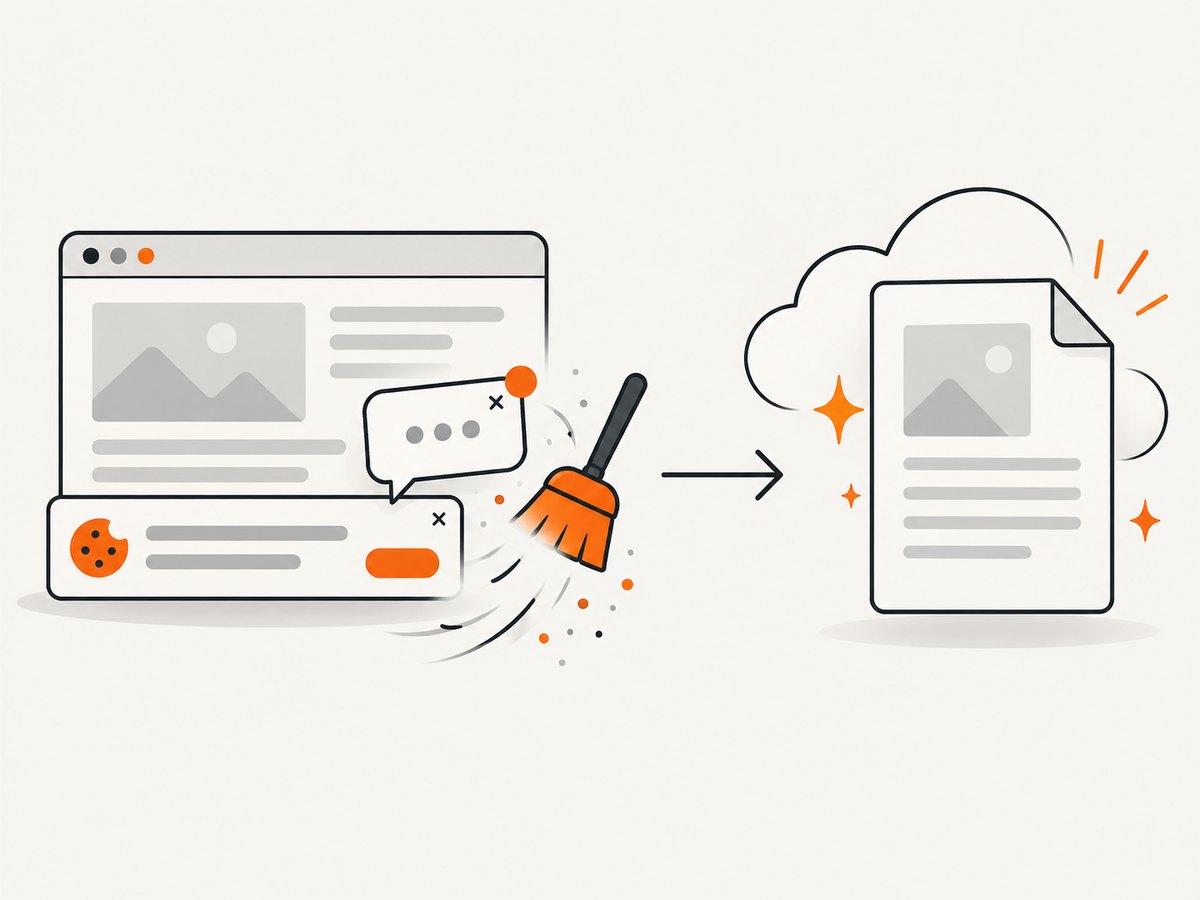
See the ScreenshotNeo API documentation for all options, including PDF paper size, margins, landscape mode, page ranges, custom headers and cookies, JavaScript, waiting rules, blocked resources, caching, asynchronous jobs, signed webhooks, bulk capture, and usage reporting.
curl -G "https://api.screenshotneo.com/v1/shot" -d access_key=YOUR_API_KEY --data-urlencode url=https://stripe.com -o shot.webpimport requests
r = requests.get("https://api.screenshotneo.com/v1/shot", params={"access_key": "YOUR_API_KEY", "url": "https://stripe.com"}, timeout=90)
open("shot.webp", "wb").write(r.content)const q = new URLSearchParams({ access_key: 'YOUR_API_KEY', url: 'https://stripe.com' });
const res = await fetch(`https://api.screenshotneo.com/v1/shot?${q}`);An MCP server also lets Claude, Cursor, and other MCP clients call take_screenshot, get_page_info, and capture_pdf. The free plan includes 1,000 screenshots each month with no card; paid plans start at $5 for 3,000. Create a free ScreenshotNeo account.
FAQ
Can I keep using Node.js 18?
Existing functions can remain on it while you plan migration, but AWS lists it as deprecated and schedules creation and update blocks. Recheck AWS’s lifecycle table immediately before publication and deployment.
Should I use ZIP or a container?
Use ZIP when the verified browser and dependencies fit the 50 MB direct-upload and 250 MB unzipped limits. Evaluate a container when native libraries or reproducibility make ZIP impractical.
Does more memory always make PDF generation faster?
Memory allocation also affects CPU, but the result depends on page complexity, network work, and browser startup. Measure your documents instead of assuming a fixed speedup.
Where should the PDF be returned?
Small files can be returned as base64 from an invocation or API response. For larger files, choose a storage and delivery pattern appropriate to your application and security requirements.
Can Chromium render authenticated pages?
Yes, if your handler supplies the required cookies, headers, or credentials safely and waits for the authenticated content. Never log those secrets.


