How to Generate PDFs from HTML with Headless Chrome
Generate reliable PDFs from HTML with Chrome CLI, Puppeteer, and DevTools Protocol, including print CSS, fonts, headers, colors, and troubleshooting.
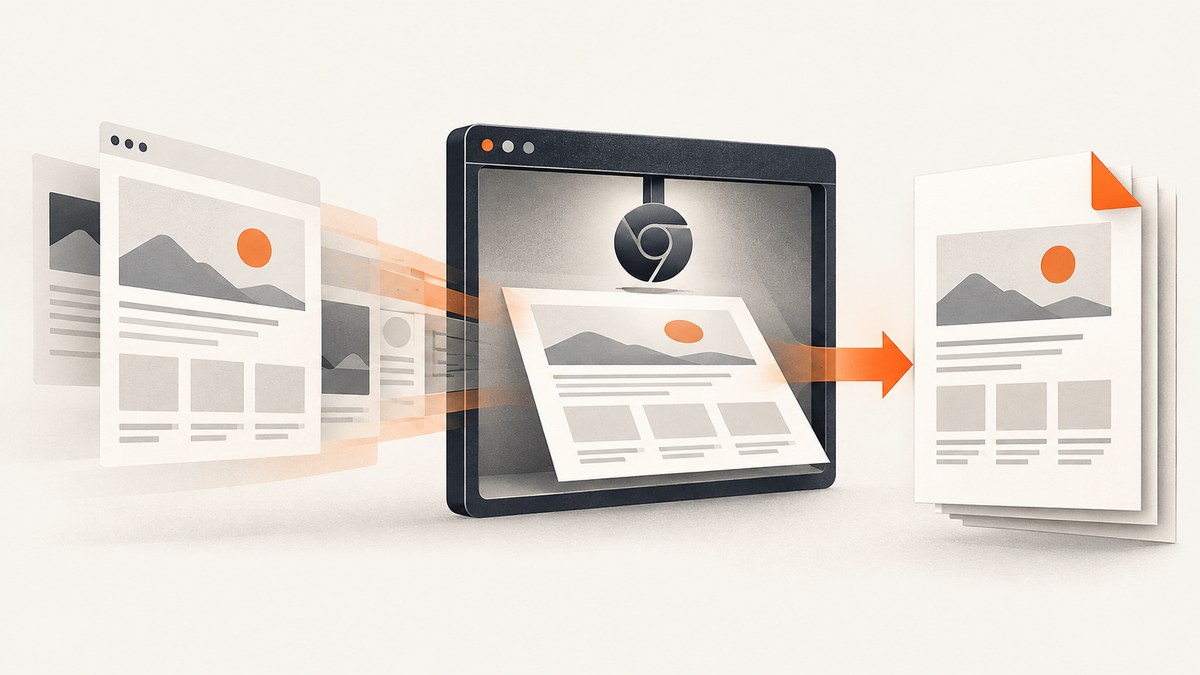
Use Chrome’s --headless --print-to-pdf flag for a quick URL-to-PDF conversion. Use Puppeteer’s page.pdf() when you need application-specific waits, print settings, authentication, JavaScript, or repeatable automation. Both methods print a rendered browser page, so the result depends on the page’s print CSS, fonts, assets, readiness, and PDF options.
This guide covers the Chrome command line, Puppeteer, and the lower-level DevTools Protocol. It also explains how to remove headers and footers, select print or screen styles, preserve colors, wait for dynamic content, debug blank or incomplete PDFs, and choose a hosted alternative.
1. Choose the right approach
| Approach | Best for | Control | Main trade-off |
|---|---|---|---|
| Chrome Headless CLI | One-off or shell-driven URL printing | Simple command-line flags | Limited orchestration unless wrapped in another script |
Puppeteer page.pdf() |
Node.js applications and automated jobs | Navigation, JavaScript, waits, cookies, headers, media type, PDF options | Requires browser lifecycle and readiness code |
DevTools Protocol Page.printToPDF |
Systems that already control Chrome over CDP | Low-level print settings and header/footer templates | More protocol integration than Puppeteer |
For a URL that is already complete and does not require scripting, start with the CLI. For a single-page application, authenticated page, invoice, report, or batch job, use Puppeteer so you can wait for the application’s own ready condition before printing.
2. Generate a PDF with Chrome Headless
Basic command
chrome --headless --print-to-pdf https://developer.chrome.com/Chrome writes output.pdf to the current working directory by default. The official Chrome Headless documentation describes this URL-to-PDF workflow.
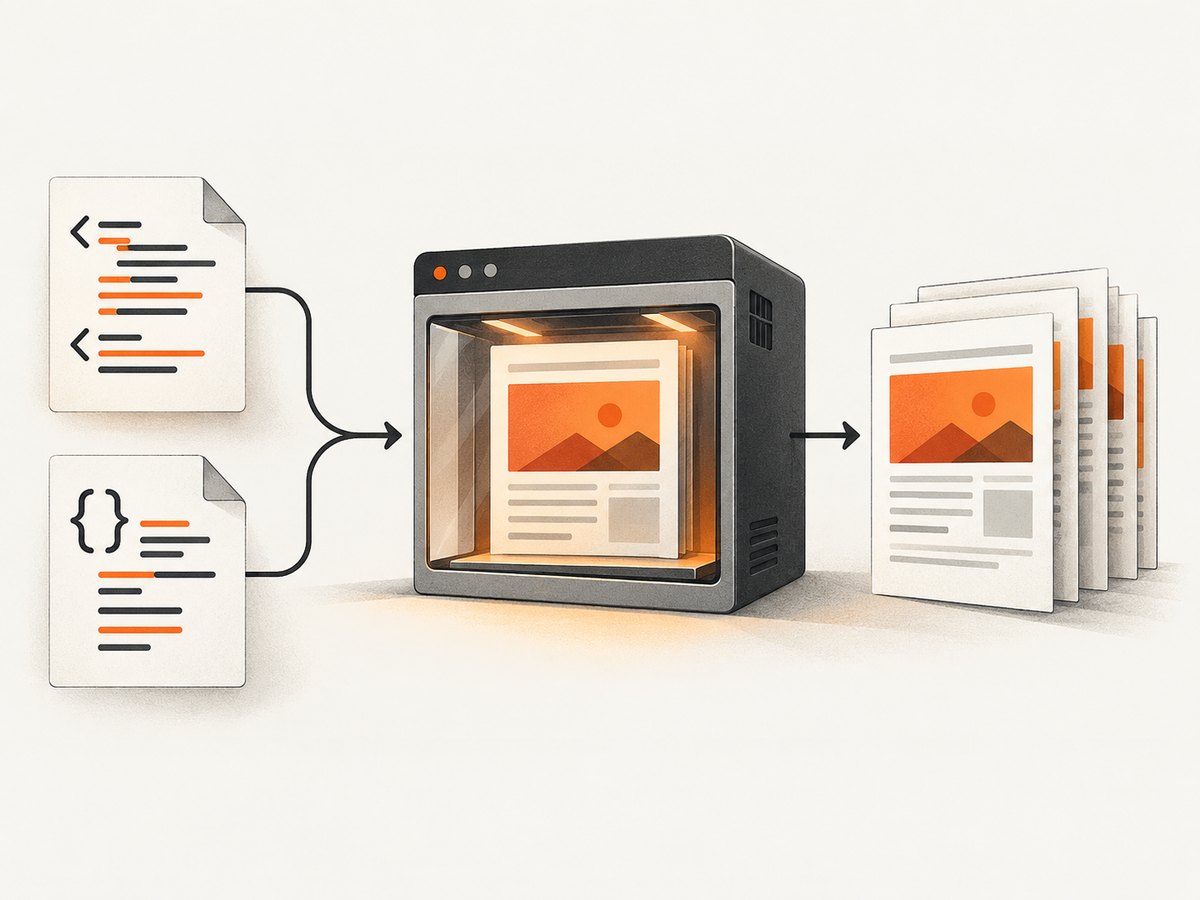
Remove the generated header and footer
chrome --headless --print-to-pdf --no-pdf-header-footer https://developer.chrome.com/Older Chrome builds used the flag name --print-to-pdf-no-header. If --no-pdf-header-footer is rejected, check the version-specific command-line documentation before changing your automation.
Write to a predictable directory
mkdir -p artifacts
cd artifacts
chrome --headless --print-to-pdf https://example.com/
The CLI example is intentionally small. It does not, by itself, prove that a client-side application has finished fetching data or updating the DOM. Chrome documents capture timeout options, but application-specific readiness often requires a scripted browser workflow.
Run Chrome in a server or container
Install a Chrome or Chromium build appropriate for your operating system, then invoke its executable path if it is not on PATH:
/usr/bin/google-chrome \
  --headless \
  --print-to-pdf \
  --no-pdf-header-footer \
  https://example.com/
Keep the Chrome version consistent across development and production when PDF layout matters. Different builds, installed fonts, operating-system font rendering, and sandbox settings can affect the output.
3. Generate a PDF with Puppeteer
Puppeteer’s documented workflow is: launch a browser, open a page, navigate to a URL, call page.pdf(), and close the browser. The guide states that PDF generation waits for fonts by default. That font wait does not guarantee that every image, API request, or asynchronous UI update has completed.
Install Puppeteer
npm install puppeteerComplete runnable Node.js example
const puppeteer = require('puppeteer');

(async () => {
  const browser = await puppeteer.launch({
    // Set this only when your deployment requires it.
    // args: ['--no-sandbox', '--disable-setuid-sandbox']
  });

  try {
    const page = await browser.newPage();
    await page.setViewport({ width: 1280, height: 900, deviceScaleFactor: 1 });

    await page.goto('https://example.com/', {
      waitUntil: 'networkidle2',
      timeout: 60_000
    });

    await page.pdf({
      path: 'output.pdf',
      format: 'A4',
      printBackground: true,
      margin: {
        top: '16mm',
        right: '16mm',
        bottom: '16mm',
        left: '16mm'
      },
      displayHeaderFooter: false,
      preferCSSPageSize: true
    });
  } finally {
    await browser.close();
  }
})();
For printing PDFs, Puppeteer’s official documentation uses Page.pdf(). See the Puppeteer PDF generation guide and the Page.pdf API reference for the current option set.
Wait for application content explicitly
networkidle2 is a navigation heuristic, not a business-level ready signal. A page may keep no more than two active connections while still rendering a report, or it may keep analytics connections open forever. Prefer a selector or application flag that means the content is ready:
await page.goto('https://example.com/report', {
  waitUntil: 'domcontentloaded',
  timeout: 60_000
});

await page.waitForSelector('[data-report-ready="true"]', {
  timeout: 30_000
});

await page.evaluate(() => document.fonts.ready);
await page.pdf({ path: 'report.pdf', format: 'A4', printBackground: true });
Authenticate before printing
await page.setExtraHTTPHeaders({
  Authorization: `Bearer ${process.env.REPORT_TOKEN}`
});

await page.setCookie({
  name: 'session',
  value: process.env.SESSION_VALUE,
  domain: 'example.com',
  path: '/',
  httpOnly: true,
  secure: true
});

await page.goto('https://example.com/private/report', {
  waitUntil: 'networkidle2',
  timeout: 60_000
});
Do not place credentials in a URL that could be logged. Supply them through environment variables or your secret manager.
4. Control print CSS, screen CSS, and colors
Print media is the default
Puppeteer generates PDFs with the print CSS media type. Rules inside @media print can therefore change layout compared with the screen preview:
@media print {
  .navigation,
  .cookie-banner,
  .interactive-controls {
    display: none;
  }

  .report {
    break-inside: avoid;
  }
}
Use screen styles deliberately
If the PDF must match the screen stylesheet, call page.emulateMediaType('screen') before page.pdf():
await page.emulateMediaType('screen');
await page.pdf({
  path: 'screen-styled.pdf',
  format: 'A4',
  printBackground: true
});
Use this only when screen styling is the intended document design. Print CSS is usually easier to control for pagination and paper output.
Preserve exact colors when required
Puppeteer documents that PDF output modifies colors for print by default. Request exact color rendering with CSS:
:root {
  -webkit-print-color-adjust: exact;
  print-color-adjust: exact;
}
This requests exact color rendering; it does not promise identical appearance across every Chrome version, operating system, display profile, or printer. Inspect the generated PDF in the environment where it will be delivered.
Set page size and margins in CSS
@page {
  size: Letter;
  margin: 12mm 14mm 16mm;
}

@media print {
  h1, h2, h3 {
    break-after: avoid;
  }

  table, figure, pre {
    break-inside: avoid;
  }
}
When CSS should own the page dimensions, use Puppeteer’s preferCSSPageSize: true. Otherwise, the API’s format, width, and height options determine the paper geometry.
5. Headers, footers, and page numbers
The CLI can remove its generated header and footer with --no-pdf-header-footer. Puppeteer exposes more control through displayHeaderFooter, headerTemplate, and footerTemplate:
await page.pdf({
  path: 'invoice.pdf',
  format: 'A4',
  displayHeaderFooter: true,
  headerTemplate: '',
  footerTemplate: `
    <div style="font-size:8px;width:100%;text-align:center">
      Page <span class="pageNumber"></span> of
      <span class="totalPages"></span>
    </div>`,
  margin: { top: '24mm', bottom: '20mm' }
});
The lower-level Chrome DevTools Protocol Page.printToPDF method exposes the same class of controls, including displayHeaderFooter, HTML templates, and fields such as date, title, url, pageNumber, and totalPages. The protocol reference is version-sensitive, so confirm the target Chrome version when integrating it directly.
6. Use the DevTools Protocol directly
CDP is useful when your service already launches Chrome and communicates over a DevTools connection. The exact connection setup depends on your browser manager; the print operation looks like this:
const pdf = await client.send('Page.printToPDF', {
  printBackground: true,
  displayHeaderFooter: false,
  preferCSSPageSize: true,
  paperWidth: 8.27,
  paperHeight: 11.69,
  marginTop: 0.4,
  marginBottom: 0.4,
  marginLeft: 0.4,
  marginRight: 0.4
});

require('fs').writeFileSync(
  'output.pdf',
  Buffer.from(pdf.data, 'base64')
);
Choose CDP when protocol-level control is a requirement. Otherwise, Puppeteer provides a smaller and more maintainable API for navigation and PDF generation.
7. Dynamic pages and readiness checklist
- Navigate with a timeout appropriate for the page.
- Wait for a selector that represents completed application content.
- Wait for
document.fonts.readywhen custom fonts affect layout. - Wait for important images to finish loading if they are not covered by your readiness selector.
- Disable animations or freeze them before printing when they can change layout.
- Use print CSS to hide navigation, consent banners, chat widgets, and interactive controls.
- Capture after the final DOM update, not merely after the initial HTML response.
await page.evaluate(async () => {
  await document.fonts.ready;
  const images = Array.from(document.images);
  await Promise.all(images.map((image) => {
    if (image.complete) return Promise.resolve();
    return new Promise((resolve) => {
      image.addEventListener('load', resolve, { once: true });
      image.addEventListener('error', resolve, { once: true });
    });
  }));
});
Use a finite timeout around every wait. A broken image or permanently pending request should produce a diagnosable failure rather than an indefinitely running job.

8. Common errors and fixes
| Symptom | Likely cause | Fix |
|---|---|---|
| PDF is blank | Printing happened before the app rendered, or navigation failed | Check the response and page title, wait for an application-ready selector, and save a diagnostic screenshot or HTML snapshot |
| Data is missing | API calls or client rendering were still in progress | Wait for the data-specific DOM condition instead of relying only on networkidle2 |
| Fonts look wrong | Font files failed, were blocked, or were not ready | Check font network responses, await document.fonts.ready, and verify fonts are installed or reachable |
| Colors are muted | Print color adjustment changed them | Set -webkit-print-color-adjust: exact and keep printBackground: true |
| Screen and PDF layouts differ | Print media rules are active | Review @media print, or call page.emulateMediaType('screen') when screen styling is intentional |
| Headers or footers appear | Chrome’s generated PDF decorations are enabled | Use --no-pdf-header-footer in the CLI or displayHeaderFooter: false in Puppeteer |
| Content is cut off | Fixed heights, overflow rules, or unsuitable page breaks | Remove restrictive heights, review overflow, add break-inside/break-after rules, and verify margins |
| Navigation times out | Slow origin, blocked resource, or an intentionally long-lived connection | Set a bounded timeout, wait for a meaningful selector, and inspect failed requests |
| Chrome fails in a container | Sandbox, shared-memory, executable-path, or missing-library issue | Use the container’s documented Chrome setup, configure the executable path, and change sandbox flags only when required by that environment |
| PDF differs between machines | Chrome versions, fonts, OS rendering, or locale differ | Pin the browser and fonts where possible and compare generated files in the deployment environment |
9. Performance, reliability, and cost
Performance
- Reuse one browser process and create or recycle pages for a worker instead of launching Chrome for every document.
- Set explicit navigation and readiness timeouts so slow pages do not consume workers indefinitely.
- Block nonessential third-party resources only when doing so cannot change the document.
- Use a precise ready selector instead of waiting for an arbitrary long delay.
- Keep PDFs and temporary browser data on fast local storage, then upload completed files.
The reviewed sources do not provide a comparative benchmark for Chrome CLI, Puppeteer, or CDP. Choose based on control requirements and measure your own workload.
Reliability
- Log the target URL, Chrome version, navigation result, readiness condition, elapsed stages, and final PDF size.
- Retry transient navigation or origin failures with a limit and backoff; do not blindly retry deterministic HTML or authentication errors.
- Validate that the output is a nonempty PDF and, for important documents, inspect expected text or page count.
- Close pages and browsers in
finallyblocks so failed jobs do not leak processes.
Cost
Self-hosting means paying for compute, browser maintenance, fonts, storage, and operational work. A hosted capture API can move that browser setup out of your application. Compare the provider’s billing rule for failed loads, bot checks, blank pages, cache hits, retries, and asynchronous jobs before estimating volume.
10. Or skip the browser setup
ScreenshotNeo provides a website screenshot API and MCP server for developers. One GET request returns a clean screenshot or PDF, with PDF controls for paper size, margins, landscape mode, and page ranges. See the ScreenshotNeo API documentation for the current parameters.
curl -G "https://api.screenshotneo.com/v1/shot" -d access_key=YOUR_API_KEY --data-urlencode url=https://stripe.com -o shot.webpimport requests; r = requests.get("https://api.screenshotneo.com/v1/shot", params={"access_key": "YOUR_API_KEY", "url": "https://stripe.com"}, timeout=90); open("shot.webp", "wb").write(r.content)const q = new URLSearchParams({ access_key: 'YOUR_API_KEY', url: 'https://stripe.com' }); const res = await fetch(`https://api.screenshotneo.com/v1/shot?${q}`);Before capture, ScreenshotNeo accepts cookie and consent banners and removes more than 60 known consent platforms, newsletter popups, and chat widgets; each step can be turned off. Bot checks, CAPTCHAs, blank pages, timeouts, failed loads, and cache hits are not billed, and each response identifies the result with X-Page-Verdict and X-Billed headers. Its MCP server provides take_screenshot, get_page_info, and capture_pdf tools for Claude, Cursor, and other MCP clients.
There is a free plan with 1,000 shots per month and no card required. Paid plans start at $5 for 3,000 shots, and every feature is available on every plan.
Create a free ScreenshotNeo account and start with 1,000 screenshots per month at no charge.
11. Short FAQ
Does Headless Chrome convert HTML without rendering it?
No. Chrome loads and renders the page, then prints the rendered result. JavaScript, fonts, images, print CSS, and browser version can all affect the PDF.
Should I use the CLI or Puppeteer for invoices?
Use Puppeteer when invoices require authentication, data fetching, deterministic readiness checks, custom headers or footers, or repeatable batch processing. The CLI is suitable when the URL is already ready to print.
Why does my PDF not match the browser tab?
The PDF uses print media by default, so @media print rules and print color handling can change the result. Compare the print stylesheet or explicitly emulate screen media.
Can I add page numbers?
Yes. Puppeteer and the DevTools Protocol support header/footer templates with pageNumber and totalPages fields.
Does waiting for fonts mean the page is fully ready?
No. Puppeteer’s documented font wait covers fonts. Add waits for your application’s data, images, and final DOM state.
Is there a Chrome flag that guarantees dynamic content is finished?
No universal flag can know when an application-specific update is complete. Use a selector, JavaScript readiness flag, or another condition defined by the page.


