How to Efficiently Generate PDFs from HTML with Node.js and Express
Render reliable PDFs from HTML with Puppeteer or Playwright, serve them from Express, fix CSS differences, and improve performance and security.
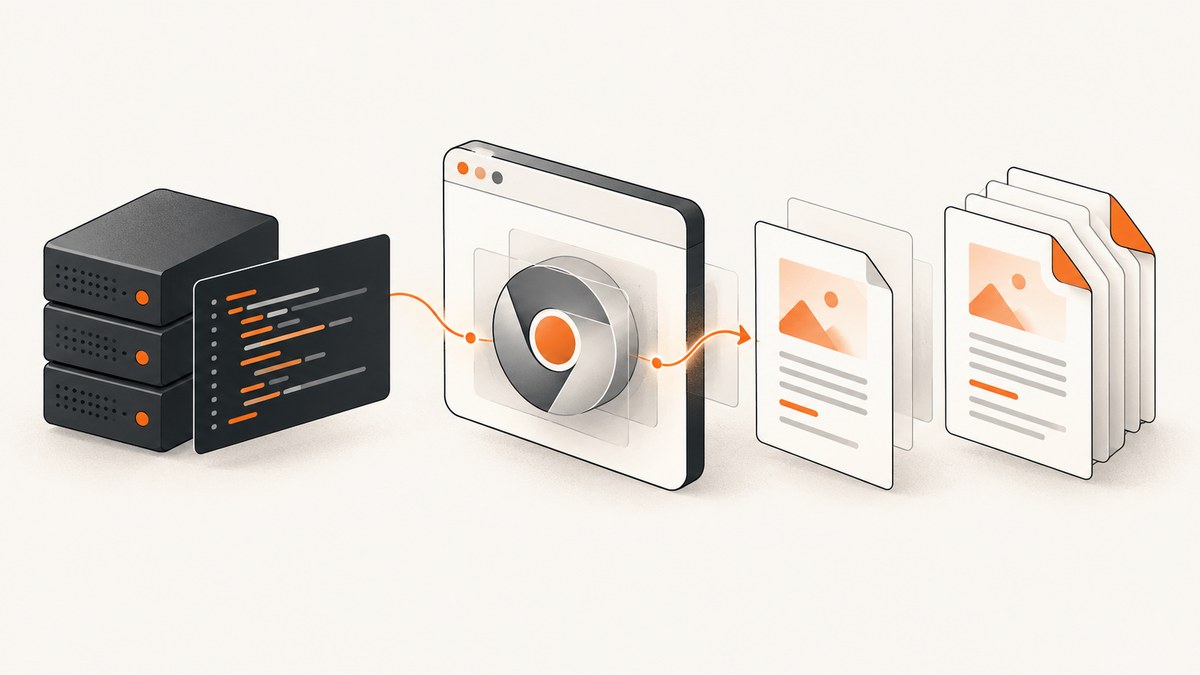
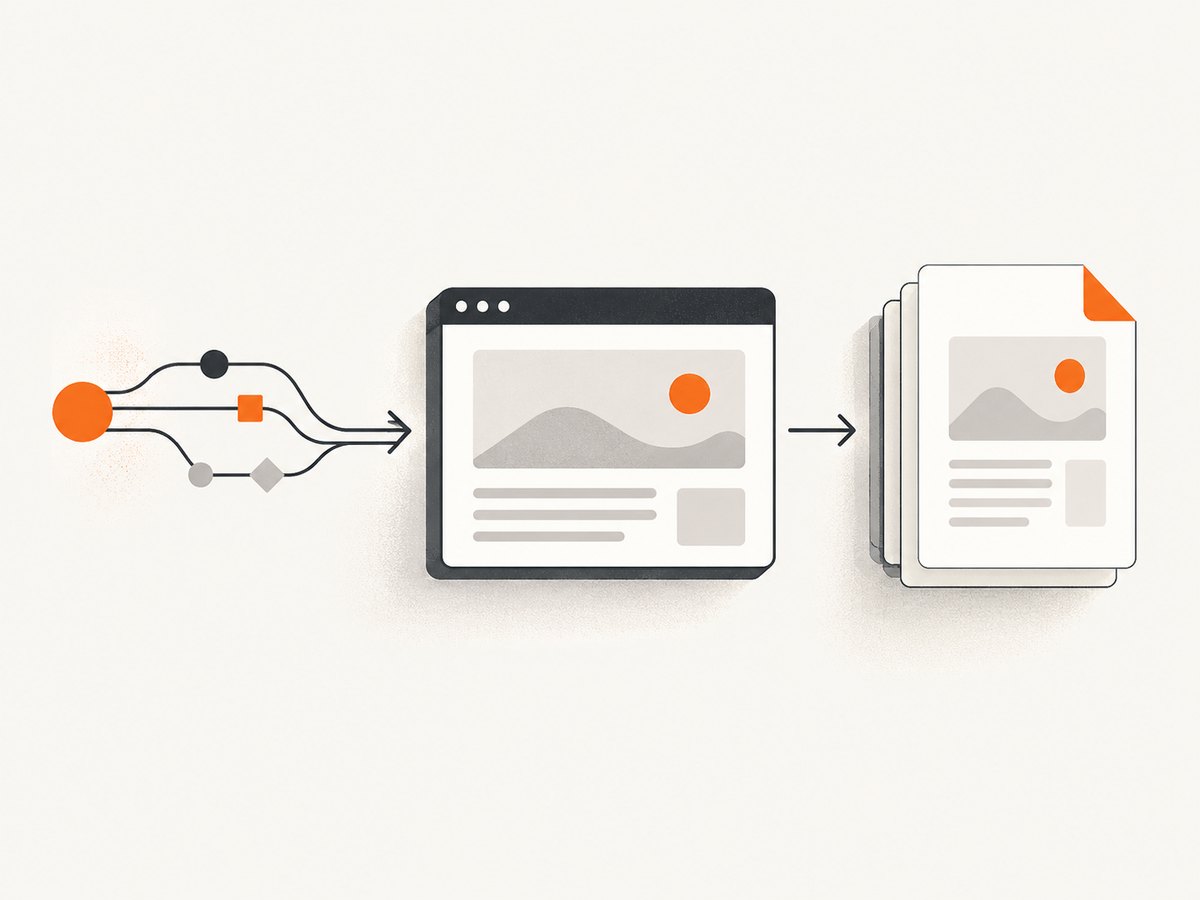
Use a headless Chromium browser to render your HTML, call page.pdf(), and send the returned Buffer from an Express route. Puppeteer and Playwright both use a browser’s modern HTML and CSS engine, so they handle web fonts, flexbox, grid, SVG, and client-side rendering more accurately than string-based PDF libraries. The reliable sequence is:
- Launch one browser instance and reuse it.
- Create a short-lived page for each request.
- Load HTML with
page.setContent()or navigate to an approved URL. - Wait for fonts and critical assets.
- Choose print or screen media deliberately.
- Call
page.pdf()and send the bytes withapplication/pdf.
Puppeteer’s guide states, “For printing PDFs use Page.pdf().” Its API generates PDFs with print CSS media by default. Playwright exposes the same page-level PDF operation and returns a PDF buffer. Puppeteer PDF generation guide, Puppeteer Page.pdf API, and Playwright Page.pdf API.
1. Create a minimal Express PDF endpoint
Install Express and Puppeteer:
npm install express puppeteerThis complete server renders a controlled HTML template and returns a PDF:
const express = require('express');
const puppeteer = require('puppeteer');
const app = express();
app.use(express.json({ limit: '100kb' }));
let browserPromise;
function getBrowser() {
if (!browserPromise) {
browserPromise = puppeteer.launch({ headless: true });
}
return browserPromise;
}
function escapeHtml(value = '') {
return String(value)
.replaceAll('&', '&')
.replaceAll('<', '<')
.replaceAll('>', '>')
.replaceAll('"', '"')
.replaceAll(''', ''');
}
app.get('/report.pdf', async (req, res, next) => {
let page;
try {
const browser = await getBrowser();
page = await browser.newPage();
page.setDefaultNavigationTimeout(30_000);
page.setDefaultTimeout(15_000);
const title = escapeHtml(req.query.title || 'Monthly report');
const html = `<!doctype html>
<html>
<head>
<meta charset="utf-8">
<style>
@page { size: A4; margin: 18mm 16mm; }
* { box-sizing: border-box; }
body { font-family: Arial, sans-serif; color: #202124; margin: 0; }
h1 { font-size: 28px; margin: 0 0 8px; }
h2 { break-after: avoid; margin-top: 24px; }
.muted { color: #666; }
.card { border: 1px solid #ddd; padding: 14px; border-radius: 6px; }
.page-break { break-before: page; }
@media print {
.screen-only { display: none; }
body { -webkit-print-color-adjust: exact; print-color-adjust: exact; }
}
</style>
</head>
<body>
<h1>${title}</h1>
<p class="muted">Generated ${new Date().toISOString()}</p>
<div class="card">Revenue, usage, and operational notes go here.</div>
</body>
</html>`;
await page.setContent(html, { waitUntil: 'networkidle0' });
await page.evaluate(() => document.fonts.ready);
const pdf = await page.pdf({
format: 'A4',
printBackground: true,
preferCSSPageSize: true,
displayHeaderFooter: false
});
res.type('application/pdf').set({
'Content-Disposition': 'inline; filename="report.pdf"',
'Cache-Control': 'no-store'
}).send(pdf);
} catch (error) {
next(error);
} finally {
if (page) await page.close().catch(() => {});
}
});
app.use((error, req, res, next) => {
console.error(error);
if (!res.headersSent) res.status(500).json({ error: 'PDF generation failed' });
});
app.listen(3000, () => console.log('Listening on http://localhost:3000'));Express documents that res.send() accepts a Buffer, while res.type('application/pdf') sets the response content type. Express res.send() and Express res.type().
2. Load HTML safely and wait for assets
page.setContent() is useful when your application owns the template. For an existing page, use page.goto():
await page.goto('https://example.com/invoice/123', {
  waitUntil: 'networkidle2',
  timeout: 30_000
});
await page.evaluate(() => document.fonts.ready);
await page.waitForSelector('#invoice-total', { visible: true, timeout: 10_000 });
const pdf = await page.pdf({ format: 'A4', printBackground: true });
Do not use an unbounded wait. A page can keep analytics or websocket requests open forever. Prefer a bounded navigation timeout plus an explicit wait for the application’s “ready” selector. For images, wait until critical images have completed:
await page.evaluate(async () => {
  const images = [...document.images];
  await Promise.all(images.map(img => {
    if (img.complete) return Promise.resolve();
    return new Promise(resolve => {
      img.addEventListener('load', resolve, { once: true });
      img.addEventListener('error', resolve, { once: true });
    });
  }));
});
Puppeteer documents that PDF generation waits for fonts by default; explicitly awaiting document.fonts.ready makes the intent clear and is useful when diagnosing deployment differences.
3. Print CSS, page size, and visual fidelity
PDF generation uses the print CSS media type by default. If the document should look like the browser viewport, call page.emulateMediaType('screen') before creating the PDF. Playwright uses page.emulateMedia() for the same decision.
await page.emulateMediaType('print'); // default, best for formal documents
const pdf = await page.pdf({
  format: 'A4',
  printBackground: true,
  preferCSSPageSize: true,
  margin: { top: '18mm', right: '16mm', bottom: '18mm', left: '16mm' }
});
For exact screen colors, use:
@media print {
  * { -webkit-print-color-adjust: exact; print-color-adjust: exact; }
}
Build print rules into the template:
@page { size: Letter; margin: 0.6in; }
.keep-together { break-inside: avoid; }
.start-new-page { break-before: page; }
table { break-inside: auto; }
thead { display: table-header-group; }
tr { break-inside: avoid; }
@media print {
  nav, .interactive-controls, .screen-only { display: none !important; }
}
Useful page.pdf() options include format (A4, Letter and other presets), width/height for custom paper, margin, landscape, printBackground, preferCSSPageSize, pageRanges, scale, headerTemplate, footerTemplate, displayHeaderFooter, and omitBackground. Header and footer templates run in a restricted context: do not expect your page’s JavaScript or external styles to be available. Use inline styles and classes such as date, title, url, pageNumber, and totalPages.
4. Puppeteer or Playwright?
Both libraries drive a browser and expose page-level PDF generation. Choose based on the runtime package, deployment image, API conventions, existing end-to-end tests, observability, and your team’s language support. Compare:
| Decision | Questions to answer |
|---|---|
| Runtime | Which Chromium or browser package fits your container and release process? |
| API | Which locator, page lifecycle, and error APIs match your existing code? |
| Deployment | Can the target environment install browser binaries and required system libraries? |
| PDF needs | Do you need headers, footers, ranges, custom dimensions, or screen media? |
| Testing | Will the same library also drive your browser tests? |
There is no universal official throughput or memory figure. Measure with your actual HTML, fonts, images, browser version, concurrency, and container limits.
5. Reuse browsers, control concurrency, and clean up
Launching Chromium for every request is expensive. Keep one browser process warm, then create and close a page per job. A page is cheaper to isolate and prevents cookies, DOM state, and JavaScript variables from leaking between customers.
const limit = 4;
let active = 0;
const queue = [];

async function withSlot(task) {
  if (active >= limit) await new Promise(resolve => queue.push(resolve));
  active++;
  try { return await task(); }
  finally {
    active--;
    const next = queue.shift();
    if (next) next();
  }
}
The right limit depends on memory and document complexity. Add request authentication, a maximum HTML size, rate limits, and a queue for expensive reports. Restart a browser that has become unhealthy, but always close pages in finally blocks. Keep user-controlled markup away from privileged network locations: validate template data, restrict navigation to approved origins, and do not allow arbitrary server-side requests from untrusted HTML.
6. Returning downloads and caching results
Use Content-Disposition: attachment to force a download. For repeatable reports, derive a cache key from the template version, data version, locale, and PDF options. Cache only when the inputs are deterministic and the response does not contain private data. Never share a cached PDF across users without an authorization-aware key.
res.type('application/pdf');
res.set('Content-Disposition', 'attachment; filename="invoice-123.pdf"');
res.set('Content-Length', String(pdf.length));
res.send(pdf);
For very large documents, a queue plus object storage is usually more reliable than holding the request open. Return a job ID, generate in a worker, and provide an authenticated download endpoint.
7. Troubleshooting common failures
| Symptom | Likely cause | Fix |
|---|---|---|
| Fonts fall back | Font request failed or rendering started too early. | Check font URLs and CORS, await document.fonts.ready, and package critical fonts when possible. |
| Background colors disappear | Print backgrounds are disabled. | Set printBackground: true and use print-color-adjust: exact. |
| Layout differs from Chrome | Print media rules, viewport size, or browser versions differ. | Choose print or screen media explicitly, set the viewport, and pin the browser version. |
| Images are blank | Lazy loading, blocked requests, or a missing wait. | Scroll lazy content into view, wait for image completion, and inspect failed network requests. |
| Only the first page renders | Fixed-height container or clipped overflow. | Remove restrictive heights, check overflow, and test page-break rules. |
| Navigation timeout | Third-party requests never become idle. | Use a bounded timeout and wait for a specific ready selector instead of global network idle. |
| Chromium will not launch | Missing system libraries, sandbox restrictions, or an incompatible binary. | Use a supported container image, install required dependencies, and follow your platform’s browser launch guidance. |
| Express sends corrupt output | PDF bytes were converted to text or the wrong MIME type was used. | Keep the value as a Buffer and send it with application/pdf. |
| Requests hang under load | Unlimited concurrent pages or leaked pages. | Bound concurrency, close pages in finally, and monitor memory and queue time. |
8. Test the output like a document
Check page count, paper size, fonts, images, headers and footers, links, tables, and page breaks. Test with long names, empty sections, large tables, missing images, right-to-left text, multiple locales, and data at the exact page boundary. Compare PDFs generated in development and production because browser versions, installed fonts, timezone, and network policy can change the result.
9. Or skip the browser setup
If you need a hosted capture instead of maintaining Chromium and an Express worker, ScreenshotNeo provides a website capture API and MCP server. One GET request returns a clean PNG, JPEG, WebP, or PDF. See the ScreenshotNeo API documentation for the PDF options and complete parameter list.

curl -G "https://api.screenshotneo.com/v1/shot" -d access_key=YOUR_API_KEY --data-urlencode url=https://stripe.com -o shot.webpimport requests
r = requests.get("https://api.screenshotneo.com/v1/shot", params={"access_key": "YOUR_API_KEY", "url": "https://stripe.com"}, timeout=90)
open("shot.webp", "wb").write(r.content)const q = new URLSearchParams({ access_key: 'YOUR_API_KEY', url: 'https://stripe.com' });
const res = await fetch(`https://api.screenshotneo.com/v1/shot?${q}`);ScreenshotNeo removes cookie and consent banners, newsletter popups, and chat widgets before capture. Bot checks, blank pages, failed loads, timeouts, and cache hits are not billed, and response headers report the page verdict and billing status. It also offers an MCP server with take_screenshot, get_page_info, and capture_pdf for Claude, Cursor, and other MCP clients. The Free plan includes 1,000 shots per month with no card; paid plans start at $5 for 3,000 shots. Create a free ScreenshotNeo account.
10. FAQ
Can I generate a PDF without a browser?
Yes, but browser rendering is usually the practical choice for modern HTML and CSS. String-based PDF libraries require a separate layout model and often need template-specific workarounds.
Should I use setContent() or goto()?
Use setContent() for server-owned templates and goto() for an existing authenticated page or route. In both cases, define an explicit readiness condition.
Why is my PDF longer than the browser page?
PDF pagination uses paper dimensions, margins, print CSS, and font metrics. Check @page, print media rules, fixed heights, and font loading.
Can users submit arbitrary URLs?
Only with strong controls. Restrict origins, authenticate requests, apply timeouts and rate limits, and protect internal network addresses from server-side request forgery.
When should generation become a background job?
Use a queue when documents are large, asset loading is slow, traffic is bursty, or clients can tolerate polling or a webhook instead of one long HTTP request.


