How to Generate PDFs from HTML in Rails
Render Rails views as reliable PDFs with Wicked PDF or Grover, fix assets and fonts, secure conversion, and deploy with confidence.
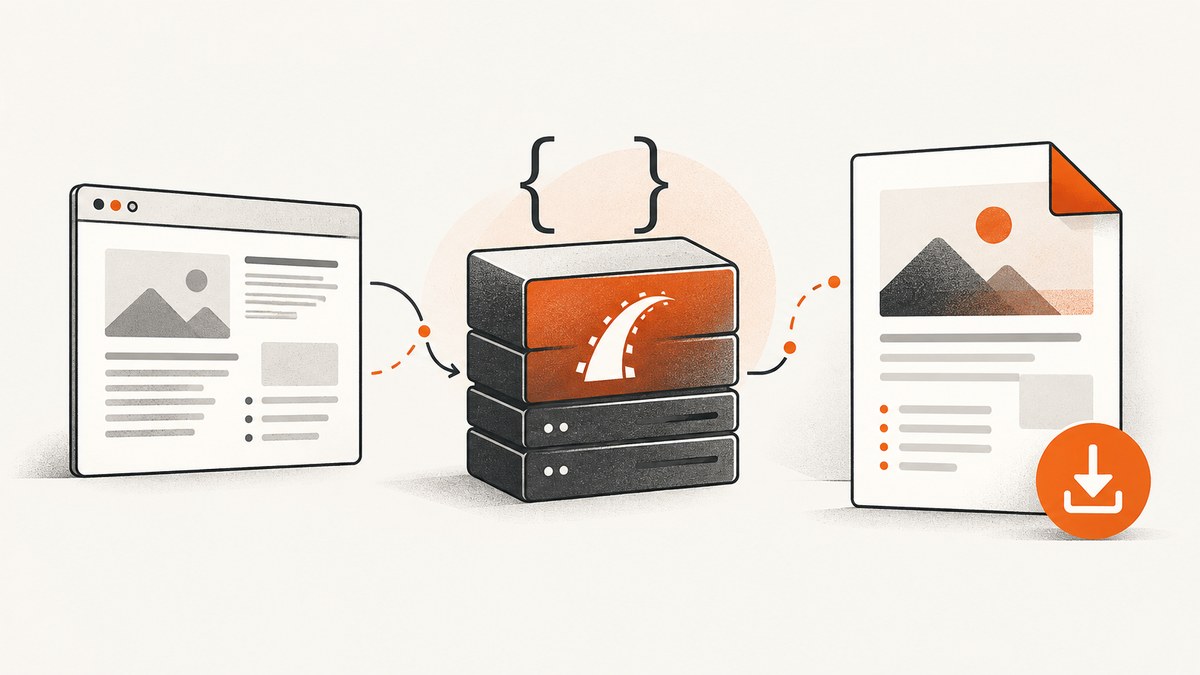
To generate a PDF from HTML in Rails, render a view with the data it needs and pass the resulting HTML to a server-side converter. The two documented approaches most Rails teams evaluate are Wicked PDF, which wraps the separate wkhtmltopdf executable, and Grover, which uses Puppeteer and Chromium.
Your choice depends on the CSS and JavaScript in the existing template, the runtime you can install in production, how assets and fonts are served, and the security controls you need. Test representative documents in the same deployment environment where they will run; the project documentation does not establish a universal fidelity or speed winner.
Choose a Rails PDF renderer
| Question | Wicked PDF | Grover |
|---|---|---|
| Rendering engine | External wkhtmltopdf command-line utility |
Puppeteer controlling Chromium |
| Rails integration | Gem helpers and render pdf: |
Ruby interface that accepts HTML or a URL and can render Rails views |
| Deployment dependency | Gem plus a compatible wkhtmltopdf executable |
Gem plus Node, Puppeteer, and a Chromium runtime |
| Best fit | Existing templates that work with the wkhtmltopdf engine and a simpler process model | Templates that need a browser engine and modern CSS or JavaScript behavior |
| Operational concern | Executable path, asset URLs, and precompiled assets | Browser installation, launch flags, file/network access, and resource usage |
These are deployment and behavior differences, not performance rankings. Measure output quality, conversion time, memory use, and failure rates with your own documents.
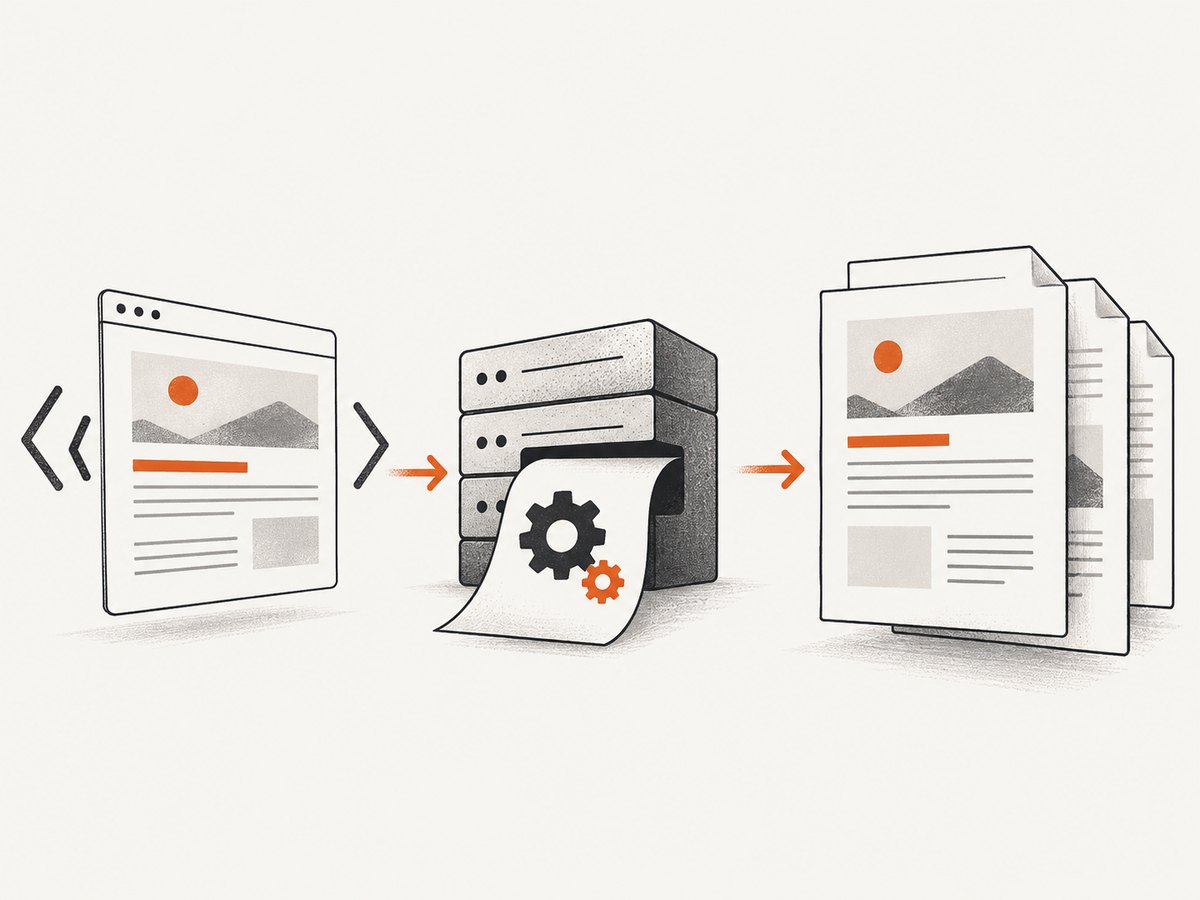
Option 1: Wicked PDF with wkhtmltopdf
1. Add the gem and install the executable
Add the gem to your Gemfile:
gem "wicked_pdf"Installing the gem does not install the converter. Install a compatible wkhtmltopdf binary in every environment that creates PDFs. If it is not on PATH, configure its location in an initializer according to the Wicked PDF README.
2. Add a PDF action
class InvoicesController < ApplicationController
  def show
    @invoice = Invoice.find(params[:id])

    respond_to do |format|
      format.html
      format.pdf do
        render pdf: "invoice-#{@invoice.id}",
               template: "invoices/show",
               layout: "pdf",
               page_size: "A4",
               margin: { top: 12, bottom: 12, left: 14, right: 14 }
      end
    end
  end
end
Request /invoices/42.pdf or link to it with invoice_path(@invoice, format: :pdf). The exact options available depend on the Wicked PDF and wkhtmltopdf versions you install; keep the project README beside your configuration when upgrading.
3. Create a PDF layout and view
<!-- app/views/layouts/pdf.html.erb -->
<!doctype html>
<html>
  <head>
    <meta charset="utf-8">
    <%= wicked_pdf_stylesheet_link_tag "pdf" %>
  </head>
  <body>
    <%= yield %>
  </body>
</html>
<!-- app/views/invoices/show.pdf.erb -->
<h1>Invoice <%= @invoice.number %></h1>
<p>Issued: <%= l(@invoice.issued_at, format: :long) %></p>
<table>
<% @invoice.line_items.each do |item| %>
<tr>
<td><%= item.description %></td>
<td><%= number_to_currency(item.amount) %></td>
</tr>
<% end %>
</table>Use PDF-specific CSS rather than assuming the browser stylesheet will be available. Keep long rows together where the renderer supports it, define explicit page margins, and check headers, footers, tables, and page breaks with a long fixture.
4. Make assets resolvable
A converter runs outside the normal browser request. Relative URLs that work in a browser can fail when the converter cannot resolve the host, scheme, or asset pipeline path. Wicked PDF documents absolute asset references and its helpers, and recommends precompiling assets used by PDF views. Verify that every stylesheet, image, and font URL returns successfully from the production environment.
# config/environments/production.rb
config.asset_host = "https://app.example.com"

# In a PDF view, prefer helpers supplied by Wicked PDF
<%= wicked_pdf_image_tag "logo.png", width: 180 %>
For private applications, make the asset host reachable by the conversion process without exposing data unnecessarily. A missing logo is often an asset URL problem rather than a template problem.
Option 2: Grover with Puppeteer and Chromium
1. Add Grover and the browser runtime
Add Grover to the bundle and install the Node/Puppeteer/Chromium runtime required by your chosen Grover version. The Grover documentation includes platform-specific examples, including Heroku; do not treat those steps as a universal deployment recipe. Pin and verify the Ruby, Node, Puppeteer, and browser versions used by your build.
gem "grover"2. Render a Rails view to HTML, then convert it
class ReportsController < ApplicationController
  def show
    @report = Report.find(params[:id])
    html = render_to_string(
      template: "reports/show",
      layout: "pdf",
      formats: [:html],
      assigns: { report: @report }
    )

    pdf = Grover.new(
      html,
      format: "A4",
      print_background: true,
      margin: { top: "12mm", bottom: "12mm", left: "14mm", right: "14mm" }
    ).to_pdf

    send_data pdf,
              filename: "report-#{@report.id}.pdf",
              type: "application/pdf",
              disposition: "inline"
  end
end
Grover can also receive a URL. Rendering the view to a string keeps the data preparation in Rails and avoids requiring an externally reachable route, but your HTML still needs usable URLs for stylesheets, images, and fonts.
Browser-specific details
Puppeteer’s official PDF guide states that Page.pdf() prints the page and waits for fonts to load by default. Treat that as a useful readiness behavior, not a guarantee that output is identical across machines. Confirm font files, font weights, print colors, page breaks, and Chromium launch flags in your deployment image.
PDF options that affect output
- Paper: Choose A4, Letter, or an explicit width and height when supported by the renderer.
- Margins: Reserve space for headers and footers; excessive margins can create unexpected blank pages.
- Orientation: Use landscape for wide tables, then verify column wrapping.
- Backgrounds: Enable printed backgrounds when your design depends on colored panels or charts.
- Scale: A scale change can fix clipping but may make text too small. Prefer correcting CSS widths first.
- Pagination: Use print CSS such as
break-inside: avoidwhere supported, and test tables that span pages. - Fonts: Serve the exact font files and weights required by the template. A fallback font changes line wrapping and page count.
- JavaScript: Browser-based rendering can execute scripts, but asynchronous data must be ready before conversion. Server-render the critical content when possible.
Production checklist
- Build the converter or browser runtime into the same image used by the worker or web process that creates PDFs.
- Run a startup or health check that confirms the executable or Chromium can launch.
- Render a short document, a multi-page document, a document with images, and one using custom fonts.
- Verify asset URLs from the deployment network, including authentication behavior and TLS certificates.
- Set a job timeout and capture converter stderr in structured logs.
- Move slow or high-volume conversions to a background job so web requests do not exhaust worker threads.
- Store generated files with an explicit retention policy and avoid logging sensitive HTML or PDF contents.
Security: treat HTML conversion as content processing
Only render trusted or sanitized HTML. The Wicked PDF documentation warns against rendering unsanitized user HTML and against allowing requests to internal IP addresses or hostnames. A malicious document can attempt server-side requests through images, stylesheets, scripts, or redirects.
Grover documents controls for local file and local network access, with local file URI access disabled by default. Keep those protections disabled unless a specific, reviewed use case requires them. If you enable access, restrict inputs and the allowed paths or hosts, and never pass arbitrary user-supplied URLs to the converter.
- Sanitize rich text before inserting it into a view.
- Use an allowlist for remote asset hosts.
- Block loopback, link-local, private, and metadata service addresses.
- Run conversion with a least-privilege user and a restricted filesystem.
- Set memory, CPU, and time limits for untrusted or unusually large documents.
Troubleshooting common failures
| Symptom | Likely cause | Fix |
|---|---|---|
command not found: wkhtmltopdf |
The executable is not installed or is not on PATH. |
Install a compatible binary in the image and configure its absolute path. |
| Grover cannot launch Chromium | Node, Puppeteer, or browser dependencies are missing. | Install the runtime during the build, verify the browser path, and run a launch smoke test. |
| CSS is missing | Relative stylesheet URL or asset host cannot be resolved. | Use absolute URLs or renderer helpers and precompile the PDF stylesheet. |
| Images show as broken | The converter cannot reach the image host, or authentication blocks it. | Inspect the final HTML, test the image URL from the worker environment, and provide controlled access. |
| Fonts fall back | Font files or requested weights are unavailable. | Serve font files over reachable URLs, include every weight, and wait for font readiness. |
| Blank pages or clipped content | Conflicting page size, margins, fixed heights, or print CSS. | Remove fixed container heights, inspect computed dimensions, and test a long document. |
| Charts are empty | JavaScript has not finished before capture. | Wait for a deterministic selector or render chart data server-side. |
| Requests hang | A remote asset or page is slow or unreachable. | Set timeouts, reduce external dependencies, and log the converter’s network and stderr output. |
| Works locally, fails in production | Different binary, browser, fonts, environment variables, or network policy. | Compare versions and generated HTML, then reproduce inside the production image. |
Performance, reliability, and cost
Conversion time is driven by HTML size, images, fonts, JavaScript, and browser or executable startup. Reuse a warm worker where your process model allows it, avoid loading unnecessary third-party resources, and cache immutable PDFs by a document version or content digest. Do not claim a speed advantage for either library without measuring your own workload.
For reliability, make conversion idempotent, retry only transient failures, and keep the original document data available so a retry can reproduce the same HTML. Record renderer version, page options, duration, exit status, and output size. A successful process exit does not prove that every asset loaded; validate important PDFs visually or with targeted checks.
Costs include compute, memory, storage, and any paid asset or browser infrastructure. A browser runtime may require more image size and operating-system packages than an executable-only setup. Estimate using peak concurrent jobs and the largest documents, not only average requests.
Or skip the browser setup
ScreenshotNeo provides a website screenshot API and MCP server. It can return PNG, JPEG, WebP, or PDF from one request and supports full-page capture with lazy images loaded, custom CSS and JavaScript, selectors, print settings, cookies, headers, authentication, timezone, geolocation, blocking rules, caching, async jobs, bulk capture, and signed webhooks. See the ScreenshotNeo API documentation for the current parameters.
curl -G "https://api.screenshotneo.com/v1/shot" -d access_key=YOUR_API_KEY --data-urlencode url=https://stripe.com -o shot.webpimport requests
r = requests.get("https://api.screenshotneo.com/v1/shot", params={"access_key": "YOUR_API_KEY", "url": "https://stripe.com"}, timeout=90)
open("shot.webp", "wb").write(r.content)const q = new URLSearchParams({ access_key: 'YOUR_API_KEY', url: 'https://stripe.com' });
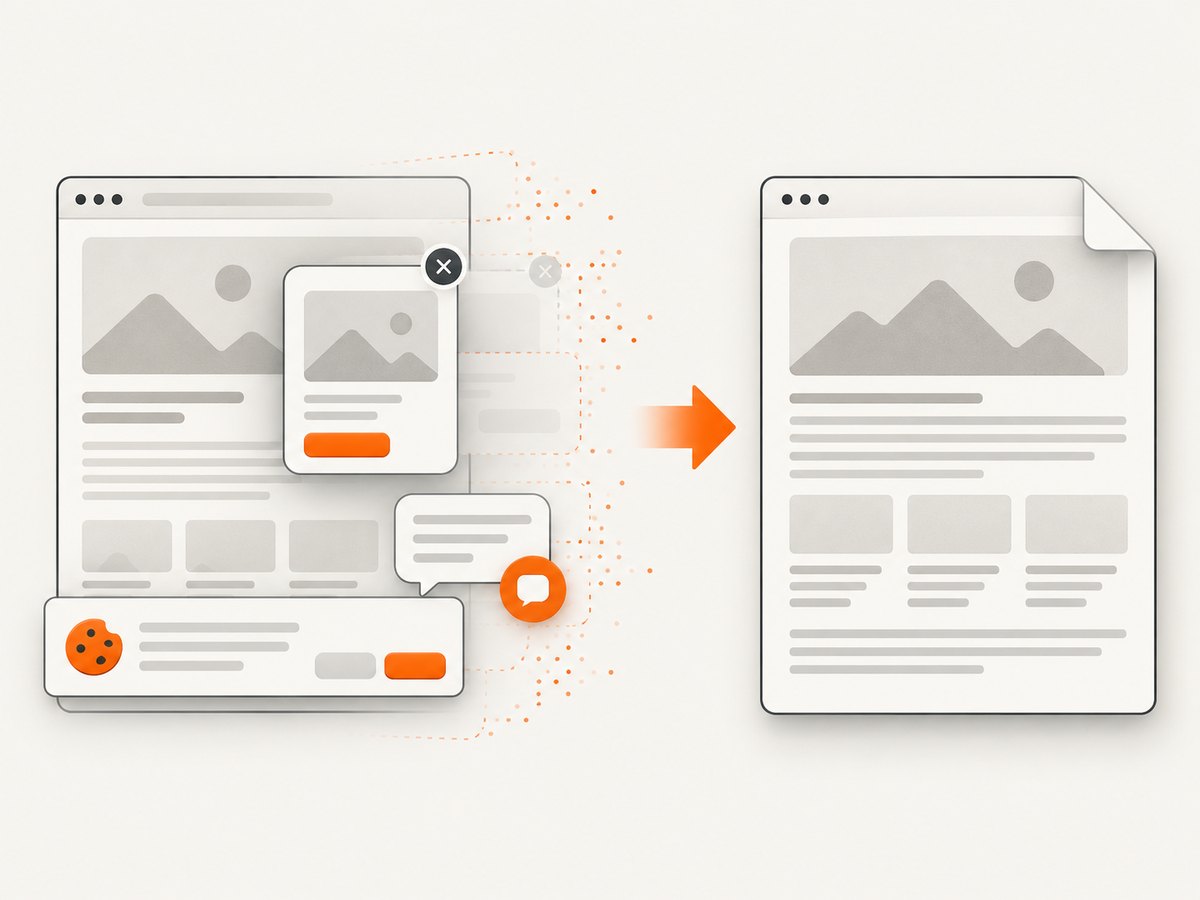
const res = await fetch(`https://api.screenshotneo.com/v1/shot?${q}`);Cookie and consent banners, newsletter popups, and chat widgets are removed before the shot. Bot checks, blank pages, timeouts, failed loads, and cache hits are not billed, and response headers identify the page verdict and billing result. Its MCP server lets Claude, Cursor, and other MCP clients call take_screenshot, get_page_info, and capture_pdf. The Free plan includes 1,000 shots per month with no card; paid plans start at $5 for 3,000 shots. Create a free ScreenshotNeo account.
FAQ
Can I return HTML and PDF from the same Rails action?
Yes. Use respond_to and provide separate HTML and PDF formats, as in the Wicked PDF example.
Should I use Wicked PDF or Grover?
Choose based on your templates and deployment constraints. Compare actual output and resource use in the target environment.
Why does a PDF have different line breaks than the browser?
The converter uses its own rendering engine, fonts, viewport, and print rules. Match assets and fonts, set explicit page options, and test the production runtime.
Can users submit HTML for conversion?
Only after strict sanitization and network and filesystem controls. Treat arbitrary HTML and URLs as untrusted input.
How do I diagnose an empty PDF?
Save and inspect the rendered HTML, check converter logs, verify asset responses, and confirm that asynchronous content is ready before conversion.


