How to Generate PDFs from JSON-Based HTML and SCSS Templates
Build reliable PDFs by validating JSON, rendering HTML, compiling SCSS to CSS, and choosing the right browser or HTML-to-PDF renderer.
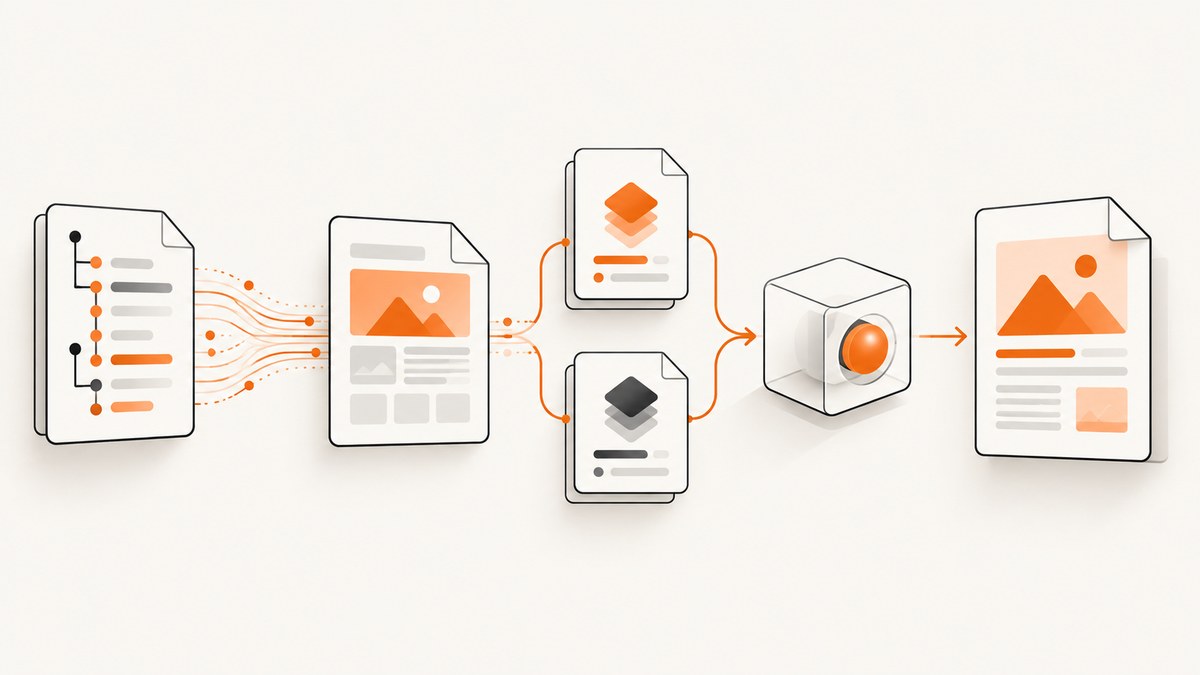
Direct answer: treat PDF generation as four separate stages: validate and normalize the JSON, render it into HTML, compile SCSS into CSS, and pass the finished HTML and CSS to a PDF renderer. Use Puppeteer or Playwright when the document depends on browser behavior or JavaScript. Use WeasyPrint when you want a library-oriented HTML/CSS-to-PDF pipeline. Both browser APIs use print CSS by default, so provide print rules or explicitly emulate screen media.
This guide builds the pipeline, shows runnable Node.js and Python implementations, explains print layout, assets, fonts, security, reliability and cost, and lists the errors that usually cause broken PDFs.
1. The PDF generation pipeline
Keep these responsibilities separate:
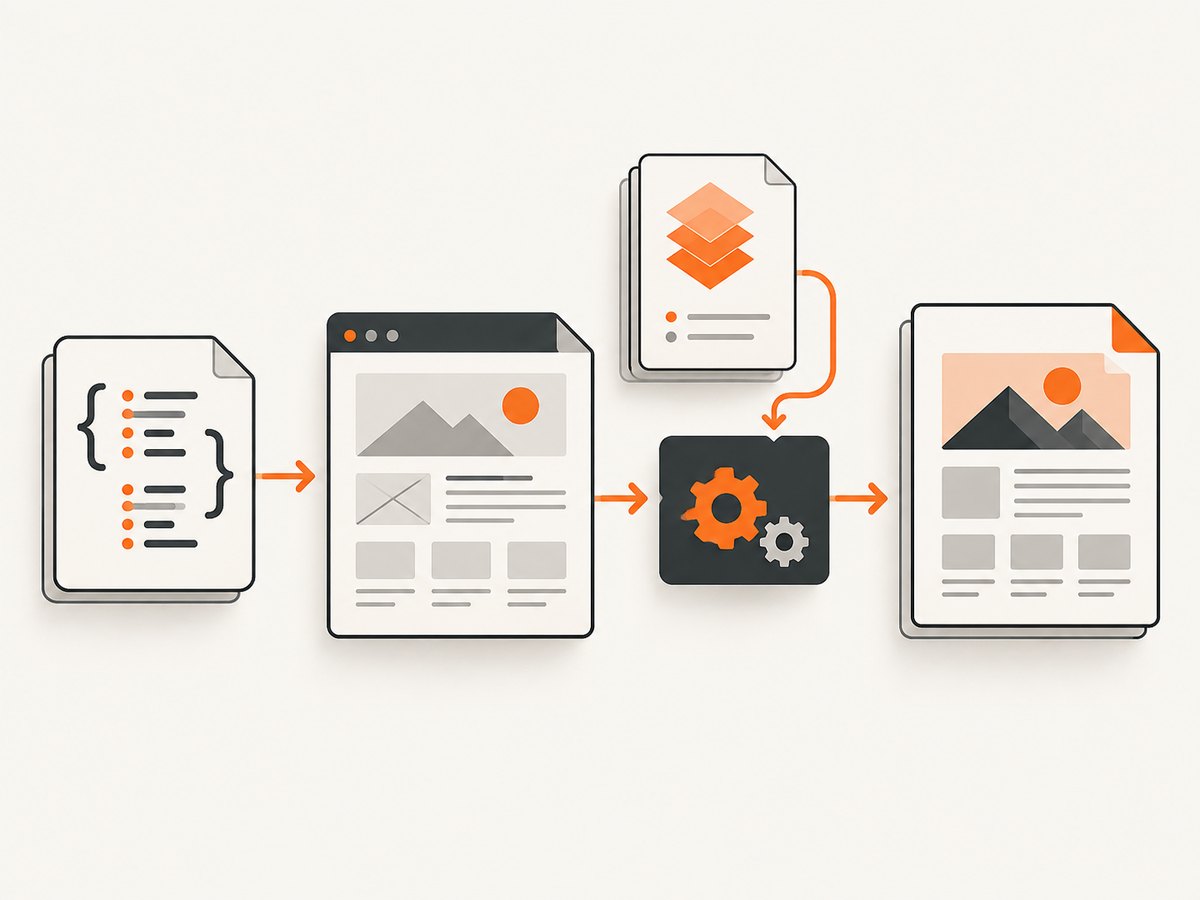
- Validate JSON: reject missing required fields and invalid types at the application boundary.
- Normalize data: convert dates, currency, optional values and repeated records into a predictable shape.
- Render HTML: apply the normalized data to a semantic template.
- Compile SCSS: turn SCSS into ordinary CSS before the renderer receives it.
- Render the PDF: provide HTML, CSS and document options to Puppeteer, Playwright or WeasyPrint.
- Inspect output: check page count, wrapping, fonts, links, colors, metadata and special characters using representative documents.
PDF engines do not define your JSON schema, template language or SCSS build. They consume HTML and CSS, or a browser page that contains them. Puppeteer documents PDF generation with print media as the default; Playwright documents the same behavior. Puppeteer Page.pdf() · Playwright Page API
2. Choose a renderer
| Requirement | Puppeteer or Playwright | WeasyPrint |
|---|---|---|
| Browser JavaScript, client-side layout or web components | Usually the better starting point because a real browser builds the page before printing. | Validate carefully; it is an HTML/CSS-to-PDF library rather than a browser runtime. |
| Library-style Python workflow | Possible through browser automation, but requires a browser process. | Accepts HTML and CSS from strings, files, URLs or file-like objects and writes a PDF. |
| Print and page layout | Use print CSS, paper format, margins, headers and footers. | Use CSS @page rules and verify the features your document needs. |
| Screen styles | Call page.emulateMediaType('screen') in Puppeteer or page.emulateMedia({ media: 'screen' }) in Playwright before creating the PDF. |
Write print-oriented CSS and validate output with your required features. |
There is no universal winner in the cited documentation. Render sample invoices, reports and long tables with the engine you select. WeasyPrint specifically cautions that output depends on the HTML, CSS and PDF features used. WeasyPrint First Steps · WeasyPrint common use cases
3. Prepare JSON and an HTML template
Validate before templating. A normalized object makes templates simpler and prevents formatting rules from being scattered through markup.
{
  "invoiceNumber": "INV-1042",
  "issuedAt": "2026-09-30",
  "customer": { "name": "Ada Lovelace", "email": "ada@example.com" },
  "items": [
    { "description": "API access", "quantity": 2, "unitPrice": 49.5 },
    { "description": "Support", "quantity": 1, "unitPrice": 20 }
  ],
  "currency": "USD"
}
Use an escaping template engine for untrusted values. Do not concatenate user-controlled strings into HTML. A minimal template can be rendered with a trusted engine such as Handlebars, Nunjucks or Jinja2.
<!doctype html>
<html>
<head>
  <meta charset="utf-8">
  <title>Invoice {{invoiceNumber}}</title>
</head>
<body>
  <header class="invoice-header">
    <h1>Invoice {{invoiceNumber}}</h1>
    <p>Issued {{issuedAt}}</p>
  </header>
  <section class="customer">
    <h2>Bill to</h2>
    <p>{{customer.name}}<br>{{customer.email}}</p>
  </section>
  <table class="items">
    <thead><tr><th>Description</th><th>Qty</th><th>Amount</th></tr></thead>
    <tbody>
      {{#each items}}
      <tr><td>{{description}}</td><td>{{quantity}}</td><td>{{unitPrice}}</td></tr>
      {{/each}}
    </tbody>
  </table>
</body>
</html>
4. Compile SCSS into print-ready CSS
Compile SCSS during the build or request pipeline. The PDF renderer receives CSS, not SCSS.
$ink: #202124;
$rule: #d9dce1;

@page {
  size: A4;
  margin: 18mm 16mm 20mm;
}

* { box-sizing: border-box; }
body {
  color: $ink;
  font-family: Arial, sans-serif;
  font-size: 10.5pt;
  line-height: 1.45;
  -webkit-print-color-adjust: exact;
  print-color-adjust: exact;
}
.invoice-header { border-bottom: 1px solid $rule; margin-bottom: 12mm; }
.items { border-collapse: collapse; width: 100%; }
.items th, .items td { border-bottom: 1px solid $rule; padding: 6pt; text-align: left; }
.items thead { display: table-header-group; }
tr { break-inside: avoid; }
.page-break { break-before: page; }
Compile it with Dart Sass:
npm install --save-dev sass
npx sass invoice.scss invoice.css --style=compressed
5. Complete Node.js example with Puppeteer
Install the dependencies:
npm install puppeteer handlebars sassThe following script reads JSON, compiles SCSS, renders a Handlebars template, waits for fonts and images, and writes an A4 PDF.
import fs from 'node:fs/promises';
import Handlebars from 'handlebars';
import sass from 'sass';
import puppeteer from 'puppeteer';

const data = JSON.parse(await fs.readFile('invoice.json', 'utf8'));
const templateSource = await fs.readFile('invoice.html', 'utf8');
const scssSource = await fs.readFile('invoice.scss', 'utf8');

if (!data.invoiceNumber || !Array.isArray(data.items)) {
  throw new Error('invoiceNumber and items are required');
}

const html = Handlebars.compile(templateSource)(data);
const css = sass.compileString(scssSource).css;
const browser = await puppeteer.launch({ headless: true });
try {
  const page = await browser.newPage();
  await page.setContent(html, { waitUntil: 'networkidle0' });
  await page.addStyleTag({ content: css });
  await page.evaluate(() => document.fonts.ready);
  await page.pdf({
    path: 'invoice.pdf',
    format: 'A4',
    printBackground: true,
    preferCSSPageSize: true,
    displayHeaderFooter: false,
    margin: { top: '18mm', right: '16mm', bottom: '20mm', left: '16mm' }
  });
} finally {
  await browser.close();
}
Puppeteer generates PDFs with the print CSS media type by default. If the design intentionally uses screen styles, call await page.emulateMediaType('screen') before page.pdf(). Puppeteer also documents paper format, margins, background printing and header/footer options in its PDFOptions reference.
Playwright variation
import { chromium } from 'playwright';

const browser = await chromium.launch();
try {
  const page = await browser.newPage();
  await page.setContent(html, { waitUntil: 'networkidle' });
  await page.addStyleTag({ content: css });
  await page.evaluate(() => document.fonts.ready);
  await page.pdf({
    path: 'invoice.pdf',
    format: 'A4',
    printBackground: true,
    preferCSSPageSize: true
  });
} finally {
  await browser.close();
}
To use screen media in Playwright, call await page.emulateMedia({ media: 'screen' }) before page.pdf(). See the official Page API for version-specific options.
6. Complete Python example with WeasyPrint
Install Jinja2, a Sass compiler and WeasyPrint using the installation method appropriate for your operating system. Compile SCSS first, then pass the resulting CSS to HTML.write_pdf().
import json
from pathlib import Path
import sass
from jinja2 import Environment, FileSystemLoader, StrictUndefined
from weasyprint import HTML, CSS

env = Environment(
    loader=FileSystemLoader('templates'),
    undefined=StrictUndefined,
    autoescape=True,
)
data = json.loads(Path('invoice.json').read_text())
if not data.get('invoiceNumber') or not isinstance(data.get('items'), list):
    raise ValueError('invoiceNumber and items are required')

html_text = env.get_template('invoice.html').render(**data)
css_text = sass.compile(filename='invoice.scss')
HTML(string=html_text, base_url=str(Path.cwd())).write_pdf(
    'invoice.pdf',
    stylesheets=[CSS(string=css_text)]
)
base_url gives relative images, stylesheets and fonts a predictable root. WeasyPrint supports HTML and CSS from strings, files, URLs and file-like objects; its write_pdf() method writes the rendered document as one PDF. Review its current documentation for supported CSS and PDF features before relying on advanced layout.
7. Layout, assets and print details
Page size and margins
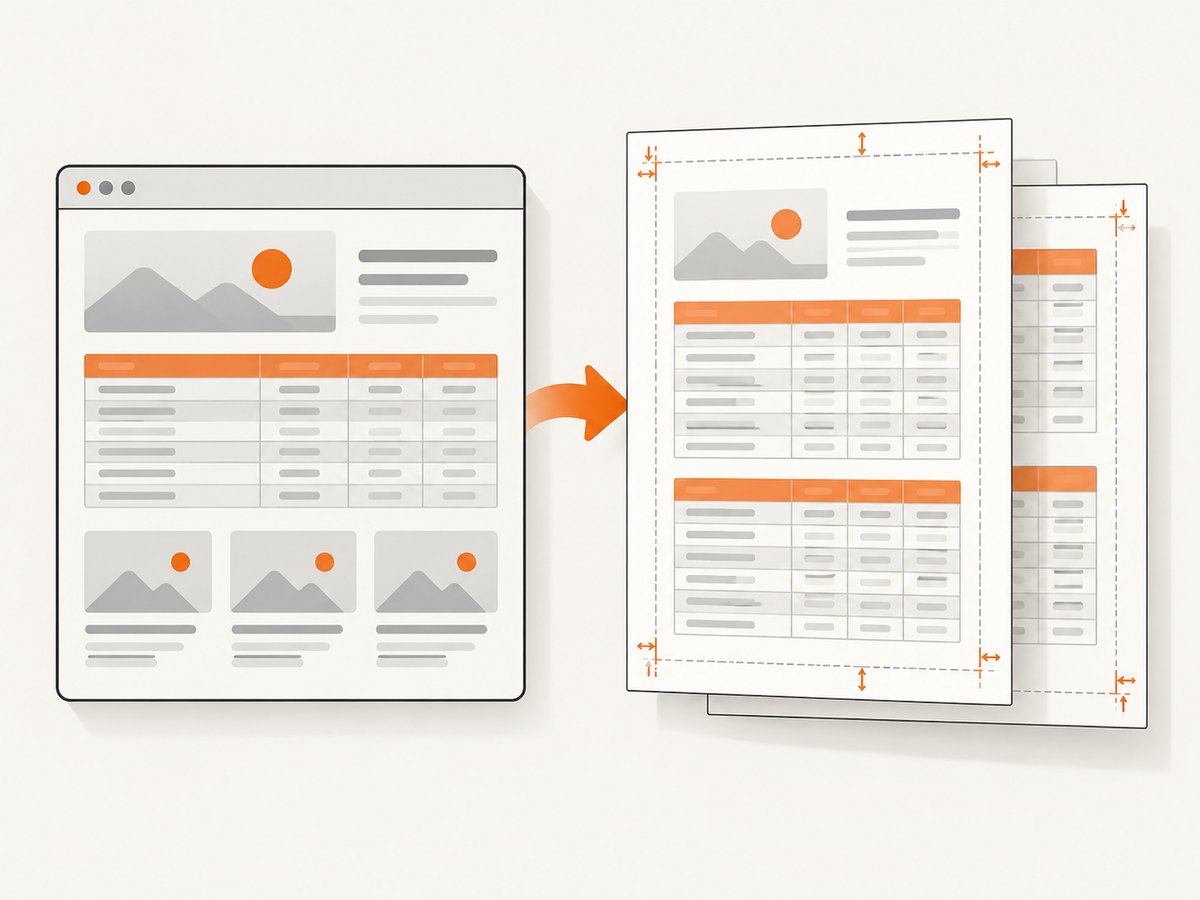
Use @page for paper size and margins when the renderer supports CSS page rules. Browser APIs also expose format and margin options. Set one source of truth where possible; conflicting CSS and API values make maintenance harder.
Colors
Print output may adjust colors. Use printBackground: true in browser APIs and -webkit-print-color-adjust: exact (plus the standard print-color-adjust) when exact colors matter. Validate on the PDF output, because color management can still vary by viewer and printer.
Headers, footers and page numbers
Puppeteer exposes header and footer templates through its PDF options. Keep them small, escape dynamic values, and reserve enough margin for them. For complex repeating content, test multi-page documents rather than assuming a header will never overlap body content.
Tables and page breaks
Use thead { display: table-header-group; } for repeating table headings and break-inside: avoid on rows or cards that should stay together. Long unbreakable strings, oversized images and flex layouts can still force unexpected pagination; include these cases in fixture data.
Fonts and images
Wait for document.fonts.ready in a browser before printing. Make local assets available through an absolute URL or a correct base_url. Confirm that every font weight used in CSS is installed or bundled; a fallback font changes line wrapping and therefore page count.
Screen versus print CSS
Browser PDF generation defaults to print media. Add an explicit @media print section for print-only changes, or emulate screen media when the PDF must match the on-screen design. Do not assume a screen layout will paginate correctly without print rules.
8. Security and untrusted content
- Validate JSON against a schema and cap document size, item counts and string lengths.
- Escape template variables. Allow raw HTML only from a trusted, sanitized source.
- Restrict network access if templates can reference external URLs.
- Run browser rendering with an appropriate sandbox and isolated filesystem permissions.
- For WeasyPrint, constrain resource loading: its documentation warns that untrusted HTML/CSS can expose local filesystem resources. See the security guidance in the official documentation.
- Never let a user-controlled URL select arbitrary local files or internal services.
9. Reliability, performance and cost
Reliability checklist
- Use a rendering timeout and terminate hung browser jobs.
- Retry transient browser or resource failures with a bounded backoff; do not retry malformed input.
- Log the normalized input version, renderer version, page count, duration and failure stage.
- Keep a small visual regression fixture set: one page, many pages, long text, missing optional values, images, special characters and wide tables.
- Pin renderer and browser versions in deployment, then re-run fixtures when upgrading.
Performance
Reuse a browser process when safe, but create a fresh page or context per document. Avoid loading unnecessary third-party resources, wait only for the readiness condition your page needs, and compile SCSS once per build rather than once per request. Large images and web fonts often dominate memory and rendering time.
Cost
Self-hosted Puppeteer, Playwright and WeasyPrint costs depend on your compute, browser lifecycle and document volume. Measure representative PDFs; the cited renderer documentation does not provide a universal performance or cost comparison. If rendering is an operational burden, a hosted capture API can remove browser setup.
10. Troubleshooting
| Symptom | Likely cause | Fix |
|---|---|---|
| SCSS appears as plain text or styles are missing | SCSS was passed directly to the renderer. | Compile it to CSS first and inject or link the compiled output. |
| Colors or spacing differ from the web page | Print media is the default, or backgrounds are disabled. | Add print CSS, emulate screen media deliberately, and enable background printing. |
| Images are absent | Relative URLs have no base URL, or the request was not finished. | Set base_url, use reachable URLs, and wait for the correct load condition. |
| Fallback fonts change pagination | The intended font is unavailable or not loaded yet. | Bundle/install the font and wait for document.fonts.ready. |
| Rows split awkwardly | Break rules do not apply to the element, or content is larger than a page. | Use table header groups, break-inside: avoid, and allow oversized content to split where necessary. |
| Blank or incomplete PDF | JavaScript or network resources were still loading. | Wait for a page-specific readiness selector, fonts and required requests; avoid an arbitrary short delay. |
| Browser launch fails in production | Missing browser dependencies, sandbox restrictions or an incompatible executable. | Install the documented runtime dependencies, configure the executable path only when necessary, and record the browser version. |
| WeasyPrint cannot load a resource | Incorrect URL, missing base_url or restricted fetch policy. |
Use a correct base URL and an explicit, safe resource loader. |
| Untrusted HTML reads local files | Resource access was left unrestricted. | Sanitize input and restrict file and network access before rendering. |
11. Or skip the browser setup
ScreenshotNeo provides a website capture API and MCP server. One GET request returns a clean PNG, JPEG, WebP or PDF; the service can also handle full-page capture, custom CSS and JavaScript, waiting conditions, headers, cookies, device settings and PDF options. See the ScreenshotNeo API documentation for the current request options.
curl -G "https://api.screenshotneo.com/v1/shot" -d access_key=YOUR_API_KEY --data-urlencode url=https://stripe.com -o shot.webpimport requests
r = requests.get("https://api.screenshotneo.com/v1/shot", params={"access_key": "YOUR_API_KEY", "url": "https://stripe.com"}, timeout=90)
open("shot.webp", "wb").write(r.content)const q = new URLSearchParams({ access_key: 'YOUR_API_KEY', url: 'https://stripe.com' });
const res = await fetch(`https://api.screenshotneo.com/v1/shot?${q}`);Cookie banners, newsletter popups and chat widgets are removed before the shot. Bot checks, blank pages and failed loads are never billed, and response headers identify the page verdict and whether it was billed. Its MCP server lets AI agents use take_screenshot, get_page_info and capture_pdf. The Free plan includes 1,000 screenshots each month with no card; paid plans start at $5 for 3,000.
Create a free ScreenshotNeo account and start with 1,000 screenshots a month at no charge.
12. FAQ
Should JSON be rendered directly into a PDF?
No. Render JSON into validated HTML first, then provide HTML and compiled CSS to the PDF engine.
Why does my PDF look different from the browser?
PDF generation uses print media by default in Puppeteer and Playwright. Print rules, font availability and resource timing also affect layout.
Can SCSS be used without a separate build step?
It can be compiled in the same process with a Sass library, but the renderer still receives the resulting CSS.
When should I choose WeasyPrint?
Choose it when a Python library workflow and HTML/CSS pagination fit your document. Validate JavaScript-dependent pages and advanced CSS features before committing.
How do I keep PDFs reproducible?
Pin renderer versions, bundle fonts and assets, normalize input, fix locale and timezone behavior, and run visual fixtures after dependency changes.


