How to Generate PDFs With Playwright and DOM in AdonisJS
Generate production-ready PDFs from trusted HTML and DOM content in AdonisJS with Playwright, print CSS, layout options, delivery patterns, and troubleshooting.

To generate a PDF in AdonisJS, render or assemble the HTML you want, load it into a Playwright page, wait for its fonts, images, and client-side content, call page.pdf(), then return the resulting buffer from an AdonisJS response. Playwright uses print CSS media by default, so the PDF may differ from what you see in a normal browser window. Set paper size, margins, backgrounds, scaling, page ranges, and CSS page sizing deliberately.
This guide shows a complete implementation, explains the important layout choices, and covers memory, concurrency, failures, and delivery. The examples use TypeScript and the current AdonisJS application structure; verify the exact API against the versions installed in your project.
1. Install Playwright and prepare AdonisJS
Install Playwright in your AdonisJS project and download a browser binary:
npm install playwright
npx playwright install chromium
Playwright needs a Chromium executable at runtime. In a container or CI environment, install the operating-system packages required by the browser image as well as the browser binary. AdonisJS’s current installation and deployment documentation lists Node.js 24 or later; runtime requirements can change, so check the AdonisJS installation guide and deployment guide when you publish or upgrade.
Create a route that calls a controller method, or start with an inline route while you are building the feature. Keeping browser work in a service makes it easier to reuse the same browser and to add a queue later.
2. Render trusted HTML and create the PDF
page.setContent(html) replaces the document in a browser page with your HTML. The HTML should come from your normal application rendering path or from a trusted template. Do not concatenate untrusted user input into markup without escaping it. If users can supply HTML, sanitize it and restrict external resources.
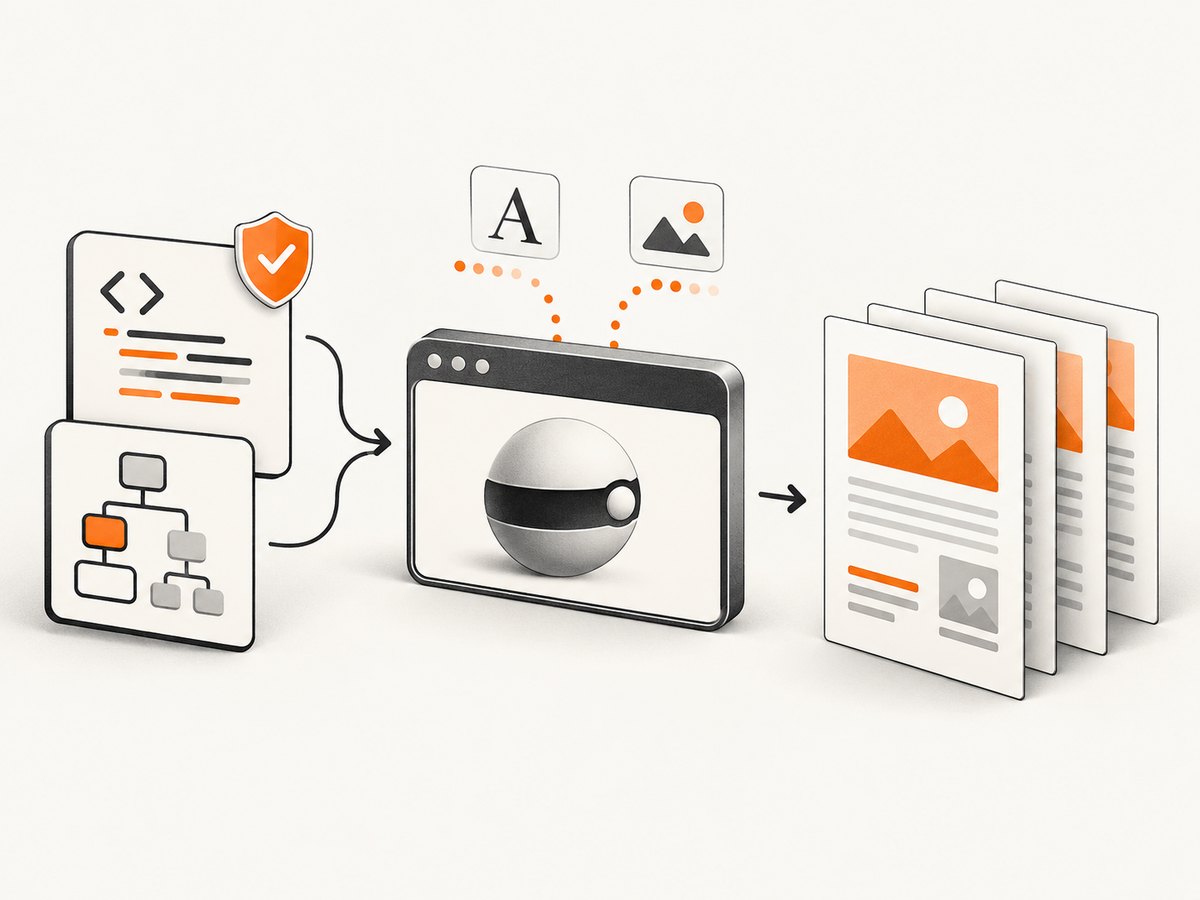
The following service launches one browser, creates a page for each request, waits for document readiness, and returns the PDF buffer:
import { chromium, type Browser, type Page } from 'playwright'

export class PdfService {
  private browser?: Browser

  private async getBrowser() {
    if (!this.browser) {
      this.browser = await chromium.launch({ headless: true })
    }
    return this.browser
  }

  async fromHtml(html: string): Promise<Buffer> {
    const browser = await this.getBrowser()
    const page: Page = await browser.newPage({
      viewport: { width: 1280, height: 900 },
      deviceScaleFactor: 1,
    })

    try {
      await page.setContent(html, { waitUntil: 'domcontentloaded' })

      // Wait for fonts used by the document. This is a real readiness check,
      // unlike an arbitrary sleep.
      await page.evaluate(async () => {
        if (document.fonts) await document.fonts.ready
      })

      // If your template loads images, wait until each image has completed.
      await page.waitForFunction(() => {
        return Array.from(document.images).every((image) => image.complete)
      })

      return await page.pdf({
        format: 'A4',
        printBackground: true,
        margin: {
          top: '18mm',
          right: '16mm',
          bottom: '18mm',
          left: '16mm',
        },
        preferCSSPageSize: true,
      })
    } finally {
      await page.close()
    }
  }

  async close() {
    await this.browser?.close()
    this.browser = undefined
  }
}
page.pdf() returns a PDF buffer, so no temporary file is required for a normal HTTP response. The API generates output with print CSS media by default. If your design is written for screen media, call await page.emulateMedia({ media: 'screen' }) before generating the PDF. The Playwright PDF API documents this behavior and the available options.
3. Add an AdonisJS controller and route
Here is a complete controller that obtains data, renders a small HTML document, generates a buffer, and sets the response headers:
import type { HttpContext } from '@adonisjs/core/http'
import { PdfService } from '#services/pdf_service'
export default class InvoicesController {
private pdf = new PdfService()
async show({ params, response }: HttpContext) {
const invoice = {
id: params.id,
customer: 'Example customer',
total: '€240.00',
lines: [
{ description: 'Consulting', quantity: 2, amount: '€200.00' },
{ description: 'Tax', quantity: 1, amount: '€40.00' },
],
}
const rows = invoice.lines.map((line) => `
<tr>
<td>${escapeHtml(line.description)}</td>
<td>${line.quantity}</td>
<td>${escapeHtml(line.amount)}</td>
</tr>
`).join('')
const html = `<!doctype html>
<html>
<head>
<meta charset="utf-8" />
<style>
@page { size: A4; margin: 18mm 16mm; }
* { box-sizing: border-box; }
body { font-family: Arial, sans-serif; color: #202124; margin: 0; }
h1 { margin: 0 0 8px; }
table { width: 100%; border-collapse: collapse; margin-top: 24px; }
th, td { border-bottom: 1px solid #d9d9d9; padding: 10px 4px; text-align: left; }
.total { margin-top: 24px; text-align: right; font-size: 20px; }
.avoid-break { break-inside: avoid; }
-webkit-print-color-adjust: exact;
</style>
</head>
<body>
<section class="avoid-break">
<h1>Invoice ${escapeHtml(invoice.id)}</h1>
<p>Customer: ${escapeHtml(invoice.customer)}</p>
</section>
<table>
<thead><tr><th>Description</th><th>Qty</th><th>Amount</th></tr></thead>
<tbody>${rows}</tbody>
</table>
<p class="total">Total: ${escapeHtml(invoice.total)}</p>
</body>
</html>`
const buffer = await this.pdf.fromHtml(html)
response.header('Content-Type', 'application/pdf')
response.header('Content-Disposition', `inline; filename="invoice-${invoice.id}.pdf"`)
return response.send(buffer)
}
}
function escapeHtml(value: string) {
return value.replace(/[&<>"']/g, (character) => ({
'&': '&',
'<': '<',
'>': '>',
'"': '"',
"'": ''',
})[character]!)
}Register the route in start/routes.ts:
import router from '@adonisjs/core/services/router'
const InvoicesController = () => import('#controllers/invoices_controller')

router.get('/invoices/:id.pdf', [InvoicesController, 'show'])
Use inline when the browser should display the document. Use attachment when it should download. AdonisJS also provides response.download(path), response.attachment(path, filename), and response.stream(readable) for file-backed or streaming responses. See the AdonisJS response guide.
4. Choose PDF layout options intentionally
| Option | What it controls | Practical guidance |
|---|---|---|
format |
Paper preset such as A4, Letter, or Legal. | Use a named format for predictable pagination. Format takes precedence over width and height. |
width, height |
Explicit dimensions. | Unlabeled values are pixels. Use units such as mm or in when clarity matters. |
margin |
Top, right, bottom, and left whitespace. | Leave room for printer-safe content and any header or footer. |
printBackground |
Background colors and images. | The default is false. Set true when the design depends on backgrounds. |
scale |
Overall rendering scale. | Use sparingly; scaling changes line wrapping and page breaks. |
pageRanges |
Pages to include, such as 1-3. |
Useful for previews or extracting a known section. |
preferCSSPageSize |
Whether CSS @page dimensions win. |
Set true when the template owns paper size and margins. |
displayHeaderFooter |
Browser-generated header and footer templates. | Templates have limitations: scripts are not evaluated and page styles are not visible inside them. |
Playwright supports ISO A-series sizes and common formats such as Letter and Legal. If you specify both format and dimensions, the format wins. When preferCSSPageSize is true, a CSS @page size takes priority over API dimensions and format. Use break-inside: avoid, break-before, and break-after to control important sections, but expect complex tables to require template-specific adjustments.
5. Make DOM content ready before capture
There is no universal sleep value that guarantees a correct document. Wait for the condition your page actually needs:
- Use
waitUntil: 'domcontentloaded'for the initial document. - Wait for a known application marker with
page.waitForSelector('[data-pdf-ready]'). - Await
document.fonts.readywhen web fonts affect line wrapping. - Wait for images to be complete, or verify each image’s natural dimensions.
- For client-rendered data, wait for the request or DOM state that proves rendering finished.
- Use
page.waitForLoadState('networkidle')only when the page eventually becomes quiet; analytics or long polling can prevent it from completing.
For a full application page instead of an HTML string, call await page.goto(url, { waitUntil: 'domcontentloaded' }), authenticate with a controlled context, then apply the same readiness checks. Keep credentials out of URLs and logs.
6. Print CSS versus screen CSS
PDF generation uses print media. A stylesheet can therefore hide navigation, change colors, or alter layout with @media print. If the intended result is the screen design, use:
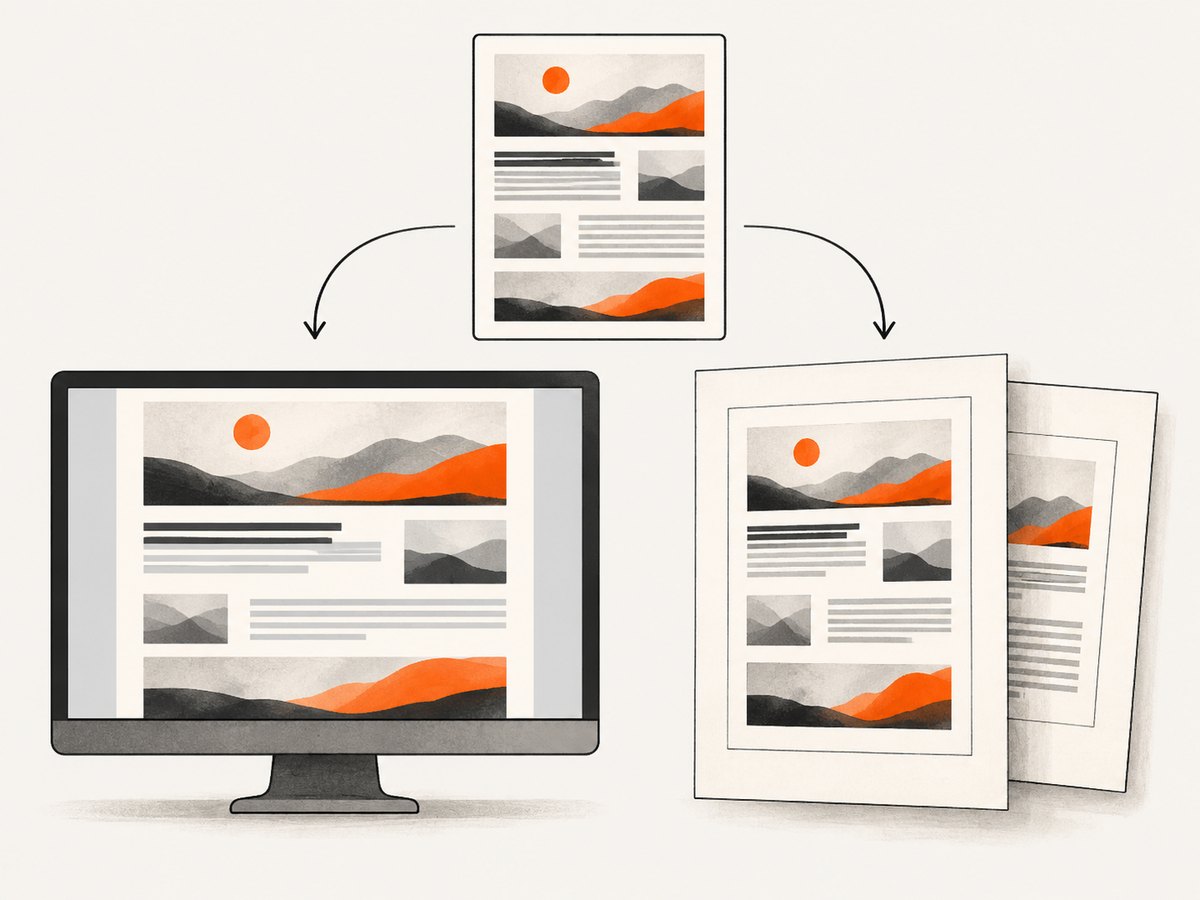
await page.emulateMedia({ media: 'screen' })
const pdf = await page.pdf({ printBackground: true })
Chromium also modifies colors for printing by default. Add -webkit-print-color-adjust: exact to elements whose colors must remain exact, and still enable printBackground for background graphics.
7. Browser lifecycle, performance, and reliability
- Reuse the browser, isolate pages. Launching Chromium for every request adds startup work. Reuse a browser instance, create a fresh page or context per job, and always close the page in
finally. - Bound concurrency. Each page consumes memory. Put PDF jobs behind a queue or semaphore when traffic can spike, and reject or defer work before the host runs out of memory.
- Set request timeouts. Apply navigation and application-level deadlines. A failed job should close its page and return a clear 4xx or 5xx response rather than hold a connection indefinitely.
- Keep assets deterministic. Self-host fonts and images where possible. External services add DNS, TLS, and availability dependencies.
- Handle browser crashes. If a shared browser disconnects, discard the instance and launch a replacement. Do not keep handing out pages from a disconnected browser.
- Choose memory or files deliberately. A buffer is convenient for small and medium documents. For very large PDFs, write to a controlled temporary path and use AdonisJS download or stream helpers, then remove the file after delivery.
These are implementation choices rather than universal Playwright guarantees. Measure your own templates, document sizes, and deployment limits before selecting queue and worker settings.
8. Troubleshooting common failures
| Symptom | Likely cause | Fix |
|---|---|---|
| “Executable doesn’t exist” | The Chromium binary was not installed in the runtime image. | Run npx playwright install chromium during the image build and install required OS libraries. |
| Blank or partially rendered PDF | PDF creation ran before client rendering, fonts, or images finished. | Wait for an application marker, fonts, and image completion instead of adding an arbitrary delay. |
| Colors or backgrounds missing | Print backgrounds are disabled or print CSS changes the design. | Set printBackground: true, inspect @media print, and use emulateMedia('screen') when appropriate. |
| Unexpected page breaks | Paper size, margins, scale, or font metrics differ from the browser preview. | Set one source of truth for page size, load the intended fonts, and adjust break rules. |
| Images are broken | Relative URLs have no base URL after setContent, or remote resources are blocked. |
Use absolute URLs, a controlled <base>, inline data where suitable, and wait for image completion. |
| Request hangs | networkidle never occurs because of analytics, sockets, or polling. |
Wait for a specific selector or request and enforce a timeout. |
| Out-of-memory crashes | Too many concurrent pages or very large documents. | Limit concurrency, close pages in finally, reduce asset size, and move jobs to workers. |
| Download has the wrong name | Missing or malformed Content-Disposition. |
Set an ASCII-safe filename explicitly and choose inline or attachment. |
9. Or skip the browser setup
If your goal is a clean capture of a public page rather than a bespoke server-side document, ScreenshotNeo provides a website screenshot API and MCP server. One GET request returns PNG, JPEG, WebP, or PDF output; see the ScreenshotNeo API documentation for the PDF and layout parameters.
curl -G "https://api.screenshotneo.com/v1/shot" -d access_key=YOUR_API_KEY --data-urlencode url=https://stripe.com -o shot.webpimport requests
r = requests.get("https://api.screenshotneo.com/v1/shot", params={"access_key": "YOUR_API_KEY", "url": "https://stripe.com"}, timeout=90)
open("shot.webp", "wb").write(r.content)const q = new URLSearchParams({ access_key: 'YOUR_API_KEY', url: 'https://stripe.com' }); const res = await fetch(`https://api.screenshotneo.com/v1/shot?${q}`);Cookie and consent banners, newsletter popups, and chat widgets are removed before the shot. Bot checks, blank pages, failed loads, timeouts, and cache hits are not billed, and response headers identify the page verdict and billing result. An MCP server lets Claude, Cursor, and other MCP clients call take_screenshot, get_page_info, and capture_pdf. The Free plan includes 1,000 screenshots each month with no card; paid plans start at $5 for 3,000. Create a free ScreenshotNeo account.
10. FAQ
Does Playwright use screen styles for PDFs?
No. page.pdf() uses print CSS media by default. Emulate screen media before calling it when the screen layout is the desired output.
Can I return a PDF without writing a file?
Yes. page.pdf() returns a buffer, which AdonisJS can send with Content-Type: application/pdf.
Which controls page size: CSS or Playwright?
Normally the API’s format or dimensions control it. Set preferCSSPageSize: true when the template’s @page rule should take priority.
Why does a PDF have different colors than the browser?
Print rendering can modify colors and backgrounds. Enable printBackground and use -webkit-print-color-adjust: exact where exact colors matter.
Should every request launch a new browser?
Not usually. Reuse a browser, isolate work in pages or contexts, bound concurrency, and restart the browser when it disconnects.


