How to Generate PDFs with Puppeteer on Windows
Learn how to install Puppeteer, generate reliable PDFs on Windows, fix Chrome and styling problems, and use ScreenshotNeo when you want a managed API.

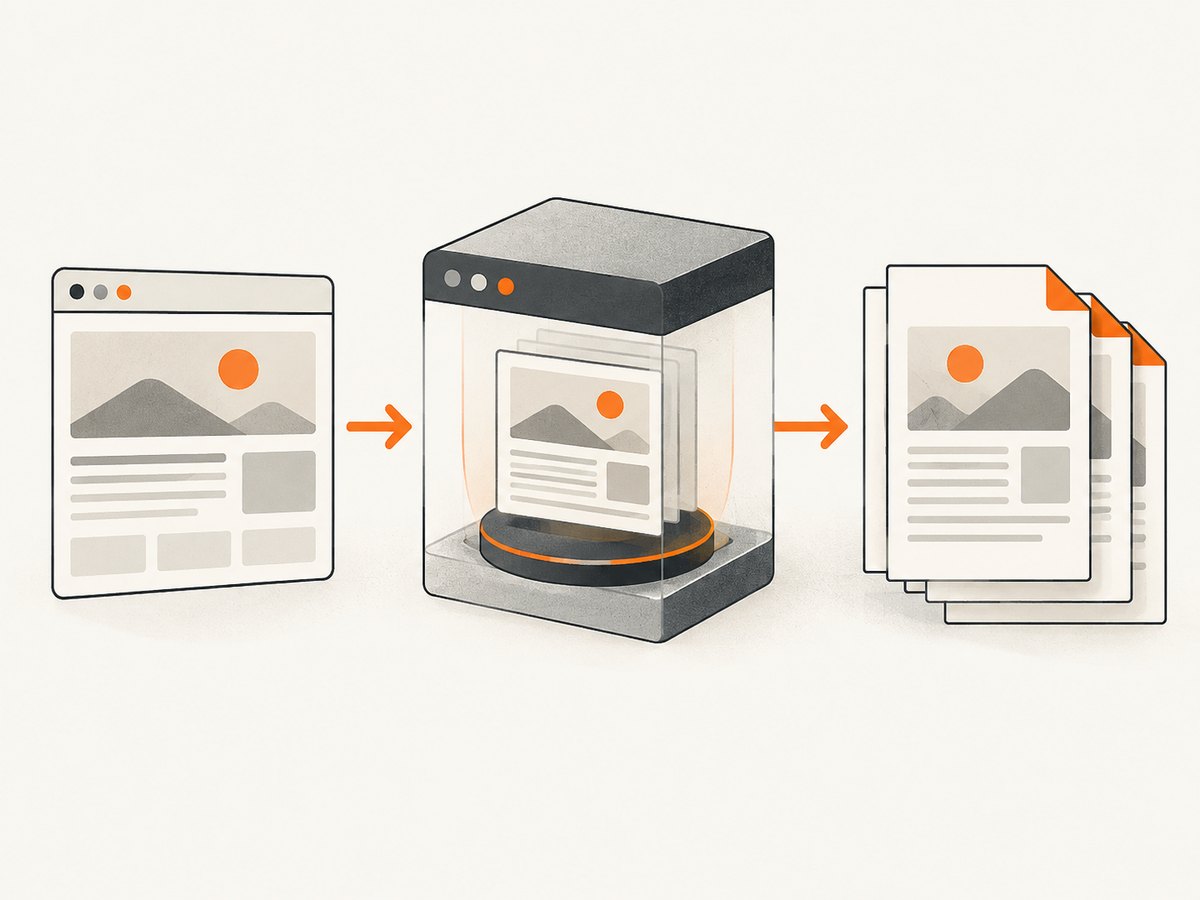
Direct answer: install Puppeteer with npm i puppeteer, let it download its compatible Chrome for Testing browser, open a page, wait for the page to load, call page.pdf(), and close the browser. On Windows, the most common failures come from a missing managed browser, an incorrect executablePath, enterprise policies, file permissions, or print CSS that differs from the screen design.
1. Install Puppeteer on Windows
Install Node.js from the official Node.js distribution, open PowerShell in a new project directory, and run:
mkdir puppeteer-pdf
cd puppeteer-pdf
npm init -y
npm i puppeteer
The puppeteer package normally downloads a compatible Chrome for Testing build during installation. The Windows download is approximately 280 MB, so allow time and disk space for it. If your package manager blocks install scripts, install the browser explicitly:
npx puppeteer browsers installUse puppeteer when you want Puppeteer to manage a compatible browser. puppeteer-core does not download Chrome; you must provide a browser executable and launch configuration yourself.
2. The smallest working PDF script
Create make-pdf.js:
const puppeteer = require('puppeteer');

(async () => {
  const browser = await puppeteer.launch();
  try {
    const page = await browser.newPage();
    await page.goto('https://example.com', {
      waitUntil: 'networkidle2',
      timeout: 60000
    });

    await page.pdf({
      path: 'output.pdf',
      format: 'A4',
      printBackground: true
    });
  } finally {
    await browser.close();
  }
})();
Run it with:
node make-pdf.jsThis follows the essential sequence: launch, create a page, navigate, generate the PDF, and close the browser. The Puppeteer documentation summarizes the core operation as: “For printing PDFs use Page.pdf().”
3. A production-ready Windows example
A real service should validate its input, set timeouts, wait for fonts and application content, and always close the browser. The following script accepts a URL and output filename from the command line:
const puppeteer = require('puppeteer');
const fs = require('node:fs');

const targetUrl = process.argv[2] || 'https://example.com';
const outputPath = process.argv[3] || 'output.pdf';

function assertHttpUrl(value) {
  const url = new URL(value);
  if (!['http:', 'https:'].includes(url.protocol)) {
    throw new Error('Only http and https URLs are allowed');
  }
  return url.href;
}

(async () => {
  const browser = await puppeteer.launch({
    headless: true
  });

  try {
    const page = await browser.newPage();
    await page.setViewport({ width: 1440, height: 900, deviceScaleFactor: 1 });
    await page.goto(assertHttpUrl(targetUrl), {
      waitUntil: 'networkidle2',
      timeout: 90000
    });

    await page.evaluate(() => document.fonts.ready);
    await page.pdf({
      path: outputPath,
      format: 'A4',
      printBackground: true,
      preferCSSPageSize: true,
      margin: { top: '18mm', right: '16mm', bottom: '18mm', left: '16mm' }
    });

    console.log(`Wrote ${outputPath} (${fs.statSync(outputPath).size} bytes)`);
  } finally {
    await browser.close();
  }
})();
networkidle2 waits until there are no more than two active network connections. It is useful for ordinary pages, but analytics, chat, and streaming requests can prevent a page from becoming idle. In those cases, wait for a page-specific selector or use a short delay instead.
4. Control print layout, media, colors, and fonts
page.pdf() uses print CSS media by default. If the page is designed for the screen, select screen media before generating the PDF:
await page.emulateMediaType('screen');
await page.pdf({
  path: 'screen-styled.pdf',
  format: 'A4',
  printBackground: true
});
Browsers can modify colors for printing. Add this CSS when exact colors matter:
@media print {
  * {
    -webkit-print-color-adjust: exact;
    print-color-adjust: exact;
  }
}
printBackground: true includes CSS background colors and images. Without it, a dark hero section or colored table may become white.
Fonts affect both appearance and pagination. Puppeteer waits for fonts by default as part of PDF generation, but the Windows process still needs network access or locally installed font files. For predictable output, self-host the required web fonts, wait for document.fonts.ready, and use a fallback stack.
5. PDF options you will use most often
| Option | Purpose |
|---|---|
path |
Writes the PDF to a Windows path such as reports\invoice.pdf. |
format |
Preset paper size such as A4 or Letter. |
width, height |
Custom paper dimensions, for example 210mm and 297mm. |
landscape |
Rotates the page orientation. |
margin |
Sets top, right, bottom, and left margins using CSS units. |
printBackground |
Prints background graphics and colors. |
displayHeaderFooter |
Enables PDF headers and footers. |
headerTemplate, footerTemplate |
HTML templates for page numbers, dates, and titles. |
preferCSSPageSize |
Uses the document’s CSS @page size when available. |
pageRanges |
Exports selected pages such as 1-3 or 2,5. |
omitBackground |
Creates a transparent page background where supported. |
A custom paper and page range example:
await page.pdf({
  path: 'selected-pages.pdf',
  width: '210mm',
  height: '297mm',
  margin: { top: '12mm', bottom: '12mm', left: '12mm', right: '12mm' },
  pageRanges: '1-3,5',
  printBackground: true,
  preferCSSPageSize: true
});
6. Headers, footers, and page breaks
Enable templates with displayHeaderFooter. Puppeteer provides classes such as pageNumber, totalPages, date, and title:
await page.pdf({
  path: 'report.pdf',
  format: 'A4',
  displayHeaderFooter: true,
  headerTemplate: '<div style="font-size:9px;width:100%;text-align:center">Quarterly report</div>',
  footerTemplate: '<div style="font-size:9px;width:100%;text-align:center">Page <span class="pageNumber"></span> of <span class="totalPages"></span></div>',
  margin: { top: '25mm', bottom: '22mm' }
});
Use print CSS to avoid splitting important blocks:
.invoice, .card, table {
  break-inside: avoid;
}
.page-break {
  break-before: page;
}
@page {
  size: A4;
  margin: 18mm;
}
Tables that are wider than the printable area can overflow or shrink. Set column widths, allow wrapping, and test long values such as URLs and unbroken identifiers.
7. Browser paths and Windows configuration
If Puppeteer manages Chrome, do not set executablePath. If Chrome is installed separately, pass the real path on the machine running Node.js:
const browser = await puppeteer.launch({
  executablePath: 'C:\\Program Files\\Google\\Chrome\\Application\\chrome.exe'
});
You can also configure a supported Chrome channel or set PUPPETEER_EXECUTABLE_PATH. The managed browser layout includes a path ending in chrome-win64\\chrome.exe. Do not copy a path from another computer: drive letters, user profiles, and cache locations differ.
For repeatable deployments, keep the Puppeteer version and browser cache consistent across machines. PUPPETEER_CACHE_DIR can point to a controlled cache directory. In CI, make browser installation an explicit setup step and cache the downloaded browser when your CI provider permits it.
8. Common errors and fixes
| Error or symptom | Cause | Fix |
|---|---|---|
| Chrome executable not found | Install scripts were skipped or the cache is empty. | Run npx puppeteer browsers install in the same project and cache environment. Remove a stale executablePath. |
| Works locally, fails on a server | The server has a different user, cache, or browser path. | Install the browser during deployment and log the resolved path. Avoid machine-specific paths. |
| Access denied launching Chrome | Windows file permissions or security policy. | Ensure the process account can read and execute the Chrome directory. Puppeteer 22.14.0 and later attempts to configure permissions with Chrome’s setup program; older installs may require the documented icacls fix. |
| Enterprise policy blocks launch | Chrome policy or extension requirements. | Puppeteer disables extensions by default. If policy requires them, review the Puppeteer troubleshooting guidance and use enableExtensions: true where appropriate. |
| PDF is missing colors | Print color adjustment or backgrounds are disabled. | Set printBackground: true and add -webkit-print-color-adjust: exact. |
| Layout differs from the browser | Print media CSS is active by default. | Call emulateMediaType('screen'), or provide deliberate print styles. |
| Fonts are wrong or content shifts | Font files are unavailable or not loaded before capture. | Self-host fonts, verify network access, and await document.fonts.ready. |
| Navigation timeout | Slow resources, long polling, or a page that never becomes idle. | Increase the timeout, use waitUntil: 'domcontentloaded', then wait for a known selector. |
| Blank or incomplete PDF | Content is rendered after navigation. | Wait for an application-specific selector, data request, or font readiness before calling page.pdf(). |
9. Authentication, cookies, and dynamic pages
For a protected page, establish the session before navigation:
const page = await browser.newPage();
await page.setCookie({
  name: 'session',
  value: process.env.SESSION_COOKIE,
  domain: 'example.com',
  path: '/'
});
await page.goto('https://example.com/report', { waitUntil: 'networkidle2' });
For applications that fetch data after the initial load, wait for a stable selector:
await page.goto('https://example.com/dashboard', { waitUntil: 'domcontentloaded' });
await page.waitForSelector('[data-report-ready]', { timeout: 60000 });
await page.pdf({ path: 'dashboard.pdf', format: 'A4', printBackground: true });
Never place passwords or session tokens directly in source control. Use environment variables and restrict which URLs your service is allowed to fetch. If your service accepts arbitrary URLs, validate schemes and consider network egress controls to prevent requests to internal systems.
10. Performance, reliability, and cost
Launching Chrome is expensive compared with creating a page. A long-running worker can reuse one browser and create a fresh page per job, while a short-lived script should close the browser in a finally block. Limit concurrency so several large pages do not exhaust memory. Reuse pages only when you can fully clear cookies, storage, and application state between jobs.
Choose the narrowest wait condition that matches the page. networkidle2 is convenient but can wait forever on live sites. A known readiness selector is usually more deterministic. Set navigation and selector timeouts, record failures, and retry transient navigation errors with a limit. Do not retry a deterministic selector or browser-path error indefinitely.
PDF generation itself has no Puppeteer license fee, but your Windows host, browser downloads, memory, and network traffic have operational costs. Pin package versions, keep the managed browser cache warm, and monitor output size and job duration. There is no reliable universal benchmark: page complexity, fonts, scripts, images, and network conditions dominate.
11. Or skip the browser setup
If you need a clean PDF without maintaining Chrome on Windows, ScreenshotNeo provides a website screenshot API and MCP server. Its PDF endpoint uses one request and supports paper size, margins, landscape mode, and page ranges. See the ScreenshotNeo documentation for the request options.
curl -G "https://api.screenshotneo.com/v1/shot" \
  -d access_key=YOUR_API_KEY \
  --data-urlencode url=https://stripe.com \
  -d format=pdf \
  -o stripe.pdf
import requests
r = requests.get(
"https://api.screenshotneo.com/v1/shot",
params={
"access_key": "YOUR_API_KEY",
"url": "https://stripe.com",
"format": "pdf"
},
timeout=90,
)
r.raise_for_status()
open("stripe.pdf", "wb").write(r.content)const q = new URLSearchParams({
access_key: 'YOUR_API_KEY',
url: 'https://stripe.com',
format: 'pdf'
});
const res = await fetch(`https://api.screenshotneo.com/v1/shot?${q}`);
if (!res.ok) throw new Error(`HTTP ${res.status}`);
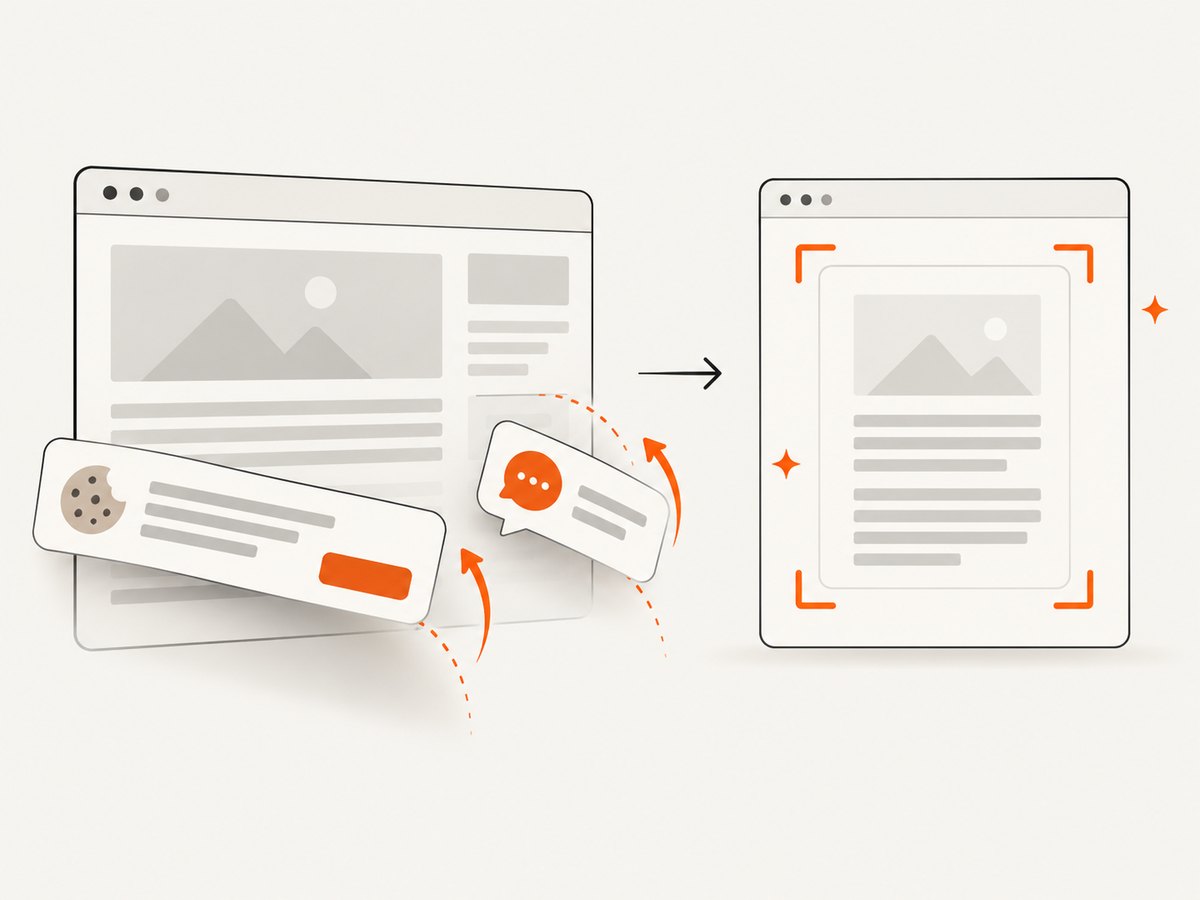
require('node:fs').writeFileSync('stripe.pdf', Buffer.from(await res.arrayBuffer()));Cookie banners, newsletter popups, and chat widgets are removed before the shot. Bot checks, blank pages, timeouts, failed loads, and cache hits are never billed, and response headers identify the page verdict and billing result. You can also use its MCP server tools, including take_screenshot, get_page_info, and capture_pdf, from Claude, Cursor, or another MCP client. The Free plan includes 1,000 screenshots each month with no card; paid plans start at $5 for 3,000 shots. Start with a free ScreenshotNeo account.
12. Short FAQ
Does Puppeteer work with Microsoft Edge on Windows?
Yes, when you manage the Edge executable yourself and provide its valid path or supported channel. The same PDF API applies, but browser compatibility and enterprise policy are your responsibility.
Why does my PDF have one very long page?
Check whether custom height was supplied instead of a paper format, and remove CSS that sets an oversized page or prevents breaks.
Can I generate only selected pages?
Yes. Pass a pageRanges value such as 1-2,5 to page.pdf().
Should I use screenshots instead of PDF output?
Use PDF for selectable, paginated documents. Use an image when you need a visual snapshot, a social preview, or an element capture. A managed API can be simpler when browser installation and cleanup are not part of your application.


