How to Generate PDFs with Make
Build reliable Make scenarios that turn Google Docs, Sheets, HTML, or JSON into stored and delivered PDFs.
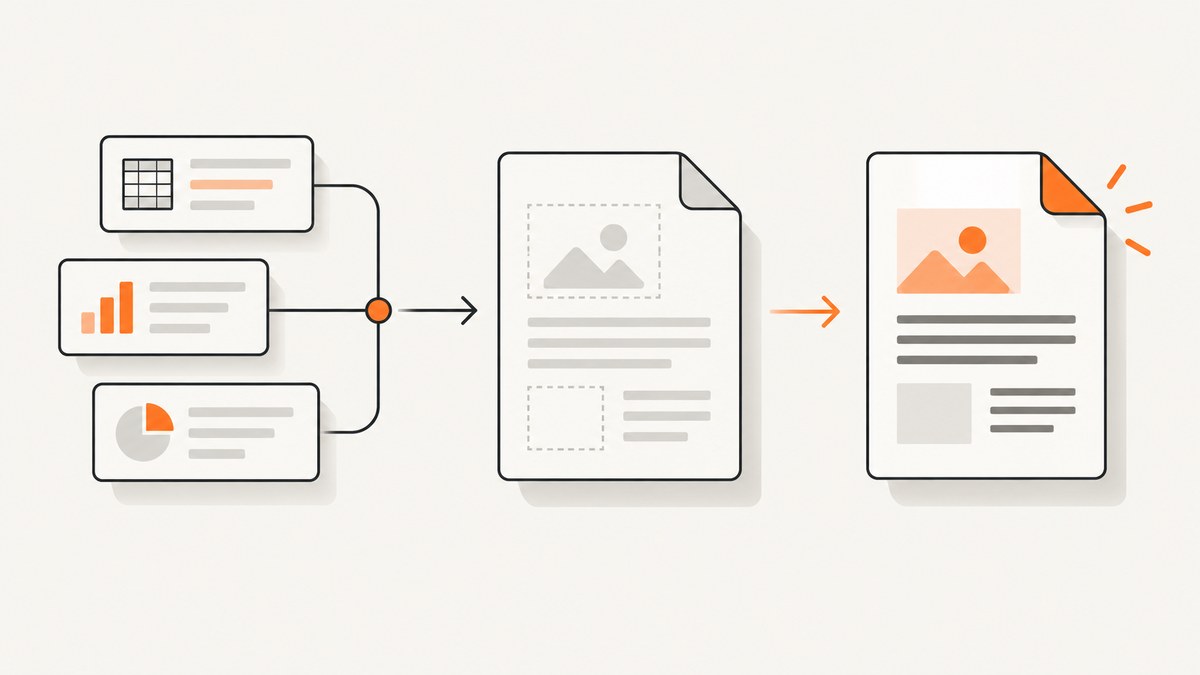
Direct answer: Make can generate a PDF by orchestrating a document or PDF renderer. The simplest scenario starts with a trigger, creates or copies a Google Docs template, replaces its tags with data, downloads the document as a PDF, then stores and delivers the binary file. For HTML templates, JSON-driven documents, batch work, or long-running conversions, use PDF Generator API, Plumsail Documents, or PDF.co from Make.
What Make does (and what the PDF service does)
Make is the scenario orchestrator: it receives data, maps fields, branches, loops, and sends files to the next app. A renderer performs the layout and conversion. Keeping those jobs separate makes a scenario easier to troubleshoot. Your design should answer four questions before you build it:
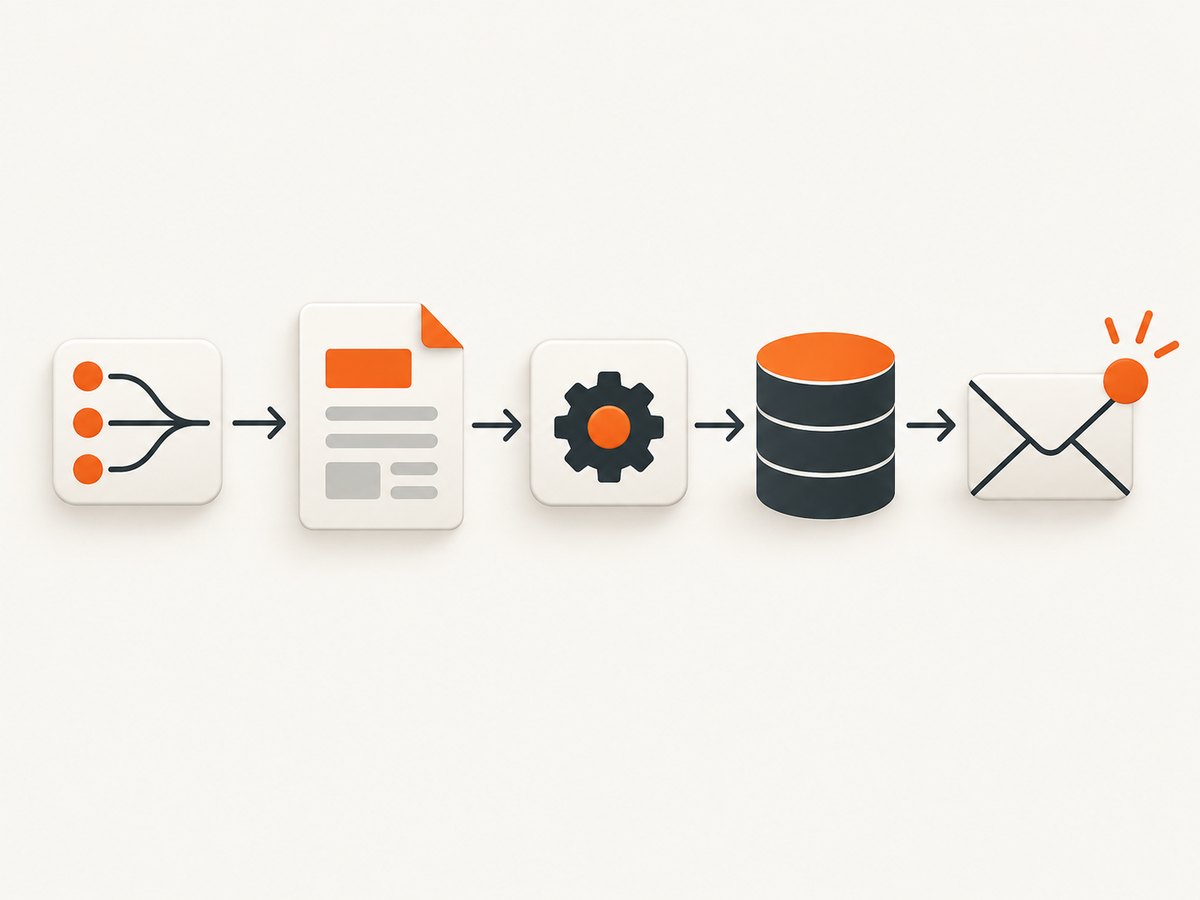
- Where does each record come from: a form, spreadsheet, database, CRM, webhook, or another Make app?
- Which template owns the layout: Google Docs, an office document, HTML, or a PDF-specific template?
- Is generation synchronous, asynchronous, or a batch process?
- Where will the finished file live after the scenario run?
Route 1: Google Docs and Make (the easiest starting point)
Use this route when people need to edit a familiar document template and the PDF only needs the formatting Google Docs already provides.
Build the scenario
- Create the trigger. Add a webhook, Google Sheets watch module, form submission, CRM event, or scheduler. Include a stable record ID and every value the document needs.
- Create a template. Put tokens in a Google Doc, such as
{{invoice_id}},{{client_name}},{{invoice_date}}, and{{total}}. Keep token spelling stable, including capitalization and underscores. - Copy the template. Add Google Docs’ copy or create-document module and give the copy a deterministic name, for example
invoice-{{invoice_id}}. This preserves the original template. - Replace the tags. Add the Google Docs replace-text operation. Enter the tag name without the curly braces when the module asks for a value (enter
invoice_id, not{{invoice_id}}) and map the value from the trigger. - Download as PDF. Add Google Docs’ Download a Document operation and select PDF as the target format. The module returns binary file data.
- Store it immediately. Upload the binary to Google Drive, Dropbox, OneDrive, or your document system. Set a deterministic filename and folder. This gives downstream steps a durable reference.
- Deliver or continue. Attach the binary to Gmail, send it to an e-signature service, add it to a customer record, or pass it to document management.
Example mapping
For a Sheets row, map columns to the replacement operation like this:
invoice_id   ->  10482
client_name  ->  Acme Industries
invoice_date ->  2026-09-29
total        ->  1840.00
Use a text formatter before replacement when dates, currency, or decimal separators need a fixed presentation. If a value is optional, decide whether the template should show an empty line, a fallback label, or a conditional section.
Generating from Google Sheets data
Make does not turn a Sheet into a PDF by itself. It reads one or more rows, passes the values into a template, and renders each document. For one document, use a single row lookup. For many documents, use an iterator or the provider’s batch/document-generation process:
- Watch new rows or search for the rows to process.
- Filter out rows that already have a generated document ID.
- Copy the template and replace all fields.
- Download the PDF and save it with a filename such as
invoice-10482.pdf. - Write the storage URL and a completed timestamp back to the row.
That final write makes reruns safe: the scenario can skip completed rows and retry only failures. For line items, aggregate the row set into an array before handing it to a JSON- or HTML-capable renderer, or use the provider’s documented repeating-table feature.
Route 2: PDF Generator API
Choose PDF Generator API when your input is structured JSON and you need PDF-specific templates or HTML-to-PDF operations. In Make, connect the service, select its generate-document operation, map your JSON fields, and optionally select URL-to-PDF or HTML-to-PDF. If you request a public-URL output, its documentation describes 30-day retention; copy the file into durable storage when it must remain available longer.
{
  "invoice_id": "10482",
  "client_name": "Acme Industries",
  "invoice_date": "2026-09-29",
  "total": "1840.00",
  "items": [
    {"description": "Implementation", "quantity": 1, "price": "1840.00"}
  ]
}
Keep the JSON keys aligned with the template fields. Add a validation step before generation so a missing address or total becomes a controlled error instead of a malformed document.
Route 3: Plumsail Documents
Plumsail is a good fit for office templates, forms, Sheets or CRM data, and document-generation processes. Configure a process and template in Plumsail, connect it in Make, and use the start-process operation. The process can return a file or a job to watch. Save the resulting file to Drive and send it with Gmail or another delivery module. For multiple rows, use the provider’s one-row or multiple-row generation pattern and assign each output a deterministic name.
Route 4: PDF.co
Use PDF.co when an HTML template with Mustache or Handlebars placeholders gives you the layout control you need. Its Make workflow uses Convert HTML to PDF and can map JSON or CSV data. Select the execution mode based on workload:
| Mode | Use it when | Next Make step |
|---|---|---|
| Sync | The conversion is small and returns promptly | Save the returned file or URL |
| Async | The conversion should run in the background | Store the job ID, then use Job Check |
| Async for Large Docs | The job is expected to take more than about 30 seconds | Poll Job Check until complete, then download |
PDF.co output URLs are temporary, so add storage directly after the download. Before production, validate page size, margins, orientation, repeated items, and conditional sections with representative data.
Choosing a route
| Route | Best fit | Trade-off |
|---|---|---|
| Google Docs | Editable templates and a simple export | Bound by Google Docs formatting and export behavior |
| PDF Generator API | JSON-driven, PDF-specific or URL/HTML jobs | Requires a separate connection and template setup |
| Plumsail | Office templates, forms, CRM data and batch processes | Requires process design and a Plumsail connection |
| PDF.co | HTML templates and configurable execution modes | Temporary URLs and async handling for larger jobs |
Saving, emailing, and naming PDFs
Make’s file value has a name, MIME type, and binary data. Pass all three to the storage or email module. Use a filename that is unique but predictable, such as invoice-10482-2026-09-29.pdf. Never rely on a temporary provider URL as your archive. If a downstream API accepts only a URL, upload to durable storage first and pass that URL.
Reliability checklist
- Keep the original template read-only and generate a copy for each record.
- Validate required fields before rendering.
- Record the source ID, template version, provider job ID, output URL, and completion time.
- Make retries idempotent by checking whether the source row already has a completed file.
- For async providers, poll with a bounded interval and a maximum attempt count.
- Store the binary as soon as it is available.
- Send failures to an error route with the source ID and provider response.
Troubleshooting common errors
The PDF has blank fields
The token may not match, or the replacement module may expect the name without {{}}. Compare the template token and mapped key character by character. Check that the source field is not null.
Formatting changes after export
Google Docs and HTML renderers have different pagination rules. Set explicit page size, margins, fonts, and table widths. Test long names, wrapped addresses, and a second page.
A repeated line-item table is empty
The renderer may expect an array, while Make supplied a text string. Aggregate rows into an array and map the exact field names used by the repeating section.
The provider returns a URL that later stops working
That URL is temporary or has documented retention. Download it and upload the binary to Drive, Dropbox, or your own storage in the same scenario.
The scenario times out
Switch from synchronous conversion to async processing. Save the job ID, schedule a Job Check, and download only after the provider reports completion. For PDF.co, use Async for Large Docs for jobs expected to exceed approximately 30 seconds.
Duplicate PDFs appear after a retry
Retries can repeat a successful render whose final write failed. Use a deterministic filename and a source-record status check, or search the destination before creating a second copy.
Performance and cost considerations
Most scenario time is spent rendering and transferring the file, not mapping a few fields. Reduce work by generating only changed records, keeping images at the required resolution, and avoiding unnecessary conversion steps. Batch when the provider supports it, but keep each output independently named and logged. Make operations, provider conversions, storage, and email delivery can each have separate limits or charges; review the current plan terms for the connected services before setting a high-frequency schedule.
Or skip the browser setup
If the PDF source is a webpage, ScreenshotNeo can capture it directly through its API, including a PDF response, so you do not have to maintain a browser runner in Make. The endpoint is documented at ScreenshotNeo’s API documentation.

curl -G "https://api.screenshotneo.com/v1/shot" -d access_key=YOUR_API_KEY --data-urlencode url=https://stripe.com -o shot.webpimport requests
r = requests.get("https://api.screenshotneo.com/v1/shot", params={"access_key": "YOUR_API_KEY", "url": "https://stripe.com"}, timeout=90)
open("shot.webp", "wb").write(r.content)const q = new URLSearchParams({ access_key: 'YOUR_API_KEY', url: 'https://stripe.com' });
const res = await fetch(`https://api.screenshotneo.com/v1/shot?${q}`);In Make, use an HTTP GET module with the same endpoint and query parameters, then map the returned binary into Drive, email, or your PDF workflow. You can select PDF output and configure paper size, margins, landscape mode, and page ranges. Other options include full-page capture with lazy images loaded, a CSS-selector element, custom CSS and JavaScript, clicks, waits, blocked resource types, cookies and headers, timezone and geolocation, caching with a chosen TTL, signed links, async jobs with signed webhooks, bulk capture of up to 100 URLs per call, and a usage API.
ScreenshotNeo removes cookie banners, newsletter popups, and chat widgets before capture; bot checks, blank pages, failed loads, timeouts, and cache hits are not billed, and response headers identify the page verdict and billing status. Its MCP server gives Claude, Cursor, and other MCP clients take_screenshot, get_page_info, and capture_pdf tools. The free plan includes 1,000 screenshots per month with no card; paid plans start at $5 for 3,000. Create a free ScreenshotNeo account.
FAQ
Can Make create a PDF without Google Docs?
Yes. Connect PDF Generator API, Plumsail Documents, PDF.co, or another renderer that exposes a Make module or HTTP API.
How do I generate one PDF per spreadsheet row?
Iterate rows, render each with a stable filename, save the file, then write the output ID back to the row so reruns skip completed records.
Should I use sync or async generation?
Use sync for small, predictable conversions. Use async when rendering can exceed the scenario timeout or when the provider documents a large-document mode.
Where should the PDF be archived?
Use durable storage you control, such as Drive, Dropbox, OneDrive, or your document system, immediately after rendering.


