How to Generate PDFs with WkHtmlToXSharp in C#
Generate HTML-to-PDF files in C# with WkHtmlToXSharp: package setup, native binaries, page options, complete code, troubleshooting, and a hosted alternative.

WkHtmlToXSharp lets a .NET application call wkhtmltopdf, a WebKit-based HTML-to-PDF renderer, through a C# P/Invoke wrapper. The practical setup has two parts: the managed WkHtmlToXSharp package and a native package containing the correct libwkhtmltox binary for your operating system and process architecture.
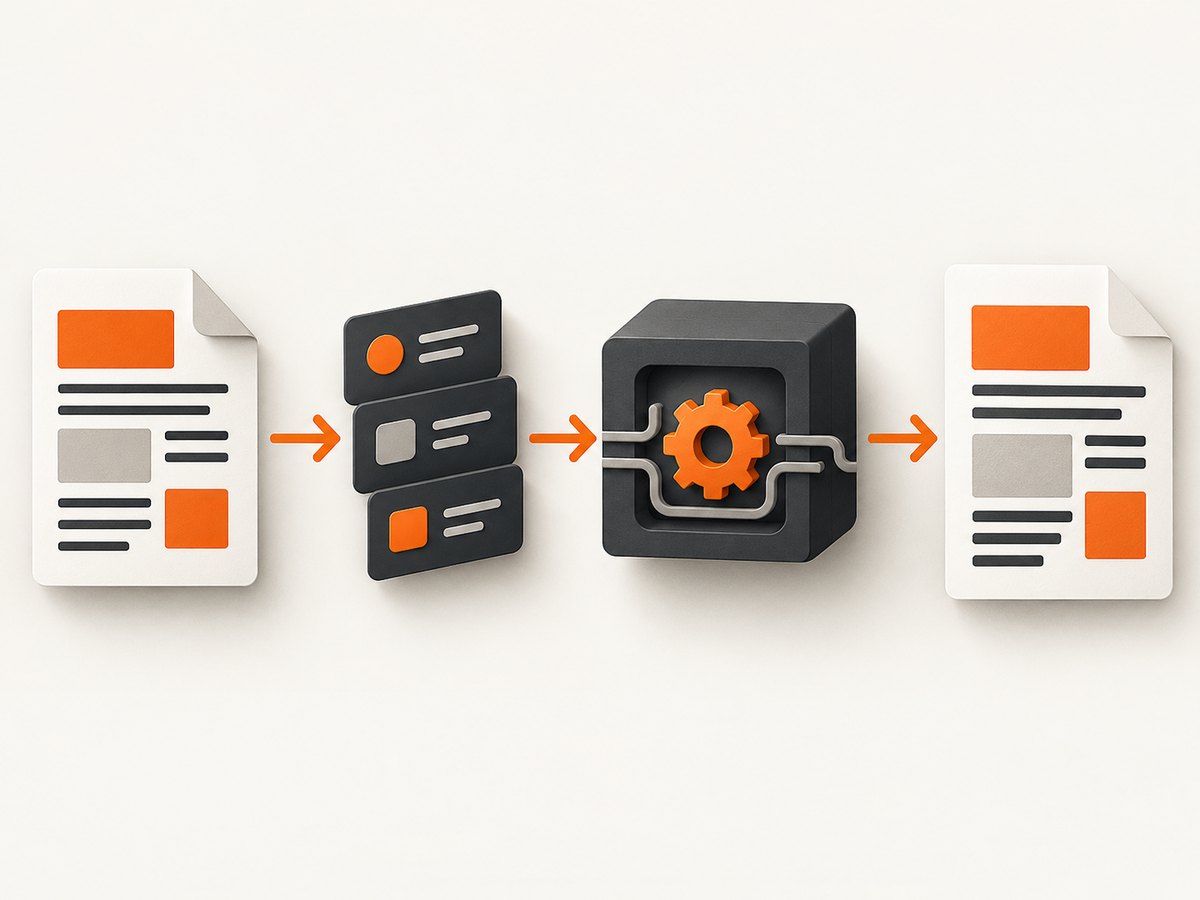
A conversion normally follows this sequence:
- Create a converter such as
MultiplexingConverter. - Set global PDF options such as paper size, orientation, and margins.
- Set object options and provide an HTML file or page.
- Call
Convert()and write the returned PDF bytes to disk.
The wrapper API is version-sensitive. The examples below use the package version shown by NuGet, 1.2.39, but confirm property names against the assembly installed in your project before shipping.
Install WkHtmlToXSharp and its native bundle
Install the managed wrapper from NuGet:
dotnet add package WkHtmlToXSharp --version 1.2.39Or add the package reference manually:
<PackageReference Include="WkHtmlToXSharp" Version="1.2.39" />The wrapper does not remove the need for native binaries. NuGet also lists platform-specific bundles:
| Runtime | Native package |
|---|---|
| Windows, 32-bit process | WkHtmlToXSharp.Win32 |
| Windows, 64-bit process | WkHtmlToXSharp.Win64 |
| Linux, 32-bit process | WkHtmlToXSharp.Linux32 |
| Linux, 64-bit process | WkHtmlToXSharp.Linux64 |
Choose the bundle that matches both the operating system and the architecture of the running process. A 64-bit application needs the 64-bit native library even when the source project itself targets an older .NET framework. Keep the managed wrapper and native bundle versions aligned, and pin them in your project file.
The NuGet package page describes WkHtmlToXSharp as a P/Invoke wrapper around wkhtmltopdf and lists .NET Framework compatibility, including net40-client. It also lists Common.Logging as a dependency.
A complete file-to-PDF example
This example converts a local HTML file to an A4 PDF with no outer margins. It follows the commonly used WkHtmlToXSharp structure; exact namespaces or enum names can vary between package builds, so use IntelliSense if your installed assembly differs.
using System;
using System.IO;
using WkHtmlToXSharp;

class Program
{
    static void Main(string[] args)
    {
        var htmlPath = Path.GetFullPath("invoice.html");
        var pdfPath = Path.GetFullPath("invoice.pdf");

        if (!File.Exists(htmlPath))
            throw new FileNotFoundException("HTML input was not found", htmlPath);

        IHtmlToPdfConverter converter = new MultiplexingConverter();

        converter.GlobalSettings.Margin.Top = "0cm";
        converter.GlobalSettings.Margin.Bottom = "0cm";
        converter.GlobalSettings.Margin.Left = "0cm";
        converter.GlobalSettings.Margin.Right = "0cm";
        converter.GlobalSettings.Orientation = PdfOrientation.Portrait;
        converter.GlobalSettings.Size.PageSize = PdfPageSize.A4;

        converter.ObjectSettings.Page = htmlPath;

        PdfDocument pdf = converter.Convert();
        File.WriteAllBytes(pdfPath, pdf.DocumentBytes);

        Console.WriteLine($"Created {pdfPath}");
    }
}
Some versions expose the returned bytes or output object with a slightly different member name. Inspect the PdfDocument type in your installed package and adjust the final write accordingly. The important lifecycle is converter, settings, object page, conversion, output.
Your input file can use relative CSS, images, and fonts. Prefer absolute paths or a predictable working directory, and verify that the native process has permission to read every referenced resource.
Converting an HTML string
WkHtmlToXSharp versions do not all expose the same in-memory HTML property. Some wrappers use a member such as HtmlContent or HtmlText; do not assume either exists in version 1.2.39. Check the installed interface or assembly documentation, then replace the file assignment with the matching HTML-content member.
// Illustrative only: verify the member name in your installed version.
converter.ObjectSettings.HtmlContent = "<html><body><h1>Hello</h1></body></html>";
If your package has no supported HTML-string property, write the string to a temporary, uniquely named HTML file and assign that path to ObjectSettings.Page. This also makes relative assets easier to resolve.
Set page size, orientation, and margins
Global settings control the PDF document. Typical choices include:
- Paper size: A4, Letter, and other wkhtmltopdf page sizes.
- Orientation: portrait for documents, landscape for wide tables.
- Margins: top, bottom, left, and right values such as
"12mm"or"0cm". - Title: the document title stored in PDF metadata.
- Compression and grayscale: where exposed by the wrapper and needed for output size.
- Outlines: PDF bookmarks generated from document headings, with a configurable depth.
converter.GlobalSettings.Size.PageSize = PdfPageSize.Letter;
converter.GlobalSettings.Orientation = PdfOrientation.Landscape;
converter.GlobalSettings.Margin.Top = "12mm";
converter.GlobalSettings.Margin.Bottom = "12mm";
converter.GlobalSettings.Margin.Left = "10mm";
converter.GlobalSettings.Margin.Right = "10mm";
For a custom paper width or height, use the custom-size settings exposed by your installed wrapper, or invoke the equivalent wkhtmltopdf option through the API. Property names differ across wrapper versions.
Control browser behavior and output
The underlying wkhtmltopdf usage reference documents the renderer options that WkHtmlToXSharp maps into global, object, and web settings.
Images, JavaScript, and external resources
Web settings commonly include:
web.backgroundto print CSS backgrounds.web.loadImagesto enable or disable image loading.web.enableJavascriptto run page JavaScript.- Intelligent shrinking controls that fit wide content to the selected paper.
JavaScript-heavy pages need enough time to finish rendering. If your wrapper exposes a JavaScript delay, set it for the page rather than adding an arbitrary delay to every document. Disable JavaScript only for trusted static HTML that does not need it.
Headers, footers, and page numbers
Object or global settings can add header and footer text, spacing, and page counters. Use the documented placeholders supported by the wkhtmltopdf build bundled with your application. Header and footer spacing consumes printable page area, so increase margins when content overlaps them.
Outlines and document structure
Outlines are generated from heading structure when enabled. Use meaningful h1, h2, and h3 elements in the source HTML, and limit outline depth when a long document would otherwise create an unwieldy bookmark tree.
Local files, URLs, and assets
For a local file, pass an absolute path whenever possible. For a URL, assign the URL to the page setting and ensure the host is reachable from the machine running the application. Remote CSS, images, and fonts can fail independently from the main HTML request.
Common asset problems include:
- Relative URLs resolved against the wrong working directory.
- Private endpoints requiring authentication headers or cookies.
- HTTPS certificate or proxy differences between development and production.
- Fonts installed on a developer workstation but missing from the server.
- JavaScript applications that render after the converter has already captured the page.
Make asset paths deterministic, package required fonts with the deployment where licensing permits, and log the input URL or file path for each conversion.
Deployment checklist for Windows and Linux
- Pin
WkHtmlToXSharpand the matching native package version. - Set the process architecture explicitly rather than relying on “Any CPU” defaults.
- Confirm the native
libwkhtmltoxfile is copied to the published output. - Run the application under the same account and permissions used in production.
- Install or package the fonts required by your HTML.
- Check temporary-directory permissions and available disk space.
- Exercise a known-good local HTML file before debugging remote pages.
- Record the wrapper version, native bundle, OS, architecture, and input URL with conversion errors.
Load failures are deployment failures until proven otherwise. Verify that the process can load the expected native library before changing CSS or HTML.
Troubleshooting common errors
| Symptom | Likely cause | Fix |
|---|---|---|
| DllNotFoundException or native library load error | Wrong OS or architecture bundle, or the DLL/SO was not copied | Install the matching Win32, Win64, Linux32, or Linux64 package; publish native files and verify process architecture. |
| Type or property does not exist | Example targets a different wrapper version | Inspect interfaces in the installed assembly and use the exact property or enum name exposed there. |
| Blank PDF | Input path is wrong, page failed to load, or JavaScript has not rendered | Use an absolute path, test a static HTML file, enable JavaScript, and configure an appropriate delay. |
| Images or CSS missing | Relative paths, blocked network access, or disabled image loading | Use resolvable URLs or absolute file paths and enable web.loadImages where required. |
| Text or layout differs between machines | Different fonts, native builds, DPI, or WebKit behavior | Pin packages, install the same fonts, and compare the actual production runtime. |
| Content is clipped | Margins, paper size, or intelligent shrinking do not match the design | Adjust page size and margins, switch orientation, and review shrinking settings. |
| Conversion hangs | Unreachable resource, page script, or renderer process issue | Apply an application timeout, isolate the failing URL, and inspect network and JavaScript dependencies. |
Performance, reliability, and cost considerations
PDF generation starts a native rendering workload, so throughput depends on HTML complexity, image size, JavaScript, fonts, and the host machine. Keep documents bounded, resize oversized source images, and avoid loading trackers or unrelated resources. Reuse a converter only if the installed wrapper documents that pattern as safe; otherwise isolate conversions and enforce timeouts around the native call.
For reliability, queue large batches instead of running unlimited conversions concurrently. Capture structured logs containing input, duration, output size, and the native error text. Retry only transient failures such as temporary network errors; repeated retries will not repair invalid HTML, missing libraries, or unsupported CSS.
The software packages themselves are distributed through NuGet. Your operational costs come from the machines, storage, fonts, network access, and engineering time needed to run the native renderer. The NuGet registry reports package download counts and metadata that can change, so treat those figures as registry information rather than a performance guarantee.
Or skip the browser setup
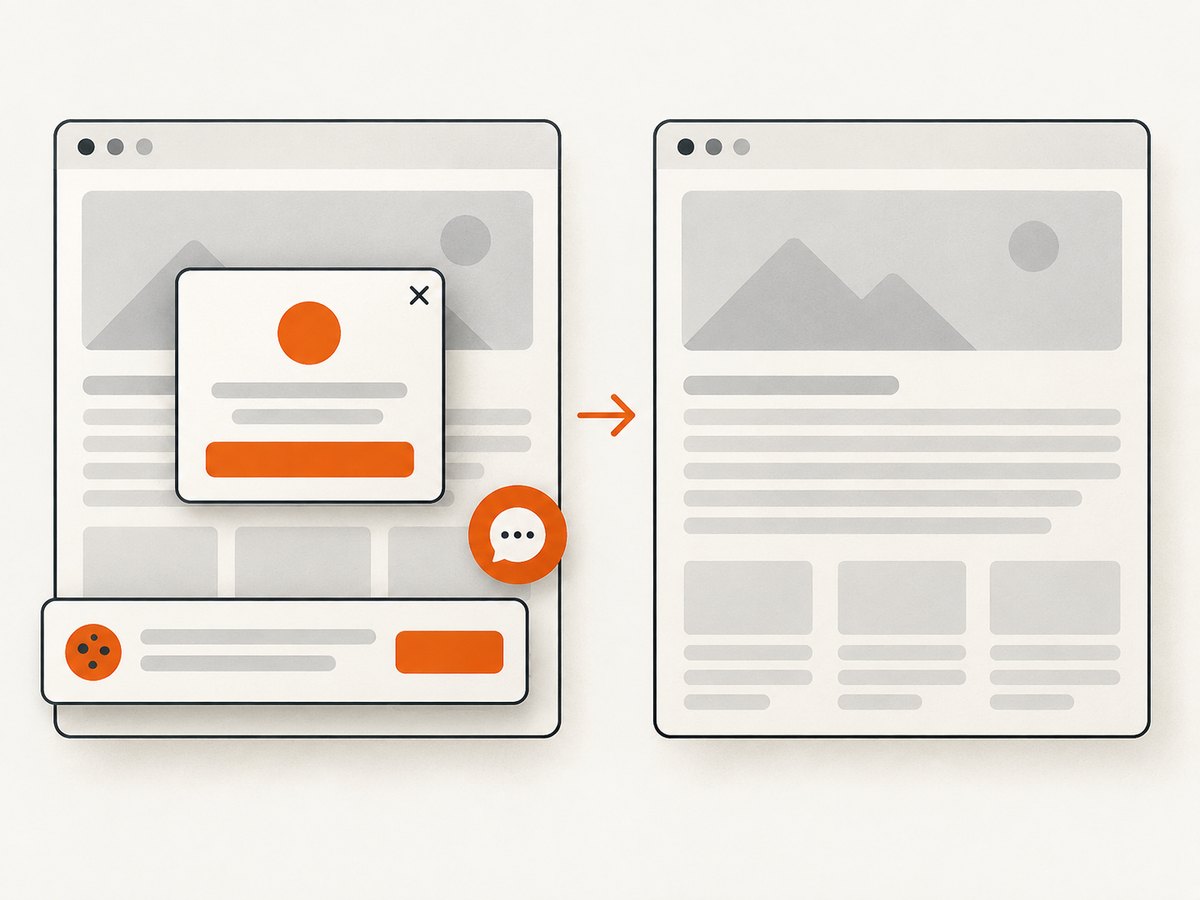
If you need a clean PDF or screenshot without deploying wkhtmltopdf and native binaries, ScreenshotNeo exposes a hosted capture API. It accepts one GET request and can return a PDF or an image. Cookie and consent banners, newsletter popups, and chat widgets are removed before capture. Bot checks, blank pages, timeouts, failed loads, and cache hits are not billed, and the response identifies the result with X-Page-Verdict and X-Billed headers. ScreenshotNeo also provides an MCP server with take_screenshot, get_page_info, and capture_pdf tools for Claude, Cursor, and other MCP clients.
See the ScreenshotNeo documentation for all options. A direct PDF request can be made with the same endpoint:
curl -G "https://api.screenshotneo.com/v1/shot" \
  -d access_key=YOUR_API_KEY \
  --data-urlencode url=https://stripe.com \
  -d format=pdf \
  -o page.pdf
import requests
r = requests.get(
"https://api.screenshotneo.com/v1/shot",
params={
"access_key": "YOUR_API_KEY",
"url": "https://stripe.com",
"format": "pdf",
},
timeout=90,
)
r.raise_for_status()
open("page.pdf", "wb").write(r.content)const q = new URLSearchParams({
access_key: 'YOUR_API_KEY',
url: 'https://stripe.com',
format: 'pdf'
});
const res = await fetch(`https://api.screenshotneo.com/v1/shot?${q}`);
if (!res.ok) throw new Error(`HTTP ${res.status}`);
require('fs').writeFileSync('page.pdf', Buffer.from(await res.arrayBuffer()));ScreenshotNeo supports paper size, margins, landscape mode, page ranges, custom CSS and JavaScript, selectors, waits, headers, cookies, user agents, geolocation, resource blocking, caching, signed links, asynchronous jobs, webhooks, bulk capture, and usage reporting. One thousand screenshots per month are free with no card; paid plans start at $5 for 3,000 shots. Create a free ScreenshotNeo account to try the API.
FAQ
Is WkHtmlToXSharp the renderer itself?
No. WkHtmlToXSharp is the managed C# P/Invoke wrapper. The native wkhtmltopdf library performs rendering.
Which native package should a Linux Docker container use?
Use the Linux bundle matching the container architecture, normally WkHtmlToXSharp.Linux64 for a 64-bit image, and verify that all native dependencies are present.
Can it render modern CSS?
It uses a WebKit-based renderer. Test the exact HTML and native build because documented options do not imply complete support for newer browser CSS features.
How do I add a page break?
Use print CSS such as page-break-before or page-break-after, then verify the result with the target wkhtmltopdf build and paper settings.
When should I choose a hosted API?
Choose one when you want to avoid native binary deployment, browser cleanup logic, and renderer maintenance. ScreenshotNeo provides those capture operations over HTTPS and includes an MCP server for AI agents.


