How to Generate and Save Puppeteer PDFs in .NET
Use PuppeteerSharp to create a PDF in .NET, save it to a path, and control its output as a file, byte array, or stream.
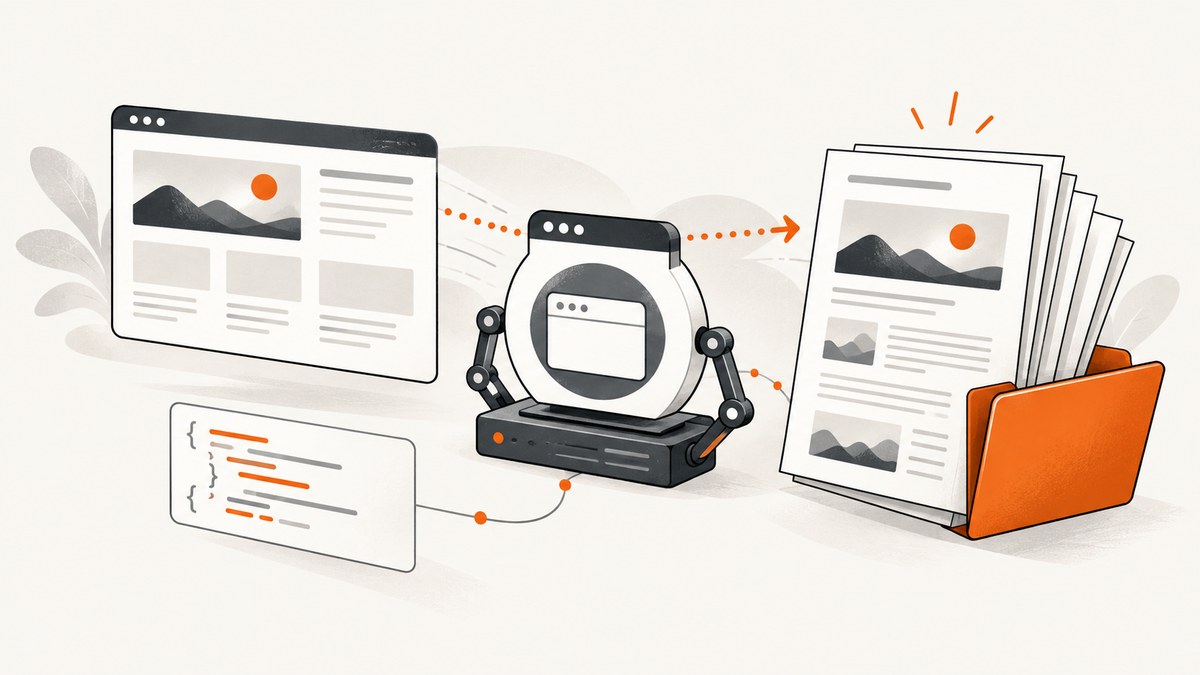
To generate a PDF with PuppeteerSharp in .NET, launch Chrome in headless mode, create a page, navigate to a URL or set HTML content, then await PdfAsync(path). The simplest complete flow is:
using PuppeteerSharp;

using var browser = await Puppeteer.LaunchAsync(new LaunchOptions
{
    Headless = true
});

using var page = await browser.NewPageAsync();
await page.GoToAsync("https://example.com");
await page.PdfAsync("output.pdf");
PuppeteerSharp documents PDF generation as supported only in Chrome headless. It uses print CSS media by default. Use PdfDataAsync if you need bytes, PdfStreamAsync for stream-based handling, and PdfOptions to adjust paper, margins, orientation and other print settings. See the PuppeteerSharp Page API and official examples.
1. Install PuppeteerSharp and prepare Chrome
Add PuppeteerSharp to your .NET project. For example, from the project directory:
dotnet add package PuppeteerSharpCheck the current NuGet package version and your target framework before pinning a version: package compatibility can change over time. PuppeteerSharp’s launch API starts a browser process; your deployment must have a compatible Chrome/Chromium browser available to launch. The API documentation’s important constraint is that PDF generation currently works only in Chrome headless.
The example below uses using declarations so the page and browser are disposed when the method ends, including when navigation or PDF generation throws. Put the code inside an asynchronous method such as Main in a modern .NET console application:
using PuppeteerSharp;

internal static class Program
{
    private static async Task Main()
    {
        using var browser = await Puppeteer.LaunchAsync(new LaunchOptions
        {
            Headless = true
        });

        using var page = await browser.NewPageAsync();
        await page.GoToAsync("https://example.com");
        await page.PdfAsync("output.pdf");
    }
}
The API resolves the supplied PDF path using GetFullPath(string). A relative path is therefore interpreted relative to the process’s current working directory, which may differ between local development, a service, a container, and a scheduled job. Use an absolute path when the destination must be unambiguous, and ensure the process has permission to write there.
2. Navigate to a page and save the PDF
- Launch PuppeteerSharp with
Headless = true. - Create a page using
NewPageAsync(). - Navigate to the target with
GoToAsync(url). - Await
PdfAsync(path)before disposing the browser.
Here is the compact version with an explicit destination:
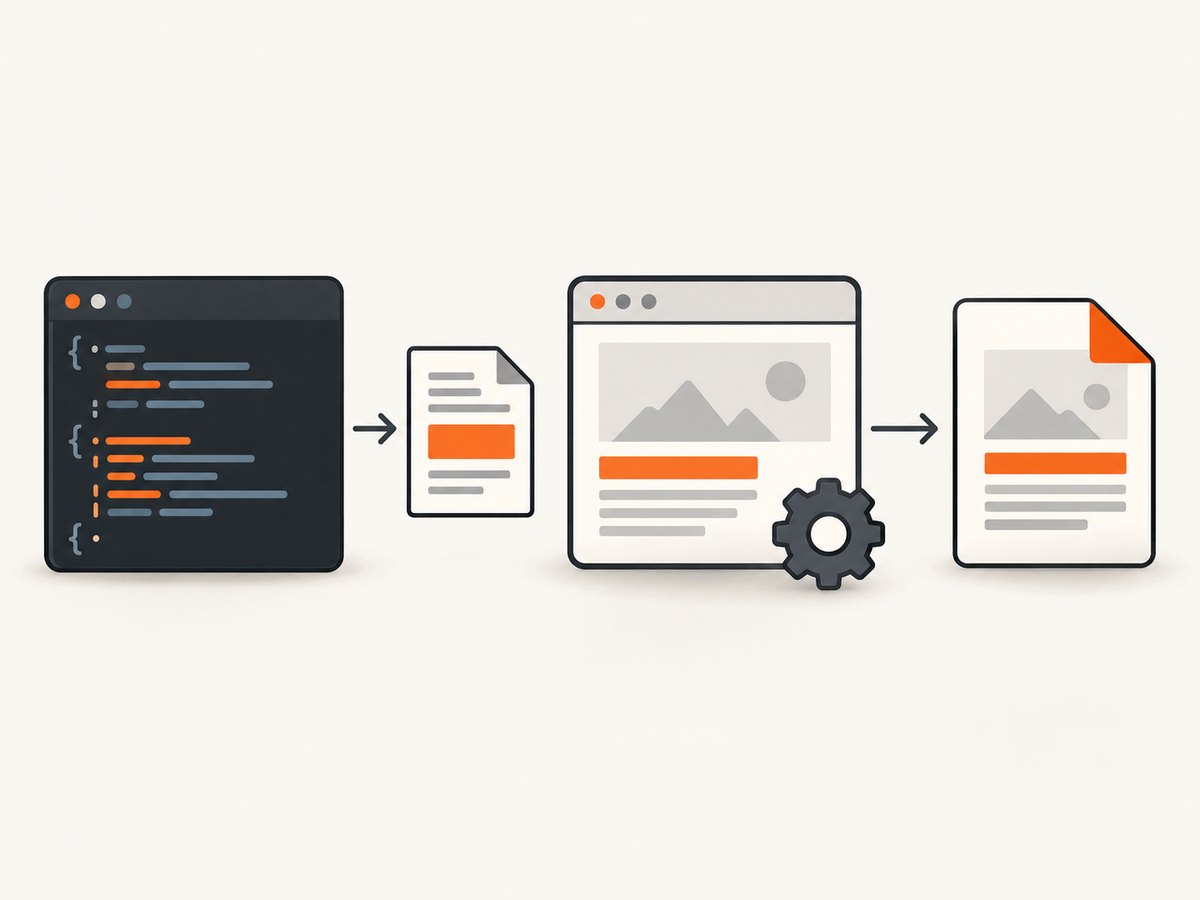
var outputPath = Path.GetFullPath("output.pdf");
using var browser = await Puppeteer.LaunchAsync(new LaunchOptions { Headless = true });
using var page = await browser.NewPageAsync();
await page.GoToAsync("https://example.com");
await page.PdfAsync(outputPath);
Awaiting the PDF method matters: it completes the capture and write operation before control moves on. If you are generating PDFs in a web request, background worker or batch job, consider the expected duration and concurrency rather than starting unobserved tasks.
Set HTML directly instead of navigating
When your application already has HTML to render, call SetContentAsync before generating the PDF. This avoids needing a hosted page for the input, but any referenced external stylesheets, images or fonts still need to be accessible to the browser.
using var browser = await Puppeteer.LaunchAsync(new LaunchOptions { Headless = true });
using var page = await browser.NewPageAsync();

var html = """
<!doctype html>
<html>
  <head>
    <meta charset=\"utf-8\">
    <style>
      body { font-family: sans-serif; margin: 2rem; }
      h1 { color: #183153; }
    </style>
  </head>
  <body>
    <h1>Invoice</h1>
    <p>Generated from application-provided HTML.</p>
  </body>
</html>
""";

await page.SetContentAsync(html);
await page.PdfAsync(Path.GetFullPath("invoice.pdf"));
The raw string syntax shown requires a recent C# language version. If your project uses an older version, assign a regular escaped string or load HTML from a template file. The PuppeteerSharp examples document the SetContentAsync(html) route followed by PdfAsync(path).
3. Choose the output form: file, bytes or stream
| Method | Use it when | Consider |
|---|---|---|
PdfAsync(path) |
You want PuppeteerSharp to write a PDF file at a filesystem path. | Resolve the destination clearly and ensure its directory exists and is writable. |
PdfDataAsync(options) |
You need the PDF as a byte[], for example to pass it to an upload API or use as a response body. |
Bytes reside in memory; account for document size and concurrent work. |
PdfStreamAsync(options) |
The surrounding application consumes a stream. | Dispose the returned stream when finished, following the ownership conventions of the API and your framework. |
These are API choices, not a performance ranking. The official documentation describes the return types but does not provide comparative benchmarks. Pick the form that fits the next step in your pipeline and avoid adding an unnecessary intermediate file when the application needs bytes or a stream.
Byte-array example:
using var browser = await Puppeteer.LaunchAsync(new LaunchOptions { Headless = true });
using var page = await browser.NewPageAsync();
await page.GoToAsync("https://example.com");

byte[] pdf = await page.PdfDataAsync(new PdfOptions());
await File.WriteAllBytesAsync("output.pdf", pdf);
Stream-oriented example:
using var browser = await Puppeteer.LaunchAsync(new LaunchOptions { Headless = true });
using var page = await browser.NewPageAsync();
await page.GoToAsync("https://example.com");

using var pdfStream = await page.PdfStreamAsync(new PdfOptions());
using var destination = File.Create("output.pdf");
await pdfStream.CopyToAsync(destination);
If the final destination is a filesystem file, PdfAsync(path) is the direct route. If the destination is an HTTP response, object store or transformation, bytes or a stream may fit better.
4. Control print layout with PdfOptions
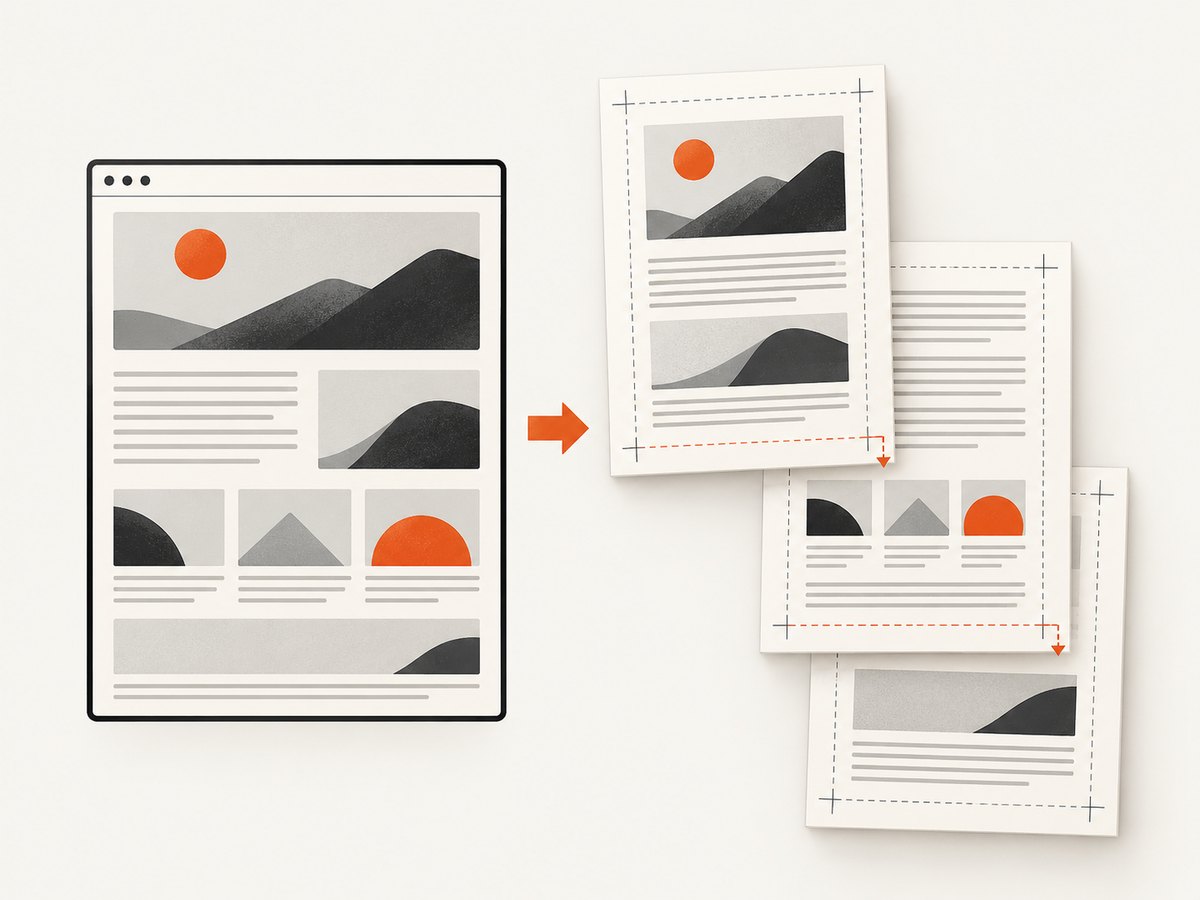
The overloads that accept PdfOptions let you set the print layout. The documented options cover paper format or dimensions, orientation, margins, page ranges, header and footer templates, background graphics, scaling, and whether CSS @page size takes priority. WaitForFonts is documented as true by default.
using PuppeteerSharp;

using var browser = await Puppeteer.LaunchAsync(new LaunchOptions { Headless = true });
using var page = await browser.NewPageAsync();
await page.GoToAsync("https://example.com");

var options = new PdfOptions
{
    Format = PaperFormat.A4,
    Landscape = false,
    PrintBackground = true,
    MarginOptions = new MarginOptions
    {
        Top = "18mm",
        Right = "16mm",
        Bottom = "18mm",
        Left = "16mm"
    }
};

await page.PdfAsync(Path.GetFullPath("report.pdf"), options);
Use the property names and accepted value types from the PuppeteerSharp version installed in your project. The snippet illustrates the documented layout controls; check the PdfOptions API when adapting it, particularly if you need custom dimensions, templates, or page ranges.
- Paper: choose a standard format or configure width and height for a custom sheet.
- Orientation: use landscape for wide tables, dashboards or charts when portrait would shrink content excessively.
- Margins: tune margins to prevent content from colliding with page edges or header/footer regions.
- Backgrounds: enable background printing when colors and background images are part of the document design.
- Ranges: request only needed pages for a long document, using the syntax accepted by the installed API.
- Headers and footers: use templates when page-level labeling or numbering is needed; template support has layout constraints that should be checked in the API docs.
- CSS page sizing and scaling: decide whether CSS
@pagerules or explicit options should drive the final size and fit.
PDF output uses print media CSS by default. That means rules inside @media print apply, and screen-only styles may not. If the output should reflect screen styling instead, call EmulateMediaTypeAsync(MediaType.Screen) before PDF generation:
await page.GoToAsync("https://example.com");
await page.EmulateMediaTypeAsync(MediaType.Screen);
await page.PdfAsync("screen-styled.pdf");
Be deliberate about the choice: print CSS often hides navigation and adjusts page breaks for paper; screen CSS may preserve interactive layout but can produce awkward page boundaries.
5. Handle fonts and dynamic page content
PDF rendering depends on what the browser has loaded and rendered at capture time. WaitForFonts is documented as true by default in PdfOptions, which helps with font readiness, but it does not guarantee that every application-specific asynchronous task has finished. A page may populate data after navigation, lazy-load images as it scrolls, or wait for an API request.
For a page you control, prefer a clear readiness condition in the application or wait for the specific selector that indicates the content is complete. For external pages, inspect what the page exposes and set an appropriate navigation or wait strategy. Avoid using an arbitrary long delay as the only synchronization mechanism where a meaningful ready condition is available. The supplied PuppeteerSharp dossier does not prescribe one universal navigation wait setting.
Check content that commonly changes in print output: web fonts, image loading, CSS print rules, fixed-position elements, large tables, and page breaks. For repeatable reports, keep the HTML and assets stable and use explicit print styles, margins, and paper settings.
6. Operational notes: reliability, performance and cost
Reliability: dispose page and browser resources after each job or batch. Handle navigation and filesystem failures as separate failure points: a successful page load does not ensure the output directory is writable, and a writable directory does not ensure the site finished rendering. Log the target, destination and exception context, while keeping credentials or sensitive URL data out of logs.
Performance: the dossier contains no performance measurements, so there is no supported numeric claim about generation speed or throughput. Browser startup, page complexity, fonts and assets, and document size all affect the work involved. Reuse architecture and concurrency limits should be chosen from your own workload measurements. Avoid running unlimited concurrent browser jobs on a constrained worker.
Cost: PuppeteerSharp and headless Chrome are software components; direct self-hosting costs are tied to the compute and operations you provide. If you connect to a remote browser, treat it as a deployment architecture choice, not a guaranteed performance or price improvement. The official examples show a WebSocket connection pattern but do not endorse a specific provider.
7. Troubleshooting common PDF problems
| Symptom | Likely cause | What to check or change |
|---|---|---|
| PDF generation is unsupported or fails in a non-headless browser mode | The API documents PDF output for Chrome headless. | Launch Chrome with Headless = true and confirm the browser type used by your deployment. |
| Styles differ from the visible browser page | PDF generation uses print CSS by default. | Review @media print rules. If screen media is intended, call EmulateMediaTypeAsync(MediaType.Screen) before generating. |
| The output file is missing or written somewhere unexpected | The path is relative to the process working directory, or its parent directory is missing or unwritable. | Use Path.GetFullPath, create the directory, and verify the service account’s write permissions. |
| Fonts or images are absent | Assets may not be loaded or reachable when capture starts. | Check external asset access and page readiness. The API documents WaitForFonts as true by default; wait for application-specific data and image readiness as needed. |
| Some colors or backgrounds disappear | Background graphics may not be enabled for printing. | Set the background-print option in PdfOptions and verify the relevant CSS. |
| Content is clipped or scales poorly | Paper dimensions, orientation, margins or scale do not match the content. | Try landscape for wide content, adjust margins or dimensions, and inspect print CSS page sizing. |
| Tagged PDF output does not behave as expected | The documented Tagged option currently works only in old headless mode. |
Verify support against the Chromium and PuppeteerSharp versions you deploy; do not assume it works in every headless mode. |
| Navigation succeeds but the PDF has placeholders or stale data | Application rendering continued after the navigation step. | Wait on the page’s actual content-ready condition before calling PdfAsync. |
8. Tagged PDFs and remote browsers
PdfOptions.Tagged requests a tagged, accessible PDF. The API documentation says this currently works only in old headless mode. Headless behavior and browser versions can change, so verify the capability with the exact PuppeteerSharp and Chromium versions you deploy before relying on it for an accessibility requirement.
PuppeteerSharp’s official examples also show connecting to a remote browser through a WebSocket endpoint and generating a PDF from that connection. This can be useful when browser processes are managed separately from the .NET application, but the example only establishes the general connection pattern; it is not evidence about any particular hosting provider, reliability level or cost.
9. Or skip the browser setup
If you need a screenshot rather than a PDF, ScreenshotNeo provides a website screenshot API: a GET request with a URL returns PNG, JPEG, WebP or PDF. Its PDF controls include paper size, margins, landscape and page ranges. See the API documentation for parameters and response details.
curl -G "https://api.screenshotneo.com/v1/shot" -d access_key=YOUR_API_KEY --data-urlencode url=https://stripe.com -o shot.webpOr make the request from .NET using HttpClient:
using var client = new HttpClient { Timeout = TimeSpan.FromSeconds(90) };
var url = "https://api.screenshotneo.com/v1/shot?access_key=YOUR_API_KEY&url=https%3A%2F%2Fstripe.com";
var bytes = await client.GetByteArrayAsync(url);
await File.WriteAllBytesAsync("shot.webp", bytes);
For a true PDF response, use the documented PDF output parameter from the API docs and save the response with a .pdf extension. ScreenshotNeo removes cookie and consent banners, newsletter popups and chat widgets before capture; bot checks, blank pages and failed loads are never billed. It also provides an MCP server for AI agents, with take_screenshot, get_page_info and capture_pdf. The free plan includes 1,000 shots a month with no card; paid plans start at $5 for 3,000. Sign up for 1,000 free screenshots a month, with no card required.
10. Frequently asked questions
Does PuppeteerSharp save PDFs as well as generate them?
Yes. PdfAsync(path) generates the PDF and writes it at the supplied path. It resolves the path using GetFullPath(string).
Can I generate a PDF from HTML that is not hosted online?
Yes. Set the page content with SetContentAsync(html), then call PdfAsync(path). Ensure any linked assets are available to the browser.
How do I get the generated PDF without writing a local file?
Use PdfDataAsync(options) for a byte array or PdfStreamAsync(options) for a stream.
Why does my PDF look different from the page on screen?
PDF generation uses print CSS by default. Use screen media emulation before generating only when screen styling is the desired output.
Can I choose letter paper, margins or landscape?
Yes. Pass a PdfOptions object to configure paper format or dimensions, margins, orientation and other print controls.
Sources
- PuppeteerSharp Page API: PDF methods, media behavior and headless support.
- PuppeteerSharp PdfOptions API: layout controls and tagged output caveat.
- PuppeteerSharp official documentation and examples: launch, navigation, content, PDF, and remote connection patterns.
- PuppeteerSharp on NuGet: current package listing; check it when selecting a version.


