How to Generate a Shareable Link for a PDF
Create a PDF link in Google Drive, Adobe Acrobat, or Dropbox, choose the right permissions, and verify that recipients can open it.
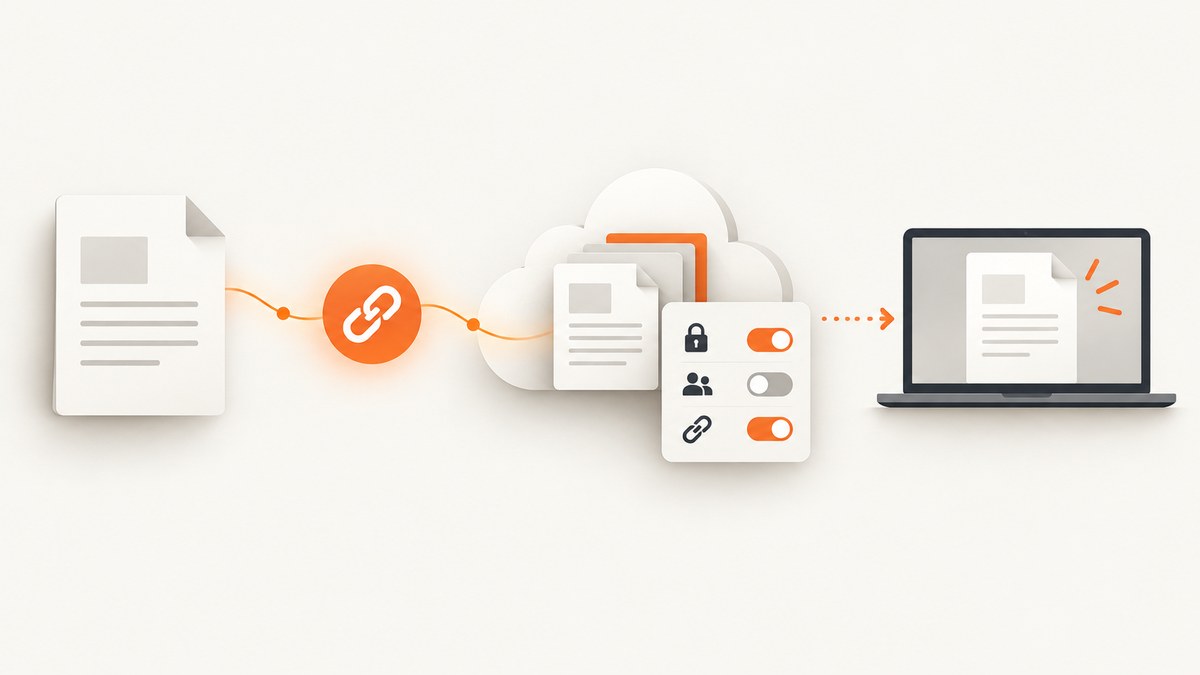
The reliable way to generate a shareable PDF link is to upload the file to a cloud service, set its access and permission rules, then copy the service-generated link. A local path such as /Users/name/report.pdf works only on your computer; it is not a link other people can open.
For a quick default, upload the PDF to Google Drive, select Share, choose the intended audience under General access, select a role such as Viewer, and choose Copy link. Before selecting Anyone with the link, decide whether forwarding the URL would expose the document to people you did not invite.
1. Choose the right access setting
| Use case | Access choice | What to check |
|---|---|---|
| Public handout or documentation | Anyone with the link | Anyone who obtains the URL may be able to open it. |
| Private review | Restricted or invited people | Recipients may need to sign in with the invited account. |
| Feedback needed | Commenter, where supported | Confirm comments are appropriate for the document. |
| Read-only delivery | Viewer | Check whether downloading, printing, or copying should be limited. |
| Temporary access | An expiring link, where your plan supports it | Record the expiration date and tell recipients when access ends. |
Google Drive distinguishes Restricted from Anyone with the link and provides Viewer, Commenter, and Editor roles. Google also notes that the owner’s name and email can be visible when a file is shared, and that viewers can download by default unless the owner changes download, print, and copy controls. Google Drive Help
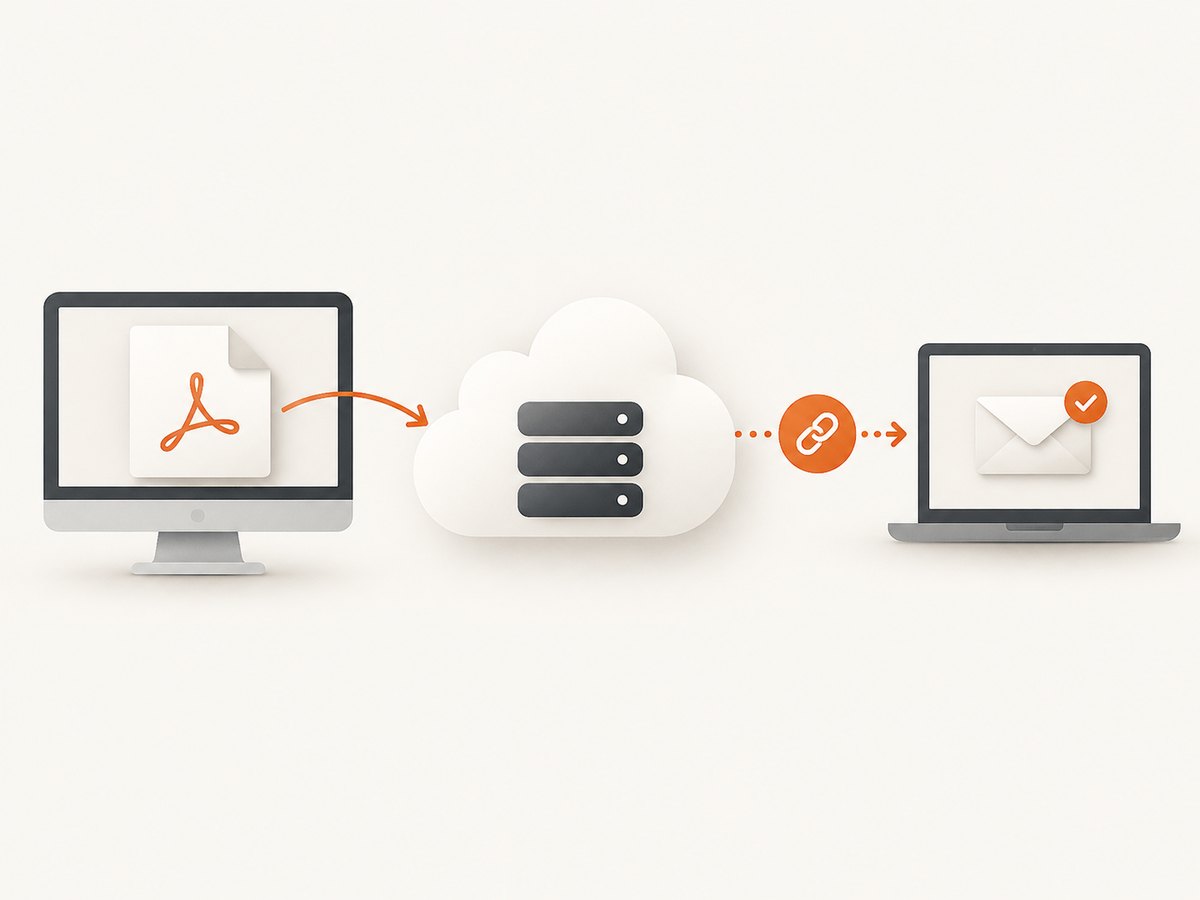
2. Generate a link with Google Drive
- Open Google Drive and upload the PDF, or locate an existing PDF.
- Select the file and choose Share.
- Under General access, choose Restricted for invited recipients, or Anyone with the link for a broad link.
- Select Viewer, Commenter, or Editor according to the task. Give the least access needed.
- If you invited specific people, enter their email addresses and send the invitation.
- Choose Copy link, then paste the URL into your email, issue, document, or message.
When you choose Anyone with the link, the link can be forwarded. Google warns that a folder’s restrictions do not automatically narrow access to a file shared this way. For a sensitive PDF, keep access restricted and invite named accounts instead.
3. Generate a link with Adobe Acrobat
- Open the PDF in Adobe Acrobat and choose its sharing command.
- Open Link Setting.
- Choose the audience: anyone on the internet with the link, people in your organization, or invited people only.
- For a view-only review, turn off the option that allows recipients to comment.
- Apply the settings and choose Create a link to share.
- Copy the generated URL and send it.
Acrobat recipients can open shared documents in a browser, but sign-in and collaboration behavior can vary with the current workflow and account context. Test the exact link you plan to send. Adobe Acrobat Help
4. Generate a link with Dropbox
- Upload the PDF to Dropbox or open the existing file.
- Use the file’s Share action and create a shared link.
- Open the shared-link settings and choose who can view the contents and what they can do.
- Set an expiration date if that control is available on your plan.
- Copy the link and send it.
Dropbox documents expiration controls for Professional, Essentials, Standard, Advanced, Business, Business Plus, and Enterprise plans. Treat expiration as plan-dependent rather than universal. Dropbox Help
5. Verify the link before sending it
- Copy the link from the service instead of copying a browser address that may include an editing session.
- Open a private or signed-out browser window.
- Paste the URL and confirm that the PDF opens for the intended recipient.
- Check whether sign-in is required, whether the correct revision appears, and whether download or print controls match your policy.
- If the PDF is confidential, ask a recipient with the intended account to test access.
A successful test in your own signed-in session does not prove that an outside recipient can open the file.
6. Troubleshooting common problems
| Problem | Likely cause | Fix |
|---|---|---|
| Recipient sees “Request access” | The file is Restricted or the invitation went to another account. | Invite the recipient’s exact account, or deliberately change General access to Anyone with the link. |
| Link opens an old PDF | A second copy was uploaded, or the shared link points to the original file. | Replace the contents of the shared file where supported, or copy the link from the current file. |
| Anyone can view the document | Anyone with the link was enabled and the URL was forwarded. | Switch back to Restricted, remove broad access, and issue invitations. |
| Recipient can download or print | Viewer access commonly permits downloading; controls may be enabled by default. | Review the service’s download, print, and copy settings. Explain that access controls cannot prevent every form of copying. |
| Acrobat recipient cannot collaborate | Commenting is disabled, or the account context requires sign-in. | Review Link Setting, enable comments only when needed, and test with the recipient’s account. |
| Dropbox expiration is unavailable | The account or plan does not include that control. | Check the plan’s link-permission features or revoke the link manually when access should end. |
| Link works for you but not others | Your browser is authenticated or the recipient is using a different account. | Retest signed out and confirm the recipient account and organization policy. |
7. Share a PDF produced from a webpage
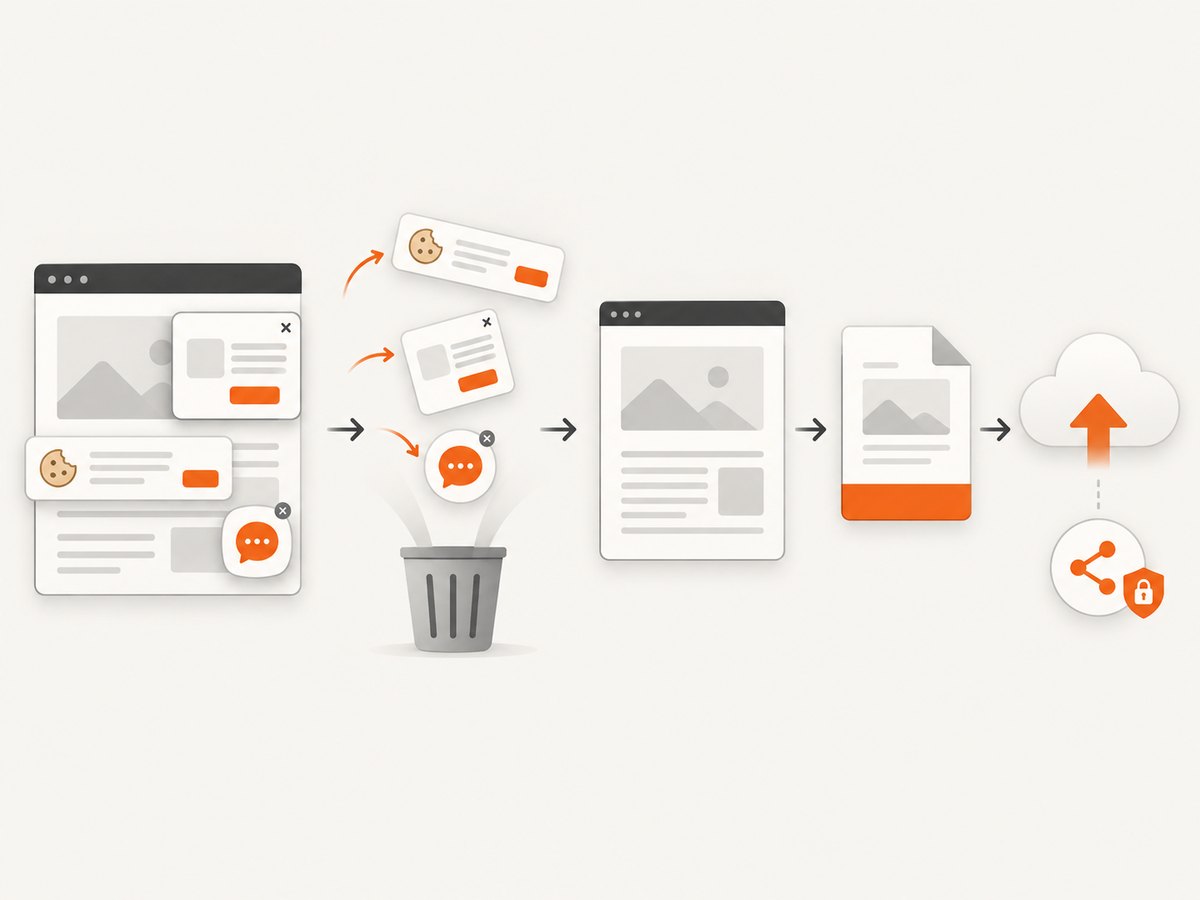
If the PDF starts as a webpage, first create the PDF, then upload it to Drive, Acrobat, or Dropbox and apply the sharing steps above. Keep the PDF-generation and file-sharing permissions separate: the capture service creates the document, while the storage service controls who receives it.
Or skip the browser setup
ScreenshotNeo can capture a webpage as a PDF through one API request. Upload the returned PDF to your chosen storage service to generate the final shareable link. See the ScreenshotNeo API documentation for options.
curl -G "https://api.screenshotneo.com/v1/shot" -d access_key=YOUR_API_KEY --data-urlencode url=https://stripe.com -o page.pdfimport requests
r = requests.get("https://api.screenshotneo.com/v1/shot", params={"access_key": "YOUR_API_KEY", "url": "https://stripe.com"}, timeout=90)
r.raise_for_status()
open("page.pdf", "wb").write(r.content)const q = new URLSearchParams({ access_key: 'YOUR_API_KEY', url: 'https://stripe.com' });
const res = await fetch(`https://api.screenshotneo.com/v1/shot?${q}`);
if (!res.ok) throw new Error(`HTTP ${res.status}`);
const pdf = Buffer.from(await res.arrayBuffer());
require('fs').writeFileSync('page.pdf', pdf);Before the capture, ScreenshotNeo accepts cookie or consent banners and removes more than 60 known consent platforms, newsletter popups, and chat widgets; each step can be turned off. Bot checks, blank pages, timeouts, failed loads, and cache hits are not billed, and the response identifies the page verdict and billing status in headers. Its MCP server lets Claude, Cursor, and other MCP clients use take_screenshot, get_page_info, and capture_pdf. The Free plan includes 1,000 shots per month with no card; paid plans start at $5 for 3,000 shots.
Create a free ScreenshotNeo account and then upload the generated PDF to your storage provider to create its shareable link.
8. Reliability, performance, and cost considerations
- Access reliability: Keep one canonical file and update it in place when the service supports that workflow. Multiple copies create stale links.
- Recipient experience: Public links reduce sign-in friction; restricted links provide tighter control but may require account access.
- Large PDFs: Allow time for upload and browser rendering, and tell recipients that a download may be required for very large files.
- Expiration: Use an expiration feature where your plan provides one, or revoke access manually at the agreed time.
- Capture cost: ScreenshotNeo bills only clean shots; failed loads, bot checks, blank pages, timeouts, and cache hits cost nothing. Caching with a chosen TTL can avoid repeated captures.
- Storage cost: The research sources establish sharing workflows, not a complete current price comparison. Check your provider’s current storage and plan terms before committing.
9. Security checklist
- Classify the PDF before choosing public access.
- Use Restricted or invited access for personal, financial, legal, or internal documents.
- Grant Viewer unless commenting or editing is necessary.
- Review download, print, and copy controls, while recognizing that no link setting prevents every copy.
- Use expiration or revoke access when the sharing period ends.
- Test the copied URL in a private or signed-out browser.
- Remember that the storage provider may display the owner’s name or email.
Frequently asked questions
Can I share a PDF without uploading it?
No. A shareable URL must point to a file hosted by a service; a local file path is not publicly reachable.
Does “Anyone with the link” mean the PDF is searchable?
It means anyone who obtains the URL may be able to open it. Search indexing and authentication behavior depend on the service and its current settings.
Can a shareable link stop downloads?
Some services provide download, print, or copy controls, but Viewer access can allow downloads by default and no link can prevent every form of copying.
Which service should I use?
Use the service where the PDF already lives and that supports the access scope, roles, and expiration behavior you need. Drive, Acrobat, and Dropbox document different controls and plan limits.
Can ScreenshotNeo host my final shareable PDF link?
ScreenshotNeo creates the PDF from a URL. Upload that PDF to Drive, Acrobat, Dropbox, or another storage service to create and manage the shareable link.


