How to Generate Styled PDFs From HTML in Angular With html2canvas and TypeScript
Capture an Angular export region with html2canvas, paginate it with jsPDF, and solve fonts, images, CORS, page breaks, and production failures.

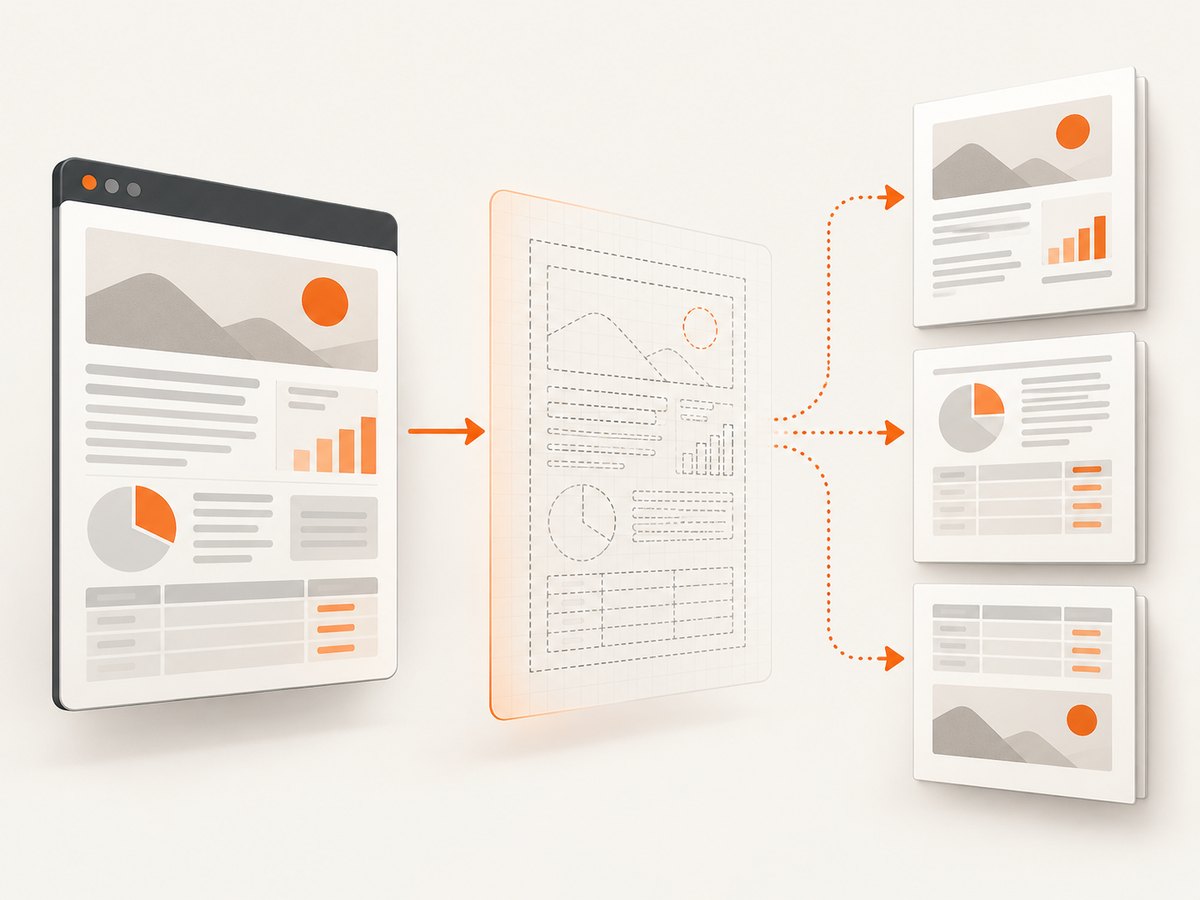
Direct answer: render a dedicated export section in your Angular template, wait for its data, fonts, and images to finish loading, capture that element with html2canvas, place the canvas image into a jsPDF document, and save the file. This produces a visual PDF; html2canvas reconstructs the DOM with supported browser APIs rather than taking a literal screenshot, so test the output for CSS fidelity, pagination, and text behavior.
1. Install the packages
npm install html2canvas jspdf
npm install --save-dev @types/node
Import the libraries only in browser code. html2canvas depends on browser APIs and is not a Node.js renderer. Check the package release notes before pinning versions.
2. Create an export-only Angular region
Keep the printable layout separate from interactive controls. This makes page dimensions predictable and prevents buttons, menus, and transient loading states from appearing in the PDF.
<button type="button" (click)="exportPdf()" [disabled]="exporting">
  {{ exporting ? 'Creating PDF…' : 'Download PDF' }}
</button>


  <header class="report-header">
    <h1>{{ report.title }}</h1>
    <p>{{ report.subtitle }}</p>
  </header>

  <img
    class="report-chart"
    [src]="report.chartUrl"
    alt=""
    crossorigin="anonymous"
  />

  <div class="actions" data-html2canvas-ignore="true">
    <button type="button" (click)="refresh()">Refresh</button>
  </div>

  <article class="report-body" [innerHTML]="report.html"></article>
</section>
The data-html2canvas-ignore="true" attribute is supported by the official examples and excludes an element from the render.
3. Add print-focused CSS
.pdf-sheet {
  width: 794px;              /* roughly A4 width at 96 CSS px/in */
  padding: 48px;
  box-sizing: border-box;
  color: #172033;
  background: #fff;
  font-family: Inter, Arial, sans-serif;
}

.report-header { margin-bottom: 24px; }
.report-chart { display: block; width: 100%; height: auto; }
.report-body { line-height: 1.5; }

@media print {
  .actions { display: none; }
}
Use export-specific styles instead of assuming every application style is supported. Test fonts, gradients, shadows, transforms, charts, and very long sections in the browsers you support.
4. Capture the element and build a multi-page PDF
import {
  AfterViewInit,
  Component,
  ElementRef,
  ViewChild,
} from '@angular/core';
import html2canvas from 'html2canvas';
import jsPDF from 'jspdf';

@Component({
  selector: 'app-report',
  templateUrl: './report.component.html',
  styleUrls: ['./report.component.css'],
})
export class ReportComponent implements AfterViewInit {
  @ViewChild('exportRegion') exportRegion!: ElementRef<HTMLElement>;
  exporting = false;

  report = {
    title: 'Quarterly report',
    subtitle: 'Results and observations',
    chartUrl: '/assets/chart.png',
    html: '<p>Report content rendered by Angular.</p>',
  };

  ngAfterViewInit(): void {
    // The ViewChild reference is available after the view exists.
  }

  async exportPdf(): Promise<void> {
    if (!this.exportRegion?.nativeElement) return;
    this.exporting = true;

    try {
      await this.waitForImages(this.exportRegion.nativeElement);
      await document.fonts?.ready;

      const element = this.exportRegion.nativeElement;
      const canvas = await html2canvas(element, {
        scale: Math.min(window.devicePixelRatio || 1, 2),
        useCORS: true,
        backgroundColor: '#ffffff',
        logging: false,
      });

      const pdf = new jsPDF({
        orientation: 'portrait',
        unit: 'mm',
        format: 'a4',
        compress: true,
      });

      const margin = 10;
      const pageWidth = pdf.internal.pageSize.getWidth();
      const pageHeight = pdf.internal.pageSize.getHeight();
      const contentWidth = pageWidth - margin * 2;
      const contentHeight = (canvas.height * contentWidth) / canvas.width;
      const usableHeight = pageHeight - margin * 2;
      const pixelsPerPage = Math.floor(canvas.width * usableHeight / contentWidth);

      let sourceY = 0;
      let page = 0;
      while (sourceY < canvas.height) {
        const sliceHeight = Math.min(pixelsPerPage, canvas.height - sourceY);
        const slice = document.createElement('canvas');
        slice.width = canvas.width;
        slice.height = sliceHeight;
        const context = slice.getContext('2d');
        if (!context) throw new Error('Canvas 2D context is unavailable');
        context.fillStyle = '#ffffff';
        context.fillRect(0, 0, slice.width, slice.height);
        context.drawImage(
          canvas,
          0, sourceY, canvas.width, sliceHeight,
          0, 0, slice.width, sliceHeight,
        );

        if (page > 0) pdf.addPage();
        const renderedHeight = (slice.height * contentWidth) / slice.width;
        pdf.addImage(
          slice.toDataURL('image JPEG', 0.92),
          'JPEG',
          margin,
          margin,
          contentWidth,
          renderedHeight,
          undefined,
          'FAST',
        );
        sourceY += sliceHeight;
        page++;
      }

      pdf.save('quarterly-report.pdf');
    } finally {
      this.exporting = false;
    }
  }

  private async waitForImages(root: HTMLElement): Promise<void> {
    const images = Array.from(root.querySelectorAll('img'));
    await Promise.all(images.map((image) => {
      if (image.complete) return Promise.resolve();
      return new Promise<void>((resolve) => {
        image.addEventListener('load', () => resolve(), { once: true });
        image.addEventListener('error', () => resolve(), { once: true });
      });
    }));
  }
}
The slice loop keeps each page within the chosen paper size. Adjust the margin, format, orientation, scale, JPEG quality, and break strategy for your document. A canvas-based PDF is image-oriented; confirm whether the final file must contain selectable/searchable text before choosing this pipeline.
5. A shorter html2pdf.js route
html2pdf.js combines html2canvas and jsPDF and exposes options for page format, margins, image encoding, and page-break behavior. It reduces pagination code, but verify its current version and inspect long documents in your target browsers.
import html2pdf from 'html2pdf.js';

async exportWithHtml2Pdf(): Promise<void> {
  const element = this.exportRegion.nativeElement;
  await this.waitForImages(element);

  await html2pdf().set({
    margin: [10, 10, 10, 10],
    filename: 'quarterly-report.pdf',
    image: { type: 'jpeg', quality: 0.92 },
    html2canvas: {
      scale: Math.min(window.devicePixelRatio || 1, 2),
      useCORS: true,
      backgroundColor: '#ffffff',
    },
    jsPDF: { unit: 'mm', format: 'a4', orientation: 'portrait' },
    pagebreak: { mode: ['css', 'legacy'] },
  }).from(element).save();
}
Use CSS such as break-inside: avoid on cards that should stay together, then test whether the selected package honors it for your content.
6. Images, CORS, fonts, and iframes
- Remote images:
useCORS: trueasks the browser to make a CORS request; it cannot bypass the same-origin policy. The image server must send a suitableAccess-Control-Allow-Originheader, or you need a server-side proxy. - Canvas tainting: a cross-origin image without permission can make canvas export fail or produce a security error. Host assets on your origin, configure CORS, or proxy them.
- Fonts: wait for
document.fonts.ready. If a font is still loading, the capture can use fallback metrics and change line wrapping. - Iframes: cross-origin iframe contents cannot be read through the parent page’s DOM. Render the content in the same origin or capture it separately.
- Unsupported CSS: html2canvas supports many common properties but not every browser feature. Replace complex effects with export styles when fidelity matters.
7. Page-break and layout strategy
- Choose the paper size, orientation, and margins first.
- Give the export region a predictable width and avoid horizontal scrolling.
- Use headings and cards as break boundaries. Apply
break-inside: avoidto small blocks, but do not apply it to huge elements that cannot fit on one page. - Test short, medium, and very long reports. A break that looks correct for one record can split a table or chart for another.
- For tables, repeat header rows in a print-specific layout or paginate the data yourself.
8. Troubleshooting
| Symptom | Likely cause | Fix |
|---|---|---|
| Blank or partly blank PDF | Capture ran before Angular data, images, or fonts finished. | Start capture from the user action after rendering; await image loads and document.fonts.ready. |
| Security error when exporting | A cross-origin image tainted the canvas. | Configure CORS on the asset host, proxy the image, or use same-origin assets. |
| Remote image missing | The server blocks CORS or the URL failed. | Inspect the network response and CORS headers; use a fallback or proxy. |
| Fonts or line breaks differ | Font was not loaded or the CSS is unsupported. | Await fonts, embed a permitted web font, and add export-specific CSS. |
| Cross-origin iframe is empty | Browser DOM isolation. | Do not attempt to read it from the parent; render the content in your origin or capture it independently. |
| Pages are huge or blurry | Device-pixel scale and image dimensions are excessive. | Cap scale (often 1–2), reduce JPEG quality, and avoid unnecessary full-resolution assets. |
| Content is clipped | Fixed height, overflow, or an incorrect page-slice calculation. | Capture the full element, remove restrictive heights, and verify the pixels-per-page math. |
| Buttons appear in the PDF | Interactive UI was inside the selected element. | Move controls outside the export region or mark them with data-html2canvas-ignore. |
| Angular SSR build fails | Browser globals or imports execute on the server. | Load and call the libraries only in browser execution paths and user-triggered handlers. |
9. Performance, reliability, and cost
- Memory: canvas memory grows with width × height × scale. Capture only the needed region and cap scale for long reports.
- Responsiveness: large captures can block the main thread. Disable the export button, show progress, and consider chunking very long reports.
- File size: JPEG is usually smaller for photos and gradients; PNG preserves sharp edges and transparency but can be large.
- Reliability: treat image-load failures explicitly, log the failing URL, and provide a retry. Keep a server-side PDF route if legal, archival, or accessibility requirements exceed a canvas image.
- Accessibility and search: inspect the generated PDF. Canvas rendering does not guarantee selectable text, tagged structure, or screen-reader semantics.
- Cost: this browser workflow has no API capture charge, but it consumes the user’s CPU and memory. A server or API workflow shifts rendering away from the browser and may add service usage costs.
10. Or skip the browser setup
ScreenshotNeo provides a one-call website capture API and PDF output when you do not want to maintain browser rendering code. Cookie banners, newsletter popups, and chat widgets are removed before the shot. Bot checks, blank pages, failed loads, timeouts, and cache hits are not billed. Its MCP server lets Claude, Cursor, and other MCP clients call screenshot and PDF tools. The free plan includes 1,000 screenshots a month with no card; paid plans start at $5 for 3,000.

For a URL-based PDF or screenshot, see the ScreenshotNeo API documentation:
curl -G "https://api.screenshotneo.com/v1/shot" \
  -d access_key=YOUR_API_KEY \
  --data-urlencode url=https://stripe.com \
  -o shot.webp
import requests
r = requests.get(
"https://api.screenshotneo.com/v1/shot",
params={"access_key": "YOUR_API_KEY", "url": "https://stripe.com"},
timeout=90,
)
r.raise_for_status()
open("shot.webp", "wb").write(r.content)const q = new URLSearchParams({
access_key: 'YOUR_API_KEY',
url: 'https://stripe.com',
});
const res = await fetch(`https://api.screenshotneo.com/v1/shot?${q}`);
if (!res.ok) throw new Error(`ScreenshotNeo failed: ${res.status}`);
const bytes = Buffer.from(await res.arrayBuffer());
require('node:fs').writeFileSync('shot.webp', bytes);Create a free ScreenshotNeo account with 1,000 screenshots per month and no card.
11. FAQ
Does html2canvas take a true screenshot?
No. It builds a canvas representation from DOM nodes and supported CSS, so the result can differ from the visible browser pixels.
Can I capture an entire Angular application automatically?
You can pass a large root element, but a dedicated export region gives better control over transient UI, width, pagination, and performance.
Should I use jsPDF directly or html2pdf.js?
Use jsPDF directly when you need custom pagination and placement. Use html2pdf.js when its documented options cover your layout and you prefer less plumbing.
Will the generated PDF always have selectable text?
No guarantee. The canvas step is image-oriented; inspect the final artifact or choose a PDF renderer that creates text objects when searchability is required.
Can this run in Node.js?
html2canvas itself relies on browser APIs. Use it in the Angular browser, or choose a server-side browser/PDF service for backend rendering.


