How to Generate TestNG Reports for Selenium Tests
Generate TestNG HTML and XML reports for Selenium with Maven, listeners, reporters, troubleshooting, and CI-friendly output.

Direct answer: A basic TestNG run creates an index.html report in the output directory supplied to SuiteRunner. The page links to additional HTML and text result files. When Selenium tests run through Maven Surefire, Surefire attaches TestNG listeners and writes reports into the Maven build’s report directories; the exact location depends on your Surefire and TestNG configuration.
This guide shows a minimal Selenium suite, Maven configuration, direct TestNG execution, custom listeners and reporters, XML output, CI usage, troubleshooting, and an API option for capturing screenshots when a failure needs visual evidence.
1. Create a minimal Selenium and TestNG project
Use a TestNG version compatible with the JDK used by your build. TestNG documents JDK 8 for versions through 7.5 and JDK 11 or newer for 7.6.0 and later. Its current documentation demonstrates version 7.9.0 with JDK 11. See the official TestNG documentation and the TestNG Maven integration guide.
Maven pom.xml
<project xmlns="http://maven.apache.org/POM/4.0.0"
         xmlns:xsi="http://www.w3.org/2001/XMLSchema-instance"
         xsi:schemaLocation="http://maven.apache.org/POM/4.0.0
         https://maven.apache.org/xsd/maven-4.0.0.xsd">
  <modelVersion>4.0.0</modelVersion>
  <groupId>example</groupId>
  <artifactId>selenium-testng-reports</artifactId>
  <version>1.0-SNAPSHOT</version>

  <properties>
    <maven.compiler.source>11</maven.compiler.source>
    <maven.compiler.target>11</maven.compiler.target>
    <project.build.sourceEncoding>UTF-8</project.build.sourceEncoding>
  </properties>

  <dependencies>
    <dependency>
      <groupId>org.seleniumhq.selenium</groupId>
      <artifactId>selenium-java</artifactId>
      <version>4.25.0</version>
      <scope>test</scope>
    </dependency>
    <dependency>
      <groupId>org.testng</groupId>
      <artifactId>testng</artifactId>
      <version>7.9.0</version>
      <scope>test</scope>
    </dependency>
  </dependencies>

  <build>
    <plugins>
      <plugin>
        <groupId>org.apache.maven.plugins</groupId>
        <artifactId>maven-surefire-plugin</artifactId>
        <version>3.5.0</version>
        <configuration>
          <suiteXmlFiles>
            <suiteXmlFile>src/test/resources/testng.xml</suiteXmlFile>
          </suiteXmlFiles>
        </configuration>
      </plugin>
    </plugins>
  </build>
</project>
Align the Selenium, TestNG, compiler, and Surefire versions with your existing project. The report mechanism belongs to TestNG and the runner; Selenium supplies the browser automation.
Selenium test class
package example;

import org.openqa.selenium.By;
import org.openqa.selenium.WebDriver;
import org.openqa.selenium.chrome.ChromeDriver;
import org.testng.Assert;
import org.testng.annotations.AfterMethod;
import org.testng.annotations.BeforeMethod;
import org.testng.annotations.Test;

public class HomePageTest {
    private WebDriver driver;

    @BeforeMethod
    public void setUp() {
        driver = new ChromeDriver(); // Selenium Manager resolves the driver
    }

    @Test
    public void homePageHasExpectedTitle() {
        driver.get("https://example.com");
        Assert.assertTrue(driver.getTitle().contains("Example"));
    }

    @Test
    public void pageContainsHeading() {
        driver.get("https://example.com");
        Assert.assertEquals(driver.findElement(By.tagName("h1")).getText(), "Example Domain");
    }

    @AfterMethod(alwaysRun = true)
    public void tearDown() {
        if (driver != null) {
            driver.quit();
        }
    }
}
Suite file
<!DOCTYPE suite SYSTEM "https://testng.org/testng-1.0.dtd">
<suite name="Selenium suite" verbose="1">
  <test name="Smoke tests">
    <classes>
      <class name="example.HomePageTest"/>
    </classes>
  </test>
</suite>
2. Generate the built-in HTML report
Run with Maven Surefire
mvn clean testSurefire’s TestNG integration attaches basic listeners that produce HTML and XML results by default. Start in target/surefire-reports, then inspect your effective POM and Surefire configuration if your project uses a different directory, fork mode, or reporting setup. The Surefire TestNG documentation describes the default listeners and custom reporter configuration.
Typical files include an HTML index and XML result files, but names and paths vary by plugin version and configuration. Treat the Maven build output as the source of truth rather than assuming the standalone TestNG directory layout.
Run TestNG directly
When launching TestNG’s SuiteRunner directly, pass the output directory used by your runner. TestNG’s logging and results documentation states that the run creates index.html in that directory and links to other HTML and text files.
mvn -q dependency:build-classpath \
  -Dmdep.outputFile=cp.txt

# Linux/macOS example
java -cp "target/test-classes:$(cat cp.txt)" \
  org.testng.TestNG -d target/testng-direct src/test/resources/testng.xml

# Windows PowerShell example
$cp = Get-Content cp.txt
java -cp "target/test-classes;$cp" `
  org.testng.TestNG -d target/testng-direct src/test/resources/testng.xml
Open target/testng-direct/index.html after the run. If your launcher supplies another -d directory, use that directory instead.
3. Add useful Selenium context to the report
Reporter.log writes messages into generated HTML reports. Keep messages short and actionable: identify the URL, logical step, test data identifier, or recovery action. Do not log passwords, authorization headers, session tokens, or sensitive page content.
import org.testng.Reporter;

Reporter.log("Opening checkout page", true);
Reporter.log("Submitting order for test data: order-123", true);
The second argument requests console output as well as report output. Use a stable test-data identifier instead of the complete payload when data may contain secrets.
4. Choose a listener or reporter
| Need | Use | When it runs |
|---|---|---|
| Observe starts, passes, failures, skips in real time | ITestListener |
During test execution |
| Build one complete custom report after all suites finish | IReporter |
After suite completion |
| Structured TestNG-specific output for another tool | XMLReporter |
At report generation |
TestNG documents ITestListener for real-time lifecycle events and IReporter for post-run reporting. Register listeners in testng.xml or with @Listeners. Surefire also supports listener and reporter configuration.
Real-time failure listener
package example;

import org.testng.ITestListener;
import org.testng.ITestResult;
import org.testng.Reporter;

public class FailureListener implements ITestListener {
    @Override
    public void onTestFailure(ITestResult result) {
        Reporter.log("FAILED: " + result.getTestClass().getName()
                + "#" + result.getName(), true);
        Throwable error = result.getThrowable();
        if (error != null) {
            Reporter.log("Reason: " + error.getClass().getSimpleName()
                    + ": " + error.getMessage(), true);
        }
    }
}
Register it on a class or suite:
import org.testng.annotations.Listeners;

@Listeners(FailureListener.class)
public class HomePageTest {
    // tests...
}
Post-run custom reporter
package example;

import java.io.File;
import java.io.PrintWriter;
import java.util.List;
import org.testng.IReporter;
import org.testng.ISuite;
import org.testng.xml.XmlSuite;

public class SummaryReporter implements IReporter {
    @Override
    public void generateReport(List<XmlSuite> xmlSuites,
                               List<ISuite> suites,
                               String outputDirectory) {
        File report = new File(outputDirectory, "summary.html");
        try (PrintWriter out = new PrintWriter(report)) {
            out.println("<!doctype html><html><body>");
            out.println("<h1>TestNG summary</h1>");
            for (ISuite suite : suites) {
                out.printf("<h2>%s</h2>\n", suite.getName());
                out.printf("<p>Tests: %d</p>\n",
                    suite.getAllMethods().size());
            }
            out.println("</body></html>");
        } catch (Exception e) {
            throw new RuntimeException("Could not write report", e);
        }
    }
}
For a production reporter, escape names before writing HTML and calculate passed, failed, skipped, duration, and parameter values from the suite and test result objects. Keep report generation independent from browser-driver cleanup so a reporting failure does not hide the original test failure.
5. Generate TestNG-specific XML
Use XMLReporter when a downstream system needs TestNG-specific details that a JUnit-format report does not contain. Documented settings include output directory, file fragmentation, stack-trace detail, group attributes, result attributes, timestamp formatting, and dependency information.
java -cp "target/test-classes:$(cat cp.txt)" \
  org.testng.TestNG \
  -d target/testng-xml \
  -reporter org.testng.reporters.XMLReporter:outputDirectory=target/testng-xml,\
fileFragmentationLevel=2,stackTraceOutputMethod=full,\
includeGroups=smoke \
  src/test/resources/testng.xml
Reporter property syntax can differ between direct TestNG execution and build plugins. Verify the effective command or plugin configuration when a property is ignored. Keep XML as an integration artifact and HTML as the report a human opens first.
6. Capture screenshots for failed Selenium tests
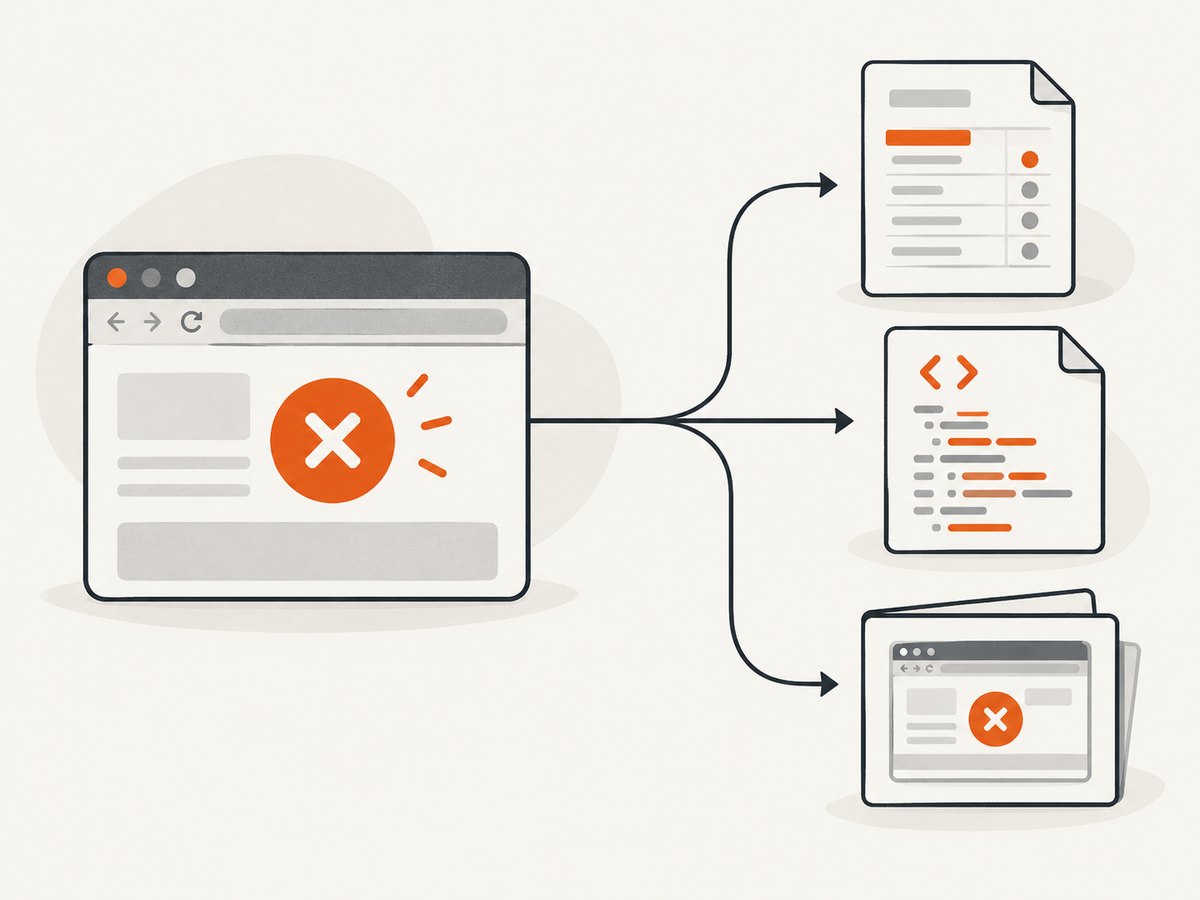
A report tells you which test failed; a screenshot shows the browser state. Capture it in onTestFailure before the driver is quit, and attach the file as a CI artifact.
import java.io.File;
import java.nio.file.Files;
import java.nio.file.Path;
import org.openqa.selenium.OutputType;
import org.openqa.selenium.TakesScreenshot;

public static Path saveFailureScreenshot(WebDriver driver, String testName)
        throws Exception {
    Path dir = Path.of("target", "screenshots");
    Files.createDirectories(dir);
    File source = ((TakesScreenshot) driver).getScreenshotAs(OutputType.FILE);
    Path destination = dir.resolve(testName + "-failure.png");
    Files.copy(source.toPath(), destination,
            java.nio.file.StandardCopyOption.REPLACE_EXISTING);
    return destination;
}
7. Or skip the browser setup
If you need a clean screenshot of a page for a report, documentation page, or failure artifact, ScreenshotNeo provides a single HTTP request. It accepts cookie and consent banners as a visitor and removes more than 60 known consent platforms, newsletter popups, and chat widgets before capture. Bot checks, blank pages, timeouts, failed loads, and cache hits are not billed, and the response identifies the result with X-Page-Verdict and X-Billed headers. Its MCP server also lets Claude, Cursor, and other MCP clients call take_screenshot, get_page_info, and capture_pdf.

See the ScreenshotNeo API documentation for all options.
cURL
curl -G "https://api.screenshotneo.com/v1/shot" \
  -d access_key=YOUR_API_KEY \
  --data-urlencode url=https://example.com \
  -o shot.webp
Python
import requests

r = requests.get(
    "https://api.screenshotneo.com/v1/shot",
    params={"access_key": "YOUR_API_KEY", "url": "https://example.com"},
    timeout=90,
)
r.raise_for_status()
open("shot.webp", "wb").write(r.content)
Node.js
const q = new URLSearchParams({
  access_key: 'YOUR_API_KEY',
  url: 'https://example.com'
});
const res = await fetch(`https://api.screenshotneo.com/v1/shot?${q}`);
if (!res.ok) throw new Error(`Screenshot failed: ${res.status}`);
require('fs').writeFileSync('shot.webp', Buffer.from(await res.arrayBuffer()));
One thousand screenshots per month are free with no card. Paid plans start at $5 for 3,000 shots, and every feature is available on every plan. Create a free ScreenshotNeo account.
8. CI and artifact handling
- Run
mvn clean testin the CI job. - Configure the CI system to upload
target/surefire-reports/**, your custom report directory, and failure screenshots. - Preserve artifacts even when tests fail. In most CI systems this means enabling an “always upload” or equivalent setting.
- Publish
index.htmlas a browsable artifact and retain XML for machine processing. - Keep browser and driver logs beside the report when diagnosing startup or rendering failures.
9. Troubleshooting
| Symptom | Likely cause | Fix |
|---|---|---|
No index.html |
Run used Surefire or a different output directory | Inspect Maven’s report directory and the effective -d value for direct TestNG runs. |
| Only XML appears | HTML listener was disabled or a custom reporter replaced defaults | Remove the override, or configure the HTML listener explicitly in Surefire/TestNG. |
| Tests are not discovered | Suite class name, package, or Surefire include pattern is wrong | Run the suite XML directly, verify fully qualified class names, then check Surefire includes. |
UnsupportedClassVersionError |
JDK is older than the selected TestNG release | Use a compatible TestNG version or run with JDK 11+ for TestNG 7.6.0 and later. |
| Report is empty | Suite failed before tests ran, or the wrong output directory was opened | Read the console stack trace and inspect the directory printed by the runner. |
| Custom reporter is never called | Reporter is not registered | Register it with @Listeners, testng.xml, or the Surefire reporter configuration. |
| Failure screenshot is missing | Driver was quit before the listener ran | Capture in onTestFailure and make teardown alwaysRun; avoid closing the driver first. |
| Parallel results are confusing | Shared driver, filenames, or mutable reporter state | Use one driver per test/thread, include a unique method or UUID in filenames, and synchronize shared writes. |
| Browser starts but page is blank | Target site, network, proxy, or wait condition failed | Record URL and browser logs, add an explicit wait, and preserve the failure screenshot. |
10. Performance, reliability, and cost
- Report size: Large suites create many HTML, XML, log, and screenshot files. Retain only the artifacts needed for investigation and use CI retention policies.
- Parallel execution: Parallel tests reduce wall-clock time but expose shared-driver and filename collisions. Keep listeners thread-safe and make artifact names unique.
- Failure handling: Report generation should run after cleanup is scheduled, while screenshot capture must happen before the driver is closed.
- Determinism: Record browser, operating system, viewport, URL, and test-data identifiers so a report can be reproduced.
- ScreenshotNeo billing: Only clean screenshots are billed. Bot checks, blank pages, timeouts, failed loads, and cache hits cost nothing; inspect
X-Page-VerdictandX-Billedwhen reconciling usage.
11. FAQ
Where is the TestNG report generated?
For direct TestNG execution, index.html is in the directory passed to SuiteRunner, commonly with -d. For Maven, inspect the Surefire build output and your plugin configuration.
Should I use a listener or an IReporter?
Use ITestListener for live events such as failures and screenshots. Use IReporter for one report assembled after all suites finish.
Can TestNG produce machine-readable results?
Yes. Use XMLReporter when consumers need TestNG-specific XML fields, and preserve the generated HTML for human investigation.
Why does my report path differ between local and CI runs?
The runner, Surefire version, fork settings, and configured output directory can all change where artifacts are written. Print or inspect the effective configuration in each environment.
Does Selenium generate TestNG reports?
No. Selenium drives the browser. TestNG and the runner generate the reports; Selenium can provide screenshots, page source, logs, and other diagnostic data to include in them.


