How to Generate Screenshots of Twitter Profiles
Capture a Twitter profile reliably: browser shortcuts, full-page methods, privacy checks, automation options, and a ScreenshotNeo workflow.
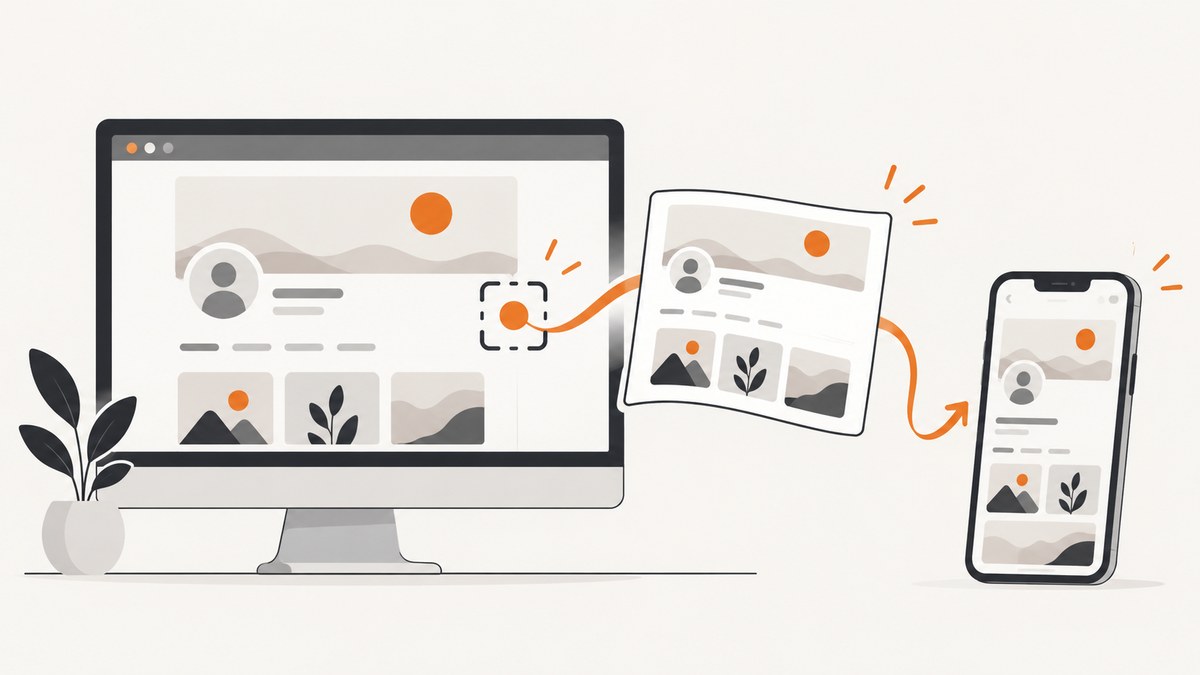
For a one-off capture, open the profile on your device, frame the content you need, and use the device’s built-in screenshot command. Use a full-page capture when the profile extends below the visible screen. For repeated captures, automate a browser or use a screenshot API, while checking sign-in requirements, consent dialogs, dynamic loading, privacy, and X’s platform rules.
1. Choose the right capture method
| Goal | Best starting point | What you get |
|---|---|---|
| Save what is visible now | Device or browser screenshot | A quick image of the current viewport |
| Include the entire profile page | Full-page browser capture or several labeled captures | Content below the viewport, subject to lazy loading and scrolling limits |
| Save one post or thread | A documented post or thread screenshot extension | Styled post imagery, often with export options |
| Capture profiles repeatedly | Browser automation or a screenshot API | A repeatable workflow that can be scheduled and monitored |
| Keep structured account data | X API access or your downloadable account archive | Data records, not a visual screenshot |
A tool designed for tweet or thread images is not automatically a whole-profile capture tool. Confirm its documented scope before relying on it.
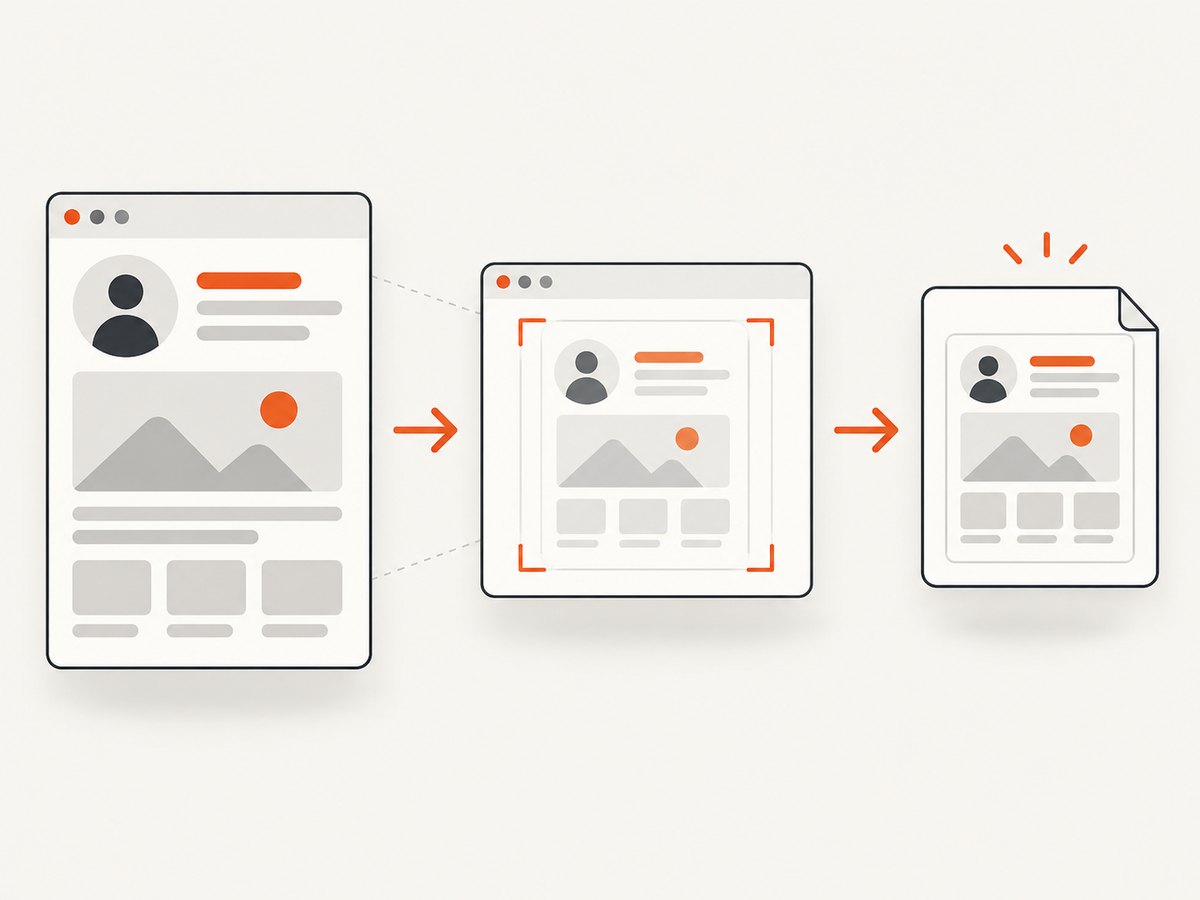
2. Capture a profile manually
- Open the target profile in X on a device and browser you control. If it is private or requires sign-in, use the normal X sign-in flow. Do not enter credentials into an unfamiliar capture service.
- Wait for the profile header, avatar, biography, tabs, and visible posts to finish loading. Scroll once through the area you intend to capture so lazy-loaded content has a chance to appear.
- Adjust the viewport and zoom until the desired content is readable. Close unrelated tabs, notifications, overlays, and account menus.
- Use your operating system’s or browser’s screenshot command. Exact shortcuts differ by device and operating-system version, so confirm the current shortcut for your device.
- Save the original image in a lossless format when it may be used as evidence. Make a separate cropped or annotated copy for sharing.
- Review the image for cut-off text, repeated sticky elements, missing media, private messages, account details, browser tabs, notifications, and unrelated personal information.
A screenshot records what appeared at capture time. It does not prove that the page has not changed or that the image has not been edited. For evidence, retain the unaltered original and record when and where it was captured.
3. Make a full-page profile capture
A normal screenshot captures only the visible viewport. Use a browser’s full-page capture command when the profile content continues below the screen.
- Open the profile and let the header and initial timeline load.
- Start the browser’s full-page capture feature or an established page-capture tool.
- Wait for the capture to complete. Dynamic timelines may load additional content while scrolling.
- Inspect the result for blank sections, duplicated sticky headers, clipped images, missing lazy-loaded posts, and nested scrolling areas.
- If the page cannot be captured as one image, take multiple captures with overlapping boundaries and label them with their order and capture time.
Full-page capture behavior varies with dynamically loaded pages, nested scroll regions, and access requirements. Verify the output instead of assuming that a long image contains every post.
4. Capture one post or a thread instead of the whole profile
If your actual goal is a polished image of an individual post or thread, use a tool whose documentation explicitly covers that scope. Some browser extensions provide one-click PNG export, thread capture, or anonymization. Those workflows are adjacent to profile capture: they do not establish that the entire profile page can be exported.
Before installing an extension, check the permissions it requests, whether processing happens locally or on a remote server, what data it transmits, and whether the tool still supports the current X interface.
5. Automate profile screenshots with a browser
Automation is useful for scheduled archives, regression checks, or many public profiles. A typical workflow is:
- Launch a controlled browser context with a fixed viewport, timezone, and user agent.
- Navigate to the profile URL.
- Wait for a stable selector such as the profile header, then optionally wait for network idle or a short delay.
- Scroll or use a full-page capture mode so lazy-loaded content is requested.
- Save the image with the URL, timestamp, viewport, and capture status in metadata.
- Retry transient navigation failures with a bounded backoff and keep failed captures separate from successful images.
Do not automate around access controls or enter credentials into a service you have not evaluated. Public content can still change, require consent, trigger bot checks, or render differently when signed out.
6. Data alternatives for your own account
X’s APIs can provide public content programmatically, while certain non-public information requires additional permissions. X’s downloadable account archive can include profile information, posts, media, and other account data. These are structured or archival records; neither is the same as a visual screenshot of a profile page.
When embedded X content is viewed on a third-party website, X says information such as the visited webpage, IP address, browser type, operating system, and cookie information may be shared with X. Consider that data flow when choosing an external embedding or capture workflow.
7. Or skip the browser setup
ScreenshotNeo is a website screenshot API and MCP server. One GET request returns a PNG, JPEG, WebP, or PDF. It can capture a public profile URL without you maintaining browser automation.

Before capture, ScreenshotNeo can accept cookie or consent banners and remove more than 60 known consent platforms, newsletter popups, and chat widgets. Each step can be turned off. Bot checks or CAPTCHAs, blank pages, timeouts, failed loads, and cache hits are not billed; response headers report the page verdict and whether the request was billed.
See the ScreenshotNeo documentation for parameter names and configuration details.
cURL
curl -G "https://api.screenshotneo.com/v1/shot" -d access_key=YOUR_API_KEY --data-urlencode url=https://x.com/X -o profile.webpPython
import requests

r = requests.get(
    "https://api.screenshotneo.com/v1/shot",
    params={"access_key": "YOUR_API_KEY", "url": "https://x.com/X"},
    timeout=90,
)
r.raise_for_status()
open("profile.webp", "wb").write(r.content)
Node.js
const q = new URLSearchParams({
  access_key: 'YOUR_API_KEY',
  url: 'https://x.com/X'
});

const res = await fetch(`https://api.screenshotneo.com/v1/shot?${q}`);
if (!res.ok) throw new Error(`HTTP ${res.status}`);
const buffer = Buffer.from(await res.arrayBuffer());
await import('node:fs/promises').then(fs => fs.writeFile('profile.webp', buffer));
Replace https://x.com/X with the profile URL you are allowed to access. Keep the API key on your server, never in a public browser or client-side image URL.
Useful capture controls
| Need | ScreenshotNeo capability |
|---|---|
| Show the complete page | Full-page capture with lazy images loaded |
| Capture a specific region | Capture one element by CSS selector |
| Match a visitor’s appearance | Dark mode, 12 device presets, any viewport, and retina scale |
| Control page state | Custom CSS and JavaScript, click an element before capture, and waits for a selector, delay, or network idle |
| Reduce noise | Hide selectors; block ads, trackers, requests, or resource types |
| Reproduce access conditions | Custom headers, cookies, user agent, Authorization, timezone, and geolocation |
| Control output | PNG, JPEG, WebP, or PDF; transparent background and image resizing |
| Control repeat work | Caching with a TTL you choose, signed links, asynchronous jobs with signed webhooks, bulk capture of up to 100 URLs per call, and a usage API |
ScreenshotNeo also provides an OpenAPI specification, an MCP server for Claude, Cursor, and other MCP clients, and the tools take_screenshot, get_page_info, and capture_pdf. Parameters commonly used by other screenshot APIs work as well, which can simplify a migration.
Why use it for profiles: cookie banners, popups, and chat widgets are removed before the shot; bot checks, blank pages, and failed loads are never billed; an MCP server lets AI agents take screenshots; 1,000 screenshots each month are free with no card, and paid plans start at $5 for 3,000. Create a free ScreenshotNeo account.
8. Troubleshooting
| Symptom | Likely cause | Fix |
|---|---|---|
| Only the top of the profile appears | The capture was viewport-only | Use full-page mode or take multiple labeled captures. |
| Posts or media are missing | Lazy loading or an unfinished navigation | Scroll first, wait for a profile selector or network idle, then capture again. |
| The page shows a sign-in prompt | The profile is private or X requires authentication | Use the normal X sign-in flow in a controlled browser; do not submit credentials to an unfamiliar service. |
| A consent banner covers the image | Consent state was not handled | Accept it in your own browser, hide the selector, or use a capture workflow that handles consent before the shot. |
| A bot check or CAPTCHA appears | The request was challenged | Do not attempt to bypass it. Record the failed result and review access, rate, and authorization requirements. |
| Sticky headers repeat down a long image | The page-capture method cloned fixed elements | Hide the fixed selector if your tool supports it, or capture overlapping sections manually. |
| Text is clipped | Viewport, zoom, or responsive breakpoint changed | Set a larger viewport, reset zoom, and verify the image at its final resolution. |
| ScreenshotNeo returns an unexpected result | URL access, loading state, or page verdict | Inspect the response and X-Page-Verdict and X-Billed headers, then adjust waits, viewport, headers, cookies, or user agent. |
| API calls are slow | Heavy scripts, media, or an intentionally long wait | Use a selector wait instead of an excessive delay, block unnecessary resource types, resize the output, or use caching with an appropriate TTL. |
9. Reliability, privacy, performance, and cost
Reliability
- Record the source URL, capture time, viewport, and whether the result was complete.
- Keep failed loads and bot checks separate from valid images.
- Use bounded retries for transient errors; do not create unbounded traffic against X.
- For evidence, retain the original image and an audit record.
Privacy and permissions
- Remove notifications, direct messages, account identifiers, and unrelated tabs before sharing.
- Investigate third-party applications before authorization. X states that users are responsible for activity performed by associated applications.
- Review extension permissions and vendor data flows. A privacy claim by one extension does not apply to every extension or API.
Performance
- Capture only the scope you need: a viewport or selected element is cheaper to process than a complete long page.
- Set a stable viewport and use a selector or network-idle wait so the image is ready without an arbitrary long delay.
- Use caching for repeated identical URLs and bulk capture for batches.
Cost
ScreenshotNeo bills only clean shots. Cache hits, failed loads, blank pages, timeouts, and bot checks or CAPTCHAs are not billed, and the response identifies the verdict and billing state. Plans include Free with 1,000 shots per month and no card, Starter at $5 for 3,000, Growth at $15 for 15,000, Pro at $39 for 60,000, Scale at $99 for 250,000, and Business at $249 for 1,000,000. Yearly billing gives two months free, and every feature is on every plan.
10. Checklist before you share a profile screenshot
- Is the image showing the intended profile and capture time?
- Did you choose viewport or full-page scope deliberately?
- Are all lazy-loaded posts and media visible?
- Did you remove private information, notifications, and unrelated browser content?
- Did you preserve an unaltered original if the image may be used as evidence?
- Does the tool’s documented scope match a profile rather than only a post or thread?
- Have you reviewed permissions, authorization, and data transmission?
FAQ
Does X have a dedicated profile screenshot button?
The official material covered here describes APIs, automation guidance, account archives, and privacy information rather than a dedicated profile-screenshot command. Use your device or a capture tool.
Can I screenshot a private profile?
Only if you can view it through the normal authorized X session. Treat the resulting image as private and avoid sending credentials to a capture service.
Is a tweet screenshot extension suitable for a whole profile?
Usually not by default. Post and thread tools have a narrower scope; verify whole-profile support in the current documentation.
Can an API screenshot prove that a profile is authentic?
No. It is a visual record of one retrieval. Preserve the original and context, and remember that the page can change.
When should I use PDF output?
Use PDF when you need a paginated record for review or archiving. Use PNG, JPEG, or WebP when the result will be displayed as an image.


