How to Generate a Video Thumbnail with JavaScript
Generate a video thumbnail in the browser by seeking an HTML video to a valid frame, drawing it to canvas, and exporting an image.
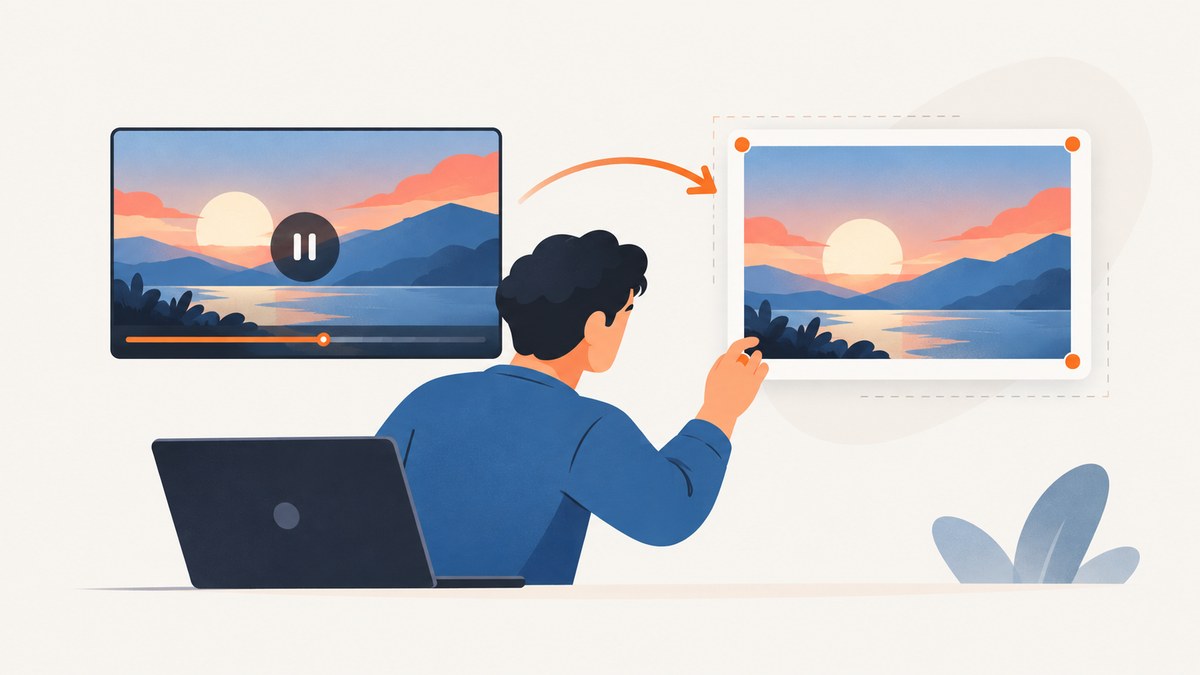
To generate a video thumbnail in JavaScript, load the video in an HTML <video> element, wait for its metadata, seek to a timestamp within its duration, wait until that frame is ready, draw it to a <canvas>, and export the canvas as an image. The video element can be used as a canvas image source; timing and cross-origin permissions are the two details most likely to make a thumbnail fail. See MDN’s canvas image guide and HTMLMediaElement reference.
1. Minimal working example
Save this as an HTML file and serve it from a local web server. Set videoUrl to a video the browser can load. The example waits for metadata, clamps the requested timestamp, seeks, waits for the frame callback where available, then downloads a PNG.
<!doctype html>
<html lang="en">
<meta charset="utf-8">
<meta name="viewport" content="width=device-width, initial-scale=1">
<title>Video thumbnail</title>
<button id="make">Create thumbnail</button>
<video id="source" muted playsinline preload="metadata"></video>
<canvas id="canvas"></canvas>
<img id="preview" alt="Generated video thumbnail">
<script>
const video = document.querySelector('#source');
const canvas = document.querySelector('#canvas');
const preview = document.querySelector('#preview');
const videoUrl = '/media/demo.mp4'; // Replace with a reachable video URL.
const requestedSeconds = 2;

function waitForEvent(target, eventName) {
  return new Promise((resolve, reject) => {
    const onEvent = () => { cleanup(); resolve(); };
    const onError = () => {
      cleanup();
      reject(target.error || new Error('Media failed to load'));
    };
    const cleanup = () => {
      target.removeEventListener(eventName, onEvent);
      target.removeEventListener('error', onError);
    };
    target.addEventListener(eventName, onEvent, { once: true });
    target.addEventListener('error', onError, { once: true });
  });
}

async function loadMetadata() {
  if (video.readyState >= HTMLMediaElement.HAVE_METADATA) return;
  const loaded = waitForEvent(video, 'loadedmetadata');
  video.src = videoUrl;
  video.load();
  await loaded;
}

function waitForFrame() {
  if ('requestVideoFrameCallback' in video) {
    return new Promise(resolve => video.requestVideoFrameCallback(() => resolve()));
  }
  if (video.readyState >= HTMLMediaElement.HAVE_CURRENT_DATA) return Promise.resolve();
  return waitForEvent(video, 'loadeddata');
}

async function makeThumbnail(seconds, outputWidth = video.videoWidth) {
  await loadMetadata();
  if (!video.videoWidth || !video.videoHeight) {
    throw new Error('Video dimensions are unavailable');
  }
  const duration = Number.isFinite(video.duration) ? video.duration : 0;
  const safeTime = Math.min(Math.max(seconds, 0), Math.max(0, duration - 0.05));
  if (Math.abs(video.currentTime - safeTime) > 0.01) {
    const seeked = waitForEvent(video, 'seeked');
    video.currentTime = safeTime;
    await seeked;
  }
  await waitForFrame();

  const scale = outputWidth / video.videoWidth;
  canvas.width = Math.round(outputWidth);
  canvas.height = Math.round(video.videoHeight * scale);
  const context = canvas.getContext('2d');
  if (!context) throw new Error('Canvas 2D context is unavailable');
  context.drawImage(video, 0, 0, canvas.width, canvas.height);
  return await new Promise((resolve, reject) => {
    canvas.toBlob(blob => blob ? resolve(blob) : reject(new Error('Image export failed')), 'image/png');
  });
}

document.querySelector('#make').addEventListener('click', async () => {
  try {
    const blob = await makeThumbnail(requestedSeconds);
    const objectUrl = URL.createObjectURL(blob);
    preview.src = objectUrl;
    const link = document.createElement('a');
    link.href = objectUrl;
    link.download = 'thumbnail.png';
    link.click();
  } catch (error) {
    console.error(error);
    alert(`Could not create thumbnail: ${error.message}`);
  }
});
</script>
</html>
The file path in this example is a placeholder. Run it from a server rather than opening it as file://, since browser media loading and origin rules are easier to reason about from an HTTP origin.
2. What each step does
Load metadata before reading duration or dimensions
The loadedmetadata event means the browser has metadata such as duration and intrinsic dimensions. Before it fires, video.videoWidth and video.videoHeight may be zero, so do not size the canvas from them yet. MDN documents the media element’s readiness and metadata properties in its HTMLMediaElement reference.
Choose a valid timestamp
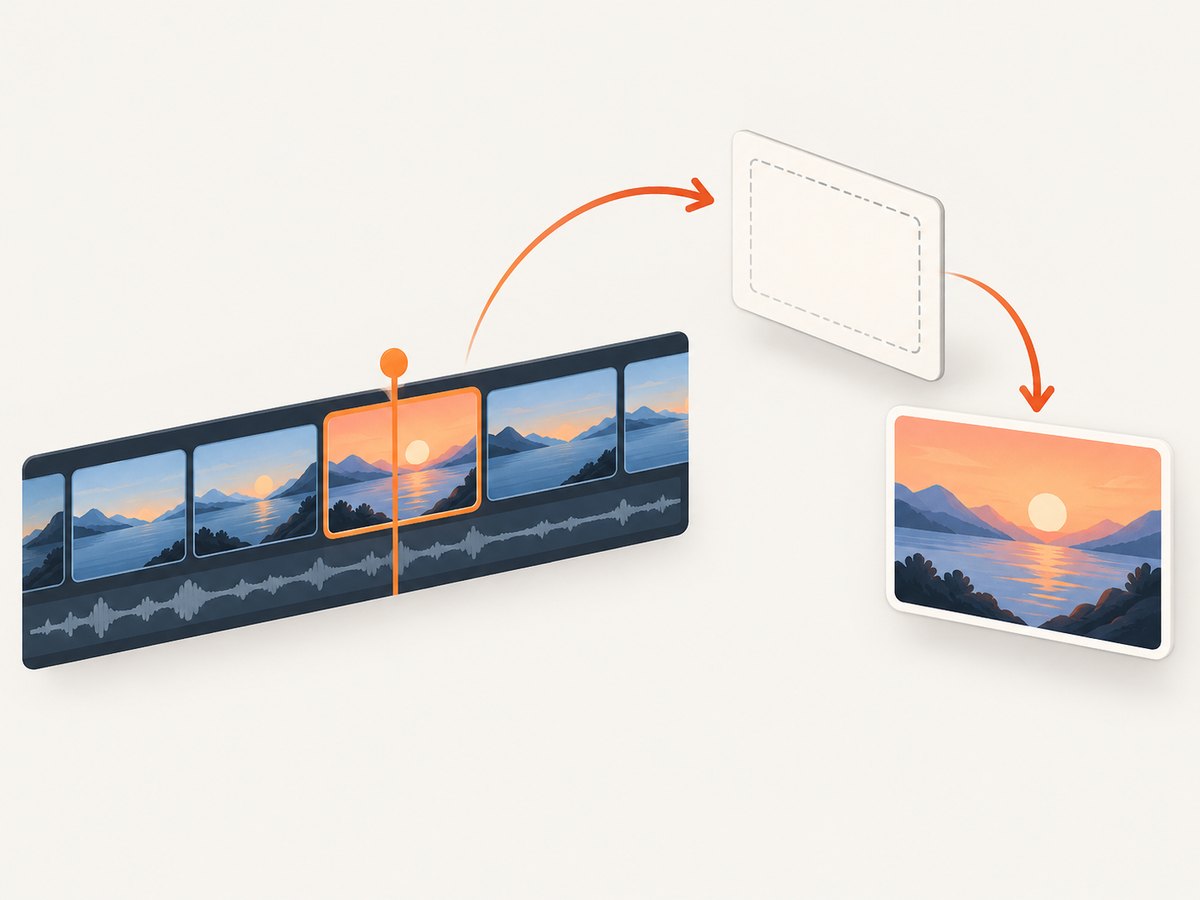
currentTime is measured in seconds. A timestamp before zero or after the duration cannot identify a useful frame. Clamp user input to the duration, and consider staying a small distance before the exact end because the final boundary may not correspond to a decodable frame. Live streams may have an unknown or changing duration; for those, choose a time in the currently seekable range rather than assuming the timeline starts at zero.
Wait for the sought frame
Assigning currentTime starts a seek; it does not mean the new pixels are already ready. Wait for seeked and then, where supported, requestVideoFrameCallback(). MDN’s canvas guide recommends the frame callback to ensure a video frame is available before calling drawImage(). For older browsers, a media readiness event such as loadeddata is a fallback, though it is less precise for a particular seek.
Draw and export
drawImage(video, x, y, width, height) draws the currently presented frame. The source dimensions come from video.videoWidth and video.videoHeight; the destination dimensions are the output size. MDN’s drawImage reference documents the accepted source and destination arguments. Export with toBlob() for a binary image suitable for upload or download. toDataURL() is also available for small images and simple previews, but it creates a base64 string in memory.
3. Timestamp, size, and format options
| Choice | How to set it | Considerations |
|---|---|---|
| Frame time | Set video.currentTime in seconds |
Clamp to the known duration; wait for seek completion. |
| Original dimensions | Use video.videoWidth and video.videoHeight |
Good for preserving source resolution, but can create large canvases. |
| Fixed width | Scale height by outputWidth / video.videoWidth |
Preserves aspect ratio; round dimensions to integers. |
| Crop or letterbox | Use the source rectangle form of drawImage() or draw onto a prefilled canvas |
Define whether to crop, pad, or distort; avoid accidental stretching. |
| PNG | toBlob(callback, 'image/png') |
Lossless, often larger. |
| JPEG or WebP | Pass image/jpeg or image/webp to toBlob() |
Browser support and encoder behavior vary; check the returned blob type and test your target browsers. |
For a fixed 320-pixel-wide thumbnail, calculate height from the video’s aspect ratio rather than hard-coding both dimensions:
const width = 320;
const height = Math.round(width * video.videoHeight / video.videoWidth);
canvas.width = width;
canvas.height = height;
canvas.getContext('2d').drawImage(video, 0, 0, width, height);
For a JPEG with a chosen quality, use the optional quality value (between 0 and 1):
const blob = await new Promise(resolve =>
  canvas.toBlob(resolve, 'image/jpeg', 0.84)
);
if (!blob) throw new Error('JPEG encoding failed');
The browser may fall back to a supported format if the requested type is unsupported. Inspect blob.type if the file extension or downstream contract matters.
4. Cross-origin videos and canvas security
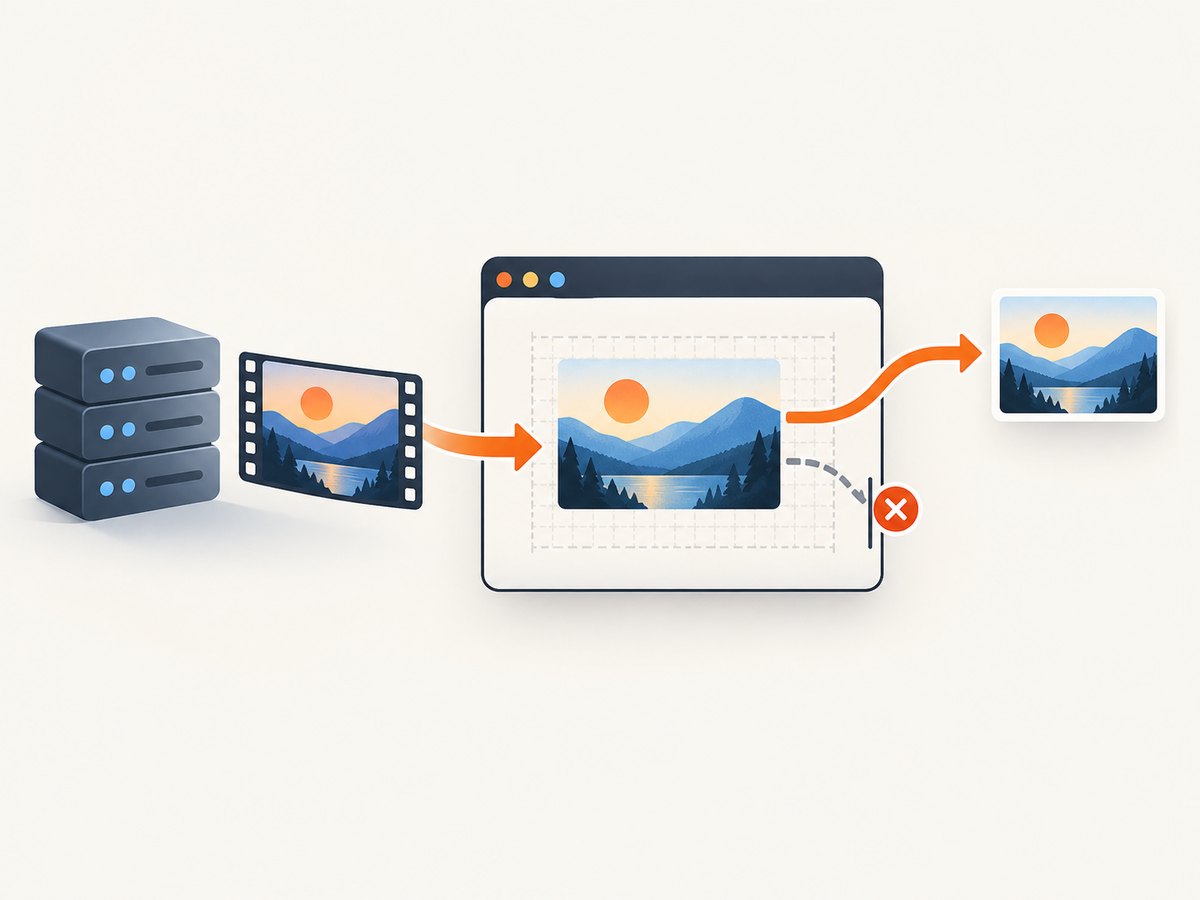
A canvas that draws media fetched from another origin can become tainted. In that state, pixel reading and image export are blocked, typically with a SecurityError. Set the video’s crossOrigin property before setting src, and make sure the media server returns an Access-Control-Allow-Origin header allowing your page’s origin. MDN’s video element reference explains that media without the crossorigin attribute is fetched without a CORS request, which prevents safe canvas export in this use case.
const video = document.createElement('video');
video.crossOrigin = 'anonymous'; // Must be set before src.
video.muted = true;
video.preload = 'metadata';
video.src = 'https://media.example.test/clip.mp4';
crossOrigin = 'anonymous' does not grant access by itself. The remote host must allow it through CORS response headers. If you cannot configure that host, serve the media from your own origin or use a server-side processing path that is authorized to access the asset. Do not try to disable browser security.
5. Reusable function with timeout handling
For an application, add timeouts and cleanup so a missing event does not leave a request pending forever. This version assumes a URL you are allowed to load and that the source server permits CORS if it is cross-origin.
function onceOrError(target, name, timeoutMs = 15000) {
  return new Promise((resolve, reject) => {
    const timer = setTimeout(() => finish(new Error(`Timed out waiting for ${name}`)), timeoutMs);
    const onSuccess = () => finish();
    const onError = () => finish(target.error || new Error('Video load or decode failed'));
    function finish(error) {
      clearTimeout(timer);
      target.removeEventListener(name, onSuccess);
      target.removeEventListener('error', onError);
      error ? reject(error) : resolve();
    }
    target.addEventListener(name, onSuccess, { once: true });
    target.addEventListener('error', onError, { once: true });
  });
}

async function videoThumbnail(url, seconds, { width, type = 'image/webp', quality = 0.82 } = {}) {
  const video = document.createElement('video');
  video.crossOrigin = 'anonymous';
  video.muted = true;
  video.playsInline = true;
  video.preload = 'metadata';
  const metadata = onceOrError(video, 'loadedmetadata');
  video.src = url;
  video.load();
  await metadata;
  if (!(video.videoWidth > 0 && video.videoHeight > 0)) throw new Error('No video dimensions');

  const end = Number.isFinite(video.duration) ? video.duration : 0;
  const time = Math.min(Math.max(0, seconds), Math.max(0, end - 0.05));
  const seeked = Math.abs(video.currentTime - time) < 0.01
    ? Promise.resolve()
    : onceOrError(video, 'seeked');
  if (Math.abs(video.currentTime - time) >= 0.01) video.currentTime = time;
  await seeked;
  if ('requestVideoFrameCallback' in video) {
    await new Promise(resolve => video.requestVideoFrameCallback(() => resolve()));
  } else if (video.readyState < HTMLMediaElement.HAVE_CURRENT_DATA) {
    await onceOrError(video, 'loadeddata');
  }

  const outWidth = width || video.videoWidth;
  const outHeight = Math.round(outWidth * video.videoHeight / video.videoWidth);
  const canvas = document.createElement('canvas');
  canvas.width = outWidth;
  canvas.height = outHeight;
  const context = canvas.getContext('2d');
  if (!context) throw new Error('Canvas 2D is unavailable');
  context.drawImage(video, 0, 0, outWidth, outHeight);
  const blob = await new Promise(resolve => canvas.toBlob(resolve, type, quality));
  if (!blob) throw new Error('Canvas export returned no image');
  video.removeAttribute('src');
  video.load();
  return blob;
}
Production code should also revoke any object URLs created for previews with URL.revokeObjectURL() when they are no longer needed, and remove temporary video elements. If you invoke the function repeatedly, reuse a media element where practical rather than creating many simultaneous decoders.
6. Uploading or displaying the thumbnail
To upload the generated blob, send it as a file in FormData. The endpoint below is illustrative: replace it with your own upload endpoint and authentication flow.
const form = new FormData();
form.append('thumbnail', blob, 'thumbnail.webp');
const response = await fetch('/api/upload-thumbnail', {
  method: 'POST',
  body: form
});
if (!response.ok) throw new Error(`Upload failed: ${response.status}`);
For a local preview, use URL.createObjectURL(blob) and put the resulting URL into an <img>. Revoke the URL after replacing the preview or removing the image. If you instead use toDataURL(), the string can be placed directly in an image’s src, as shown in MDN’s still image canvas example; for larger images, a blob avoids a base64 string copy.
7. Troubleshooting
| Symptom | Likely cause | Fix |
|---|---|---|
| Canvas is blank or black | The frame was drawn before the seek finished, video dimensions are zero, or the codec could not decode. | Wait for metadata and seek completion, then wait for a frame callback; inspect video.error and test the source encoding in target browsers. |
SecurityError during export |
Cross-origin media tainted the canvas. | Set crossOrigin before src and configure the host’s CORS response. Otherwise use a permitted same-origin copy or authorized server path. |
loadedmetadata never fires |
Bad URL, unsupported encoding, network failure, blocked request, or listener attached after the event. | Attach listeners before setting src, handle the error event, set a timeout, and inspect the browser Network and media panels. |
| Seek never completes | The time is outside the seekable range, duration is unknown, or the file has sparse keyframes / slow range access. | Clamp to a valid timestamp, check video.seekable, ensure the server supports byte ranges when needed, and allow a longer timeout. |
| Wrong frame or stale frame | The code treated the currentTime assignment as synchronous. |
Await seeked, then wait for an available video frame before drawing. |
| Output stretches or looks soft | Output width and height changed the aspect ratio, or the requested output exceeds source resolution. | Preserve aspect ratio; choose dimensions based on actual display size and avoid unnecessary upscaling. |
| Unsupported output type | The browser lacks an encoder for the requested canvas MIME type. | Check blob.type; use PNG or another type supported by your target browsers. |
8. Performance, reliability, and cost
- Decode only what you need. Use
preload="metadata"for initial inspection. Seeking still requires fetching and decoding media around the selected frame. - Keep the canvas modest. A canvas stores pixel data in memory; dimensions multiply, so a thumbnail should generally be rendered near its final display size. Avoid retaining large canvases and many decoded videos at once.
- Expect seek latency. Long files, remote origins, keyframe spacing, and network conditions affect how quickly a chosen time can be decoded. Use a timeout and surface a retry path instead of waiting forever.
- Test the real source formats. Browser support depends on the browser and encoding. Do not assume every codec or container is supported across the audience’s devices.
- Budget browser resources. This method has no per-call browser API fee, but it uses network bandwidth, CPU for decoding and encoding, and memory. For repeated batch jobs, browser tabs may be an unreliable worker environment; a separately operated media-processing service or command-line pipeline may fit better.
- Clean up resources. Revoke object URLs, detach source URLs from temporary video elements, and limit concurrent decodes.
9. Or skip the browser setup
If what you need is a screenshot of a web page that contains a video, ScreenshotNeo captures the page as an image or PDF. It does not extract a frame from a video file; use the canvas method above for that task. Its API is a single GET request. See the ScreenshotNeo API docs for the parameters.
curl -G "https://api.screenshotneo.com/v1/shot" -d access_key=YOUR_API_KEY --data-urlencode url=https://stripe.com -o shot.webpimport requests
r = requests.get("https://api.screenshotneo.com/v1/shot", params={"access_key": "YOUR_API_KEY", "url": "https://stripe.com"}, timeout=90)
open("shot.webp", "wb").write(r.content)const q = new URLSearchParams({ access_key: 'YOUR_API_KEY', url: 'https://stripe.com' });
const res = await fetch(`https://api.screenshotneo.com/v1/shot?${q}`);
if (!res.ok) throw new Error(`Screenshot request failed: ${res.status}`);
await Bun.write('shot.webp', res);ScreenshotNeo removes cookie banners, newsletter popups, and chat widgets before capture. Bot checks, blank pages, and failed loads are never billed; responses identify the page verdict and billing status. Its MCP server gives AI agents tools to take screenshots, inspect page information, and capture PDFs. The free plan includes 1,000 screenshots a month with no card; paid plans start at $5 for 3,000 shots. Every feature is on every plan. Create a free ScreenshotNeo account and get 1,000 screenshots a month with no card.
10. FAQ
Can I generate a thumbnail without playing the video?
Usually, yes. Loading metadata and seeking to a time can provide a frame without calling play(). Autoplay rules are therefore generally not needed for this capture flow.
Can I capture several thumbnails from one video?
Yes. Seek to each requested timestamp in sequence, await the seek and frame readiness each time, then draw and export. Avoid parallel seeks on the same video element because it has only one current playback position.
Can I get the thumbnail directly from a video URL?
The browser needs to load and decode the media. A URL alone does not identify a still image unless the host provides a separate thumbnail. Cross-origin canvas export still requires CORS permission.
Is this the same as a website screenshot?
No. Canvas produces a still from decoded video pixels. A website screenshot captures a rendered page; ScreenshotNeo is for the latter, not for extracting a frame from a standalone video file.


