How to Generate PDFs From Web Pages With an API
Generate PDFs from rendered web pages with Playwright or a hosted API. Learn how to control print layout, handle failures, and choose the right workflow.

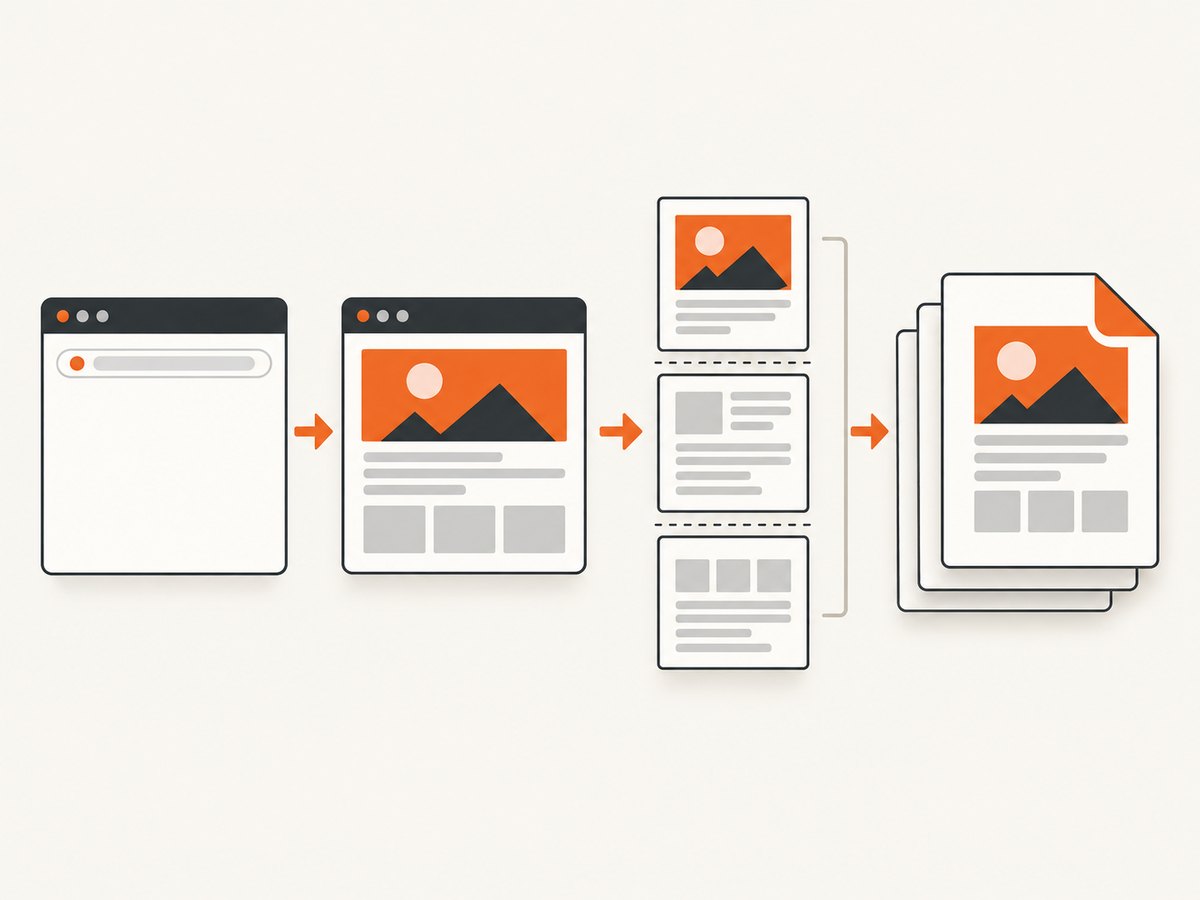
To generate a PDF from a web page with an API, either run a browser you control and call Playwright’s page.pdf(), or send a URL or HTML to a managed rendering API. Playwright is a good fit when you need browser-level control over print styles, page size, margins, or deployment. A hosted API is simpler when you do not want to operate a browser. For a single screenshot-style PDF from a URL, ScreenshotNeo also offers a one-call API.
This guide uses Playwright with Node.js for the do-it-yourself route, then covers Python and cURL examples for hosted services where the documented API supports them. The key choice is whether you need a true paginated, printable document or a visual capture of a page. Those outputs can look different, so decide what the PDF is for before choosing a tool.
1. Choose the right PDF generation path
| Path | Input | Best when | Trade-off |
|---|---|---|---|
| Playwright | Rendered URL or HTML you provide | You need control over browser behavior and print layout | You operate browser processes and their dependencies |
| Cloudflare Browser Rendering | URL or custom HTML | You want a managed endpoint or already use Workers | Requires Cloudflare credentials and its service setup |
| Adobe PDF Services | Static or dynamic HTML, ZIP, or URL | Your workflow fits its document-conversion API | Requires Adobe API credentials and service setup |
| ScreenshotNeo | URL | You want a clean page capture returned as a PDF | It is a capture API; choose a browser print workflow when you need detailed paginated print controls |
For Playwright, page.pdf() returns a PDF buffer and uses print CSS media by default. It exposes controls for format, margins, backgrounds, page ranges, scale, headers and footers, and whether CSS @page size takes priority. See the Playwright Page API documentation for the current options.
Cloudflare documents a PDF endpoint that accepts either a URL or custom HTML, callable over REST or through Workers bindings. Adobe documents HTML-to-PDF conversion for static and dynamic HTML, ZIP, and URL inputs. Review each provider’s current limits, security terms, and pricing before putting it into a production workflow; the available research does not establish comparable current prices or quotas. Sources: Cloudflare Browser Rendering and Adobe HTML-to-PDF documentation.
2. Generate a PDF with Playwright in Node.js
This runnable example navigates to a page, waits for its load event, and writes an A4 PDF. Install Playwright and its browser first:
npm init -y
npm install playwright
npx playwright install chromium
Save as pdf-from-page.mjs and run with node pdf-from-page.mjs https://example.com output.pdf.
import { chromium } from 'playwright';
import { writeFile } from 'node:fs/promises';

const url = process.argv[2];
const outputPath = process.argv[3] ?? 'page.pdf';

if (!url) {
  throw new Error('Usage: node pdf-from-page.mjs <url> [output.pdf]');
}

const browser = await chromium.launch({ headless: true });
try {
  const page = await browser.newPage({
    viewport: { width: 1440, height: 1000 },
  });

  const response = await page.goto(url, {
    waitUntil: 'networkidle',
    timeout: 45_000,
  });
  if (!response || !response.ok()) {
    throw new Error(`Navigation failed: ${response?.status() ?? 'no response'}`);
  }

  const pdf = await page.pdf({
    format: 'A4',
    printBackground: true,
    margin: { top: '16mm', right: '14mm', bottom: '16mm', left: '14mm' },
    preferCSSPageSize: true,
  });
  await writeFile(outputPath, pdf);
  console.log(`Wrote ${outputPath} (${pdf.length} bytes)`);
} finally {
  await browser.close();
}
For many modern sites, networkidle is not a reliable readiness signal: analytics, chat, and live updates may keep connections open. If that happens, use domcontentloaded and then wait for a known content selector or a short, bounded delay. The exact readiness condition should match the page you are capturing.
Render supplied HTML instead of a URL
Use page.setContent() when your application creates the document. Add a base URL if the HTML refers to relative stylesheets or images, or use absolute asset URLs.
import { chromium } from 'playwright';
import { writeFile } from 'node:fs/promises';

const html = `<!doctype html>
<html><head><style>
  @page { size: A4; margin: 18mm; }
  body { font: 12pt/1.5 Arial, sans-serif; }
  h1 { break-after: avoid; }
</style></head><body>
  <h1>Monthly report</h1><p>Generated from application data.</p>
</body></html>`;

const browser = await chromium.launch();
try {
  const page = await browser.newPage();
  await page.setContent(html, { waitUntil: 'load' });
  const pdf = await page.pdf({ format: 'A4', printBackground: true });
  await writeFile('report.pdf', pdf);
} finally {
  await browser.close();
}
If your generated HTML references remote content, account for its loading time and failure modes just as you would for a navigated page. A PDF can be valid while still missing an image or font.
3. Tune print layout and page behavior
Print CSS versus screen CSS
Playwright renders print CSS by default when creating a PDF. This means a site’s @media print rules apply, and elements hidden for printing may disappear. To retain screen styling, call page.emulateMedia({ media: 'screen' }) before page.pdf(). Use print media for reports intended for paper or document workflows; use screen media when preserving the on-screen design is the priority.

await page.emulateMedia({ media: 'screen' });
const pdf = await page.pdf({ format: 'A4', printBackground: true });
Paper size, margins, and CSS page rules
Choose a standard format such as A4 or Letter, or provide explicit width and height. Margins can be strings such as 10mm or 0.5in. If the page defines @page { size: ... } and you want that declaration to win, set preferCSSPageSize: true. Otherwise the API’s format or dimensions determine the paper geometry.
Set margins in one place where possible. If both the stylesheet and API impose margins, the printable content area can become unexpectedly narrow. For a report with a carefully designed print stylesheet, let CSS define page size and margins. For a generic URL, specify the output format and margins in the API call.
Backgrounds, color, scale, and page ranges
printBackground: trueincludes CSS background images and colors; without it, print output may omit them.- Print output may modify colors by default. The Playwright documentation points to
-webkit-print-color-adjustwhen exact colors are needed. Apply it selectively in print CSS, because preserving large colored backgrounds can use more ink. scaleadjusts the rendered content size. If text is too small, first check the page width and margins instead of shrinking everything to force a fit.pageRangescan select pages, for example'1-3'or'2,5'. Confirm the resulting page count when pagination may change.- Header and footer templates can add page metadata, but they use a constrained HTML environment. Check the API reference for template restrictions and required display options.
Screen-like capture as PDF
If the requirement is a visual record of a website rather than a printable report, a PDF capture endpoint may be a better fit than tuning a print stylesheet. ScreenshotNeo’s API accepts a URL and can return a PDF as well as PNG, JPEG, or WebP. Its supported options include PDF paper size, margins, landscape orientation, and page ranges. The product’s API documentation lists the request parameters.
4. Managed API examples
Cloudflare Browser Rendering
Cloudflare documents a /pdf endpoint that accepts a URL or HTML. The following illustrates the REST request shape; obtain the account identifier and Browser Rendering edit token through Cloudflare’s documented setup, and consult the current endpoint page for its exact request schema:
curl -X POST \
  "https://api.cloudflare.com/client/v4/accounts/ACCOUNT_ID/browser-rendering/pdf" \
  -H "Authorization: Bearer CLOUDFLARE_API_TOKEN" \
  -H "Content-Type: application/json" \
  --data '{"url":"https://example.com"}' \
  --output page.pdf
For supplied markup, the documented endpoint also accepts an html input. Cloudflare describes both REST and Workers-binding invocation paths, so choose the one that fits the application boundary. Treat this as a schematic call: check the current docs for required account permissions, body fields, response handling, and limits.
Adobe PDF Services
Adobe’s HTML-to-PDF operation supports static and dynamic HTML, ZIP, and URL input. Its documented flow uses API credentials and bearer authorization. The request setup is more involved than a single URL conversion because credentials and input preparation depend on the chosen input type; follow Adobe’s current API instructions for the exact payload and SDK version. Do not place API secrets in browser code or client-visible URLs.
For either provider, handle non-success HTTP responses before treating a body as a PDF. Store credentials in a secret manager, set request timeouts, and validate the returned content type or file signature before publishing the output. Provider pricing, quotas, and availability were not established by the source research, so verify those directly before estimating production cost.
5. Or skip the browser setup
ScreenshotNeo is a website screenshot API and MCP server from Yorker Media. One GET request can return a page capture as a PDF, or as PNG, JPEG, or WebP. See the API docs for PDF options and all parameters.
curl -G "https://api.screenshotneo.com/v1/shot" \
  -d access_key=YOUR_API_KEY \
  --data-urlencode url=https://stripe.com \
  -d format=pdf \
  -o page.pdf
In this guide’s Playwright example, PDF output is configured with page.pdf(). For ScreenshotNeo, the endpoint takes one GET request with a URL and returns the requested capture format. ScreenshotNeo accepts cookie and consent banners as a visitor and removes more than 60 known consent platforms, newsletter popups, and chat widgets before capture; each cleanup step can be turned off. Bot checks and CAPTCHAs, blank pages, timeouts, failed loads, and cache hits cost nothing, and response headers identify the page verdict and billing status. Its MCP server provides take_screenshot, get_page_info, and capture_pdf tools for Claude, Cursor, and other MCP clients.
The Free plan includes 1,000 shots a month with no card. Paid plans start at $5 for 3,000 shots; all features are on every plan. Create a free ScreenshotNeo account for 1,000 screenshots a month, with no card required.
6. Python and Node.js client calls
When calling a managed URL-to-PDF or capture endpoint, use the provider’s documented authentication and format parameters. This ScreenshotNeo Python example follows the product’s documented request pattern and saves a PDF response:
import requests

response = requests.get(
    "https://api.screenshotneo.com/v1/shot",
    params={
        "access_key": "YOUR_API_KEY",
        "url": "https://stripe.com",
        "format": "pdf",
    },
    timeout=90,
)
response.raise_for_status()
with open("page.pdf", "wb") as output:
    output.write(response.content)
And the equivalent Node.js call:
const q = new URLSearchParams({
  access_key: 'YOUR_API_KEY',
  url: 'https://stripe.com',
  format: 'pdf',
});
const res = await fetch(`https://api.screenshotneo.com/v1/shot?${q}`);
if (!res.ok) throw new Error(`Screenshot API returned ${res.status}`);
const bytes = new Uint8Array(await res.arrayBuffer());
await import('node:fs/promises').then(({ writeFile }) =>
  writeFile('page.pdf', bytes)
);
These client snippets use the ScreenshotNeo endpoint and options described for this article. For Cloudflare or Adobe, keep the corresponding vendor’s authentication, payload, and response contract; do not copy another service’s endpoint shape and assume it is compatible.
7. Reliability, performance, and cost
Make generation reliable
- Set bounded timeouts. Navigation and API requests should have a deadline. A page waiting forever for analytics or a stalled asset should not hold a worker indefinitely.
- Wait for content, not just a generic event. If the page has a known report root, wait for that selector. For a dynamic app, wait for its data-ready condition before printing.
- Reuse browser processes carefully. Launching a browser for every request adds startup work. In a service, reuse a browser process and create an isolated context per job, then close pages and contexts reliably. Monitor memory and recycle the process when needed.
- Limit concurrency. Each active page consumes memory and CPU. Use a queue and cap parallel jobs based on observed resource use in your own deployment.
- Retry only transient failures. Retry navigation timeouts or temporary provider errors with a small bounded exponential backoff. Do not repeatedly retry bad URLs, access-denied pages, or malformed input.
- Validate output. Check HTTP status, content type, nonzero size, and whether the file opens as a PDF. Keep a request identifier and failure reason in logs, but avoid logging credentials or sensitive page content.
Performance considerations
PDF generation time includes navigation, client-side rendering, resource loading, pagination, and encoding. Large images, web fonts, long pages, and complex CSS can all increase work. If a page is under your control, optimize assets and add print CSS that avoids unnecessary animation and layout effects. A low fixed delay is not a substitute for waiting on the actual content.
For workloads with repeated identical inputs, caching can reduce duplicate rendering if freshness requirements allow it. A cache key should include the URL and any parameters that change the output, such as viewport, locale, authentication, and PDF options. Be careful with private pages: do not share cached output across users or sessions.
Cost and operational fit
Self-hosted Playwright trades a per-document vendor charge for compute, storage, maintenance, and engineering time. A hosted API trades browser operations for provider terms and usage charges. Compare cost at your actual document volume and size, and include failed requests, retries, storage, and peak concurrency in the estimate. The research sources do not establish current comparable prices or quotas for Cloudflare or Adobe, so check their current terms before choosing.
8. Common errors and fixes
| Symptom | Likely cause | Fix |
|---|---|---|
| PDF is blank or mostly empty | Printing began before client-rendered content appeared, or the print stylesheet hides the content | Wait for the content selector or app-ready condition; inspect print CSS; try screen media if preserving screen styling is intended |
| Colors or backgrounds are missing | Background printing is off, or print color adjustment changed colors | Set printBackground: true and use -webkit-print-color-adjust in print CSS where exact color is required |
| Navigation times out | Persistent network connections, slow resources, or blocked host | Use a suitable readiness condition such as domcontentloaded, then wait on the content you need; confirm the host is reachable from the runtime |
| Text is tiny or clipped | Content exceeds the printable area, margins stack, or scale is too low | Review CSS page size and API format precedence; adjust margins and layout before changing scale |
| Images or fonts are absent | Cross-origin restrictions, expired signed URLs, blocked requests, or capture before assets finish | Check browser network errors and asset permissions; wait for required assets; use stable URLs accessible from the rendering environment |
| Cloud API returns an error instead of a PDF | Invalid token, wrong account permission, malformed body, or endpoint contract changed | Inspect status and error body, verify the token’s documented permissions and current request schema, and avoid saving error JSON with a .pdf extension |
| Output pages break awkwardly | Long blocks, tables, or images have no print break rules | Add print CSS using page-break controls, keep headings with following content where appropriate, and test representative long records |
| Duplicate or stale PDF | Cached response or reused output path | Use an output name tied to the request or version; review cache behavior and freshness rules |
9. Security and edge cases
PDF conversion fetches URLs, which makes it an SSRF risk if arbitrary users can submit destinations. Restrict schemes to HTTP and HTTPS, block loopback, private, and link-local IP ranges, re-check redirects, and apply outbound network controls. Do not assume hostname validation alone is sufficient because DNS can change between validation and connection.
Use an isolated browser context for each job that contains cookies or credentials. Avoid passing secrets in URLs when a provider supports headers or another protected credential mechanism. If the generated page contains personal or confidential information, define retention, access, and deletion behavior for both source data and PDFs. Evaluate hosted providers’ security and data-handling terms independently.
Other edge cases include pages that require login, geolocation-specific content, responsive layouts, infinite scroll, lazy images, and very long documents. Authenticate only where you have permission. Set the expected viewport and locale. For long pages, check pagination and memory usage; a full-length PDF may be more useful than capturing only the initially visible viewport.
10. A practical implementation checklist
- Decide whether the output is a print document or a visual record.
- Choose URL navigation or supplied HTML input.
- Set paper size, margins, media type, backgrounds, and page range intentionally.
- Wait for the content and assets that matter, with a bounded timeout.
- Protect URL-fetch workflows against SSRF and keep credentials out of client code.
- Validate the response and PDF file before storing or delivering it.
- Measure latency and memory under representative page complexity and concurrency.
- Verify provider pricing, quotas, security, and service terms before production use.
FAQ
Can I generate a PDF from a page that requires login?
Yes, if you are authorized to access it. The browser or service must receive valid session credentials, and the resulting PDF should be protected like the source page.
Should I use a screenshot API or a PDF conversion API?
Use a screenshot API when you want a capture of a rendered page. Use a browser print API when print CSS, page breaks, and detailed pagination are central requirements.
Can a PDF include several pages?
Yes. Browser print output paginates long content. Use print CSS and page-range controls when you need predictable page breaks or a subset of the result.
Can I convert HTML without hosting it publicly?
Yes. Playwright can load HTML supplied to page.setContent(), and Cloudflare documents an HTML input for its PDF endpoint. Adobe also documents HTML and packaged input paths; follow each provider’s current API requirements.
Why does my browser PDF differ from the web page?
PDF generation uses print media by default in Playwright, and print CSS, missing backgrounds, paper dimensions, and pagination can change the output. Check the media mode and print styles first.


