How to Generate Website Link Thumbnails
Add Open Graph metadata, choose a fetchable image, and troubleshoot link previews across social platforms and messaging apps.

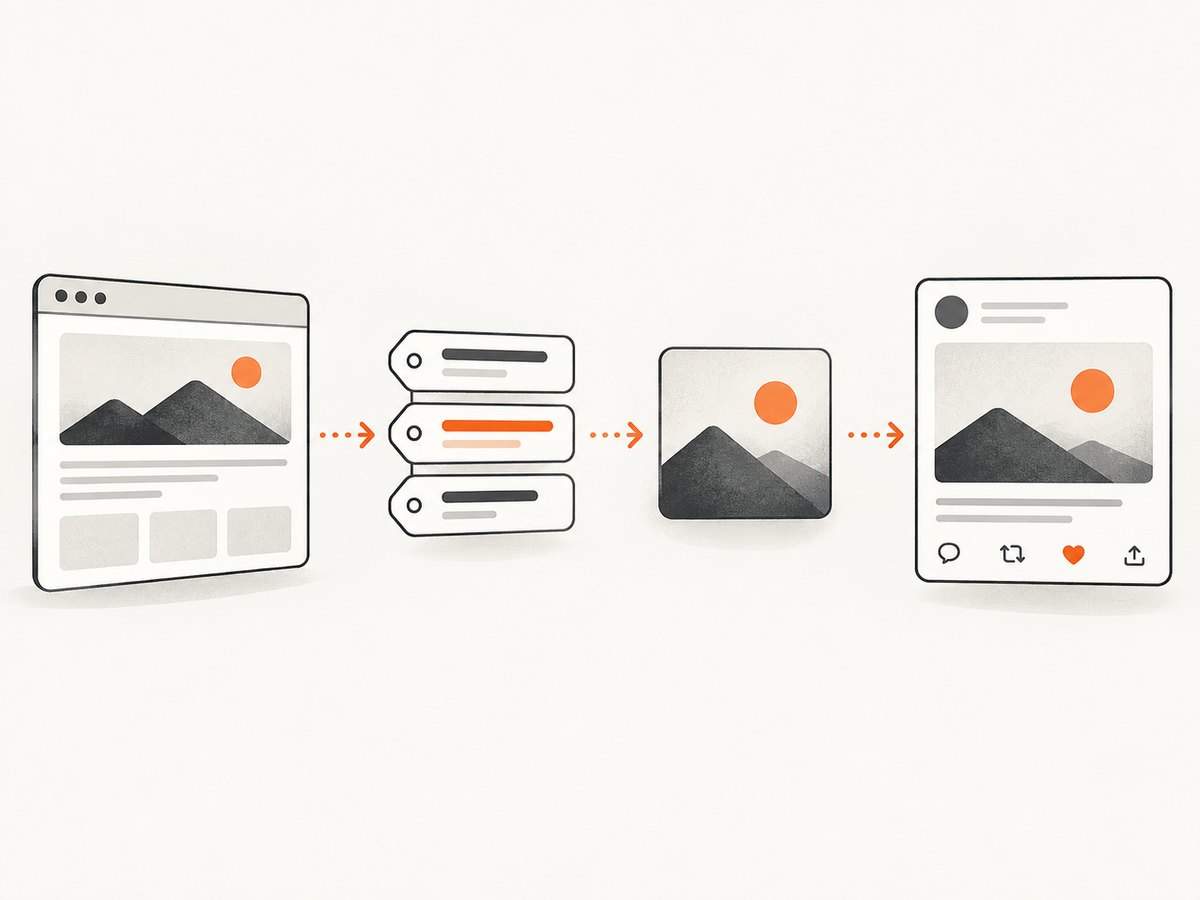
A website link thumbnail is usually controlled by metadata in the page’s <head>, not by the visible hero image. Add Open Graph tags, point og:image to an absolute image URL that sharing crawlers can retrieve, and validate the result on the platforms where your links are shared.
The essential Open Graph properties are og:title, og:type, og:image, and og:url. Add og:description, og:site_name, and image structured properties for a more complete preview. The official Open Graph protocol also recommends og:image:alt when an image is specified. See the Open Graph protocol.
1. Add Open Graph metadata to your page
Put the tags in the final HTML document’s <head>. Replace every example value with data for the exact page being shared.
<head>
  <title>Page title</title>
  <meta property="og:title" content="Page title">
  <meta property="og:type" content="website">
  <meta property="og:url" content="https://example.com/page">
  <meta property="og:image" content="https://example.com/images/page-preview.jpg">
  <meta property="og:image:alt" content="A concise description of the preview image">
  <meta property="og:image:type" content="image/jpeg">
  <meta property="og:image:width" content="1200">
  <meta property="og:image:height" content="627">
  <meta property="og:description" content="A short description of this page.">
  <meta property="og:site_name" content="Example">
</head>
What each field does
| Property | Purpose | Practical guidance |
|---|---|---|
og:title |
Headline shown in the card | Describe this page, rather than repeating a generic site name. |
og:type |
Content type | Use website for most pages; choose another protocol-supported type only when it accurately applies. |
og:url |
Canonical shared URL | Use the preferred absolute URL, including the correct protocol and path. |
og:image |
Preview image URL | Use an absolute, publicly fetchable URL. |
og:image:alt |
Accessible image description | Describe the image’s meaning, not its file name. |
og:image:type |
MIME type | For example, image/jpeg or image/png. |
og:image:width and og:image:height |
Declared dimensions | Keep them accurate so consumers can select and lay out the image correctly. |
og:description |
Short supporting text | Summarize the page in one or two useful sentences. |
If multiple values for one Open Graph property appear, the protocol gives preference to the first value. Duplicate tags can therefore make an old image win even when a newer tag is present. Keep one authoritative set per property unless you have a deliberate reason to provide structured values.
2. Design and host the thumbnail image
Choose an image that represents the specific page. A site-wide logo may identify your brand, but a page-specific illustration or product image usually gives people more context. Keep important subjects and text away from the edges because platforms can crop or resize the card.
Image requirements vary by platform. LinkedIn’s official guidance documents a minimum of 1200 × 627 pixels, a recommended 1.91:1 ratio, and a 5 MB maximum for its sharing image. LinkedIn also says images under 401 pixels wide appear as thumbnails in its sharing module. These are LinkedIn-specific values, not universal requirements; verify the current rules for each destination. See LinkedIn’s sharing image requirements.
Make the image fetchable
- Use
https://and an absolute URL. - Return the correct image content type, such as
image/jpeg. - Allow the platform’s crawler to reach both the page and image.
- Do not put the file behind a login, expiring private URL, or an IP allowlist that excludes crawlers.
- Check redirects, TLS certificates, DNS, and response status codes.
- Keep the file within the destination platform’s size limit.
LinkedIn specifically warns that a protected directory or blocked site can stop it from fetching an otherwise correctly sized image. A 1200 × 627 file that cannot be downloaded is still unusable.
3. Generate thumbnails dynamically
For a small site, static files are easiest. A publishing or application site may need one image per article, product, or user-generated page. In that case, generate the image from a template and publish it at a stable URL before updating the page metadata.
Server-rendered templates
In a server-rendered application, construct the metadata from the current route’s data. Escape title, description, and URL values for HTML. Generate a deterministic image path such as /social/article-123.jpg, store the file in object storage or your web server, and return a long-lived cache policy after publication.
Single-page applications
Many sharing crawlers inspect the initial HTML response and may not execute all client-side JavaScript. Put the Open Graph tags in server-rendered HTML, static generation output, or an edge-rendered response. Adding tags only after hydration can produce a missing or stale preview.
Framework checklist
- Next.js, Nuxt, SvelteKit, Astro, and similar frameworks: use their server metadata or head APIs so tags exist in the response source.
- Static generators: inspect the generated HTML in the build output, not only the development browser.
- CMS templates: ensure the canonical URL and image are generated per entry rather than copied from the home page.
- Internationalized pages: provide the URL and image that match the locale being shared.
4. Inspect the final HTML and image response
Before debugging a social app, inspect what an external crawler receives. View the deployed page source or fetch it from a clean environment. Search for og:title, og:type, og:url, and og:image. Confirm there is one intended value for each.
curl -L -s https://example.com/page | grep -i 'og:'Then inspect the image itself:
curl -I -L https://example.com/images/page-preview.jpgLook for a successful response, a final URL you recognize, an image content type, and a reasonable content length. A browser rendering the image does not prove that an unauthenticated crawler can retrieve it.
5. Create a thumbnail with a browser screenshot
When the source page already contains the visual composition you want, a browser screenshot can create the share image. A typical do-it-yourself workflow is:

- Launch a headless browser such as Chromium.
- Open the target URL and wait for the page’s important content.
- Set a fixed viewport and device scale.
- Dismiss consent dialogs or hide overlays that would cover the image.
- Capture the full page or a selected element.
- Resize or convert the result to a platform-appropriate format.
- Publish the image at a stable HTTPS URL.
- Set
og:imageto that URL and inspect the deployed HTML.
For a simple local capture with Playwright:
import { chromium } from 'playwright';

const browser = await chromium.launch();
const page = await browser.newPage({
  viewport: { width: 1200, height: 627 },
  deviceScaleFactor: 1
});
await page.goto('https://example.com/page', { waitUntil: 'networkidle' });
await page.screenshot({ path: 'page-preview.jpg', type: 'jpeg', quality: 85 });
await browser.close();
Browser automation adds operational work: installing browsers, handling timeouts, waiting for lazy content, removing popups, managing cookies, and storing the output. If you capture many pages, reuse a browser process, set explicit timeouts, and cache unchanged results.
Or skip the browser setup
ScreenshotNeo is a website screenshot API and MCP server. One GET request returns a PNG, JPEG, WebP, or PDF. It can load lazy images, capture an element by CSS selector, use dark mode and device presets, set any viewport and retina scale, add custom CSS or JavaScript, click an element, wait for a selector, delay, or network idle, and block ads, trackers, requests, or resource types. It also supports headers, cookies, user agents, authorization, timezone, geolocation, transparent backgrounds, resizing, caching with a chosen TTL, signed links, asynchronous jobs, bulk capture of up to 100 URLs per call, usage reporting, and an OpenAPI specification. Parameter names used by other screenshot APIs also work.
Cookie banners, newsletter popups, and chat widgets are removed before the shot. Bot checks, blank pages, timeouts, failed loads, and cache hits are not billed, and response headers identify the page verdict and billing result. An MCP server lets Claude, Cursor, and other MCP clients use take_screenshot, get_page_info, and capture_pdf.
See the ScreenshotNeo API documentation for the complete option list.
cURL
curl -G "https://api.screenshotneo.com/v1/shot" -d access_key=YOUR_API_KEY --data-urlencode url=https://stripe.com -o shot.webpPython
import requests
r = requests.get("https://api.screenshotneo.com/v1/shot", params={"access_key": "YOUR_API_KEY", "url": "https://stripe.com"}, timeout=90)
open("shot.webp", "wb").write(r.content)
Node.js
const q = new URLSearchParams({ access_key: 'YOUR_API_KEY', url: 'https://stripe.com' });
const res = await fetch(`https://api.screenshotneo.com/v1/shot?${q}`);
ScreenshotNeo offers 1,000 shots per month free with no card. Paid plans start at $5 for 3,000 shots; yearly billing gives two months free, and every feature is on every plan. Create a free ScreenshotNeo account.
6. Troubleshooting missing or incorrect previews
| Symptom | Likely cause | Fix |
|---|---|---|
| No image appears | Missing og:image, relative URL, blocked image, or crawler failure |
Add an absolute HTTPS URL and confirm it is publicly fetchable with a header request. |
| The old image remains | Platform cache or duplicate tags | Remove conflicting tags, deploy the intended HTML, then use the destination’s current official inspection or re-fetch workflow. |
| The home page image appears | Page template falls back to site metadata | Generate page-specific tags and verify the exact shared URL. |
| Title or description is wrong | Stale server output, escaped text issue, or duplicate metadata | Inspect deployed source and keep one first-value tag for each property. |
| Image is cropped badly | Platform card layout or edge-positioned content | Use a safe area around the subject and test the target platform’s current ratio. |
| Image downloads but is rejected | File exceeds a platform limit or has an unsupported response | Compress it, check dimensions and MIME type, and follow the platform’s documented limits. |
| Preview works in a browser but not in sharing | Metadata added only by client-side JavaScript or protected access | Render tags in initial HTML and allow unauthenticated crawler access. |
| Some pages work and others do not | Route-specific data, redirects, or missing generated files | Compare the failing page’s final HTML, canonical URL, image URL, status, and permissions with a working page. |
7. Performance, reliability, and cost
Performance
Keep metadata in the initial response and serve preview images from a CDN or fast origin. Generate images when content changes instead of on every crawler request. Use deterministic filenames, modern compression where supported, and dimensions that match the intended card.
Reliability
Monitor image URLs separately from page URLs. A page can remain healthy while its object-storage key expires or its access policy changes. Avoid short-lived signed image URLs unless the receiving platform is guaranteed to fetch them before expiration. Keep a fallback image for pages whose custom generation fails.
Cost
Static templates have little runtime cost but require a build or publishing pipeline. Browser capture consumes compute and storage, especially for full-page pages with lazy loading. Cache identical captures and use element screenshots when the thumbnail needs only one visual region. ScreenshotNeo bills only clean shots; bot checks, blank pages, timeouts, failed loads, and cache hits cost nothing, with the result exposed in X-Page-Verdict and X-Billed headers.
8. A deployment checklist
- Use one accurate set of Open Graph tags in the document head.
- Set
og:title,og:type,og:image, andog:url. - Add
og:descriptionandog:image:alt. - Use an absolute HTTPS image URL.
- Confirm the page and image are reachable without login or blocked crawler access.
- Check final redirects, status codes, MIME type, dimensions, and file size.
- Keep important visual content away from image edges.
- Inspect generated HTML for duplicates and stale values.
- Validate on each platform your audience uses; behavior and limits are not identical.
- Recheck previews after changing the image, URL, or metadata.
FAQ
How do I add a thumbnail to a website link?
Add an absolute image URL in an og:image tag in the page’s HTML head, alongside og:title, og:type, and og:url.
Does the page’s visible hero image automatically become the link thumbnail?
No. A platform may use fallbacks, but explicitly setting Open Graph metadata is the reliable way to identify the intended image.
Can I use one image everywhere?
You can provide one general image, but platforms crop and process cards differently. Test the image on the destinations that matter and keep the subject inside a safe area.
Why does changing the image not update an existing message?
Sharing platforms cache fetched metadata and images. Confirm the new deployed source and use the platform’s current official re-fetch or inspection process where available.
Should I put Open Graph tags in the body?
No. Put them in the document head so crawlers can discover them as page metadata.
Can a screenshot API create the image for me?
Yes. ScreenshotNeo can capture a full page or selected element, remove common overlays before capture, and return an image you can host at the URL used by og:image.


