How to Generate Website Thumbnails From URLs
Render any URL into a reliable thumbnail with Playwright, Puppeteer, or a screenshot API. Covers sizing, waits, errors, performance, and cost.
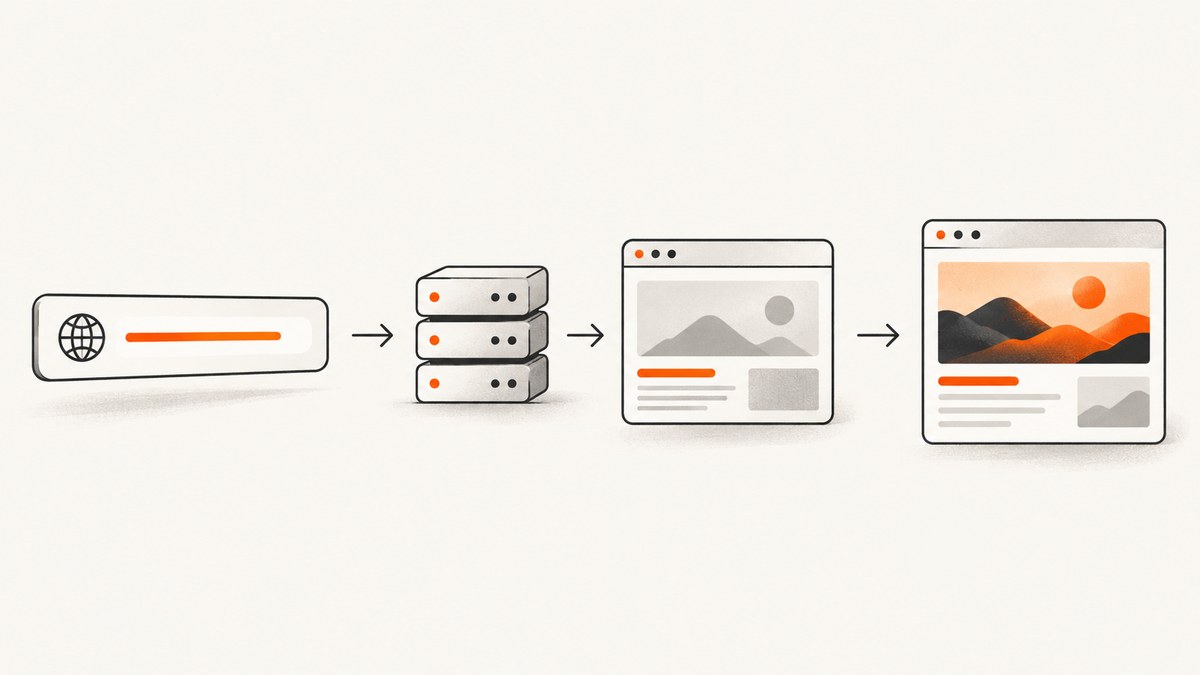
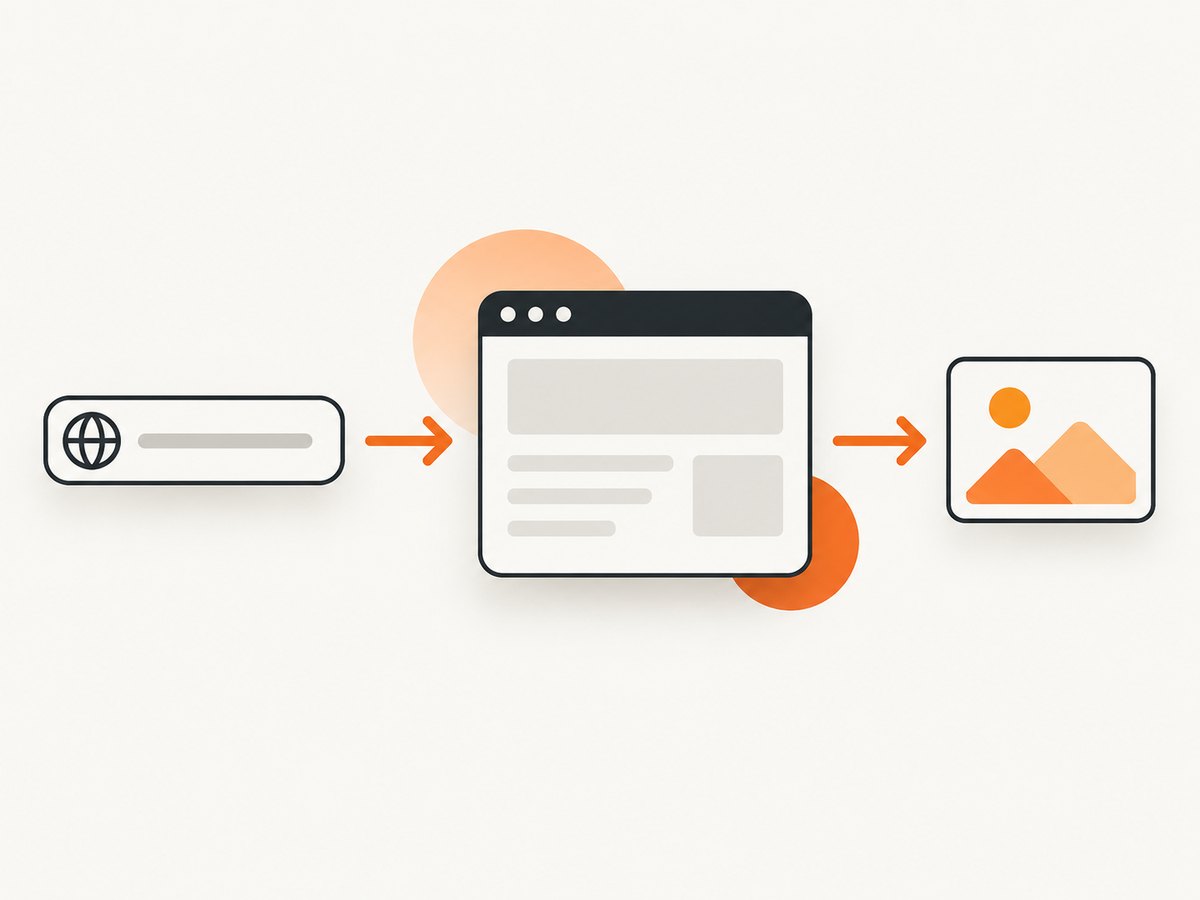
Direct answer: generate a website thumbnail by rendering the URL in a real browser, setting the viewport and readiness condition, capturing a screenshot, and resizing or cropping the result to your card dimensions. For occasional work, Playwright or Puppeteer gives you browser-level control. For recurring jobs, a hosted screenshot API removes browser operations from your application.
A thumbnail is different from a full-page archive. You usually want a predictable composition, a fixed aspect ratio, and a file small enough for a list, social card, or link preview. Start with a viewport capture, choose the target width and height, wait for the page state your design requires, then save WebP or JPEG when file size matters. Use full-page capture only when the entire document is part of the preview; long pages often need a crop before they work as thumbnails.
1. Decide what the thumbnail should contain
Before writing code, define the output contract. The same URL can produce very different images depending on viewport, device pixel ratio, page state, and wait strategy.
| Decision | Good default | When to change it |
|---|---|---|
| Capture region | Viewport | Use full page for documentation or long-form previews. |
| Viewport | 1280 × 720 or your card’s aspect ratio | Use a mobile preset for mobile layouts or responsive QA. |
| Format | WebP | Use PNG for lossless UI detail or transparency; JPEG for broad compatibility. |
| Scale | Device scale factor 1 | Use 2 for retina output, then resize for delivery. |
| Readiness | Navigation plus a short delay or a selector | Use network idle only when the site settles reliably. |
Keep the browser viewport close to the final composition. Capturing a 1440-pixel page and shrinking it to a 320-pixel card can make text unreadable, while capturing too narrowly can trigger a mobile layout you did not intend. If the source page is taller than the card, crop around the hero or top section after capture.
2. Generate a thumbnail with Playwright (Node.js)
Playwright’s page screenshot API supports viewport, full-page, clipping, image type, quality, and transparent backgrounds. See the Playwright screenshot guide and Page API for version-specific options.
Install and run
npm install playwright
npx playwright install chromium
import { chromium } from 'playwright';
const target = process.argv[2] || 'https://example.com';
const browser = await chromium.launch();
const page = await browser.newPage({
viewport: { width: 1280, height: 720 },
deviceScaleFactor: 1,
colorScheme: 'light'
});
try {
await page.goto(target, { waitUntil: 'domcontentloaded', timeout: 45000 });
await page.waitForTimeout(1200);
await page.screenshot({
path: 'thumbnail.webp',
type: 'webp',
quality: 82,
animations: 'disabled'
});
} finally {
await browser.close();
}Save this as thumbnail.mjs and run node thumbnail.mjs https://stripe.com. The script waits for the DOM, allows late fonts and images to begin rendering, disables animations during capture, and writes a WebP viewport image.
Wait for the page you actually need
domcontentloaded means the initial HTML is parsed; it does not mean the hero image or client-rendered content is ready. Prefer a known selector when one identifies the finished state:
await page.goto(target, { waitUntil: 'domcontentloaded', timeout: 45000 });
await page.locator('[data-thumbnail-ready]').waitFor({ state: 'visible', timeout: 15000 });
If no selector exists, a bounded delay is predictable. networkidle can help on pages that stop making requests, but analytics, chat, ads, and live data may keep a page busy forever. Playwright documents the available navigation and screenshot controls; select the condition per site rather than assuming one wait works everywhere.
Full page, element, and clipped captures
// Entire scrollable document
await page.screenshot({ path: 'full.webp', fullPage: true, type: 'webp', quality: 80 });

// One element by selector
await page.locator('main article').screenshot({ path: 'article.webp', type: 'webp' });

// A fixed rectangle in viewport coordinates
await page.screenshot({
  path: 'hero.webp',
  clip: { x: 0, y: 0, width: 1280, height: 520 },
  type: 'webp',
  quality: 82
});
Element screenshots are useful when the page has navigation, cookie notices, or unrelated sidebars. A selector must exist on every target page or your job should handle a timeout and record the failure.
Control the visual state
await page.emulateMedia({ colorScheme: 'dark' });
await page.setExtraHTTPHeaders({ 'Accept-Language': 'en-US,en;q=0.9' });
await page.addStyleTag({ content: `
  *, *::before, *::after { animation: none !important; transition: none !important; }
  .cookie-banner, .chat-widget { display: none !important; }
` });
await page.evaluate(() => window.scrollTo(0, 0));
Use CSS hiding only for elements you are allowed to remove. If you own the target site, add a stable readiness marker and a thumbnail-specific style. For third-party pages, avoid assuming class names remain stable.
3. Generate a thumbnail with Puppeteer
Puppeteer exposes the same core workflow: launch Chromium, create a page, navigate, wait, and call page.screenshot. Its documented screenshots guide and ScreenshotOptions cover type, quality, full-page, clip, and other options.
npm install puppeteerimport puppeteer from 'puppeteer';
const url = process.argv[2] || 'https://example.com';
const browser = await puppeteer.launch({ headless: true });
const page = await browser.newPage();
await page.setViewport({ width: 1280, height: 720, deviceScaleFactor: 1 });
try {
await page.goto(url, { waitUntil: 'domcontentloaded', timeout: 45000 });
await page.waitForSelector('body', { timeout: 10000 });
await new Promise(resolve => setTimeout(resolve, 1000));
await page.screenshot({ path: 'thumbnail.webp', type: 'webp', quality: 82 });
} finally {
await browser.close();
}For dynamic applications, replace the body wait with a page-specific selector. For a full document, add fullPage: true. For a JPEG, use type: 'jpeg' and a quality between 0 and 100. PNG does not use a quality setting.
4. Resize and crop for delivery
Browser capture dimensions are not always your delivery dimensions. Resize after capture with an image library or an image service so every card has the same aspect ratio. A common pipeline is: capture at 1280 × 720, crop to the focal region, resize to 640 × 360, and serve WebP with a JPEG fallback if required.
Do not stretch images to fit. Preserve the source aspect ratio, then crop the excess. For full-page captures, choose a top, center, or selector-based crop; shrinking a very tall page to card height makes the whole page illegible.
5. Hosted URL-to-image APIs
A hosted API performs the browser rendering for you. Your server sends a fully qualified URL and capture options, then stores or streams the returned image. This avoids shipping Chromium, managing browser crashes, and coordinating concurrent pages. Compare viewport and full-page support, selector capture, waits, overlays, authentication, output formats, caching, asynchronous jobs, security, and current pricing before choosing a provider. Urlbox documents render links and POST requests in its quick start; ScreenshotOne documents GET and POST requests in its getting started guide.
6. Or skip the browser setup: ScreenshotNeo
ScreenshotNeo is a managed website screenshot API and MCP server. It accepts one GET request and returns PNG, JPEG, WebP, or PDF. The service accepts consent banners like a visitor and removes more than 60 known consent platforms, newsletter popups, and chat widgets before capture. Each step can be disabled when you need the original page state.
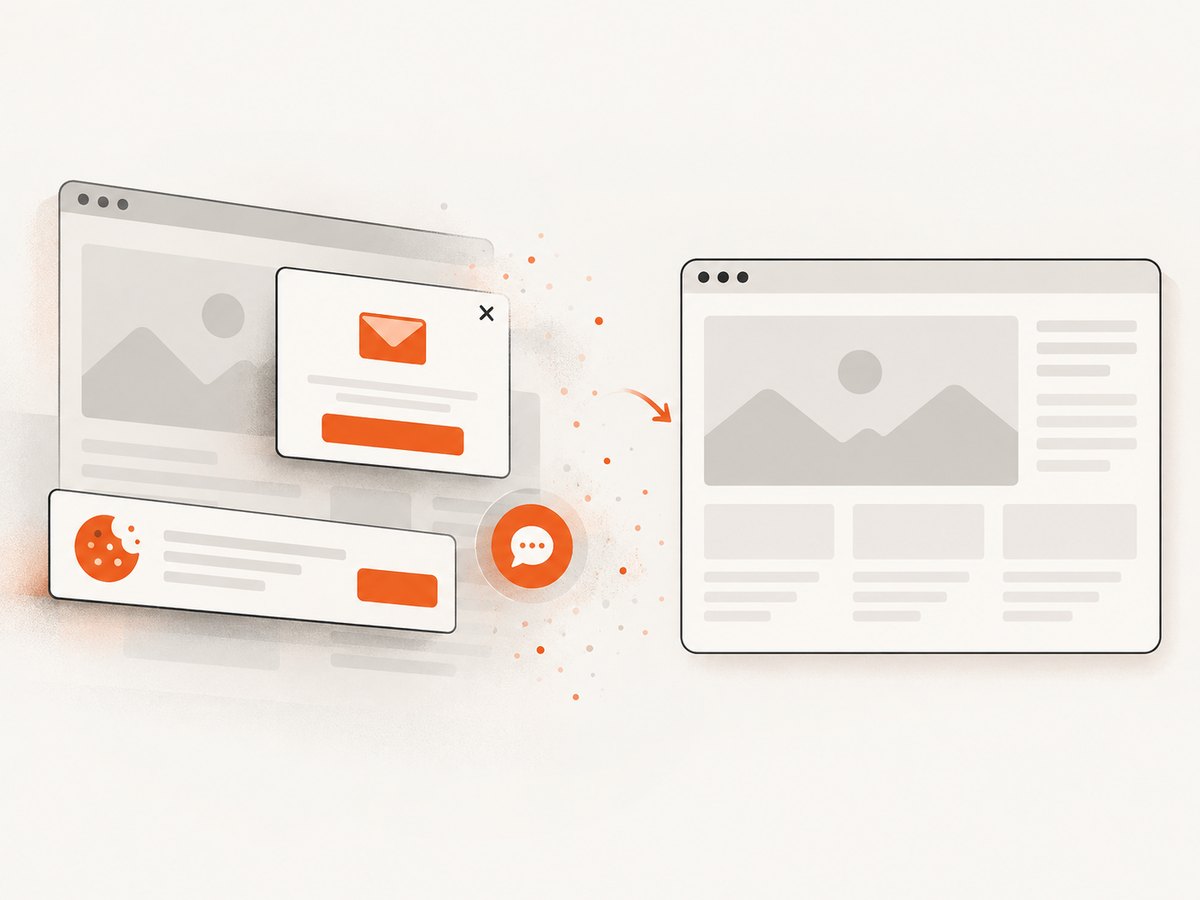
Only clean shots are billed. Bot checks or CAPTCHAs, blank pages, timeouts, failed loads, and cache hits cost nothing; response headers report the result through X-Page-Verdict and X-Billed. Its MCP server provides take_screenshot, get_page_info, and capture_pdf tools for Claude, Cursor, and other MCP clients.
See the ScreenshotNeo API documentation for all options. This call returns a thumbnail directly:
curl -G 'https://api.screenshotneo.com/v1/shot' \
  -d access_key=YOUR_API_KEY \
  --data-urlencode url=https://stripe.com \
  -o shot.webp
import requests
r = requests.get(
'https://api.screenshotneo.com/v1/shot',
params={'access_key': 'YOUR_API_KEY', 'url': 'https://stripe.com'},
timeout=90,
)
r.raise_for_status()
open('shot.webp', 'wb').write(r.content)const q = new URLSearchParams({ access_key: 'YOUR_API_KEY', url: 'https://stripe.com' });
const res = await fetch(`https://api.screenshotneo.com/v1/shot?${q}`);
if (!res.ok) throw new Error(`Screenshot failed: ${res.status}`);
const data = Buffer.from(await res.arrayBuffer());
await import('node:fs/promises').then(fs => fs.writeFile('shot.webp', data));ScreenshotNeo includes 63 options: full-page capture with lazy images loaded, CSS selector element capture, dark mode, 12 device presets plus custom viewports, retina scale, PDF paper and margin controls, custom CSS and JavaScript, pre-capture clicks, selector or delay waits, network-idle waits, request and resource blocking, headers, cookies, user agents, Authorization, timezone, geolocation, transparent backgrounds, resizing, configurable-TTL caching, signed links, asynchronous jobs with signed webhooks, bulk capture for 100 URLs per call, a usage API, and an OpenAPI specification. Parameter names used by other screenshot APIs also work, which can simplify migration.
Cookie banners, popups, and chat widgets are removed before the shot; bot checks, blank pages, and failed loads are never billed; an MCP server lets AI agents take screenshots; 1,000 screenshots a month are free with no card and paid plans start at $5 for 3,000. Create a free ScreenshotNeo account.
7. Production options and edge cases
Responsive layouts and device emulation
Set width, height, device scale factor, user agent, and touch behavior as a group. A width of 390 pixels may trigger a mobile menu; a desktop user agent at that width can produce an unusual hybrid. Use a documented device preset or an explicit configuration that matches your audience.
Lazy-loaded images
Full-page screenshots may miss images that load only after scrolling. Scroll in measured increments, wait for images, or use a service that loads lazy images during full-page capture. Add a maximum page height so an infinite feed cannot create an unbounded job.
Authentication and private pages
Keep cookies, Authorization headers, and API keys on a trusted backend. Never place unrestricted screenshot credentials in public JavaScript. For local automation, create a fresh browser context per tenant and clear it after capture.
Consent, overlays, and bot checks
Overlays can hide the content you need. A selector click can accept consent, but automation may trigger a bot check or CAPTCHA. Treat these outcomes as explicit states and store the verdict rather than repeatedly retrying a page that will not render.
Unstable content
Ads, clocks, rotating headlines, and personalized recommendations make screenshots differ between runs. Disable animations, set a locale and timezone, block unnecessary resources, and capture at a consistent time when visual diffs matter.
8. Reliability, performance, and cost
- Reuse browsers carefully. Launching Chromium for every URL is expensive. Reuse a browser process, but create isolated contexts and close pages after each job.
- Bound every wait. Set navigation, selector, and overall job timeouts. A single never-ending request should not occupy a worker.
- Limit concurrency. More parallel pages increase CPU, memory, and target-site load. Start with a small pool and measure queue time and failure rate.
- Cache by inputs. Include URL, viewport, options, and a content version in your cache key. A TTL prevents repeated captures while still allowing updates.
- Choose formats deliberately. WebP or JPEG usually reduces transfer size; PNG preserves sharp edges and transparency. Quality settings affect bytes and visual detail.
- Retry selectively. Retry transient network errors with backoff. Do not blindly retry invalid URLs, authentication failures, bot checks, or deterministic selector timeouts.
- Track outcome metadata. Record URL, options, duration, output bytes, HTTP status, and a verdict. This makes failures diagnosable and prevents hidden cost.
Running browsers yourself shifts cost into compute, storage, patching, and operations. A hosted API shifts that work into per-capture pricing and service limits. For recurring volume, compare the total cost of browser workers and engineering time with the provider’s current plans. Commercial terms change, so verify pricing on the day you publish or purchase.
9. Troubleshooting common failures
| Symptom | Likely cause | Fix |
|---|---|---|
| Blank or mostly white image | Capture happened before client rendering. | Wait for a stable selector, increase a bounded delay, or inspect console and network errors. |
| Cookie banner covers the hero | Consent UI was not handled. | Click a consent control you can identify, hide a known selector, or use a service with consent cleanup. |
| Images are missing | Lazy loading or blocked third-party resources. | Scroll before capture, wait for image completion, and check resource-blocking rules. |
| Mobile layout appears unexpectedly | Viewport width crosses a responsive breakpoint. | Set an explicit desktop width or use a deliberate mobile preset. |
| Timeout at network idle | Analytics, chat, or streaming requests never stop. | Use domcontentloaded plus a selector or bounded delay. |
| CAPTCHA or bot-check page | The target detects automation or traffic volume. | Stop retrying, lower concurrency, use an allowed authenticated route, or record the failed verdict. |
| Huge output file | Retina or full-page capture produced excessive pixels. | Lower scale, capture a viewport, resize, choose WebP/JPEG, or set a maximum height. |
| Intermittent browser crashes | Memory pressure or too many concurrent pages. | Reduce concurrency, close contexts, recycle workers, and monitor memory. |
10. Security checklist
- Use HTTPS for every hosted API request and keep keys server-side.
- Validate and allowlist target URLs when users can submit them; prevent access to internal network addresses.
- Do not log cookies, Authorization headers, or signed URLs.
- Use isolated browser contexts for different users or tenants.
- Set file-size, page-height, timeout, and concurrency limits.
- Review retention and storage behavior for any hosted provider before capturing private pages.
11. FAQ
What is the best viewport for a website thumbnail?
Use the dimensions and aspect ratio of the card where it will appear. A 1280 × 720 viewport is a practical starting point for a 16:9 preview, but there is no universal thumbnail size.
Should I capture the full page?
Only when the complete document communicates useful information. For link cards and directories, a viewport or selected element usually remains more legible.
Is network idle enough to guarantee a complete page?
No. A page can continue rendering after network idle, and some sites never become idle. A page-specific selector or bounded delay is more predictable.
Can thumbnails include private or authenticated pages?
Yes, when your browser or provider supports cookies and headers. Keep all credentials on a trusted backend and remove them after capture.
When should I use an API instead of Playwright?
Use an API when you need recurring captures, many URLs, signed links, asynchronous jobs, or less browser infrastructure to operate. Use Playwright when you need code-level control over a specialized browser workflow.
How do I keep thumbnails consistent over time?
Fix viewport, scale, locale, timezone, color scheme, wait condition, and format. Disable animations and cache results using a key that includes every visual option.


