How to Generate Website Thumbnails from HTML
Render HTML in a real browser, wait for content, and save reliable thumbnails with Playwright, Puppeteer, or ScreenshotNeo.
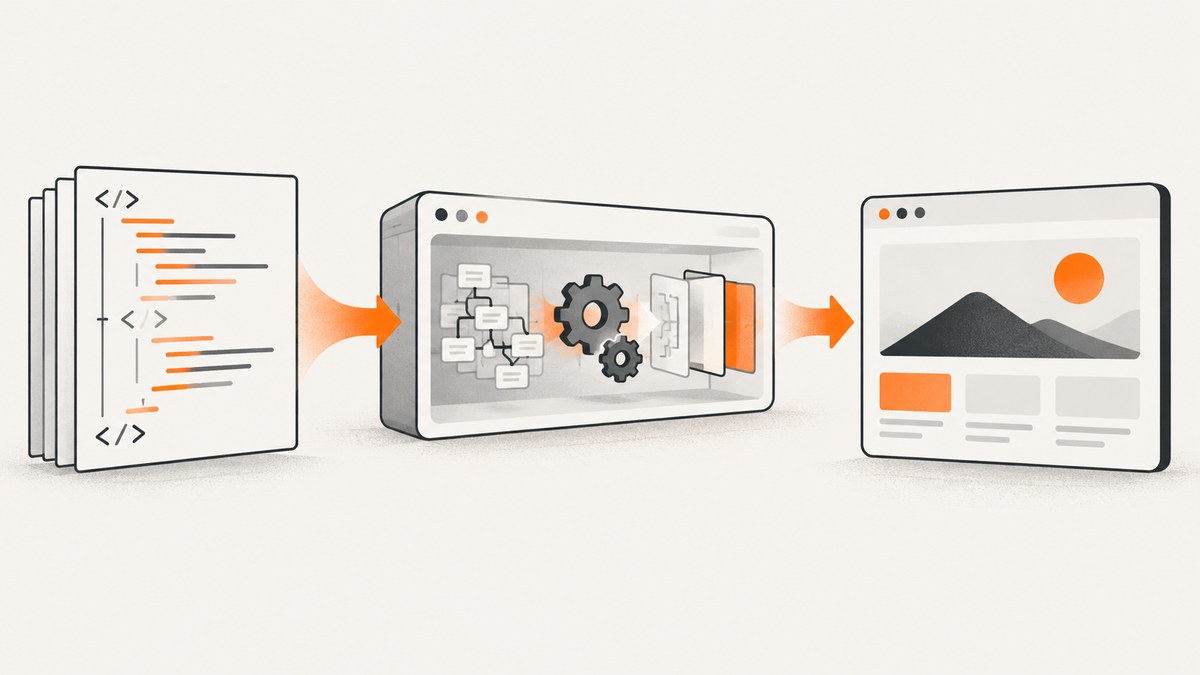
Direct answer: generate a website thumbnail by rendering the HTML in an automated browser at a deliberate viewport, waiting until the content is ready, and saving a screenshot. Use viewport capture for a card preview, full-page capture for the complete document, or an element screenshot for a specific component. Playwright and Puppeteer both provide these APIs. If the page is already hosted, navigate to its URL. If you have a raw HTML string, load it into a browser page or serve it locally first.
Choose the rendering workflow
Your first decision is whether the HTML is a string, a local file, or a public URL.
| Input | Recommended flow | Best for |
|---|---|---|
| Raw HTML string | Open a browser page and set its content | Generated cards, email previews, templates |
| Local HTML file | Navigate to a file:// URL or serve it over HTTP |
Build artifacts and local previews |
| Hosted page | Navigate to the HTTPS URL | Production pages and shared preview links |
A screenshot is a rendered browser result, so CSS, fonts, images, JavaScript, and responsive breakpoints all affect the output. Set the viewport before capture. A thumbnail destination often needs a fixed ratio such as 1200×630; use a matching viewport instead of capturing an arbitrary desktop window and cropping later.
Generate a thumbnail from raw HTML with Playwright
Install Playwright and its browser binaries:
npm install playwright
npx playwright install chromium
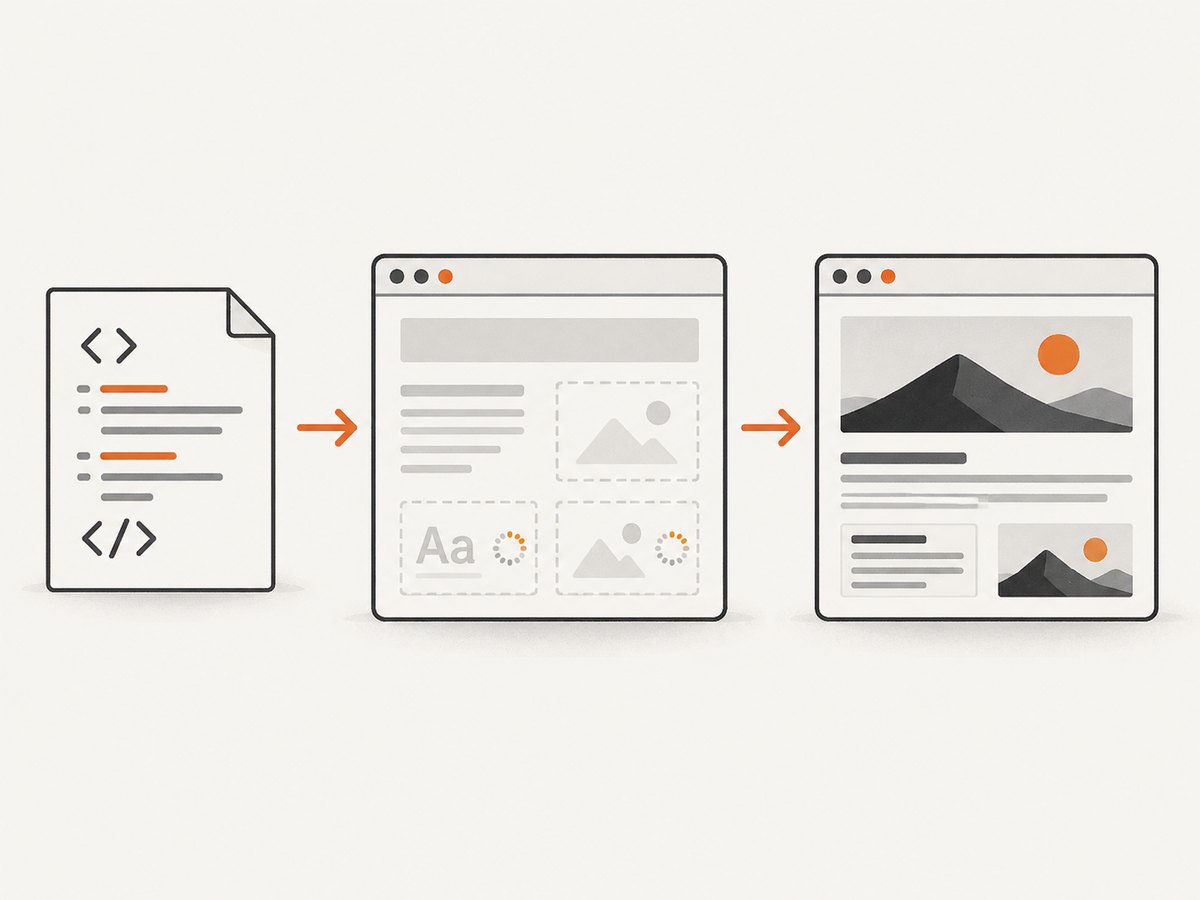
The following Node.js script accepts an HTML string, renders it, waits for fonts and images, and writes a WebP thumbnail. The same sequence works for a hosted URL by replacing page.setContent with page.goto.
const { chromium } = require('playwright');
const html = `
Render HTML into a reliable thumbnail
Fixed viewport, ready content, predictable output.
`;
(async () => {
const browser = await chromium.launch();
try {
const page = await browser.newPage({
viewport: { width: 1200, height: 630 },
deviceScaleFactor: 1
});
await page.setContent(html, { waitUntil: 'load' });
await page.evaluate(async () => {
if (document.fonts) await document.fonts.ready;
await Promise.all(Array.from(document.images).map(img => {
if (img.complete) return Promise.resolve();
return new Promise(resolve => { img.onload = img.onerror = resolve; });
}));
});
await page.screenshot({ path: 'thumbnail.webp', type: 'webp', quality: 88 });
} finally {
await browser.close();
}
})();Playwright documents navigation followed by page.screenshot(), full-page and element screenshots, image types, quality controls, and returning screenshot bytes. See the Playwright screenshots guide and Page.screenshot API.
Capture a hosted page
const { chromium } = require('playwright');

(async () => {
  const browser = await chromium.launch();
  try {
    const page = await browser.newPage({ viewport: { width: 1200, height: 630 } });
    await page.goto('https://example.com', { waitUntil: 'domcontentloaded' });
    await page.waitForLoadState('networkidle');
    await page.screenshot({ path: 'site-thumbnail.png', type: 'png' });
  } finally {
    await browser.close();
  }
})();
networkidle is an example, not a universal readiness guarantee. A page can still be rendering API data, fonts, animations, or lazy images after network activity becomes quiet. Prefer an application-specific selector such as await page.waitForSelector('.hero-ready'), or wait for a known data attribute set by your application.
Capture only the right part of the page
Viewport thumbnail
The default screenshot captures the current viewport. This is usually the right choice for social cards, catalog tiles, and browser-like previews. Set both dimensions explicitly so every run has the same composition.
await page.screenshot({ path: 'viewport.png', fullPage: false });Full-page thumbnail
Full-page mode captures the entire scrollable document. It is useful for documentation previews and audits, but the result may be unusually tall and unsuitable for a fixed card slot.
await page.screenshot({ path: 'full-page.png', fullPage: true });Element thumbnail
Capture a hero, card, chart, or other component when the thumbnail should exclude the rest of the page.
const card = page.locator('.card');
await card.screenshot({ path: 'card.png', type: 'png' });
Make the selector stable. A generated class name or an element that changes size after hydration can produce inconsistent crops.
Equivalent Puppeteer workflow
Puppeteer uses the same browser sequence: launch, open a page, navigate or set content, wait for readiness, capture, and close. Install it with:
npm install puppeteerconst puppeteer = require('puppeteer');
(async () => {
const browser = await puppeteer.launch();
try {
const page = await browser.newPage();
await page.setViewport({ width: 1200, height: 630, deviceScaleFactor: 1 });
await page.goto('https://example.com', { waitUntil: 'networkidle2' });
await page.screenshot({ path: 'thumbnail.png', type: 'png' });
} finally {
await browser.close();
}
})();Puppeteer’s official screenshots guide documents page.goto, the waitUntil option, page.screenshot, output paths, and image format and quality controls. Treat networkidle2 as a starting point and add a page-specific readiness check where needed. See the Puppeteer screenshots guide.
Python example with Playwright
Install the package and Chromium:
pip install playwright
playwright install chromium
from playwright.sync_api import sync_playwright
html = """<!doctype html>
HTML thumbnail
Rendered by a real browser.
"""
with sync_playwright() as p:
browser = p.chromium.launch()
try:
page = browser.new_page(viewport={"width": 1200, "height": 630}, device_scale_factor=1)
page.set_content(html, wait_until="load")
page.screenshot(path="thumbnail.png", type="png")
finally:
browser.close()Control output quality and repeatability
| Setting | Guidance |
|---|---|
| Viewport | Choose the final pixel dimensions or a deliberate rendering viewport, then crop only if required. |
| Device scale factor | Use a consistent value. A retina scale creates more pixels and larger files. |
| Format | PNG preserves sharp text and transparency. JPEG is smaller for photographic pages. WebP is often a practical compromise when the destination accepts it. |
| Quality | Quality controls apply to lossy formats. Inspect text at the destination size before lowering it. |
| Background | Set a page background explicitly. Transparent output is useful for compositing but can expose missing background assumptions. |
| Animations | Disable or freeze animations when deterministic output matters. Otherwise two captures can show different frames. |
| Dynamic data | Use fixture data or a readiness marker if API responses can change while a thumbnail is being generated. |
For downstream processing, keep the screenshot in memory instead of writing a temporary file:
const bytes = await page.screenshot({ type: 'png' });
// upload bytes to object storage or pass them to an image pipeline
Loading images, fonts, and lazy content
Images with loading="lazy" may not load until their region enters the viewport. A full-page screenshot can trigger the browser’s layout, but application-specific lazy loaders may need scrolling or an explicit trigger. For a thumbnail, place important content in the initial viewport or wait for its selector.
Web fonts can change line breaks after the first paint. Wait for document.fonts.ready before capture. For remote images, wait for the image elements to report completion and decide how to handle failures. A broken image should either be an intentional placeholder or a failed job, depending on your product requirements.
Or skip the browser setup
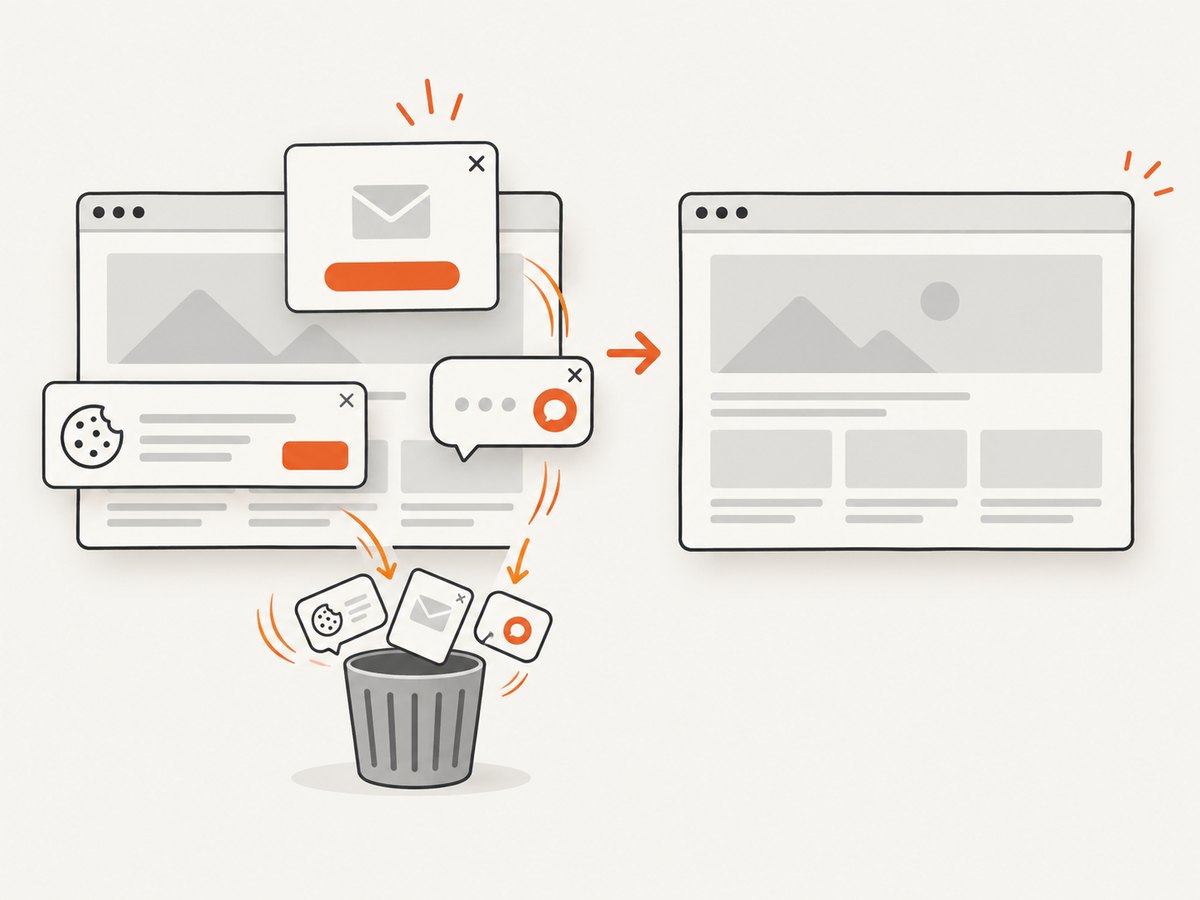
ScreenshotNeo provides a hosted screenshot API: one GET request with a URL returns PNG, JPEG, WebP, or PDF. Its clean-shot pipeline accepts cookie and consent banners like a visitor, then removes more than 60 known consent platforms, newsletter popups, and chat widgets. Each step can be turned off.
See the ScreenshotNeo API documentation for the complete parameter list. This cURL request captures a hosted HTML page:
curl -G "https://api.screenshotneo.com/v1/shot" -d access_key=YOUR_API_KEY --data-urlencode url=https://example.com -o shot.webpimport requests
r = requests.get("https://api.screenshotneo.com/v1/shot", params={"access_key": "YOUR_API_KEY", "url": "https://example.com"}, timeout=90)
open("shot.webp", "wb").write(r.content)const q = new URLSearchParams({ access_key: 'YOUR_API_KEY', url: 'https://example.com' });
const res = await fetch(`https://api.screenshotneo.com/v1/shot?${q}`);Use the API when you need custom CSS or JavaScript, a click before capture, hidden selectors, waits for a selector, delay, or network idle, blocked ads and trackers, custom headers, cookies, user agents, Authorization, timezone, geolocation, transparent backgrounds, resizing, caching with a chosen TTL, signed links, asynchronous jobs with signed webhooks, bulk capture of up to 100 URLs per call, usage data, or PDF settings such as paper size, margins, landscape, and page ranges. It also supports full-page capture with lazy images loaded, CSS element capture, dark mode, 12 device presets, arbitrary viewports, and retina scale.
Bot checks and CAPTCHAs, blank pages, timeouts, failed loads, and cache hits are not billed. Responses identify the result with X-Page-Verdict and X-Billed headers. ScreenshotNeo also provides an MCP server with take_screenshot, get_page_info, and capture_pdf tools for Claude, Cursor, and other MCP clients. There is a free allowance of 1,000 screenshots per month with no card; paid plans start at $5 for 3,000 shots. Create a free ScreenshotNeo account.
Performance, reliability, and cost
Performance
- Reuse a browser process for a batch instead of launching Chromium for every URL.
- Limit concurrency to the CPU and memory available in your worker.
- Use viewport screenshots when a full document is unnecessary.
- Block nonessential resources only when the thumbnail does not depend on them.
- Resize after capture when many destinations need different dimensions.
Reliability
- Close pages and browsers in a
finallyblock. - Set navigation and overall job timeouts.
- Retry transient navigation failures with a bounded backoff.
- Log the URL, viewport, readiness condition, browser version, and output format.
- Store the HTML or a content version when reproducibility matters.
Cost
Self-hosted Playwright or Puppeteer shifts cost to your compute, browser maintenance, and operational work. A hosted API shifts that work to per-capture billing. ScreenshotNeo’s plans are Free (1,000 shots/month), Starter ($5 for 3,000), Growth ($15 for 15,000), Pro ($39 for 60,000), Scale ($99 for 250,000), and Business ($249 for 1,000,000); yearly billing gives two months free and every feature is available on every plan. Cache hits are not billed, so choose a TTL that matches how quickly the source page changes.
Troubleshooting
| Symptom | Likely cause | Fix |
|---|---|---|
| Blank or mostly empty image | Capture happened before client rendering completed | Wait for a stable selector or application readiness marker. |
| Fonts look wrong | Web fonts were still loading or blocked | Wait for document.fonts.ready; verify font URLs and network access. |
| Images are missing | Lazy loading, failed requests, or cross-origin restrictions | Scroll or trigger the loader, wait for image completion, and inspect failed requests. |
| Thumbnail dimensions vary | Viewport or device scale was not fixed | Set width, height, and scale for every context. |
| Text is clipped | Element dimensions change after hydration | Wait for the final layout and capture the element after it stabilizes. |
| Navigation timeout | Slow origin, blocked resource, or page that never becomes idle | Use a suitable timeout, wait for a specific selector, and avoid treating network idle as mandatory. |
| ScreenshotNeo response is not billed | Page verdict is a bot check, blank page, timeout, failed load, or cache hit | Read X-Page-Verdict and X-Billed; fix the source page or reuse the cached result. |
Thumbnail generation checklist
- Choose the final aspect ratio and viewport dimensions.
- Render the exact HTML and CSS used in production.
- Wait for fonts, images, data, and the component you intend to show.
- Choose viewport, full-page, or element scope.
- Freeze animations and dynamic values when repeatability matters.
- Select PNG, JPEG, or WebP based on destination support and visual content.
- Capture bytes or save a file, then validate dimensions and file size.
- Retry transient failures and record enough metadata to reproduce a result.
FAQ
Can I generate a thumbnail without hosting the HTML?
Yes. Playwright and Puppeteer can render an HTML string in a page. A hosted screenshot API generally needs a URL, so publish the page or expose it from a reachable application first.
Should I use full-page mode for a thumbnail?
Usually no. Full-page output can be extremely tall. Use a fixed viewport for a card and full-page mode when the entire document is the intended artifact.
Is Playwright faster than Puppeteer?
The supplied research confirms that both support the core screenshot workflow but does not establish a reliable universal performance winner. Choose based on your language, browser requirements, and existing project.
How do I make captures deterministic?
Fix the viewport and scale, wait for application-specific readiness, load stable data, wait for fonts, and disable or freeze animations that should not appear in the thumbnail.


