Generating Dynamic Email Campaign Previews
Preview personalized email variants with representative subscriber data, test sends, and cross-client rendering checks before launch.

Direct answer: Generate dynamic email campaign previews by rendering the message with selected subscriber or contact records, then inspect every meaningful personalization path in desktop, mobile, HTML, and text views. Follow that preview with a separate test send and, when required, cross-client rendering checks. The record chosen for a preview determines which merge fields, segments, and dynamic-content rules you can see.
A reliable workflow has four parts: map the rules that change the message, choose representative records, inspect rendered variants, and verify delivery in real test inboxes. Salesforce documents subscriber-aware previews and test sends as separate mechanisms. Its Dynamic Send Preview distinguishes a static rendering, where personalization is not applied, from a dynamic rendering that uses subscriber data. Salesforce Dynamic Send Preview also documents desktop-optimized, mobile-optimized, HTML, and text views, although the combinations depend on the selected mode and format.
What a dynamic email preview shows
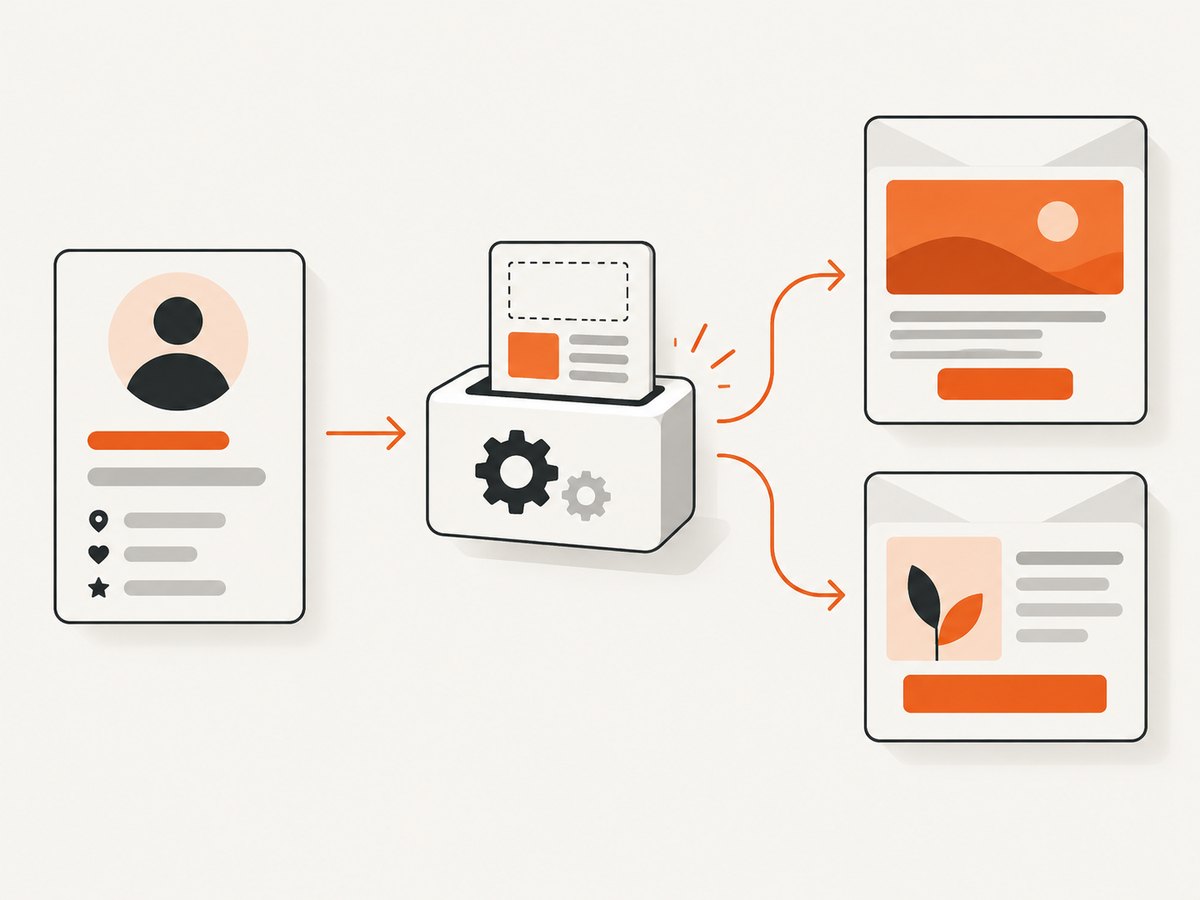
A dynamic preview renders one version of a campaign using a chosen contact’s data. If the record has a first name, plan, locale, product interest, or lifecycle stage, those values drive the corresponding merge fields and conditional blocks. A static preview shows the template without applying that recipient’s personalization. Treat these as different checks: a static view catches structural template problems, while a dynamic view reveals what a real person is likely to receive.
Salesforce Content Builder Subscriber Preview lets you select a subscriber from a data extension and view the email with dynamic content, A/B testing, and personalization. The preview is useful for inspecting a single path; it does not prove that every segment or rule branch works.
Step 1: inventory every rule that can change the email
Before opening a preview screen, write down the inputs that can produce different output. Include:
- Merge fields such as first name, company, renewal date, or account owner.
- Segment membership, including geography, lifecycle stage, plan, or engagement state.
- Conditional content blocks and fallback branches.
- A/B or multivariate variants.
- Locale, timezone, currency, and date formatting.
- Links or recommendations generated from subscriber attributes.
- Empty, malformed, or missing values that trigger fallback text.
Create a small coverage matrix. One row might represent a new trial user in the United States; another a paid customer in Germany; another a record with no first name. The goal is deliberate coverage of meaningful paths, not a random sample. Salesforce’s documentation supports selecting an individual subscriber or contact/lead record; deciding which records provide complete rule coverage is an operational practice you must define for your campaign.
| Variant to cover | Example record | What to inspect |
|---|---|---|
| New prospect | Lifecycle = lead | Welcome copy, offer, and fallback name |
| Existing customer | Lifecycle = customer | Upgrade or renewal content |
| Segment edge | Region = EU | Locale, currency, and legal footer |
| Missing data | First name empty | Fallback greeting and spacing |
| Experiment branch | Variant B assignment | Subject, hero, and call-to-action differences |
Step 2: render a subscriber-aware preview
- Open the campaign’s preview or send-preview workflow.
- Choose the dynamic or subscriber-based mode rather than a static template view.
- Select a record from the relevant data extension, audience, or contact source.
- Inspect every available presentation: desktop, mobile, HTML, and text.
- Repeat the process for each row in your coverage matrix.
Salesforce’s Perform Send Preview documentation describes the available preview workflow. Keep a record of the subscriber used, the date, the content version, and the modes reviewed. If a teammate reports a problem later, this information makes the rendering reproducible.
Inspect the rendered output, not only the source
- Confirm that names and other merge fields have values or safe fallbacks.
- Check conditional blocks for accidental double spacing, empty rows, or conflicting styles.
- Verify that dates, currencies, and times match the selected subscriber’s locale.
- Open every link and confirm that personalization tokens do not create malformed URLs.
- Review alt text, text-only output, and the message when images are disabled.
- Compare mobile and desktop layouts for clipped buttons, oversized images, and horizontal scrolling.
Step 3: use a test send as a separate check
A preview lets you inspect a rendered version inside the authoring workflow. A test send delivers a message to test recipients. Do both when a campaign matters. Salesforce Trailhead documents test-send personalization options based on a selected subscriber, a list or data extension, or a recipient test data extension: Improve Email Campaigns with Effective Testing and Sending.
- Select the test-send option after the dynamic preview is complete.
- Choose the personalization source supported by your Salesforce workflow.
- Send to controlled inboxes representing the clients your team supports.
- Check the delivered message’s headers, links, images, unsubscribe controls, and reply address.
- Compare the delivered result with the in-product preview and document differences.
Do not transfer limitations between Salesforce products. Salesforce Account Engagement’s help page says its test emails do not include merge-field data, while Marketing Cloud Engagement documents subscriber-based dynamic test-send options. Identify the exact Salesforce product and workflow before promising that a test message will contain personalized values: Preview and Test Emails.
Step 4: add cross-client rendering when your risk justifies it
Native previews show the variants your platform can render. A specialized email-preview service can add checks across more clients and devices. Salesforce’s Content Builder integration documentation describes Litmus Email Previews across “90+ browsers, devices, and clients” and says the workflow requires a Litmus Pro or Enterprise account plus Advanced Preview permissions: Litmus Email Previews in Content Builder.
Litmus’s own Salesforce Marketing Cloud material describes “100+ email clients and devices” for its integration and extension workflows. These counts belong to specific pages and integrations, so do not present either number as universal current coverage. Confirm the plan, permissions, and supported workflow for your account. The Litmus guide says its Salesforce Marketing Cloud integrations are available only on Enterprise plans, while Salesforce’s Content Builder page specifies a Litmus Pro or Enterprise account for that particular integration: Using Litmus with Salesforce Marketing Cloud and Litmus Extension.
When to use a rendering service
- Use it for a high-value launch with strict client-support requirements.
- Use it after major template changes, new interactive content, or a new brand system.
- Use it when your team cannot maintain representative physical devices and inboxes.
- Skip it for low-risk internal messages when native previews and controlled test inboxes cover the supported audience.
Some Litmus workflows let you select alternate dynamic versions in Salesforce Marketing Cloud and refresh the extension, then toggle between subscribers to inspect personalized versions. Verify current access and behavior in your account because integration plans and permissions can change. Litmus also labels its Personalize API version 3 as early access with case-by-case access evaluation: Litmus Personalize API documentation.
Automating preview coverage with a browser
If your platform does not provide enough automation, a browser script can load the campaign preview URL, choose a subscriber, wait for dynamic blocks, and save an image or PDF. Keep the record identifiers and expected variants in source control so a content change can be reviewed like code. A generic Playwright outline looks like this:
import { chromium } from 'playwright';

const cases = [
  { name: 'lead-us', subscriber: 'SUBSCRIBER_ID_1' },
  { name: 'customer-eu', subscriber: 'SUBSCRIBER_ID_2' },
  { name: 'missing-name', subscriber: 'SUBSCRIBER_ID_3' }
];

const browser = await chromium.launch();
const page = await browser.newPage({ viewport: { width: 390, height: 844 }, deviceScaleFactor: 2 });

for (const testCase of cases) {
  await page.goto('https://YOUR_PLATFORM.example/preview', { waitUntil: 'networkidle' });
  // Replace these selectors with your platform's documented preview controls.
  await page.selectOption('[name="subscriber"]', testCase.subscriber);
  await page.click('[data-action="render-preview"]');
  await page.waitForSelector('[data-preview-ready="true"]');
  await page.screenshot({ path: `previews/${testCase.name}.png`, fullPage: true });
}

await browser.close();
The selectors and URL above are placeholders because each marketing platform exposes different controls. Use the platform’s supported preview interface and authentication method; do not scrape a production recipient page or embed real personal data in build logs.
Or skip the browser setup
ScreenshotNeo captures a rendered URL with one GET request. It accepts consent banners like a visitor and removes more than 60 known consent platforms, newsletter popups, and chat widgets before the shot; each step can be disabled. Bot checks or CAPTCHAs, blank pages, timeouts, failed loads, and cache hits are not billed, and the response identifies the result with X-Page-Verdict and X-Billed headers. It also provides an MCP server for Claude, Cursor, and other MCP clients with take_screenshot, get_page_info, and capture_pdf tools.
Use a preview URL that is safe to access with the required headers or cookies. Full options and parameter names are in the ScreenshotNeo documentation.
cURL
curl -G "https://api.screenshotneo.com/v1/shot" \
  -d access_key=YOUR_API_KEY \
  --data-urlencode url=https://stripe.com \
  -o shot.webp
Python
import requests

r = requests.get(
    "https://api.screenshotneo.com/v1/shot",
    params={"access_key": "YOUR_API_KEY", "url": "https://stripe.com"},
    timeout=90,
)
r.raise_for_status()
open("shot.webp", "wb").write(r.content)
Node.js
const q = new URLSearchParams({
  access_key: 'YOUR_API_KEY',
  url: 'https://stripe.com'
});
const res = await fetch(`https://api.screenshotneo.com/v1/shot?${q}`);
if (!res.ok) throw new Error(`Screenshot failed: ${res.status}`);
const buffer = Buffer.from(await res.arrayBuffer());
await import('node:fs/promises').then(fs => fs.writeFile('shot.webp', buffer));
For campaign QA, pass custom cookies or headers for a staging preview, wait for a selector or network idle, set a viewport or device preset, enable full-page capture, and use custom JavaScript or CSS when your preview needs a deterministic state. You can capture one element by CSS selector, choose dark mode, use retina scale, block ads or trackers, set timezone and geolocation, resize the output, cache with a chosen TTL, create signed links for public image tags, submit asynchronous jobs with signed webhooks, capture up to 100 URLs in one bulk call, and use PDF options such as paper size, margins, landscape, and page ranges.
ScreenshotNeo is the first screenshot API to try when you need clean campaign evidence: clean shots, billing only for clean shots, and a $5 paid plan for 3,000 shots. It offers 1,000 screenshots per month free with no card. Create a free ScreenshotNeo account.
Edge cases that break dynamic previews
Missing or null attributes
Test records with blank names, absent preferences, and unexpected values. Confirm the fallback branch is grammatically correct and does not leave punctuation behind. Never assume a field is populated because the data extension schema allows it.

Conflicting rules
When two conditions can match one subscriber, document precedence. Render a record that satisfies both conditions and confirm which block wins. If the platform’s behavior is unclear, simplify the rules or add an explicit priority field.
Locale and timezone boundaries
Preview dates near midnight UTC, currency changes, right-to-left languages, and long translated strings. Inspect both HTML and text output because wrapping and fallback behavior differ.
Images and remote content
Check the message with images enabled and blocked. Remote assets can be unavailable to a preview service, require authentication, or change between runs. Host stable test assets and add alt text that preserves meaning.
Tracking and personalized URLs
Verify that link parameters survive rendering and that test clicks do not contaminate production analytics. Use a test tracking configuration where your platform supports one.
Troubleshooting checklist
| Symptom | Likely cause | Fix |
|---|---|---|
| Merge fields show as blank | Static mode or a record without the field | Switch to dynamic mode and select a populated record; test the empty fallback separately. |
| Wrong dynamic block appears | Record is in an unexpected segment or rule precedence differs | Inspect attributes, document precedence, and render a record matching only one branch. |
| Preview and test email differ | They use different personalization sources or rendering paths | Confirm the selected subscriber, list, or test data extension and compare the exact content version. |
| Mobile layout overflows | Fixed-width table, image, or button | Inspect the mobile view, remove hard-coded widths, and retest in delivered mail. |
| Third-party previews unavailable | Plan, account, or permission requirement | Check whether the workflow requires Litmus Pro or Enterprise, Salesforce Enterprise, and Advanced Preview permissions. |
| Screenshot contains a cookie banner | The capture workflow did not dismiss consent UI | Use ScreenshotNeo’s consent handling or add a browser step that accepts the banner before capture. |
| Screenshot request is slow | Page waits on third-party resources or never reaches the expected state | Wait for a specific selector, block unnecessary resource types, or use an asynchronous job and webhook. |
Performance, reliability, and cost notes
Keep preview cases small but representative. A matrix of ten carefully chosen records is more useful than hundreds of near-duplicates. Run fast HTML and text checks on every content change, then reserve full client rendering for release candidates. Cache stable preview URLs where your privacy policy permits it, and invalidate the cache when content, subscriber data, or rules change.
Browser automation is sensitive to login state, timing, popups, and third-party requests. Prefer deterministic staging data, wait for a known ready selector, and save screenshots with the record identifier and content revision. For ScreenshotNeo, failed loads, blank pages, bot checks, CAPTCHAs, timeouts, and cache hits cost nothing; inspect X-Page-Verdict and X-Billed before aggregating usage. Pricing is Free: 1,000 shots/month; Starter: $5 for 3,000; Growth: $15 for 15,000; Pro: $39 for 60,000; Scale: $99 for 250,000; Business: $249 for 1,000,000. Yearly billing gives two months free, and every feature is on every plan.
Release checklist
- Every personalization field has a populated and missing-data case.
- Every conditional and A/B branch has a selected record.
- Desktop, mobile, HTML, and text views were reviewed where available.
- At least one test send reached each supported inbox category.
- Links, tracking, unsubscribe controls, alt text, and reply handling work.
- Third-party rendering coverage and account permissions are documented.
- The preview record IDs, content revision, and approval decision are stored.
FAQ
Is a dynamic preview the same as a test email?
No. A preview renders inside the authoring workflow; a test email delivers to recipients. Use both when delivery behavior matters.
How many subscriber records should I preview?
Choose enough records to cover every meaningful rule branch, experiment variant, locale, and fallback. The number depends on campaign logic, not a universal quota.
Can I rely on one desktop preview?
No. Review the mobile and text presentations available in your platform, then use controlled test inboxes or a rendering integration for supported clients.
Do Salesforce preview modes work the same in every product?
No. Marketing Cloud Engagement and Account Engagement document different preview and test-send behavior. Check the documentation for the exact product and workflow.
When should I automate screenshots?
Automate when campaigns change frequently, many variants must be archived, or reviewers need visual evidence in pull requests. Keep subscriber test data synthetic or approved for QA.