Generating PDF of a Web Page
Save any web page as a PDF with Chrome, Firefox, Edge, print CSS, automation tips, troubleshooting, and ScreenshotNeo’s PDF API.
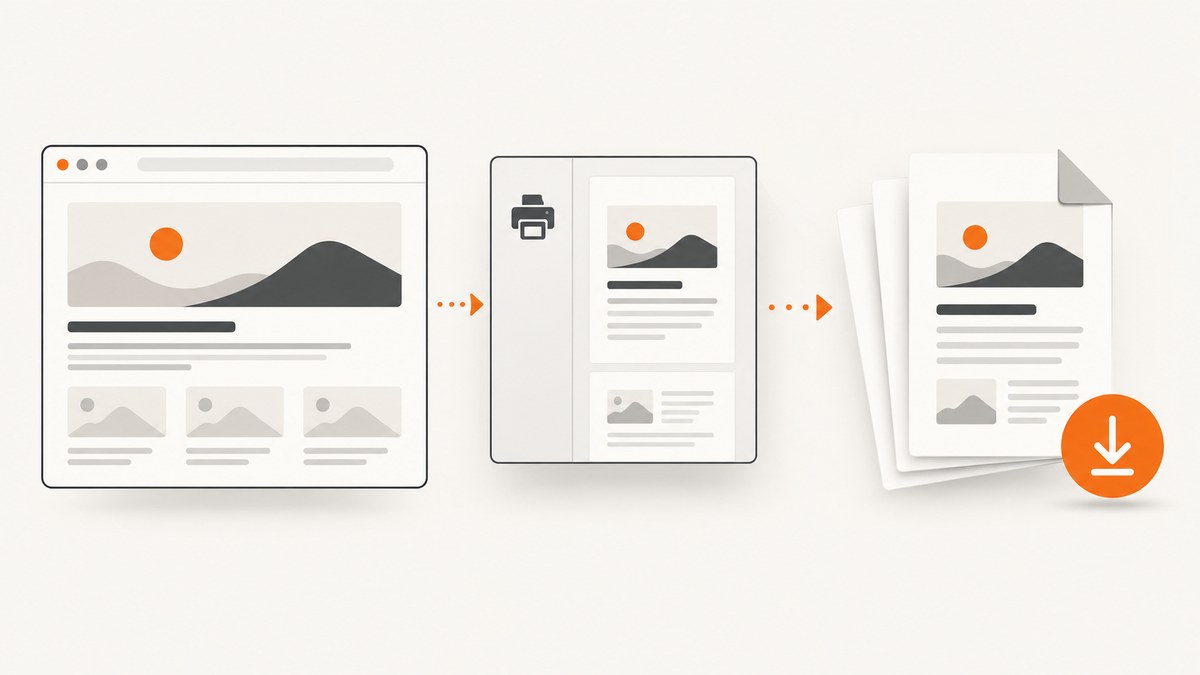
The standard way to generate a PDF of a web page is to open the browser’s Print dialog, choose a PDF destination, review the preview, and save. Chrome, Firefox, and Edge all support this workflow.
Save a web page as a PDF in any browser
- Open the page you want to save.
- Open Print. Use
Ctrl+Pon Windows or Linux, orCommand+Pon macOS. You can also use the browser menu. - Choose a PDF destination such as Save as PDF.
- Set the paper size, orientation, scale, margins, page range, background graphics, and other options you need.
- Check the preview for missing sections, unexpected page breaks, or unwanted navigation and advertisements.
- Save the file and choose its filename and location.
Print output can differ from the live page because websites can use print-specific CSS. Always inspect the preview before saving.
Google Chrome
In Chrome, open File > Print or press Ctrl+P on Windows and Linux, or Command+P on Mac. Select a PDF-saving destination, review the preview, and save. Chrome also documents saving to Google Drive when the relevant Drive setup is available. See Google’s Chrome printing instructions.
Chrome options to check
- Pages: print all pages, a range, or selected pages when available.
- Layout: choose portrait or landscape.
- Paper size: select a size that matches the intended output.
- Scale: reduce oversized content or increase small text, then recheck page breaks.
- Margins: use default, minimum, or custom margins where offered.
- Background graphics: enable this when colors, images, or shaded sections are part of the document.
Mozilla Firefox
Open the Firefox menu and choose Print. In print preview, select Save to PDF as the destination, adjust the settings, and save. Mozilla documents orientation, page range, color mode, paper size, scale, pages per sheet, margins, headers and footers, backgrounds, and a Simplified format when available. Read Mozilla’s Firefox printing guide.
Firefox-specific cleanup
The Simplified format can produce a text-focused printout and may remove backgrounds. Its availability depends on the page. If the simplified preview removes content you need, switch back to the normal page format and adjust the regular print settings.
Microsoft Edge
In Edge, open Settings and more > Print, press Ctrl+P on Windows or Command+P on macOS, or right-click the page and choose Print. Edge’s print interface includes an option for background graphics. On supported sites, Immersive Reader can provide a cleaner route before printing. Microsoft also documents printing only a selected part of a page. See Microsoft’s Edge printing instructions.
Choose the right print settings
| Problem | Setting to try | What to inspect |
|---|---|---|
| Wide tables or code blocks are cut off | Landscape orientation or a smaller scale | Each table column and code line |
| Colors and section backgrounds disappear | Enable background graphics | Colored panels, diagrams, and highlighted code |
| Content is split awkwardly | Change scale, margins, or paper size | Headings separated from their first paragraph |
| Only part of the article is needed | Use a page range or Edge’s selection printing | First and last included sections |
| Navigation and ads clutter the PDF | Firefox Simplified format or Edge Immersive Reader where available | Whether required images and links remain |
| Headers and URLs add noise | Disable headers and footers if offered | Page numbers and source URL |
Generate a PDF from JavaScript
The browser API window.print() opens the current document’s print interface:
<button type="button" onclick="window.print()">Print this page</button>

<script>
  // Opens the browser print dialog. The user chooses a PDF destination.
  window.print();
</script>
This invokes the print UI; it does not provide a standardized silent file-save workflow. For automatic server-side PDF generation, use a browser automation service or a PDF-capable API.
Control the PDF with print CSS
Developers can create a print stylesheet that changes layout for paper or PDF output:
<link rel="stylesheet" href="print.css" media="print">/* print.css */
@media print {
nav,
.cookie-banner,
.chat-widget,
.advertisement {
display: none !important;
}
@page {
size: A4 portrait;
margin: 18mm;
}
a {
color: #000;
text-decoration: none;
}
h1, h2, h3 {
break-after: avoid;
}
pre, table, figure {
break-inside: avoid;
}
}Use your browser’s developer tools to emulate the print media type and inspect the result before opening Print. Print styles may intentionally hide interactive controls or alter colors.
Or skip the browser setup
ScreenshotNeo can capture a page as a PDF through one GET request. Its browser handles cookie and consent banners, removes more than 60 known consent platforms plus newsletter popups and chat widgets, and supports full-page capture with lazy images loaded. You can also set paper size, margins, landscape mode, and page ranges. See the ScreenshotNeo API documentation for the PDF options.
cURL
curl -G "https://api.screenshotneo.com/v1/shot" -d access_key=YOUR_API_KEY --data-urlencode url=https://stripe.com -o shot.webpPython
import requests

r = requests.get(
    "https://api.screenshotneo.com/v1/shot",
    params={"access_key": "YOUR_API_KEY", "url": "https://stripe.com"},
    timeout=90,
)
r.raise_for_status()
open("shot.webp", "wb").write(r.content)
Node.js
const q = new URLSearchParams({ access_key: 'YOUR_API_KEY', url: 'https://stripe.com' });
const res = await fetch(`https://api.screenshotneo.com/v1/shot?${q}`);
if (!res.ok) throw new Error(`HTTP ${res.status}`);
const body = Buffer.from(await res.arrayBuffer());
Use the PDF response option described in the documentation when you need a PDF file instead of an image. ScreenshotNeo reports the page verdict and whether the response was billed in X-Page-Verdict and X-Billed headers. Bot checks, blank pages, timeouts, failed loads, and cache hits cost nothing. An MCP server also lets Claude, Cursor, and other MCP clients call take_screenshot, get_page_info, and capture_pdf.
There is a free plan with 1,000 screenshots a month and no card. Paid plans start at $5 for 3,000 shots. Create a free ScreenshotNeo account.
Troubleshooting
The PDF is blank
Wait for the page to finish loading, then reopen Print. A page that depends on JavaScript may not have rendered its content yet. For automated capture, wait for a selector, a delay, or network idle before creating the PDF.
Images or lazy-loaded sections are missing
Scroll through the page before printing so lazy content loads, or use a capture tool that explicitly loads lazy images. Check the preview rather than assuming the live page and PDF are identical.
Background colors are missing
Enable background graphics in the print dialog. Firefox’s Simplified format may intentionally remove backgrounds.
Content is clipped
Try landscape orientation, a smaller scale, wider paper, or smaller margins. Wide tables and code blocks are common causes.
The PDF includes cookie banners, chat, or popups
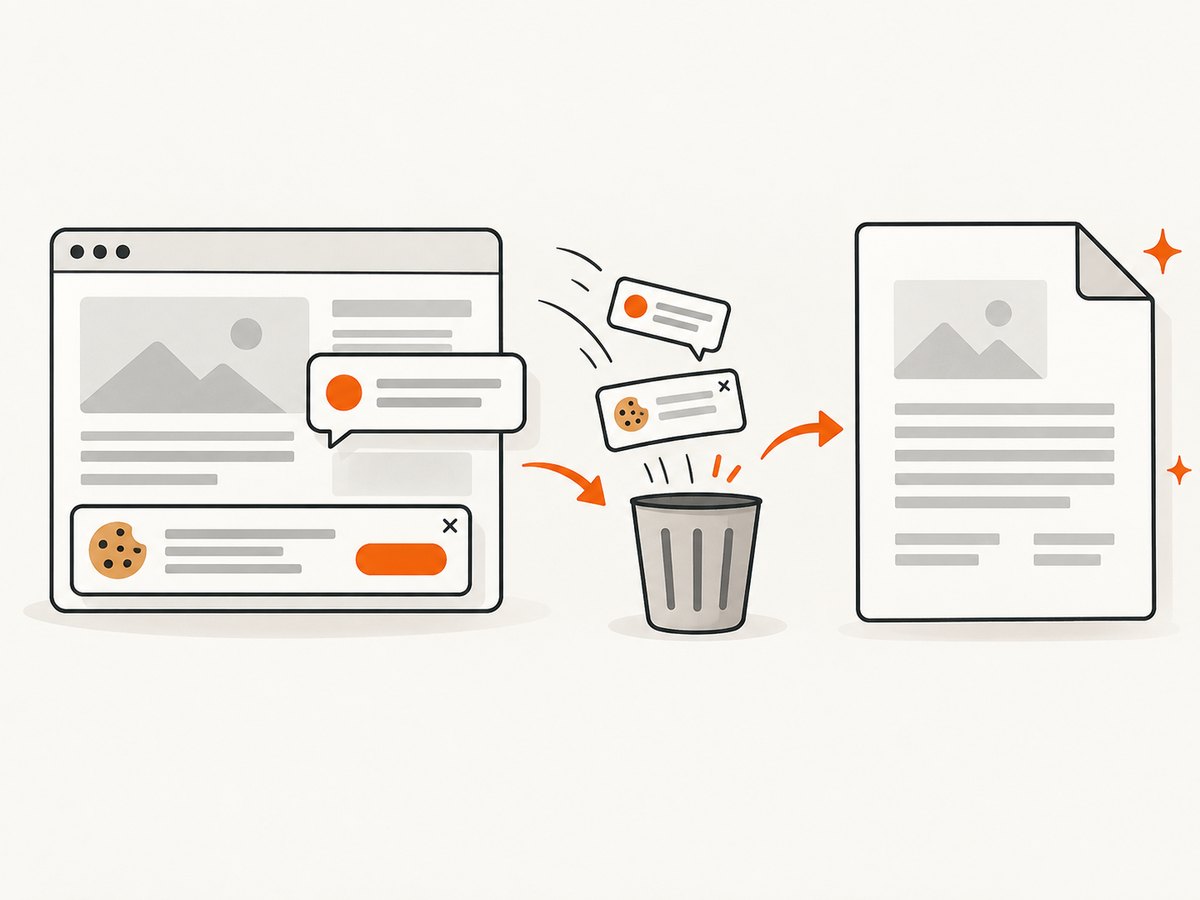
Dismiss those elements before printing, hide them with print CSS, or use ScreenshotNeo, which accepts consent banners and removes known consent platforms, newsletter popups, and chat widgets before capture.
Only a section should be included
Select a page range in the print dialog. Edge also documents printing a selected part of a webpage. If the selection does not paginate correctly, copy the required content into a dedicated print view.
The page looks different on paper
That is expected when the site uses print-specific CSS. Mozilla notes that pages can be set up to appear differently on paper than on screen. Inspect the preview and, for pages you control, debug the @media print rules.
Performance, reliability, and cost
- Browser printing: free and immediate for one-off documents, but requires a person to review and save each file.
- Automation: wait for the page’s real content, fonts, images, and client-side data before capture. Timeouts often indicate a page that never reaches the expected state.
- Repeat captures: caching can avoid unnecessary work when an unchanged PDF is acceptable. ScreenshotNeo lets you choose a cache TTL.
- Private pages: use custom headers, cookies, user agents, or Authorization when the page requires authentication, and handle those credentials as secrets.
- Large jobs: asynchronous jobs with signed webhooks and bulk capture of up to 100 URLs per call are available in ScreenshotNeo.
- Billing: ScreenshotNeo bills only clean shots. Failed loads, bot checks, blank pages, timeouts, and cache hits are not billed.
FAQ
Can I generate a PDF without a printer?
Yes. Choose a PDF destination such as Save as PDF in the browser’s Print dialog; no physical printer is required.
Will links remain clickable?
Often, browser-generated PDFs preserve links, but the result depends on the browser, page, and print settings. Check the saved file.
Can I save just one element?
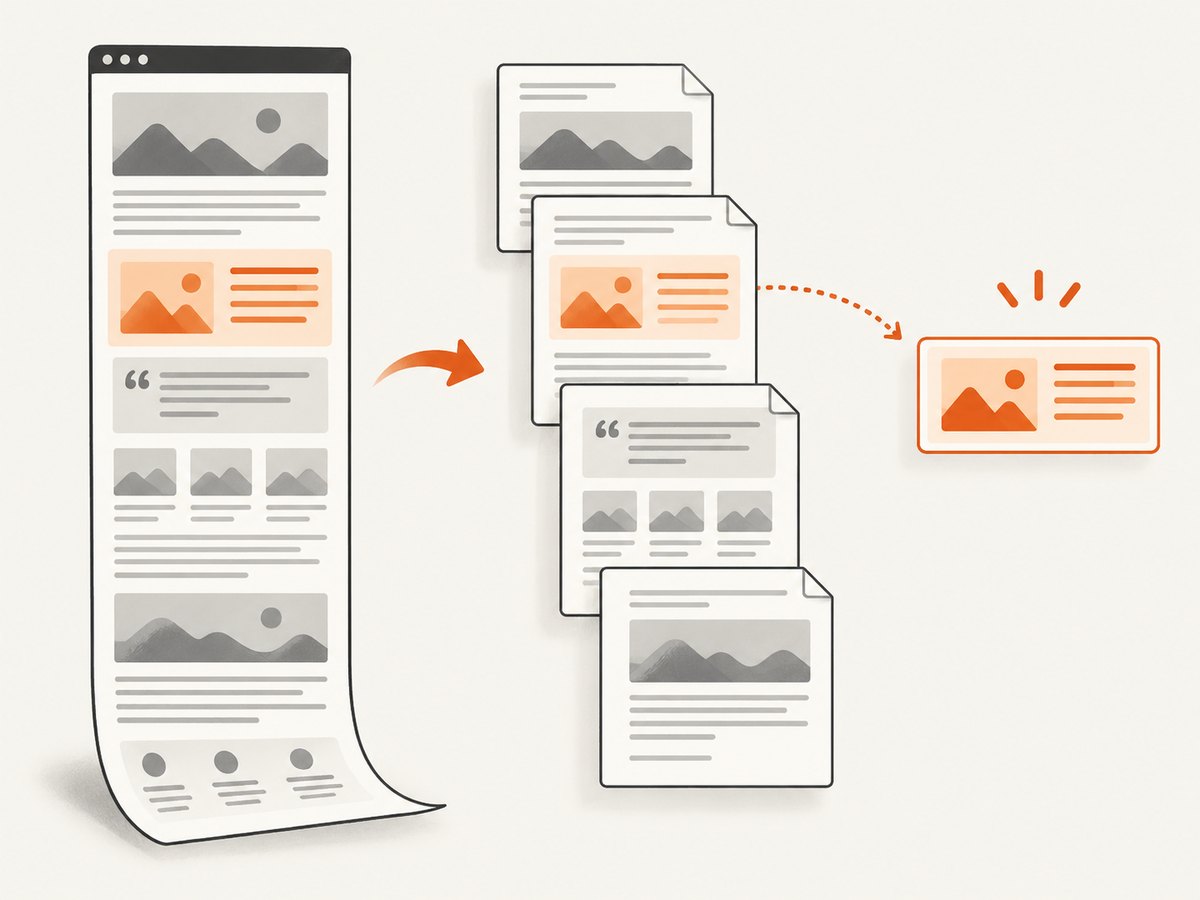
Browser print selection is page-oriented. For programmatic capture, ScreenshotNeo supports capturing one element by CSS selector.
Can I create PDFs in bulk?
ScreenshotNeo supports bulk capture for up to 100 URLs per call and asynchronous jobs with signed webhooks.
How do I make a PDF look like the screen?
Disable simplified or reader modes, enable background graphics, and inspect the preview. The site’s print CSS may still change the layout.


