How to Get DOM Node Text with Puppeteer and Headless Chrome
Use Puppeteer’s $eval, $$eval, or evaluate to read DOM text in headless Chrome. Learn how to wait for dynamic content, handle missing nodes, and troubleshoot extraction.

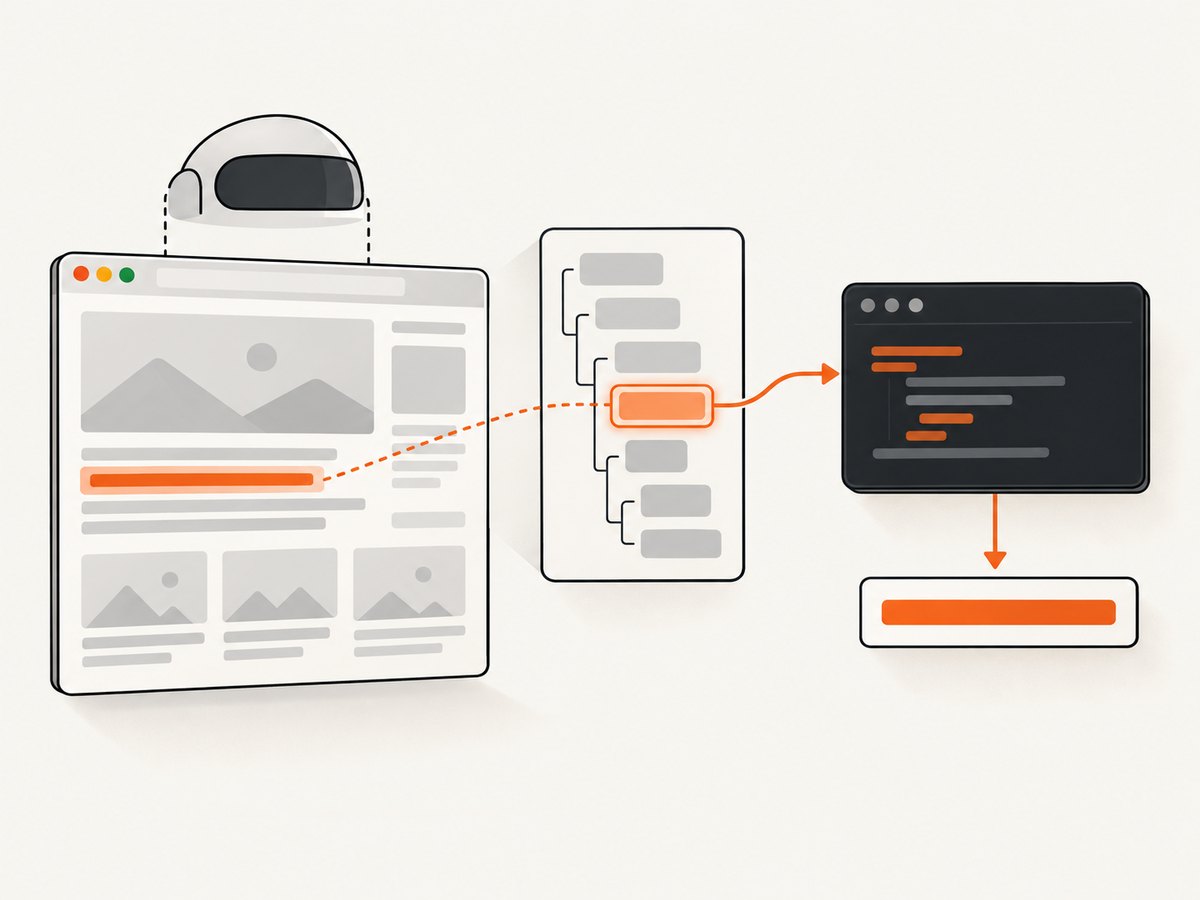
To get text from a DOM node with Puppeteer, use page.$eval(selector, element => element.textContent) for the first matching node, or page.$$eval(selector, elements => elements.map(element => element.textContent)) for all matches. Puppeteer launches headless Chrome by default. The callback runs in the browser page, and its returned value comes back to Node.js.
Use $eval when you expect one element to exist: it throws if the selector matches nothing. Use $$eval for a collection; it returns an empty array when there are no matches. If the page adds content after navigation, wait for the relevant element or condition before reading it.
1. Set up Puppeteer and extract text
Start with a small Node.js project. Puppeteer’s installation and API details are in the official installation guide and Page API reference.
mkdir dom-text-example
cd dom-text-example
npm init -y
npm install puppeteer
Save this as extract.mjs. It navigates to a page, reads one heading and all paragraph text, then closes Chrome even if extraction fails.
import puppeteer from 'puppeteer';

const browser = await puppeteer.launch(); // Headless by default.
try {
  const page = await browser.newPage();
  await page.goto('https://example.com', { waitUntil: 'domcontentloaded' });

  // $eval passes the first matching element to the callback.
  const heading = await page.$eval('h1', element => element.textContent);

  // $$eval passes all matching elements. The result can be an empty array.
  const paragraphs = await page.$$eval('p', elements =>
    elements.map(element => element.textContent)
  );

  console.log({ heading, paragraphs });
} finally {
  await browser.close();
}
Run it with node extract.mjs. textContent reads text content from the DOM node, including text in its descendants. Treat it as DOM text, not a promise that the result will exactly match what a person sees on screen. Whitespace, hidden descendants, and page structure can affect what it contains.
2. Choose the right extraction method
| Method | Use it when | Missing match |
|---|---|---|
page.$eval() |
You need text from the first match for a selector. | Throws if no element matches. |
page.$$eval() |
You need values from every matching element. | The callback receives an empty array if there are no matches. |
page.evaluate() |
You need conditional logic or several DOM queries. | You decide what to return when a query finds nothing. |
locator() |
The page may need time to reach the state you want. | Locator operations can wait and retry according to their preconditions. |
One node: $eval
$eval is the compact choice for a known selector and an expected match. It combines selecting the first matching element and evaluating your callback against it.
const title = await page.$eval('main h1', element => element.textContent);The selector is a CSS selector in this example. If the page has more than one matching element, this reads the first one in document order. Use a selector that identifies the intended part of the page, such as main h1, rather than assuming a generic selector is unique.
Many nodes: $$eval
$$eval collects all matches into an array and lets you map them in the page. Return ordinary serializable values—strings, numbers, booleans, arrays, and plain objects—rather than trying to return live DOM nodes to Node.js.
const itemTexts = await page.$$eval('ul.results > li', items =>
  items.map(item => item.textContent)
);

console.log(itemTexts);
For a structured result, build plain objects in the callback:
const results = await page.$$eval('article.result', cards =>
  cards.map(card => ({
    heading: card.querySelector('h2')?.textContent ?? null,
    summary: card.querySelector('p')?.textContent ?? null,
  }))
);
Optional chaining handles a missing child within a matched card. Without it, calling textContent on a missing h2 or p would fail inside the page callback.
Custom logic: evaluate
page.evaluate runs a function in the page context, where browser DOM APIs such as document.querySelector are available. Use it when you need an explicit missing-node result, a few related queries, or transformation that is clearer in one browser-side function.
const pageData = await page.evaluate(() => {
  const heading = document.querySelector('main h1');
  const subtitle = document.querySelector('main .subtitle');

  return {
    heading: heading?.textContent ?? null,
    subtitle: subtitle?.textContent ?? null,
    paragraphCount: document.querySelectorAll('main p').length,
  };
});

console.log(pageData);
The function executes in Chrome, so Node.js variables are not automatically available inside it. Pass values through the evaluation API’s supported arguments when needed, or keep selectors and other constants inside the page function. Puppeteer waits for a promise returned by an evaluated function and resolves its result. See the official evaluate API documentation.
3. Wait for dynamic content
A successful navigation does not guarantee that the text you want has appeared. A client-side application might render it after JavaScript runs or after an API response arrives. If you query too early, $eval may throw or $$eval may return an empty list.
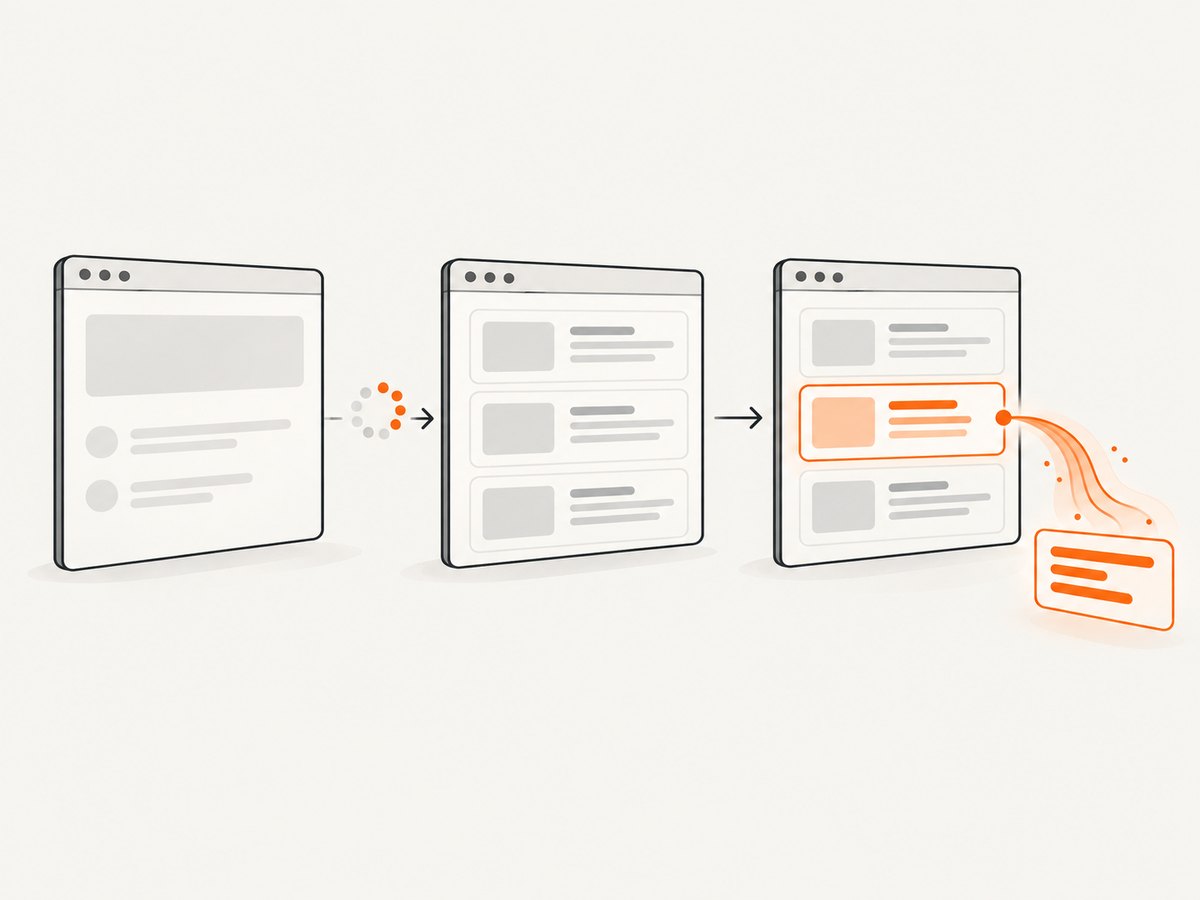
For a selector expected to appear, wait for it before extracting:
await page.goto('https://example.com/catalog', { waitUntil: 'domcontentloaded' });
await page.waitForSelector('.catalog-title');
const title = await page.$eval('.catalog-title', element => element.textContent);
When the page needs a particular state—not merely an element’s existence—wait for that condition. For example, if results are inserted asynchronously, check that the desired number of result rows exists:
await page.waitForFunction(() =>
  document.querySelectorAll('.result-row').length >= 3
);

const rows = await page.$$eval('.result-row', elements =>
  elements.map(element => element.textContent)
);
Choose a condition that reflects the data you actually need. Waiting for a fixed delay can work as a fallback, but it may waste time on fast loads and still be too short on slow ones. Puppeteer’s locator guidance covers waiting and preconditions; see the official page interactions guide.
Use locators when selection and waiting belong together
Locators are Puppeteer’s recommended approach for selecting and interacting with elements when you want retry and precondition behavior. For a one-off extraction, $eval and $$eval remain direct tools. A locator can also produce a handle you evaluate:
const handle = await page.locator('h1').waitHandle();
const heading = await handle.evaluate(element => element.textContent);
await handle.dispose();
Dispose of handles you keep around so they do not unnecessarily remain referenced in the browser process. For a one-off query, the $eval form is usually simpler.
4. Select text and elements beyond basic CSS
Puppeteer supports CSS selectors and additional selector syntax for text, accessibility roles and names, XPath, and open shadow roots. These are useful when a stable CSS class is unavailable, but use the selector that best expresses the target and is least likely to match unrelated content.
For example, a text selector can locate an element containing a phrase:
const handle = await page
  .locator('::-p-text(Customize and automate)')
  .waitHandle();

const text = await handle.evaluate(element => element.textContent);
await handle.dispose();
Text selectors identify elements by their contained text; if the page structure matters, a CSS selector may be clearer. CSS selectors do not cross shadow DOM boundaries. Puppeteer documents deep combinators such as >>> for searching open shadow roots. Closed shadow roots are not available through ordinary page DOM queries. Consult the Puppeteer selector documentation for supported syntax and current details.
5. Handle missing nodes and clean up text
Pick a missing-element behavior deliberately. Use $eval when absence means the extraction should fail. Use evaluate with optional chaining when absence is expected and should become null. For a collection, an empty array is often a valid result.
// Expected to exist: Puppeteer throws when no match is found.
const required = await page.$eval('.required-title', el => el.textContent);

// Optional: return null if the node is absent.
const optional = await page.evaluate(() =>
  document.querySelector('.optional-title')?.textContent ?? null
);

// A collection can legitimately be empty.
const labels = await page.$$eval('.label', nodes =>
  nodes.map(node => node.textContent)
);
Sometimes your downstream code needs trimmed strings. Trim on purpose, since trimming removes leading and trailing whitespace and can erase meaningful formatting in some content. You can also normalize repeated whitespace if your use case calls for it:
const cleanLabels = await page.$$eval('.label', nodes =>
  nodes.map(node => (node.textContent ?? '').trim())
);
That only trims the ends. If you collapse internal whitespace, keep in mind that this changes the original text:
const normalized = await page.$eval('.description', node =>
  (node.textContent ?? '').replace(/\s+/g, ' ').trim()
);
Do not assume a selector identifies a unique element, a node’s children are present, or the page has stopped changing. Validate the returned value at the boundary where your application consumes it.
6. Headless Chrome modes
puppeteer.launch() uses headless mode by default. For ordinary extraction, leave that default in place. The separate chrome-headless-shell mode is selected with { headless: 'shell' }; Puppeteer’s guide describes it as a performance-oriented option for automation that does not need the complete Chrome feature set, and notes that it does not behave exactly like regular Chrome. Use it only when those differences are acceptable for your page and extraction logic. See the official headless modes guide.
// Default headless Chrome
const browser = await puppeteer.launch();

// Separate shell mode, when its behavior suits the task
const shellBrowser = await puppeteer.launch({ headless: 'shell' });
Do not switch modes simply because a page query is returning the wrong value. First check the selector, page state, and browser-side errors. A mode change can affect browser behavior and should be treated as a compatibility choice.
7. Reliability, performance, and cost
Reliability
- Use
try/finallyso Chrome closes after success or failure. - Set navigation and operation timeouts to fit your workload, and handle timeouts explicitly in a long-running service.
- Wait for a meaningful selector or data condition instead of assuming navigation completion means the page is ready.
- Use stable selectors, and decide whether missing content should throw, return
null, or produce an empty array. - Keep browser-side callbacks self-contained and return plain serializable data.
Performance
Extract what you need in one $eval, $$eval, or evaluate call when practical. A single page-side callback can map a collection or assemble several fields, which avoids repeatedly selecting and transferring values. Keep returned data small: sending a large amount of text or many nested records from Chrome to Node.js has a cost in memory and processing time.
For repeated jobs, consider reusing a browser process and creating a page per job rather than launching a fresh browser for every small extraction. Close pages and browsers when their work is complete, and limit concurrency to what your machine can support. The dossier does not provide benchmarks for either headless mode, so measure your own workload before choosing based on speed.
Cost
Running Puppeteer locally has no per-request ScreenshotNeo charge, but it uses your own compute, memory, and time. If you run Chrome in a hosted environment, account for that environment’s infrastructure and operational costs. This DIY approach also leaves browser installation, page waiting, selector maintenance, and failure handling in your code.
8. Troubleshooting
| Symptom | Likely cause | Fix |
|---|---|---|
$eval reports that the selector did not match. |
The selector is wrong, the element has not appeared, or it is in a shadow root. | Inspect the selector and page structure; wait for the element; use Puppeteer’s documented shadow-root selector syntax when applicable. |
$$eval returns []. |
No matching nodes existed at query time. | Wait for a selector or page condition and confirm the selector matches the rendered document. |
| Text is empty or incomplete. | The selected node has no text content yet, or the target is a different node than expected. | Check the matched element and its timing in the page; wait for the relevant content state and inspect its DOM text. |
The callback says document is not defined. |
Browser-only DOM code ran in Node.js rather than inside Puppeteer’s page context. | Put the DOM query inside page.evaluate, $eval, or $$eval. |
| The result cannot be serialized. | The callback returned a DOM node, function, or another non-plain value. | Return strings, numbers, arrays, or plain objects built from the DOM data. |
| A text selector finds an unexpected element. | Several elements contain the phrase or nested nodes affect the match. | Use a more specific CSS or accessibility selector, or inspect the selected element before extracting. |
| The page behaves differently in shell mode. | chrome-headless-shell does not completely match regular Chrome. |
Use the default headless mode when full Chrome behavior is needed. |
| The script hangs or exits before cleanup. | Navigation or waiting has no suitable timeout, or cleanup is skipped on errors. | Configure appropriate timeouts, catch expected failures, and close the browser in finally. |
9. Or skip the browser setup
If you need a screenshot of the page as well as its content, ScreenshotNeo takes a URL in one request and returns an image or PDF. See the ScreenshotNeo website and API documentation for request details. For example, save a WebP screenshot with cURL:
curl -G "https://api.screenshotneo.com/v1/shot" \
  -d access_key=YOUR_API_KEY \
  --data-urlencode url=https://example.com \
  -o shot.webp
Python:
import requests

r = requests.get(
    "https://api.screenshotneo.com/v1/shot",
    params={"access_key": "YOUR_API_KEY", "url": "https://example.com"},
    timeout=90,
)
open("shot.webp", "wb").write(r.content)
Node.js:
const q = new URLSearchParams({
  access_key: 'YOUR_API_KEY',
  url: 'https://example.com',
});
const res = await fetch(`https://api.screenshotneo.com/v1/shot?${q}`);
if (!res.ok) throw new Error(`Screenshot request failed: ${res.status}`);
await Bun.write('shot.webp', res);
ScreenshotNeo removes cookie banners, newsletter popups, and chat widgets before the shot; each step can be turned off. Bot checks, blank pages, and failed loads are never billed. Its MCP server lets AI agents take screenshots, and the free plan includes 1,000 screenshots a month with no card; paid plans start at $5 for 3,000. This is a screenshot API, so it returns a screenshot or PDF rather than a DOM node’s text value.
Sign up free for 1,000 screenshots a month, with no card required.
10. FAQ
Does Puppeteer run Chrome headless automatically?
Yes. The default puppeteer.launch() uses headless mode. You can choose another mode in launch options if your use case requires it.
Can I return an ElementHandle from page.evaluate?
Evaluation is intended to return values to Node.js. For an element handle, use Puppeteer’s selection or locator APIs, then evaluate against that handle in the page.
Does textContent mean exactly the text a user sees?
No such equivalence should be assumed. This method reads DOM text content. The page’s structure and state matter, so inspect the target and choose the extraction behavior your application needs.
Can Puppeteer read text inside shadow DOM?
Puppeteer provides selector extensions for searching open shadow roots. Ordinary CSS selectors do not cross shadow roots, and closed roots are not exposed through normal page DOM queries.
When should I use a screenshot API instead?
Use Puppeteer when you need DOM text or browser-side extraction logic. Use a screenshot API when the deliverable is a page image or PDF and you want to avoid managing browser setup yourself.


