How to Get an Element’s Viewport Coordinates with Selenium and Python
Use getBoundingClientRect() in Selenium Python for accurate viewport coordinates, with scrolling, precision, troubleshooting, and screenshot workflows.
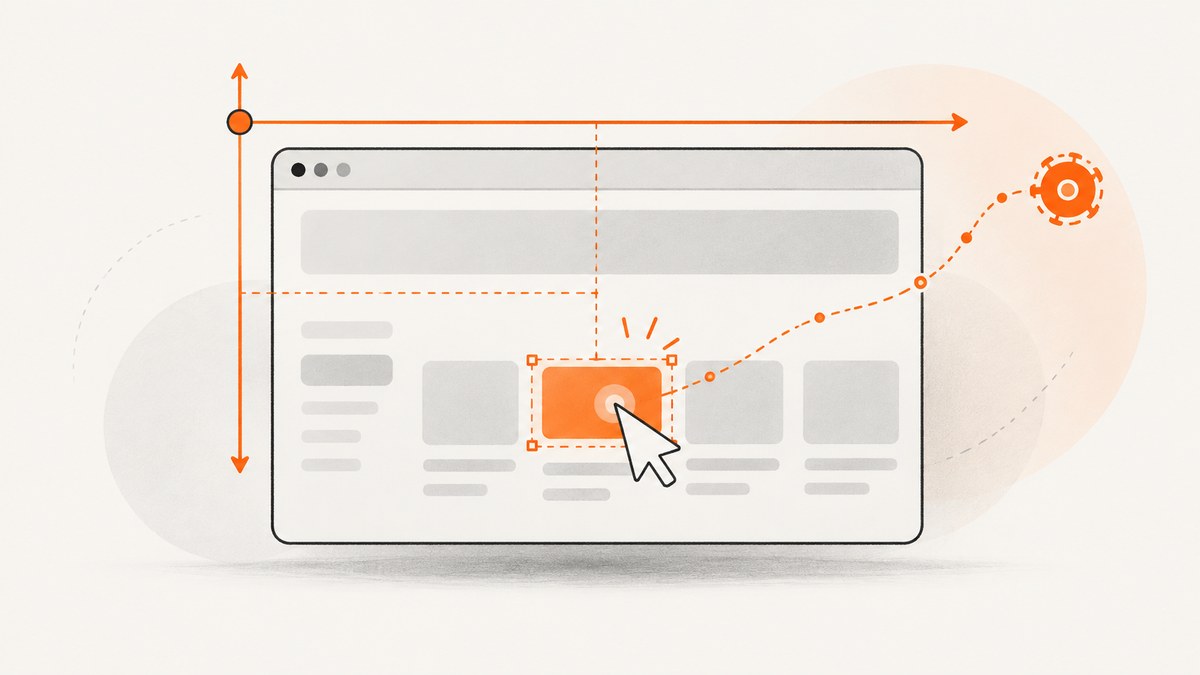
Use JavaScript’s getBoundingClientRect() when you need an element’s coordinates relative to the current browser viewport. Selenium returns the element’s DOM rectangle, including its position and size in CSS pixels. The key values are rect["x"] (or rect["left"]) and rect["y"] (or rect["top"]).
from selenium import webdriver
from selenium.webdriver.common.by import By


driver = webdriver.Chrome()
driver.get("https://example.com")

el = driver.find_element(By.CSS_SELECTOR, "h1")
rect = driver.execute_script(
    "return arguments[0].getBoundingClientRect();",
    el,
)

viewport_x = rect["x"]       # same value as rect["left"]
viewport_y = rect["y"]       # same value as rect["top"]
width = rect["width"]
height = rect["height"]

print({
    "x": viewport_x,
    "y": viewport_y,
    "width": width,
    "height": height,
})

driver.quit()
getBoundingClientRect() is the clearest answer to “where is this element in the viewport?” MDN describes it as a DOMRect containing an element’s size and position relative to the viewport. The rectangle includes padding and borders, and the values can be fractional CSS pixels. See the MDN reference and Selenium’s WebElement API.
What “viewport coordinates” means
The viewport is the page area currently visible inside the browser content region. Its origin is the top-left corner of that region:

- x/left: horizontal distance from the viewport’s left edge.
- y/top: vertical distance from the viewport’s top edge.
- width and height: the element’s layout rectangle, including padding and border.
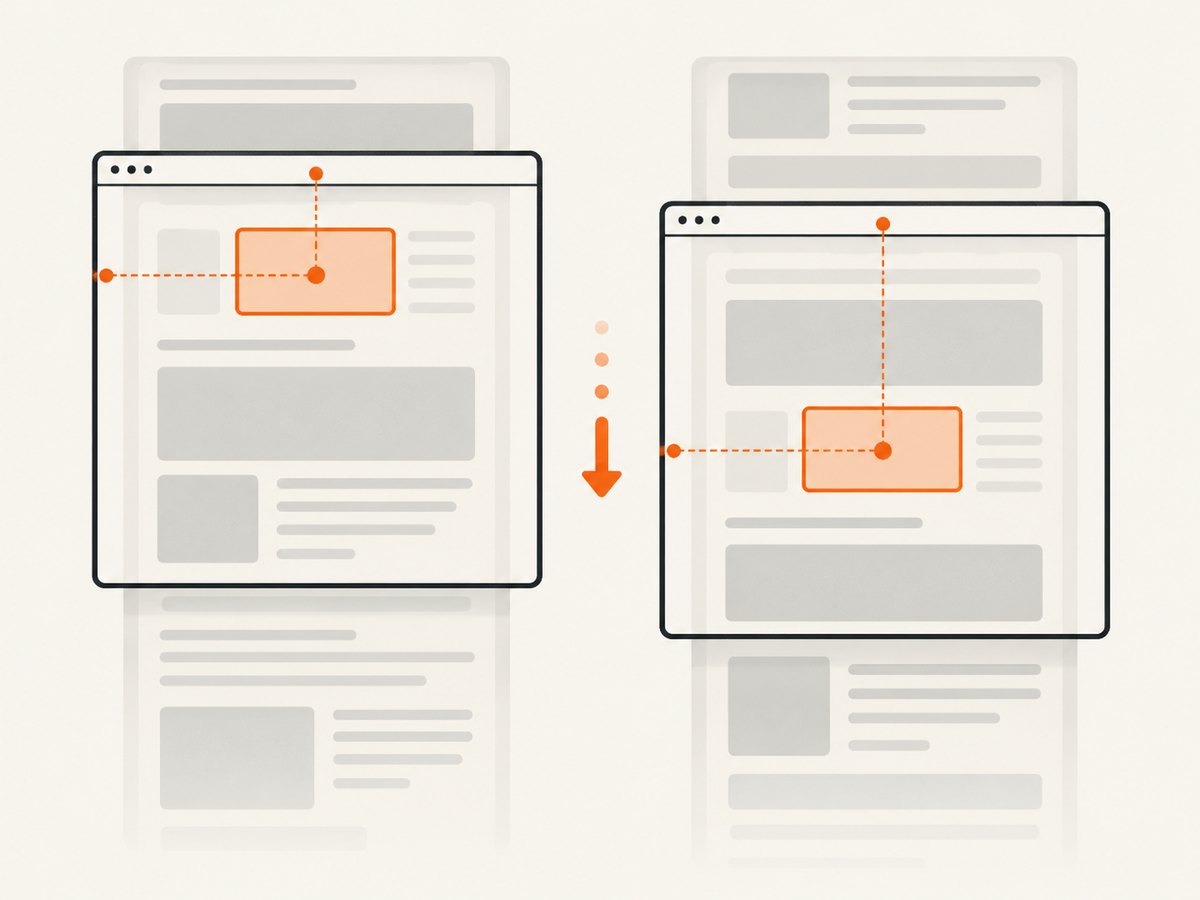
These are CSS-pixel coordinates. They are not operating-system screen coordinates and do not describe the outer browser window. Scrolling changes the result: an element farther down the document has a larger y before scrolling and a smaller (possibly negative) y after scrolling.
Complete Selenium Python example
The following script waits for an element, measures it, and reports whether any part of its rectangle intersects the viewport. It keeps the browser-generated floating-point values intact.
from selenium import webdriver
from selenium.webdriver.common.by import By
from selenium.webdriver.support.ui import WebDriverWait
from selenium.webdriver.support import expected_conditions as EC


def viewport_rect(driver, element):
    return driver.execute_script(
        """
        const r = arguments[0].getBoundingClientRect();
        return {
          x: r.x,
          y: r.y,
          left: r.left,
          top: r.top,
          right: r.right,
          bottom: r.bottom,
          width: r.width,
          height: r.height
        };
        """,
        element,
    )


driver = webdriver.Chrome()
try:
    driver.set_window_size(1280, 900)
    driver.get("https://example.com")

    wait = WebDriverWait(driver, 15)
    el = wait.until(EC.presence_of_element_located((By.CSS_SELECTOR, "h1")))

    rect = viewport_rect(driver, el)
    viewport = driver.execute_script(
        "return {width: window.innerWidth, height: window.innerHeight};"
    )

    visible = (
        rect["right"] > 0
        and rect["left"] < viewport["width"]
        and rect["bottom"] > 0
        and rect["top"] < viewport["height"]
    )

    print("rectangle:", rect)
    print("viewport:", viewport)
    print("intersects viewport:", visible)
finally:
    driver.quit()
Use an explicit wait for dynamic pages. presence_of_element_located confirms that the node exists; visibility_of_element_located is better when you need it displayed before measuring.
Scrolling before measuring
getBoundingClientRect() always reports the current position. If you need a stable measurement after bringing an element into view, scroll deliberately and then call the method again.
from selenium.webdriver.common.by import By

el = driver.find_element(By.CSS_SELECTOR, "#target")

driver.execute_script(
    "arguments[0].scrollIntoView({block: 'center', inline: 'nearest'});",
    el,
)

rect = driver.execute_script(
    "return arguments[0].getBoundingClientRect();",
    el,
)
print(rect["x"], rect["y"])
Centering often avoids a sticky header covering the target. If your page has a fixed header, choose a custom scroll offset instead:
driver.execute_script(
    """
    const el = arguments[0];
    const headerHeight = arguments[1];
    const y = el.getBoundingClientRect().top + window.scrollY - headerHeight;
    window.scrollTo({top: y, behavior: 'instant'});
    """,
    el,
    72,
)
rect = driver.execute_script("return arguments[0].getBoundingClientRect();", el)
Selenium also exposes location_once_scrolled_into_view. It scrolls the element and returns a rounded top-left location. Selenium documents that this convenience property can change without warning and may return zero coordinates when an element is not visible. It is useful for WebDriver-style geometry, but getBoundingClientRect() is more explicit when the requirement is viewport coordinates.
location, rect, and getBoundingClientRect() compared
| API | Position frame | Scrolls? | Returns size? | Best use |
|---|---|---|---|---|
getBoundingClientRect() |
Current DOM viewport | No | Yes | Viewport screenshots, overlays, visual debugging |
element.rect |
WebDriver element geometry | No explicit scroll guarantee | Yes | Element assertions and generic WebDriver geometry |
element.location |
WebDriver x/y location | No explicit scroll guarantee | No | When only a WebDriver location is required |
location_once_scrolled_into_view |
Top-left after Selenium scroll | Yes | No | Convenience interactions requiring a visible location |
driver.get_window_rect() |
Outer browser window | No | Window size | Window placement, not DOM coordinates |
element.rect and element.location are WebDriver APIs. Do not substitute them silently when a test or image-processing routine expects coordinates from the viewport's top-left corner. If you need document coordinates instead, add the scroll offset to the DOM rectangle:
document_rect = driver.execute_script(
    """
    const r = arguments[0].getBoundingClientRect();
    return {
      x: r.left + window.scrollX,
      y: r.top + window.scrollY,
      width: r.width,
      height: r.height
    };
    """,
    el,
)
Precision, transforms, and visibility edge cases
- Fractional values: browser layout can produce values such as
125.5. Preserve them until an API requires integers; round once at the boundary. - Padding and borders: the rectangle encloses the border box, not only the text or painted glyphs.
- Transforms: CSS transforms affect the returned rectangle. It is the smallest axis-aligned rectangle containing the transformed element.
- Clipping: a rectangle can extend beyond an overflow container or the viewport. It does not equal the visible painted pixels.
- Hidden elements:
display: noneelements generally have zero dimensions. A detached or stale node cannot be measured. - Fixed and sticky elements: their viewport coordinates can remain stable while document scrolling continues.
- Nested scrolling: scrolling an inner container changes the element's viewport position even when
window.scrollYdoes not change. - Device pixel ratio: Selenium reports CSS pixels. A screenshot bitmap may have more physical pixels when the browser uses a device scale factor.
Using coordinates with screenshots and clicks
For a screenshot crop, capture the page and crop using the rectangle only after the page has reached the same state in which you measured it. Wait for fonts, images, animations, and lazy content before reading coordinates. If an animation is running, two immediate measurements can differ.
driver.execute_script("document.body.classList.add('disable-motion')")
rect = driver.execute_script("return arguments[0].getBoundingClientRect();", el)
# Capture or crop here while the layout is unchanged.
For clicks, prefer Selenium's element.click() because it accounts for WebDriver interaction rules. Use coordinates for visual diagnostics, canvas tooling, or a separate input system, and verify that the target is inside the viewport first.
Or skip the browser setup
If your goal is a clean screenshot of a page or element rather than browser automation itself, ScreenshotNeo provides a single request. Its API can capture a full page or one element by CSS selector, with options for waiting, scrolling, custom JavaScript and CSS, device presets, dark mode, retina scale, hiding selectors, and more. Documentation is at screenshotneo.com/docs.
curl -G "https://api.screenshotneo.com/v1/shot" -d access_key=YOUR_API_KEY --data-urlencode url=https://stripe.com -o shot.webpimport requests
r = requests.get(
"https://api.screenshotneo.com/v1/shot",
params={"access_key": "YOUR_API_KEY", "url": "https://stripe.com"},
timeout=90,
)
r.raise_for_status()
open("shot.webp", "wb").write(r.content)const q = new URLSearchParams({ access_key: 'YOUR_API_KEY', url: 'https://stripe.com' });
const res = await fetch(`https://api.screenshotneo.com/v1/shot?${q}`);Cookie and consent banners are accepted before capture, and more than 60 known consent platforms, newsletter popups and chat widgets are removed. Bot checks, blank pages, timeouts, failed loads and cache hits are not billed; response headers identify the page verdict and billing result with X-Page-Verdict and X-Billed. An MCP server lets Claude, Cursor and other MCP clients call take_screenshot, get_page_info and capture_pdf. The Free plan includes 1,000 screenshots per month without a card; paid plans start at $5 for 3,000.
Create a free ScreenshotNeo account and start with the included 1,000 screenshots.
Troubleshooting common coordinate errors
“The coordinates are always zero”
The element may be hidden, detached, or not yet laid out. Wait for visibility, confirm the selector, and inspect element.is_displayed(). Also check whether a parent has display: none.
“The y value changes between calls”
The page is scrolling, lazy-loading, resizing, or animating. Measure after an intentional scroll, wait for the relevant content, disable motion for the capture, and keep the viewport size fixed.
“The element is found but measurement throws a stale element error”
A framework re-render replaced the DOM node. Locate the element again immediately before measuring instead of retaining a reference across navigation or major updates.
“The rectangle is negative or outside the viewport”
That is valid when the element is partially or completely outside the visible area. Compare left, top, right, and bottom with window.innerWidth and window.innerHeight. Scroll it into view if the next operation requires visibility.
“My screenshot crop is shifted”
You may be mixing CSS pixels with bitmap pixels, or using document coordinates as viewport coordinates. Multiply by the screenshot's scale factor when required, and use one coordinate frame consistently. Account for browser chrome only when working with operating-system screenshots.
“A click misses despite correct coordinates”
A fixed header, overlay, transformed element, or animation may intercept the point. Scroll the element to a safe position, wait for overlays to disappear, and use Selenium's native click() where possible.
Performance and reliability practices
- Find the element once, then execute one JavaScript call that returns every field you need.
- Use explicit waits instead of repeated tight polling loops.
- Set a deterministic window size and browser zoom.
- Wait for images and fonts when coordinates feed screenshot comparisons.
- Record the URL, selector, viewport size, scroll position and returned rectangle with failures.
- Round only at the final integration boundary.
- Re-measure after any action that can change layout, including scrolling, resizing, opening a menu, or dismissing a banner.
For large screenshot batches, caching and asynchronous jobs can reduce repeated browser work. ScreenshotNeo supports a caller-selected cache TTL, bulk capture of up to 100 URLs per call, signed webhooks for async jobs, usage reporting, custom headers and cookies, and request blocking for ads, trackers or resource types. These controls are useful when the objective is repeatable page imagery rather than interactive Selenium control.
FAQ
Are viewport coordinates integers?
No. DOM geometry can be fractional CSS pixels. Keep the returned numbers unless the receiving API requires integer pixels.
Does getBoundingClientRect() include page scroll?
No. It reports the current viewport position. Add window.scrollX and window.scrollY to obtain document coordinates.
Which value should I use for the top-left point?
Use rect["x"] and rect["y"], or the equivalent left and top.
Can Selenium return the browser window's screen coordinates?
Yes, driver.get_window_rect() reports the outer window's x/y and dimensions. Those values are a different coordinate system from the DOM viewport.
When should I use element.rect?
Use it when your test needs Selenium's WebDriver element geometry and does not specifically require coordinates relative to the current viewport.


