How to Get an Image From a Website Using Inspect
Use Chrome or Firefox Inspect, Network, and Sources tools to find an image URL, preview it, and save an authorized copy.

Short answer: Right-click the image, choose Inspect (or Inspect Element in Firefox), and look for an <img> element with a src or srcset URL. If the markup does not show a usable file, open DevTools’ Network panel, reload the page, filter requests to images, and inspect the likely request. You can also browse already loaded files in Sources > Page. Open an authorized image URL in a new tab and use the browser’s normal save command.
What Inspect does—and does not do
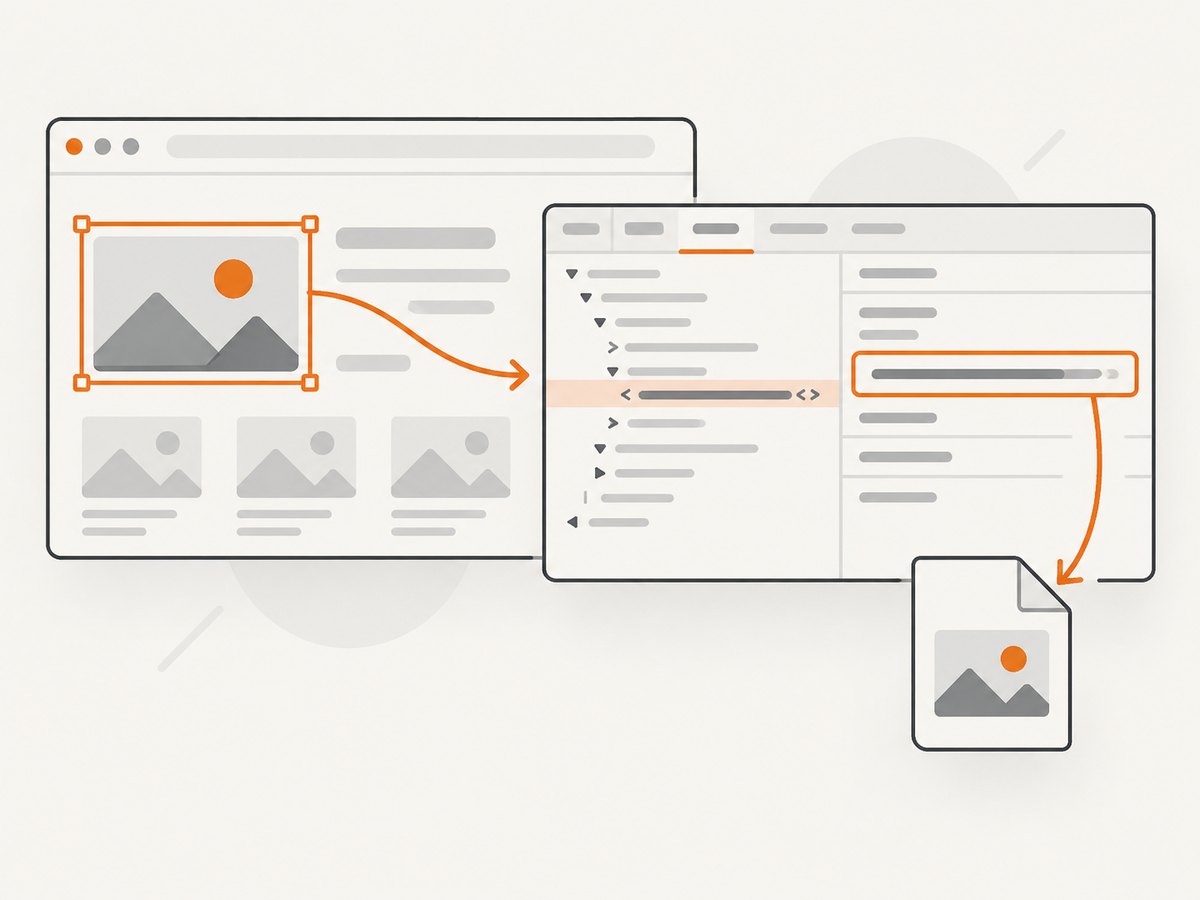
Inspect selects the page element that is under the pointer and jumps to it in the Elements panel. It does not download the image automatically. Your goal is to identify the resource the page references, then open or save that resource through the browser.
Chrome DevTools is built into Chrome (Chrome DevTools overview). Firefox provides the equivalent command as Inspect Element in its Inspector (Mozilla Inspector guide).
Method 1: Find an image URL in Elements
- Open the page containing the image in Chrome on a desktop browser.
- Right-click the visible image and select Inspect. In Firefox, choose Inspect Element.
- In the Elements or Inspector panel, check whether the selected node is an
<img>. - Read its
srcattribute. The value is usually the currently selected image URL. - Check
srcsetas well. It can contain several responsive variants, each followed by a width such as480wor1200w. The browser may be displaying a different candidate thansrc. - If the URL is relative, such as
/images/photo.webp, combine it with the site’s origin, for examplehttps://example.com/images/photo.webp. - Right-click the URL or the element and choose an option such as Open in new tab when available. Then use the browser’s ordinary save action.
Inspect the element’s dimensions and context before assuming it is the original file. Responsive image selection, thumbnails, lazy loading, and image transformations can all produce a smaller or differently formatted variant.
When the selected element is not an <img>
Some designs place an image in CSS instead of an image node. With the element selected, inspect the Styles or Computed panel for a declaration like:
.hero {
  background-image: url("https://cdn.example.com/hero-1600.webp");
}
Copy the URL inside url(...), open it in a new tab, and save it only when you are authorized to do so. A CSS background may be decorative, cropped, or one of several responsive variants.
Method 2: Use Network when Elements is unclear
The Network panel is the dependable fallback when a script creates the image, the visible object is a canvas, or the useful URL is not obvious in the DOM.
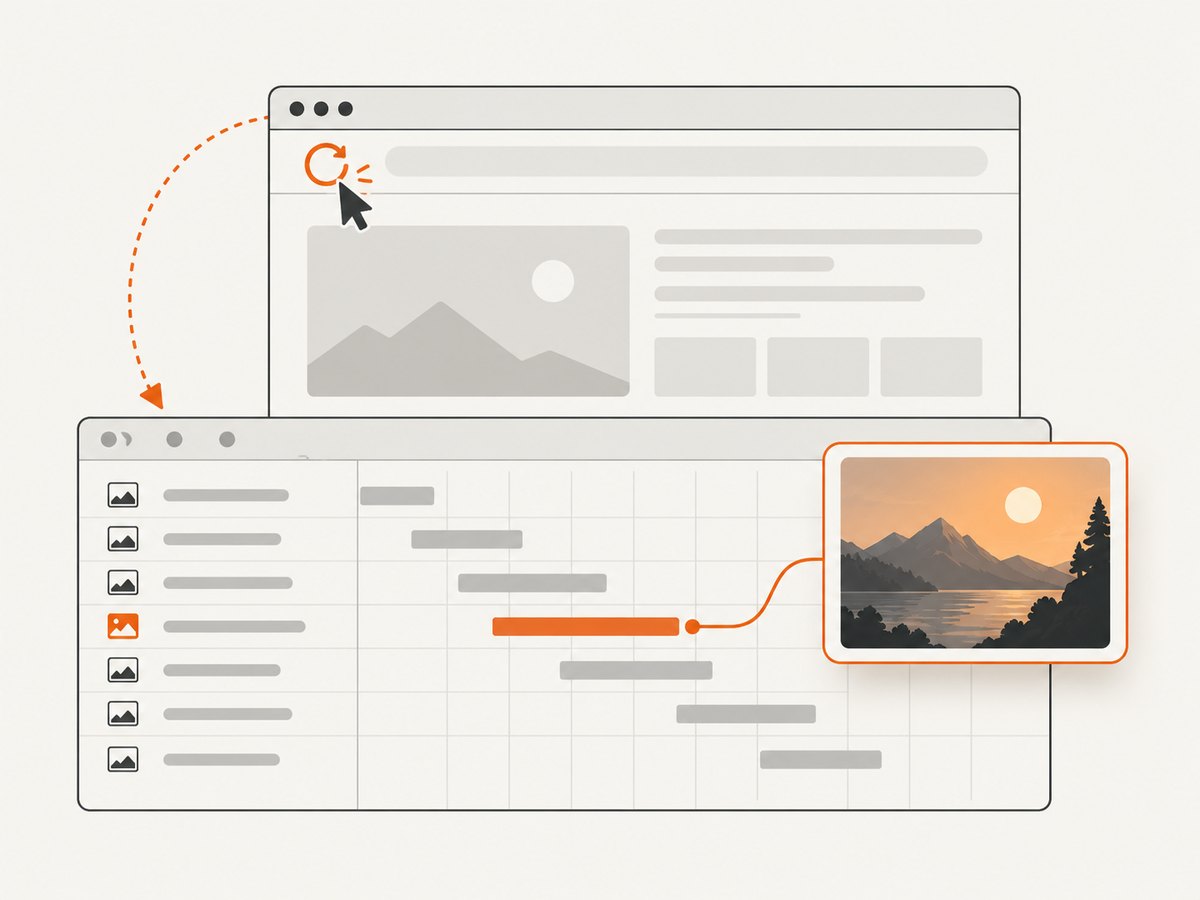
- Open DevTools before reloading the page.
- Select Network.
- Reload the page. DevTools records activity while the panel is open; reloading gives you the requests for the current page state (Chrome Network tutorial).
- Use the resource-type filter for Img or type
png,jpg,jpeg,webp,gif, orsvgin the filter box. - Click likely requests and check Headers for the request URL, status, content type, and dimensions. Use Preview to confirm that the response is the image you want. Chrome specifically documents Preview as useful when inspecting images.
- If the page lazy-loads the image, scroll it into view or trigger the relevant interaction, then watch for a new request.
- Right-click a confirmed request and use Open in new tab or Copy URL, if available. Save the response through the browser.
Open Network before the reload. If you open it afterward, the request you need may have already happened and may not appear in the current log.
Method 3: Preview loaded files in Sources
- Open DevTools and select Sources.
- Choose the Page tab in the file tree.
- Expand the site’s origin and browse files that were loaded by the current page.
- Select an image file to preview it. Chrome’s documentation states: “For images, you see a preview of the image.” (Sources panel guide)
- Use the file’s URL or the context menu to open it, then save an authorized copy.
Sources only represents resources the page has loaded in its current state. It cannot reveal an image that was never requested, is behind an interaction you have not performed, or is unavailable because access failed.
Choosing the right file
| Clue | What it means | What to check |
|---|---|---|
src |
Default image URL | Dimensions, format, and whether it is a thumbnail |
srcset |
Responsive candidates | Select the candidate closest to the displayed size or the largest authorized variant |
CSS background-image |
Image is attached to styling | Whether it is cropped, repeated, or used only as decoration |
| Network request | Actual resource fetched by the browser | Status, content type, Preview, and request URL |
| Canvas or blob URL | Script-generated or in-memory content | Related Network requests and the page’s documented export function |
For responsive images, the largest URL is not automatically the correct one. Confirm that the file belongs to the visible image, has the expected aspect ratio, and is not a sprite, placeholder, tracking pixel, or unrelated request.
Common problems and fixes
Inspect selects a wrapper instead of the image
Cause: The pointer landed on a parent, overlay, or link. Fix: In Elements, expand nearby children until you find <img>, or use the element picker and click the image’s center.
There is no useful src
Cause: The site uses srcset, lazy loading, a CSS background, or JavaScript. Fix: Check all image-related attributes, inspect computed styles, then use Network while reloading and while scrolling the image into view.
The request returns 403 or 401
Cause: The server requires a session, referrer, signed URL, or authentication. Fix: Use the image only through an authorized account or the site’s documented download feature. Do not try to bypass access controls.
The URL opens a tiny placeholder
Cause: Lazy loading has not completed, or the page initially requested a low-resolution placeholder. Fix: scroll the image into view, wait for the full request, and compare Network entries by dimensions and content type.
The image is visible but no image request appears
Cause: It may be drawn into a canvas, embedded as a data URL, cached before DevTools opened, or blocked by an error. Fix: open Network first and reload; inspect console errors and the element’s attributes. For canvas content, use the site’s permitted export/download function rather than attempting to defeat protections.
Saving produces an HTML page
Cause: You saved a page URL, redirect, login response, or an image viewer document instead of the binary image response. Fix: confirm the Network response has an image content type, then open the direct resource URL or use the request’s save option.
The image looks different after opening its URL
Cause: The server varies output by cookies, headers, viewport, or transformations. Fix: compare the response URL and headers with the request shown in Network. If access depends on a session, use the site’s authorized workflow.
Performance and reliability notes
- Opening Network before reload gives the clearest record and avoids guessing from stale markup.
- Filter requests early when a page loads hundreds of assets.
- Use Preview and response headers to avoid saving an ad, icon, placeholder, or tracking resource.
- Repeat the capture after triggering lazy loading or a carousel state; one page can request several valid image variants.
- Keep the original URL and retrieval time with your local copy so you can identify which variant you saved.
Or skip the browser setup
If your goal is a clean screenshot of a page rather than retrieving the original image file, ScreenshotNeo provides a single request that returns PNG, JPEG, WebP, or PDF. Its cleanup steps accept cookie and consent banners and remove more than 60 known consent platforms, newsletter popups, and chat widgets before capture; each step can be turned off. Bot checks, blank pages, timeouts, failed loads, and cache hits are not billed, and the response identifies the result with X-Page-Verdict and X-Billed headers. ScreenshotNeo also provides an MCP server so Claude, Cursor, and other MCP clients can call take_screenshot, get_page_info, and capture_pdf.
See the ScreenshotNeo API documentation for all options. A basic cURL request is:
curl -G "https://api.screenshotneo.com/v1/shot" -d access_key=YOUR_API_KEY --data-urlencode url=https://stripe.com -o shot.webpPython:
import requests
r = requests.get("https://api.screenshotneo.com/v1/shot", params={"access_key": "YOUR_API_KEY", "url": "https://stripe.com"}, timeout=90)
open("shot.webp", "wb").write(r.content)
Node.js:
const q = new URLSearchParams({ access_key: 'YOUR_API_KEY', url: 'https://stripe.com' });
const res = await fetch(`https://api.screenshotneo.com/v1/shot?${q}`);
The Free plan includes 1,000 screenshots per month with no card; paid plans start at $5 for 3,000 screenshots, and every feature is available on every plan. Create a free ScreenshotNeo account.
Rights and responsible use
Finding a file technically does not grant permission to republish it. The U.S. Copyright Office explains that original photographs may be protected and that owning a copy does not transfer copyright ownership (What Does Copyright Protect?). Its Fair Use FAQ describes fair use as fact-specific. Check the image license, ask the rights holder when needed, or use an applicable exception. These sources are U.S. guidance; rules differ by jurisdiction.
FAQ
Can Inspect recover the original full-resolution photo?
Not necessarily. The page may only load a resized, cropped, compressed, or transformed variant. Inspect and Network show what the page requested, not an undisclosed master file.
Why should I reload after opening Network?
Network records activity while it is open. Reloading repopulates the log with the page’s requests, including image requests that happened during initial loading.
Is Sources better than Network?
They serve different purposes. Sources is convenient for browsing and previewing files already loaded; Network is better for identifying the exact request, response status, and headers.
Can I use Inspect to bypass a download restriction?
Inspect can reveal references the browser is already authorized to load. It should not be used to defeat authentication, paywalls, bot checks, or other access controls.
Does saving a found image give me reuse rights?
No. Technical access and copyright permission are separate questions. Check the license or obtain permission before publishing or distributing the image.


