How to Get Complete Page Source Code with Puppeteer
Use Puppeteer to save the live DOM, capture the original HTTP response, or extract an iframe. Choose the right source and wait for the page state you need.

To get the complete HTML document currently represented in a Puppeteer page, call await page.content() after the page has reached the state you want to save. It returns a string containing the full HTML, including the DOCTYPE. If you need the server’s original response before JavaScript changes the document, read the response returned by page.goto() instead. Those are different artifacts, and choosing the right one is the first step.
This guide covers both meanings of “page source,” reliable readiness checks, frames, files, shadow DOM, troubleshooting, and the tradeoffs of each approach.
1. Get the current page HTML
Install Puppeteer in a Node.js project, then navigate and serialize the page:
npm install puppeteerimport puppeteer from 'puppeteer';
import { writeFile } from 'node:fs/promises';
const url = 'https://example.com';
const browser = await puppeteer.launch();
try {
const page = await browser.newPage();
await page.goto(url, { waitUntil: 'networkidle2' });
const html = await page.content();
await writeFile('page.html', html, 'utf8');
console.log(`Saved ${html.length} characters to page.html`);
} finally {
await browser.close();
}page.content() returns a Promise for a string: the full HTML contents of the page, including the DOCTYPE, according to Puppeteer’s Page.content() API documentation. Saving with an explicit UTF-8 encoding avoids relying on a platform default. The finally block closes Chrome even if navigation or writing fails.
What does “complete” mean?
page.content() serializes the document represented by the browser at the moment you call it. It is not a byte-for-byte archive of everything the server sent, nor does it include every resource the page loaded. It captures the current document markup: the HTML elements, their current attributes and text, and changes JavaScript has made to the DOM.
For example, if a client-side application inserts product cards after navigation, those nodes can appear in the serialized result—provided you wait until they have been inserted. Conversely, images, stylesheets, scripts, and other files referenced by URLs are not bundled into the HTML. The saved file contains references to those resources, which may no longer work if you open it without network access or the right base URL.
2. Wait for the content you need
Navigation completion and application readiness are not always the same event. A page can reach domcontentloaded while an app is still fetching data, and a page can keep network connections open after the relevant content is already visible. Prefer a condition tied to the content or interaction you need.
import puppeteer from 'puppeteer';

const browser = await puppeteer.launch();
try {
  const page = await browser.newPage();
  await page.goto('https://example.com/catalog', {
    waitUntil: 'domcontentloaded',
  });

  await page.waitForSelector('#app');
  await page.click('button.load-more');
  await page.waitForFunction(() => {
    return document.querySelectorAll('.item').length >= 20;
  });

  const html = await page.content();
  console.log(html);
} finally {
  await browser.close();
}
The selector, click target, and item count above are examples; replace them with signals from the site you are automating. Puppeteer’s waitForSelector() waits for a matching element, while waitForFunction() waits for a condition evaluated in the page. An application-specific “ready” marker or a meaningful element count is usually more robust than an arbitrary delay.
Navigation wait conditions
| Option | What it waits for | When it can help |
|---|---|---|
commit |
The navigation response has been received and the document has started loading. | When you need to take over readiness checks yourself. |
domcontentloaded |
The initial HTML document has been parsed. | When you will wait for a specific app selector or state next. |
load |
The load event has fired, including dependent resources the browser considers part of that event. | For pages where the load event is a useful readiness signal. |
networkidle0 |
The network has had no more than zero active connections for the configured idle period. | For pages that settle their network requests. |
networkidle2 |
The network has had no more than two active connections for the configured idle period. | For pages with a small number of persistent connections. |
Network-idle conditions can be a poor fit for analytics, polling, event streams, and other long-lived traffic. They may time out even though the content you want is ready. Start navigation with domcontentloaded and then wait for a stable, page-specific signal when that better represents your goal. Navigation options and their current details are documented in Puppeteer’s Page.goto() API.
3. Rendered DOM versus original response source
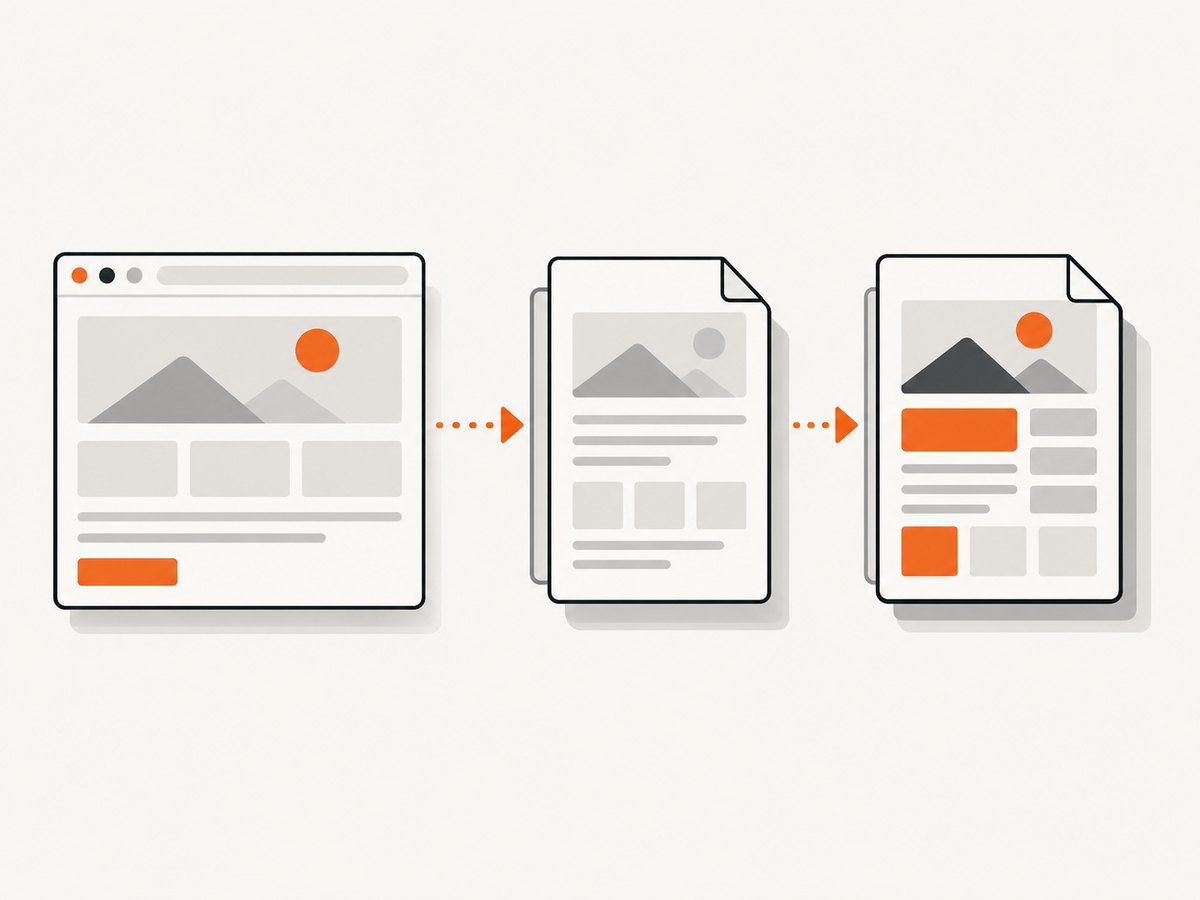
People often use “source” to mean either what the server returned or what the browser has built after scripts and interactions. View Source generally shows the original main-document response. Puppeteer’s page.content() gives you the current serialized document. For the original response body, capture the response from navigation:
import puppeteer from 'puppeteer';
import { writeFile } from 'node:fs/promises';

const browser = await puppeteer.launch();
try {
  const page = await browser.newPage();
  const response = await page.goto('https://example.com', {
    waitUntil: 'domcontentloaded',
  });

  if (!response) {
    throw new Error('Navigation did not produce a main-document response');
  }

  const rawSource = await response.text();
  await writeFile('original-response.html', rawSource, 'utf8');
} finally {
  await browser.close();
}
Use the response body when you need to inspect server-rendered markup, compare what the server delivered with what client code changed, or investigate a missing script-generated element. Use page.content() when the target is the current browser DOM after scripts and interactions.
| Question | Use |
|---|---|
| Do I need the HTML the server initially returned? | response.text() from the main navigation response. |
| Do I need the document after client JavaScript ran? | page.content(). |
Do I need the serialized <html> element from page context? |
document.documentElement.outerHTML through page.evaluate(). |
| Do I need a child document inside an iframe? | Find its Puppeteer Frame and call frame.content(). |
Puppeteer’s Page.evaluate() API runs a function in the page context and returns its result. For example:
const html = await page.evaluate(() => document.documentElement.outerHTML);This serializes the <html> element and its descendants. Its formatting may differ from page.content(); choose based on the API and document boundary you need.
4. Extract HTML from an iframe
An iframe owns a separate document. Calling page.content() on the top-level page does not substitute the iframe document for the top-level HTML. Get the frame and serialize it separately:

const iframeElement = await page.waitForSelector('iframe');
const frame = await iframeElement.contentFrame();

if (!frame) {
  throw new Error('The iframe element has no available frame');
}

const iframeHtml = await frame.content();
console.log(iframeHtml);
The Frame.content() API returns the full HTML contents of that frame, including its DOCTYPE. For a nested iframe, inspect page.frames() or the parent frame’s child frames, identify the intended document, and call content() on that frame. Do not assume the first iframe is the one containing the content you want.
Cross-origin frames have their own origin and document. Puppeteer can interact with an exposed frame through its frame object; page JavaScript still cannot bypass browser origin rules. Keep frame extraction separate from code that assumes the iframe is same-origin with the top page. Frames may also be detached or replaced during navigation, so wait for the relevant frame and handle a missing frame as a normal failure case.
5. Save, inspect, and reuse the HTML
For a repeatable extraction script, write the result to a file and make the source URL clear in your own capture metadata. Puppeteer serializes markup; it does not rewrite all relative links into absolute URLs, download linked assets, or turn the result into a self-contained offline snapshot.
import puppeteer from 'puppeteer';
import { writeFile } from 'node:fs/promises';

const url = 'https://example.com';
const browser = await puppeteer.launch();
try {
  const page = await browser.newPage();
  await page.goto(url, { waitUntil: 'domcontentloaded' });
  await page.waitForSelector('main');

  const html = await page.content();
  await writeFile('page.html', html, { encoding: 'utf8' });
  await writeFile('source-url.txt', `${url}\n`, { encoding: 'utf8' });
} finally {
  await browser.close();
}
If you need an offline copy, HTML alone is insufficient when the document depends on external stylesheets, scripts, fonts, images, or API data. Decide whether your task needs a DOM snapshot, the response body, or a broader archive that collects dependencies. These are different capture jobs.
Shadow DOM boundaries
Ordinary serialization of the document does not necessarily expose the contents of shadow roots. For an open shadow root, inspect it explicitly in page context:
const shadowHtml = await page.evaluate(() => {
  const host = document.querySelector('my-widget');
  return host?.shadowRoot?.innerHTML ?? null;
});
This example reads only the selected host’s open shadow root. Walk each relevant component if the page nests components. Closed roots are not exposed through element.shadowRoot; use a supported component API or another data source if the component provides one. Do not treat a missing shadow-root value as proof that the component has no internal content.
6. Common problems and fixes
| Symptom | Likely cause | Fix |
|---|---|---|
| HTML lacks content visible on screen | Serialization happened before data rendering or a user interaction. | Wait for the content selector or application state; perform required clicks before calling page.content(). |
Navigation timeout |
The selected lifecycle condition never occurs, or the page keeps network requests active. | Use a more suitable waitUntil value and wait separately for a targeted readiness signal. Set a considered timeout rather than waiting on network idle blindly. |
response is null |
Navigation did not yield a main-document HTTP response, such as a same-document navigation. | Check the navigation and choose another way to obtain the original source; do not call text() on a missing response. |
| Iframe content is absent | The iframe is a separate document, has not attached, or the selected iframe is not the target. | Wait for the frame element, resolve contentFrame(), confirm its URL or identity, then call frame.content(). |
| Saved HTML opens without styling or images | Only markup was saved; linked assets and API results were not packaged. | Keep the original URL available, or build a separate resource-archiving process for the dependencies your use case needs. |
| A component’s internal content is missing | The content lives in a shadow root, possibly a closed one. | Inspect an open root explicitly or use the component’s supported interface. Closed roots are not available through ordinary page serialization. |
| Browser process remains after an error | Cleanup did not run after a failed operation. | Put browser.close() in a finally block, including in scripts that write files or process multiple URLs. |
7. Performance, reliability, and cost
HTML extraction itself is a serialization operation; the expensive part is often launching a browser, navigating, loading the page, and waiting for its application state. Reuse a browser process for a batch of pages when appropriate, while creating a separate page per task and closing pages when finished. Avoid extracting repeatedly inside a polling loop: wait for the needed state, then serialize once.
Reliability depends on selecting a stable readiness condition. A fixed sleep can be too short on a slow run and waste time on a fast one. A selector can also be insufficient if the node appears before its text or child data is populated, so wait for the actual condition you require. Set navigation and selector timeouts to fit the job, capture useful errors, and always close the browser. For dynamic sites, consider whether the desired artifact is the original response or the final rendered document before designing the wait logic.
Self-hosted Puppeteer has no per-shot API charge, but it does use compute, memory, storage, and engineering time. Browser processes and concurrent pages consume resources; measure your own workload before choosing concurrency. Keep only the HTML you need, since large documents and retaining many results increase memory and storage use. Puppeteer has no fixed extraction price in this workflow; hosting and operations determine the cost.
8. Or skip the browser setup
If the deliverable is a screenshot or PDF rather than HTML source, ScreenshotNeo provides a website screenshot API and MCP server for developers. A single GET request captures a URL as PNG, JPEG, WebP, or PDF. The following cURL example saves a WebP screenshot:
curl -G "https://api.screenshotneo.com/v1/shot" -d access_key=YOUR_API_KEY --data-urlencode url=https://example.com -o shot.webpPython:
import requests

r = requests.get(
    "https://api.screenshotneo.com/v1/shot",
    params={"access_key": "YOUR_API_KEY", "url": "https://example.com"},
    timeout=90,
)
open("shot.webp", "wb").write(r.content)
Node.js:
const q = new URLSearchParams({
  access_key: 'YOUR_API_KEY',
  url: 'https://example.com',
});
const res = await fetch(`https://api.screenshotneo.com/v1/shot?${q}`);
if (!res.ok) throw new Error(`Screenshot request failed: ${res.status}`);
await Bun.write('shot.webp', res);
For the complete API options and parameters, see the ScreenshotNeo documentation. ScreenshotNeo accepts cookie and consent banners, then removes more than 60 known consent platforms, newsletter popups, and chat widgets before capture; each cleanup step can be turned off. Bot checks and CAPTCHAs, blank pages, timeouts, failed loads, and cache hits are not billed, and response headers report the page verdict and billing status. Its MCP server provides take_screenshot, get_page_info, and capture_pdf tools for Claude, Cursor, and other MCP clients.
The Free plan includes 1,000 screenshots per month with no card; paid plans start at $5 for 3,000 shots. Sign up for 1,000 free screenshots a month, with no card required.
9. FAQ
Does page.content() include the DOCTYPE?
Yes. Puppeteer’s API describes it as returning the full HTML contents of the page, including the DOCTYPE.
Can I get the source without launching a browser?
If you only need the HTTP response body, a regular HTTP client may be enough. Puppeteer is useful when browser execution, JavaScript rendering, user interaction, or frame inspection is part of the requirement.
Will the saved HTML include cookies or local storage?
No. page.content() serializes document markup; it is not a browser-profile export and does not package storage state or linked resources.
Which method should I use for debugging a hydration issue?
Capture both the navigation response body and the rendered DOM after the app reaches the relevant state. Comparing them helps show whether the content came from the server or was added or changed in the browser.


