How to Get Page Source in Puppeteer
Use Puppeteer’s page.content() to read the current page’s full HTML, including the DOCTYPE. Learn when to wait, how to target elements and frames, and how to distinguish rendered DOM from the original response.

Use await page.content() after navigating to the page and waiting for the content you need. It returns a string containing the page’s full current HTML, including the DOCTYPE. This is the right starting point when “page source” means the document as it exists in the browser after parsing and any JavaScript rendering. See Puppeteer’s Page.content() reference.
const response = await page.goto('https://example.com');
await page.waitForSelector('main'); // Replace with a signal meaningful to your page.
const html = await page.content();
console.log(html);
For a runnable script, install Puppeteer with npm install puppeteer, save the following as get-source.js, and run node get-source.js. Puppeteer’s browser package is included in this install path.
const puppeteer = require('puppeteer');
const fs = require('node:fs/promises');

async function main() {
  const url = process.argv[2] || 'https://example.com';
  const browser = await puppeteer.launch({ headless: true });
  try {
    const page = await browser.newPage();
    page.setDefaultNavigationTimeout(45_000);
    page.setDefaultTimeout(15_000);

    const response = await page.goto(url, { waitUntil: 'domcontentloaded' });
    if (!response) {
      throw new Error('Navigation did not produce a main-resource response');
    }
    console.error(`HTTP status: ${response.status()}`);

    // Choose a selector/state that indicates the content you need is ready.
    await page.waitForSelector('body');
    const html = await page.content();
    await fs.writeFile('page.html', html, 'utf8');
    console.log(`Saved ${html.length} characters to page.html`);
  } finally {
    await browser.close();
  }
}

main().catch(error => {
  console.error(error);
  process.exitCode = 1;
});
Here body only confirms that the browser created a document; it does not prove that a single-page app has finished loading its data. Replace it with the application’s actual ready selector when necessary. The rest of this guide explains which representation to retrieve, how to wait safely, and what to do when the HTML seems incomplete.
1. What “page source” means in Puppeteer
In a browser automation context, “source” can refer to two different things:

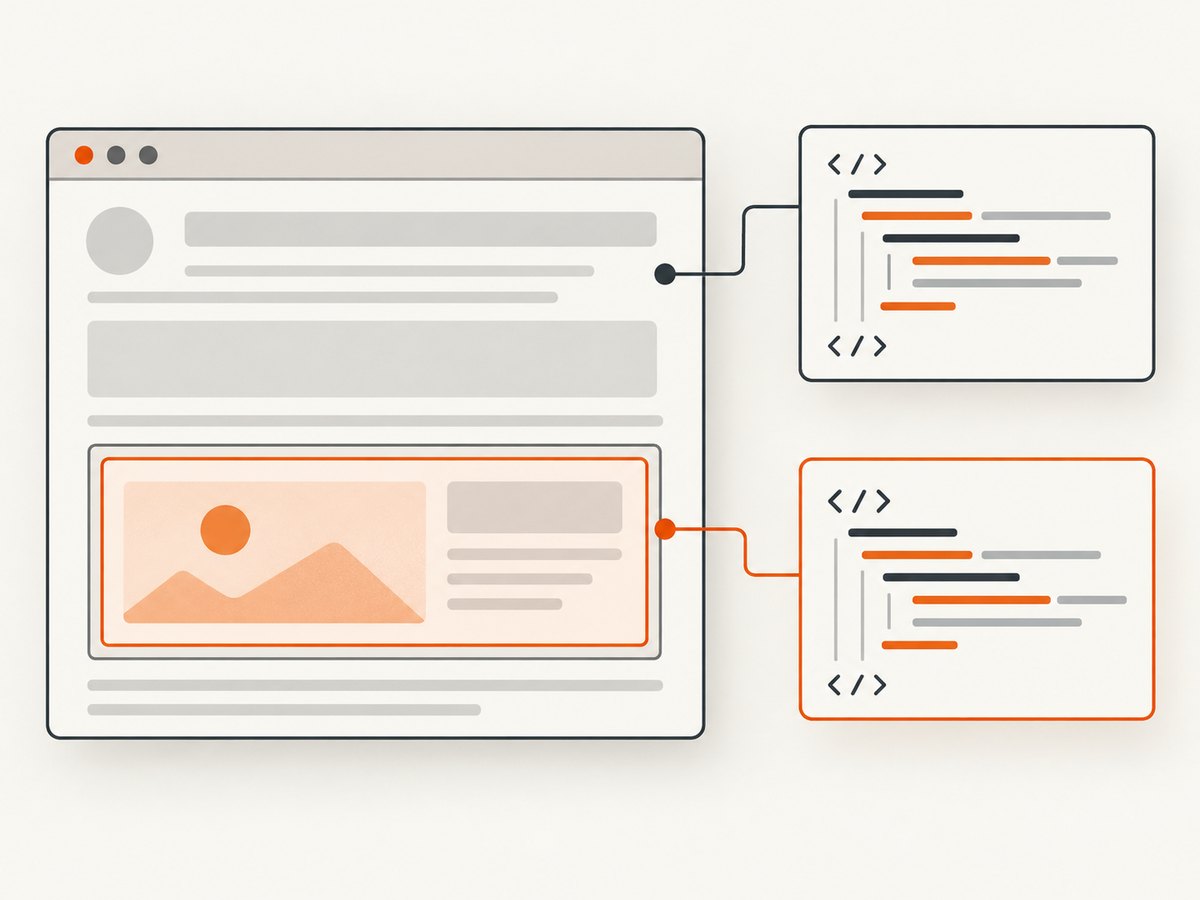
- Current DOM markup: the document represented by the browser now. Scripts may have changed it since the response arrived.
page.content()retrieves this. - Original HTTP response body: the bytes/text delivered by the server for a request, before browser parsing and script changes. That is a network response, not a DOM serialization.
These are not interchangeable. A page can begin with a nearly empty HTML shell and then build visible content with JavaScript. In that case, the browser’s current DOM can include rendered content that was absent from the initial response body. Conversely, JavaScript can remove or rewrite markup that was in the original response.
Puppeteer documents Page.content() as returning the full HTML contents, including DOCTYPE, as a Promise<string>. It does not promise a byte-for-byte copy of the server response. If exact response fidelity matters for debugging or archiving, capture the navigation response separately. For an explanation of page-context execution and returned values, see Page.evaluate().
2. Choose the method that matches the scope
| Need | Method | What you get |
|---|---|---|
| Whole current document | await page.content() |
Full HTML, including DOCTYPE. |
| Explicit document-element serialization | page.evaluate(() => document.documentElement.outerHTML) |
Current DOM element serialization, ordinarily starting at <html>. |
| One region’s inner markup | page.$eval(selector, el => el.innerHTML) |
Children of the first matching element. |
| One region including its own tag | page.$eval(selector, el => el.outerHTML) |
The matched element and its descendants. |
| Child frame document | frame.content() or frame.evaluate(...) |
That frame’s document, not the top-level document. |
| Write supplied markup into a page | page.setContent(html) |
Sets page contents; it does not retrieve them. |
Use the simplest whole-page method unless you need a narrower scope or a different representation. Element selection through $eval throws if the selector does not match, so either wait for it or handle that case explicitly. Puppeteer’s Page API reference lists navigation, waiting, frame and evaluation methods.
Serialize the current document with evaluate
const html = await page.evaluate(() => document.documentElement.outerHTML);This runs inside the page context. Use it when you want to express exactly which DOM node is serialized, or when you are extracting a specific browser-side value alongside markup. Unlike content(), this expression returns the document element’s outerHTML; it does not include a separately serialized DOCTYPE node.
Extract one element
const mainHtml = await page.$eval('main', element => element.innerHTML);
const mainWithTag = await page.$eval('main', element => element.outerHTML);
If a selector may be absent, avoid an unhandled exception:
const mainHtml = await page.evaluate(() => {
  const element = document.querySelector('main');
  return element ? element.innerHTML : null;
});
3. Wait for the content you actually need
page.goto() waits for a navigation lifecycle condition, but a page’s application-level work may continue afterward. A client-side app may fetch records, hydrate markup, or reveal a section after user interaction. Waiting for a meaningful condition is more reliable than choosing a fixed delay by habit.
Wait for a selector
await page.goto('https://example.com', { waitUntil: 'domcontentloaded' });
await page.waitForSelector('[data-page-ready="true"]', { timeout: 20_000 });
const html = await page.content();
The selector should represent the content you intend to read. Waiting for a generic container that appears before its data arrives can still capture an early state. waitForSelector() supports visibility, hidden-state and timeout options; its documented default timeout is 30 seconds. See the WaitForSelectorOptions reference.
Wait for a page condition
await page.waitForFunction(() => {
  const results = document.querySelector('[data-results]');
  return results && results.children.length > 0;
}, { timeout: 20_000 });
const html = await page.content();
This is useful when a selector appears early but a measurable state indicates completion. Keep the condition small and based on a stable page feature. Puppeteer executes page functions in the browser context, and evaluate() waits if the supplied function returns a promise.
Wait for network idle only when it fits
await page.goto(url, { waitUntil: 'domcontentloaded' });
await page.waitForNetworkIdle({ idleTime: 700, concurrency: 2 });
const html = await page.content();
Network idle is helpful for pages that make a finite burst of requests, but it is not a universal “page finished” signal. Analytics, polling, streaming, and long-lived connections can keep network activity going, while a quiet network does not prove that a particular component rendered correctly. Puppeteer’s waitForNetworkIdle reference describes the idle wait; choose selector or application-state checks when they better express readiness.
4. Complete examples for common cases
Save a rendered page to a file
The earlier runnable script writes UTF-8 text and closes the browser in a finally block. That cleanup matters when navigation or extraction throws. For a large document, writing a string is straightforward; consider whether the page contains sensitive account data before saving it to disk or logging it.
Inspect an HTTP response status as well
const response = await page.goto(url, { waitUntil: 'domcontentloaded' });
if (response) {
  console.log('status', response.status());
  console.log('url', response.url());
}
const html = await page.content();
A response with an HTTP error status does not always mean that goto() throws. If a 404 or 500 should stop your job, inspect the response status and decide explicitly. You may still want to save the error page for diagnosis.
Read content from an iframe
The top-level page and each child frame have separate document contexts. Identify the desired frame, then read from that frame rather than assuming page.content() combines every iframe’s markup:
const frame = page.frames().find(frame => frame.url().includes('/embedded/'));
if (!frame) throw new Error('Target frame not found');
await frame.waitForSelector('article');
const frameHtml = await frame.content();
Use a frame URL or another property that uniquely identifies the expected frame for your site. For a known selector, Puppeteer’s frame APIs provide a direct route:
const handle = await page.$('iframe#content-frame');
if (!handle) throw new Error('iframe not found');
const frame = await handle.contentFrame();
if (!frame) throw new Error('iframe has no loaded frame context');
const html = await frame.content();
await handle.dispose();
Cross-origin restrictions affect JavaScript running in the page itself, but Puppeteer’s automation APIs expose frame contexts separately. If a frame has not loaded or is dynamically replaced, locate it after the relevant navigation/rendering step.
Distinguish extraction from setContent
await page.setContent('<!doctype html><main>Example</main>');
const html = await page.content();
setContent() assigns supplied markup to the page and returns a promise that resolves when the operation completes. content() reads the page afterward. See the Page.setContent() reference.
5. Original response text versus rendered DOM
When the distinction matters, collect both and label them clearly. goto() returns the main navigation response when one exists; capture its body before relying on browser-side mutations. The exact response API and body behavior may depend on the Puppeteer version and response type, so consult the current Puppeteer API reference for the installed version.
const response = await page.goto(url, { waitUntil: 'domcontentloaded' });
if (!response) throw new Error('No main document response');
const status = response.status();
const renderedDom = await page.content();
console.log({ status, renderedCharacters: renderedDom.length });
If you specifically need the response body, use the response’s documented body/text method supported by the version you installed and preserve response headers and status if they are part of your record. A DOM string is useful for scraping or diagnosing what the browser saw, but it is not a substitute for preserving original bytes. Redirects, compression, character encoding and browser parsing can all affect comparisons.
6. Troubleshooting incomplete or unexpected HTML
| Symptom | Likely cause | Fix |
|---|---|---|
| Dynamic section is absent | Extraction ran before client rendering or data loading. | Wait for a page-specific selector, function condition, or known response. |
| Returned string starts with DOCTYPE | This is expected for page.content(). |
Use a selected element’s innerHTML if only its children are needed. |
| Selector extraction throws | No element matched at extraction time. | Wait for the selector or use evaluate() with a null check. |
| Page seems complete but markup is missing | The target is in an iframe, shadow root, or later UI state. | Inspect frames; query the correct context; trigger required interaction and wait again. |
| Navigation throws a timeout | The selected lifecycle event did not complete in time, or the site remains active. | Choose a less restrictive navigation condition, set an appropriate timeout, then wait for the actual content signal. |
| Navigation completes with an error page | An HTTP error response may still be a completed navigation. | Check response.status(); decide whether to retain or reject the HTML. |
| HTML differs from View Source | View Source generally reflects response source; Puppeteer content reflects the current parsed DOM. | Capture the HTTP response separately when original source is required. |
| Saved output is unexpectedly huge | Full documents can include scripts, embedded data, SVG, or duplicated app state. | Extract only the required element or store compressed output where appropriate. |
7. Reliability, performance, and cost
page.content() is a local serialization step, but the overall job’s time and resource use usually depend more on launching the browser, loading the page, waiting for remote resources, and rendering. Reuse browser processes when running many jobs, create a separate page/context for isolation where appropriate, and close pages and browsers on success and failure. Set navigation and condition timeouts from your workload rather than disabling them indefinitely.
Reliability comes from making readiness explicit. Prefer a selector or state tied to the content; record the final URL, response status, and a short diagnostic when a job fails. For transient network errors, bounded retries can help, but avoid retrying deterministic failures such as a missing selector forever. Treat extracted markup as untrusted input: it may contain user data, scripts, or secrets and should not be placed into logs or public artifacts without review.
There is no fixed per-call Puppeteer price in this workflow: costs depend on where Chromium runs, the compute and memory allocated, and how long each capture occupies those resources. Measure representative pages in your own deployment before capacity planning; no universal benchmark applies to every site and environment.
8. Or skip the browser setup
If the goal is a visual snapshot rather than HTML extraction, ScreenshotNeo is a website screenshot API and MCP server. One GET request returns a PNG, JPEG, WebP, or PDF. It does not return page-source HTML, so use Puppeteer above when you need markup. ScreenshotNeo can be useful when you need the page image without provisioning and maintaining your own browser capture flow. The API documentation covers its request options.
curl -G "https://api.screenshotneo.com/v1/shot" -d access_key=YOUR_API_KEY --data-urlencode url=https://stripe.com -o shot.webpimport requests
r = requests.get("https://api.screenshotneo.com/v1/shot", params={"access_key": "YOUR_API_KEY", "url": "https://stripe.com"}, timeout=90)
open("shot.webp", "wb").write(r.content)const q = new URLSearchParams({ access_key: 'YOUR_API_KEY', url: 'https://stripe.com' });
const res = await fetch(`https://api.screenshotneo.com/v1/shot?${q}`);ScreenshotNeo accepts cookie and consent banners before capture and removes 60+ known consent platforms, newsletter popups, and chat widgets; each step can be turned off. Bot checks and CAPTCHAs, blank pages, timeouts, failed loads, and cache hits cost nothing, and response headers report the page verdict and billing status. Its MCP server offers take_screenshot, get_page_info, and capture_pdf for Claude, Cursor, and other MCP clients. Free includes 1,000 shots a month with no card; paid plans start at $5 for 3,000 shots. All features are on every plan.
Create a free ScreenshotNeo account for 1,000 screenshots a month with no card.
9. FAQ
Does page.content() include the DOCTYPE?
Yes. It returns the current page’s full HTML contents, including the DOCTYPE.
Does page.content() run JavaScript?
It reads the browser’s current document. Page scripts may have already changed that DOM; the method itself is not a command to rerun application scripts.
Can I use it to get only the body?
Yes. Use page.evaluate(() => document.body.innerHTML) for the body’s child markup, or select another element that matches your desired scope.
Why is page.content() different from the original HTML?
Because it represents the current browser DOM after parsing and any changes made by scripts. Capture the navigation response when you need the server-delivered body.
Is a fixed waitForTimeout enough?
It can be used if a site offers no useful readiness signal, but a page-specific selector or condition is generally more robust because it waits for the state your task needs.


