How to Get Page Source with Selenium in a Headless Browser
Use Selenium’s page_source to save a headless browser’s HTML, and learn when to use live DOM serialization, how to wait, and how to handle frames.
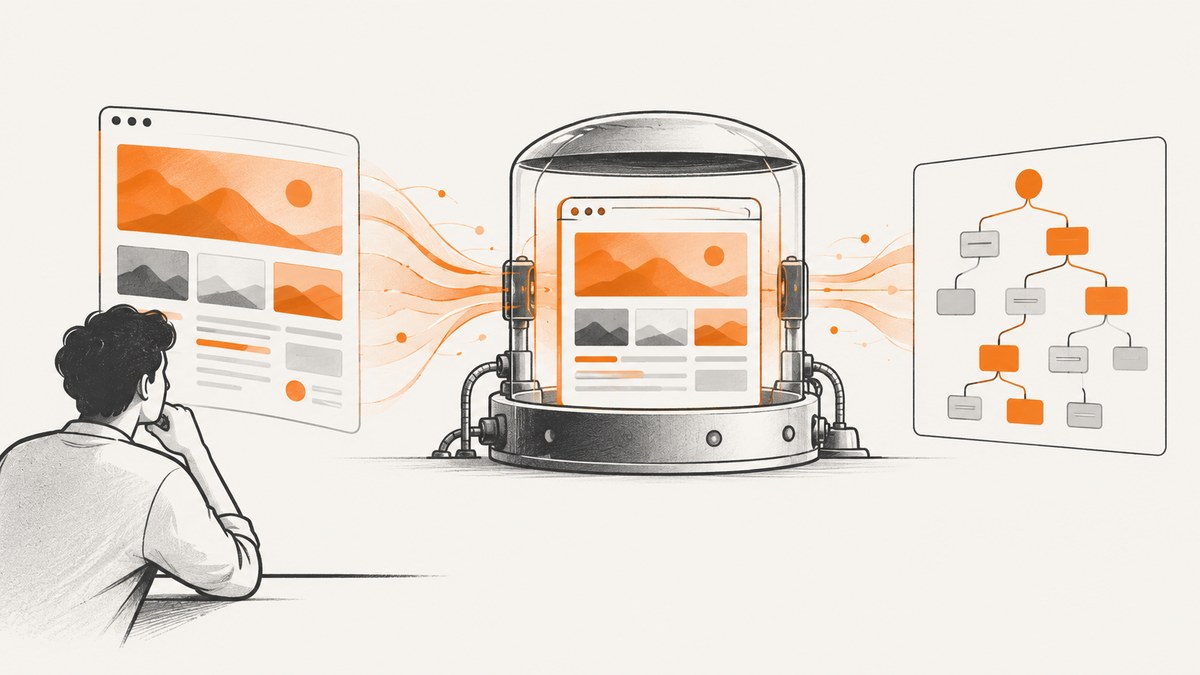
To get the current page source in headless Selenium, navigate to the page, wait until it has reached the state you need, then read driver.page_source. The headless setting changes how the browser displays its window; it does not change Selenium’s page-source property. Use driver.execute_script("return document.documentElement.outerHTML;") when you specifically want the browser’s current DOM serialization after JavaScript mutations.
The examples below use Python and Chrome. The key choices are the readiness condition and the active frame: Selenium reads the current browsing context, and a page’s asynchronous content may not be present just because navigation returned.
1. Install Selenium and start a headless browser
Install the Python package in your environment:
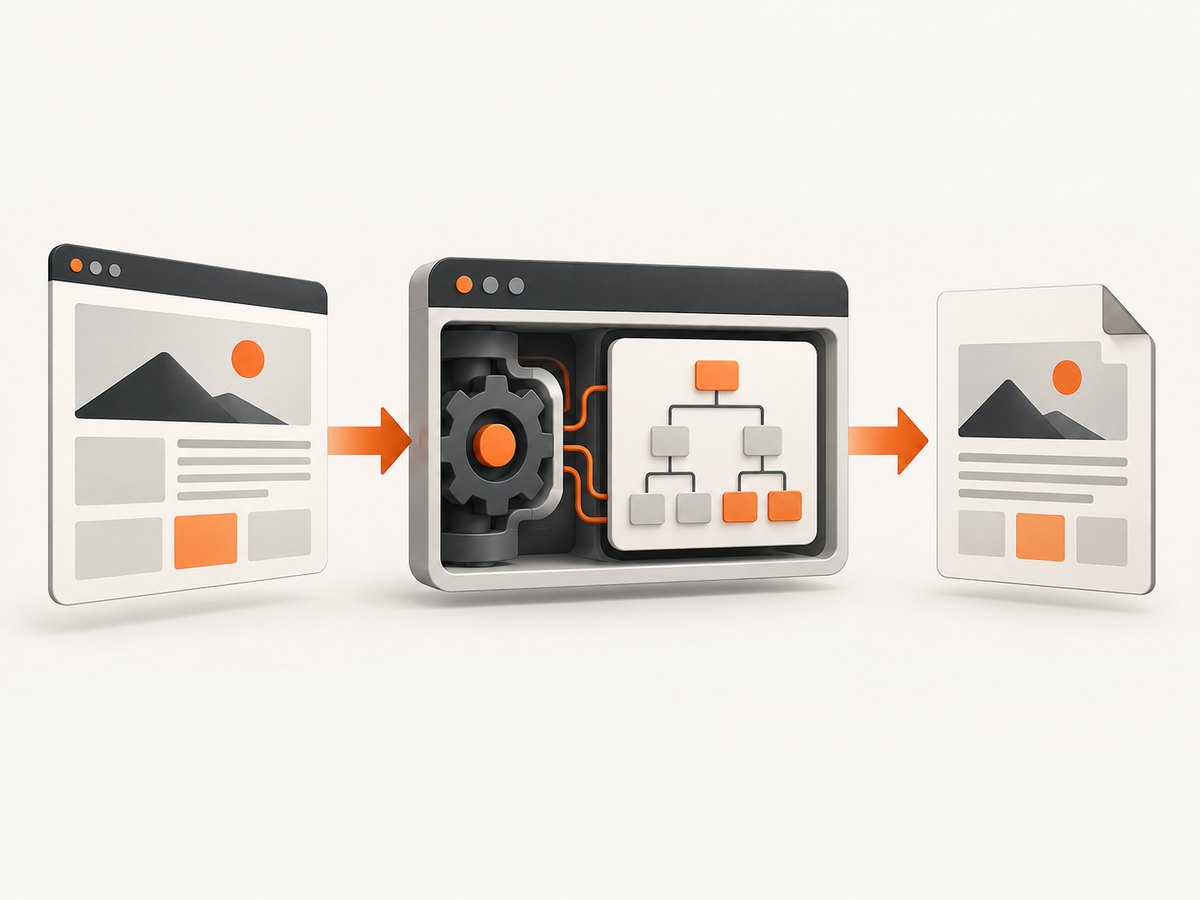
python -m pip install seleniumUse a recent Selenium version and a compatible browser installation. The Selenium Python API exposes driver.page_source as the source of the current page. In its implementation, this property returns the WebDriver GET_PAGE_SOURCE command result. Chrome and Firefox expose the same Selenium property in headless mode.
Here is a complete example that navigates to a URL, waits for the document readiness state, saves the result as UTF-8, and always closes the browser:
from selenium import webdriver
from selenium.webdriver.chrome.options import Options
from selenium.webdriver.support.ui import WebDriverWait

url = "https://example.com"
options = Options()
options.add_argument("--headless")
driver = webdriver.Chrome(options=options)

try:
    driver.get(url)
    WebDriverWait(driver, 10).until(
        lambda d: d.execute_script("return document.readyState") == "complete"
    )
    html = driver.page_source
    with open("page.html", "w", encoding="utf-8") as file:
        file.write(html)
finally:
    driver.quit()
Run it with python save_page.py after putting the code in that file. The output file contains text, so write it in text mode with an explicit encoding. If the page uses a client-side application or delayed requests, replace or supplement the readiness wait with a condition tied to the content you actually need.
2. Wait for the content you need
document.readyState == "complete" is a useful basic condition, but it is not a guarantee that a single-page application has finished rendering or that every asynchronous request has completed. Choose a wait that reflects the target site’s behavior.
Wait for a specific element
When the HTML you need appears with a known element, wait for it explicitly. For example, this waits for an element with the ID results:
from selenium.webdriver.common.by import By
from selenium.webdriver.support import expected_conditions as EC
from selenium.webdriver.support.ui import WebDriverWait

WebDriverWait(driver, 15).until(
    EC.presence_of_element_located((By.ID, "results"))
)
html = driver.page_source
Presence means the element has been added to the DOM; it does not necessarily mean images or other resources have finished loading. If the page first inserts a placeholder, wait for a more specific element or a meaningful state change. You can also wait for a site-specific JavaScript condition:
WebDriverWait(driver, 15).until(
    lambda d: d.execute_script(
        "return document.querySelector('[data-loaded=""true""]') !== null"
    )
)
For complex selectors, pass a script argument to avoid quoting problems:
selector = "main article"
WebDriverWait(driver, 15).until(
    lambda d: d.execute_script(
        "return document.querySelector(arguments[0]) !== null", selector
    )
)
Prefer a condition over a fixed sleep
A fixed delay always waits the same amount, even if the page is ready earlier, and may still be too short on a slow run. Explicit waits poll for a condition and fail with a timeout if it does not become true in the allotted period. Use a timeout appropriate to your environment, and catch or report a timeout when the page’s state is important to the job.
For infinite-scroll pages, a readiness state alone will not load content below the fold. Scroll or interact as the site requires, wait for newly added content, then capture. The amount of content loaded can depend on viewport size, scrolling, network conditions, and the site’s own loading behavior.
3. Choose page_source or live DOM serialization
There are two useful ways to retrieve markup from the active page. They answer related but distinct questions.
| Method | Use it when | What it returns |
|---|---|---|
driver.page_source |
You want Selenium’s WebDriver page-source result. | The source result for the current page, as exposed by Selenium. |
execute_script("return document.documentElement.outerHTML;") |
You want the current document element serialized by JavaScript. | The browser’s live DOM serialization at the time the script runs. |
Selenium documents page_source as “Gets the source of the current page.” Its API does not promise that the result is byte-for-byte identical to the original HTTP response. If you need the raw response body as delivered over the network, use an appropriate network capture method rather than treating either DOM-oriented result as the wire payload.
To get the live DOM serialization:
html = driver.execute_script(
    "return document.documentElement.outerHTML;"
)
This is useful when your question is specifically about the current DOM after scripts have modified it. Both calls should happen after the relevant application updates. The live DOM can differ from the original response because scripts may add, remove, or change nodes. Neither method is a substitute for selecting the correct frame or waiting for the correct state.
4. Read source from an iframe
Selenium operates in the active browsing context. After navigation, that is normally the top-level document. To read markup inside an iframe, locate and switch to it first:
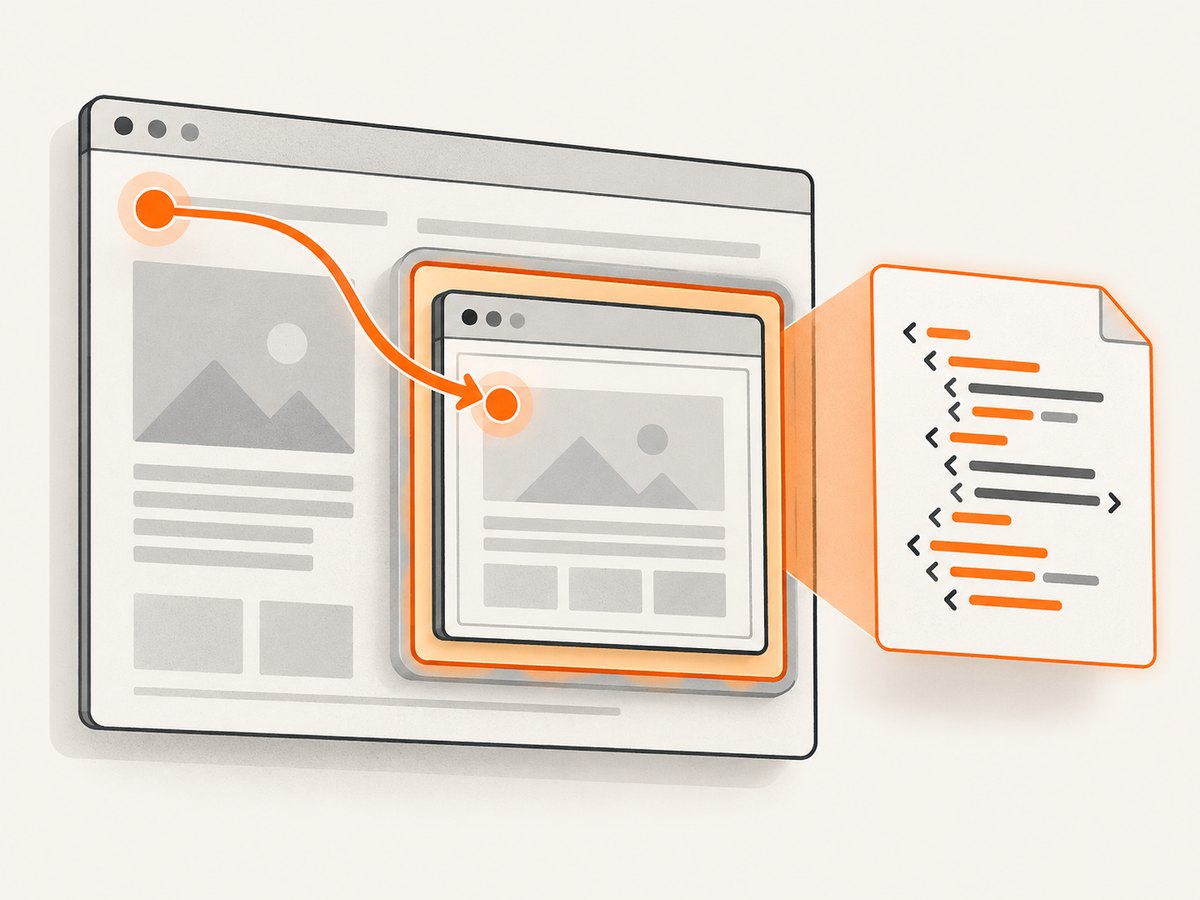
from selenium.webdriver.common.by import By
from selenium.webdriver.support import expected_conditions as EC
from selenium.webdriver.support.ui import WebDriverWait

frame = WebDriverWait(driver, 10).until(
    EC.presence_of_element_located((By.CSS_SELECTOR, "iframe.content-frame"))
)
driver.switch_to.frame(frame)
try:
    WebDriverWait(driver, 10).until(
        lambda d: d.execute_script("return document.readyState") == "complete"
    )
    frame_html = driver.page_source
finally:
    driver.switch_to.default_content()
Use the iframe’s actual selector or another supported way to identify it. If the desired markup is nested in another frame, switch into each level in order. Switch back to default_content() when finished so later commands act on the top-level document. A cross-origin iframe can still be selected as a browsing context by WebDriver, but page timing, frame availability, and site behavior can affect whether the content is ready to read.
5. Save, inspect, and process the result
For a small page, save the complete result to a file as shown above. For larger pages, consider whether downstream processing needs the entire document: extracting a specific element’s text or markup can reduce storage and parsing work.
article_html = driver.execute_script(
    """
    const article = document.querySelector('main article');
    return article ? article.outerHTML : null;
    """
)
if article_html is None:
    raise RuntimeError("Article element was not found")
When processing many URLs, create and close browser sessions predictably. Put driver.quit() in a finally block so an exception on one page does not leave browser processes running. Record the URL and the failure reason when a page fails; a saved empty string and a failed navigation are different outcomes.
6. Browser and capture options that affect results
Headless mode is a browser launch option, not a different page-source API. The minimum example uses Chrome’s --headless argument. Firefox has its own headless configuration through Selenium’s Firefox options, while the retrieval call remains driver.page_source.
The viewport can affect responsive markup, lazy loading, and which content is added to the DOM. Set a deliberate window size when layout or responsive behavior matters:
driver.set_window_size(1440, 1000)
driver.get("https://example.com")
Use the same viewport in repeatable runs. A mobile layout may use different markup or defer resources differently from a desktop layout. Browser locale, timezone, cookies, authentication state, and user-agent settings can also change what a site renders. Configure them only when they match the scenario you intend to inspect, and keep credentials out of checked-in scripts.
For JavaScript-heavy sites, identify the selector or application state that signals completion. For protected pages, expect that a browser may receive a challenge or an access-denied page; Selenium does not guarantee access to every URL. Do not assume that a successful get() means the desired page content loaded.
7. Troubleshooting
| Symptom | Likely cause | Fix |
|---|---|---|
| Source is empty or missing expected content | Capture happened before the client-side update, or the content is in a frame. | Wait for a meaningful selector or state; switch to the target iframe before reading. |
| Page source differs from “View Source” | The Selenium result reflects a browser page source, while scripts may have changed the live DOM. Neither API promises the original network bytes. | Use the live DOM serialization for current mutations, or a network capture approach for the response body. |
| Element wait times out | The selector is wrong, the content never loaded, a frame is active, or the timeout is too short. | Check the selector in the correct context, inspect the page state, and set a suitable timeout. |
| Commands act on the wrong document | The driver is still switched into a frame from an earlier operation. | Call driver.switch_to.default_content(), then locate and switch into the intended frame. |
| Navigation completes but content is absent | Navigation readiness did not include later asynchronous application work. | Wait for an application-specific element or state rather than relying on a generic readiness condition. |
| Browser fails to start | Browser installation, driver compatibility, or headless launch configuration is incorrect. | Confirm the browser is installed and compatible with the Selenium environment; read the startup exception and adjust the launch options for that browser. |
| Saved file has unexpected characters | The file was written with an implicit or unsuitable encoding. | Write text with encoding="utf-8" and reopen it using the same encoding. |
| Script hangs or leaves processes behind | Navigation or a wait did not finish, or cleanup was skipped after an exception. | Use bounded waits and put driver.quit() in a finally block. |
8. Performance, reliability, and cost
A browser session is useful when the task depends on client-side rendering, interactions, cookies, or a particular browser context. Starting a browser and loading pages takes more resources than fetching an HTML response directly, so reuse a session for a controlled batch when appropriate, while ensuring each page begins in the intended state. Close the session when done.
Reliability comes from making the capture condition explicit. Use a selector or application-specific readiness signal, keep navigation and element waits bounded, handle expected timeouts, and separate “page loaded but content absent” from “navigation failed.” For frames, make the active context explicit. For repeatable output, control the viewport and relevant browser state.
There is no universal cost or performance figure for Selenium page-source retrieval in the cited API documentation. Your runtime and infrastructure cost depends on browser startup, page complexity, parallelism, and how long pages take to reach the required state. If your actual deliverable is a visual screenshot or PDF rather than HTML, a screenshot API may avoid managing browser setup yourself.
9. Or skip the browser setup
If you need a visual capture rather than the HTML string, ScreenshotNeo is a website screenshot API and MCP server. It takes one GET request with a URL and returns PNG, JPEG, WebP, or PDF. See the API documentation.
curl -G "https://api.screenshotneo.com/v1/shot" -d access_key=YOUR_API_KEY --data-urlencode url=https://stripe.com -o shot.webpimport requests
r = requests.get(
"https://api.screenshotneo.com/v1/shot",
params={"access_key": "YOUR_API_KEY", "url": "https://stripe.com"},
timeout=90,
)
open("shot.webp", "wb").write(r.content)const q = new URLSearchParams({ access_key: 'YOUR_API_KEY', url: 'https://stripe.com' });
const res = await fetch(`https://api.screenshotneo.com/v1/shot?${q}`);
if (!res.ok) throw new Error(`Screenshot request failed: ${res.status}`);
const fs = await import('node:fs/promises');
await fs.writeFile('shot.webp', Buffer.from(await res.arrayBuffer()));ScreenshotNeo accepts cookie and consent banners as a visitor would and removes more than 60 known consent platforms, newsletter popups, and chat widgets before capture; each cleanup step can be turned off. Bot checks and CAPTCHAs, blank pages, timeouts, failed loads, and cache hits cost nothing, and response headers report the page verdict and billing status. Its MCP server provides take_screenshot, get_page_info, and capture_pdf for Claude, Cursor, and other MCP clients.
The free plan includes 1,000 shots per month with no card. Paid plans start at $5 for 3,000 shots; every feature is available on every plan. Try it with the free ScreenshotNeo sign-up.
10. Frequently asked questions
Does headless mode change the page_source call?
No. Use driver.page_source in headless mode as you do in a browser with a visible window.
Does page_source return the original HTML response?
It returns Selenium’s WebDriver page-source result. The API does not promise byte-for-byte equality with the original network response.
How do I get HTML after JavaScript runs?
Wait until the needed update is present, then use driver.page_source or serialize the live document with document.documentElement.outerHTML.
Why is content missing from the result?
Check whether it loads asynchronously, appears only after scrolling or interaction, or lives inside an iframe. Wait for the required state and select the correct browsing context.
Can Selenium save only one element?
Yes. Locate the element and read its outerHTML with execute_script, or extract the element’s text when markup is unnecessary.


