How to Get React Text Values With Selenium
Read React-rendered text with Selenium, wait for async updates, handle inputs and rerenders, and fix empty-string errors with runnable examples.
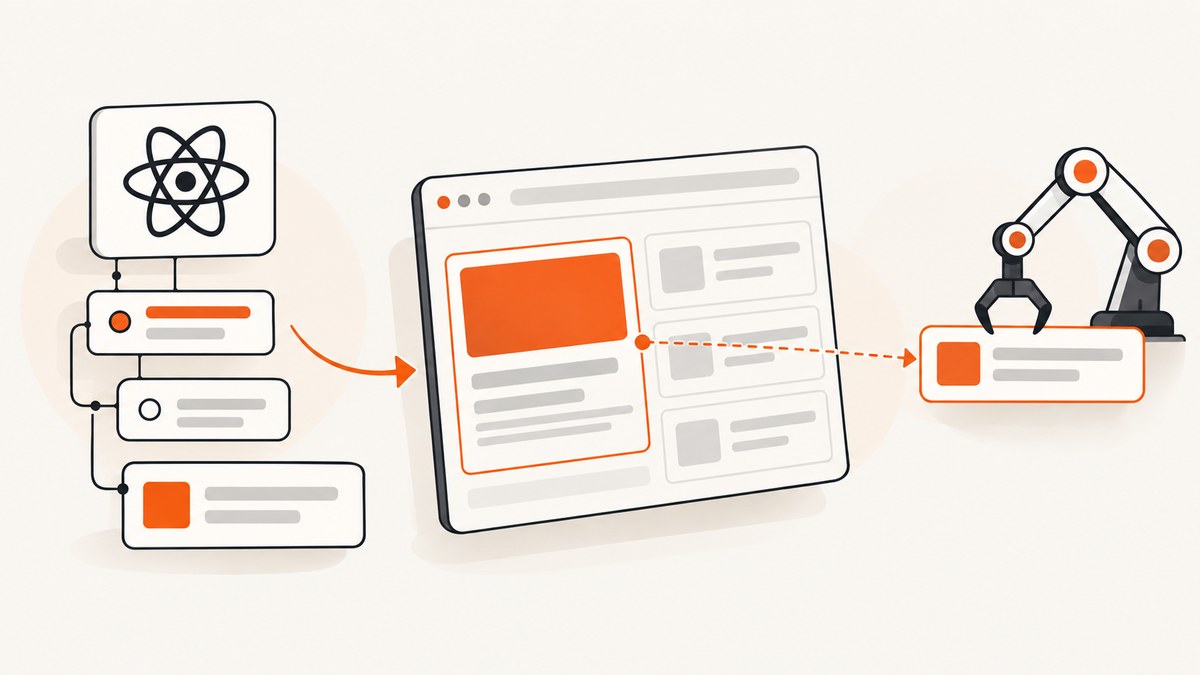
Direct answer: Selenium reads the browser DOM that React renders. Locate the element containing the text, wait until React has produced the required state, then read its visible text with the WebElement text API. In Python, use element.text; in Selenium JavaScript, use await element.getText(). Selenium describes this as visible rendered innerText, including descendant text and excluding leading and trailing whitespace. React component children become ordinary DOM content that Selenium can inspect.
1. Read visible React text in Python
This complete example waits for a stable result element, waits for the expected text, and then reads it.
from selenium import webdriver
from selenium.webdriver.common.by import By
from selenium.webdriver.chrome.options import Options
from selenium.webdriver.support.ui import WebDriverWait

options = Options()
options.add_argument("--headless=new")
driver = webdriver.Chrome(options=options)

try:
    driver.get("https://example.com/results")
    locator = (By.CSS_SELECTOR, "[data-testid='result']")

    result = WebDriverWait(driver, 10).until(
        lambda d: d.find_element(*locator)
    )
    WebDriverWait(driver, 10).until(
        lambda d: d.find_element(*locator).text.strip() == "Ready"
    )

    text = driver.find_element(*locator).text
    print(text)
finally:
    driver.quit()
Replace the URL, selector and expected value with values from your application. A test ID is an example locator; a stable ID, accessible role/name or another selector that matches the test’s intent may be better.
2. Wait for React to render the expected value
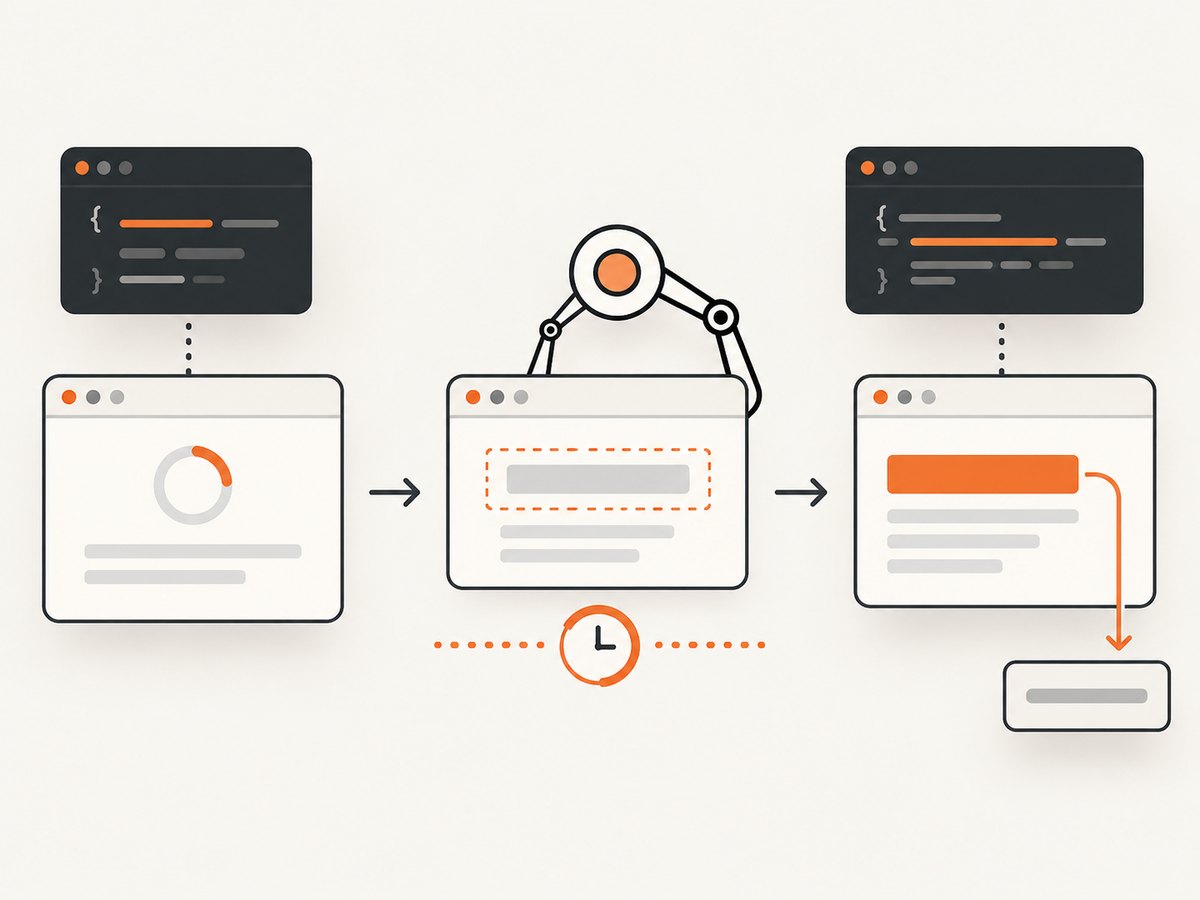
Finding an element only proves that a matching node exists. React may initially render an empty container, a loading label or an old value and then replace its children after an API response or state update. Wait for the condition your test needs.
from selenium.webdriver.support.ui import WebDriverWait

expected = "Ready"
locator = (By.CSS_SELECTOR, "[data-testid='result']")

WebDriverWait(driver, 10).until(
    lambda d: d.find_element(*locator).text.strip() == expected
)
text = driver.find_element(*locator).text
For text that is not known exactly, check a predicate:
WebDriverWait(driver, 10).until(
    lambda d: "completed" in d.find_element(*locator).text.lower()
)
text = driver.find_element(*locator).text
Explicit waits poll until a condition is true or the timeout expires. They are more reliable than a fixed sleep because a sleep guesses how long rendering will take. Selenium’s waiting guidance explains that document readyState covers assets declared in HTML, while JavaScript can change the page afterward. See the Selenium waiting strategies documentation.
3. Text, form values, attributes and properties
| Target | Use | Why |
|---|---|---|
| Heading, paragraph, span, button label | element.text (Python) or await element.getText() (JavaScript) |
Reads visible rendered text and descendant text. |
<input> or <textarea> contents |
element.get_property("value") (Python) or await element.getAttribute("value") (JavaScript) |
The user-entered value is a DOM property, not child text. |
Attribute such as aria-label or data-status |
get_attribute / getAttribute |
Reads the requested attribute rather than rendered content. |
| Markup | get_attribute("innerHTML") |
Returns HTML, including tags; it is not plain displayed text. |
field = driver.find_element(By.NAME, "query")
value = field.get_property("value")
print(value)
Use the API that matches the data you actually need. Selenium’s element information documentation distinguishes rendered text from attributes and properties: Information about web elements.

4. Handle React rerenders and stale elements
React can replace a node during a state update. A previously stored WebElement may then refer to a detached node and raise StaleElementReferenceException. Locate the element again after the update, preferably inside the wait:
from selenium.common.exceptions import StaleElementReferenceException

def current_text(d):
    try:
        return d.find_element(*locator).text.strip()
    except StaleElementReferenceException:
        return False

WebDriverWait(driver, 10, ignored_exceptions=(StaleElementReferenceException,)).until(
    lambda d: current_text(d) == "Ready"
)
text = driver.find_element(*locator).text
Do not keep a reference across an operation that is known to rebuild the result list, route, modal or component. Re-find it when you need the final value.
5. Complete Selenium JavaScript example
The official Selenium JavaScript API calls the operation getText(). This Node.js example waits for the exact rendered value.
const { Builder, By, until } = require('selenium-webdriver');

(async function readReactText() {
  const driver = await new Builder().forBrowser('chrome').build();
  try {
    await driver.get('https://example.com/results');
    const locator = By.css("[data-testid='result']");
    const element = await driver.wait(until.elementLocated(locator), 10000);

    await driver.wait(async () => {
      const text = await (await driver.findElement(locator)).getText();
      return text.trim() === 'Ready';
    }, 10000);

    const text = await (await driver.findElement(locator)).getText();
    console.log(text);
  } finally {
    await driver.quit();
  }
})();
For an input in JavaScript:
const value = await (await driver.findElement(By.name('query')))
  .getAttribute('value');
Install the binding with npm install selenium-webdriver and ensure a compatible browser driver is available.
6. Locators that survive React changes
- Prefer a stable
id, dedicateddata-testid, or semantic accessibility locator. - Use a selector for the element whose text you need, not a high-level wrapper that also contains navigation or hidden content.
- Avoid selectors based on generated class names or deeply nested positions; bundlers and component changes can alter them.
- If several results exist, scope the locator to the correct card, row or dialog.
card = driver.find_element(By.CSS_SELECTOR, "[data-testid='order-card']")
status = card.find_element(By.CSS_SELECTOR, "[data-testid='status']").text
7. Frames, shadow DOM and visibility
Frames
If the React app is inside an iframe, switch to it before locating the element:
frame = WebDriverWait(driver, 10).until(
    lambda d: d.find_element(By.CSS_SELECTOR, "iframe[data-testid='app-frame']")
)
driver.switch_to.frame(frame)
text = WebDriverWait(driver, 10).until(
    lambda d: d.find_element(*locator).text.strip() or False
)
Return with driver.switch_to.default_content() when you need the outer document.
Shadow DOM
Elements inside a shadow root require shadow-root traversal supported by your Selenium binding and browser. A normal document CSS selector may not cross that boundary.
Hidden text
.text is for visible rendered text. Text in hidden nodes, collapsed panels or CSS-generated content may not be returned. Make the intended UI state visible, or retrieve the specific DOM property if the requirement is not user-visible text.
8. Why Selenium returns an empty string
- The render is still pending. Wait for the expected text or application state.
- The selector matches an empty wrapper. Inspect the DOM and target the child that owns the text.
- The text is an input value. Read the
valueproperty. - The node is hidden. Selenium’s text API reports visible rendered text.
- You are in the wrong frame. Switch to the iframe first.
- React replaced the node. Re-find it after the state update and handle stale references.
- The expected text contains whitespace or changing data. Normalize with
.strip()or assert a stable substring. - The page needs authentication or a different route. Confirm navigation, cookies and application state before reading.
9. Troubleshooting checklist
| Symptom | Likely cause | Fix |
|---|---|---|
NoSuchElementException |
Rendered node is not present yet, wrong selector or wrong frame | Use WebDriverWait, verify the locator, and switch frames. |
| Empty string | Loading state, hidden text, wrapper element or form control | Wait for text, target the visible child, or read value. |
StaleElementReferenceException |
React replaced the element | Find the element again inside the wait or after the update. |
| Timeout waiting for text | Expected value is wrong, request failed, or UI never reaches that state | Capture the current text, inspect network/application state, and verify the expected condition. |
| Text includes unexpected descendants | Locator is too broad | Scope it to the exact label, status or value node. |
| Intermittent results | Timing race or mixed wait strategies | Wait on the application condition and avoid mixing implicit and explicit waits. |
10. Wait strategy, performance and reliability
- Use one explicit timeout appropriate to the slowest legitimate response and fail clearly when it expires.
- Wait for a meaningful state such as a status, row count or non-loading label instead of sleeping for an arbitrary duration.
- Keep locators narrow so Selenium performs less DOM searching and your assertion describes the intended element.
- Read the final text once after the condition succeeds; repeated browser round trips add latency.
- Use a fresh driver per isolated test when state leakage could affect results, and clean up with
quit(). - Do not mix implicit and explicit waits. Selenium documents that their combined timing can become unpredictable.
- For highly dynamic pages, log the current URL, locator and observed text when a wait times out. This makes failures diagnosable without weakening the assertion.
Selenium is appropriate when you need browser behavior, interaction and user-visible rendering. If you only need a static API response, calling the application’s data endpoint may be faster, but that is a different test target and may not represent what a user sees.
11. Or skip the browser setup
If your goal is a clean image or PDF of a rendered React page rather than an in-browser assertion, ScreenshotNeo provides a single screenshot API request. It accepts consent banners before capture and removes more than 60 known consent platforms, newsletter popups and chat widgets. Bot checks, blank pages, timeouts, failed loads and cache hits are not billed, and response headers report the page verdict and billing status. It also provides an MCP server with take_screenshot, get_page_info and capture_pdf for AI agents.
See the ScreenshotNeo API documentation for options such as full-page capture, CSS selectors, waits, custom JavaScript, device presets and PDF output.
curl -G "https://api.screenshotneo.com/v1/shot" -d access_key=YOUR_API_KEY --data-urlencode url=https://stripe.com -o shot.webpimport requests
r = requests.get("https://api.screenshotneo.com/v1/shot", params={"access_key": "YOUR_API_KEY", "url": "https://stripe.com"}, timeout=90)
open("shot.webp", "wb").write(r.content)const q = new URLSearchParams({ access_key: 'YOUR_API_KEY', url: 'https://stripe.com' });
const res = await fetch(`https://api.screenshotneo.com/v1/shot?${q}`);There is a free plan with 1,000 screenshots per month and no card; paid plans start at $5 for 3,000 shots. Create a free ScreenshotNeo account.
12. FAQ
Does Selenium read React component state directly?
No. It reads the DOM rendered by the browser. Expose the state through visible content, an attribute or a form value, then use the matching Selenium API.
Should I use innerText or Selenium’s text method?
Use the WebElement text API for normal visible text. It represents rendered inner text and handles descendant text for you.
Why does a fixed sleep sometimes pass and sometimes fail?
Network and rendering time vary. A sleep can finish before React updates or waste time after the update. Wait for the expected condition instead.
Can I read text before the page reports complete?
You can, but it may be a loading or partial state. Navigation completion does not guarantee that JavaScript-driven content has rendered.
What should I assert for changing text?
Assert a stable condition such as a status substring, a known label, a row count or a value pattern rather than an entire string that includes timestamps or generated IDs.
Primary references: Selenium WebElement API, Selenium element information, Selenium waiting strategies, and React common components.


