How to Get a Span’s Numeric Value with JavaScript and Puppeteer
Read a span in Puppeteer, choose the right text property, and convert its contents safely. Includes missing elements, formatted numbers, and troubleshooting.

To get a span’s numeric value with JavaScript and Puppeteer, select the element, read its text in the browser page, convert the complete trimmed string with Number(), and check that the result is finite. For example:
const value = await page.$eval('.price', element =>
  Number(element.textContent.trim())
);

if (!Number.isFinite(value)) {
  throw new Error('The span did not contain a finite number');
}
page.$eval() uses the first matching element and throws if there is no match. This example expects the span’s whole text to be numeric, such as 12.50. If the text includes a currency symbol, units, hidden content, or locale-specific separators, decide how to handle that format before converting it.
Puppeteer is a JavaScript library for controlling Chrome or Firefox through browser automation interfaces. Its official documentation describes its high-level browser control API. This guide focuses on extracting a number from a span after a page is available in Puppeteer.
1. Set up a runnable Puppeteer example
Install Puppeteer in a new Node.js project:
npm init -y
npm install puppeteer
Save the following as read-price.js. It opens a page, waits for a span, extracts its text, converts it, and closes the browser even if an error occurs.
const puppeteer = require('puppeteer');

async function main() {
  const browser = await puppeteer.launch({ headless: true });

  try {
    const page = await browser.newPage();
    await page.goto('https://example.com', { waitUntil: 'domcontentloaded' });

    const selector = '.price';
    await page.waitForSelector(selector, { timeout: 10_000 });

    const rawText = await page.$eval(selector, element =>
      element.textContent.trim()
    );
    const value = Number(rawText);

    if (!Number.isFinite(value)) {
      throw new Error(`Expected a finite number in ${selector}; got ${JSON.stringify(rawText)}`);
    }

    console.log({ rawText, value });
  } finally {
    await browser.close();
  }
}

main().catch(error => {
  console.error(error);
  process.exitCode = 1;
});
Replace the example URL and selector with the page and span you need. If the value appears after client-side rendering, wait for the relevant selector or application state rather than assuming it exists immediately after navigation.
2. Read the span in the page context
Puppeteer runs the callback passed to $eval() in the browser page. The callback receives the matched DOM element; its return value is transferred back to your Node.js code. Keep DOM access inside that callback: a DOM element is not a normal Node.js object that you can inspect directly after returning it.
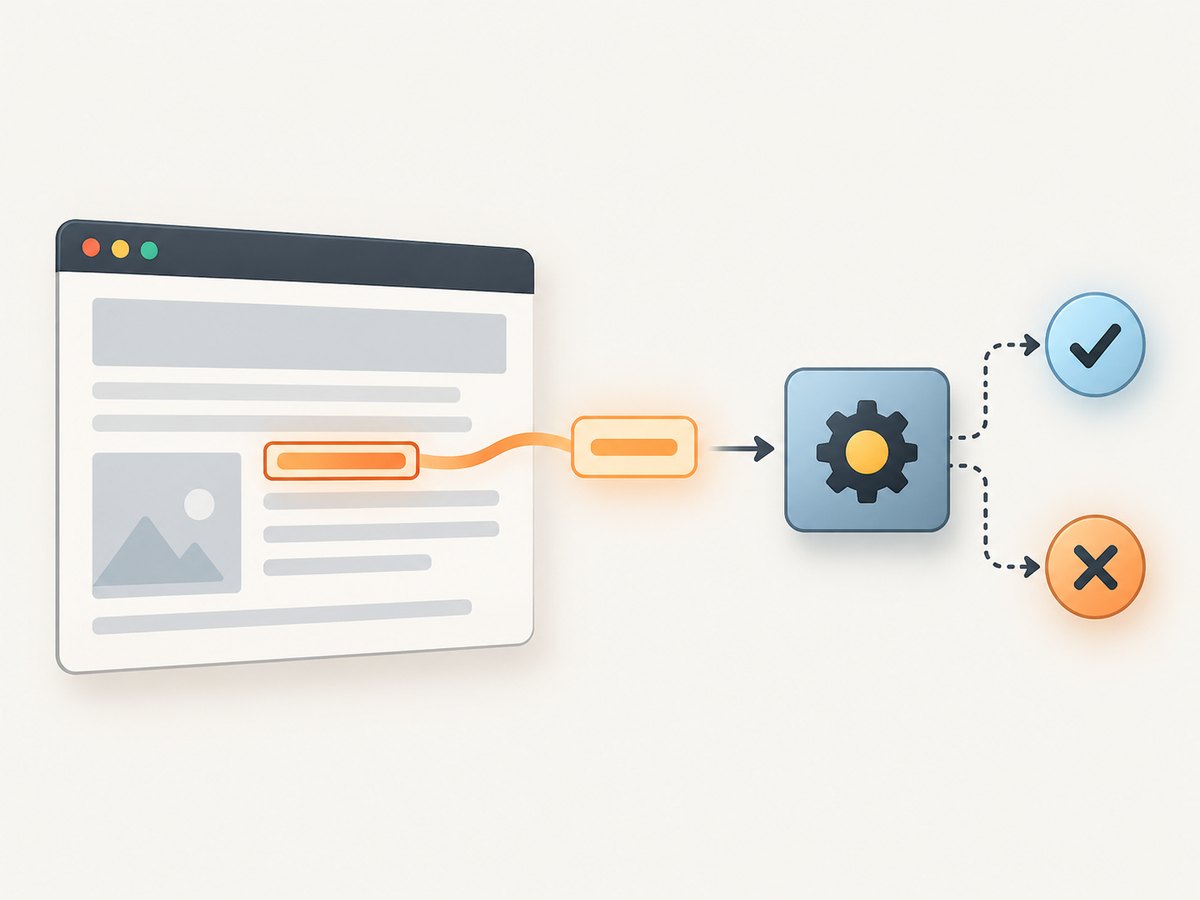
Use $eval() for one expected match
const rawText = await page.$eval('.price', element =>
  element.textContent.trim()
);
This is concise when the selector is expected to match exactly one relevant span. It reads the first match. If there is no match, Puppeteer throws, so catch that error or wait for the selector when absence is expected during loading.
Use evaluate() for custom lookup behavior
page.evaluate() runs a function in the page context too. It is useful when you want a missing element to produce a specific result instead of having $eval() throw:
const result = await page.evaluate(selector => {
  const element = document.querySelector(selector);
  if (!element) return null;
  return element.textContent.trim();
}, '.price');

if (result === null) {
  throw new Error('Could not find the price span');
}
The selector is passed as an argument, which keeps the page function self-contained and avoids relying on variables from the Node.js scope. The callback’s returned value must be serializable for transfer back to Node.js; a string, number, boolean, array, plain object, or null is suitable.
Use $$eval() for repeated spans
When a page has a list of values, $$eval() passes all matching elements to the page function:
const rawValues = await page.$$eval('.price', elements =>
  elements.map(element => element.textContent.trim())
);

const values = rawValues.map(Number);
const invalid = values.filter(value => !Number.isFinite(value));
if (invalid.length > 0) {
  throw new Error(`Found ${invalid.length} non-numeric price value(s)`);
}
For more useful diagnostics, return each source string with its parsed result or validate inside the browser callback and return per-element errors. Do not silently drop invalid entries unless skipping them is part of the task.
3. Choose textContent or innerText
| Property | What it represents | Use it when |
|---|---|---|
textContent |
Text content of the node and descendants, regardless of visual rendering. | The DOM text is the intended machine-readable input and hidden descendants should not affect the result. |
innerText |
Rendered, human-readable text that accounts for styling and hidden content. | You specifically need the visible text a reader sees. |
innerText can trigger layout work so the browser can determine the rendered text. Prefer textContent for straightforward DOM extraction when visibility does not matter. If a span contains a hidden accessibility label or nested markup, inspect the actual markup and choose the property that matches the value contract.
// DOM text, including text in descendants whether rendered or not
const domText = await page.$eval('.price', element =>
  element.textContent.trim()
);

// Rendered human-readable text
const visibleText = await page.$eval('.price', element =>
  element.innerText.trim()
);
4. Convert the text according to its format
Strict whole-string conversion
Number(text.trim()) is a good default when the entire value must be numeric. It rejects leftover text: Number('12.5 USD') is NaN instead of quietly accepting part of the string. Always check validity when invalid input should stop the operation:
function toFiniteNumber(text) {
  const value = Number(text.trim());
  if (!Number.isFinite(value)) {
    throw new Error(`Not a finite number: ${JSON.stringify(text)}`);
  }
  return value;
}

const value = await page.$eval('.price', element =>
  toFiniteNumber(element.textContent)
);
Note: the function above cannot call a Node.js helper from inside the page context. Define the conversion within the callback, or return the text first and convert it in Node.js. A runnable version is:
const rawText = await page.$eval('.price', element =>
  element.textContent.trim()
);
const value = Number(rawText);
if (!Number.isFinite(value)) {
  throw new Error(`Not a finite number: ${JSON.stringify(rawText)}`);
}
Use parseFloat() only for deliberate prefix parsing
parseFloat() reads the longest valid numeric prefix. Thus parseFloat('12.5 USD') returns 12.5. That can be useful for a known format, but can also conceal unwanted suffixes, markup, or a changed page. It is not a locale-aware parser.
const rawText = await page.$eval('.price', element =>
  element.textContent.trim()
);
const value = Number.parseFloat(rawText);
if (!Number.isFinite(value)) {
  throw new Error(`No finite numeric prefix in ${JSON.stringify(rawText)}`);
}
Normalize known currency or separator formats explicitly
JavaScript numeric conversion does not infer that a comma is a thousands separator or a decimal mark. For example, a value displayed as 1,234.50 needs a format-specific transformation. Do not remove punctuation generically: 1,25 might mean one and a quarter in one convention, while another page could use commas for grouping.
// Example only for a known format: comma grouping, period decimal.
function parseGroupedDecimal(text) {
  const normalized = text.trim().replaceAll(',', '');
  if (!/^[-+]?(?:\d+\.?\d*|\.\d+)$/.test(normalized)) {
    throw new Error(`Unexpected grouped decimal format: ${JSON.stringify(text)}`);
  }
  const value = Number(normalized);
  if (!Number.isFinite(value)) throw new Error('Value is not finite');
  return value;
}

const rawText = await page.$eval('.price', element =>
  element.textContent.trim()
);
const value = parseGroupedDecimal(rawText);
For currency, strip only the expected symbol and whitespace, then validate the remaining string against the page’s documented convention. For financial calculations requiring exact decimal arithmetic, a JavaScript floating-point number may not preserve decimal currency precision; retain the normalized decimal string or use an appropriate decimal representation for subsequent calculations.
5. Handle loading, absence, and changing content
- Wait for the element. Use
waitForSelector()when client rendering may add the span after navigation. - Set a bounded timeout. A timeout makes a stalled or changed page fail clearly instead of waiting forever.
- Read and validate close together. Avoid reading once to check and again to parse if the page can update between operations.
- Report the selector and raw text. Diagnostics make selector drift and formatting changes easier to identify.
const selector = '[data-testid="total"]';
await page.waitForSelector(selector, { timeout: 15_000 });

const rawText = await page.$eval(selector, element =>
  element.textContent.trim()
);
const value = Number(rawText);

if (!Number.isFinite(value)) {
  throw new Error(`Expected numeric text at ${selector}; received ${JSON.stringify(rawText)}`);
}
If content is updated after the element first appears, waiting for the selector alone may be insufficient: it only establishes that a match exists. Wait for a known application condition, a specific expected text, or a page event appropriate to the site. Avoid arbitrary long sleeps when a condition can be checked directly.
6. Or skip the browser setup
If your goal is to capture the page rather than run custom DOM logic, ScreenshotNeo provides a website screenshot API. It cannot replace Puppeteer code that needs to return a span’s numeric value, but it can handle the screenshot side without installing or managing a browser. See the API documentation.

curl -G "https://api.screenshotneo.com/v1/shot" -d access_key=YOUR_API_KEY --data-urlencode url=https://stripe.com -o shot.webpimport requests
r = requests.get(
"https://api.screenshotneo.com/v1/shot",
params={"access_key": "YOUR_API_KEY", "url": "https://stripe.com"},
timeout=90,
)
r.raise_for_status()
open("shot.webp", "wb").write(r.content)const q = new URLSearchParams({ access_key: 'YOUR_API_KEY', url: 'https://stripe.com' });
const res = await fetch(`https://api.screenshotneo.com/v1/shot?${q}`);
if (!res.ok) throw new Error(`Screenshot request failed: ${res.status}`);
const bytes = Buffer.from(await res.arrayBuffer());
require('node:fs').writeFileSync('shot.webp', bytes);ScreenshotNeo removes cookie and consent banners, newsletter popups, and chat widgets before capture; each of those steps can be turned off. Bot checks, blank pages, failed loads, timeouts, and cache hits are not billed, and the response reports the page verdict and billing status in headers. Its MCP server gives AI agents tools to take screenshots, get page information, and capture PDFs. The free plan includes 1,000 screenshots a month with no card; paid plans start at $5 for 3,000 shots. Sign up for 1,000 free screenshots a month, with no card required.
7. Performance, reliability, and cost considerations
- Keep work in one page evaluation. Extracting and trimming text in one callback avoids separate browser round trips for each DOM operation.
- Prefer
textContentwhen visibility is irrelevant. It avoids the rendered-text semantics and possible layout work ofinnerText. - Wait on conditions, not long sleeps. Selector or application-state waits reduce unnecessary delay while still handling client rendering.
- Close browser resources. Close each page/browser in cleanup paths, particularly in scripts processing many URLs.
- Make failures observable. Log URL, selector, raw string, and error category, while avoiding sensitive page content in logs.
- Validate the source format. A selector can still match while the page’s meaning or number formatting has changed.
For a local Puppeteer script, costs depend on the machine and runtime environment; this extraction requires no separate screenshot service. Browser startup and page loading usually dominate the small cost of selecting a span. If you only need a numeric value, do not capture an image as an extra step. If you also need a screenshot, decide whether maintaining a browser is worthwhile or use a screenshot API. ScreenshotNeo’s stated plans range from its free 1,000 monthly shots to paid tiers; consult its site for current plan details.
8. Troubleshooting
| Symptom | Likely cause | Fix |
|---|---|---|
Waiting for selector failed or timeout |
The selector is wrong, the element is added later, or the page did not load the expected state. | Inspect the live DOM, use a stable selector, and wait for the relevant condition with a bounded timeout. |
$eval reports no element |
No node matched at the time of evaluation. | Wait first, or use evaluate() with an explicit missing-element branch. |
The result is NaN |
The text is empty, contains extra characters, or uses a format JavaScript does not parse as expected. | Log the trimmed raw text, define the expected format, normalize that format explicitly, and validate. |
| The number is unexpectedly partial | parseFloat() accepted a numeric prefix and ignored the rest. |
Use Number() for a whole-string contract, or validate the suffix before prefix parsing. |
| The value includes hidden text | textContent includes descendant text without regard to rendering. |
Use innerText if visible text is intended, or select the specific child containing the numeric value. |
| The visible value differs from the DOM result | The page uses CSS, hidden nodes, or delayed updates to change what is rendered. | Compare innerText with textContent and wait for the page’s final rendered state. |
| Browser launch fails in a deployment environment | The runtime may lack browser dependencies or have an incompatible launch configuration. | Check Puppeteer’s installation and environment documentation, ensure its supported browser is available, and inspect the full launch error. |
9. FAQ
Does page.$eval() return a number automatically?
No. It returns whatever the page callback returns. Read text and explicitly convert it to a number.
Can I read the span’s HTML instead?
You can return innerHTML, but markup is not the numeric value. Prefer text content, then apply the page’s known parsing rules.
Should I use Number() or parseFloat()?
Use Number() when the complete trimmed string must be numeric. Use parseFloat() only when accepting a numeric prefix is intentional.
Can ScreenshotNeo extract a span’s number?
ScreenshotNeo is a screenshot API and MCP server. Use Puppeteer when you need custom DOM extraction; use ScreenshotNeo when you need the page captured as an image or PDF.


