How to Get the Correct WebElement Height With Selenium
Measure rendered WebElement height correctly in Selenium, distinguish it from scrollHeight, and troubleshoot dynamic layouts in Java, Python, and JavaScript.

Use Selenium’s element size API for the rendered height. In Java, call element.getSize().getHeight(). In Python, read element.size["height"]. In JavaScript, read the height returned by getRect(). These values describe the element’s rendered dimensions in pixels. If you need the full content inside a scrolling element, read its DOM scrollHeight separately.
Selenium’s element information documentation describes size and position measurements. The Java API documents getSize() as the rendered width and height and getRect() as location plus size. The Python and JavaScript APIs expose the same concepts through binding-specific names.
1. Choose the measurement you actually need
| Need | Java | Python | JavaScript |
|---|---|---|---|
| Rendered element height | element.getSize().getHeight() |
element.size["height"] |
(await element.getRect()).height |
| Rendered size and coordinates | element.getRect() |
element.rect |
element.getRect() |
| Full scrollable content extent | Run JavaScript and return arguments[0].scrollHeight |
||
“Height” can mean different things:
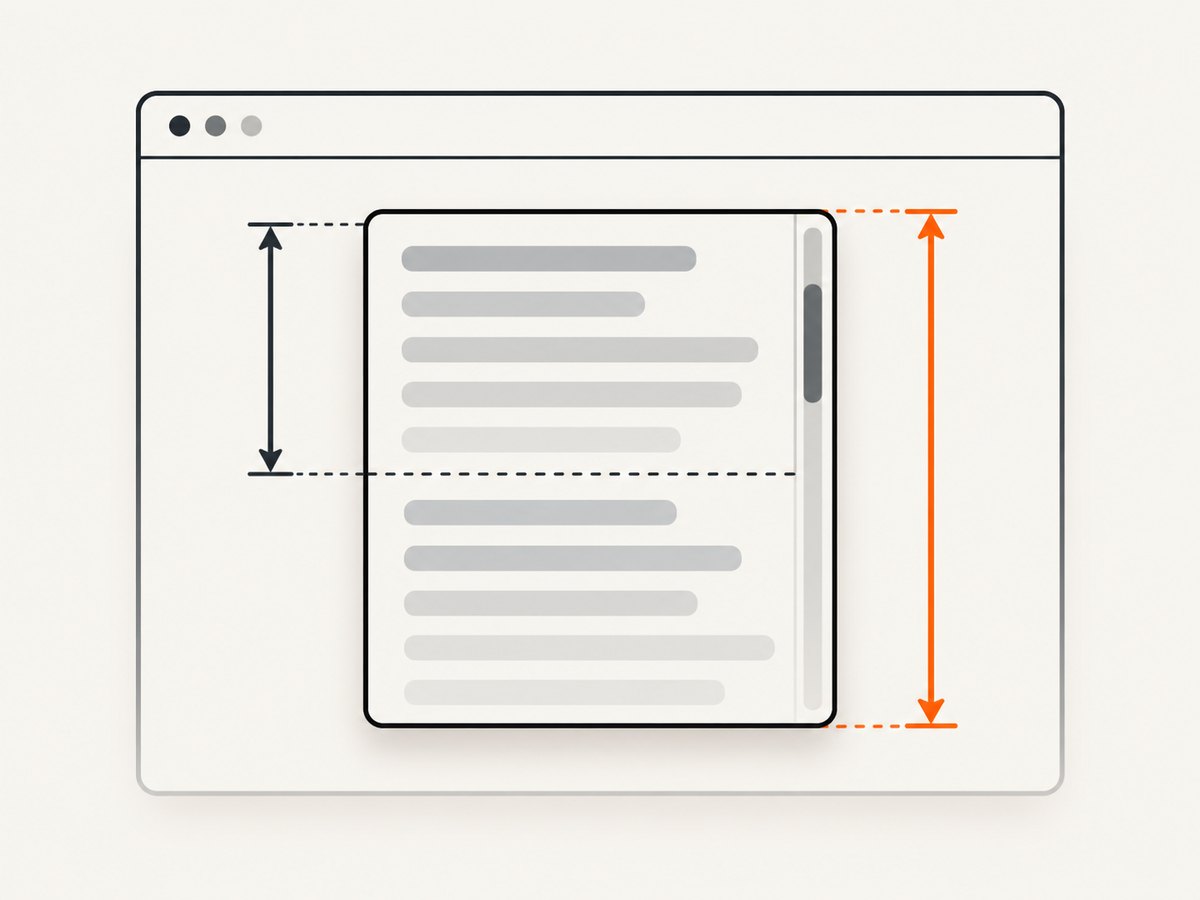
- Rendered height: the size Selenium reports for the WebElement.
- Content height: the DOM element’s scrollable extent, available as
scrollHeight. - CSS height: a computed style value, which is not automatically the same as the rendered box.
- Offset height: a browser DOM layout metric with its own box-model semantics.
Do not substitute one metric for another without stating the intended meaning. For an element with no overflow, rendered height and scrollHeight may happen to match.
2. Java: get the rendered WebElement height
import org.openqa.selenium.By;
import org.openqa.selenium.WebDriver;
import org.openqa.selenium.WebElement;
import org.openqa.selenium.chrome.ChromeDriver;

public class ElementHeight {
    public static void main(String[] args) {
        WebDriver driver = new ChromeDriver();
        try {
            driver.get("https://example.com");
            WebElement element = driver.findElement(By.cssSelector(".target"));

            int height = element.getSize().getHeight();
            System.out.println("Rendered height: " + height + " px");
        } finally {
            driver.quit();
        }
    }
}
getSize() returns a Selenium Dimension. Use getWidth() for the corresponding width.
Java: include position with getRect()
import org.openqa.selenium.Rectangle;

Rectangle rect = element.getRect();
int height = rect.getHeight();
int width = rect.getWidth();
int x = rect.getX();
int y = rect.getY();
Use getRect() when your layout check also needs the element’s coordinates. See the Java WebElement API.
Java: read scrollable content height
import org.openqa.selenium.JavascriptExecutor;

JavascriptExecutor js = (JavascriptExecutor) driver;
Long contentHeight = (Long) js.executeScript(
    "return arguments[0].scrollHeight;", element);
System.out.println("Scrollable content height: " + contentHeight + " px");
3. Python: use size or rect
from selenium import webdriver
from selenium.webdriver.common.by import By

with webdriver.Chrome() as driver:
    driver.get("https://example.com")
    element = driver.find_element(By.CSS_SELECTOR, ".target")

    height = element.size["height"]
    print(f"Rendered height: {height} px")
The Python binding exposes the rendered dimensions through size. Its rect property includes both location and dimensions, as documented in the Python WebElement implementation.
rect = element.rect
height = rect["height"]
print(rect["x"], rect["y"], rect["width"], rect["height"])
Python: read full scrollable content
content_height = driver.execute_script(
    "return arguments[0].scrollHeight;", element
)
print(f"Scrollable content height: {content_height} px")
4. JavaScript: getRect().height
const { Builder, By } = require('selenium-webdriver');

(async function () {
  const driver = await new Builder().forBrowser('chrome').build();
  try {
    await driver.get('https://example.com');
    const element = await driver.findElement(By.css('.target'));
    const rect = await element.getRect();
    console.log(`Rendered height: ${rect.height} px`);
  } finally {
    await driver.quit();
  }
})();
The JavaScript API’s getRect() returns x, y, width, and height in pixels. See the JavaScript WebElement API.
JavaScript: read scrollHeight
const contentHeight = await driver.executeScript(
  'return arguments[0].scrollHeight;',
  element
);
console.log(`Scrollable content height: ${contentHeight} px`);
5. Measure after the page reaches the state you need
Selenium reports the current rendered state. Images, web fonts, responsive breakpoints, client-side data, and animations can change that state after the element is found. Locate the element, wait for the relevant condition, then read its size.

Wait for visibility in Java
import java.time.Duration;
import org.openqa.selenium.support.ui.ExpectedConditions;
import org.openqa.selenium.support.ui.WebDriverWait;

WebDriverWait wait = new WebDriverWait(driver, Duration.ofSeconds(10));
WebElement element = wait.until(
    ExpectedConditions.visibilityOfElementLocated(By.cssSelector(".target")));
int height = element.getSize().getHeight();
Wait for visibility in Python
from selenium.webdriver.support.ui import WebDriverWait
from selenium.webdriver.support import expected_conditions as EC

wait = WebDriverWait(driver, 10)
element = wait.until(
    EC.visibility_of_element_located((By.CSS_SELECTOR, ".target")))
height = element.size["height"]
Wait for visibility in JavaScript
const element = await driver.wait(
  until.elementLocated(By.css('.target')),
  10000
);
await driver.wait(async () => element.isDisplayed(), 10000);
const height = (await element.getRect()).height;
For content that changes repeatedly, poll until the value is stable for your application rather than relying on an arbitrary sleep. Re-find the element after major DOM updates so a replaced node does not leave you with a stale reference.
6. Common mistakes and edge cases
- Using CSS height for layout: computed CSS can be
autoor exclude effects you care about. Use Selenium size for rendered dimensions. - Expecting size to include overflowing children: use
scrollHeightfor the content extent. - Measuring an invisible element: a hidden or not-yet-laid-out node can produce zero or unexpected dimensions.
- Wrong frame: switch into the iframe containing the target before locating it.
- Wrong window or tab: switch to the active window handle before reading the element.
- Animations in progress: capture after the transition or wait for a stable value.
- Responsive viewport differences: set a consistent browser window size when comparing runs.
- Fractional pixels: APIs describe pixel dimensions, but rounding and precision can vary by browser and binding. Verify behavior if subpixel accuracy matters.
7. Troubleshooting
| Error or symptom | Likely cause | Fix |
|---|---|---|
NoSuchElementException |
Selector is wrong or the element has not been inserted. | Check the selector, wait for presence, and switch to the correct frame. |
StaleElementReferenceException |
The page replaced the node after you located it. | Locate the element again after the update, then read its size. |
NoSuchWindowException |
The current tab or window was closed or is not selected. | Switch to a valid window handle before finding the element. |
| Height is zero | The element is hidden, collapsed, detached, or measured before layout. | Wait for visibility and inspect display, visibility, dimensions, and parent layout. |
| Height is smaller than expected | You measured the rendered box while content overflows. | Read scrollHeight and confirm that content height is what you need. |
| Different values across runs | Late images, fonts, data, responsive layout, or animation changed the page. | Control viewport, wait for the relevant condition, and measure again. |
Selenium’s legacy protocol documentation lists stale-element and no-such-window failures for element operations; modern bindings surface equivalent exceptions.
8. Performance, reliability, and cost
- Performance: reading an already located element’s size is lightweight. The expensive work is usually navigation, JavaScript execution, and waiting for page state.
- Reliability: make selectors specific, use explicit waits, control viewport and device settings, and avoid fixed sleeps where a condition can be observed.
- Repeatability: record the URL, viewport, browser version, frame, selector, metric used, and timestamp with each measurement.
- Parallel runs: isolate drivers and sessions. Do not share a WebDriver instance between concurrent tests.
- Cost: Selenium itself is open-source, but hosted browsers, CI minutes, proxy traffic, and storage can add operating cost. Measure only after the page state your test requires is ready.
9. Or skip the browser setup
If your goal is a stable screenshot or PDF rather than interactive browser assertions, ScreenshotNeo provides a single GET request. Its capture pipeline accepts consent banners and removes more than 60 known consent platforms, newsletter popups, and chat widgets before the shot; each step can be disabled. Bot checks, blank pages, timeouts, failed loads, and cache hits are not billed, and the response identifies the result with X-Page-Verdict and X-Billed headers. An MCP server provides take_screenshot, get_page_info, and capture_pdf tools for Claude, Cursor, and other MCP clients.
See the ScreenshotNeo API documentation for all options.
curl -G "https://api.screenshotneo.com/v1/shot" -d access_key=YOUR_API_KEY --data-urlencode url=https://stripe.com -o shot.webpimport requests
r = requests.get("https://api.screenshotneo.com/v1/shot", params={"access_key": "YOUR_API_KEY", "url": "https://stripe.com"}, timeout=90)
open("shot.webp", "wb").write(r.content)const q = new URLSearchParams({ access_key: 'YOUR_API_KEY', url: 'https://stripe.com' });
const res = await fetch(`https://api.screenshotneo.com/v1/shot?${q}`);ScreenshotNeo includes full-page capture with lazy images loaded, element capture by CSS selector, device presets and custom viewports, dark mode, retina scale, custom CSS and JavaScript, waits, request blocking, headers, cookies, user agents, authorization, timezone, geolocation, transparent backgrounds, resizing, caching, signed links, asynchronous jobs, bulk capture, usage reporting, and PDF controls. The Free plan includes 1,000 shots per month with no card; paid plans start at $5 for 3,000 shots. Create a free ScreenshotNeo account.
10. FAQ
Does Selenium return height in pixels?
Yes. The documented size and rectangle APIs describe rendered dimensions in pixels.
Which API should I use for only height?
Use getSize().getHeight() in Java, size["height"] in Python, or getRect().height in JavaScript.
How do I get the height of all content?
Execute JavaScript that returns the element’s scrollHeight. That is a DOM content metric, distinct from Selenium’s rendered size.
Why does my measured height change?
The current layout may still be changing because of images, fonts, responsive rules, asynchronous data, or animation. Wait for the relevant state and measure again.
Should I use getRect() or getSize() in Java?
Use getSize() for dimensions alone. Use getRect() when you also need x and y coordinates.


